




How to Build and Publish Live Dashboards with Claude and CData Connect AI
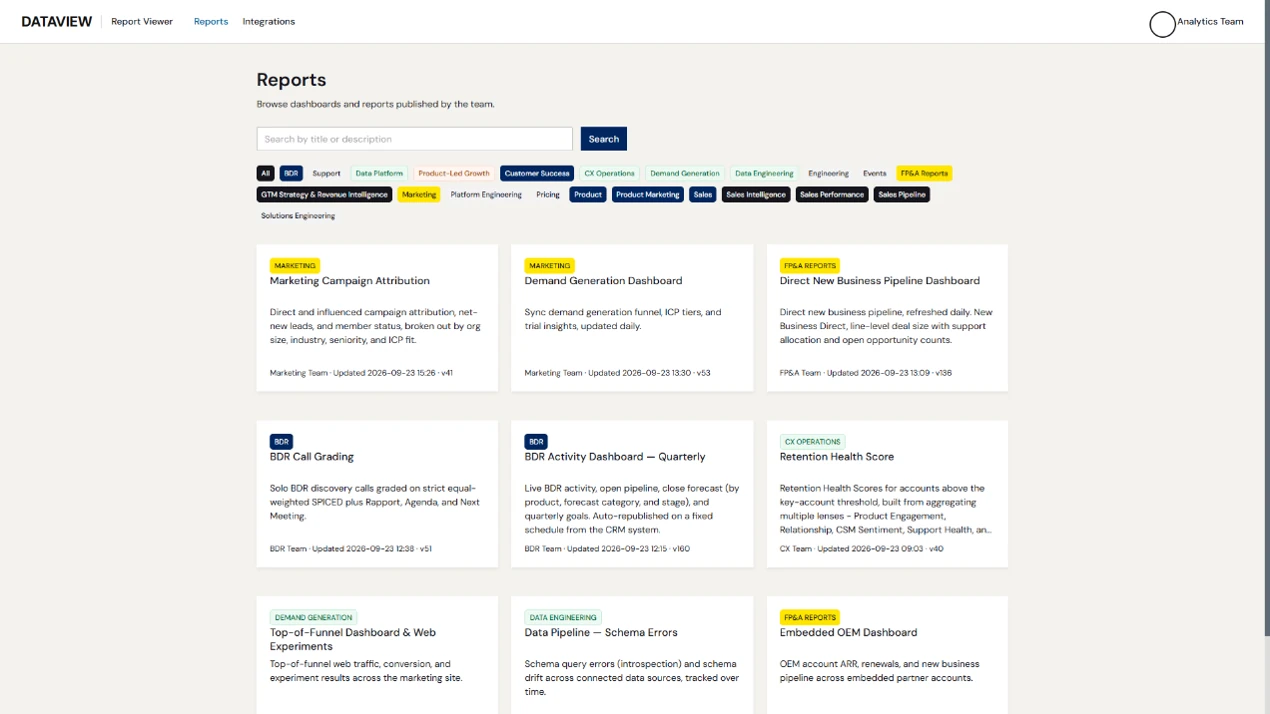
Reports and dashboards used to depend on a chain of teams and their queues: a data team to move the data, a modeling team to add context, and an analyst to build the report. The wait is where self-service reporting stalls, and teams often fall back on CSV exports or stop asking the question altogether. AI tools like Claude can build reports directly, but they must work from the same governed, live data the data team used.
This article walks through the setup that CData uses to do that. Connect your business systems like Salesforce, Zendesk, and Snowflake to Claude through CData Connect AI, give Claude the context to read those sources correctly, and then have Claude build a dashboard, publish it, and update it as the data changes.
For background on how self-service reporting works across CData, read How We Do Self-Service Reporting with AI at CData.
Prerequisites
Before you begin, make sure you have:
- A CData Connect AI account (sign up here)
- A Claude account
- A centralized server for hosting reports (optional, and it must expose an MCP server if you want Claude to publish for you)
Set up Connect AI
You only need to complete this section once. After that, every new report starts at the Claude prompt.
Step 1: Connect to your sources
CData Connect AI holds a live connection to each system, so Claude, or any other AI tool, fetches live data instead of reading an export. In the Connect AI console, click Sources in the left navigation, click Add Connection, and select your source from the list (in this case, Salesforce). Sign in with your own credentials, then repeat the process for any other sources you need to connect to.
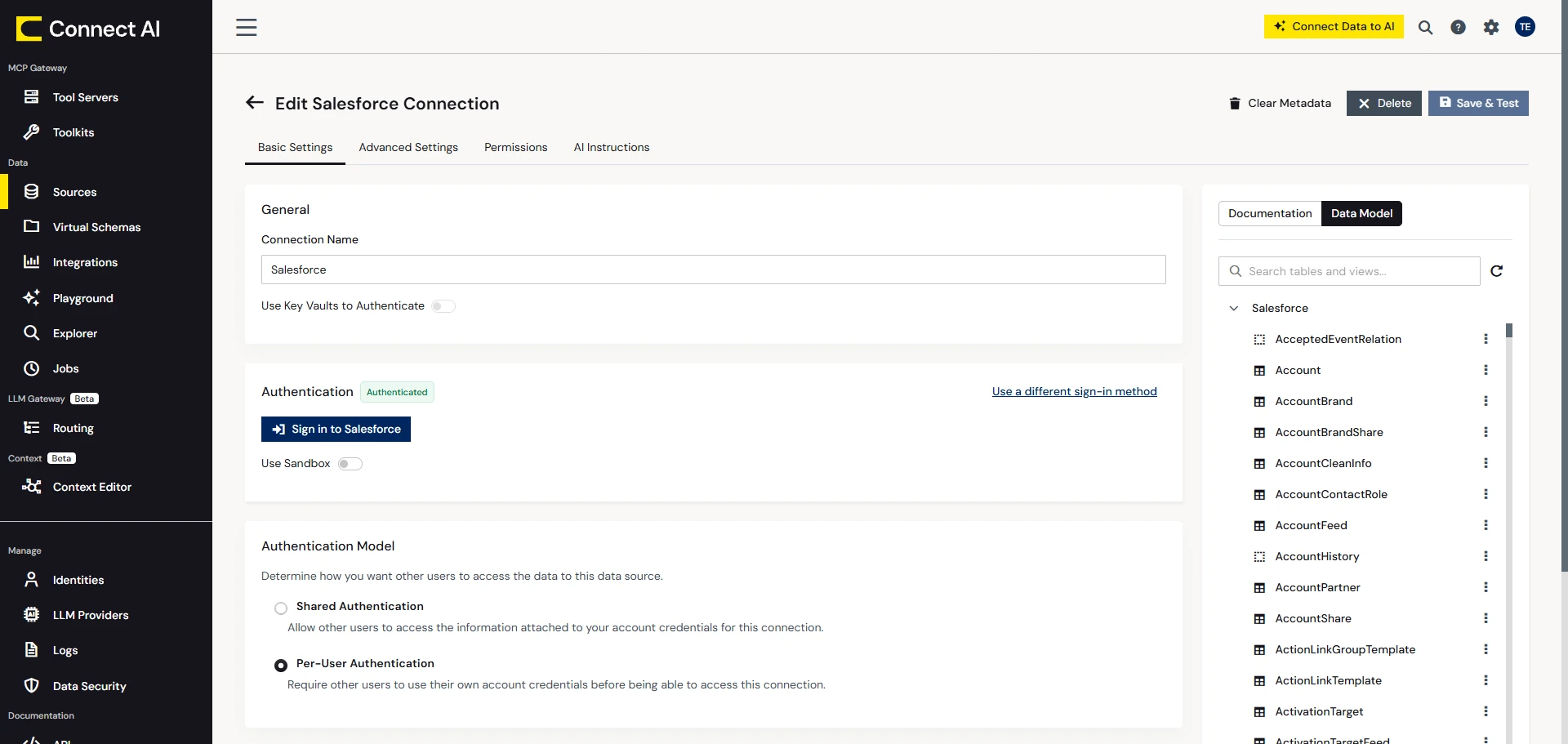
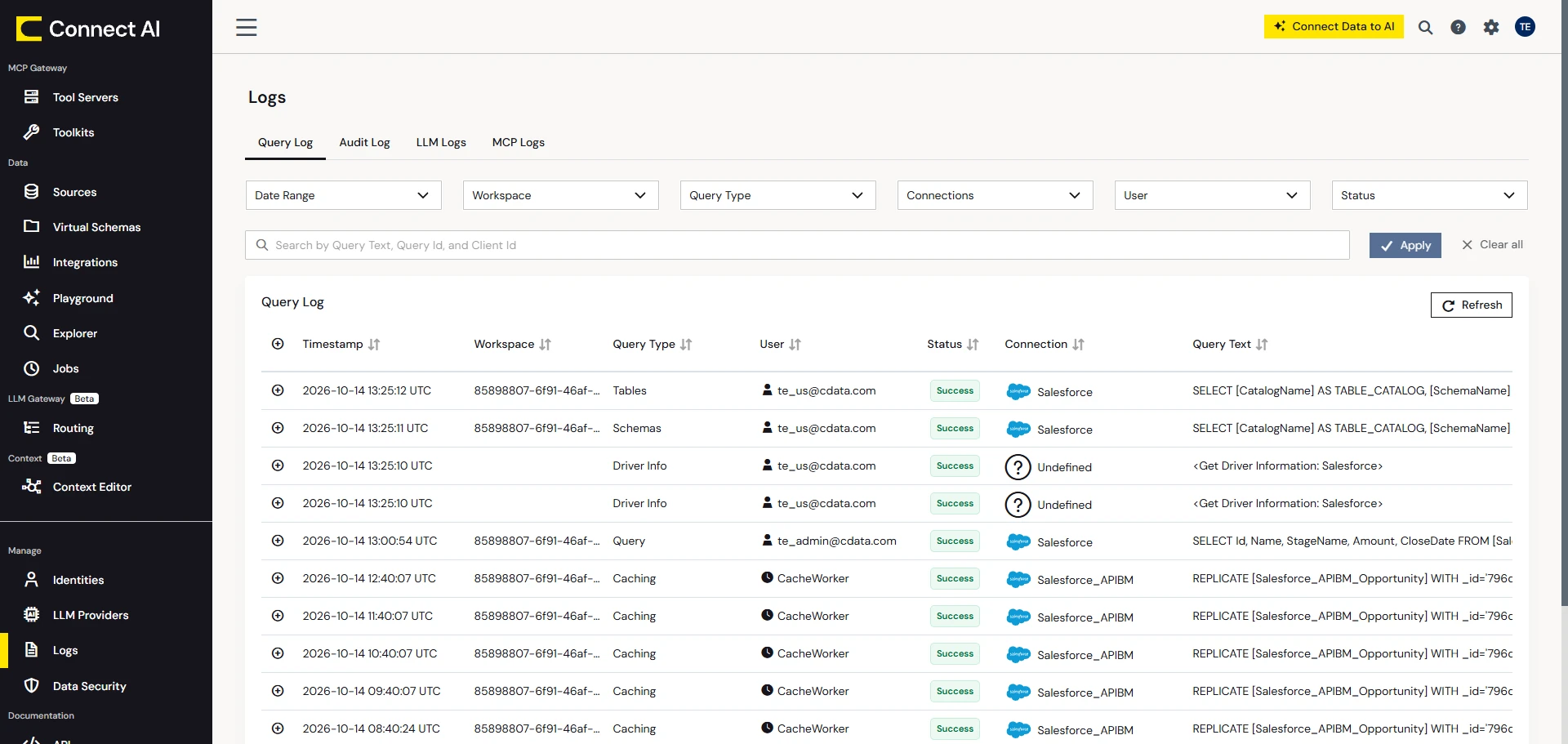
Connect AI passes your identity through to each source at query time, so Claude sees only what you can see, and every action taken is logged.
Step 2: Create context for each source
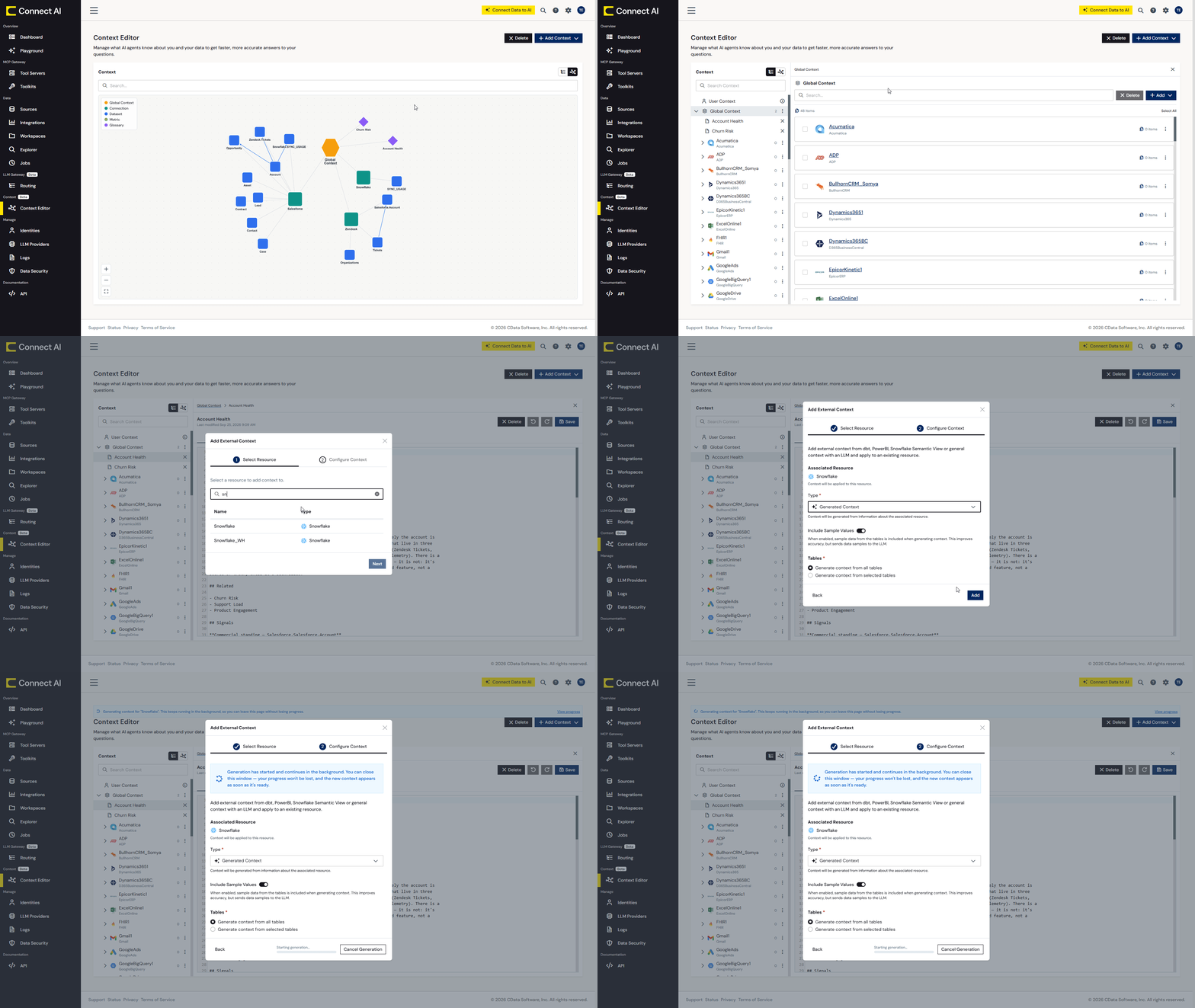
One of the harder parts of setting up AI is getting it to understand your data, your systems, and how your business operates. The Context Engine in the Connect AI Gateway keeps everything an AI tool needs to know in one open graph that any model can read.
AI tools retrieve this context with the search_context MCP tool that Connect AI exposes. Before any live data is fetched, the tool works out what is needed, where to get it, and how to fetch it in the most efficient way possible. Here’s how to build out that context in Connect AI:
- In the Connect AI console, open Context Editor.
- Click + Add Context, then select Add External Context.
- Select your Salesforce connection and click Next.
- Choose Generate Context, select Generate context from selected tables, pick the tables your report needs, and click Generate.
- Repeat the process for all your data sources. The output is one open, editable context layer that combines system context, semantic definitions, and company knowledge from how your users work with agents.
Generated context gives you a working baseline. From there, you can add your own definitions for the terms your team uses in prompts.
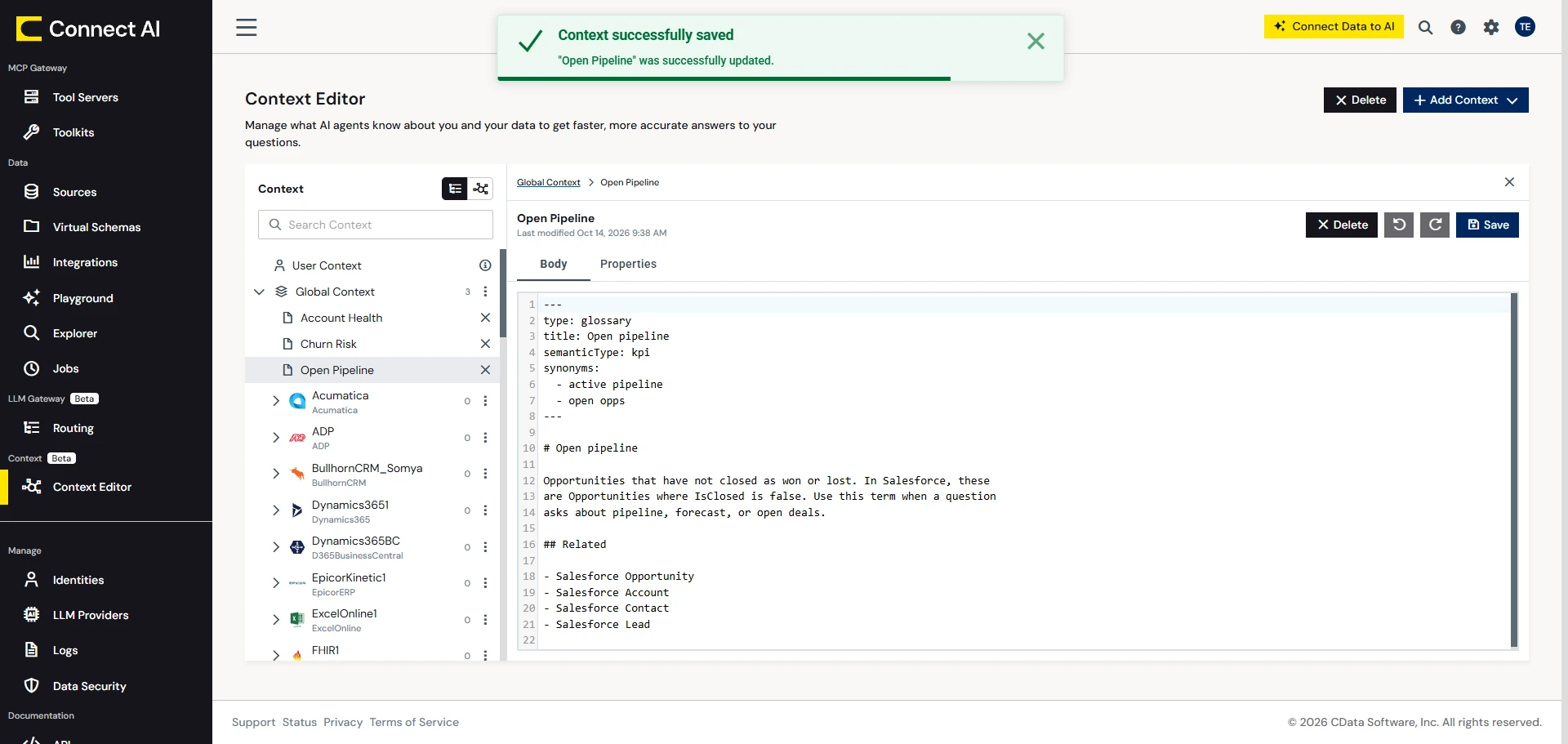
- In Context Editor, choose Add New Context, select Global Context so the definition applies to every connection, and fill in the template. A term like this tells Claude exactly what to filter on:
---
type: glossary
title: Open pipeline
semanticType: kpi
synonyms:
- active pipeline
- open opps
---

# Open pipeline

Opportunities that have not closed as won or lost. In Salesforce, these
are Opportunities where IsClosed is false. Use this term when a question
asks about pipeline, forecast, or open deals.

## Related

- Salesforce Opportunity
Step 3 (optional): Build a custom tool server
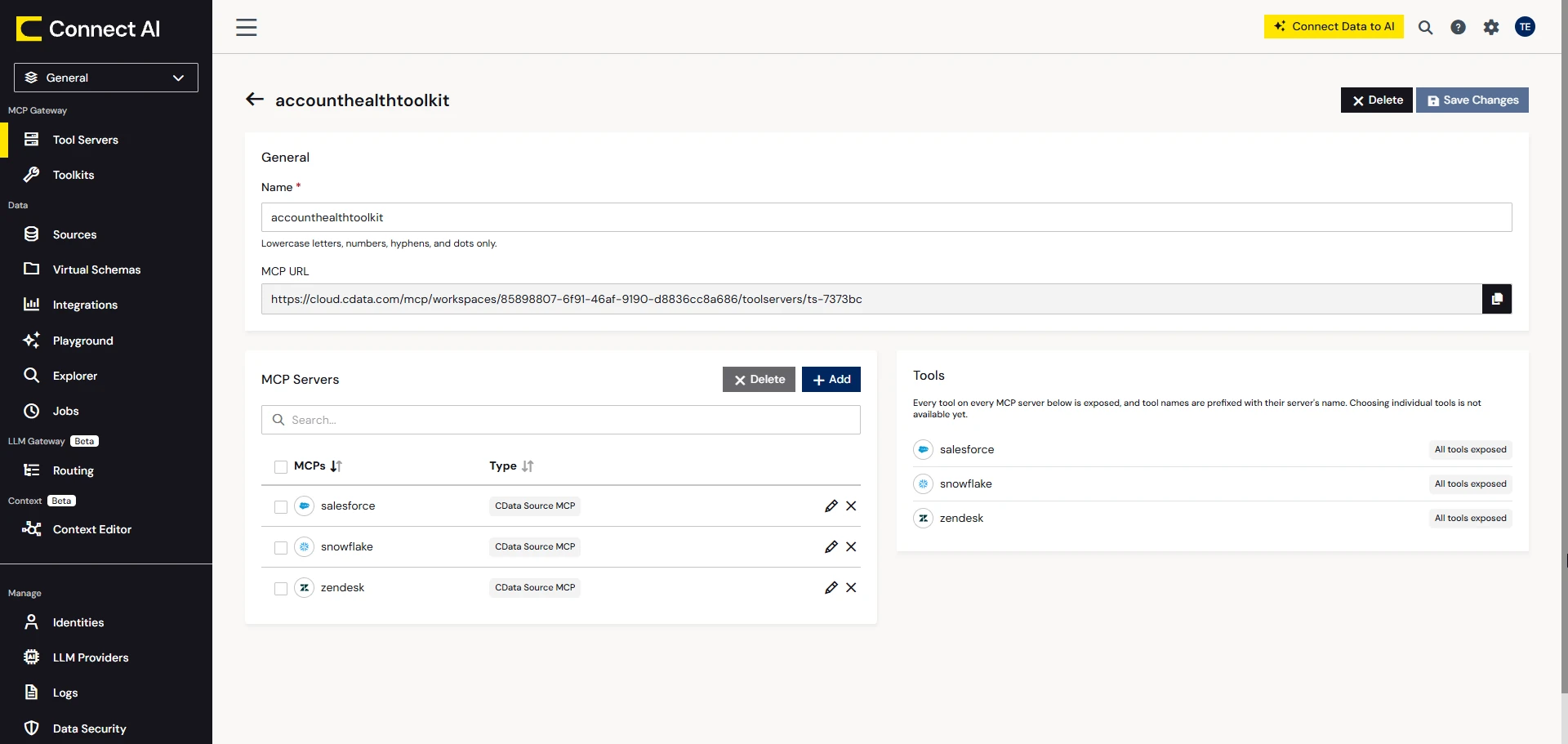
A tool server bundles the data sources you choose behind a single endpoint. It’s worth creating when a report only needs a few sources, or when you want to limit what users or AI can reach in those sources. Skip this step if the universal tools cover your needs.
- Select Tool Servers in the navigation menu and click + Add Tool Server.
- In Step 1: Details, enter a name for the tool server, for example account-health-reporting, then click Next.
- In Step 2: Select MCP Servers, select the connections you set up earlier. Each source shows the tool prefix applied to its tools.
- Click Add. The new tool server appears in the Tool Servers list.
- Copy the tool server’s MCP URL and paste it into Claude, or any AI tool, as your MCP server URL.
For full instructions on setting up Tool Servers in Connect AI, see the Connect AI documentation.
Build the dashboard with Claude
Connect Claude to Connect AI and CData Reports
- In Claude, open Customize and select Connectors.
- Search for "CData Connect AI," select the listing, and click Connect.
- Sign in to your Connect AI account.
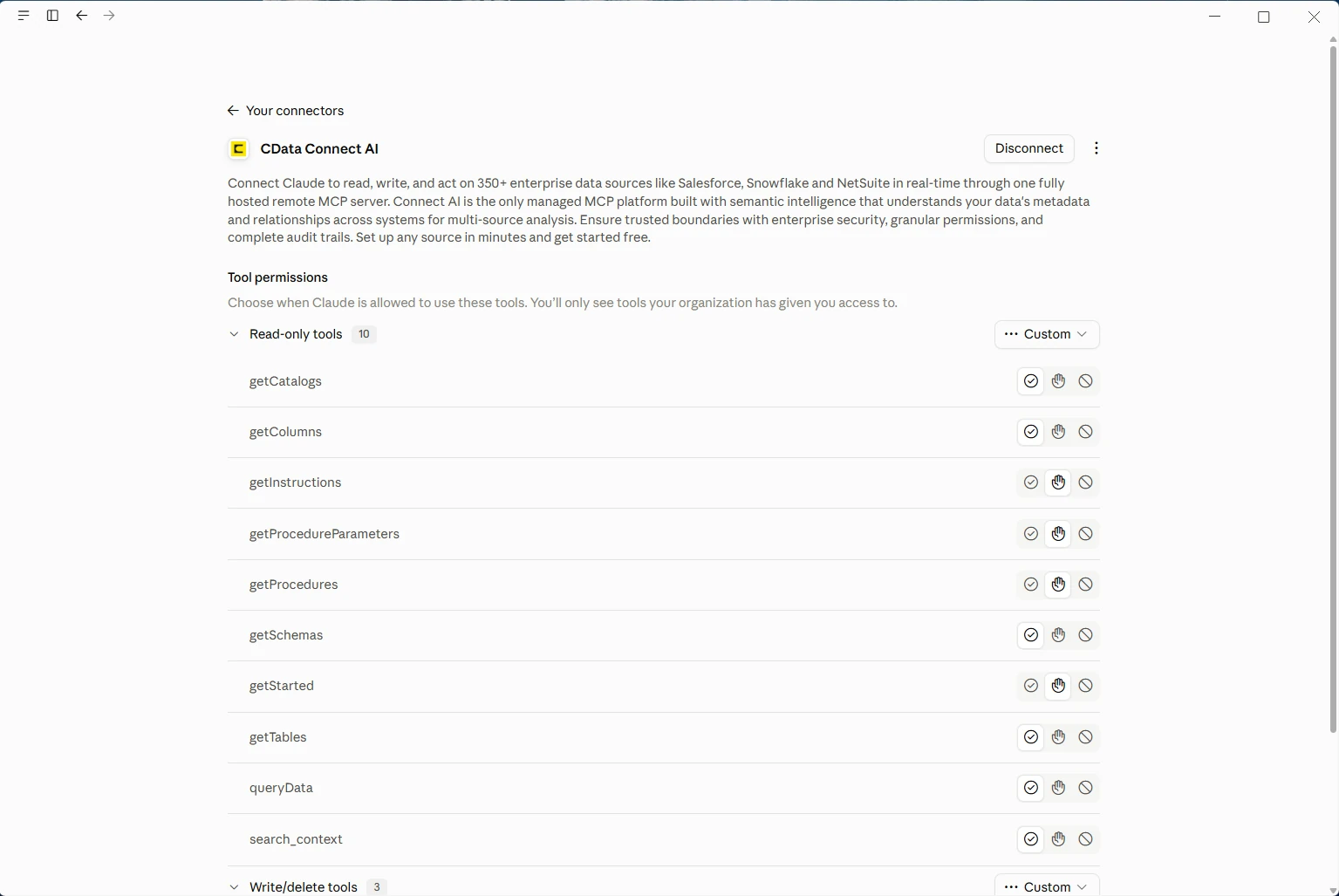
- In the connector’s Tool permissions, choose whether Claude asks permission before using tools or runs them without prompting.
Describe the dashboard
With Claude connected to your live data through Connect AI, you can start to build the dashboard by describing it. Be specific about which system answers which part of the question, and say what the file needs to look like when it’s done.
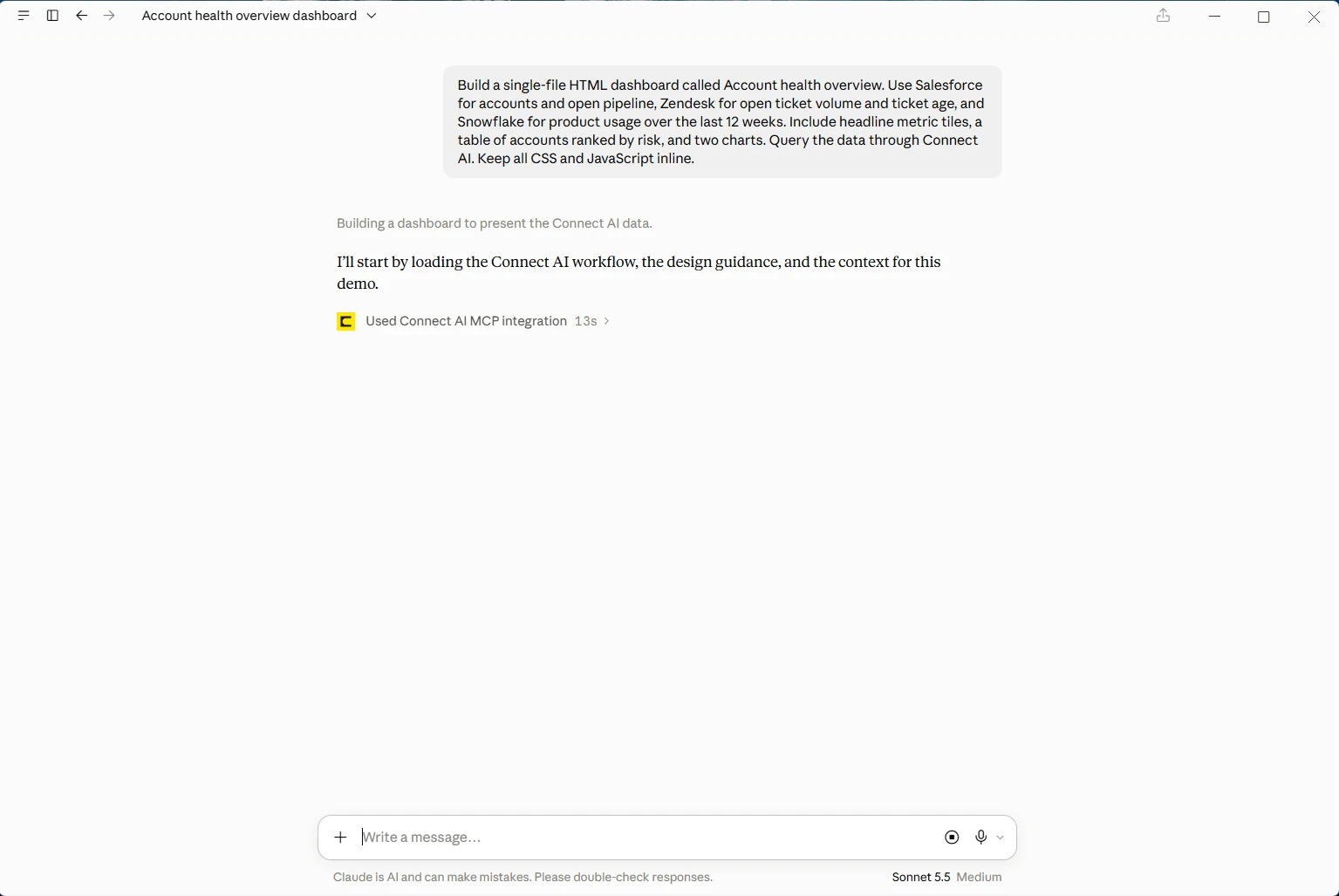
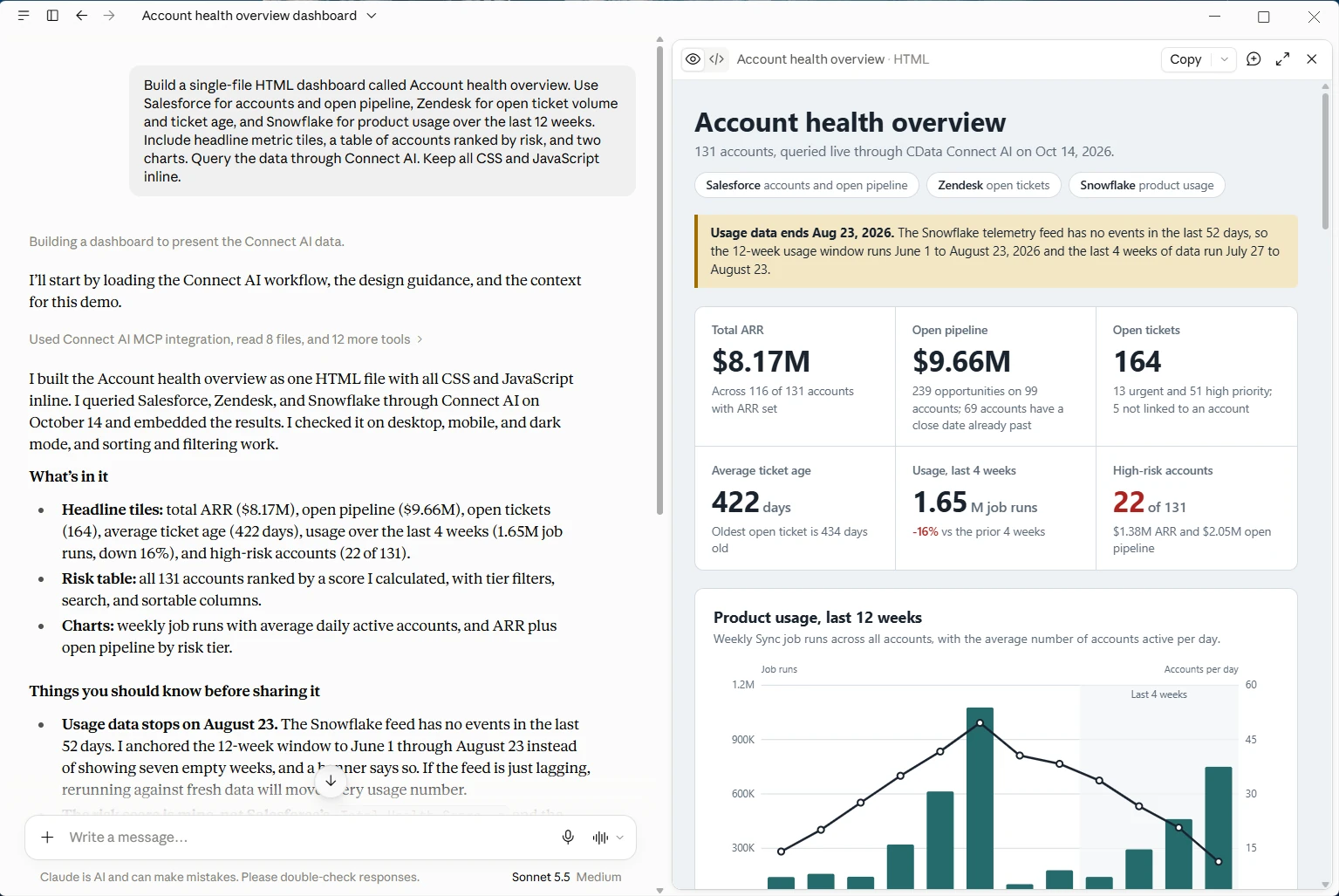
Prompt: "Build a single-file HTML dashboard called Account health overview. Use Salesforce for accounts and open pipeline, Zendesk for open ticket volume and ticket age, and Snowflake for product usage over the last 12 weeks. Include headline metric tiles, a table of accounts ranked by risk, and two charts. Query live data through Connect AI, embed the results in the file, and keep all CSS and JavaScript inline with no external requests."
Claude begins by calling search_context to find the definitions and tables that match your terms. It then uses universal tools, such as getSchemas, getTables, and queryData, to inspect structure and run queries. The same tools work across every source, so one prompt can fetch data from Salesforce, Snowflake, and Zendesk with a single tool call.
From there, you can refine the dashboard in plain language. Connect AI logs every query sent, so you can see exactly what Claude ran if a number looks off.
Publish the dashboard to CData Reports
Why we built a report host
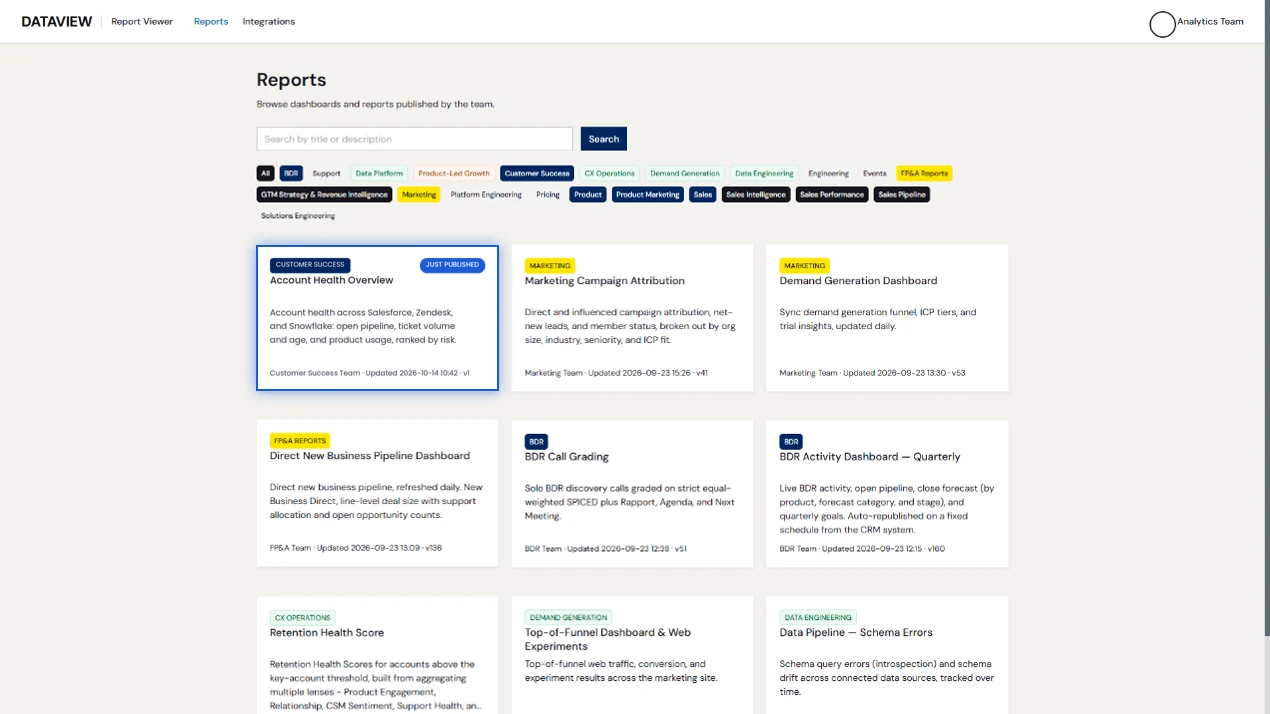
Claude can build a dashboard in minutes, but nothing in the chat window makes that dashboard easy to find, share, or update. CData Reports is CData’s internal home for hosting reports and dashboards, where any team at CData can create a report, publish it, and keep updating it, without filing a request with a data engineering team or waiting on someone else’s queue.
Under the hood, CData Reports is a custom web application hosted in Azure, with a built-in MCP server. Any teammate can sign in to Claude with their own identity, build a report, and publish it in the same place, with no handoffs in between. CData Reports is internal, so you can’t install it, but any web host that does a similar job and exposes an MCP server can play the same role.
Publish with Claude
With your report built, you can publish it to share with your team. CData Reports has an MCP server connected to Claude for publishing reports, so you can send Claude this prompt:
Prompt: "Publish this dashboard to CData Reports as "Account health overview" in the Customer success category."
Build your first report on live data
With CData Connect AI, you can connect Salesforce, Snowflake, Zendesk, and hundreds of other sources to Claude, so the reports your team builds run on governed, live data. Start a free trial and publish a dashboard of your own today.