






Upload CSV Data to Airtable with CData
Airtable is a cloud-based collaboration platform that blends the familiarity of a spreadsheet with the structure and power of a relational database. It is used across a wide range of industries, from marketing teams planning campaigns to product managers tracking roadmaps to retailers managing inventory, offering a flexible way to organize, collaborate on, and automate data workflows.
The CData Airtable Drivers and Connectors now feature the SyncCSV stored procedure, a powerful new tool that simplifies uploading CSV data directly into Airtable. This feature allows you to use simple T-SQL commands, eliminating the need for manual data entry and complex scripts.
In this article, we will walk through how to use the SyncCSV stored procedure with the CData Airtable JDBC Driver to upload CSV data into Airtable, using Airtable’s Sync API (available only on Business or Enterprise plans), with DBeaver, a popular data management tool.
Prerequisites
Before connecting to the Airtable JDBC Driver to upload CSV data into Airtable using the SyncCSV stored procedure, ensure the following prerequisites are met:
- Java JDK 8 or later version installed
- The latest version of the CData Airtable JDBC Driver installed
- DBeaver installed
- An Airtable account with a Business or Enterprise plan and appropriate access
Airtable-specific requirements for using the stored procedure include:
| Authentication | Personal Access Token |
|---|---|
| Scopes | data.records:write, schema.bases:write |
| User Role | Base Creator |
| Billing plans | Pro, Enterprise (pre-2023.08 legacy plan), Enterprise Scale |
Creating a Synced Table
Airtable lets you create synced tables that automatically pull in data from external sources using the Sync API. Using the CData Airtable Drivers and Connectors, you can push CSV data into these tables and maintain continuous updates. This simplifies external data integration by removing the need for manual uploads or complex workflows.
Follow these steps to create a synced table:
- Log in to your Airtable account
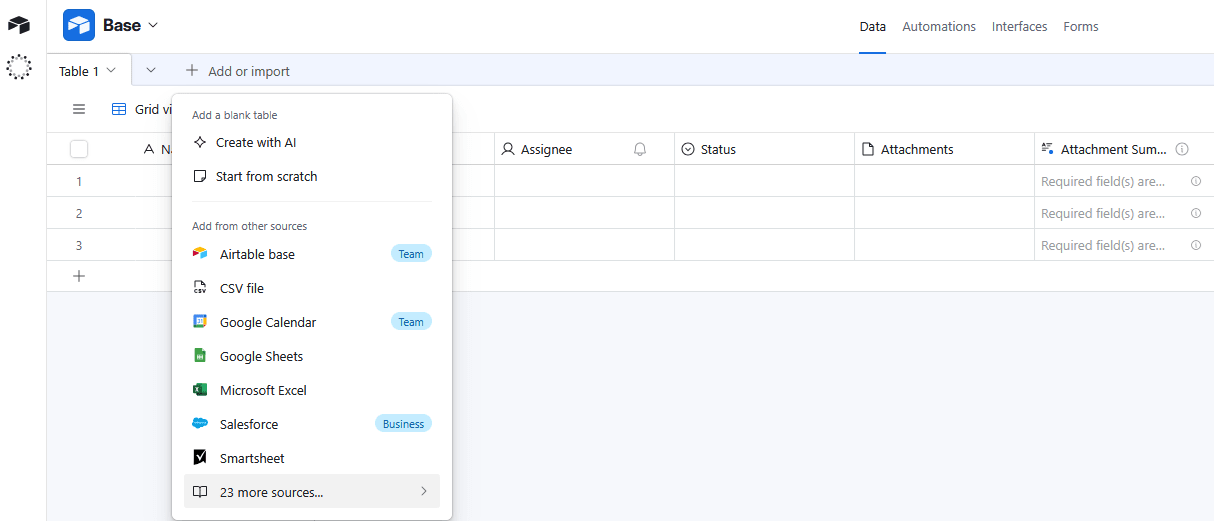
- Click + Add or Import and select more sources
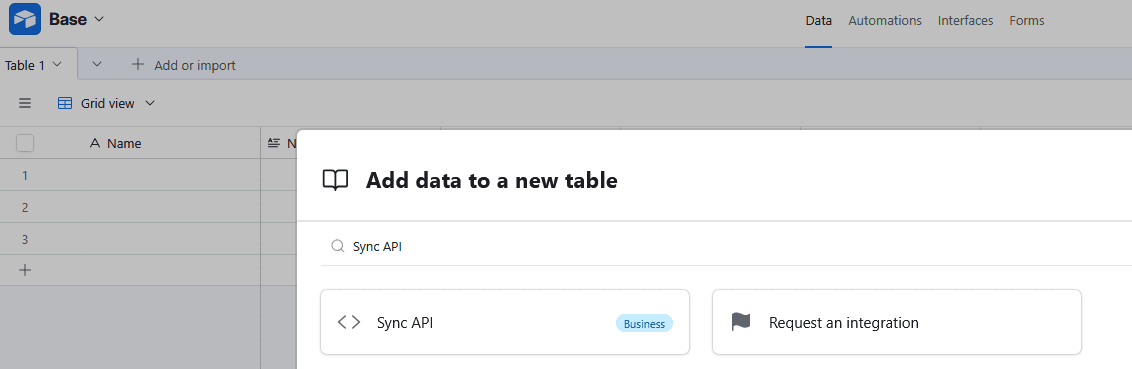
- Scroll to the Sync API feature, or search for it by clicking Find a source
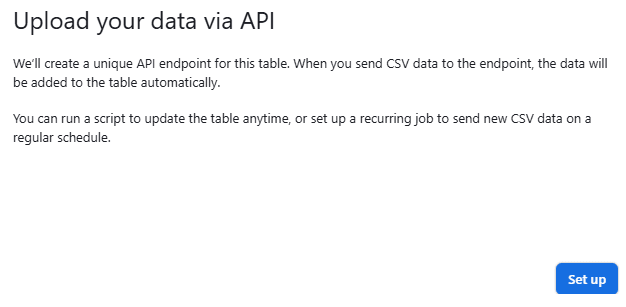
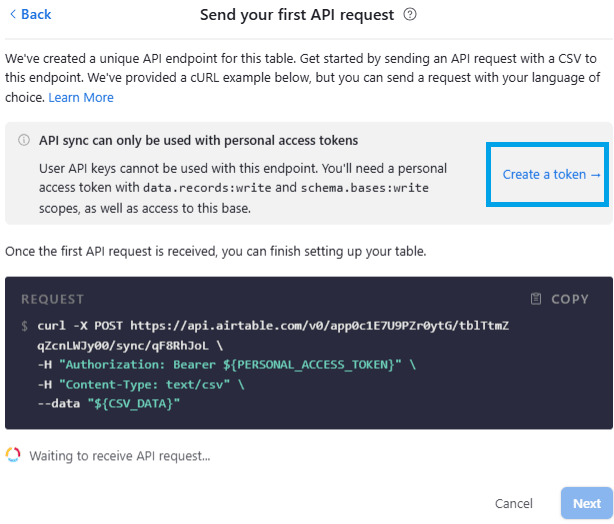
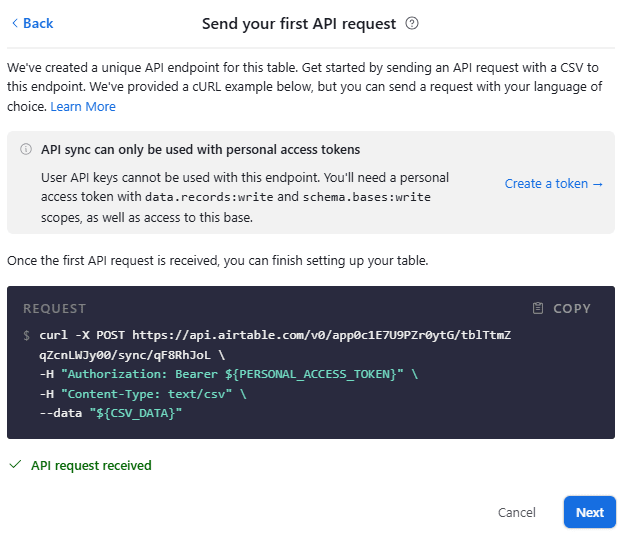
- Click Set up to begin the configuration process. Airtable generates a unique API endpoint for the new table
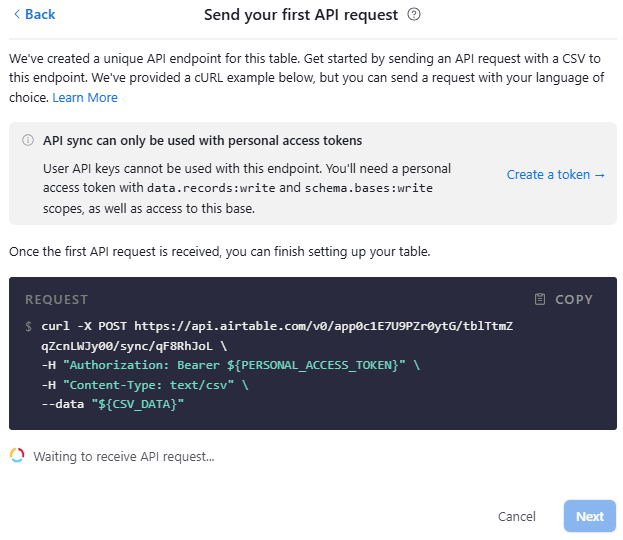
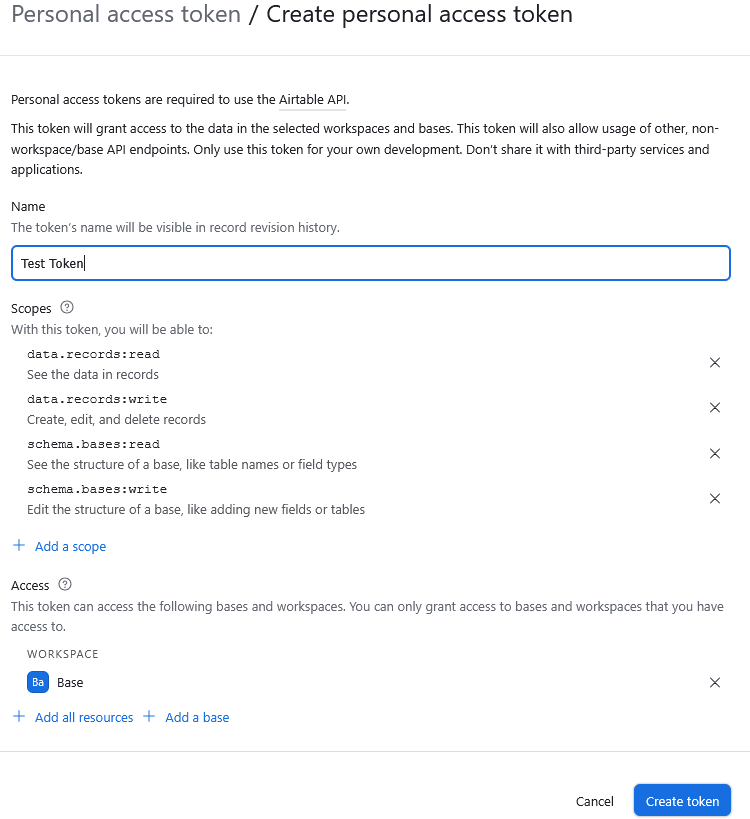
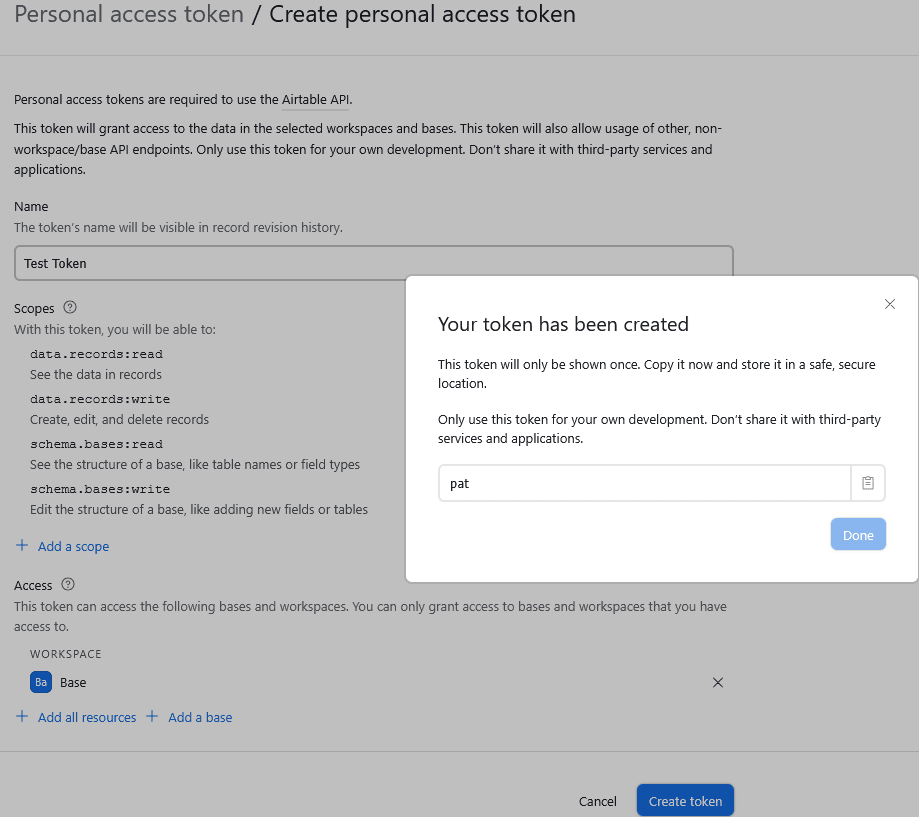
- If you do not have a valid Personal Access Token (PAT), click Create a token.
- Generate a PAT with the following required scopes. Note that the base and records read-type scopes mentioned below are required for the driver to list metadata and read records from synced tables.
- schema.bases:read
- schema.bases:write
- data.records:read
- data.records:write
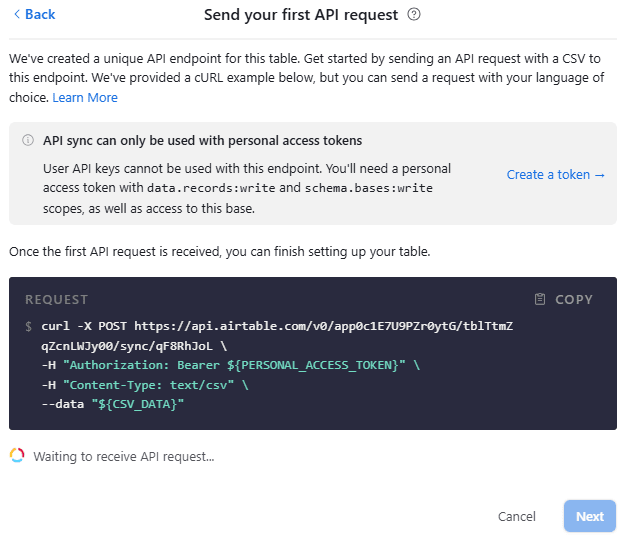
- Refer to the template for a cURL request to the Airtable Sync API endpoint. To create a sync table, you must execute the initial request that defines its metadata, which can be updated later. You can execute this request using cURL or any other tool or programming language of your choice.
- If you are executing the request via cURL, replace ${PERSONAL_ACCESS_TOKEN} with your actual PAT, and ${CSV_DATA} with your sample CSV data.
- The request body must be a plain-text, comma-delimited CSV string, where the first row serves as the header row and defines the field names in your synced table. Field names must be non-empty, case-insensitive, and unique. Only the first row can be used as the header row.
- After executing the request, wait for Airtable to confirm the connection with the message “✓ API request received” in the sync configuration UI, then click Next.
- You can now customize the table.
- Select all fields from the CSV or choose a subset.
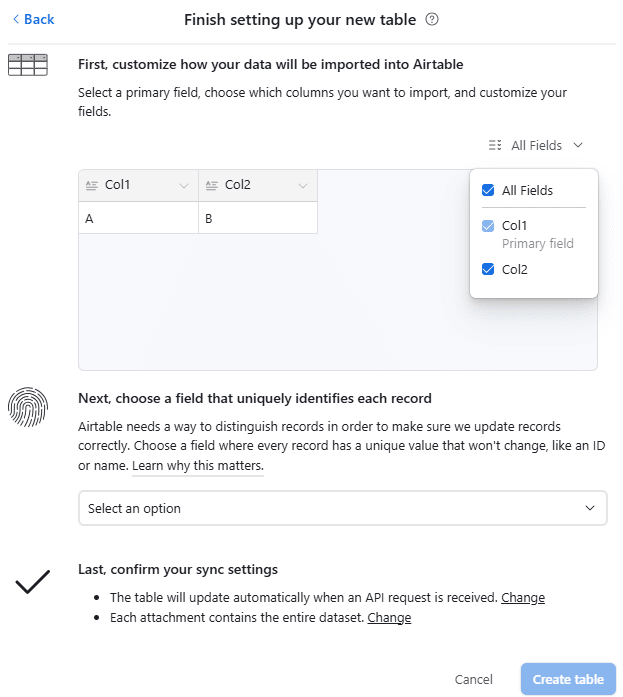
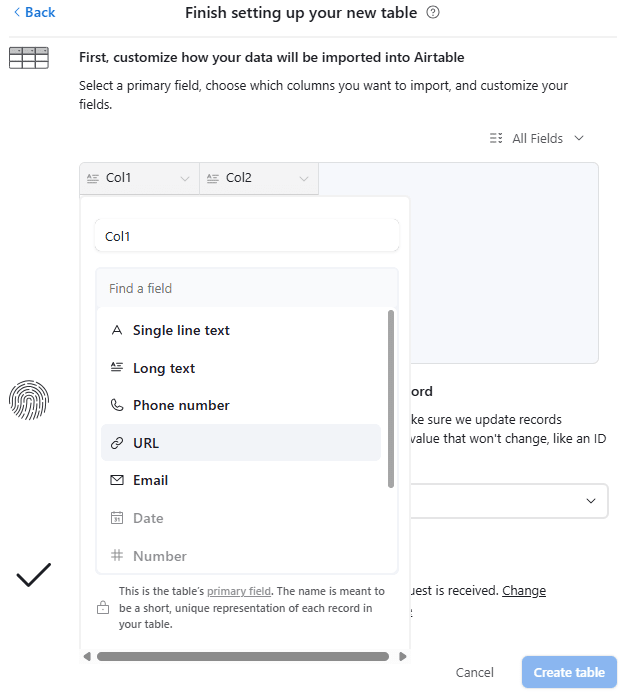
- Assign a type to each field (e.g., Single line text, Long text, URL, Number).
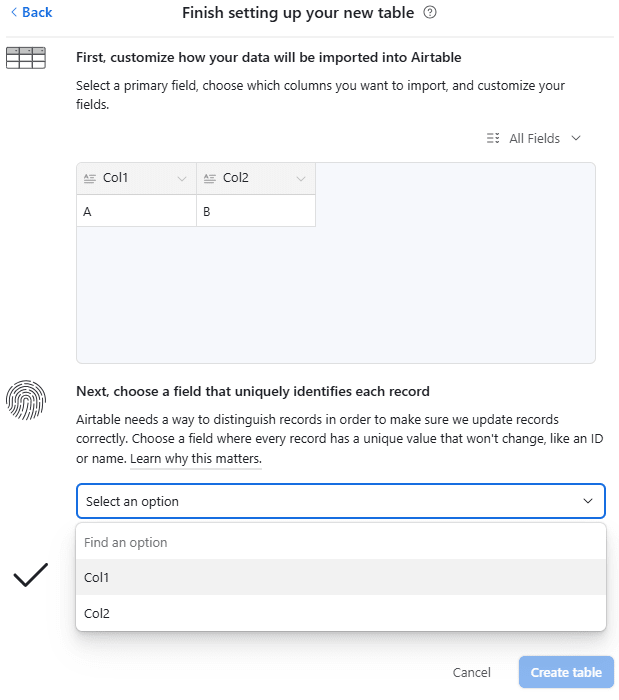
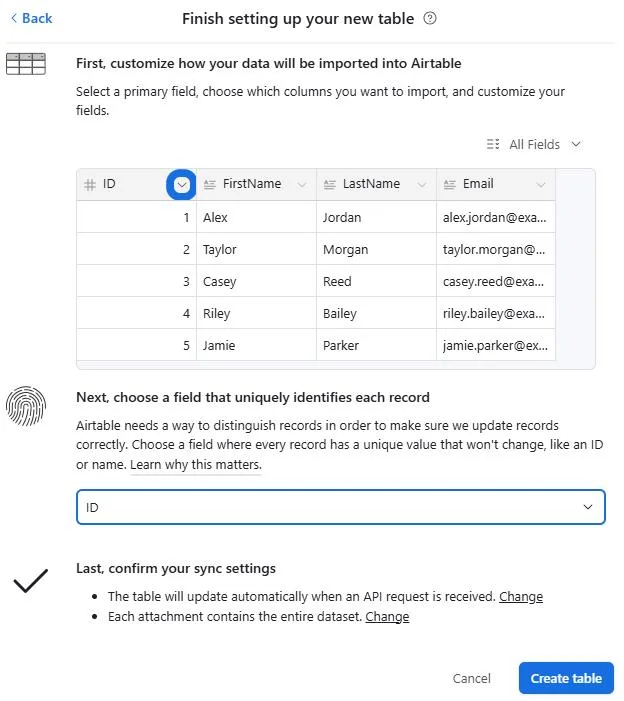
- Use the Select an option dropdown to pick a field that uniquely identifies records. This ensures Airtable can correctly update, create, or ignore records based on uniqueness.
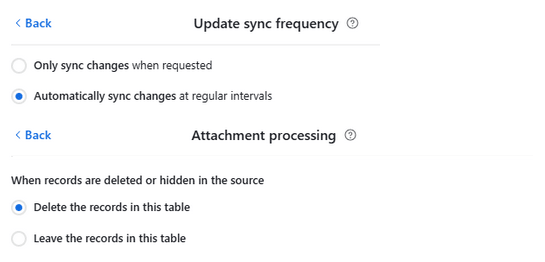
- Configure the sync settings.
- Select all fields from the CSV or choose a subset.
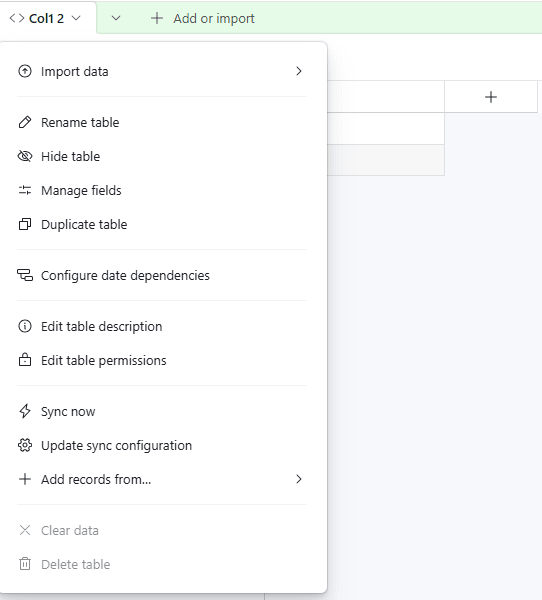
- After finishing the table configuration, click Create Table to create the synced table. You can make sync configuration changes later by clicking the dropdown next to the synced table name and selecting Update sync configuration.
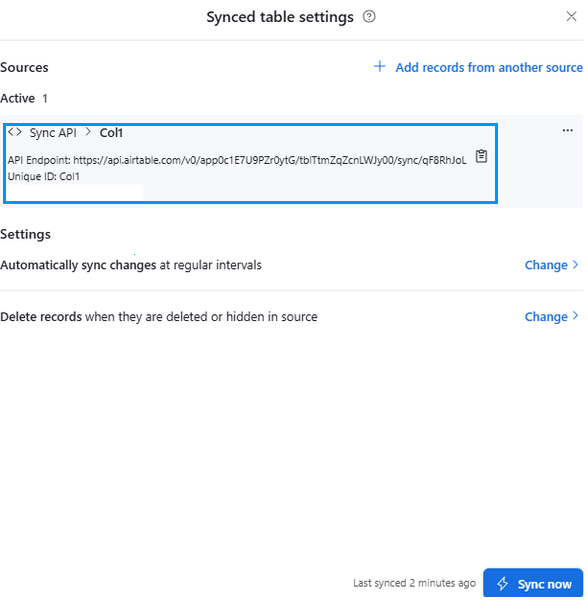
- In the synced table settings, you can view the active Sync API endpoint, shown as a URL in the format:
https://api.airtable.com/v0/{baseId}/{tableId}/sync/{syncId}.
Connecting to Airtable with the CData JDBC Driver
The CData Aitable JDBC Driver enables connectivity to Airtable through a standard JDBC interface. To establish this connection, you need to generate a JDBC URL that includes the necessary authentication and configuration properties.
You can either manually create the JDBC URL or use the connection string designer included with the Airtable JDBC Driver.
Launch the designer by double-clicking the driver JAR file or running it from the command line:
java -jar cdata.jdbc.airtable.jar
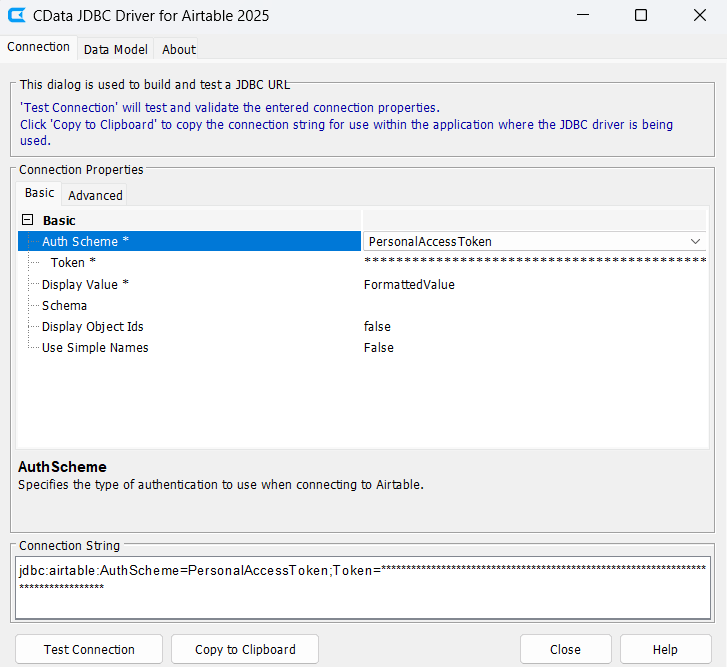
The JDBC URL starts with jdbc:airtable:, followed by connection properties separated by semicolons. There are two authentication methods available for connecting to Airtable: PersonalAccessToken and OAuthPKCE.
Choose PersonalAccessToken for authentication and enter your Token. Then click Test Connection to verify the connection to Airtable.
For additional details, refer to the "Getting Started" chapter in the help documentation.
An example of a typical JDBC URL is:
jdbc:airtable:AuthScheme=PersonalAccessToken;Token="airtable_token";
Executing the Stored Procedure
CSV Guidelines
To ensure successful syncing with Airtable using the SyncCSV stored procedure, your CSV file must adhere to these guidelines:
Size Limits
- File Size: Up to 2MB
- Record Count: Up to 10,000 records. If you include more than 10,000 records, only the first 10,000 will be processed
- Field Count: Up to a maximum of 500 columns. Files exceeding this will fail to sync
Structure
- Use commas as delimiters between values
- The first row must be the header row that defines the field names
- Field names in the header row must be non-empty and
- unique (case-insensitive)
- The primary field and unique ID must be present in the header row
Executing the Stored Procedure in DBeaver
DBeaver is an open-source database management tool used by developers and data analysts to work with a wide range of databases through a unified interface. It supports JDBC drivers, which makes it a great choice for running SQL queries and stored procedures.
Once you have connected to Airtable using the CData Airtable JDBC Driver, you can easily execute the SyncCSV stored procedure directly from DBeaver. This procedure allows you to upload CSV data into a synced table, enabling fast, script-free data integration within a familiar SQL environment.
To execute the stored procedure in DBeaver:
- In DBeaver's Driver Manager, create a new driver for Airtable
- In the database connection settings, paste the JDBC URL (connection string) copied from the Airtable JDBC driver in the previous section
- Once connected, right-click on the Airtable database, open the SQL script from the SQL Editor, and enter the following T-SQL command:
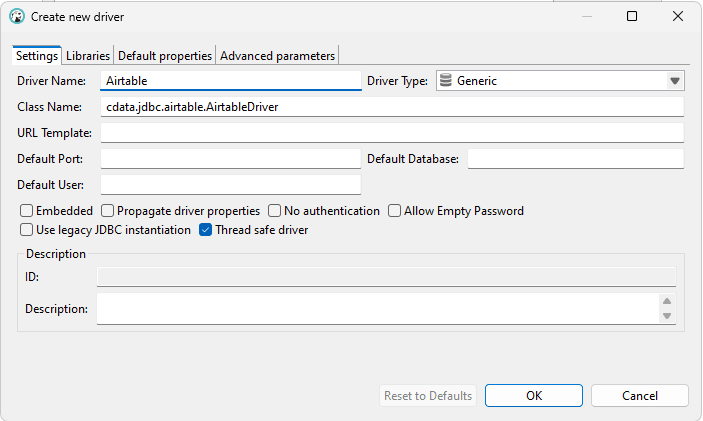
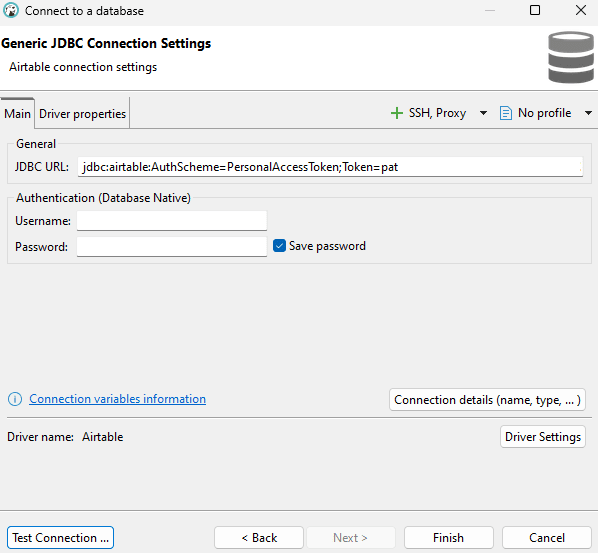
EXEC CData.BaseName.SyncCSV
@SyncTable = 'Your Sync Table Name or ID',
@SyncId = 'Your Sync API ID',
@LocalPath = 'Your Local Path for the CSV file';
For example:
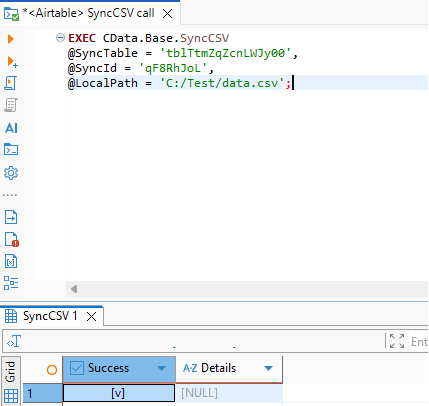
This command instructs the CData Airtable JDBC Driver to upload the data from your CSV file into the specified synced table. As an added option, you can also provide a data stream or pass the CSV content directly as a Base64 encoded string, giving you more flexibility in how you supply the data.
Verify the CSV content upload in Airtable
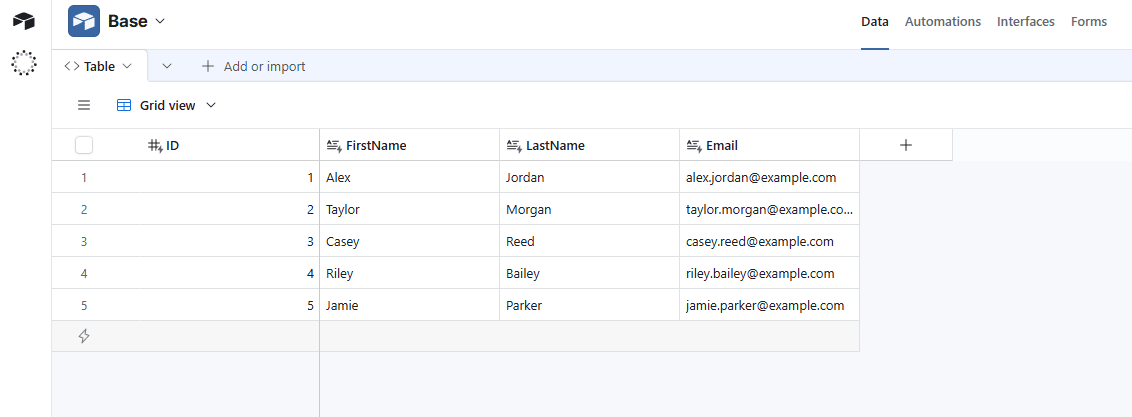
To verify the upload, return to your Airtable account or simplify use the CData Driver to query the records from the table. You should see the new records from the CSV file in the synced table.
For example, if the synced table were configured as follows, and the CSV file contained the following data, the resulting synced table would appear as shown below:
| ID | FirstName | LastName | |
|---|---|---|---|
| 1 | Alex | Jordan | [email protected] |
| 2 | Taylor | Morgan | [email protected] |
| 3 | Casey | Reed | [email protected] |
| 4 | Riley | Bailey | [email protected] |
| 5 | Jamie | Parker | [email protected] |
The CSV date is now uploaded in Airtable (as shown below):
Simplified Airtable connectivity with CData
The CData Airtable Drivers and Connectors make it easy to connect Airtable with your favorite BI, reporting, and ETL tools. Now, with the Sync CSV stored procedure, you can also upload CSV files directly into Airtable, eliminating the need for manual steps and enabling smooth, automated data integration.
Ready to get started? Download a free 30-day trial of any of our CData drivers and connectors today! As always, our world-class Support Team is available to assist you with any questions you may have.
