






How to Connect API Data Sources to Power BI Using CData API Driver
Connecting Power BI to a REST API is not straightforward. User often need to write custom connectors, handle authentication manually, and fix things every time the API updates. This process is time-consuming and takes focus away from the actual analysis. The CData API Driver for Power BI makes this easier as it pairs with an API Profile, a small file that describes your API's data structure, so you can pull data from any REST API directly into Power BI Desktop without coding.
Step 1: Download and install the API Driver for Power BI
Download the CData API Driver for Power BI and follow the installation wizard to complete setup on your system.
Step 2: Download an API Profile
An API Profile is a definition file (with the .apip extension) that describes the schema and endpoint structure of a specific REST API. CData provides pre-built profiles for over 140+ data sources.
- Download the profile for the API you want to connect to from CData API Profiles
- Once downloaded, save or move the .apip file to a folder accessible by Power BI Desktop, for example: C:\API Profiles\.
Note: You can also create your own API Profile for any custom REST API if a pre-built profile is unavailable.
Step 3: Configure the DSN and test the connection
Before connecting from Power BI, you need to configure the Data Source Name (DSN) using the ODBC Data Source Administrator and verify that the connection to your API works correctly.
- Open the ODBC Data Source Administrator
- Select ODBC Data Sources
- Under the User DSN tab, select CData PBI API Source (or CData PBI API Sys for System DSN) and click Configure
- In the DSN Configuration window, enter .apip file path in Profile field under the APIProfile
- Next, fill in the remaining connection properties required by your specific API. The required fields vary by data source. To find out what is required, open the online help page for your API Profile
- AuthScheme: Set to OAuth
- OAuthClientId: The Client ID from your registered OAuth application on the data source platform
- OAuthClientSecret: The Client Secret from your registered OAuth application
- CallbackURL: The redirect/callback URL registered with your OAuth application (e.g., http://localhost:33333)
- InitiateOAuth: Set to GETANDREFRESH to automatically initiate the OAuth flow and refresh tokens
- For OAuth APIs, a browser opens for login, close it after authorizing
- For non-OAuth or public APIs, set authentication to None
- Click the Test Connection. If the configuration is correct, you will see the message: "The connection test was successful." Click OK to confirm
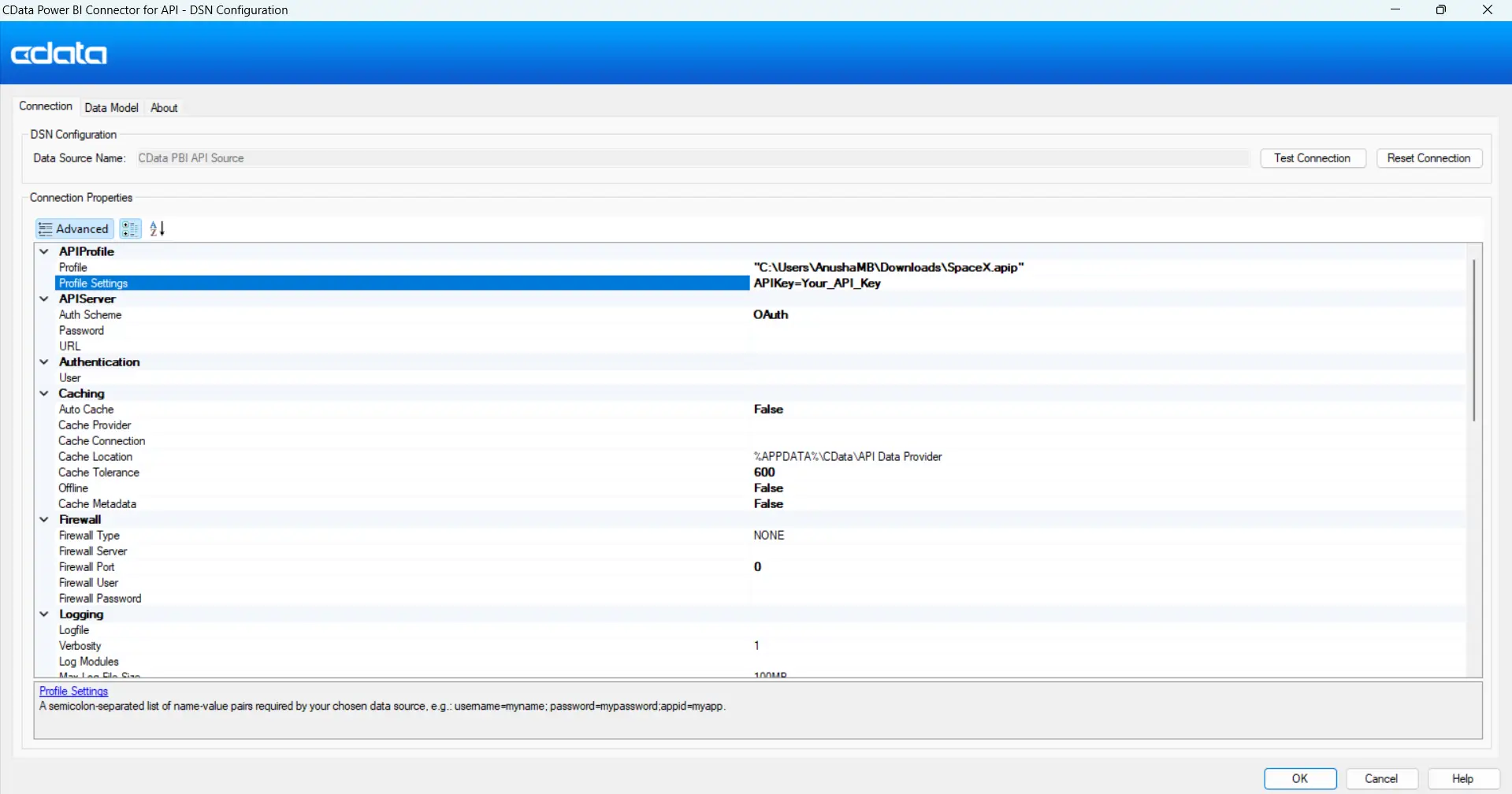
Many REST APIs use OAuth 2.0 for authentication. For these sources, you will typically need to provide the following connection properties in the DSN configuration:
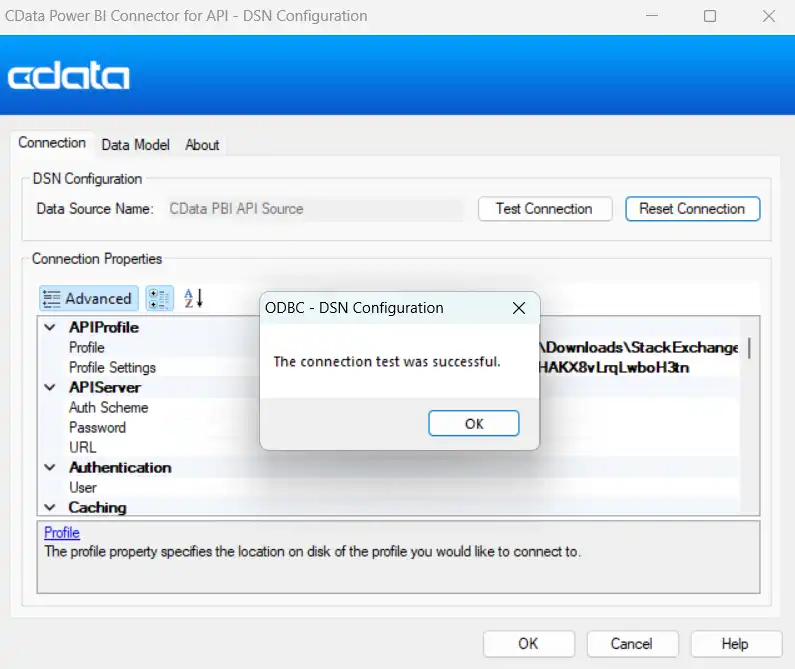
After a successful connection, you can optionally verify your data by opening the Data Model tab, selecting a table or view from the list on the left, and clicking Execute under the Query tab to preview the data returned by the API.
Step 4: Connecting API Driver from Power BI Desktop
With the DSN configured, you are ready to bring API data into Power BI Desktop.
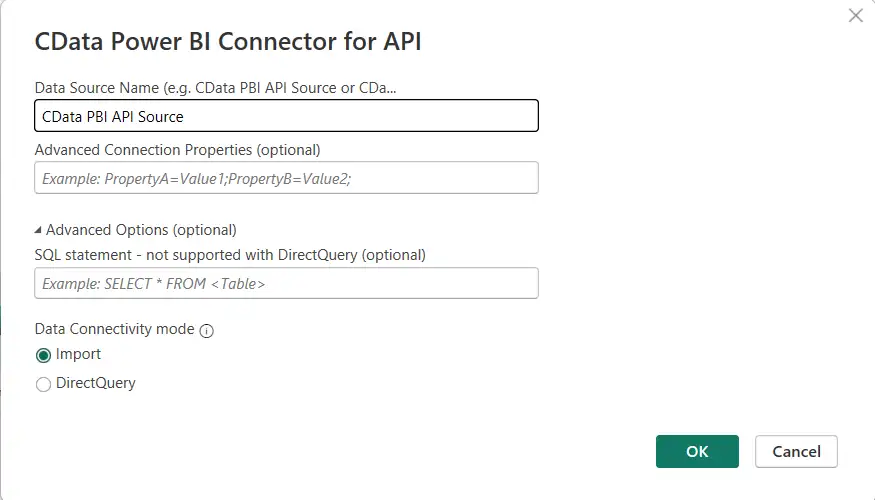
- Open Power BI Desktop, click Get data and then select More... to open the full data source list
- Search CData API from the list and click Connect
- Now enter the Data Source Name as provided earlier in the configuration (ex, CData PBI API Source)
- Select Import or DirectQuery and click Ok
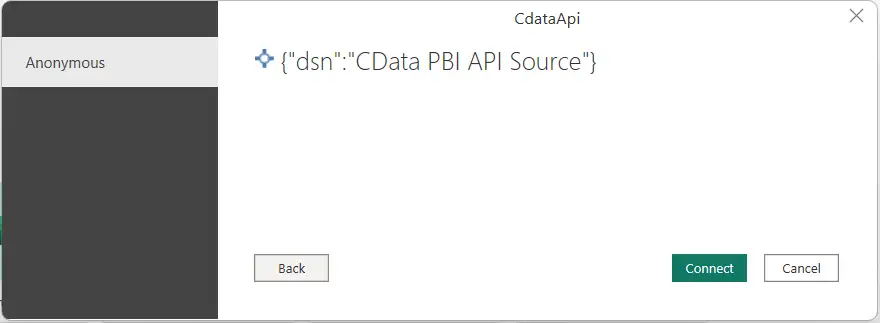
- When prompted for credentials, select Anonymous (authentication is handled by the DSN configuration you set up earlier) and click Connect
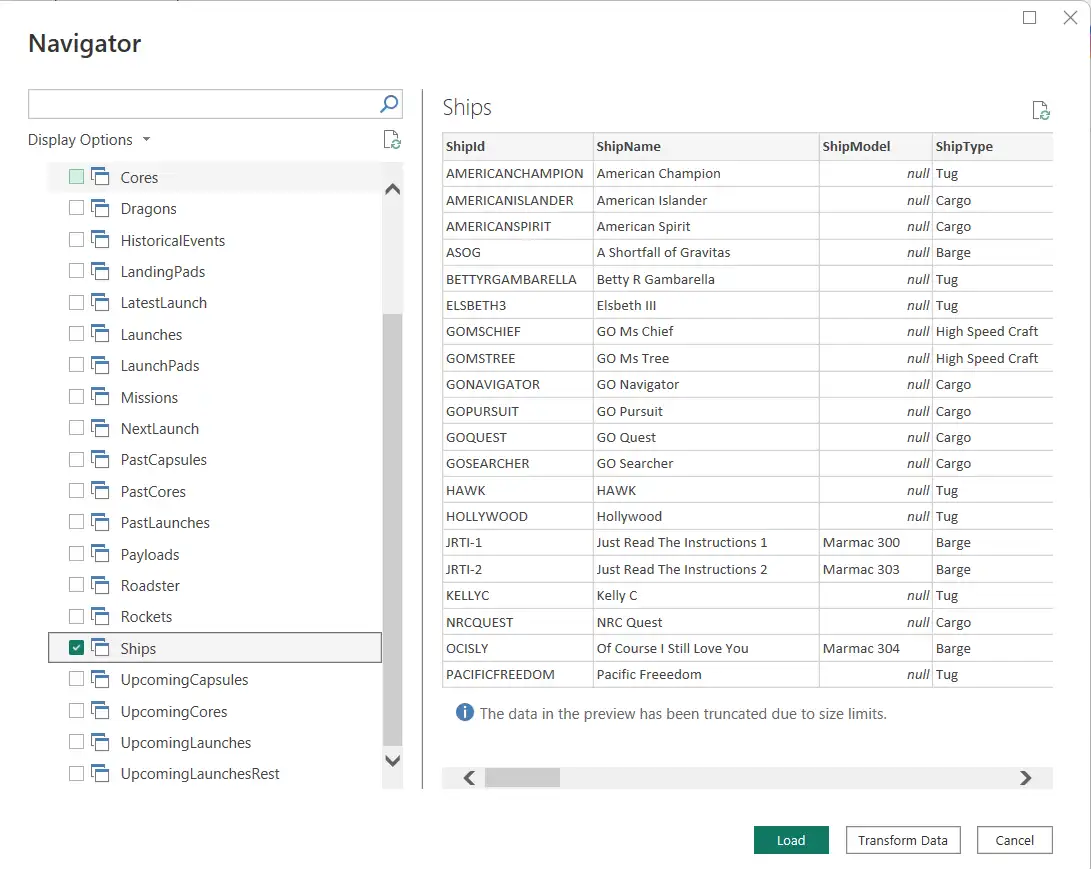
- From Navigator, which shows all tables and views exposed by your API Profile, select the tables as per the requirement and click Load to import the data into Power BI
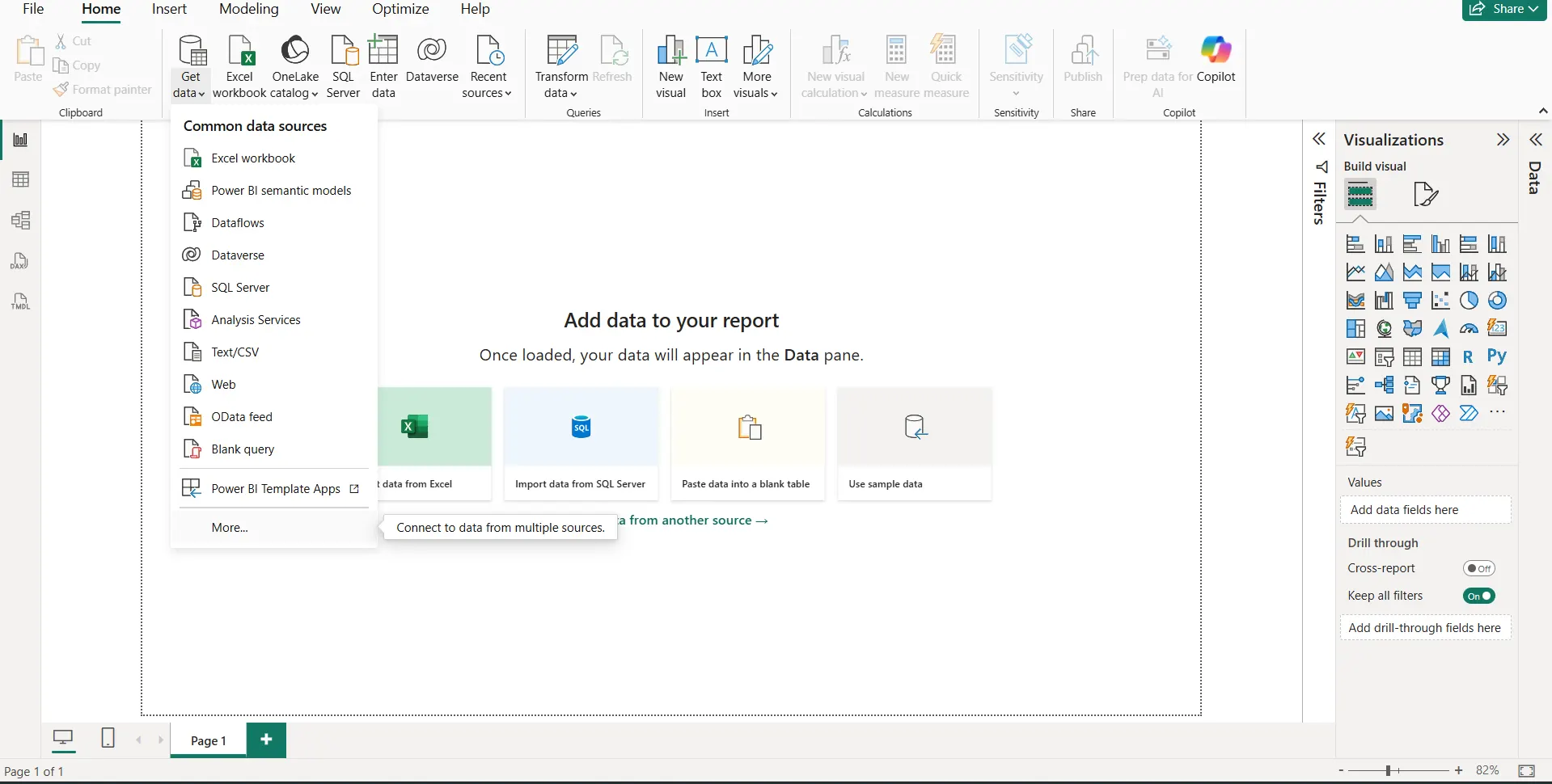
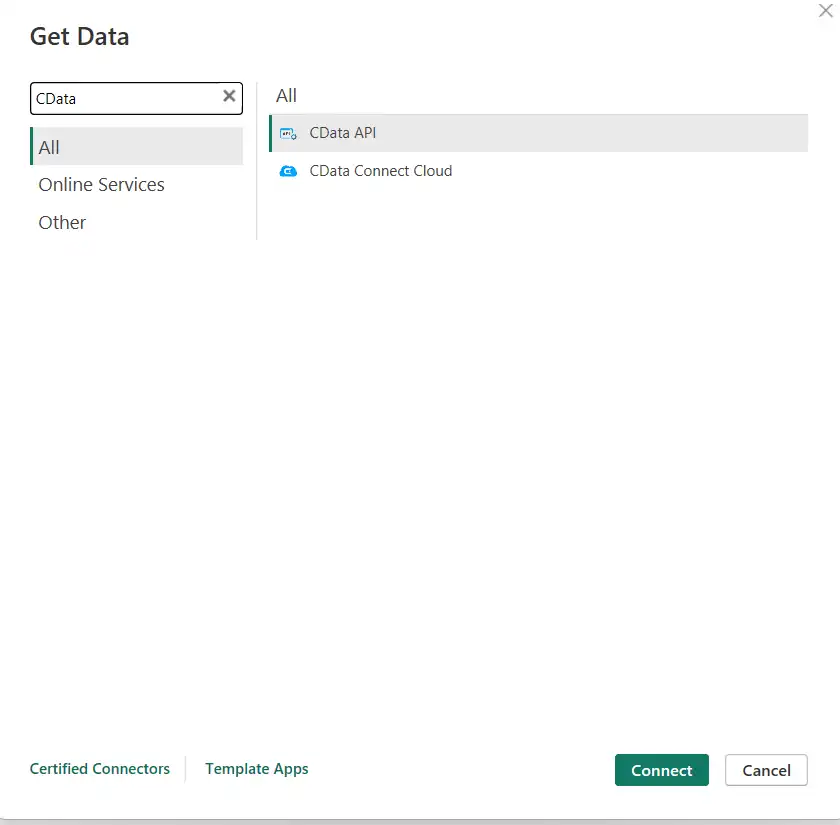
Step 5: Build reports and visualizations
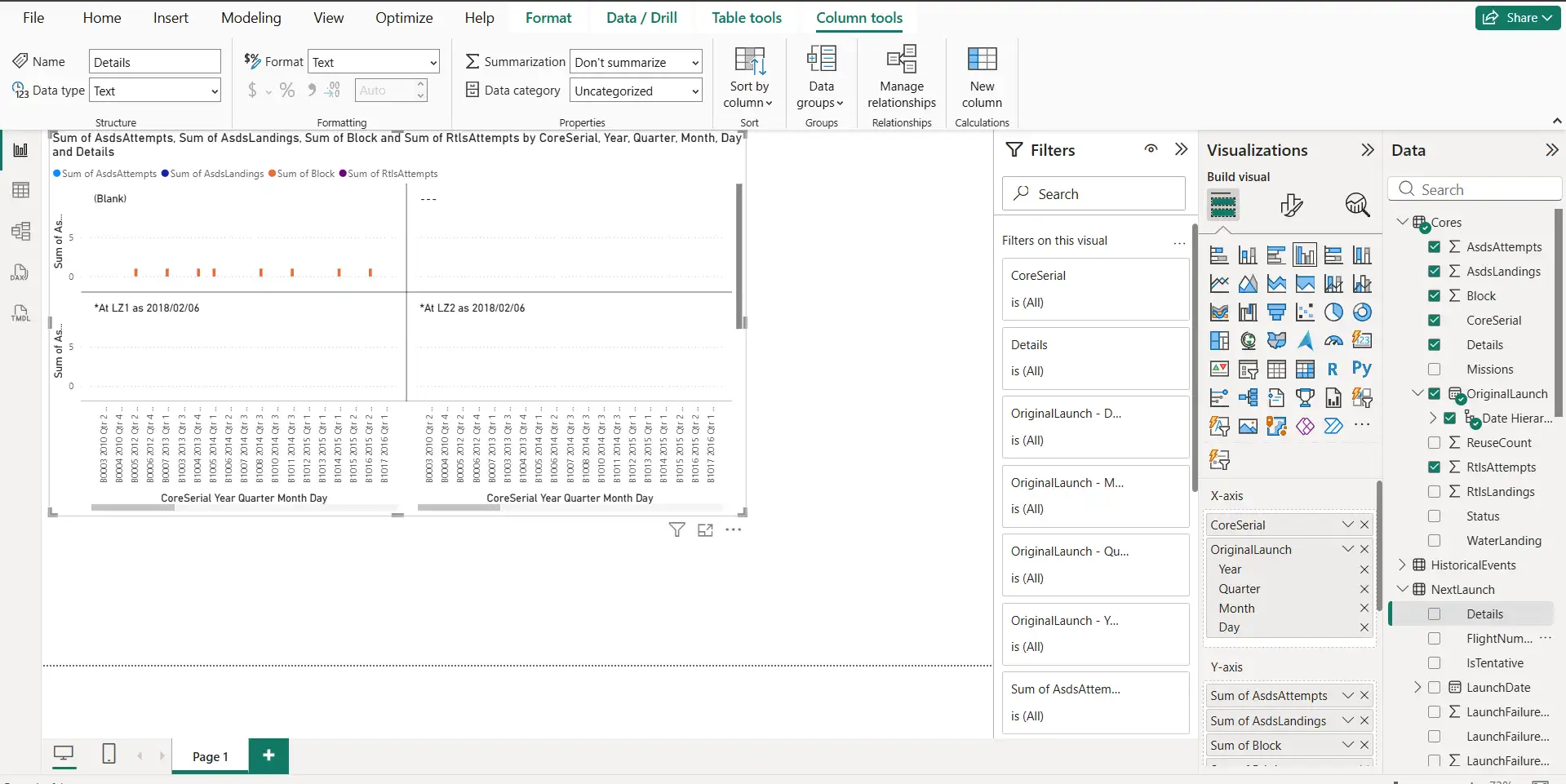
Once the data is loaded, it will appear in the Data pane on the right side of Power BI Desktop. From here, you can build visuals exactly as you would with any other data source, drag fields onto the report canvas, create charts, apply filters, and build dashboards.
Get started today!
Start querying and visualizing data in Power BI using CData API Driver, which provides 140+ pre-built API Profiles for a wide range of data sources.Download a free 30-day trial of the CData API Driver today!
Our world-class Support Team is always available to help.