






Deploying CData API Server V25 on AWS with High Availability Using an Application Load Balancer
This article walks you through deploying two instances of CData API Server V25 on AWS and configuring a High Availability (HA) architecture using an Application Load Balancer (ALB).
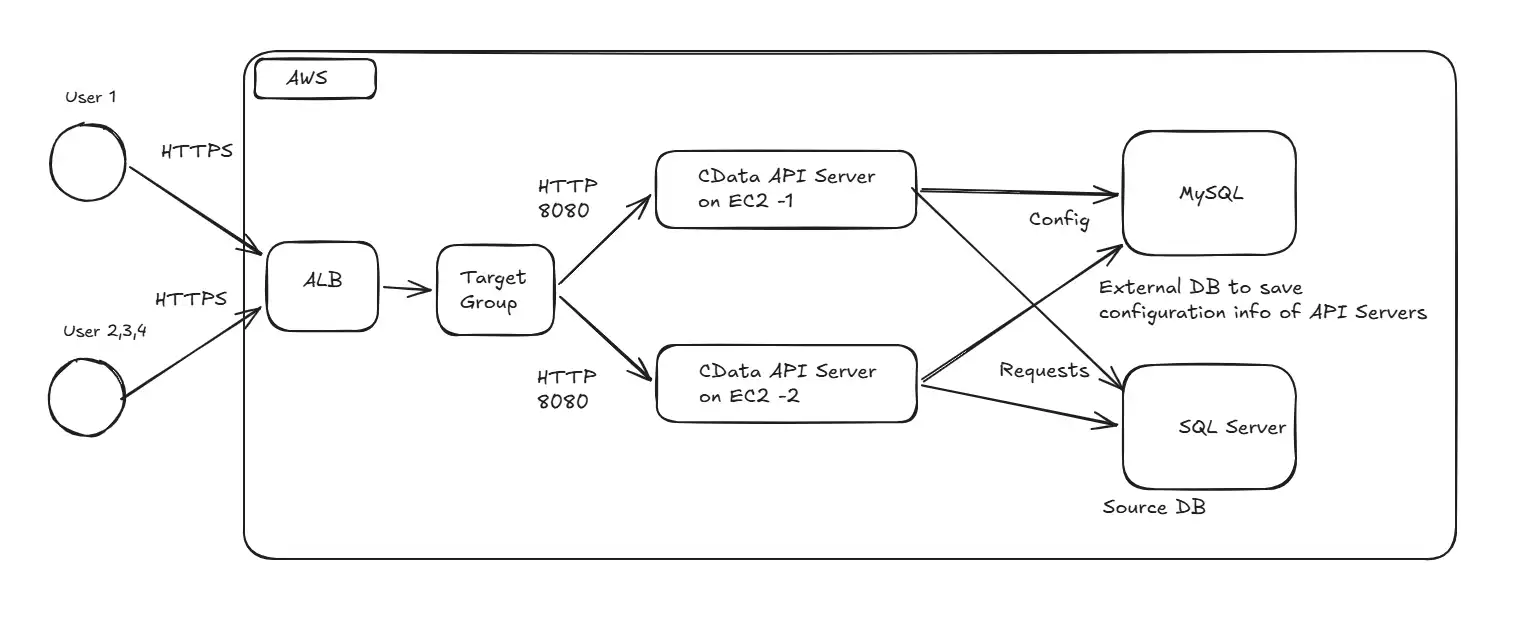
Architecture overview
The API Server runs on two EC2 instances that share a single Amazon RDS for MySQL database for their configuration and user data. All inbound HTTPS traffic terminates on an Application Load Balancer, which distributes the traffic across both EC2 instances.
Step 1: Prepare AWS VPC (for this demo)
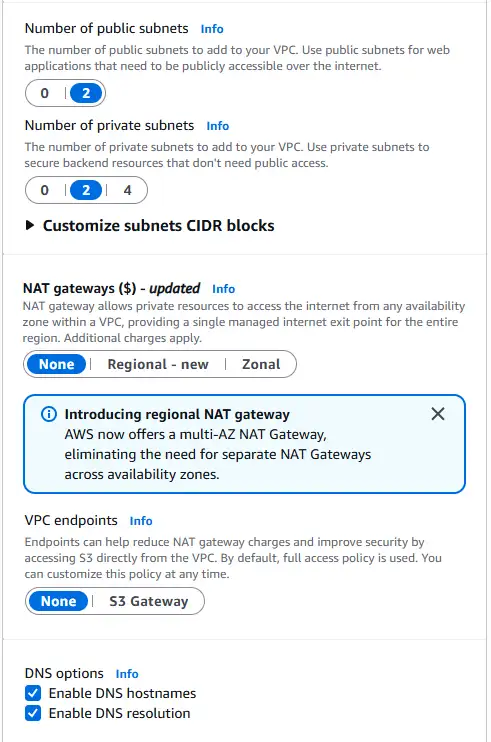
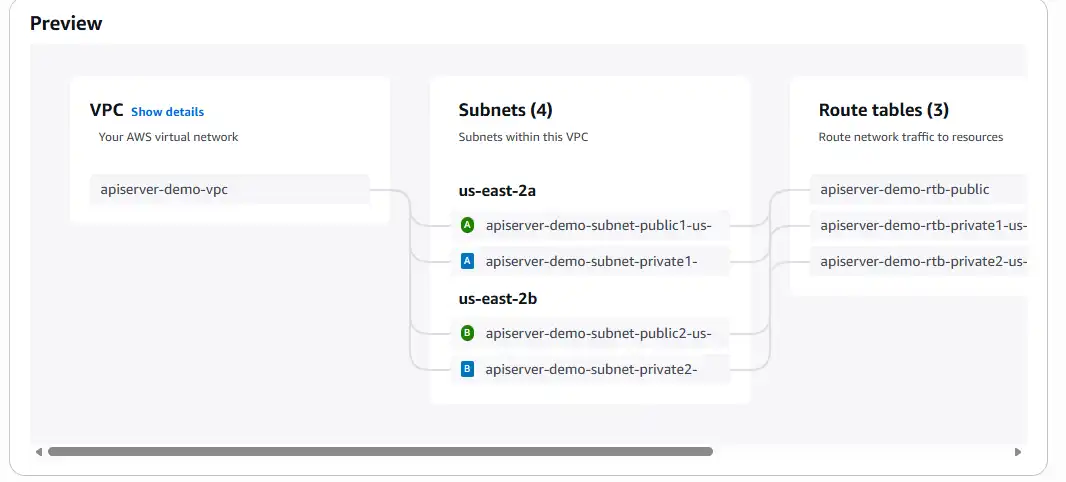
What we are doing: Create a VPC with two public subnets and two private subnets across two Availability Zones (AZ), and create a Security Group that will be shared between the EC2 instances and the ALB.
Why we are doing it: Two AZs are the minimum required for an ALB, the load balancer needs more than one subnet in different AZs to provide redundancy. Public subnets host the internet-facing ALB; private subnets host the EC2 instances and the RDS database, so they are not directly exposed to the internet.
Detailed settings:
- VPC: any private CIDR (for example, 10.0.0.0/16)
- Public subnets: 2, each in a different AZ, with a route to an Internet Gateway
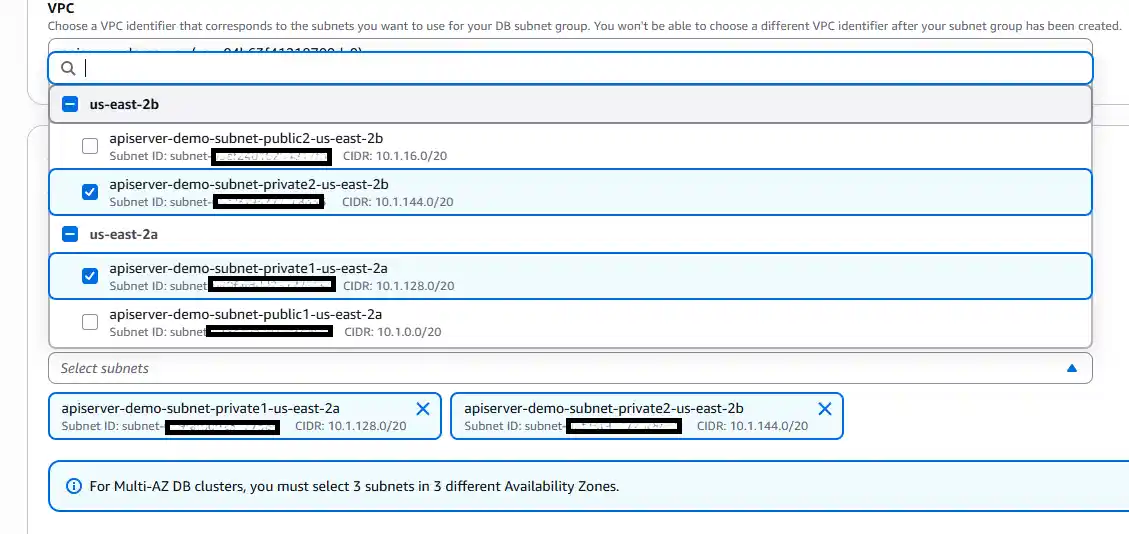
- Private subnets: 2, each in a different AZ, used for the EC2 instances and the RDS subnet group
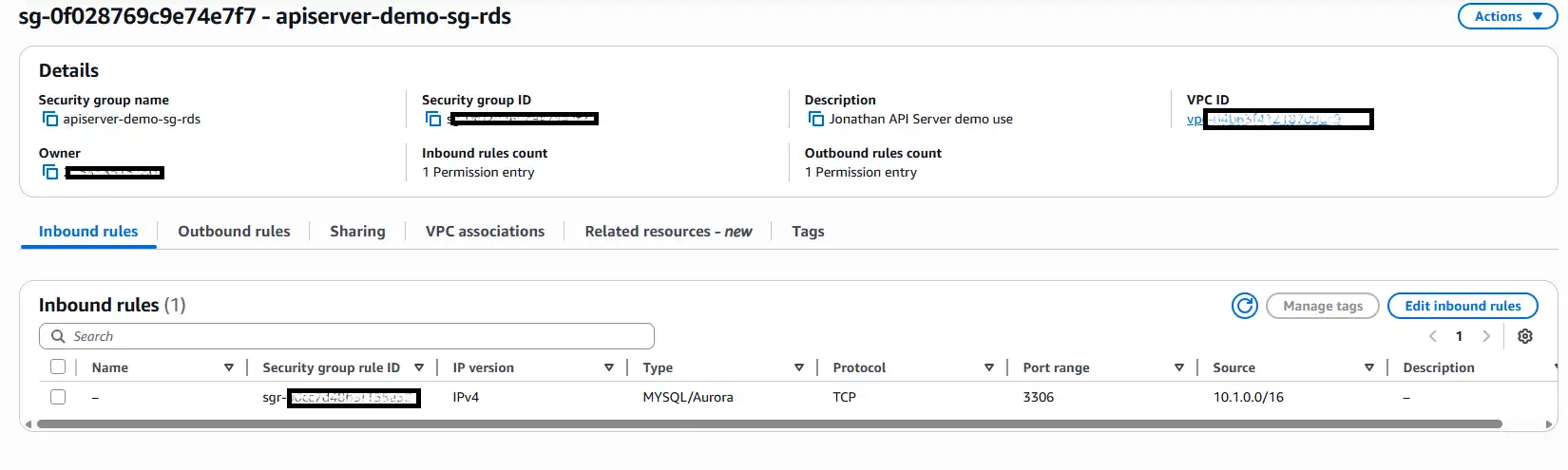
- Security Group: one group that will later be attached to both the EC2 instances and the ALB, so the inbound rule can self-reference the group
Create a security group
Set subnets with 2 private subnets.
Note on EC2 subnet placement
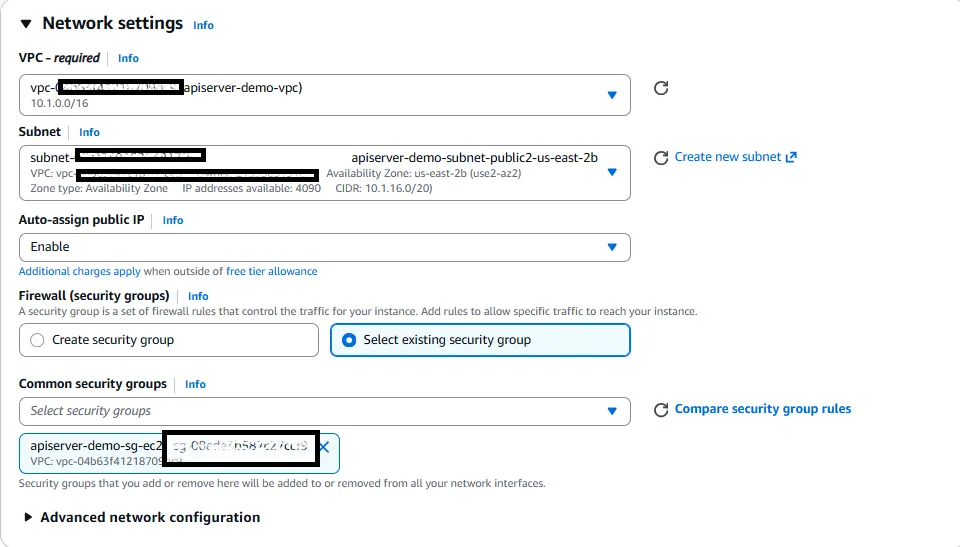
In this demo, the EC2 instances are placed in public subnets with auto-assigned public IPs. This simplifies setup by providing outbound internet access out of the box, which is needed for downloading API Server and activating the license. Direct inbound access to the EC2 instances is still blocked at the Security Group level: port 8080 is only accessible from the ALB.
In a production deployment, EC2 instances should be placed in private subnets with no public IP. Outbound internet access would then be provided by a NAT Gateway in each public subnet, with a default route (0.0.0.0/0 → NAT Gateway) on the private subnet route tables. This adds a second layer of defense: the EC2 instances become architecturally unreachable from the internet regardless of Security Group configuration.
Step 2: Provision the EC2 instances
What we are doing: Launch an EC2 instance into one of the private subnets to host API Server. (The second instance is cloned from this one later.)
Why we are doing it: API Server runs as a Java process on each compute node. Placing the node in a private subnet keeps it unreachable from the public internet except through the ALB.
Detailed settings:
- Choose an AMI and instance type capable of running the JVM (any modern Linux AMI is fine).
- Place the instance in one of the private subnets.
- Attach the shared Security Group created above.
- Ensure outbound access is available so the instance can download API Server and reach RDS.
Step 3: Provision the RDS MySQL database
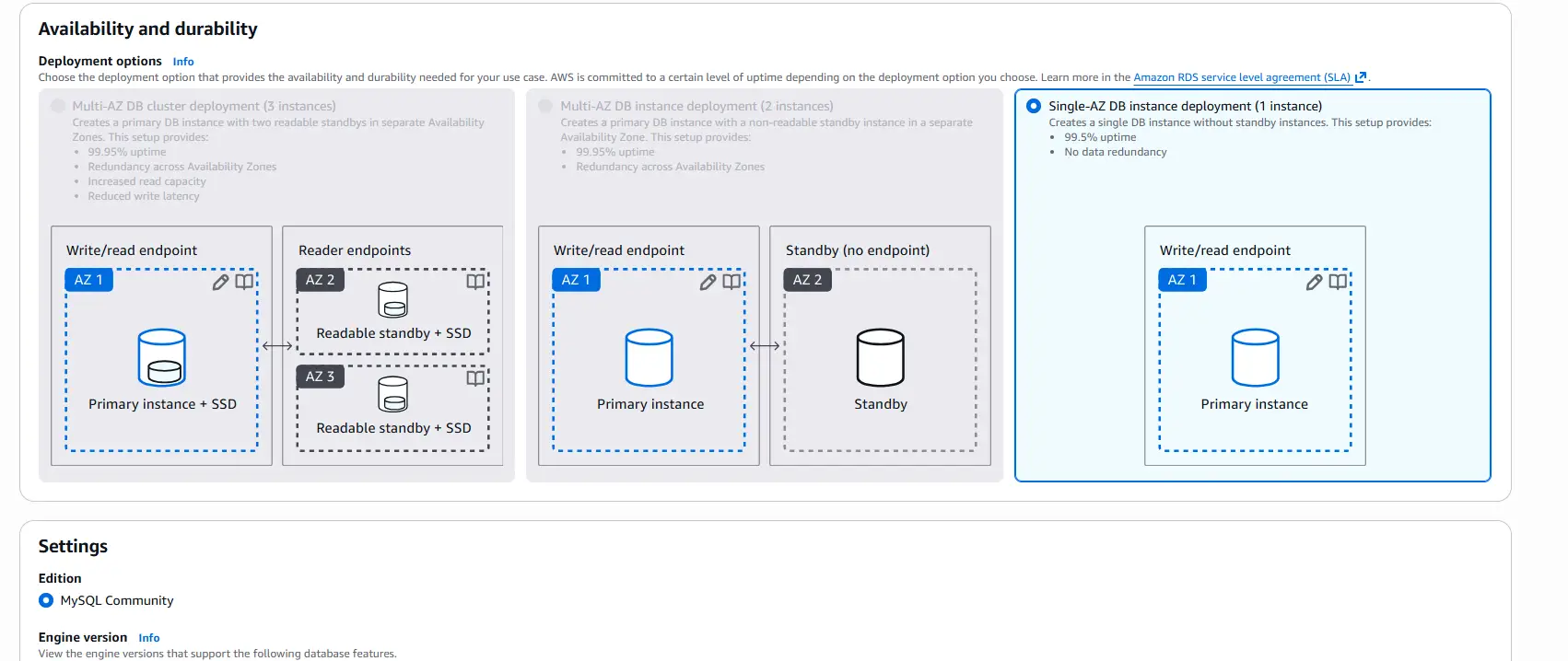
What we are doing: In the RDS console, create a MySQL (or Aurora) database. For this demo, select a Single-AZ DB instance deployment.
Why we are doing it: API Server stores its configuration: connections, users, published tables, and more, in a database. In an HA setup, this store must be external and shared so that both EC2 instances see the same configuration. The embedded default database cannot satisfy that requirement.
Detailed settings:
- Engine: MySQL (Aurora MySQL also works)
- Deployment: Single-AZ for the demo; use Multi-AZ in production for database resiliency
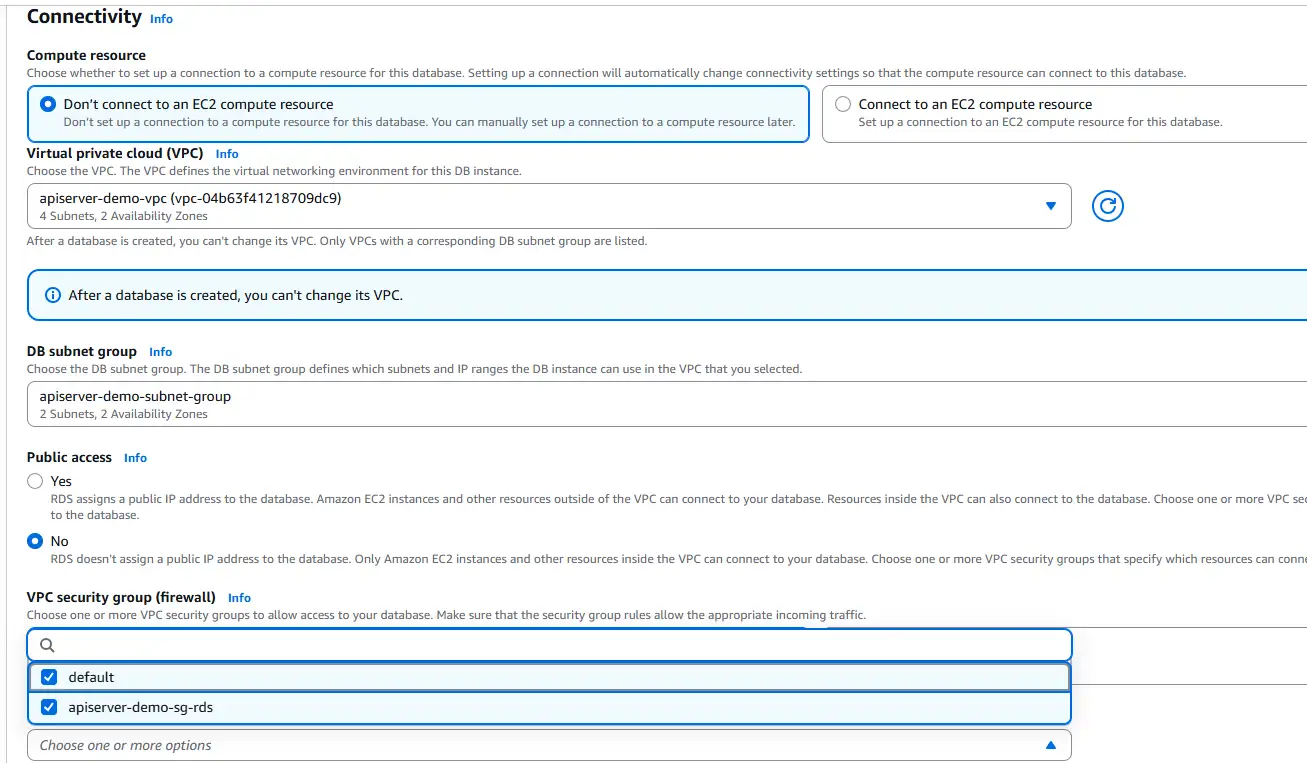
- DB subnet group: include both private subnets so RDS lives alongside the EC2 instances
- VPC security group: the shared Security Group, so the EC2 instances can reach the database on port 3306
- Initial database name: apiserver (used in the connection string below)
- Master user / password: record these, they are needed for the API Server properties file
Go to Aurora and RDS and create a MySQL instance.
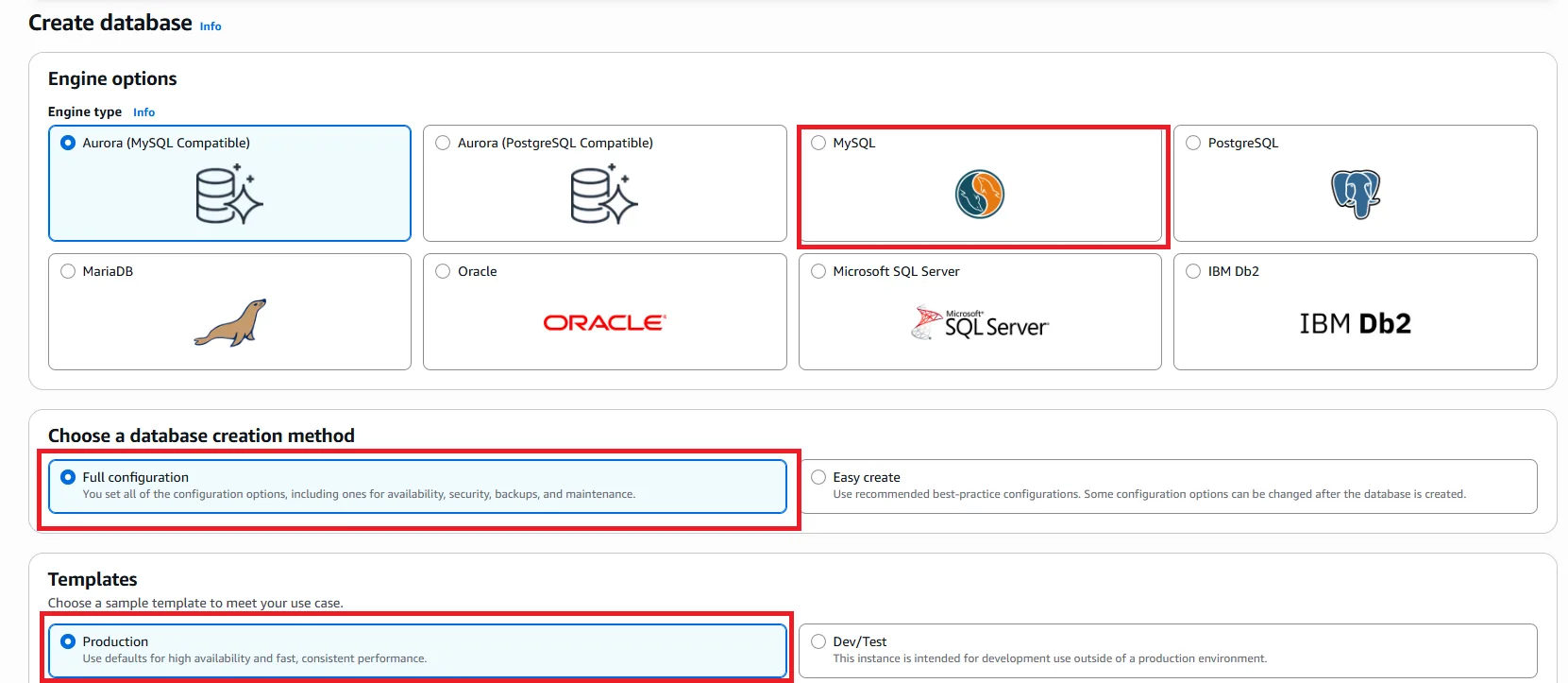
Select Single-AZ DB instance deployment.
Then set the DB subnet group and VPC security group.
Step 4: Install CData API Server on the first EC2 instance
What we are doing: SSH into the EC2 instance, install API Server V25, and start it once to confirm it runs.
Why we are doing it: You need one fully working node before cloning it into a second node. This first node also performs the one-time job of provisioning the configuration schema into RDS.
Detailed settings:
- Download and install CData API Server: Create and Deploy Fully Documented APIs from any Database | CData API Server
- For installation steps and basic usage, refer to the CData API Server - Getting Started guide
- Verify that apiserver.jar starts and the admin console is reachable locally on port 8080.
Step 5: Externalize the API Server configuration to RDS
What we are doing: Generate an apiserver.properties file and point it at the RDS MySQL database, so that API Server reads and writes its configuration from RDS instead of its embedded database.
Why we are doing it: This is the key step that makes HA possible. When both nodes share one database, a change made on node 1 — a new connection, a new published table, a new user — is immediately visible to node 2.
Detailed settings:
SSH into the target EC2 instance and navigate to the directory where apiserver.jar is located. Run the following command to generate the properties file:
java -jar apiserver.jar -GenerateProperties
This creates apiserver.properties in the same directory.
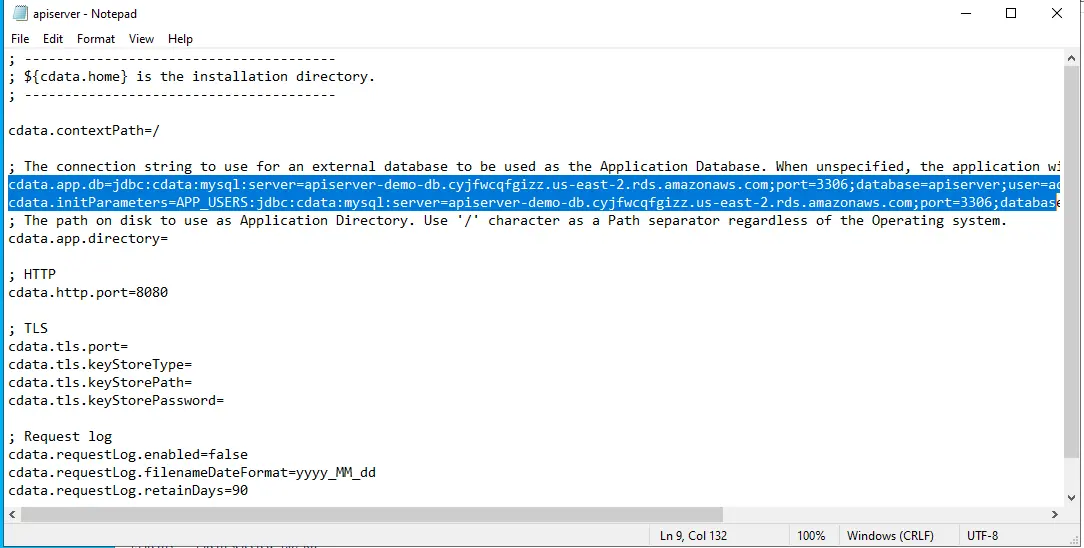
- Edit apiserver.properties and set cdata.app.db= and cdata.initParameters=APP_USERS to the JDBC connection string for your RDS database. This is the value used in the demo:
cdata.app.db=jdbc:cdata:mysql:server=apiserver-demo-db.xxxxxx.us-east-2.rds.amazonaws.com;port=3306;database=apiserver;user=admin;password=YOUR_PASSWORD
cdata.initParameters=APP_USERS:jdbc:cdata:mysql:server=apiserver-demo-db.xxxxxx.us-east-2.rds.amazonaws.com;port=3306;database=apiserver;user=admin;password=YOUR_PASSWORD
- Connection string templates for the other supported databases:
MySQL
cdata.app.db=jdbc:cdata:mysql:server=localhost;port=3306;database=mysql;user=MyUserName;password=MyPassword
PostgreSQL
cdata.app.db=jdbc:cdata:postgresql:server=localhost;port=5432;database=postgresql;user=MyUserName;password=MyPassword
SQL Server
cdata.app.db=jdbc:cdata:sql:server=localhost;database=sqlserver;user=MyUserName;password=MyPassword
- The properties file is also where you can override the default listening port if 8080 is not available.
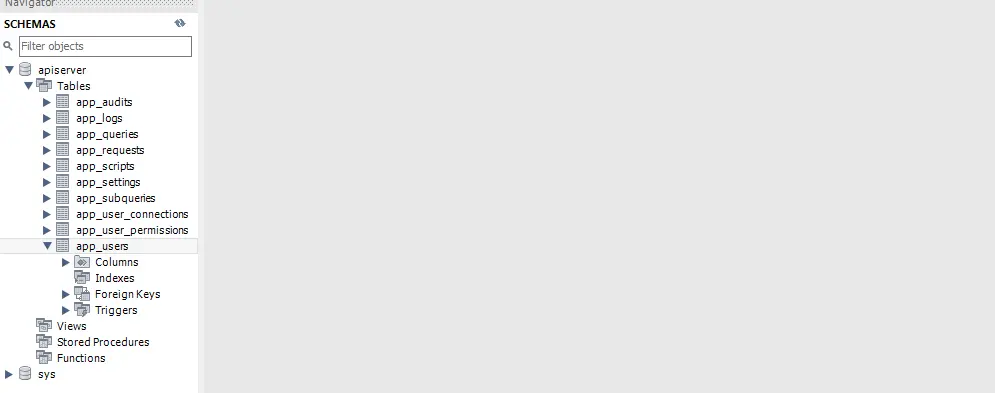
- Start the API Server again. On startup, it creates its configuration tables in the target database; you can confirm this by inspecting the RDS schema.
- You'll be prompted to activate a license, complete activation with your existing license key.
Security note: protect the properties file
The apiserver.properties contains your RDS password in plaintext. Restrict access to it immediately after saving.
Windows:
powershell
icacls "C:\Program Files\CData\CData API Server\apiserver.properties" /inheritance:d /reset
icacls "C:\Program Files\CData\CData API Server\apiserver.properties" /grant "NT AUTHORITY\NETWORK SERVICE:(R,W)" /grant "BUILTIN\Administrators:(F)"
Linux:
bash
chmod 600 /opt/apiserver/apiserver.properties
Production: Use AWS Secrets Manager with an IAM role on the EC2 instance instead of plaintext credentials.
Step 6: Publish tables as REST endpoints
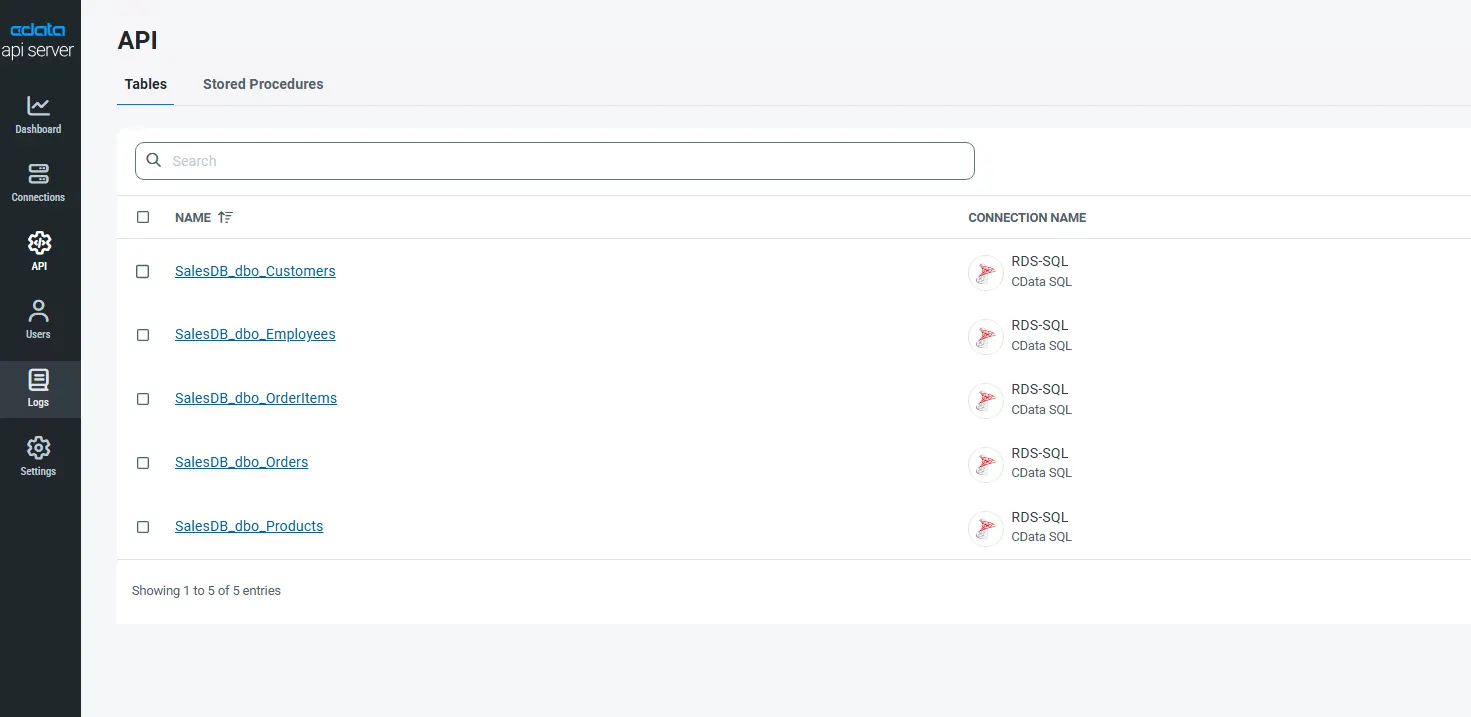
What we are doing: In the API Server admin console, open the API page and click Add Table to select and expose the tables you want to publish as REST endpoints.
Why we are doing it: This is what API Server is actually for: turning backend data into documented REST APIs. Because configuration now lives in RDS, these published endpoints will automatically be available from both EC2 instances once the second one comes online.
Detailed settings:
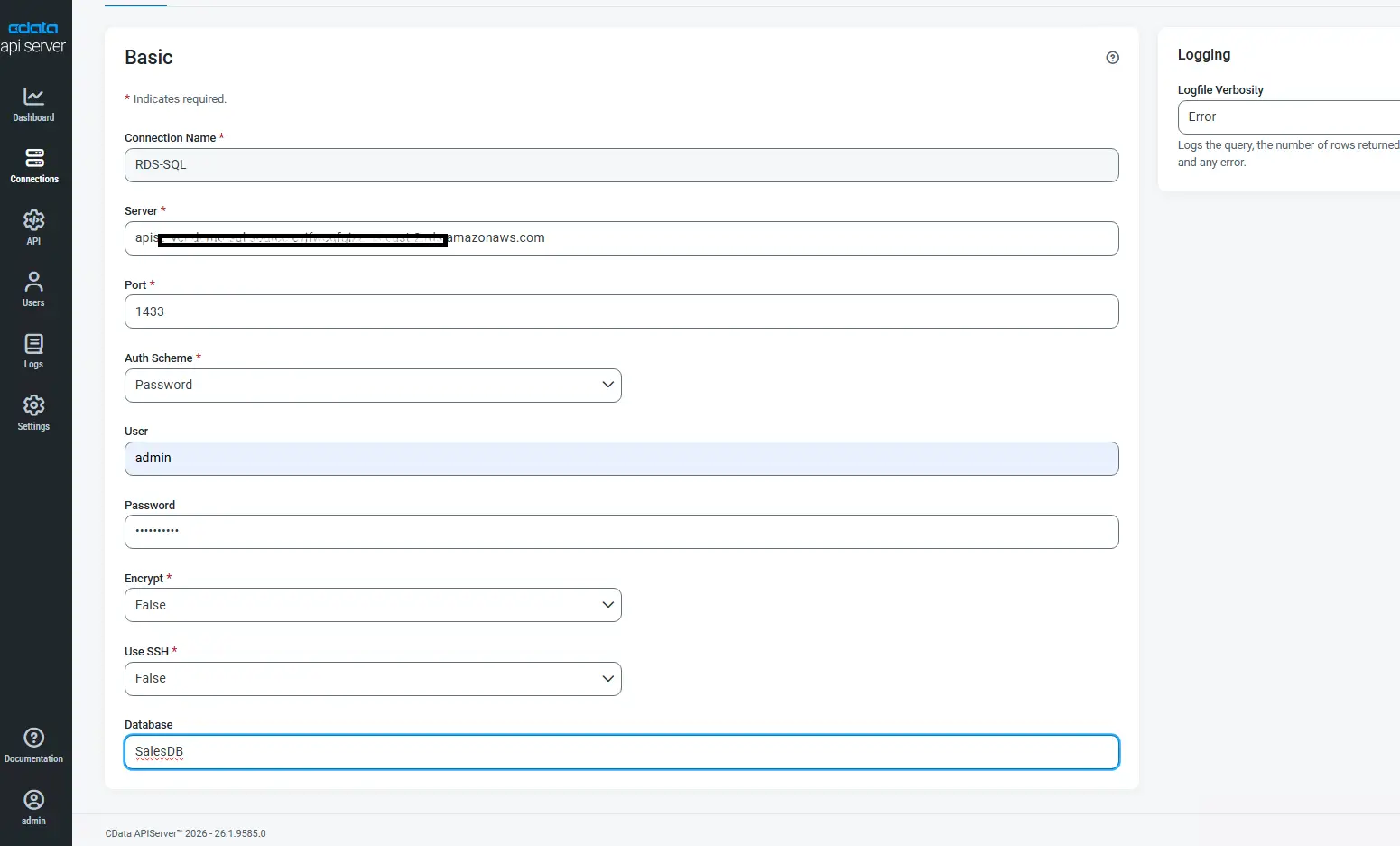
- First, add one or more data source connections on the Connections page and configure your source database.
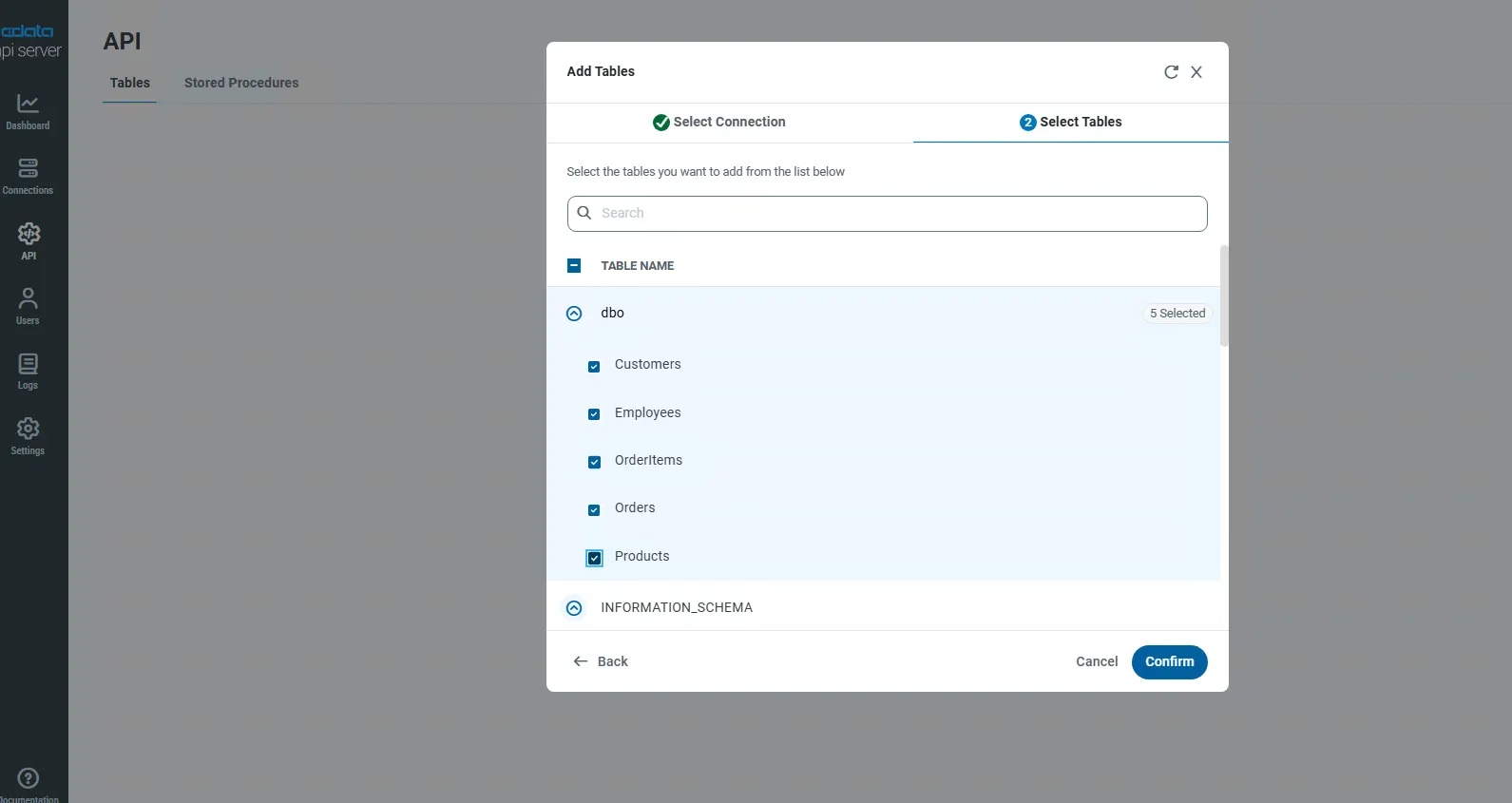
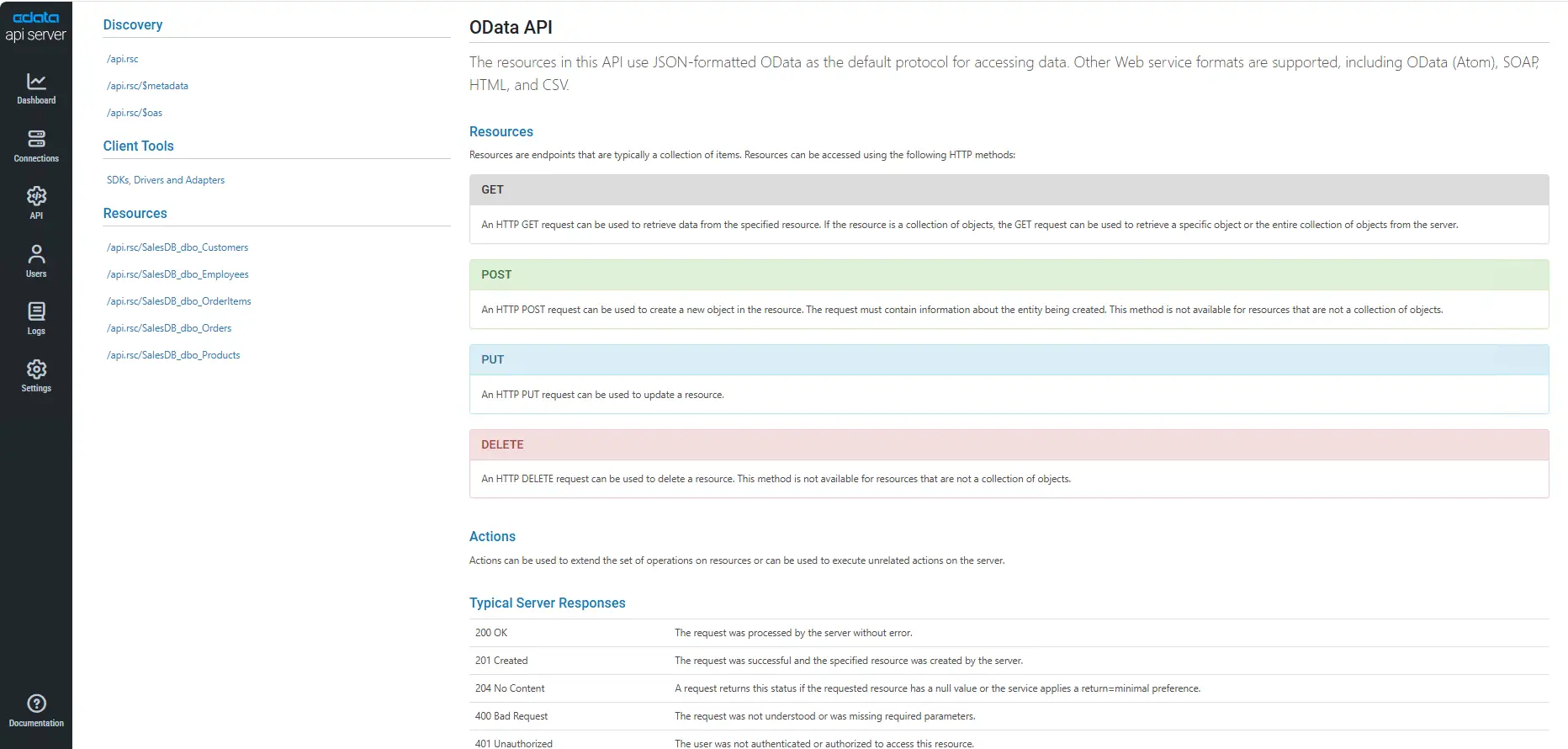
- Then, on the API page, choose Add Table, pick the schema and tables, and confirm the HTTP methods to expose (GET, POST, PUT, DELETE, MERGE).
- Once published, you can view the API listing and the auto-generated API documentation in the console.
Step 7: Register a domain in Route 53
What we are doing: Open the Route 53 console, search for an available domain name, and complete the purchase.
Why we are doing it: A real domain name is needed so that clients can reach the service by a friendly URL and so that ACM can issue a public TLS certificate bound to that name.
Detailed settings:
- Search for the domain in Route 53 → Domain Registration.

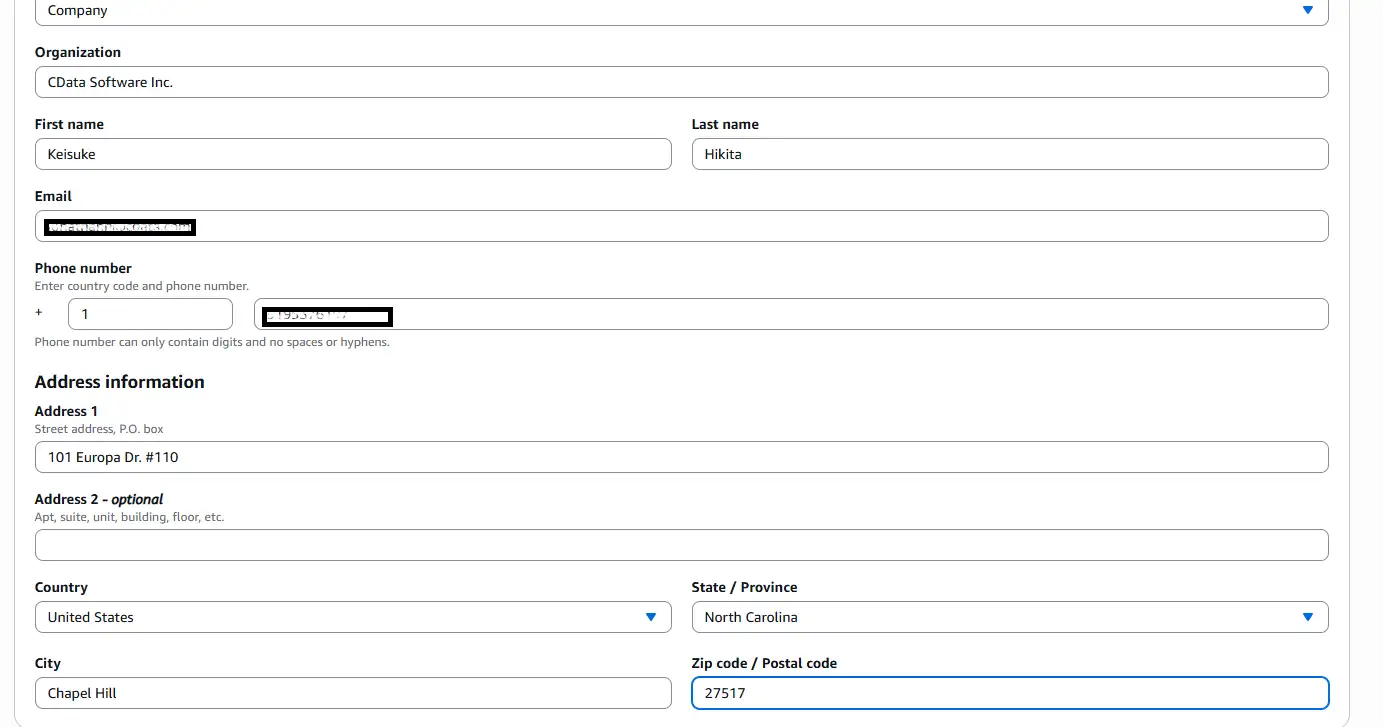
- Proceed through checkout and enter your registrant contact details.
- Wait for the hosted zone to be provisioned, Route 53 automatically creates it for the registered domain.
Step 8: Request a public TLS certificate in ACM
What we are doing: In AWS Certificate Manager, request a public certificate for your domain and validate it via DNS.
Why we are doing it: The ALB will terminate HTTPS for clients. For that to work, it must present a trusted TLS certificate. ACM provides free, auto-renewing public certificates and integrates directly with the ALB.
Detailed settings:
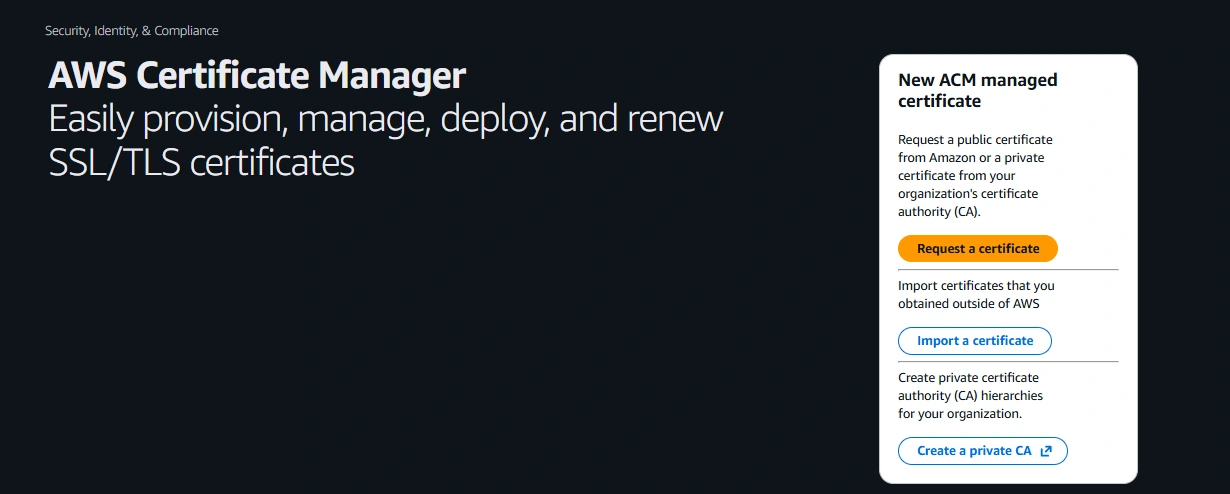
- In ACM, click Provision certificates → Request a public certificate → Request.

- Enter the fully qualified domain name (FQDN). If you plan to use subdomains, add a wildcard entry such as *.yourdomain.com.
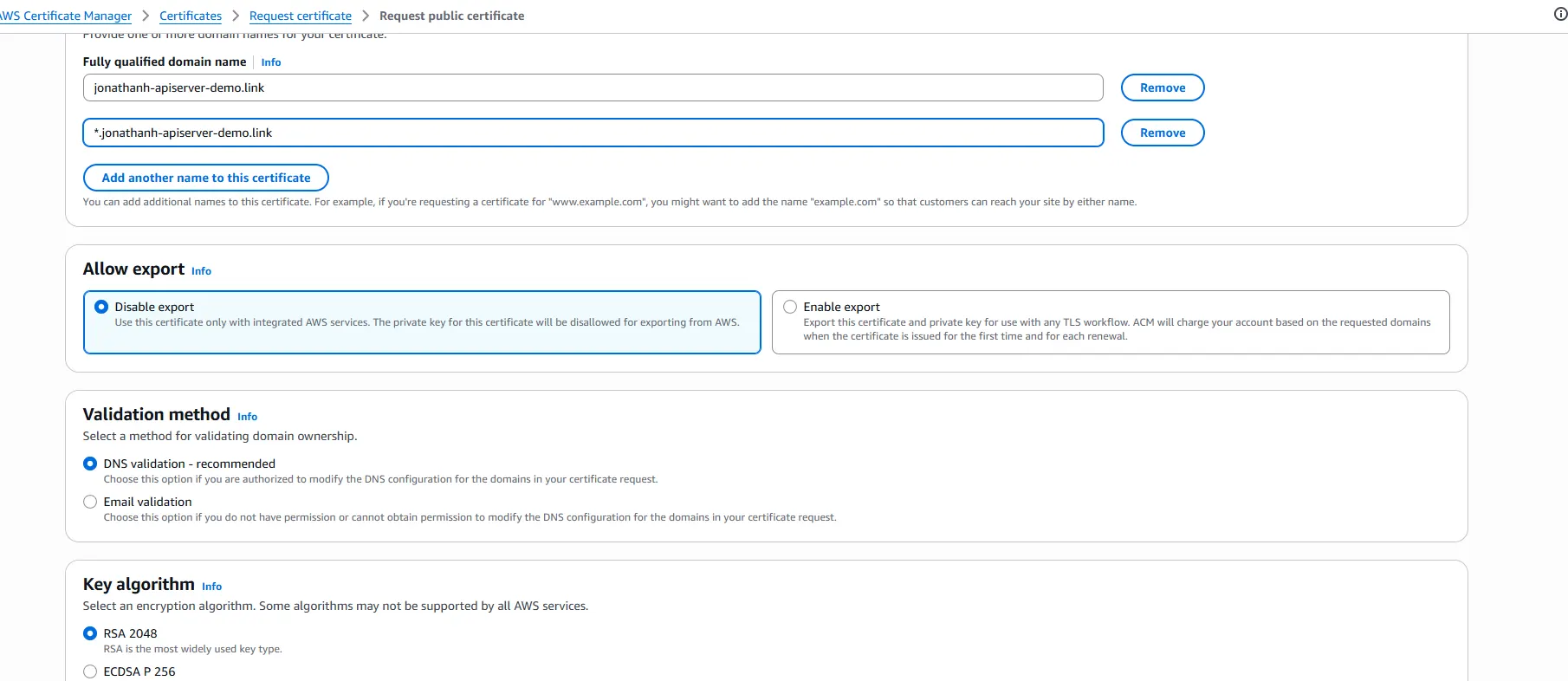
- Choose DNS validation and continue.
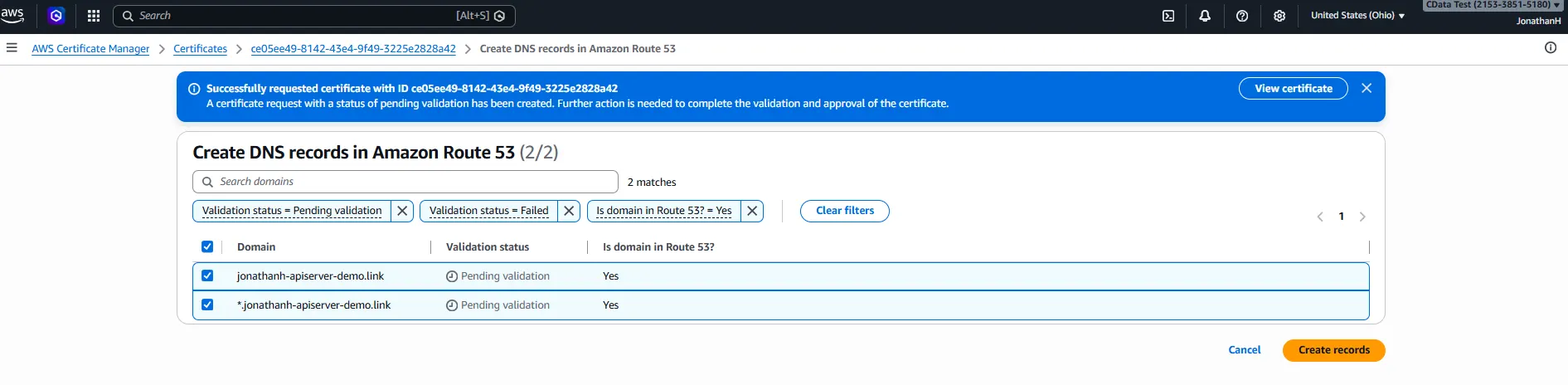
- After the request is submitted, click Create records in Route 53. ACM will automatically write the required CNAME validation records into your hosted zone.
- Wait until the certificate status transitions to Issued.
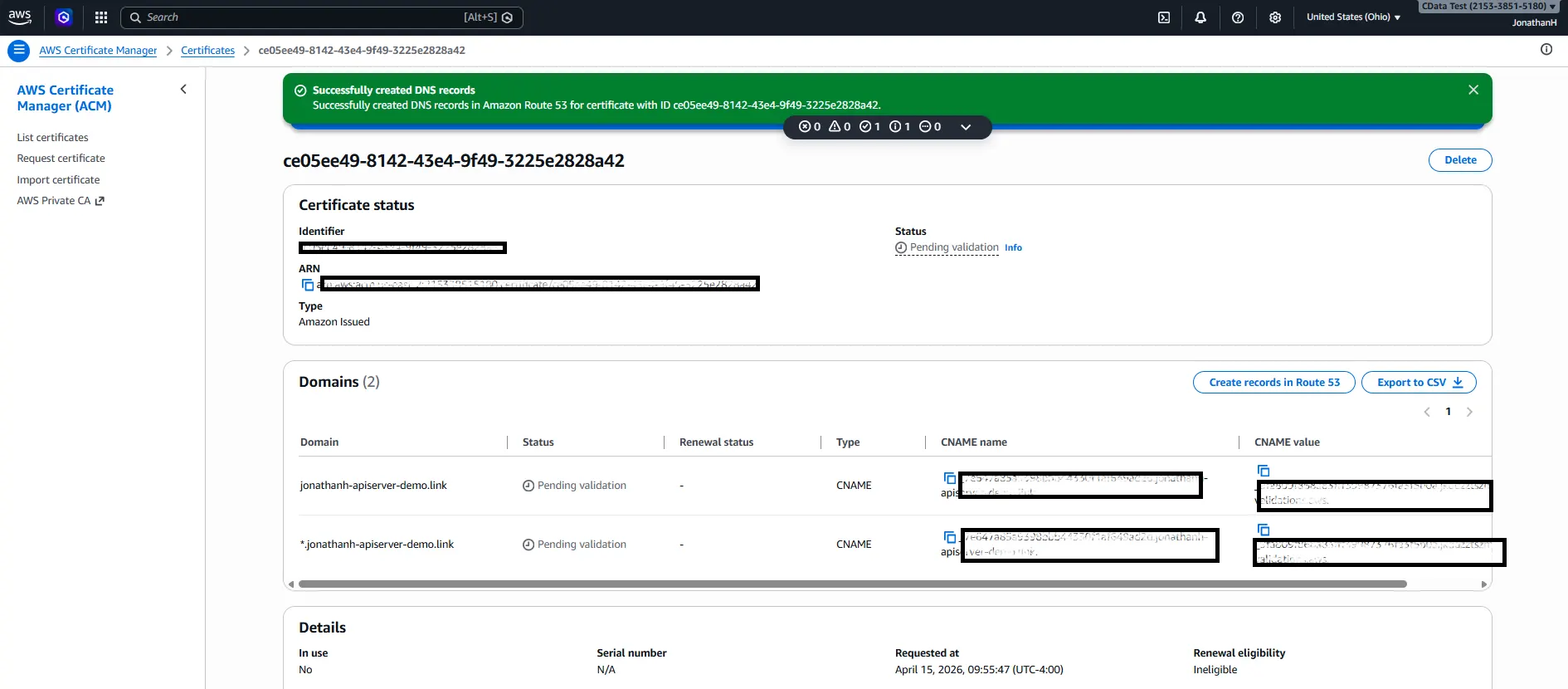
At this point you have both a domain and a TLS certificate.
Step 9: Create the target group
What we are doing: Create an ALB Target Group that points to your EC2 instance on the API Server port.
Why we are doing it: A target group is the abstraction the ALB uses to know which backends to forward traffic to and how to health-check them. You will register both EC2 instances into this single target group.
Detailed settings:
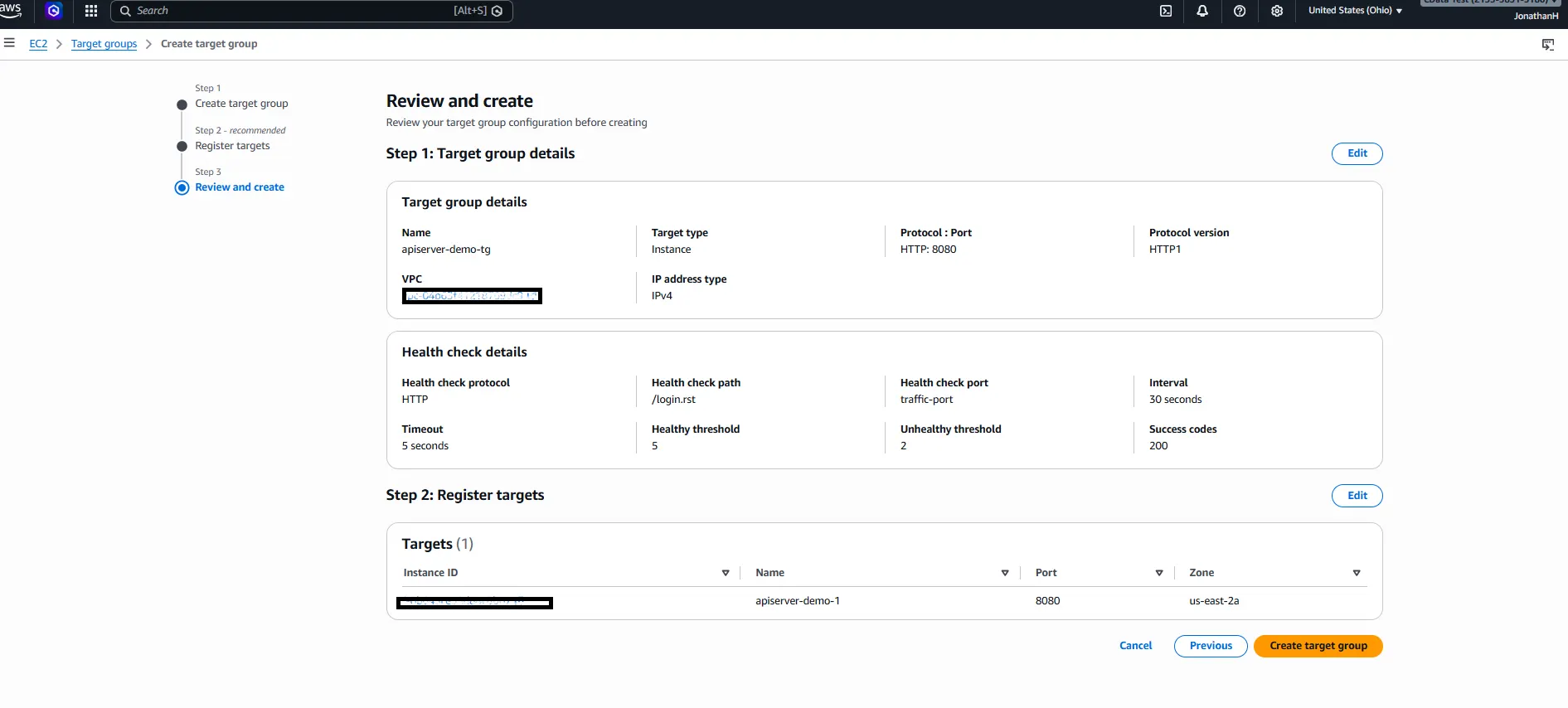
- Target type: Instance
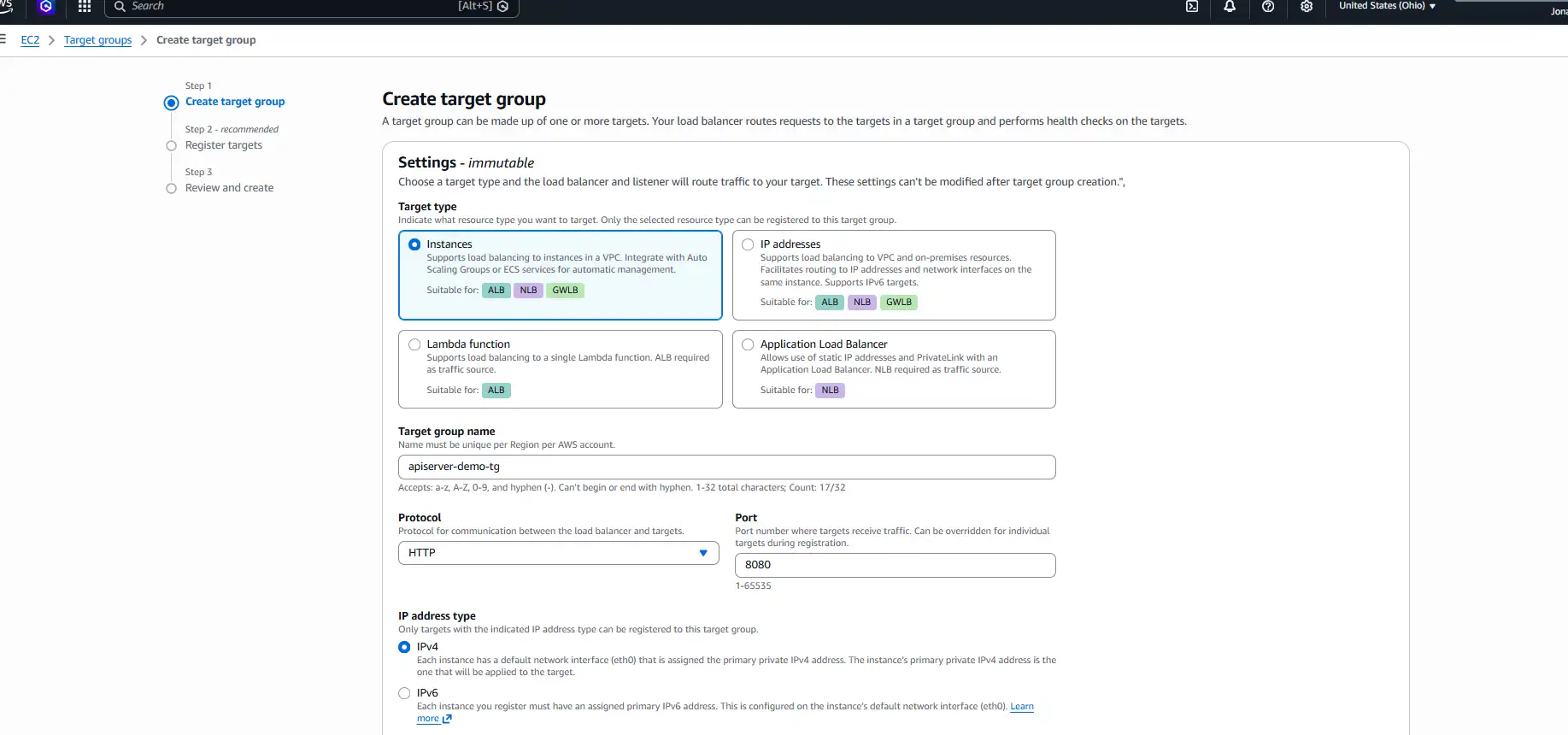
- Name: something descriptive, e.g. apiserver-tg
- Protocol / Port: HTTP on 8080 (change this if you overrode the port in apiserver.properties)
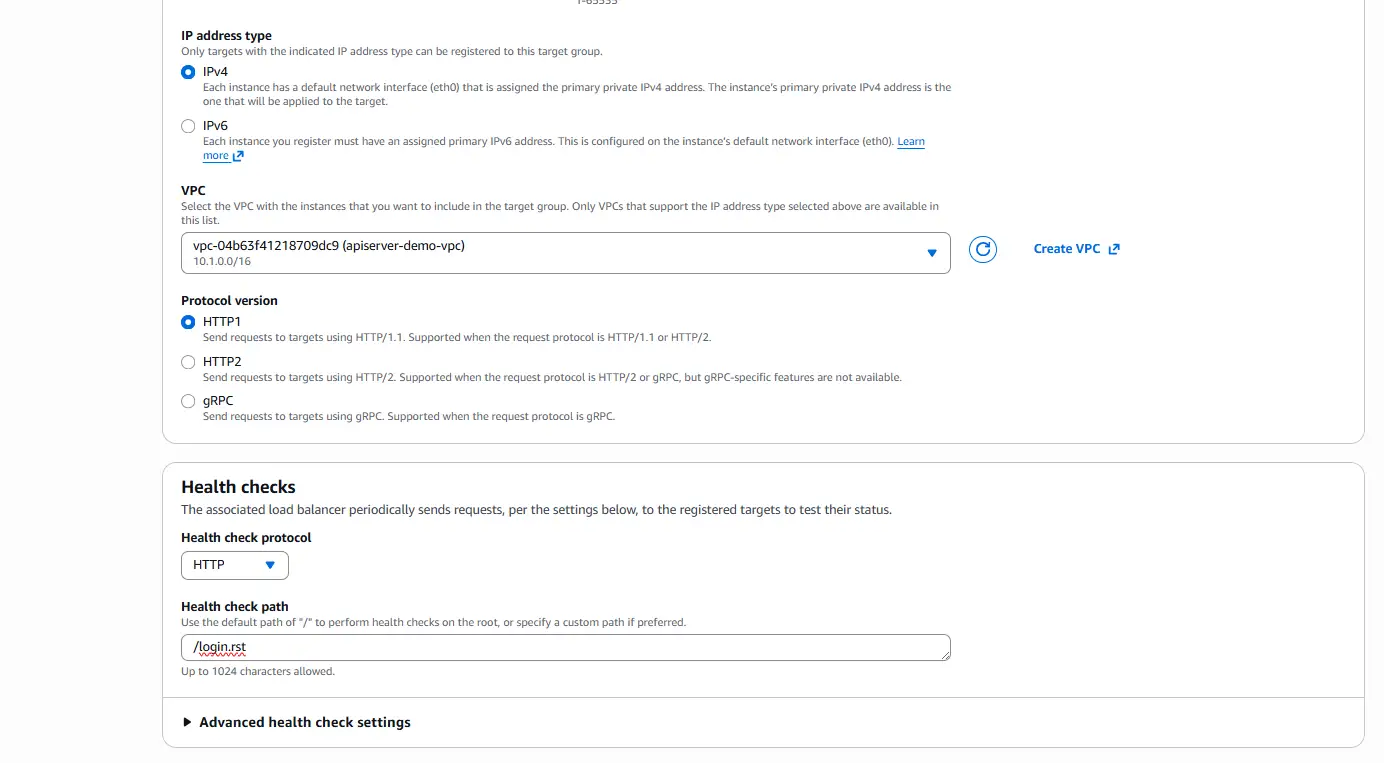
- Health check path: /login.rst — API Server's login endpoint returns quickly and reliably, making it a good liveness probe.
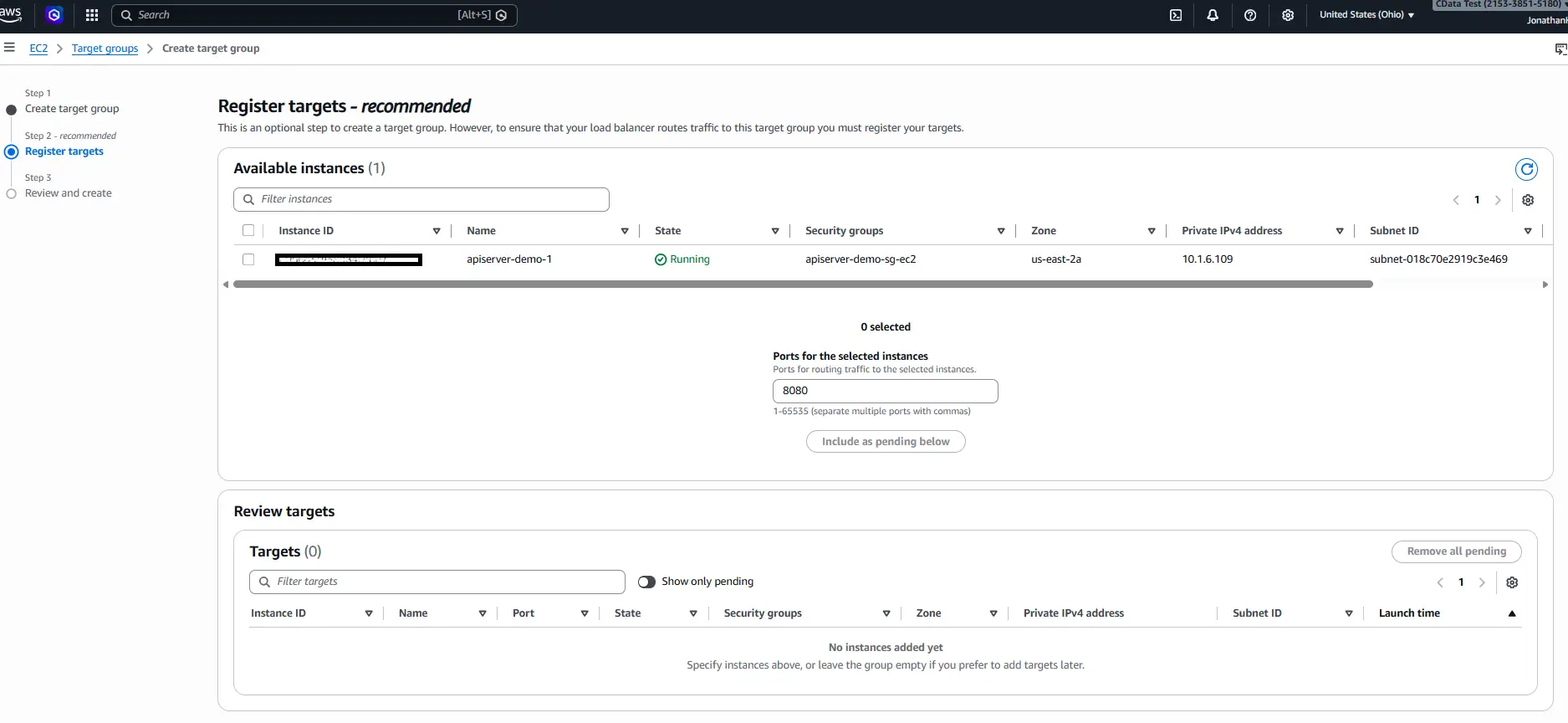
- Register targets: add the EC2 instance, confirm port 8080, and click Include as pending below to stage it.
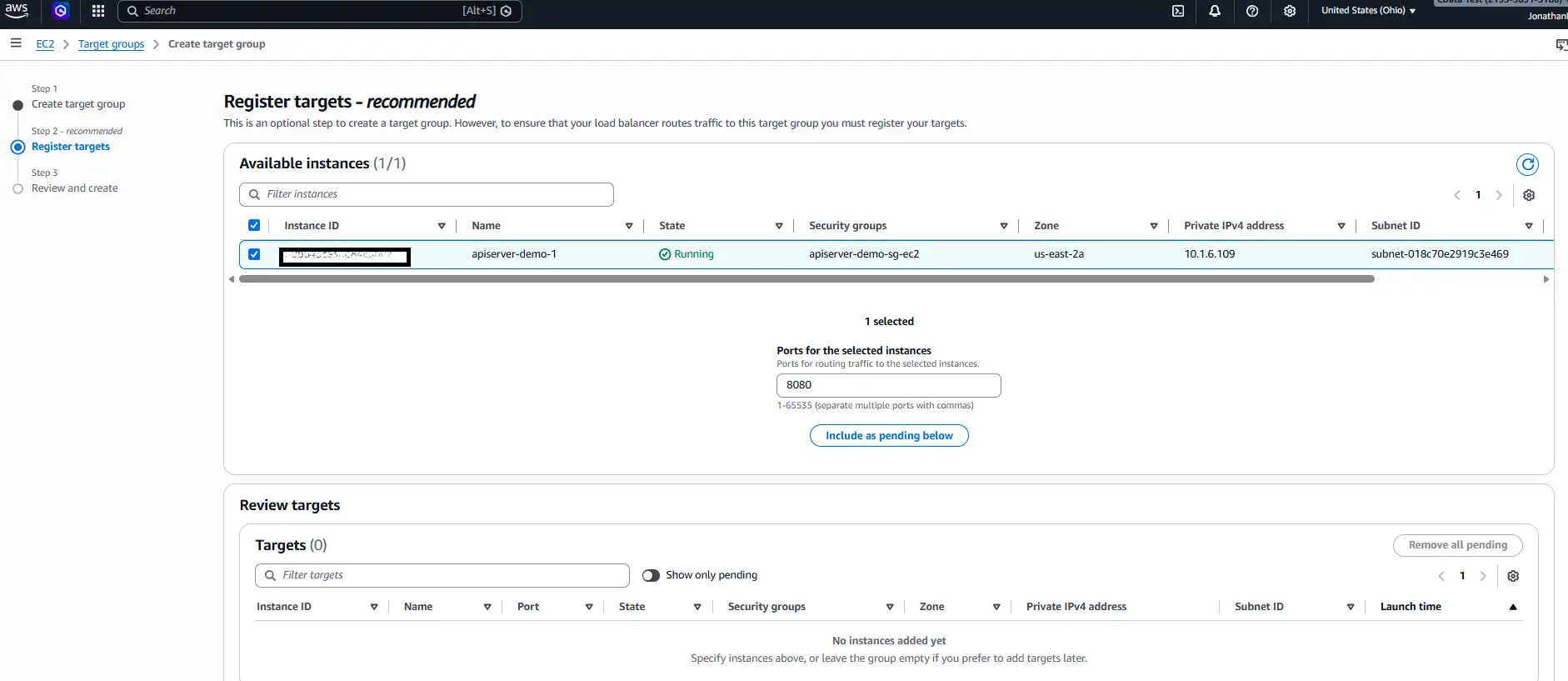
- Complete the registration so the instance appears in the Registered targets list.
Step 10: Create the application load balancer
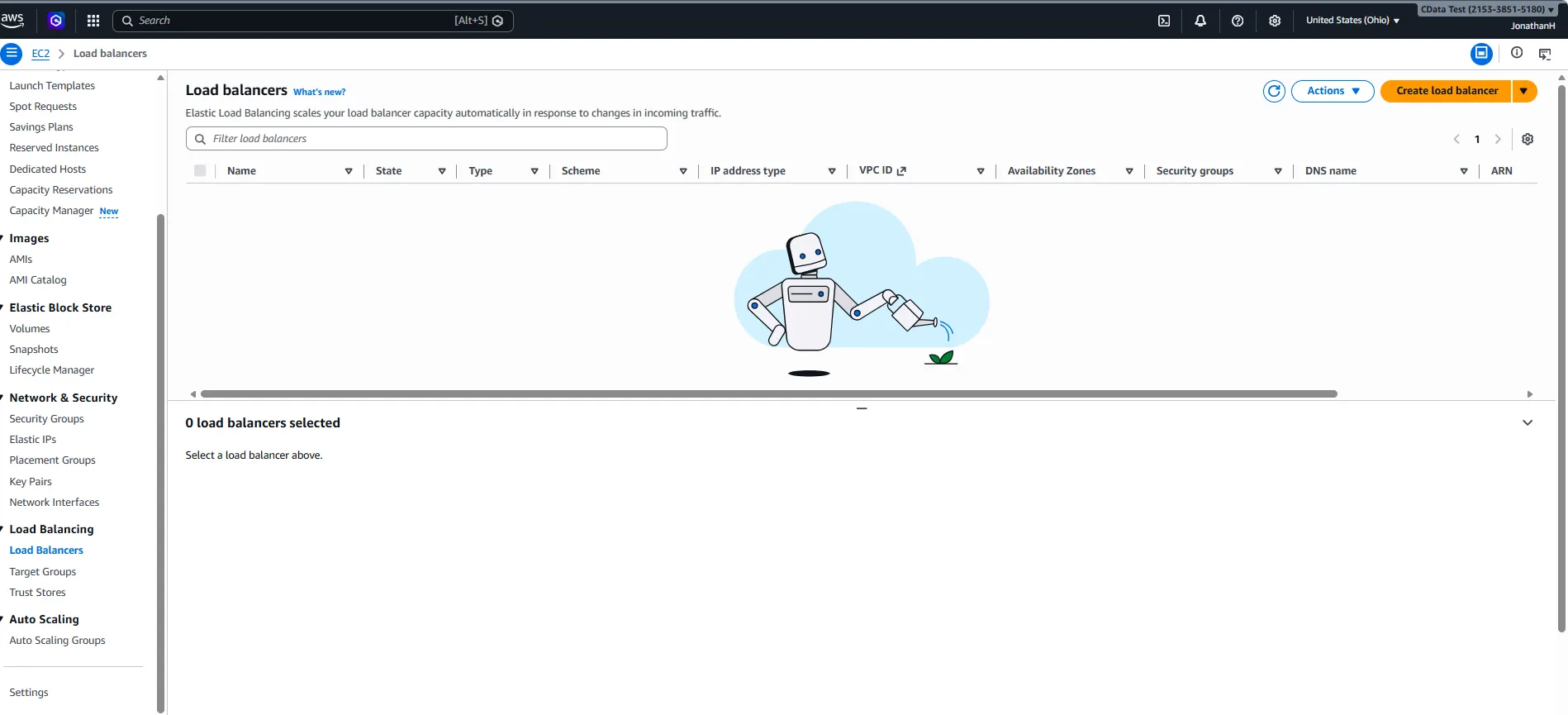
What we are doing: In EC2 → Load Balancers, click Create load balancer and select Application Load Balancer.
Why we are doing it: The ALB is the single public entry point for the service. It terminates TLS, distributes requests across the target group, and performs health checks so that an unhealthy instance is automatically taken out of rotation.
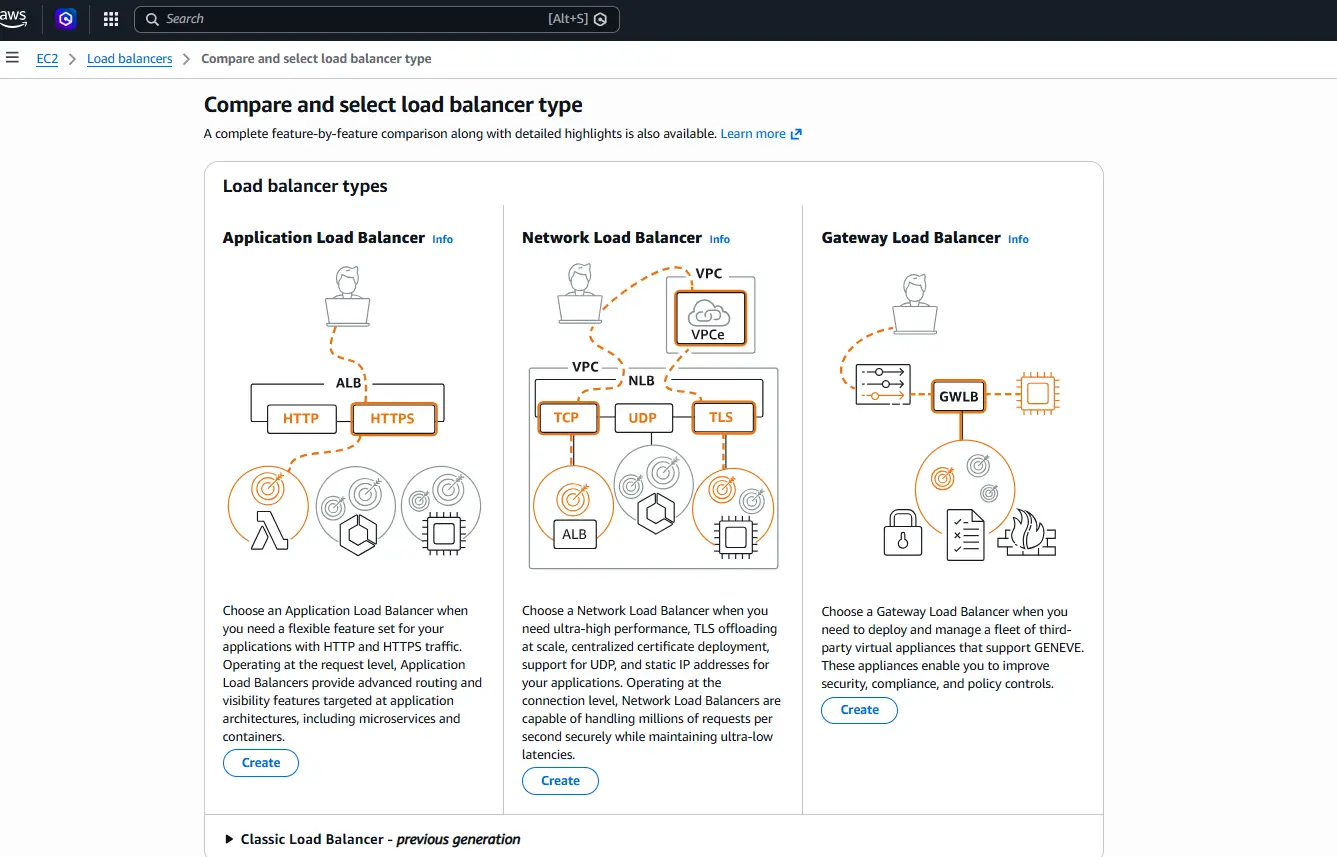
Detailed settings:
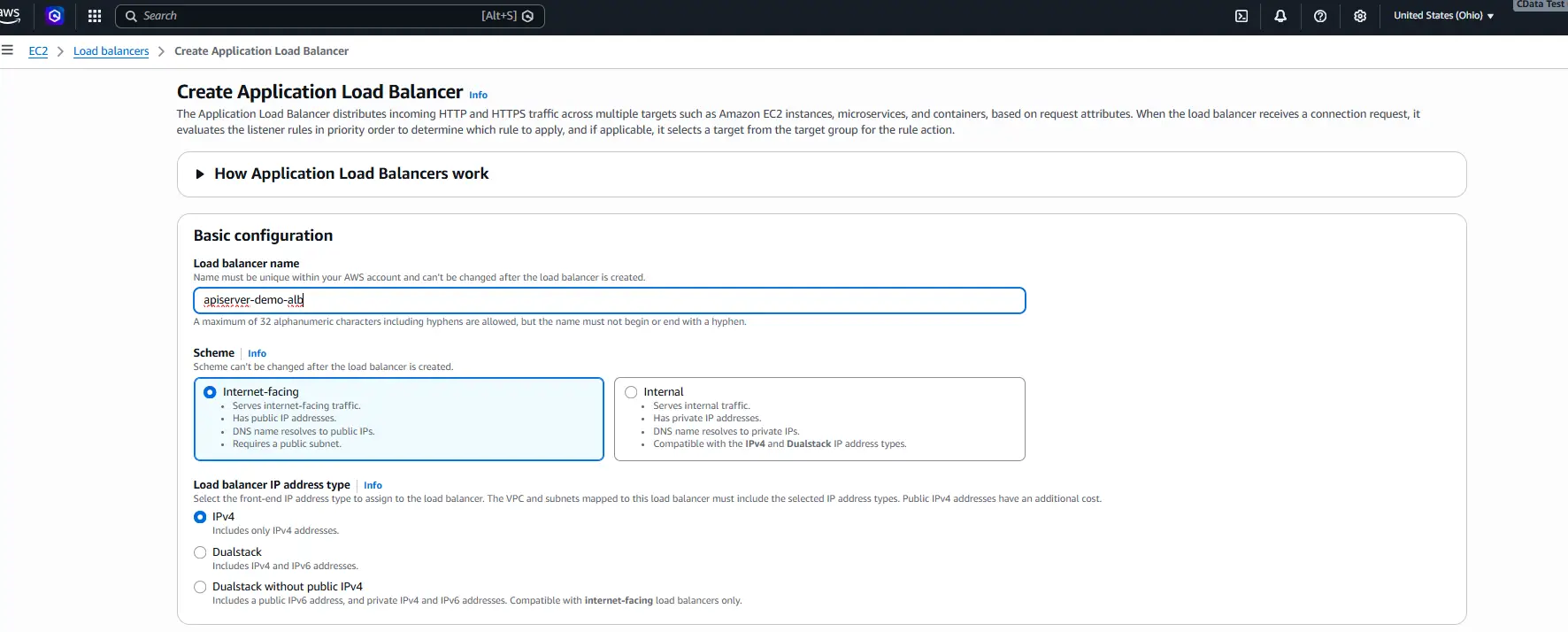
Configure the load balancer name and network mapping (VPC and Availability Zones) as follows:
- Name: a descriptive name, e.g. apiserver-alb
- Scheme: Internet-facing
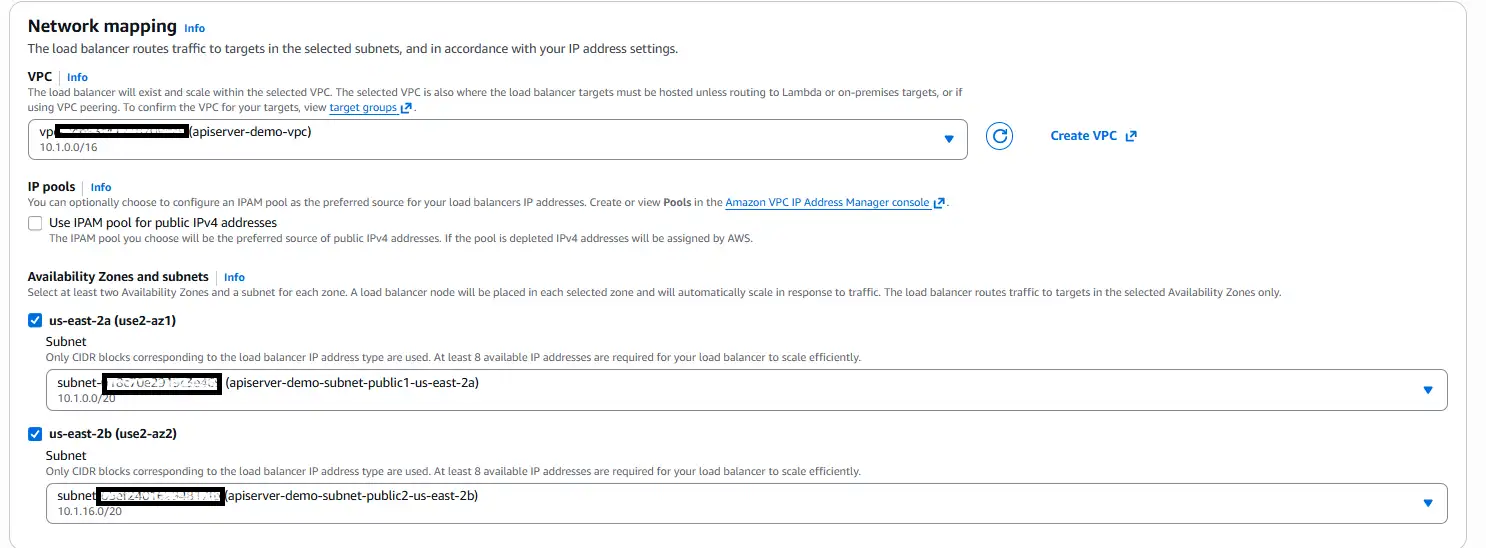
- Network mapping: select the VPC and both public subnets (AZ-a and AZ-b)
- Security group: attach the shared Security Group

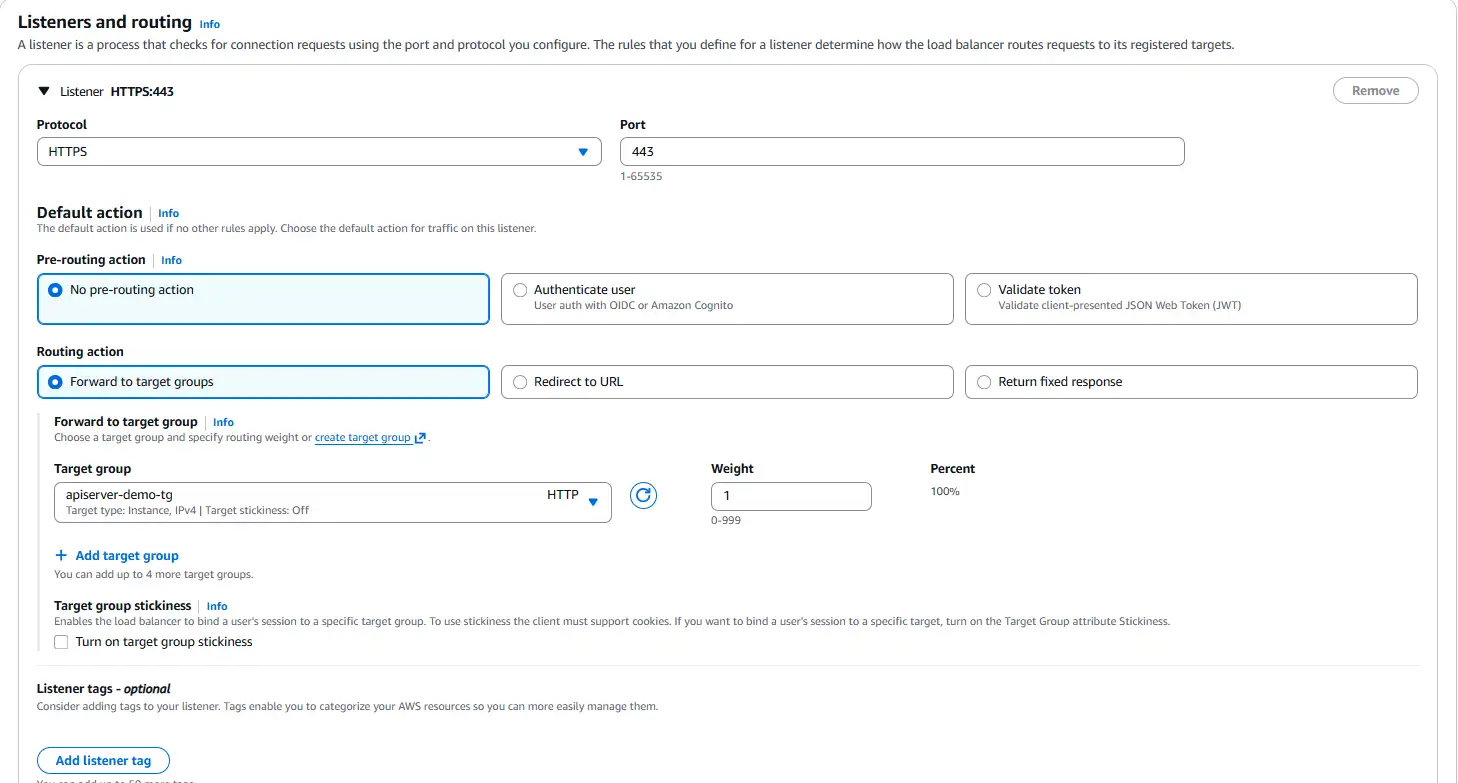
- Listener:
- Protocol: HTTPS
- Port: 443
- Default action: Forward to your target group from step 9
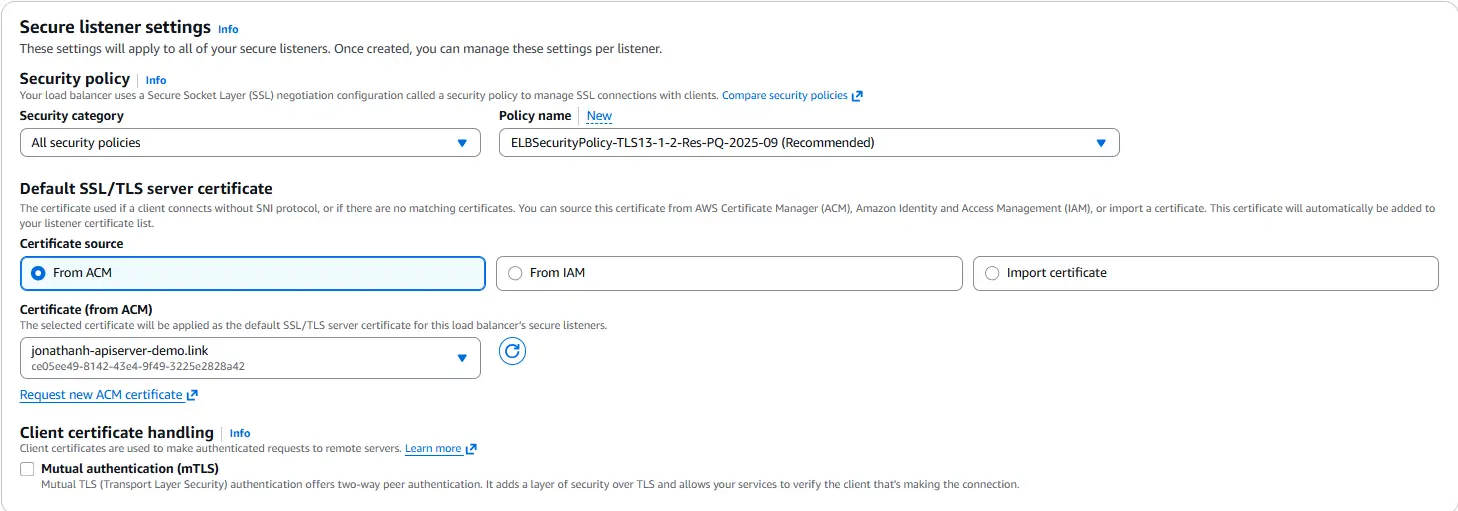
- Secure listener settings: choose From ACM and select the certificate issued in step 8
Step 11: Point a subdomain at the ALB
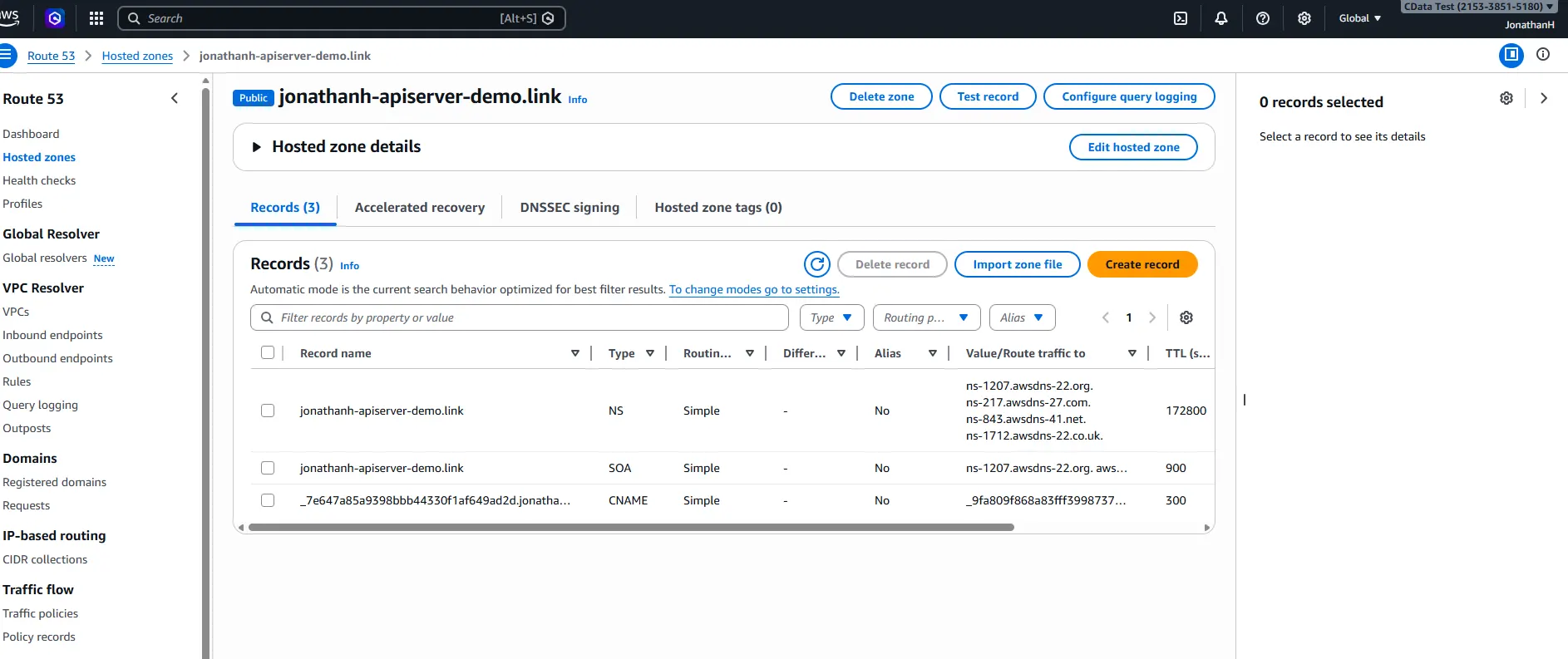
What we are doing: In the Route 53 hosted zone, create an Alias record that points a subdomain to the new ALB.
Why we are doing it: Clients need a DNS name to reach the service. An Alias record resolves directly to the ALB's dynamic IPs, avoiding the brittleness of hard-coding an IP address.
Detailed settings:
- In the hosted zone, click Create record
- Toggle Alias on.
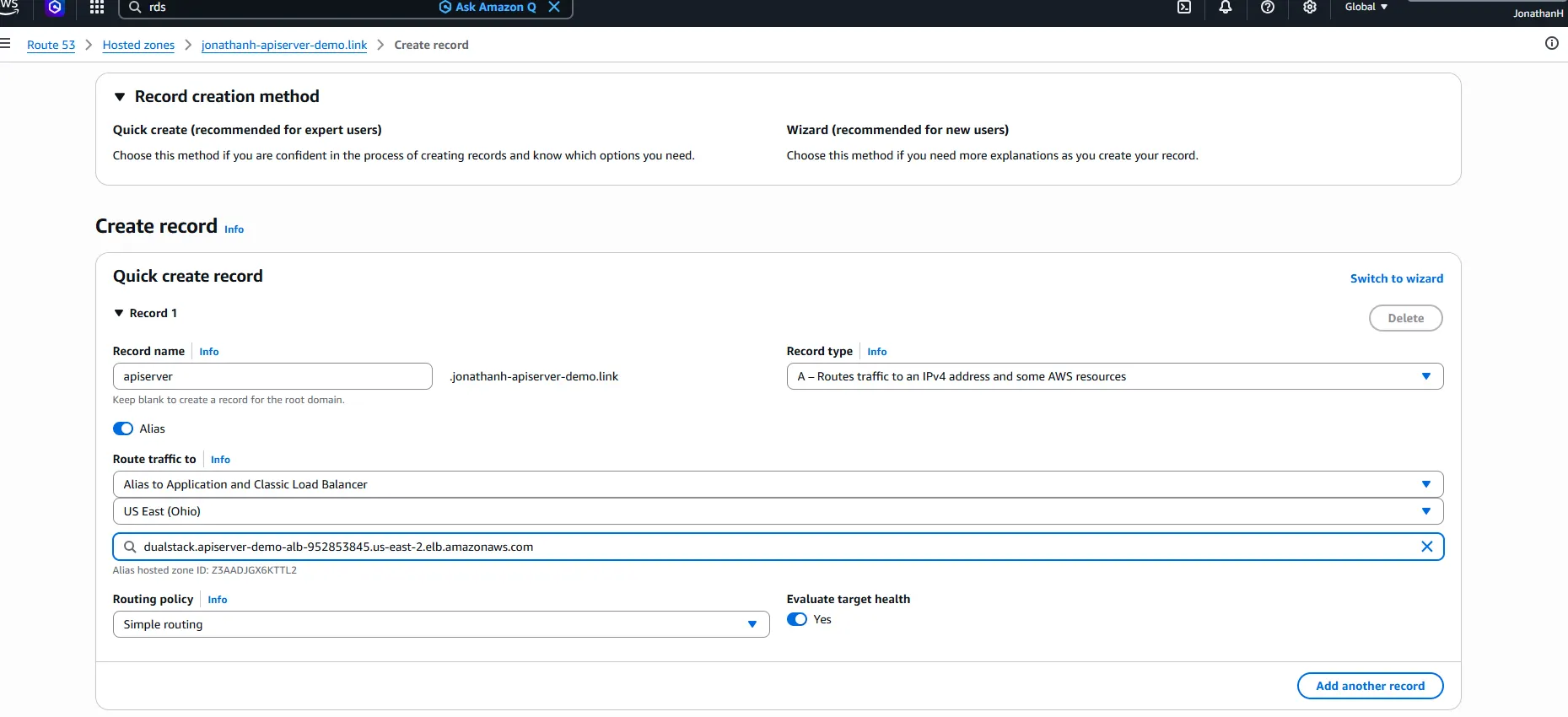
- Enter the desired subdomain (for example, api.yourdomain.com).
- Set the routing target to Application Load Balancer, choose the correct AWS Region, and select the ALB you just created.
Step 12: Harden the security group inbound rule
What we are doing: Split the original shared Security Group into two purpose-specific groups: one for the ALB that accepts HTTPS from the internet, and one for the EC2 instances that accepts traffic on port 8080 only from the ALB.
Why we are doing it: The ALB must remain reachable on port 443 from the public internet, that is where client traffic enters. What needs to be locked down is port 8080 on the EC2 instances, so that clients cannot bypass the ALB and hit an instance directly. Using two separate Security Groups makes this clean: the EC2 rule references the ALB's Security Group as its source, so only traffic that has passed through the ALB is accepted.
Detailed settings:
Create the ALB Security Group (e.g. apiserver-demo-sg-alb):
- Inbound rule: HTTPS, port 443, source 0.0.0.0/0 (and ::/0 for IPv6 if needed)
- This group stays on the ALB and nowhere else
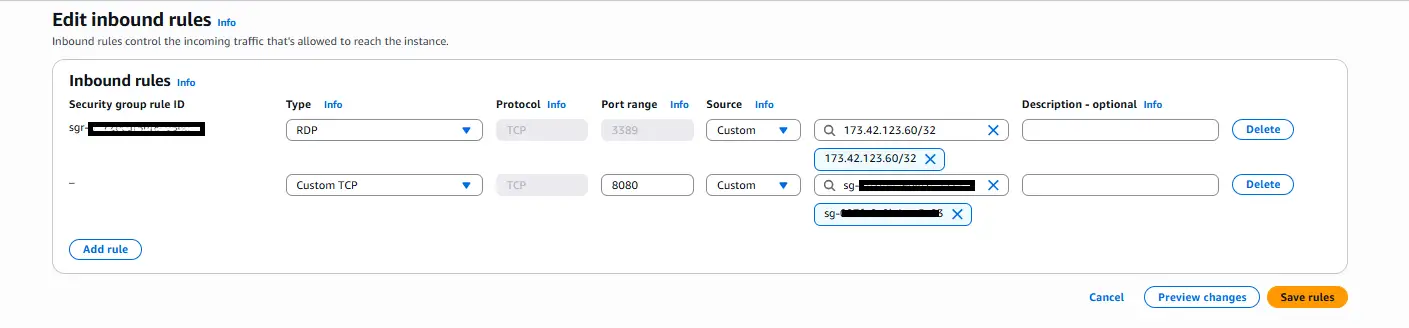
Update the EC2 Security Group (e.g. apiserver-demo-sg-ec2):
- Remove any existing rule allowing port 443 from 0.0.0.0/0
- Add inbound rule: Custom TCP, port 8080, source = the ALB Security Group (apiserver-demo-sg-alb)
- This ensures EC2 instances only accept API Server traffic that originates from the ALB

Attach the new Security Group to the ALB:
- In EC2 → Load Balancers, select your ALB → Actions → Edit security groups
- Remove the old shared group and attach apiserver-demo-sg-alb
- Confirm both EC2 instances have apiserver-demo-sg-ec2 attached and no longer carry the old shared group
The resulting traffic path is: Internet → ALB SG (443) → ALB → EC2 SG (8080, ALB SG source only) → API Server.
Step 13: Validate the single-instance configuration
What we are doing: Log in to the API Server admin console through the Route 53 subdomain, then hit the API listing endpoint.
Why we are doing it: Before adding the second node, confirm that the full path, DNS → ALB → target group → EC2 → API Server, is working end-to-end. Fixing problems with one node in the picture is much easier than with two.
Detailed settings:
- Open https://[your-subdomain]/ in a browser and log in to the admin console.
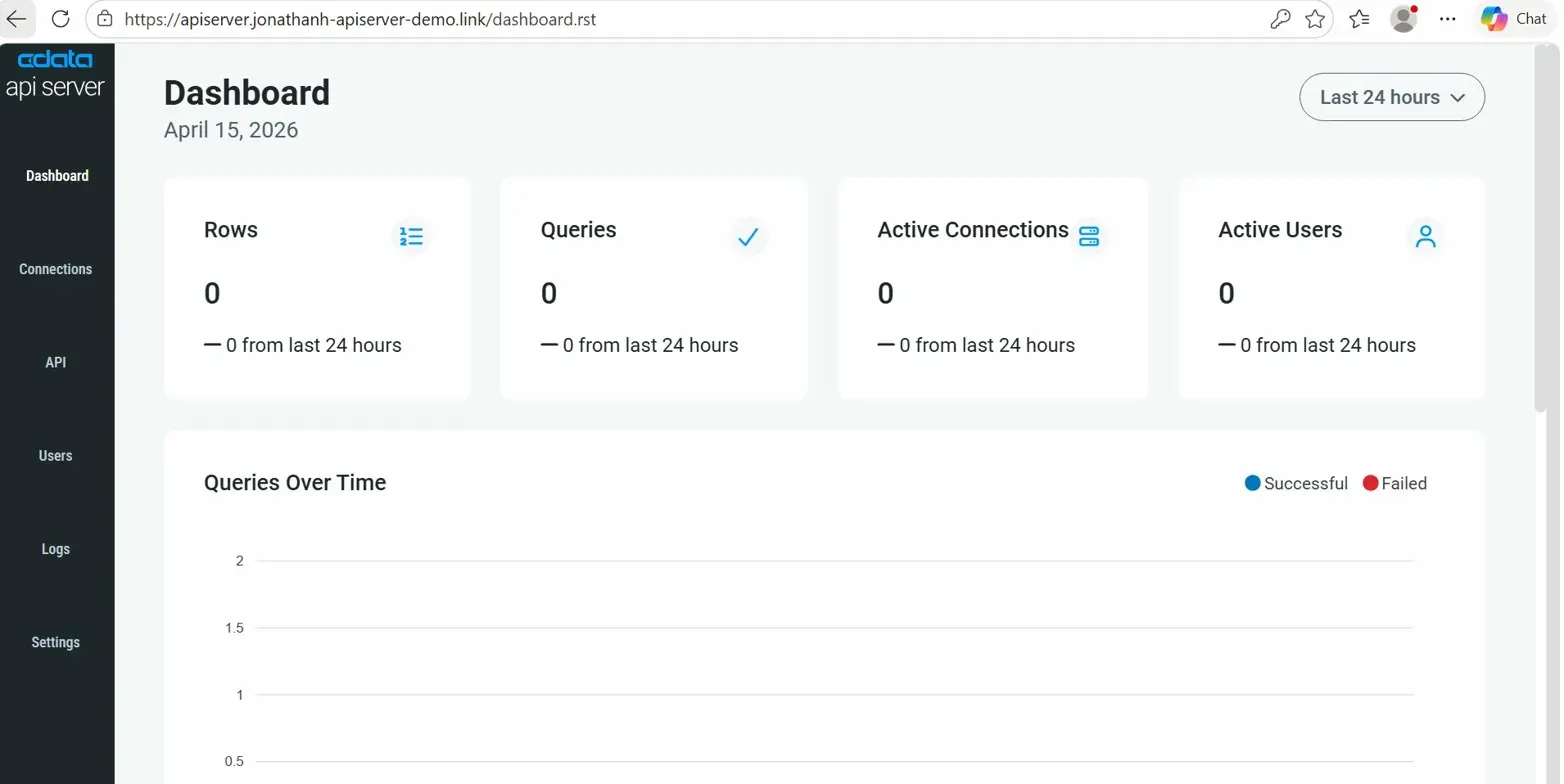
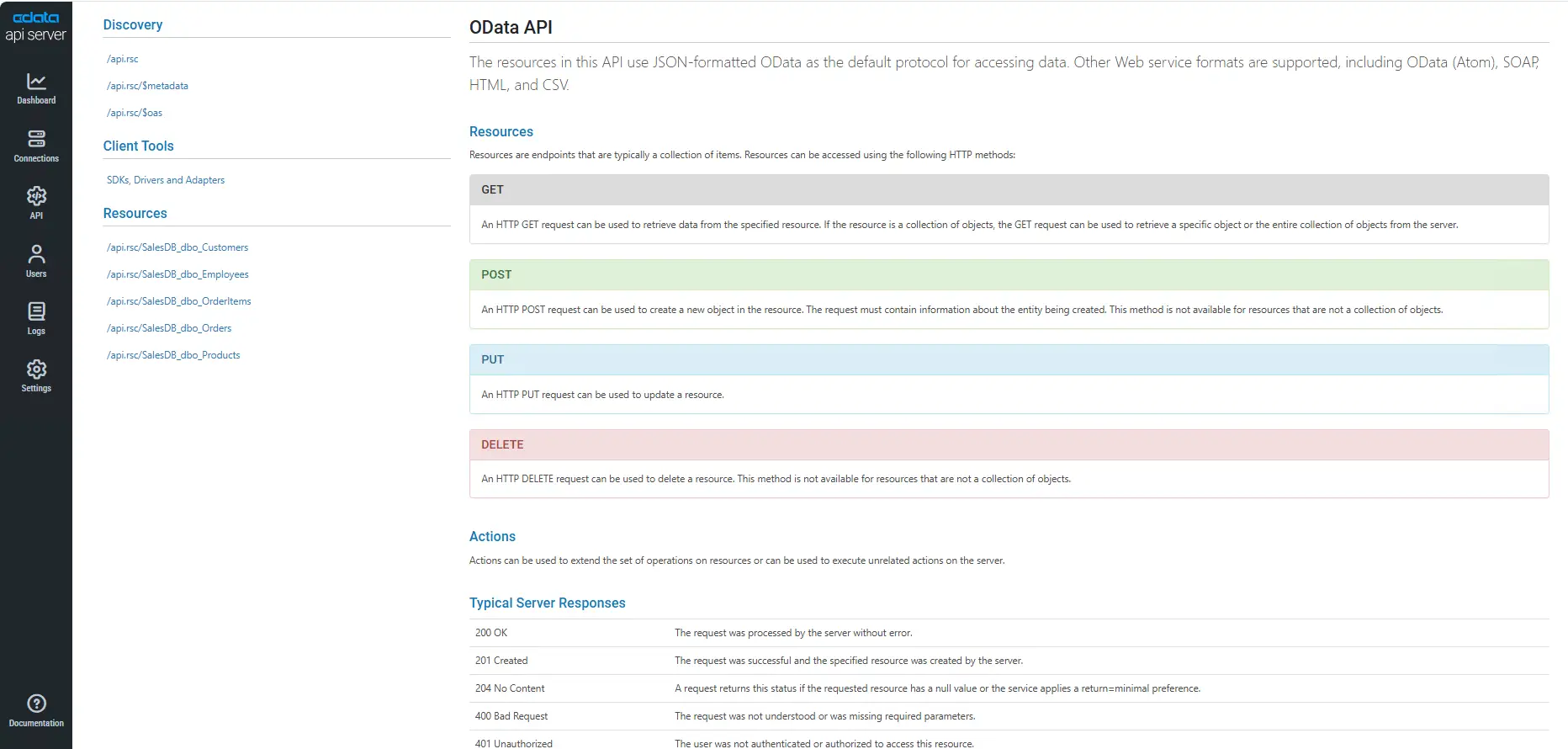
- To list the published endpoints, visit:
https://<your-subdomain>/api.rst
- Issue test requests from Postman or curl to confirm end-to-end functionality. A simple browser GET test is also acceptable. Use the username and PAT generated by API Server.
Step 14: Scale to two instances via an AMI
What we are doing: Stop the first EC2 instance, create an AMI from it, and launch a second EC2 instance from that AMI.
Why we are doing it: Imaging the configured instance guarantees that the second node is identical to the first — same API Server version, same apiserver.properties, same OS-level setup. Because the properties file already points at the shared RDS database, the new node immediately joins the cluster on startup.
Detailed settings:
- Stop the first EC2 instance (a consistent AMI is easier to capture from a stopped instance).
- In the EC2 console, right-click the instance → Image and templates → Create image.

- After the AMI reaches the Available state, launch a new EC2 instance from it.


- Place the second instance in the other private subnet (a different AZ from the first) so that a single-AZ outage cannot take out both nodes.
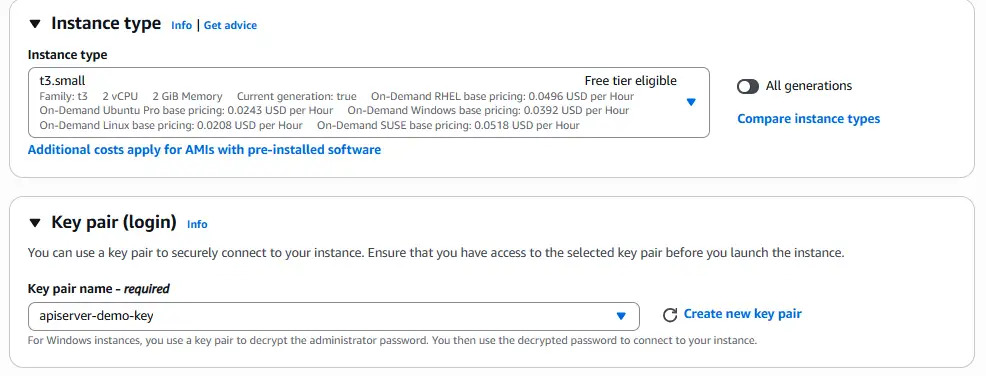
- Attach the same shared Security Group.
Step 15: Register the second instance in the target group
What we are doing: Add the second EC2 instance to the existing target group.
Why we are doing it: The ALB only distributes traffic across targets that are registered and healthy. Until the second instance is registered, it receives no traffic regardless of how healthy it is.
Detailed settings:
- Open the target group from step 9.
- Click Register targets, choose the second instance on port 8080, and click Include as pending below.
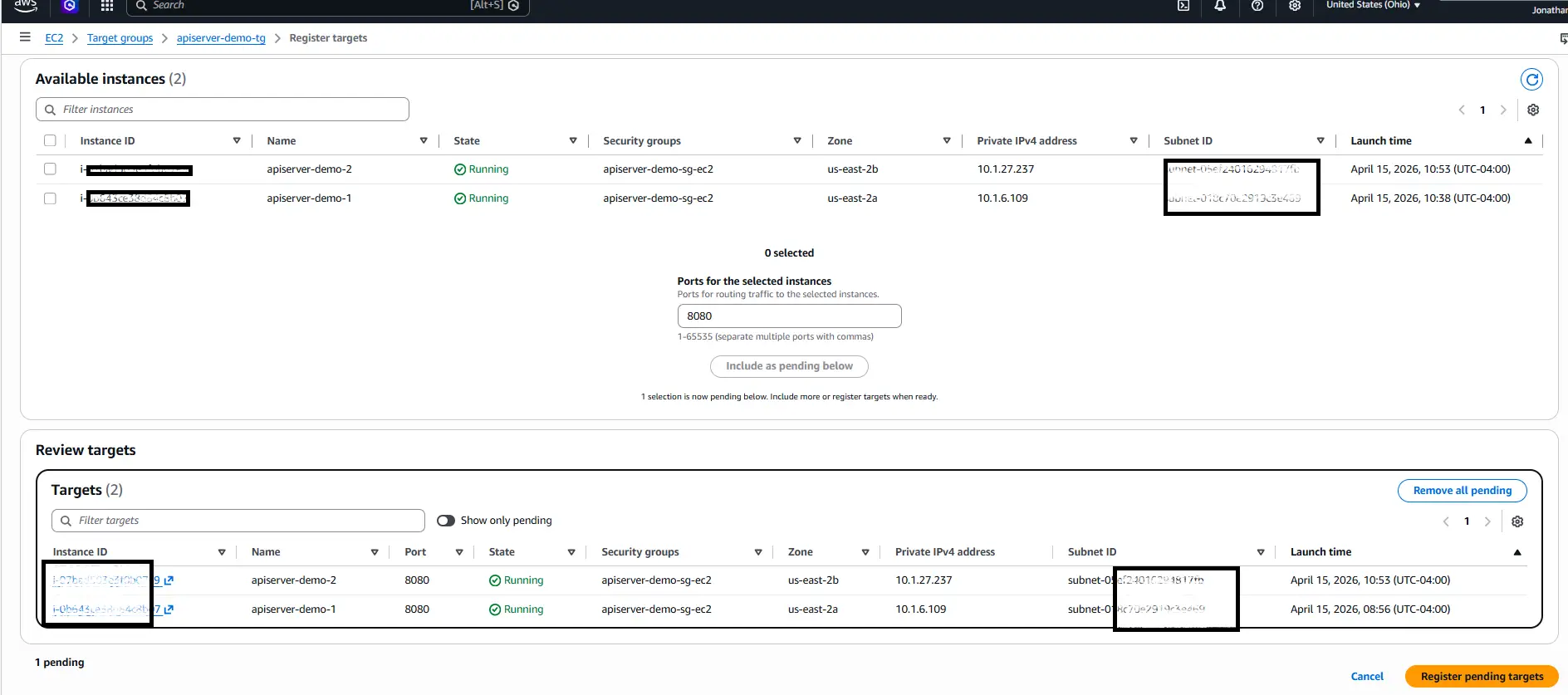
- Complete the registration and wait until the instance reports healthy (the ALB calls /login.rst on port 8080).
Step 16: Enable sticky sessions
What we are doing: On the target group, turn on Stickiness and choose Load balancer generated cookie as the stickiness type.
Why we are doing it: The admin console maintains per-session state. Without stickiness, two requests from the same browser could be routed to different instances, which can cause confusing login or edit behavior in the console. A load-balancer-generated cookie binds a given client session to a specific backend for the duration of the session.
Detailed settings:
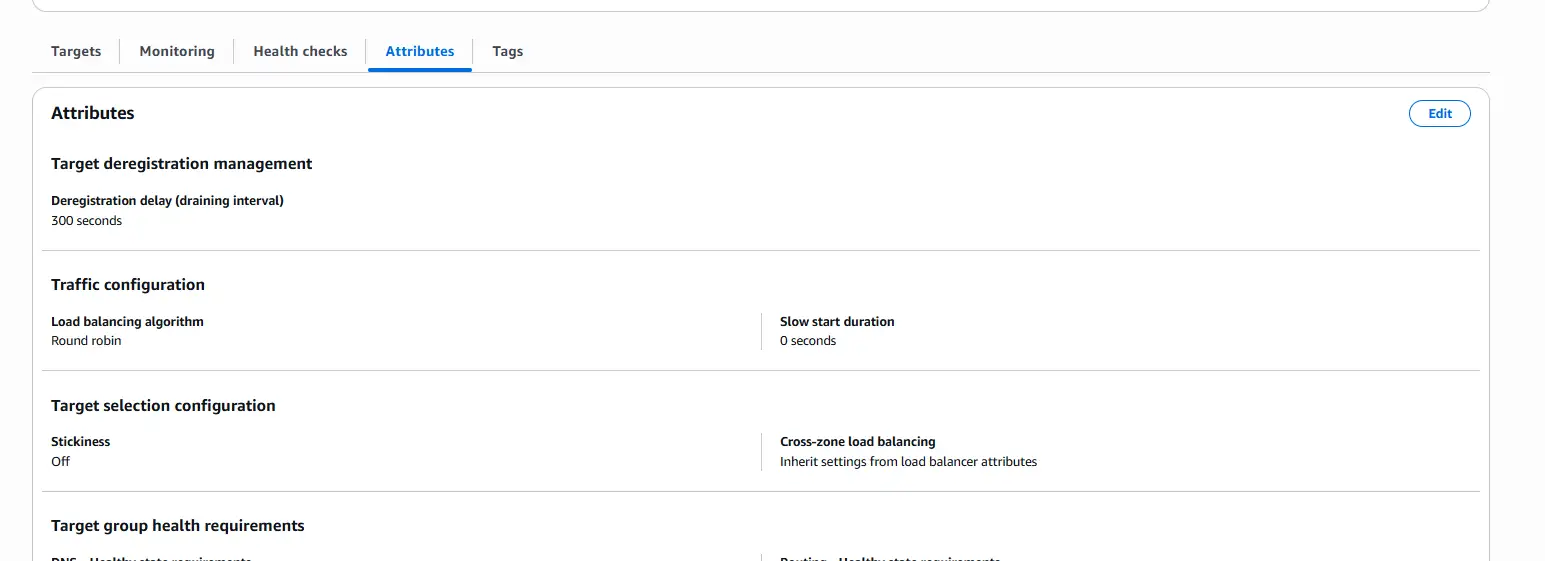
- Open the target group → Attributes tab → Edit.
- Enable Stickiness.
- Set the type to Load balancer generated cookie
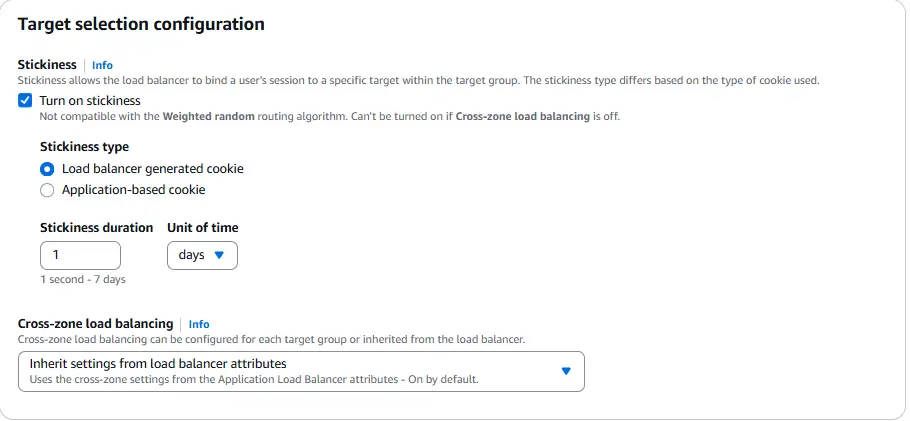
- Set a duration that suits your admin workflow (the default is typically fine for this demo).
Step 17: Validate the HA configuration
What we are doing: Start both EC2 instances, confirm both appear healthy on the ALB, and observe requests being distributed across them.
Why we are doing it: This is the final proof that the system is HA: a single admin URL, fronted by the ALB, distributing requests across two independent API Server nodes that share one RDS configuration store.
Detailed settings:
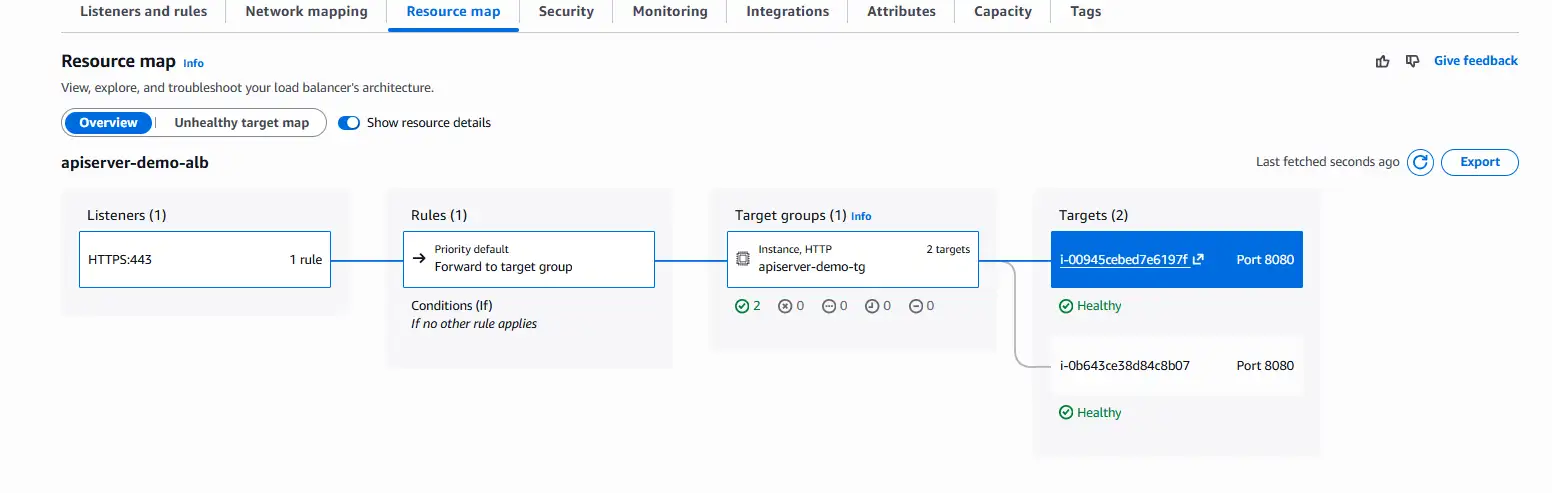
- Start both EC2 instances and open the ALB's Resource map, both targets should show a healthy status indicator.
- Log in to the admin console at the Route 53 subdomain.
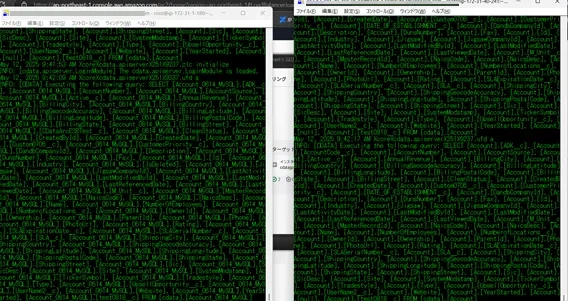
- SSH into both instances simultaneously and tail API Server's standard output, for example:
tail -f /path/to/apiserver/stdout.log
- Send API requests from multiple Postman clients (or with different cookies to defeat stickiness) and watch requests land on both instances.
Conclusion
You have now deployed CData API Server V25 in a High Availability configuration on AWS using EC2, RDS, ACM, Route 53, and an Application Load Balancer. The same architecture extends naturally to an Auto Scaling group, where the ALB and RDS stay in place and EC2 capacity grows or shrinks automatically behind them, giving you dynamic capacity management on top of the HA foundation you just built.
Disclaimer
This article is a showcase intended to illustrate one specific scenario for deploying CData API Server in a High Availability configuration on AWS. It is provided as-is, as of April 2026, and is not a production-readiness checklist.
- The AWS settings, security group rules, IAM assumptions, and architectural choices described here are shown for demonstration purposes only. They are not guaranteed to be secure, complete, correct, or appropriate for your environment.
- AWS services, console layouts, and best practices change over time. Steps, screens, and option names may look different by the time you read this.
- You are responsible for reviewing every setting, especially around networking, identity and access management, secret handling, TLS, logging, backups, and compliance, against your own organization's requirements before deploying anything based on this guide.
- CData and the author make no warranty, express or implied, regarding the security, validity, performance, or fitness for any particular purpose of the AWS configuration described.
Treat this article as a reference for how the pieces fit together, not as a production blueprint.
Deploy CData API Server in your environment
Ready to get started with CData API Server? Download a 30-day free trial and see for yourself!