






CData Virtuality Cloud Agent: Simplifying Hybrid Data Connectivity
CData Virtuality is an enterprise-grade data virtualization platform designed to simplify the way organizations access, integrate, and manage data. By creating a unified semantic layer, users can work effortlessly with complex business data spread across SaaS applications, cloud services, and on-premises systems.
As businesses adopt more cloud solutions, a key challenge is securely connecting to data sources that remain behind firewalls in private data centers, on-premises servers, or branch offices. CData Virtuality provides both self-hosted and fully managed cloud deployments, but bridging these environments with protected networks requires a secure approach.
The Cloud Agent solves this by acting as a secure bridge, enabling seamless access to private data sources without changing firewalls or weakening security. By linking on-premises and cloud systems it helps organizations unify their data and unlock the full value of virtualization.
In this article, we’ll introduce the Cloud Agent, explore its role in enabling secure hybrid connectivity, and explain how it helps organizations unlock the full potential of their distributed data.
Prerequisites
Before setting up and using the Cloud Agent with CData Virtuality, ensure that you have the following prerequisites in place:
- An account in CData Virtuality (self-hosted or Virtuality Cloud access)
- Access to a private network data source (e.g., SQL Server, Oracle, or other supported source)
- A machine within the private network to install the Cloud Agent package
- In Windows OS, under Firewall & Network Protection in Windows Security, make sure the Domain, Private, and Public firewalls are turned on.
- Disable any antivirus software installed on your system.
Cloud Agent Overview
The Cloud Agent in CData Virtuality makes it easy to access data sources that are located on a different network from where Virtuality is deployed, including networks protected by firewalls.
When you install and start the Cloud Agent package in the same network as the target data source, the agent establishes a secure WebSocket connection to the CData Virtuality instance specified in its properties file. Virtuality then uses this WebSocket channel as a tunnel to securely connect to the private data source.
The Cloud Agent relies on multiple WebSocket connections for different functions, such as managing the agent configuration, handling individual data source settings, and enabling data communication. This design ensures that if one connection becomes overloaded or fails, the other connections remain unaffected and continue to operate normally.
Steps to Use SQL Server with CData Virtuality Cloud via Cloud Agent
Step 1: Prepare your database
- Create or identify a database in SQL Server (or any other supported data source)
- Keep the database accessible within the on-premises network where you will install the Cloud Agent
Step 2: Enable the Cloud Agent feature in CData Virtuality
- Log in or sign up for CData Virtuality
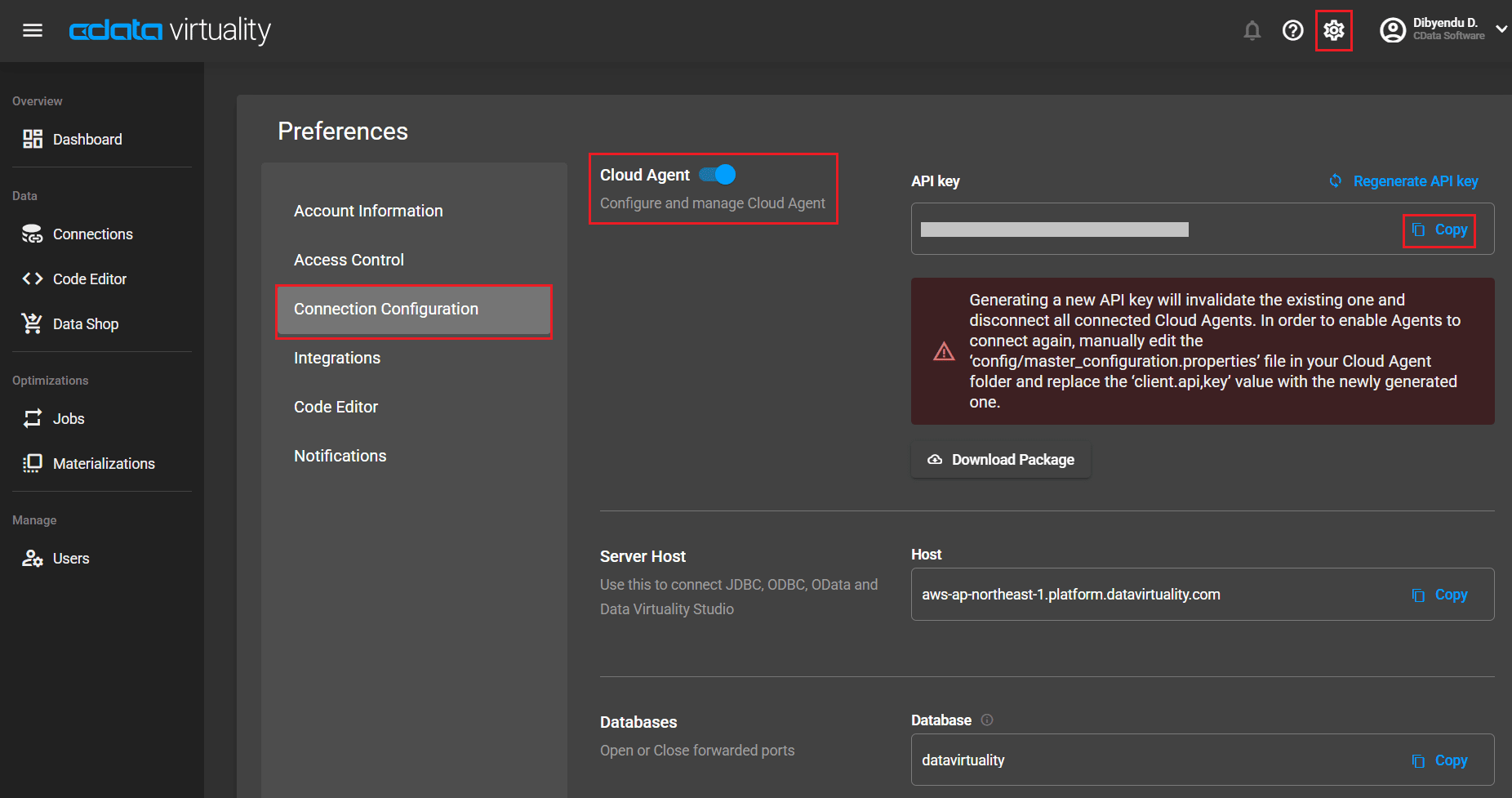
- Open Settings → Preferences → Connection Configuration
- Enable the Cloud Agent toggle
- Copy the API key that appears
- Click Download Package to get the CloudAgent.zip file
Step 3: Extract and configure the Cloud Agent package
- Extract the CloudAgent.zip file into a single folder
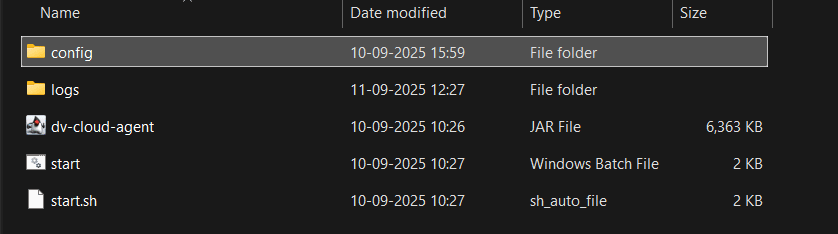
- Open the config folder and find the master_configuration.properties file.
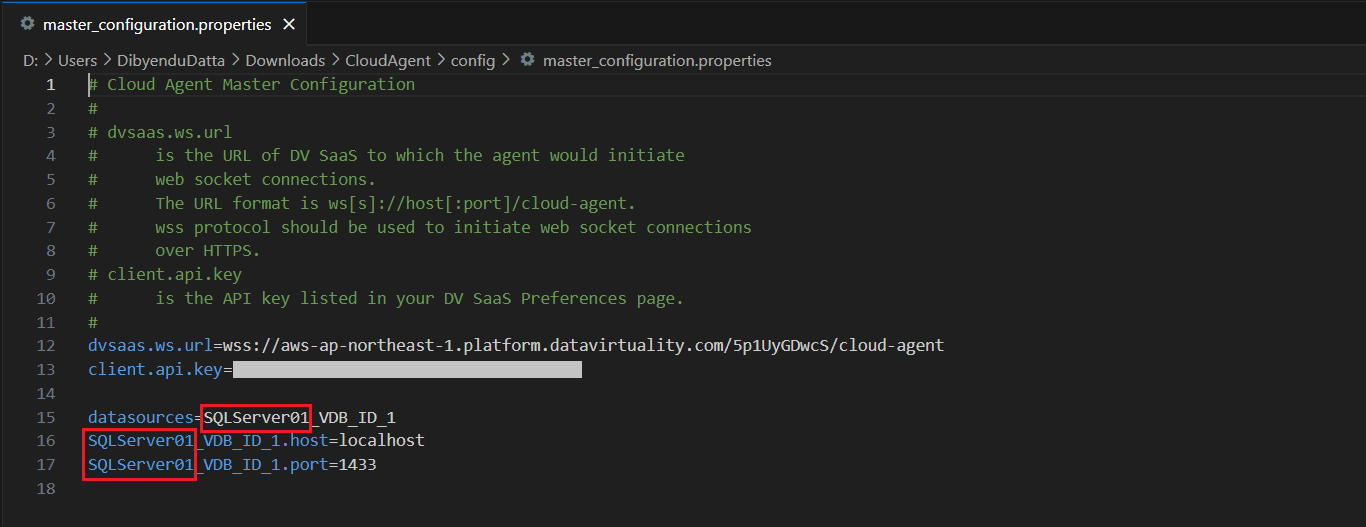
- Add the following connection properties:
dvsaas.ws.url=wss://<your_virtuality_instance>/cloud-agent
client.api.key=<your_api_key>

datasources=<datasourcename>_VDB_ID_1

<datasourcename>_VDB_ID_1.host=localhost
<datasourcename>_VDB_ID_1.port=1433
Important notes
- Always use the _VDB_ID_1 suffix when naming data sources
- To connect multiple databases, list them under datasources and define host and port for each
- Save and close the file after editing
Step 4: Launch the Cloud Agent
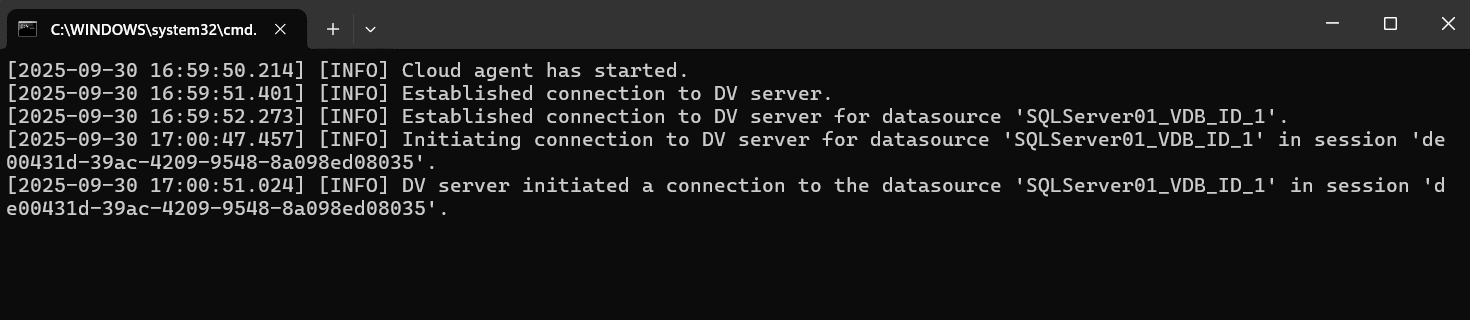
- Double-click the start.bat file from the extracted package.
- Confirm in the terminal that the Cloud Agent connects to your database.
Step 5: Create a data source connection in CData Virtuality
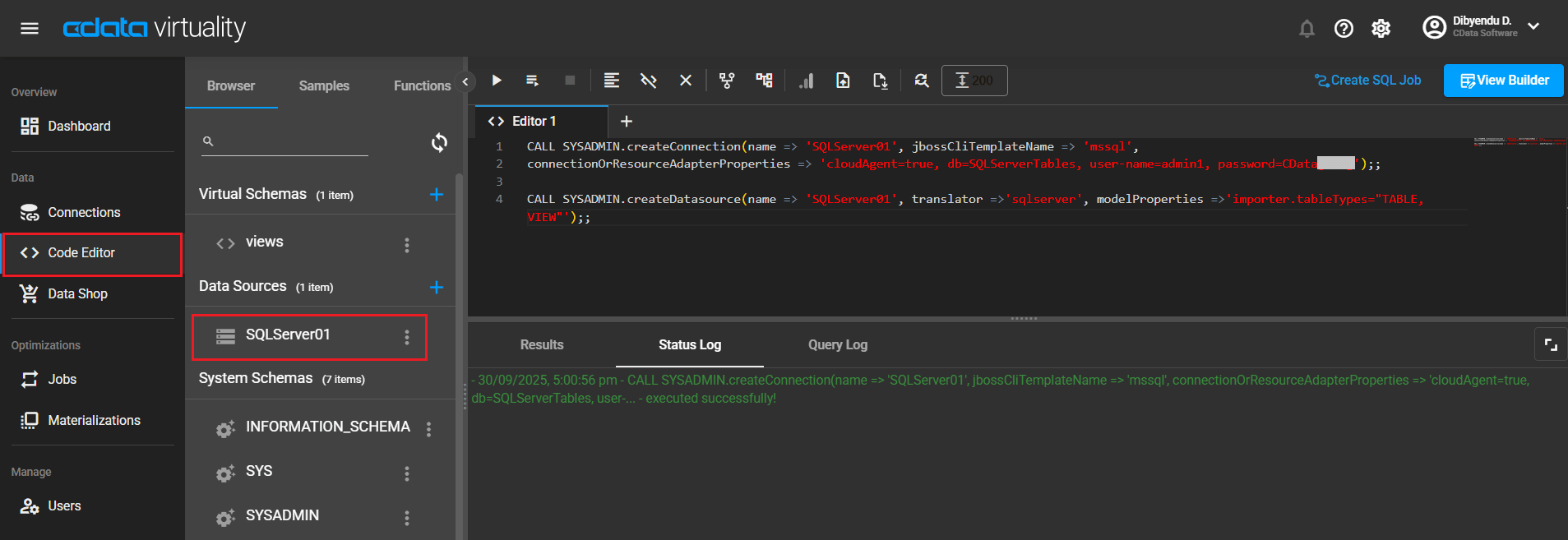
- Open CData Virtuality and go to the Code Editor
- Run these commands to create a connection to a data source:
CALL SYSADMIN.createConnection(

  name => 'datasourcename',
  jbossCliTemplateName => 'mssql',
  connectionOrResourceAdapterProperties => 'cloudAgent=true, db=database_name, user-name=your_username, password=your_password'

);;

CALL SYSADMIN.createDatasource(

  name => 'datasourcename',
  translator =>'sqlserver',
  modelProperties => 'importer.tableTypes="TABLE,VIEW"'

);;
Important Notes
- If you want to delete an existing data source connection, run the following command in the editor:
CALL SYSADMIN.DropConnection('datasourcename'); - To create the connection and data source, make sure to define appropriate values for the jbossCliTemplateName and translator properties. To learn more, refer to our documentation.
Step 6: Validate and query the data
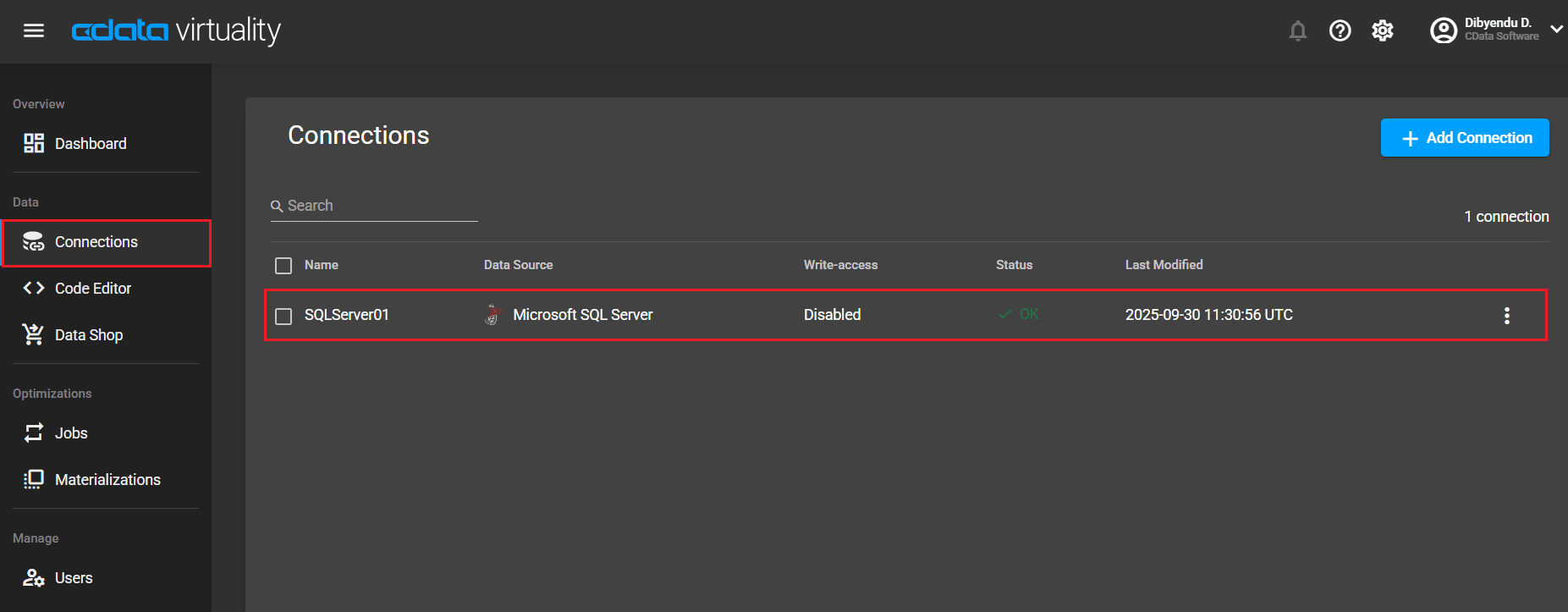
- Check Connections in Virtuality to verify the data source
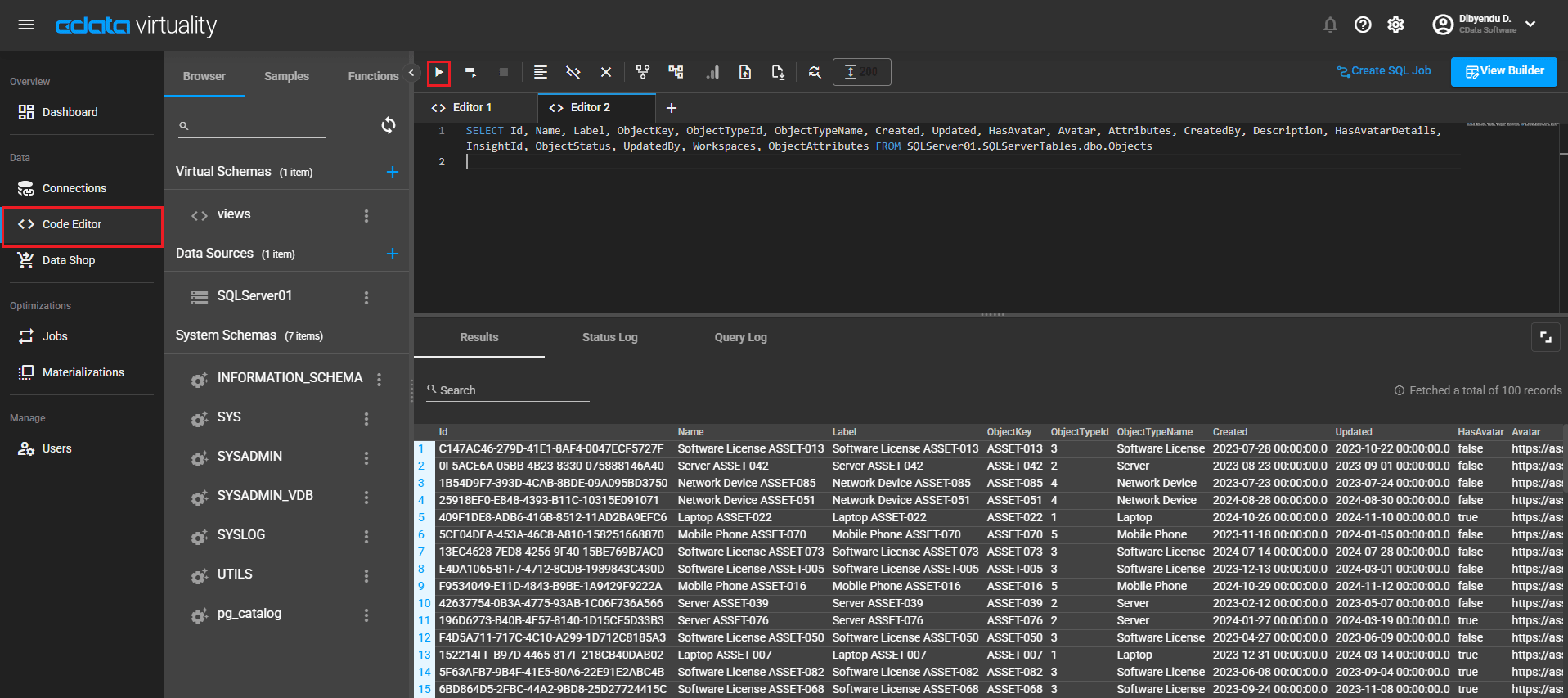
- Run a SELECT query to retrieve data from your on-premises database
Note: If you see errors, review the Cloud Agent terminal logs to troubleshoot.
With the data successfully validated and queried, you can now concentrate on building meaningful data models and insights that drive smarter decisions for your organization with the help of CData Virtuality.
CData Virtuality: simplifying secure data access
With the help of the Cloud Agent feature, CData Virtuality offers a secure way to access on-premises and private network data sources from Virtuality Cloud or self-hosted deployments. By simplifying connectivity across firewalls, the Cloud Agent helps organizations focus on managing and analyzing data instead of dealing with infrastructure challenges.
Get started with a free 30-day trial of CData Virtuality Cloud today! For assistance, reach out to our technical support team.
