






No code, no problem: AI agents for your daily data workflow using CData CLI
Not long ago, automating workflows across multiple data platforms was firmly in the domain of engineers and data teams. Today, that barrier is gone. AI agents can now connect to the tools people use every day, project trackers, file storage, calendars, CRMs, and intelligently surface what is relevant, when it is needed, without requiring the user to write a single line of code. Whether you are a project manager trying to catch up on overnight Asana activity, or an executive who just wants a clean morning briefing, the same agent-driven approach is now available to anyone willing to spend a few minutes setting it up.
What makes this particularly powerful is the combination of AI coding agents with CData CLI, which gives agents seamless, authenticated access to 350+ data sources without requiring a single line of custom integration code. Rather than building a full application or GUI to visualize your data, you can take a purely agent-first approach, running everything directly through the CLI, letting the agent query your sources, interpret the results, and deliver exactly what you need. Even better, once you have dialed in a workflow you love, you can save it as a reusable skill and trigger it on demand. The tutorial below walks through setting up one such workflow: a morning briefing agent that checks for updates across Asana, Google Drive, and Google Calendar, giving you a crisp summary before your day even begins.
Prerequisites
- Claude Code
- CData CLI
- Official CData CLI Skill
- Licenses for CData Asana, Google Drive, Google Calendar JDBC Drivers (Trials work temporarily)
Building the application
With the prerequisites installed, the entire build process happens conversationally inside Claude Code. There is no project scaffolding, no boilerplate, and no integration code; you describe the workflow you want, and the agent orchestrates the CData CLI to wire everything together.
Describe the workflow
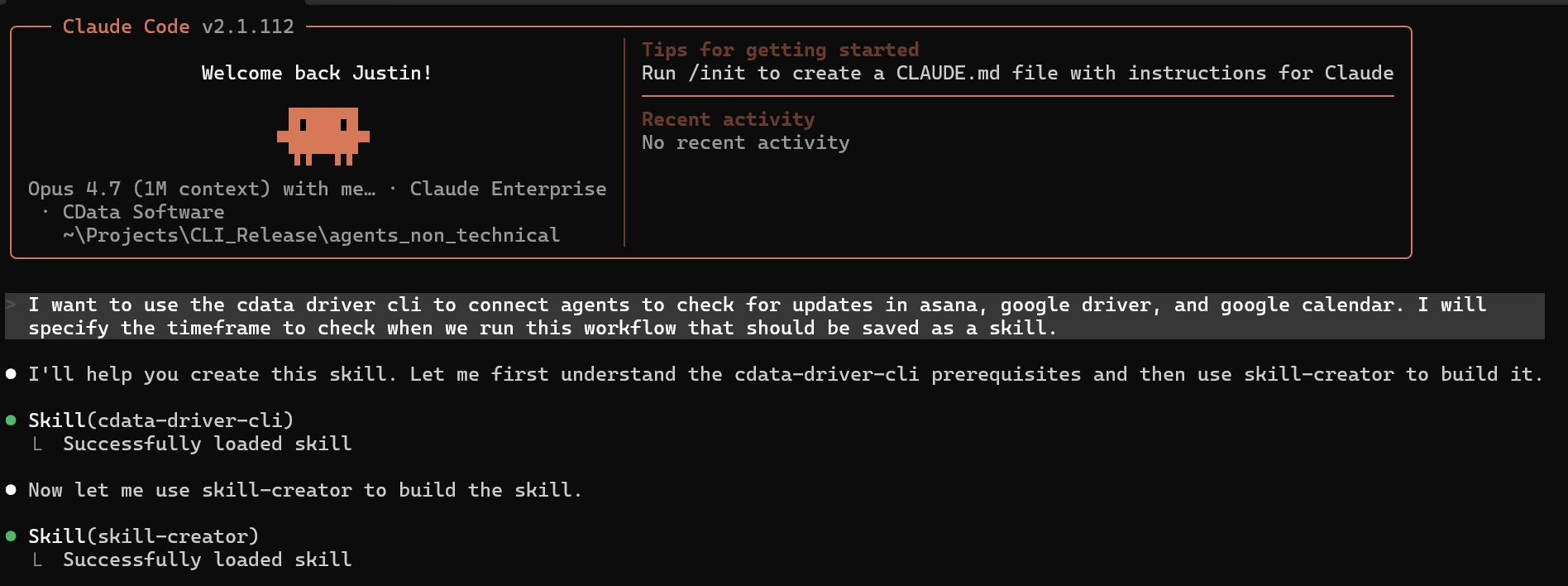
Start a new Claude Code session and tell the agent what you are trying to accomplish. A plain-English description is enough, the agent will recognize the CData CLI skill and plan the connections it needs to make.
"I want to use the CData CLI to connect agents to check for updates in Asana, Google Drive, and Google Calendar. I'll specify the timeframe to check when we run this workflow, and it should be saved as a reusable skill."
Claude Code invokes the CData CLI skill
Claude Code automatically references the official CData CLI skill, which gives it a structured procedure for downloading drivers, activating licenses, and authenticating connections, with no manual setup required on your end.
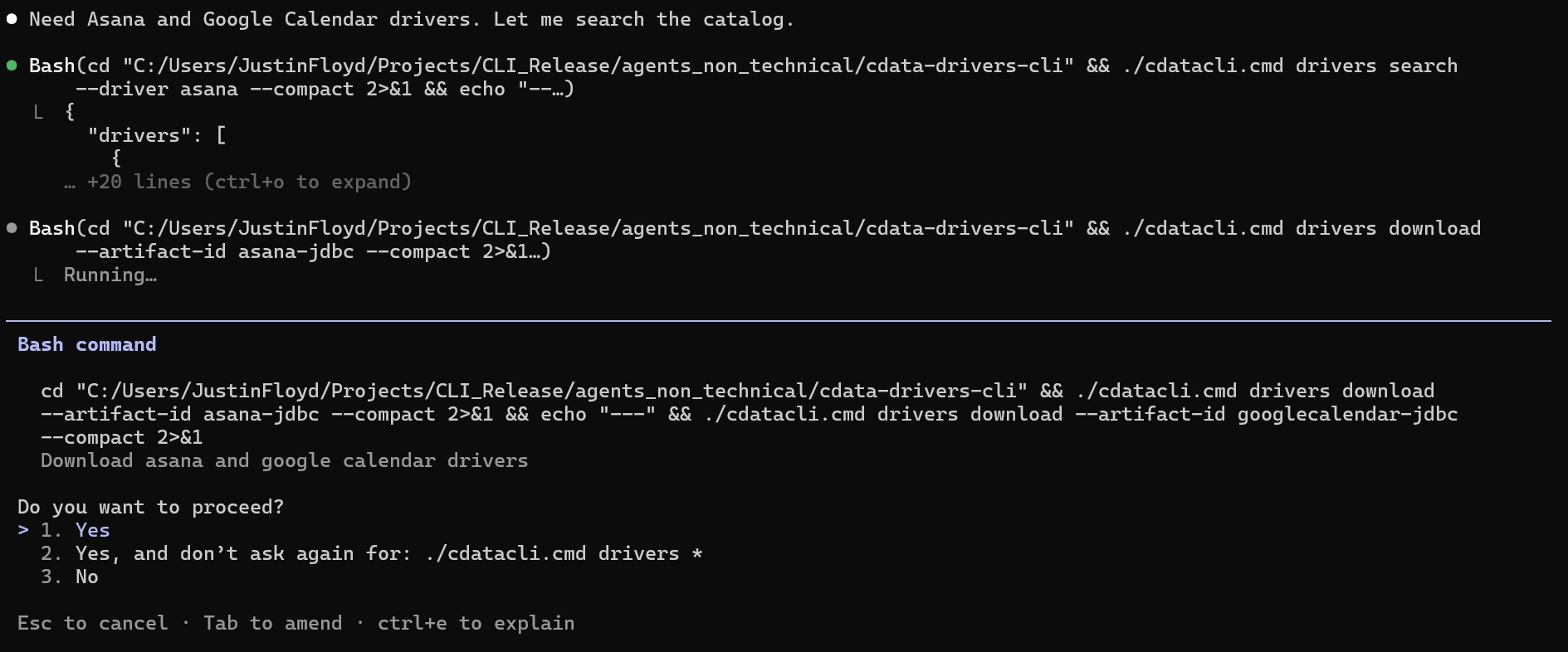
Download the required drivers
The agent identifies which drivers are missing and downloads them through the CLI. In this walkthrough, Google Drive was already installed, so Claude Code pulls down the Asana and Google Calendar drivers automatically.
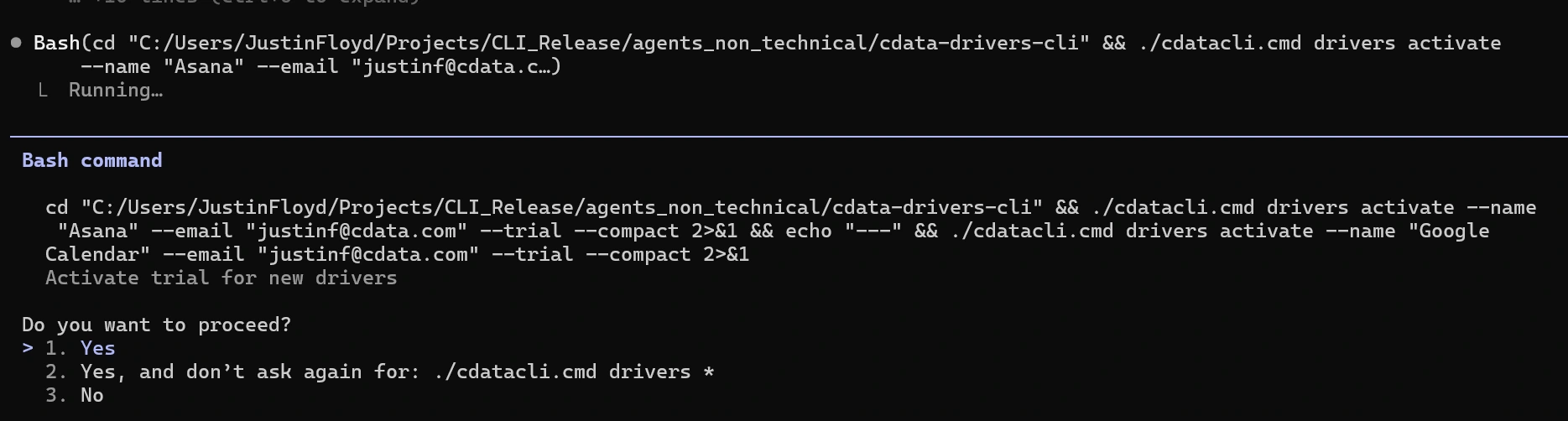
Activate licenses
Each driver is then activated using your CData license (a trial key for this demonstration). The agent handles the activation calls for all three sources in sequence.
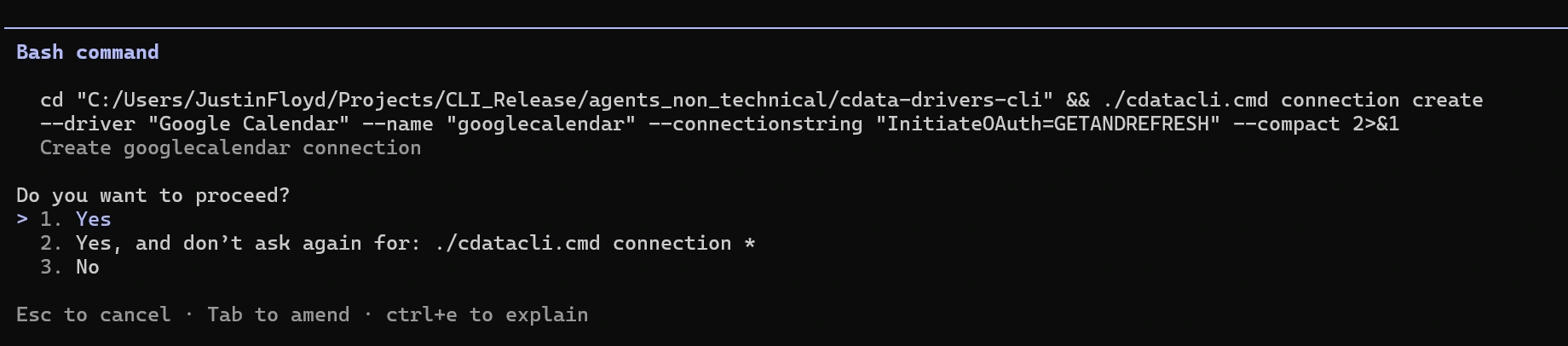
Authenticate each connection
Claude Code walks through the OAuth or token-based authentication flow for each data source. You will complete the browser-based auth steps once per source, and the CLI stores the credentials for reuse. I only needed to authenticate the Google Calendar and Asana connections since Google Drive was previously authenticated.

Driver-specific skills
Driver-specific skills guide Claude Code through the schema and best practices for each driver. If those have already been created, they are invoked at this step. If they have not, Claude Code should try the following command for each driver:
cdatacli drivers skill <Driver>
Validate with test queries
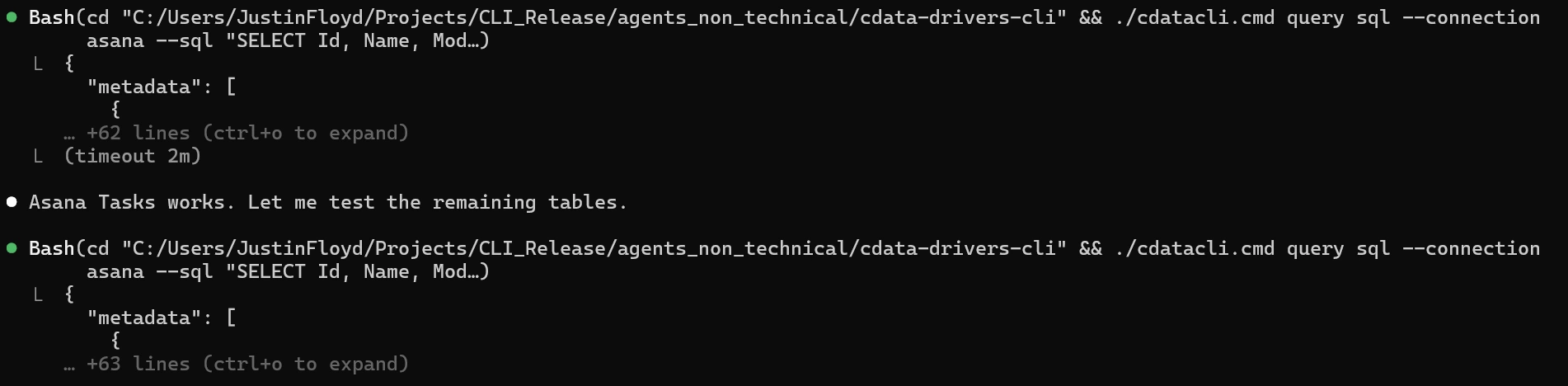
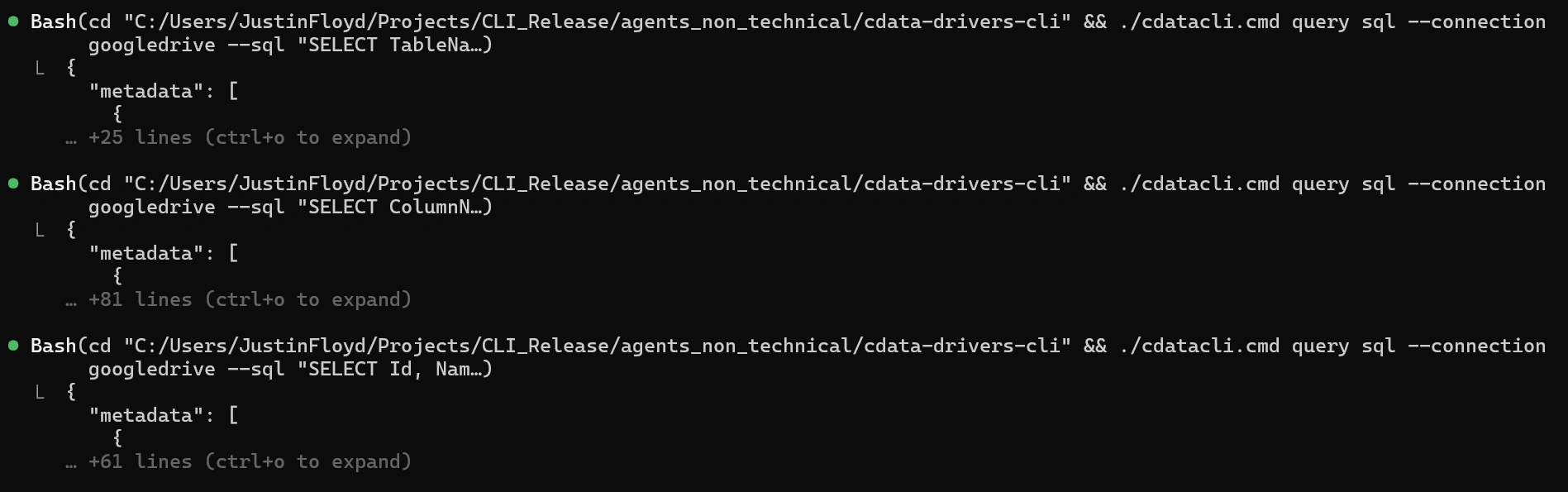
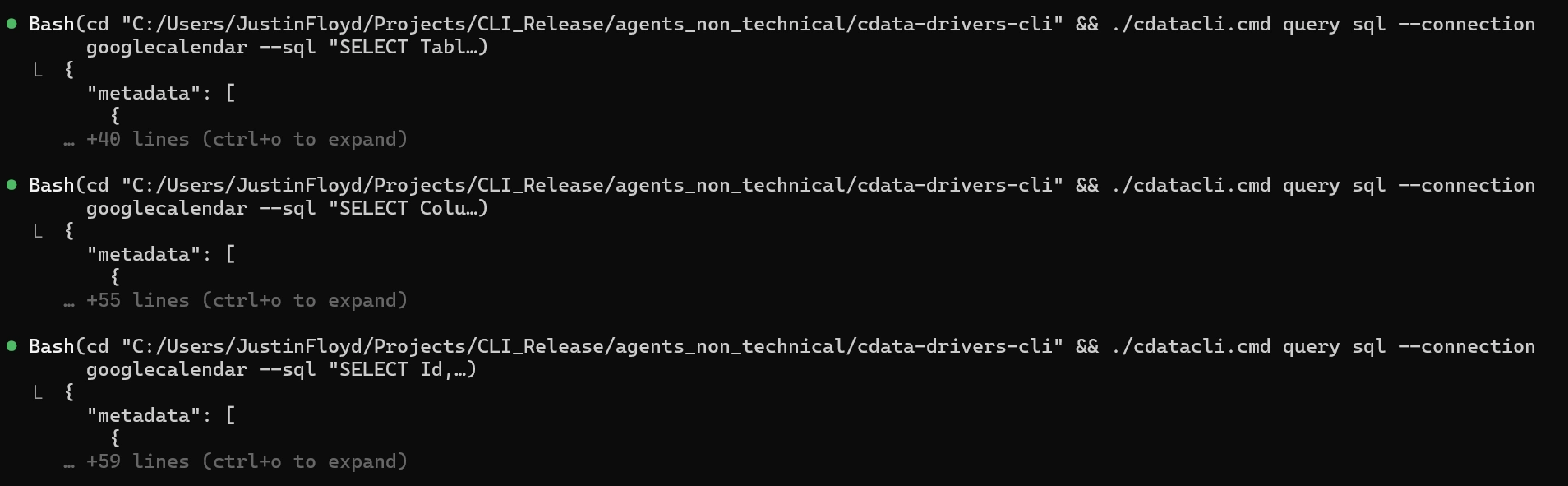
Before committing the workflow to a reusable skill, Claude Code runs a small test query against each connection to confirm everything is wired up correctly.
Asana:
Google Drive:
Google Calendar:
Success confirmation:

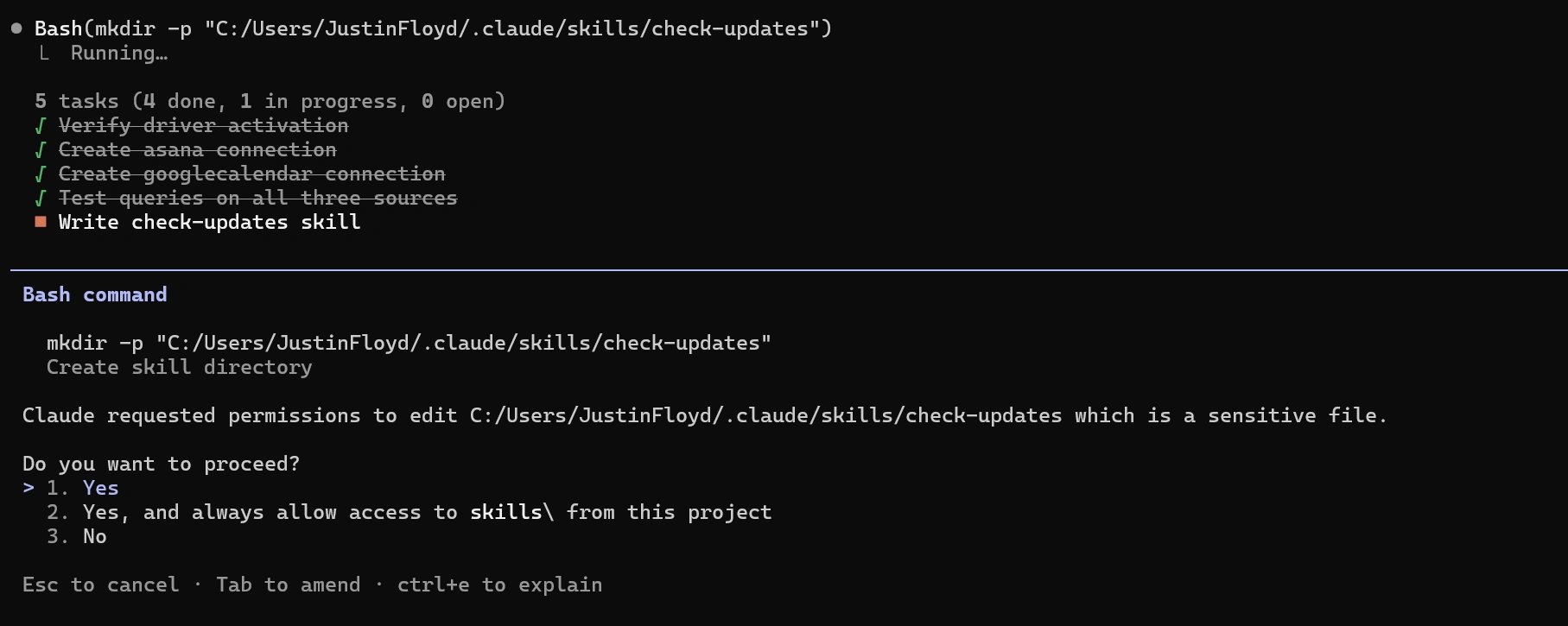
Save the workflow as a reusable skill
With the connections verified, Claude Code packages the entire workflow, query logic, timeframe parameter, and formatting preferences, into a named skill you can invoke at any time.
Exit the session and invoke the new skill
The real test: open a fresh Claude Code session and call the skill directly. No re-authentication, no re-explanation, just a single command and your morning briefing is generated.
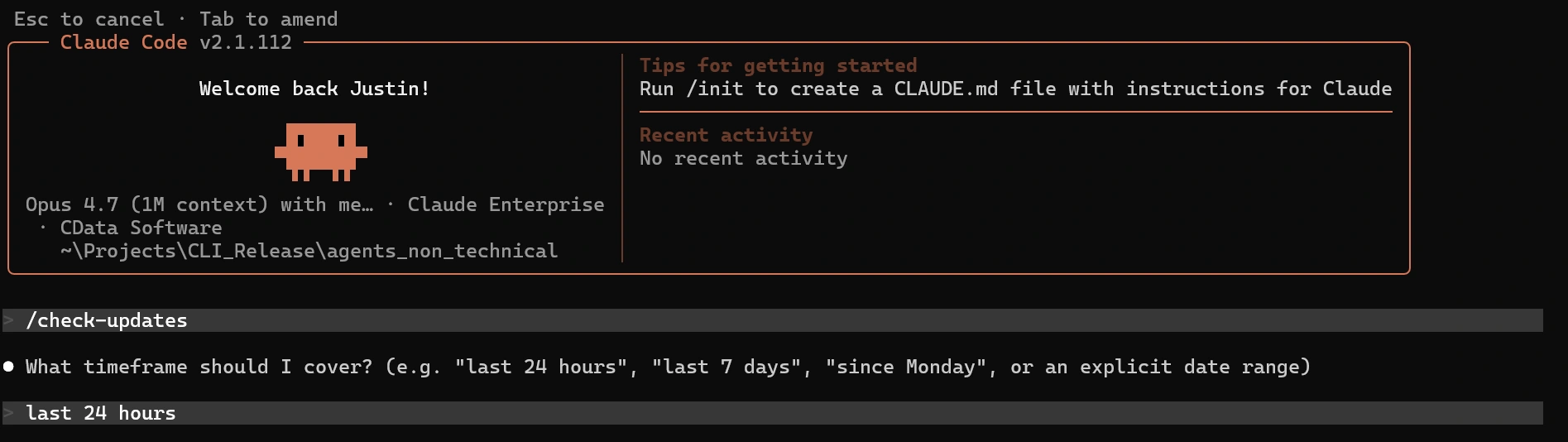
Saved queries are executed:
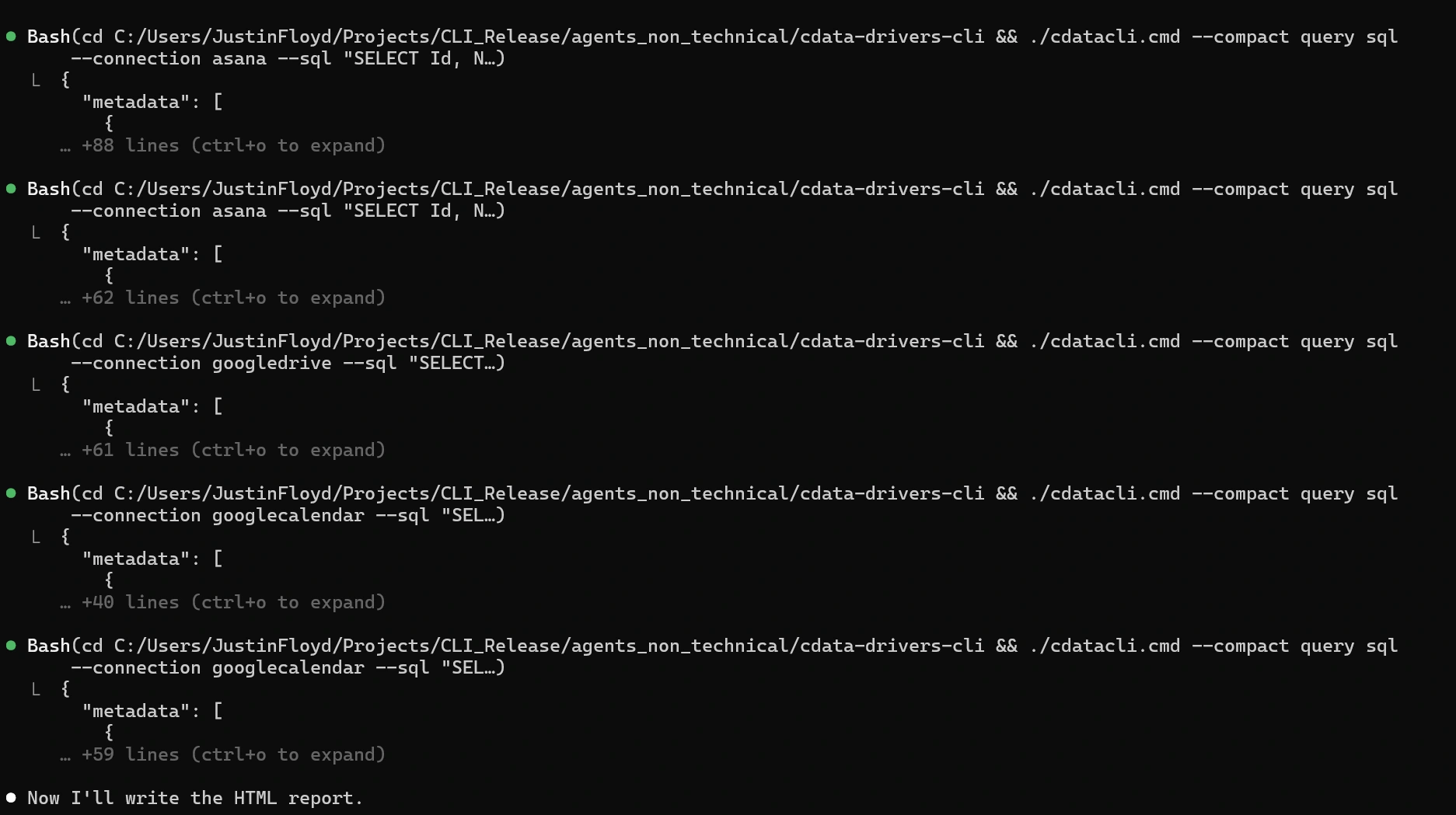
Summary presented within session:
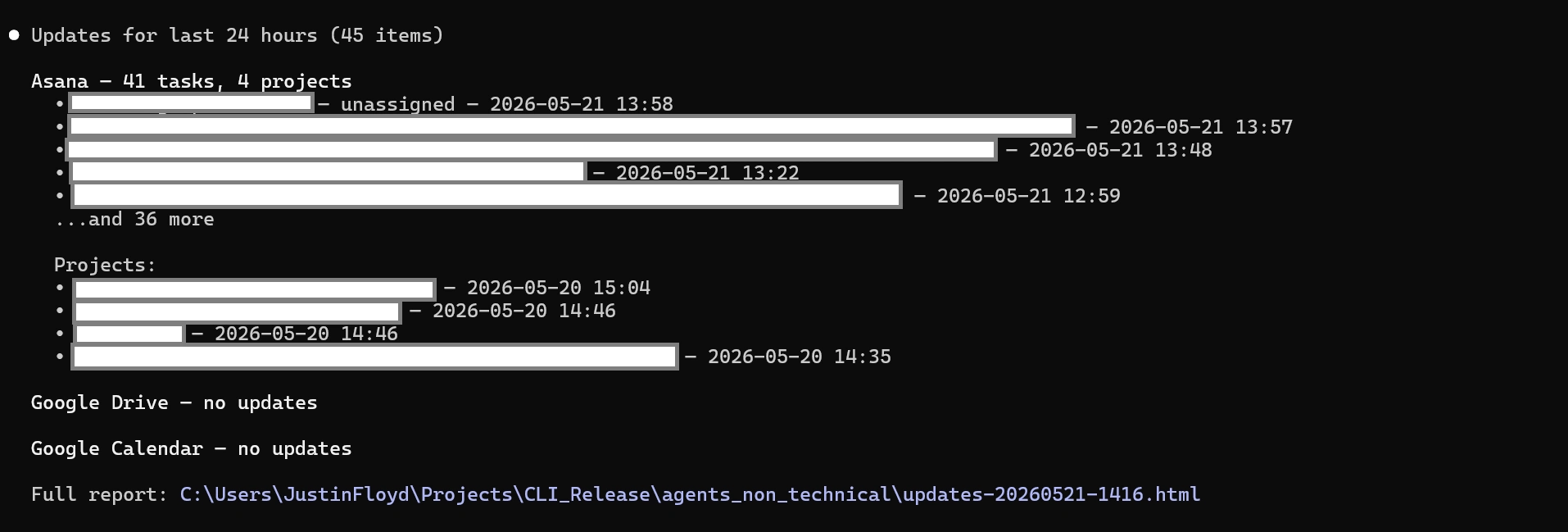
HTML file created and presented in browser:
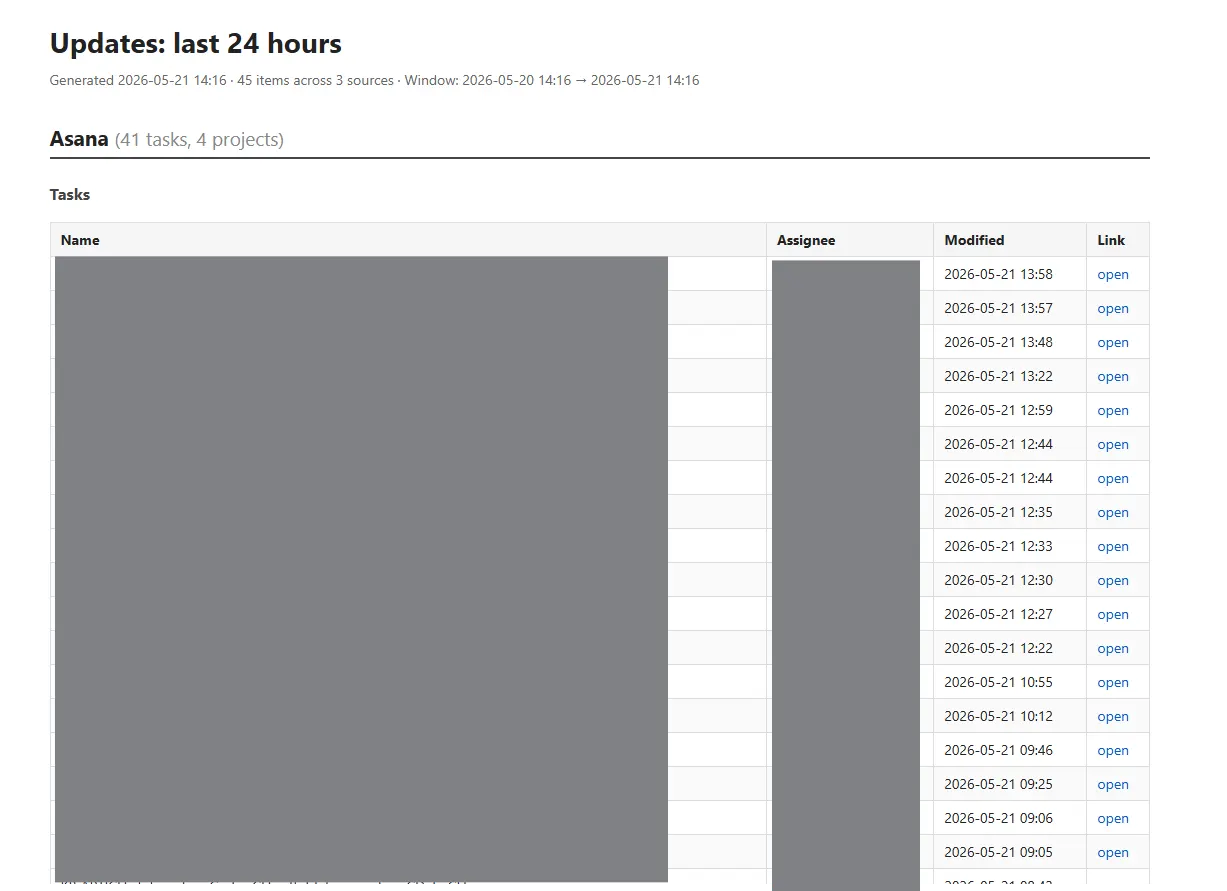
That is the full build. From blank session to reusable, multi-source briefing agent in a single conversation, no application code, no glue scripts, no infrastructure to maintain.
Results
The workflow we just went through is a small glimpse into a much larger shift in how people will interact with their data going forward. The real unlock here is not just the automation; it is the accessibility. By pairing Claude Code CLI with CData's connectivity layer, anyone on your team can stand up a meaningful, multi-source agent workflow without waiting on engineering resources or navigating complex API documentation. The agent-first approach means you are not committing to building and maintaining a full application; you are simply describing what you need, letting the agent do the legwork, and saving that workflow as a reusable skill for the next time you need it.
As the number of tools in the average knowledge worker's stack continues to grow, the ability to cut through that noise and get a clean, consolidated view of what matters, whether that is overnight Asana task updates, newly shared Drive documents, or upcoming calendar commitments, becomes less of a luxury and more of a necessity. The combination of AI agents and broad data connectivity through CData makes that possible today, for users at every technical level.
Get started today
Start your 30-day free trial with the CData CLI and Claude Code to build your own agent-driven workflows. Need assistance? Contact our support team.