






Connect Claude to Your Finance and Accounting Data with CData Connect AI Remote MCP Server
Finance teams ask questions all day. What's our cash position? Where did expenses spike last month? How do actuals compare to budget? The answers live across QuickBooks, NetSuite, Xero, or Sage Intacct, and pulling them out usually means exports, manual joins, and waiting on IT team.
Claude, the family of large language models from Anthropic, can shorten that process. But it needs a way into your live finance data first, and CData Connect AI Remote MCP Server makes that possible. Connect AI acts as a secure bridge between Claude and your finance and accounting platforms, with filters, joins, and SQL operations running directly against the source. Connect AI also extends to 350+ other sources, so Claude can pull from across your stack in a single chat.
Step 1: Configure finance and accounting data connectivity in Connect AI
The first step is to set up your finance and accounting sources in Connect AI. Connect AI handles authentication, query routing, and security, so your source credentials stay inside Connect AI and Claude only sees the data it's authorized to read.
- Log into CData Connect AI, click Sources, and then click Add Connection
- From the Add Connection panel, select your finance source (for example, Sage Intacct, QuickBooks, Xero, or NetSuite)
- Some platforms use OAuth to authenticate. Click Sign In to authenticate with your data source
- Repeat the same for any additional finance and accounting systems you want Claude to access
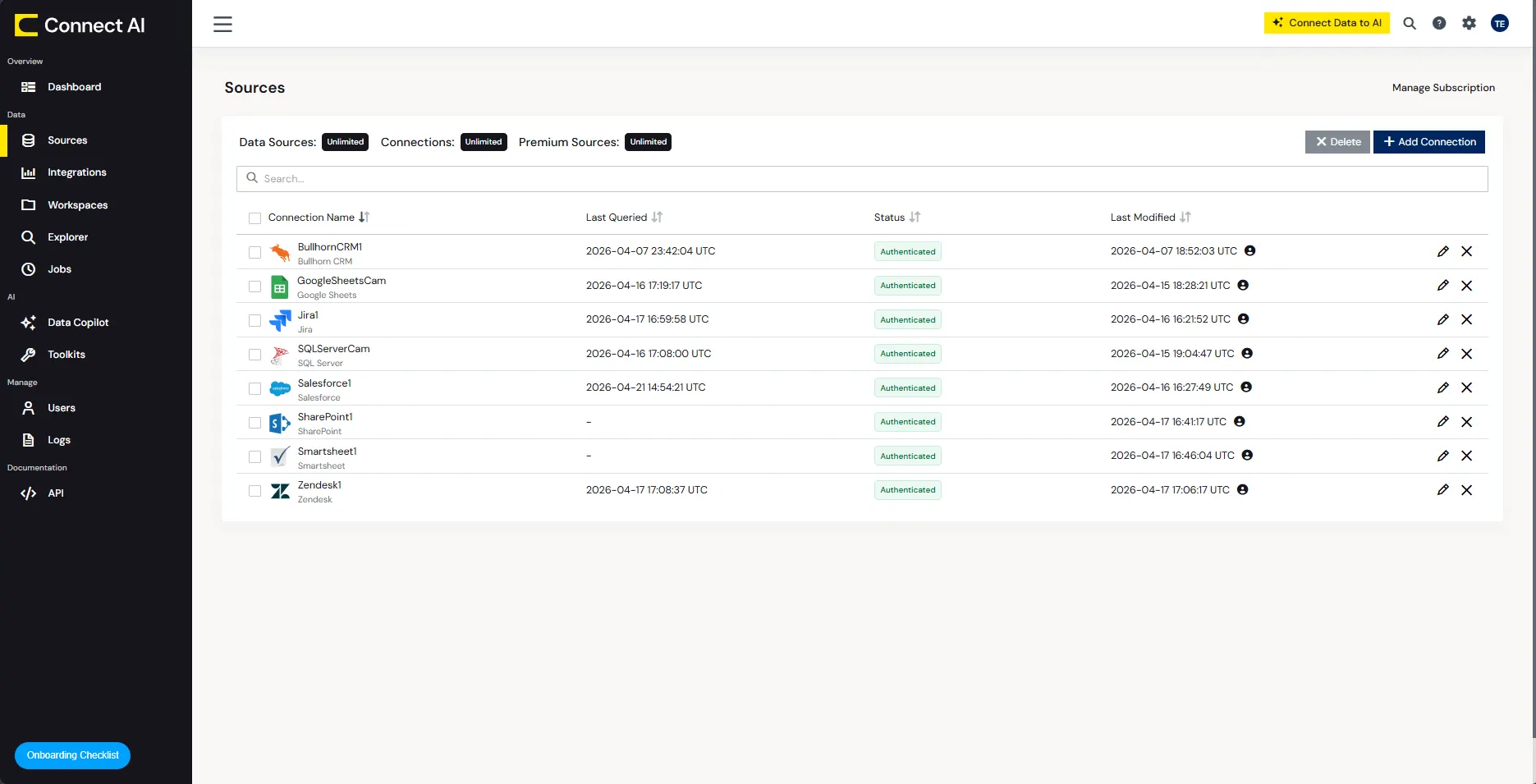
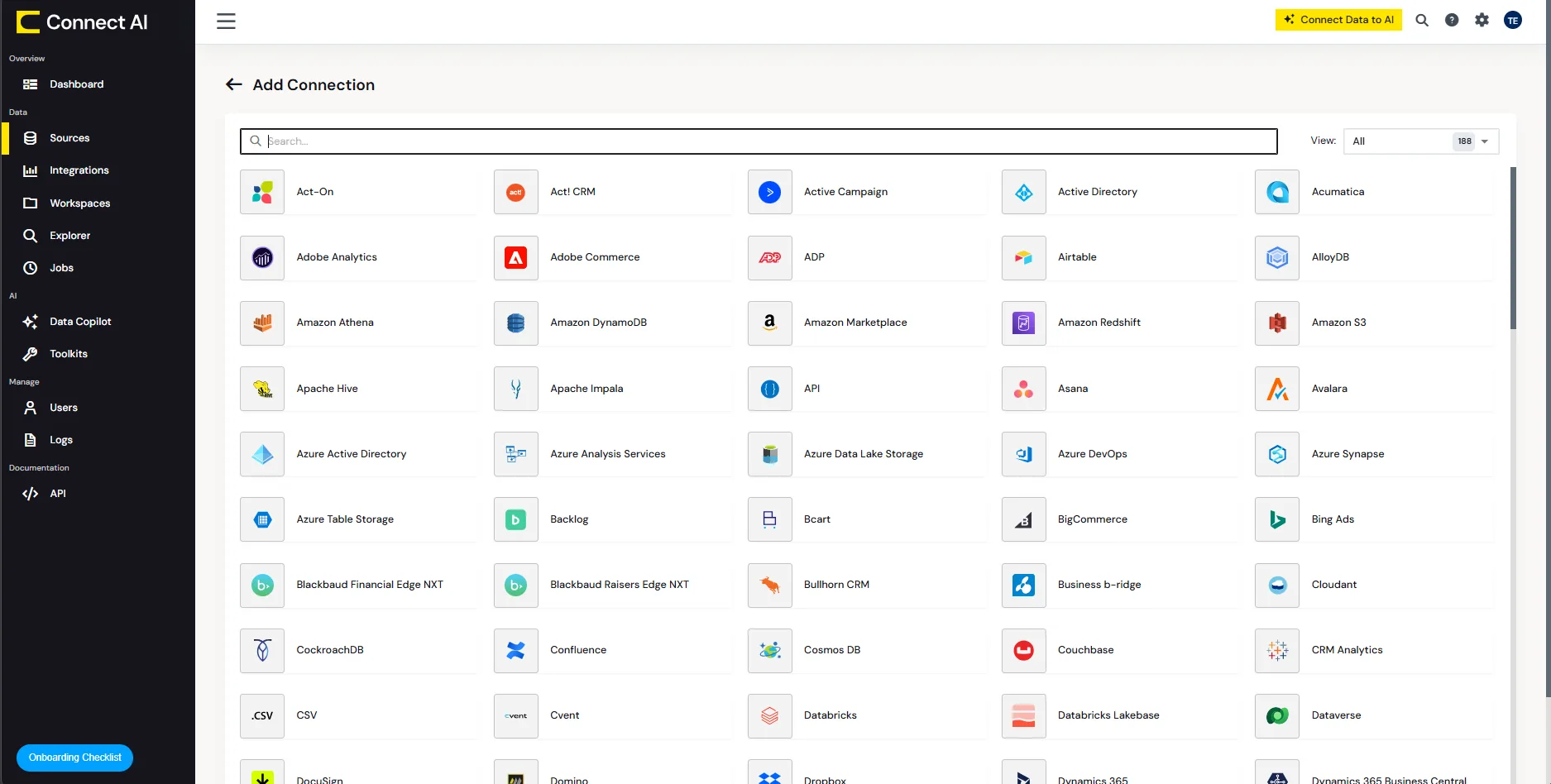
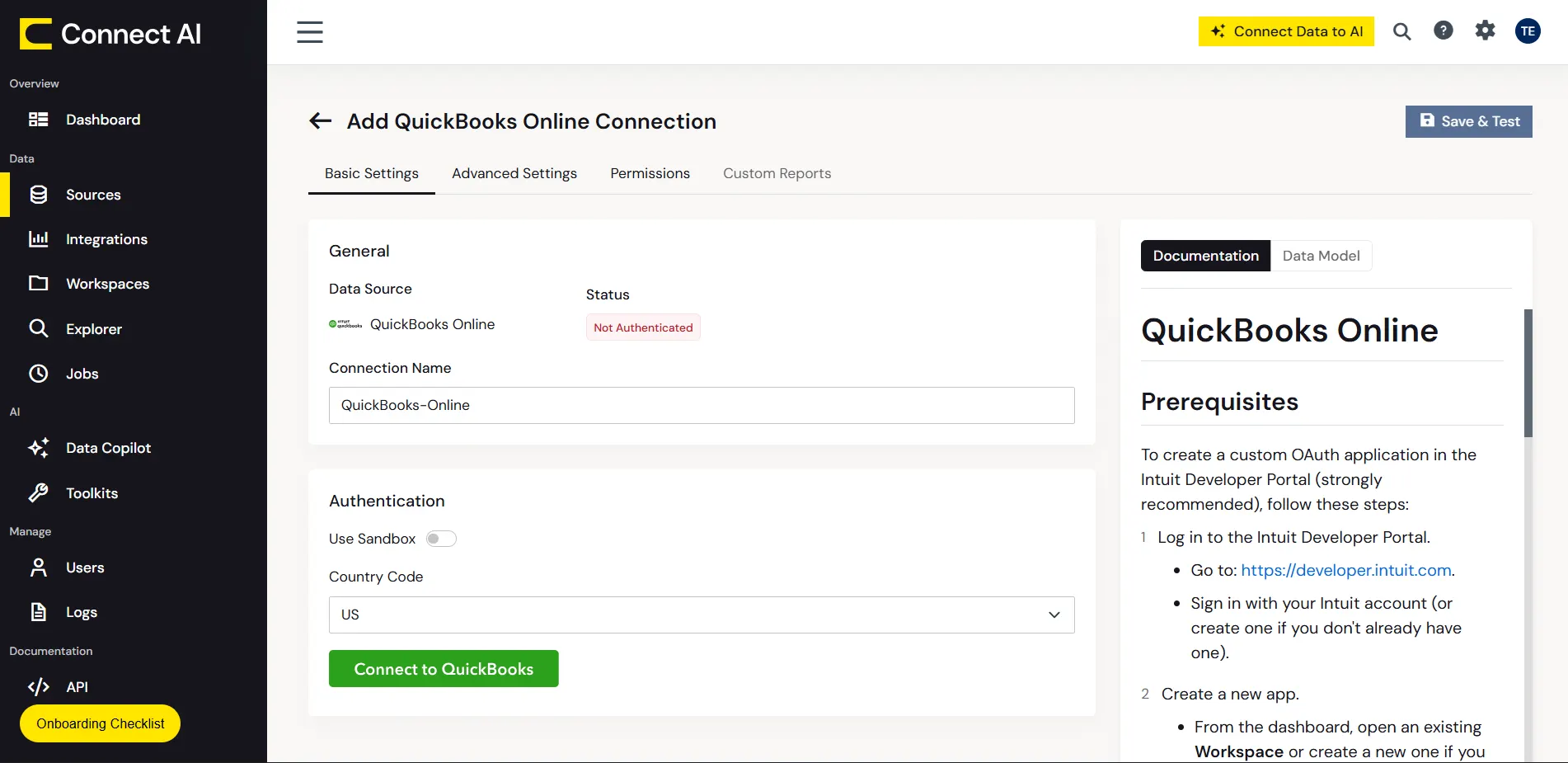
Once your connections are saved, they are ready to be accessed in Claude through the remote MCP server.
Step 2: Connect Claude to Connect AI
With your sources configured, the next step is to add the Connect AI connector inside Claude. This links your Claude workspace to the remote MCP server so it can read from your finance data.
- Sign into Claude.ai or create a new account
- Expand the left navigation menu
- In the bottom-left corner, click your username and select Settings from the menu
- In the Settings screen, click Connectors
- Click Browse Connectors
- Search for CData Connect AI and click the listing
- Click Connect and sign into your Connect AI account
- Once connected, open a new chat in Claude
- Click the + icon in the message box, and under Connectors, toggle on Connect AI MCP
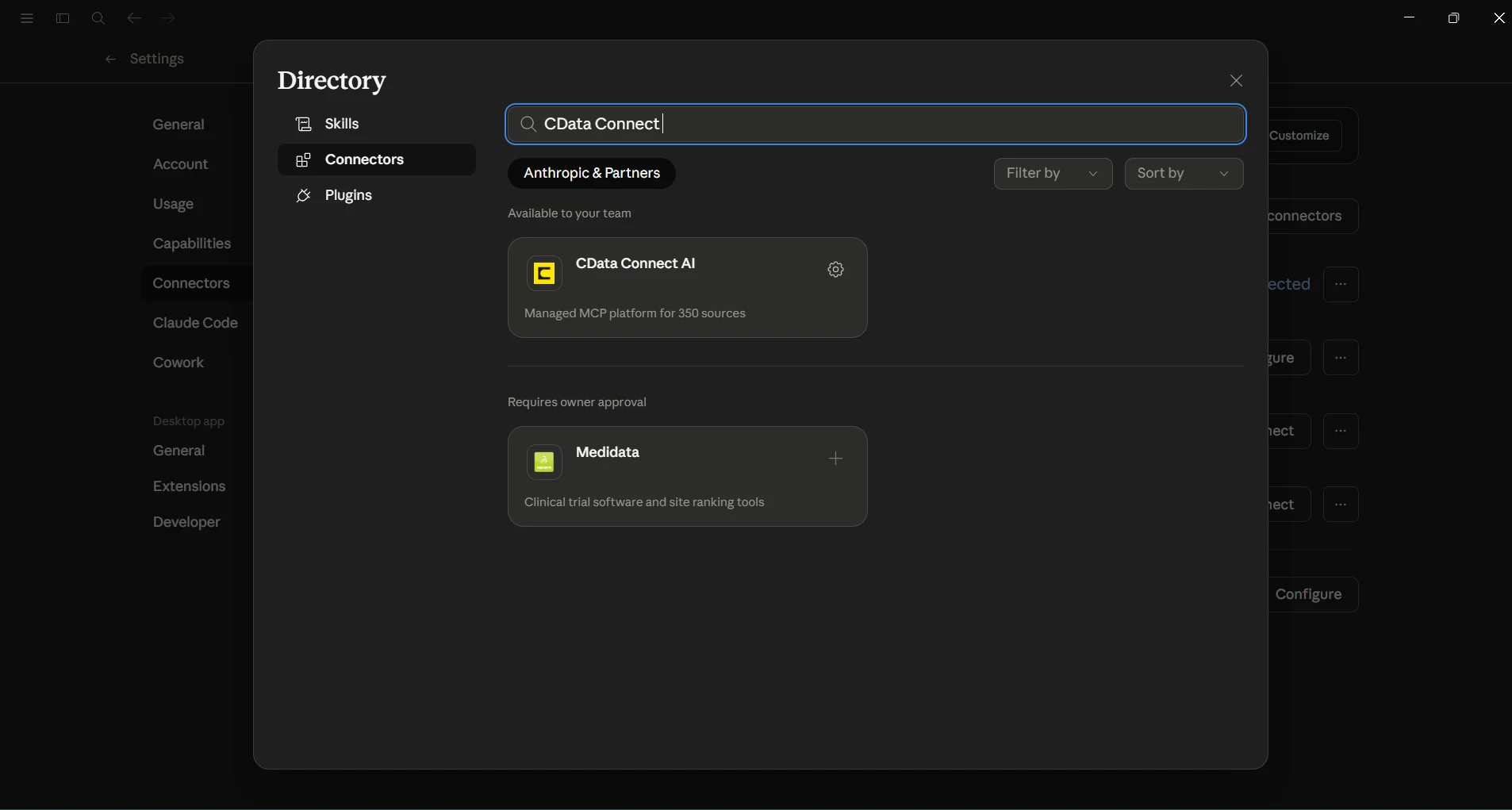
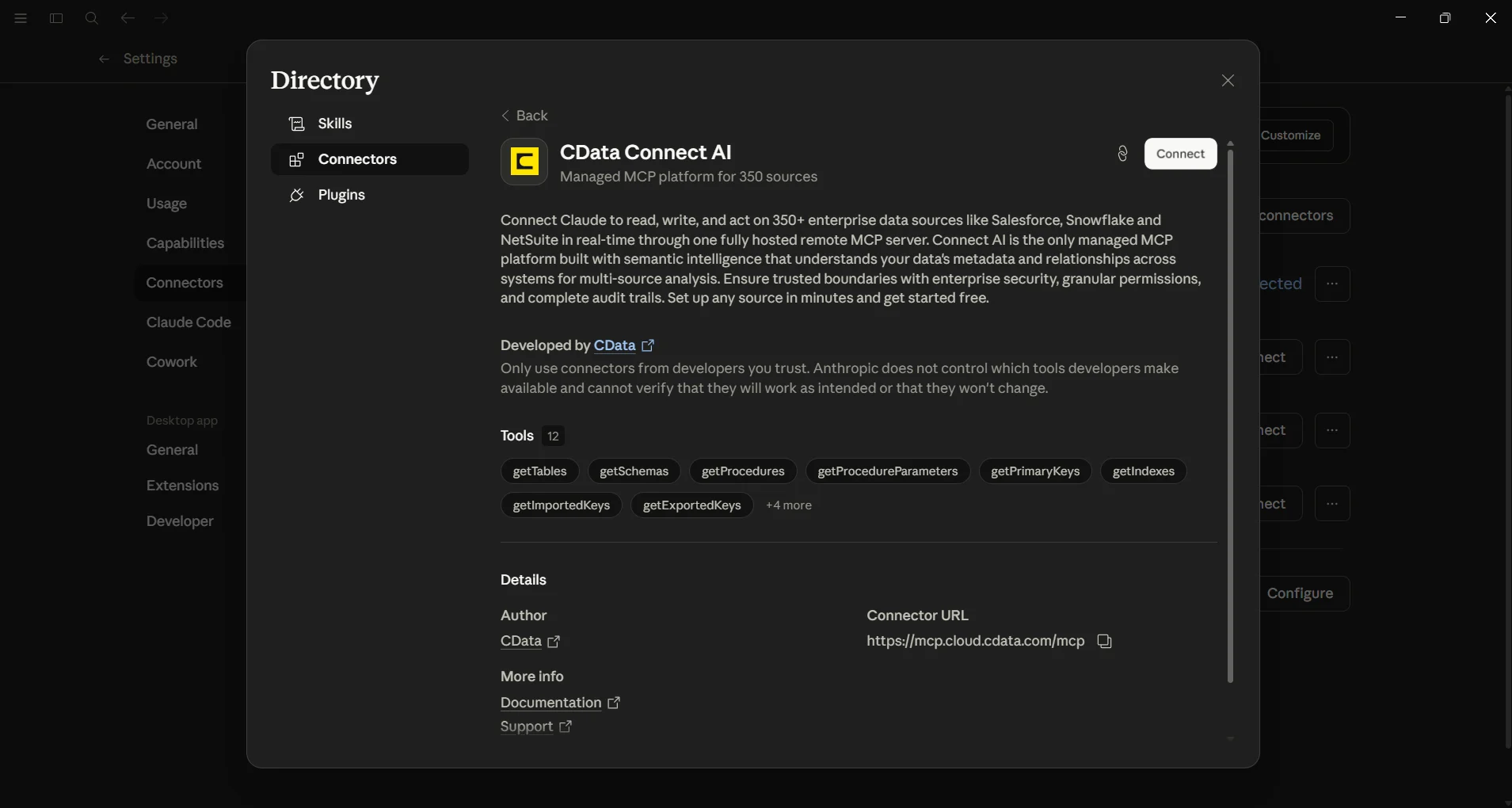
Now, your Claude has access to your finance and accounting data.
Note: Claude's setup process is subject to change. Refer to Claude's documentation for the most current setup steps.
Step 3: Explore live finance and accounting data with Claude
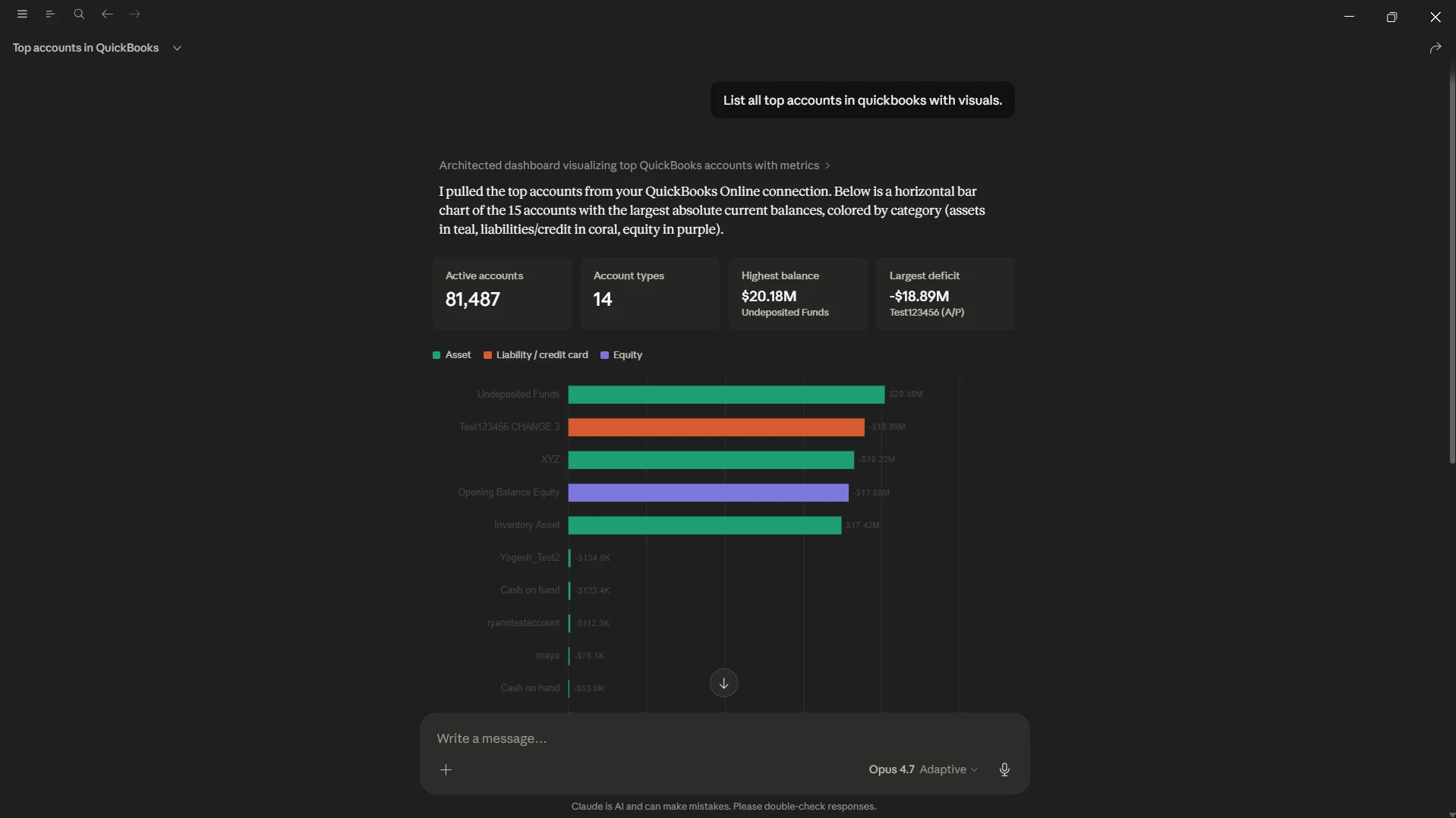
You can now start exploring your data with natural language prompts. Claude outlines the steps it uses to retrieve data from the source in CData Connect AI. Refer to CData's prompt library for prompt ideas.
Step 4: Take a look at our Prompt Library
Test out some prompts as you explore your data. Some examples below.
- Generate a month-end variance analysis comparing [ERP_SYSTEM] actuals to [PLANNING_SYSTEM] budget.
- Create a rolling [TIME_PERIOD] revenue forecast that blends [CRM_SYSTEM] and [ERP_SYSTEM] data.
- If headcount expenses in [HR_SYSTEM] increase [PERCENTAGE]% next [TIME_PERIOD], what's the cash flow impact?
Get CData Connect AI
To get live data access to 350+ SaaS, Big Data, and NoSQL sources directly from your cloud applications, try CData Connect AI today!
See how CData powers live finance and accounting data access.