






How to Create Derived Views, Saved Queries, and Custom Reports in CData Connect AI
CData Connect AI is a consolidated connectivity platform that links applications to a broad ecosystem of real-time data sources through consistent, standards-compliant interfaces. CData Connect AI provides tools to access data seamlessly from any system, anywhere. Some of the key features of CData Connect AI are broad data connectivity, real-time data access, CRUD support, secure access, comprehensive data modeling, and dynamic discovery.
This article explores the Derived Views, Saved Queries, and Custom Reports features in Connect AI and how to implement them.
Derived Views
Users are able to create views based on SQL queries that are stored in the Data Explorer. The views can display a multitude of entities, including a subset of an existing table, data that has been joined from several tables (even those from different data connections), the result of a SQL aggregate function (such as, COUNT or SUM), and an aliased version of an existing view.
How to create a Derived View
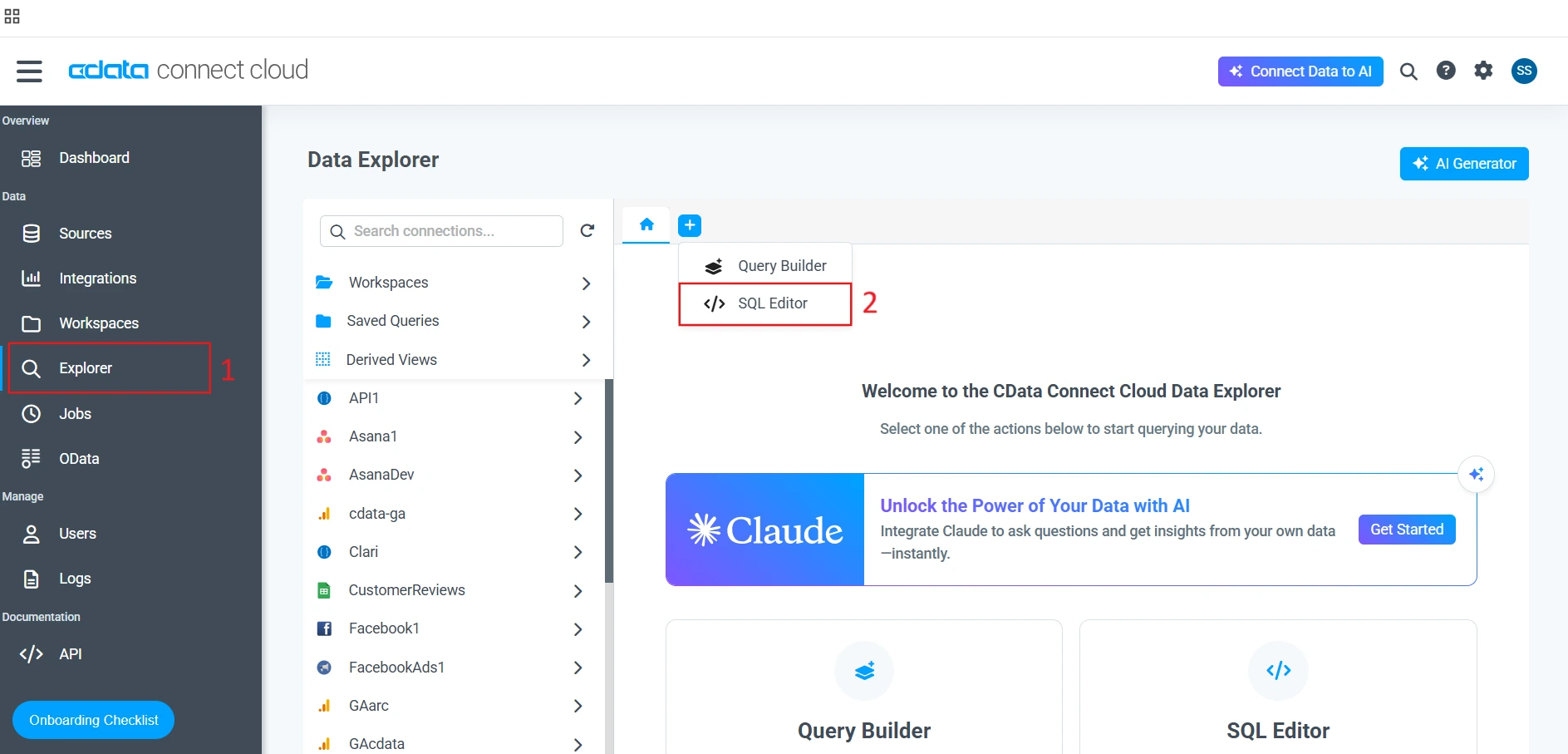
- Log-in to Connect AI and select Explorer from the left sidebar
- In the Data Explorer screen, click the blue button with the "+" sign, and click SQL Editor
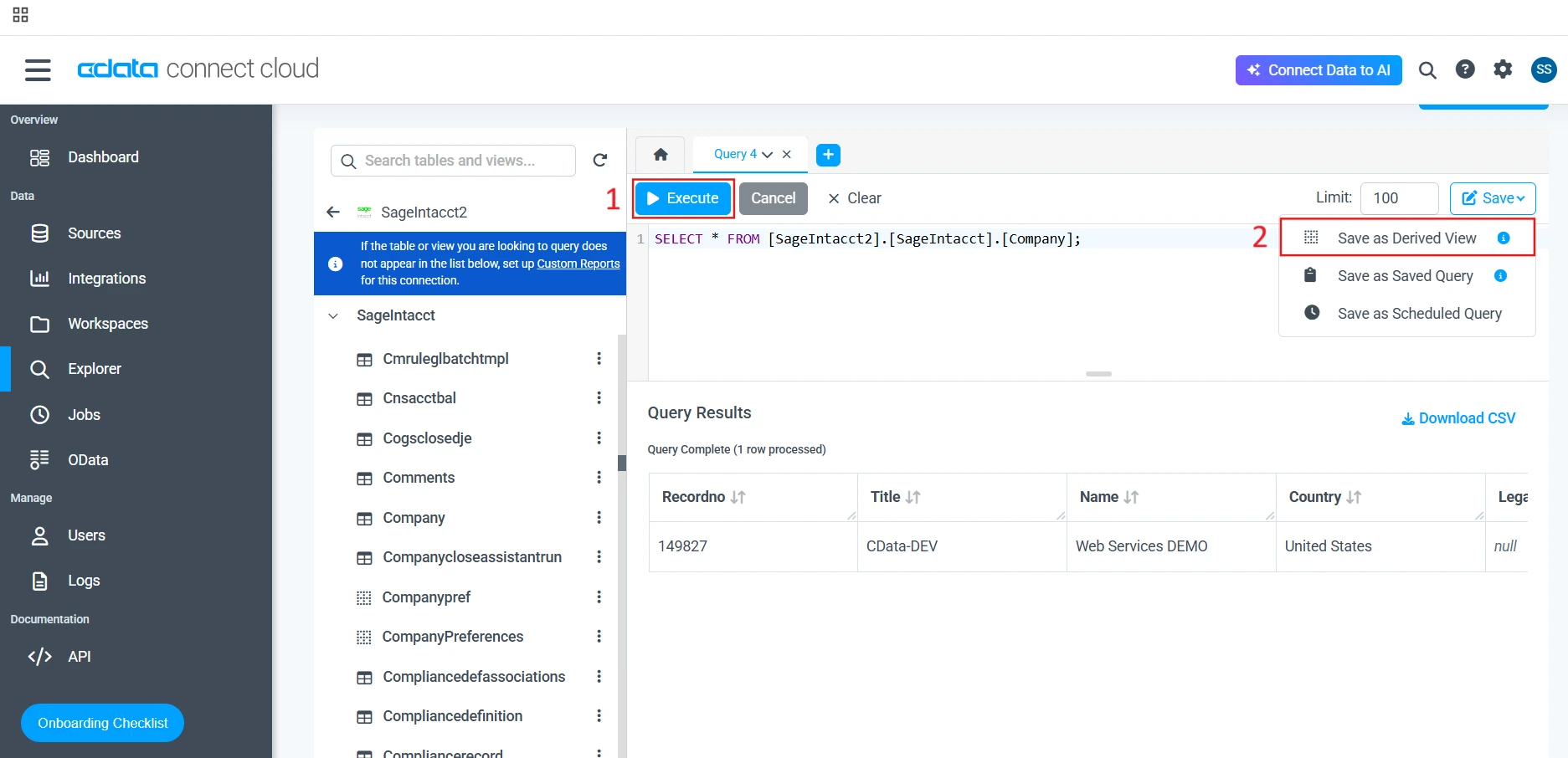
- Write your query and execute it, then click Save as Derived View
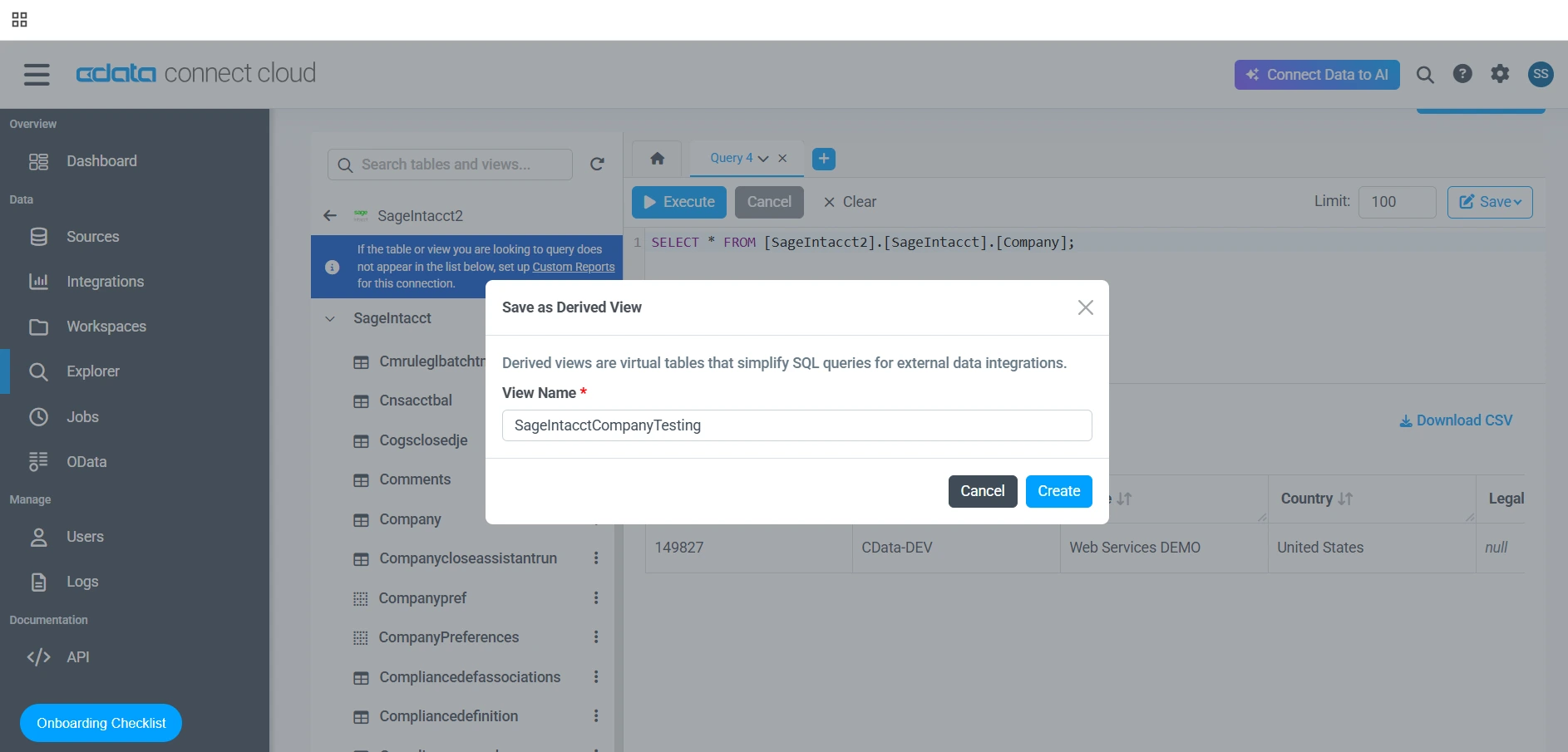
- A pop-up window will appear. Fill out the name of the Derived View, then click Create
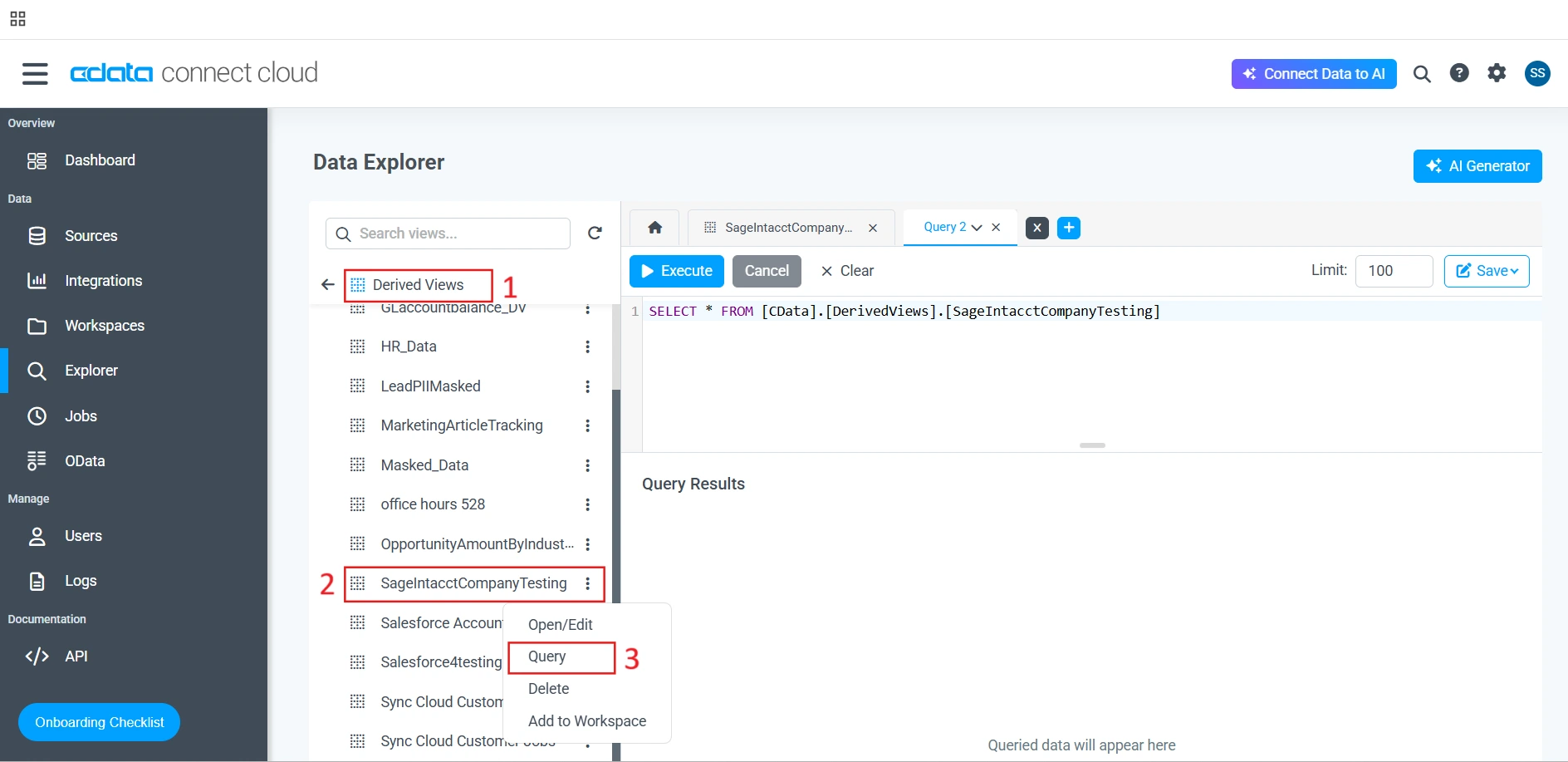
- The new Derived View should now appear under the Derived Views Folder. Click the three vertical dots to the right of the new Derived View and then click Query to populate the text editor with code
Saved Queries
Saved Queries are SQL queries that can now be saved in the Data Explorer for instant access and reusability. The Saved Queries can also be shared across an organization. What's more, queries can be modified at a later time. Finally, multiple queries may be stored concurrently.
How to Create a Saved Query
Follow these steps to create a Saved Query:
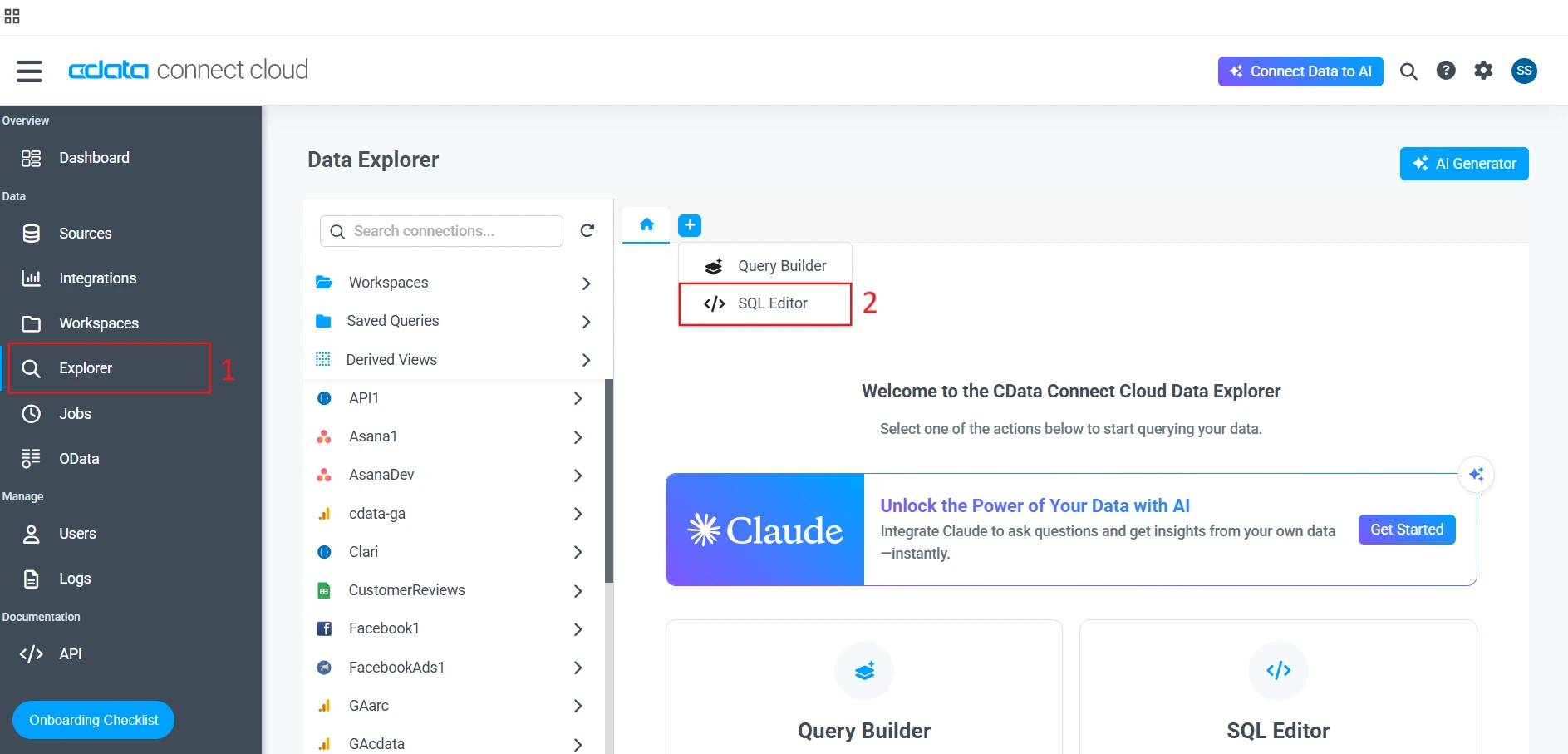
- Log-in to Connect AI and select Explorer from the left sidebar
- In the Data Explorer screen, click the blue button with the "+" sign, and click SQL Editor
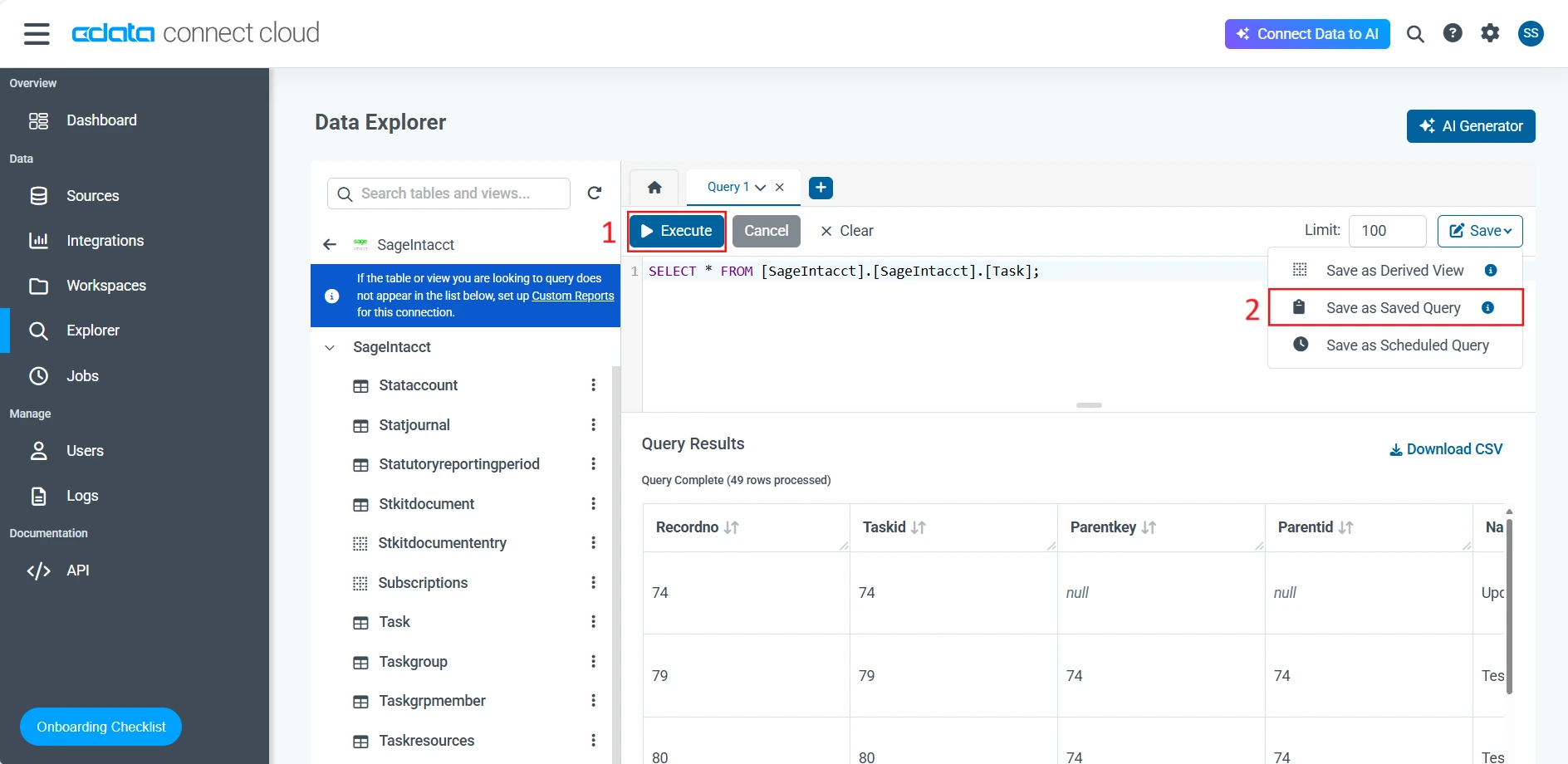
- Write your query and execute it, then click Save as Saved Query
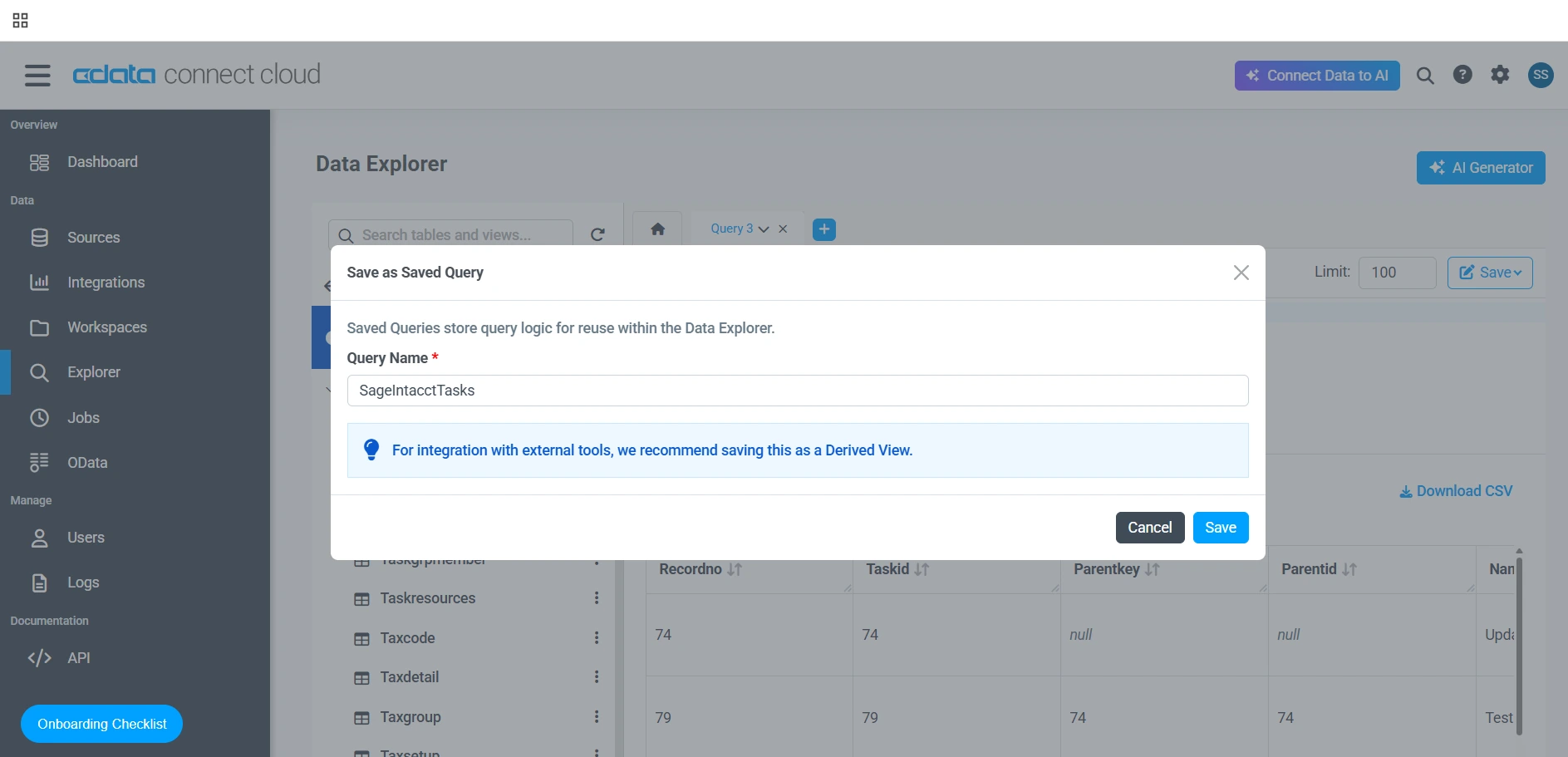
- In the modal, give your Saved Query a name and click Save
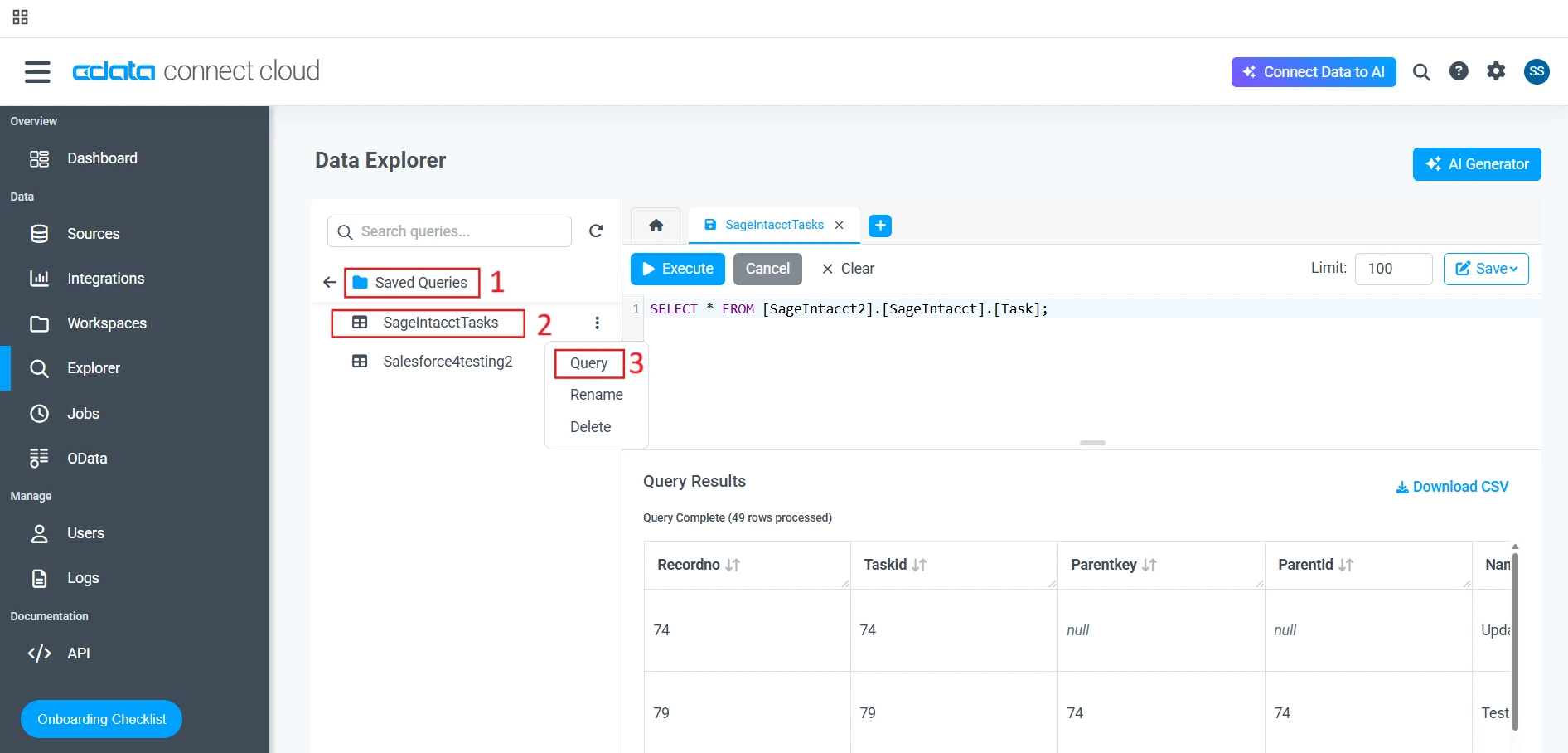
- You should now see your new Saved Query in the Saved Queries folder
Custom Reports
Custom Reports allow access to cube-like data, which is often a major feature of certain data sources. This feature is available for QuickBooks Online, NetSuite, Google AdWords, and Google Analytics, with more sources to be functional in the near future.
How to create a Custom Report
Follow these steps to create a Custom Report:
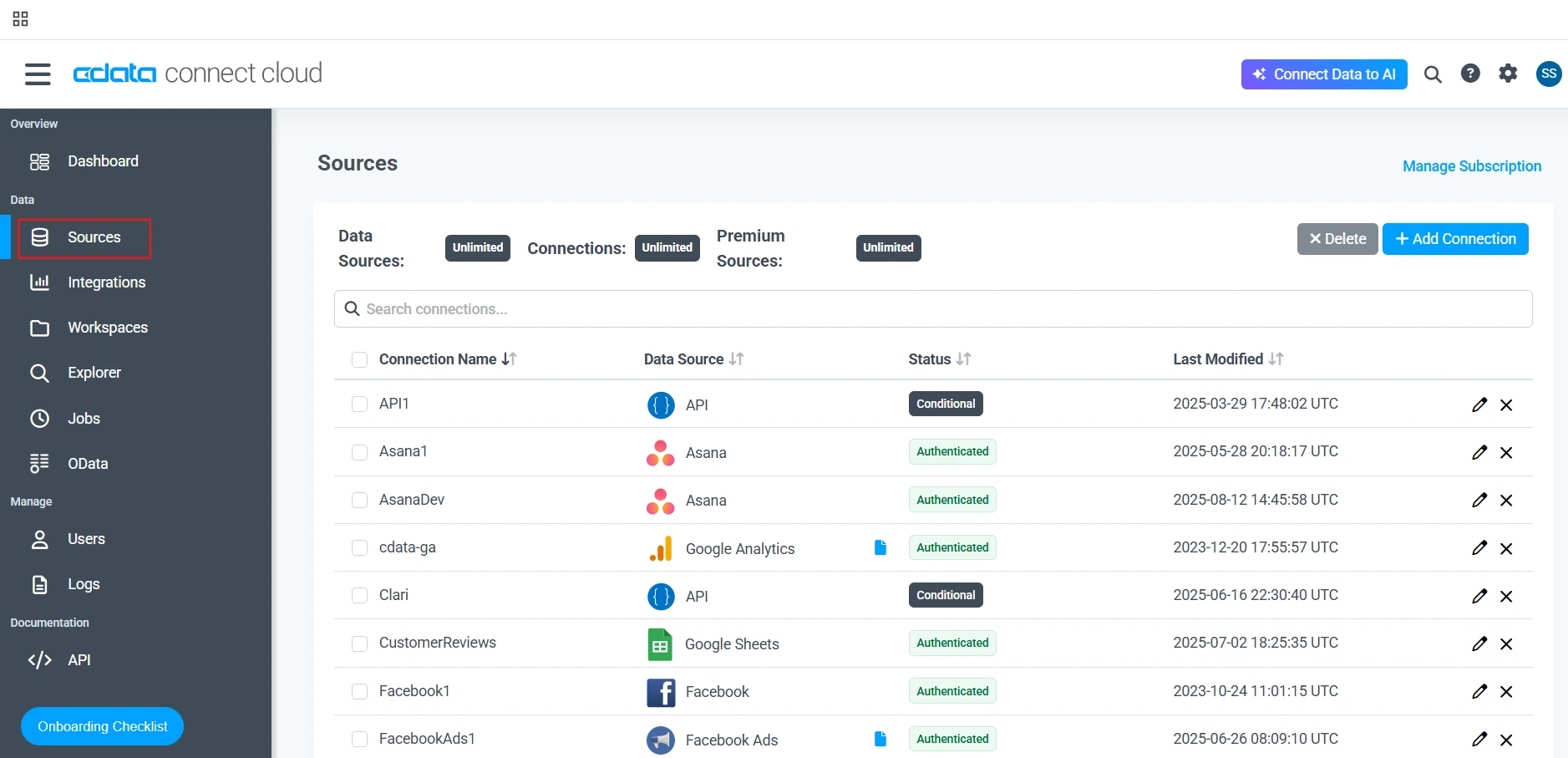
- Log-in to Connect AI and select Sources from the left sidebar
- Next, select an existing Source (alternatively, create a new Connection, but Custom Reports are not available until the connection has been saved and tested)
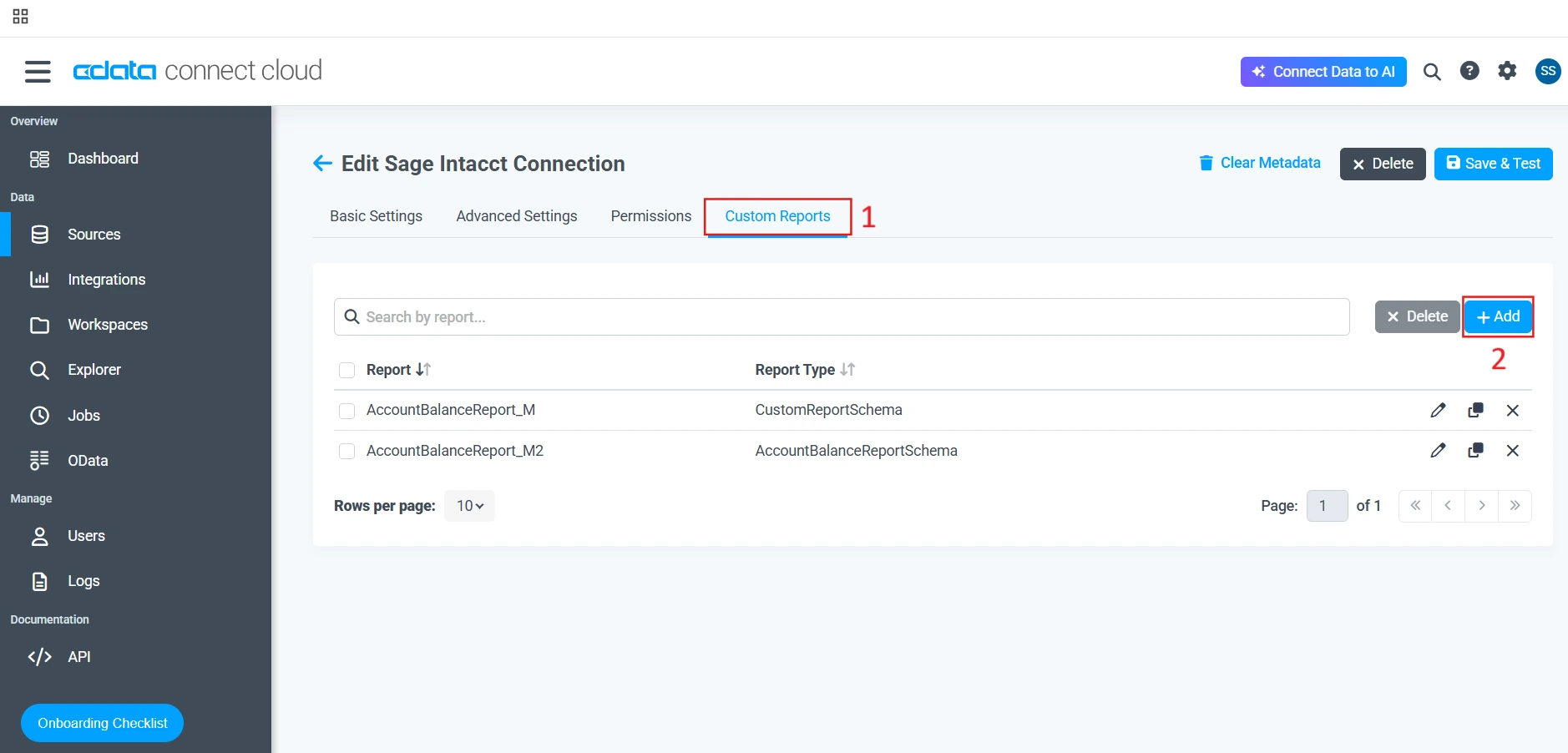
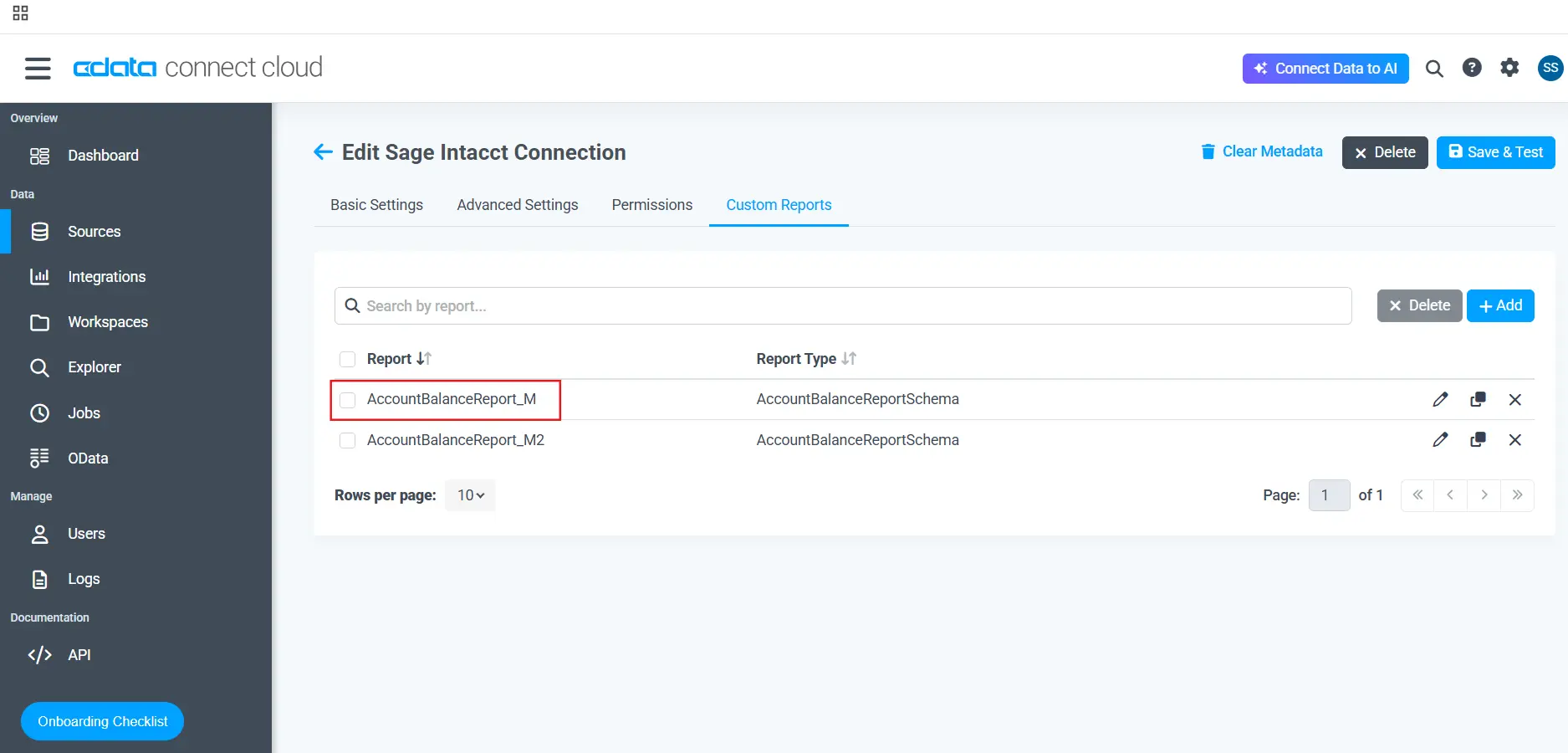
- Now, click the Custom Reports tab and then the +Add button to add a new report
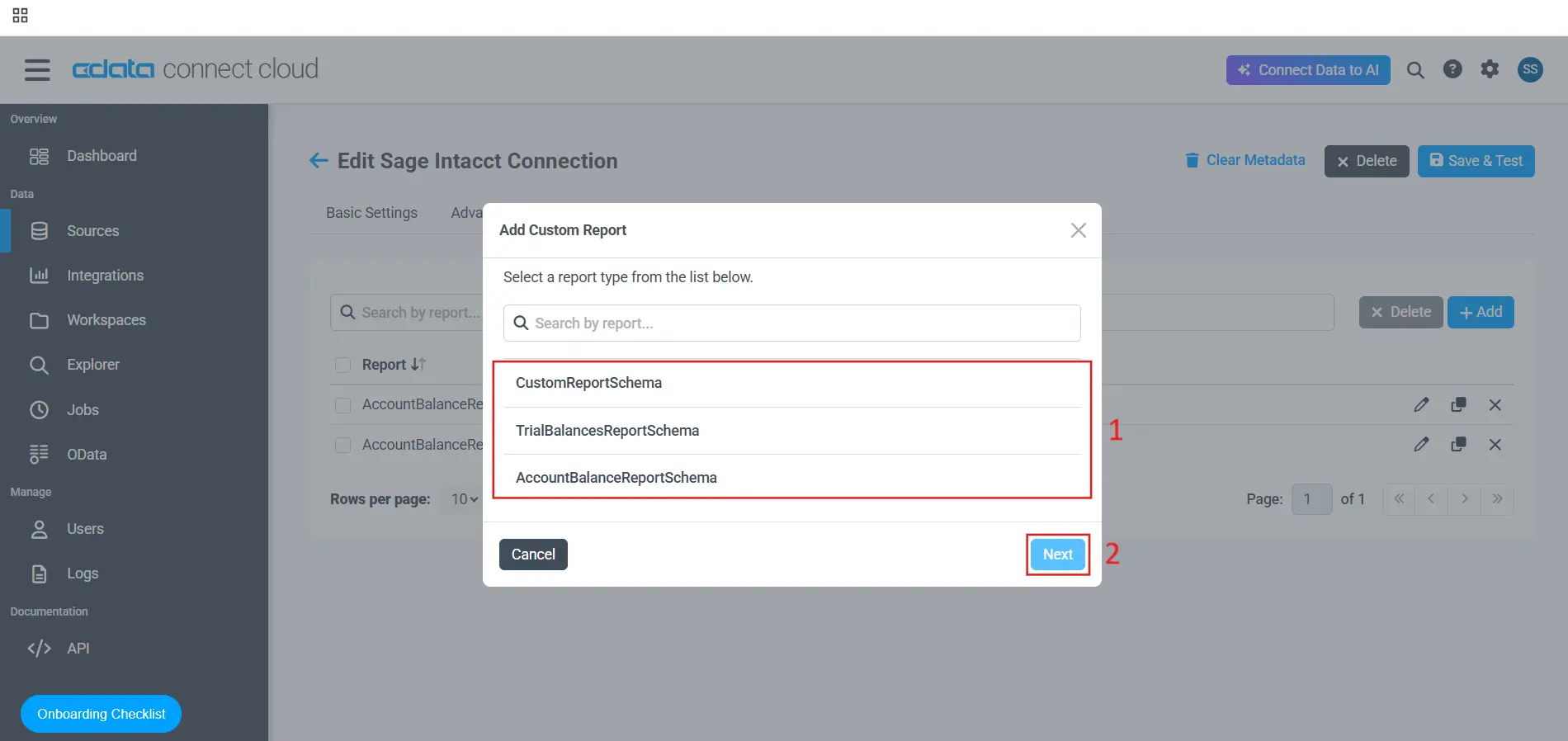
- Select one of the report options from the list that appears and click Next
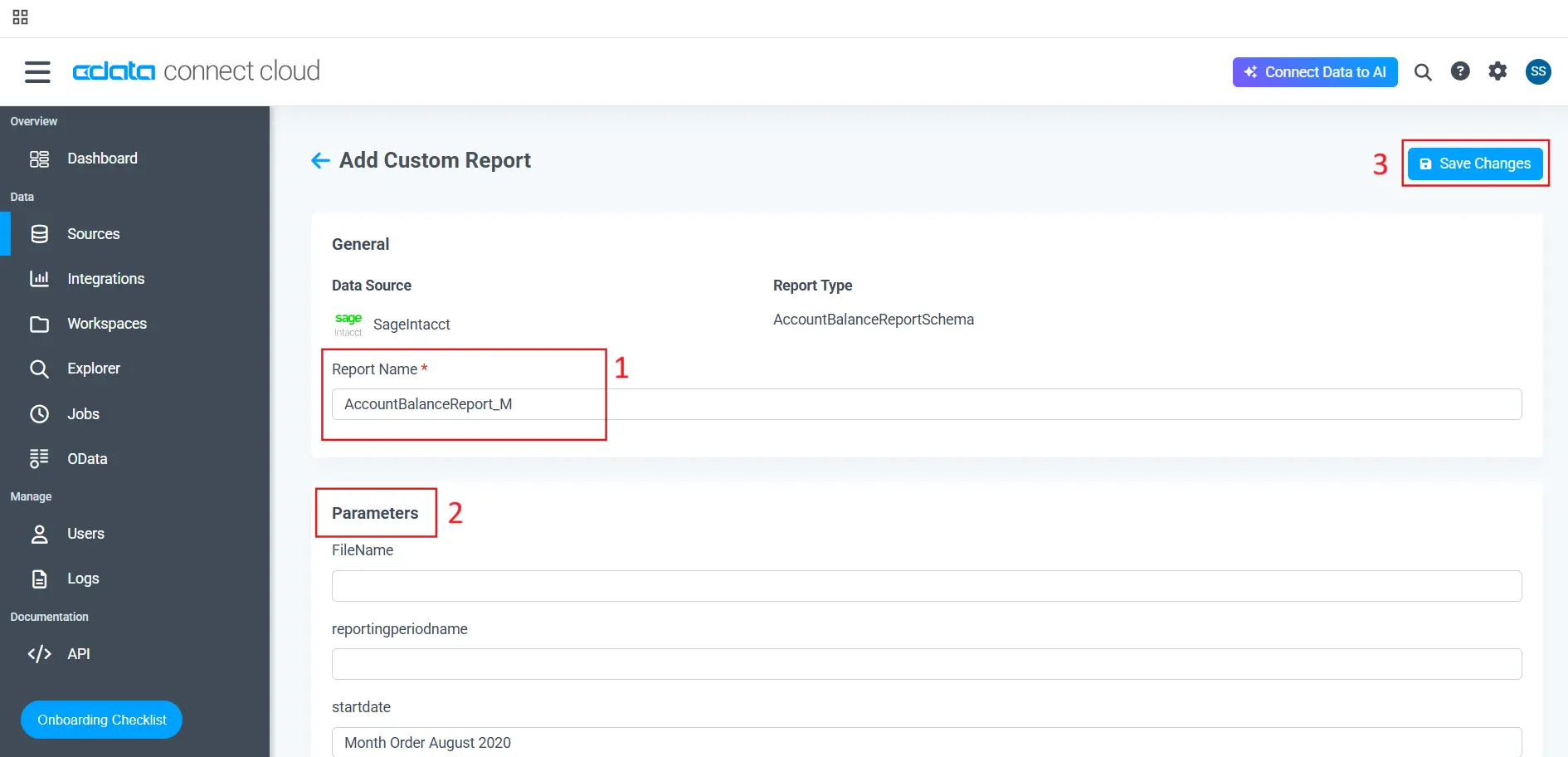
- On the following screen provide a name to the Custom Report, fill out the parameters for the Custom Report, and click Save Changes
- Click the back arrow to view your new Custom Report
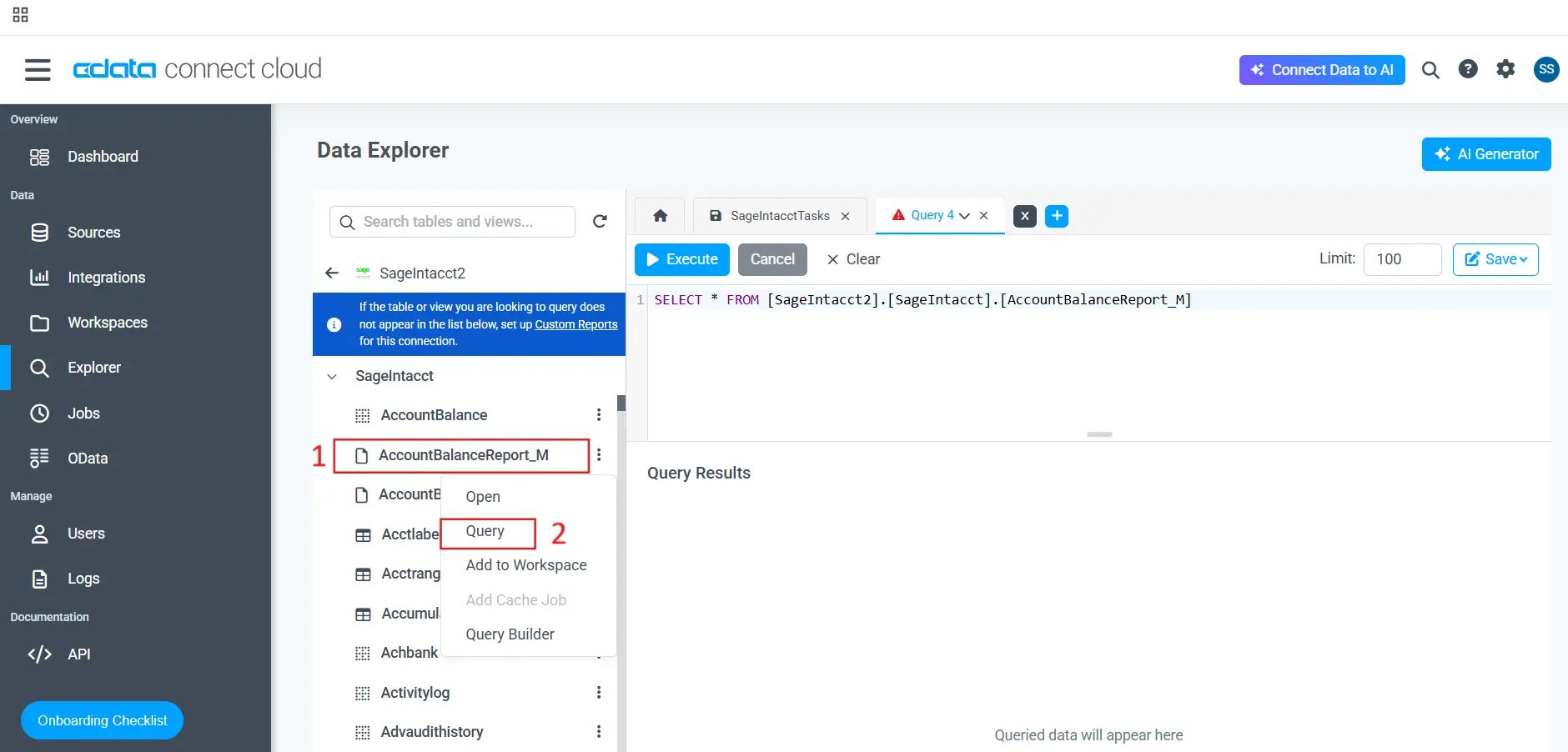
- The new Custom Report can also be viewed within Explorer and from 3rd party client applications like any other table or view
More Information & Free Trial
To learn more about CData Connect AI and get live data access to 300+ SaaS, Big Data, and NoSQL sources directly from your cloud applications, visit our CData Connect AI page or sign up for a free trial today!
