






Updating a Column from Another Column with CData Drivers
CData Drivers support executing SQL queries directly against live SaaS apps, ERP suites, NoSQL, and RDBMS data sources. This includes the ability to run an UPDATE statement that copies the value from one column into another column, just as if you were working in a traditional relational database.
In this article, we'll demonstrate how to run an UPDATE statement to copy values between columns. While this example uses the CData ODBC Driver for Salesforce, the same approach and principles apply across all CData Drivers that support the UPDATE statement.
Prerequisites
- CData ODBC Driver for Salesforce. Download a free trial or install a licensed copy from here
- An active Salesforce account with credentials.
Overview
Here's a quick overview of what this article covers:
- Installing and configuring the CData ODBC Driver for Salesforce with a DSN (Data source name).
- Executing the SQL statements and copying values between columns.
Step 1: Install and Configure the Salesforce ODBC Driver
- Download the Salesforce ODBC Driver installer for your operating system from the driver's page.
- Run the installer and follow the setup instructions on your machine.
- Launch ODBC Data Source Administrator to configure a DSN (Data source name) for Salesforce:
- On Windows: Search for ODBC Data Sources (64-bit) in the Start menu and open it.
- On macOS: Open Applications > Utilities > ODBC Manager.
- On Linux: Use unixODBC to configure the DSN (typically in odbc.ini).
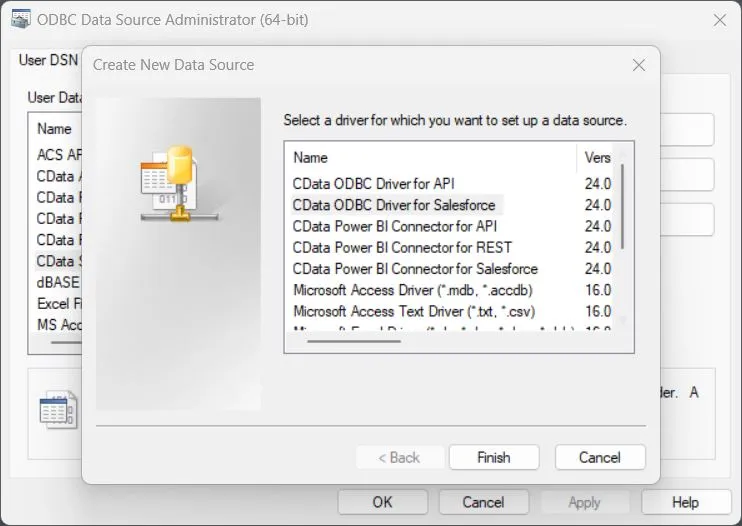
- Click Add and select CData ODBC Driver for Salesforce.
- Enter the connection properties in the DSN configuration dialog:
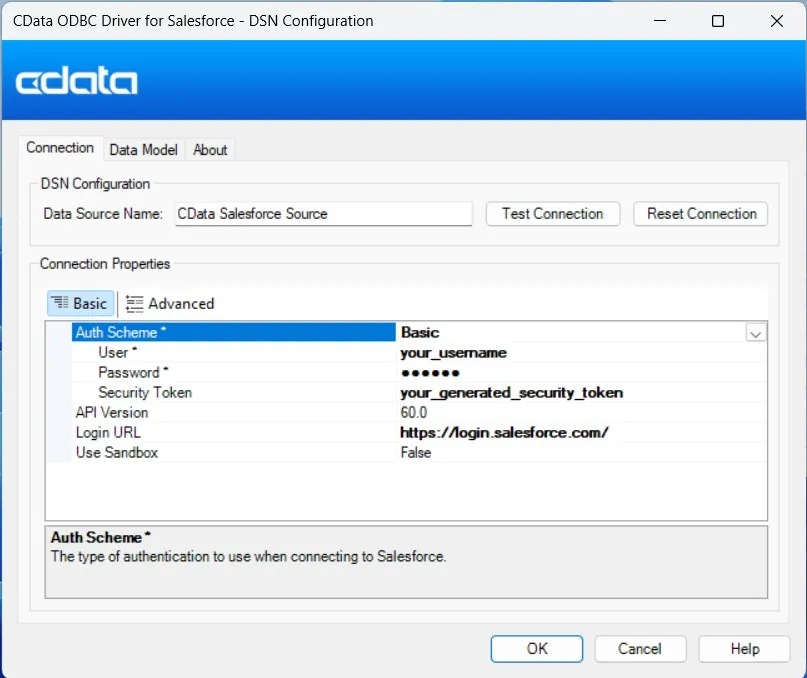
- Authentication: Choose the authentication method based on your requirments: Basic (username, password, security token), OAuth, or SSO (e.g., Okta, ADFS).
- Login URL: Enter the Salesforce login instance (e.g., https://login.salesforce.com).
- Credentials: Enter your Salesforce username and password, and security token, if required, based on the authentication method chosen.
- Click Test Connection to verify the connection.
- If successful, click OK to save the DSN.
Step 2: Execute the SQL Statements
Once the DSN is configured, connect to it from your SQL client (e.g., DbVisualizer, MS Access, Excel, Python pyodbc, or a BI tool) and run an UPDATE statement to copy values between columns in your Salesforce data.
General Syntax
The general SQL syntax for updating one column with the value of another column is:
UPDATE TableName SET TargetColumn = SourceColumn;
Example 1: Copy Data Between Columns
Copy the Name column into the BillingCity column for all rows in the Salesforce Account object:
UPDATE Account SET BillingCity = Name;
This will overwrite the BillingCity column with the value from the Name column across all records. To restrict the update to a subset of records, include a WHERE clause. For example, to only update Accounts where the Industry column is set to "Manufacturing":
UPDATE Account SET BillingCity = Name WHERE Industry = 'Manufacturing';
Using SQL Functions
You can also use SQL functions in the SET clause to perform transformations during updates:
-
Calculate string length:
Populate the BillingStreet column with the number of characters in the Name column:
UPDATE Account SET BillingStreet = CHAR_LENGTH(Name);
-
Concatenate fields:
Combine the LastName column and the FirstName column into the Name column:
UPDATE Contact SET Name = CONCAT(LastName, '-', FirstName);
These operations are particularly useful for SaaS data cleanup, migration, or transformation workflows. For a complete list of supported SQL functions, refer to the help.htm file inside the downloaded Driver's directory, or visit www.cdata.com/drivers/.
Try CData Free for 30 Days
Explore how easy it is to query and update Salesforce or any of 300+ SaaS, NoSQL, and database sources with CData Drivers. Start your free 30-day trial today.
Start Free Trial