






How to Import Gmail Data into Excel with CData
CData Excel Add-Ins make it remarkably simple to bring live data from a wide range of cloud and on-premise sources directly into Microsoft Excel. These add-ins transform Excel into a powerful data analysis and reporting tool—complete with real-time connectivity, full SQL support, and customizable queries.
With CData's Excel Add-In for Gmail, you can connect to Gmail accounts via the Gmail API without writing a single line of code. Once connected, you can query your inbox, sent messages, or labels like a relational database, allowing you to run searches, filter results, and even create charts and dashboards in Excel.
In this article, we'll show you how to configure Gmail API access and use the CData Excel Add-In to retrieve and analyze your Gmail data directly in Excel.
Let's begin.
Prerequisites
- A Google account with Gmail access – sign up or log in here.
- Google Cloud Console access – sign up or log in here.
- CData Excel Add-In for Gmail – Download a free trial here.
- Microsoft Excel (Desktop version) – Download or try Excel here.
Overview
Here's a quick overview of the steps to access Gmail data in Excel using CData:
- Configure: Set up and enable the Gmail API in your Google Cloud Console project.
- Connect: Authenticate with Gmail using the CData Excel Add-In and your OAuth credentials.
- Query: Use Excel to retrieve and analyze Gmail data using SQL-based queries.
Step 1: Configure the Gmail API in Google Cloud Console
The first step is to set up and enable the Gmail API in your Google Cloud Console project. To do this, follow these steps:
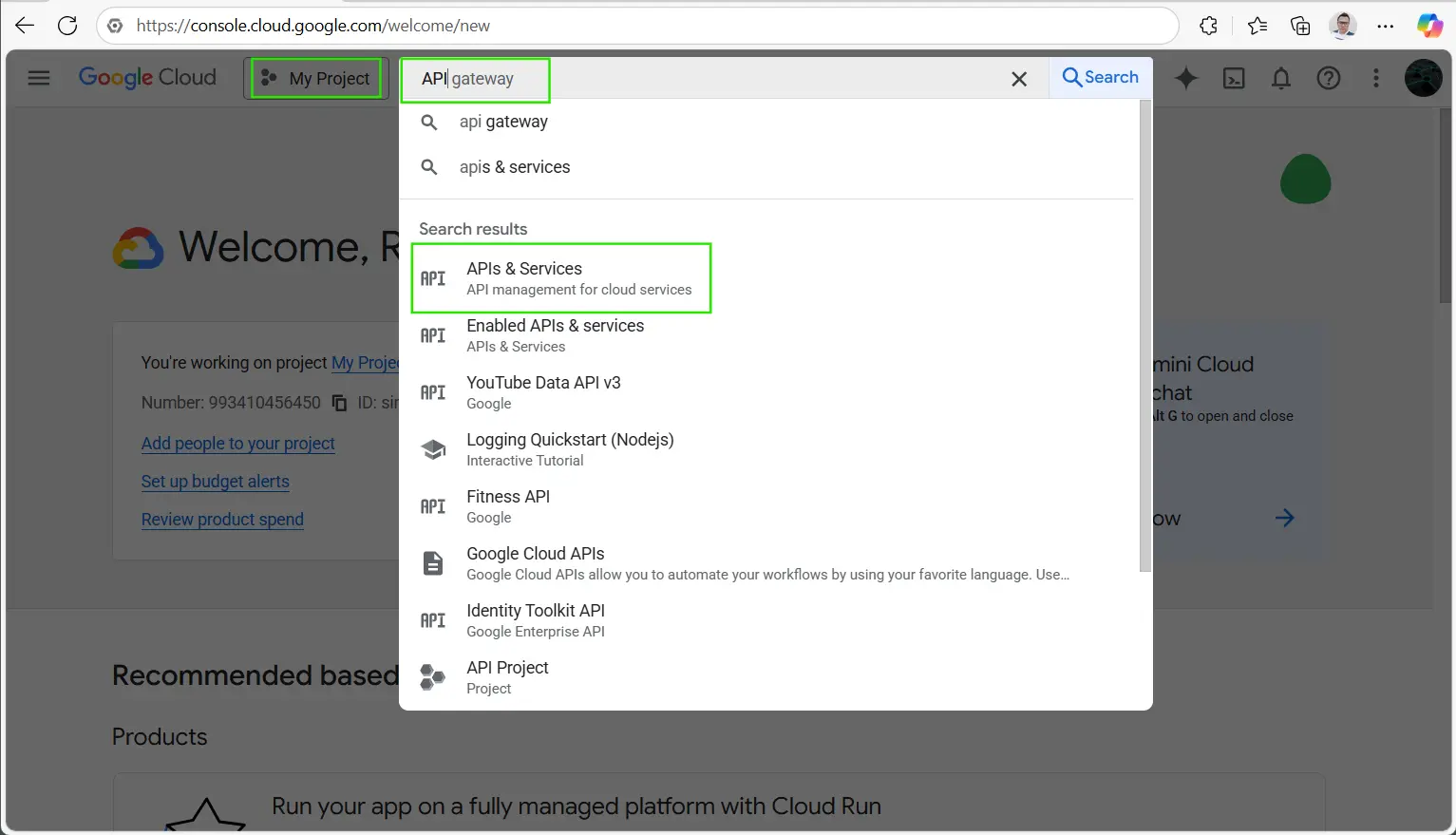
- Open the Google Cloud Console and select or create a project from the top-left menu.
- In the top search bar, type API and select APIs & Services from the results.
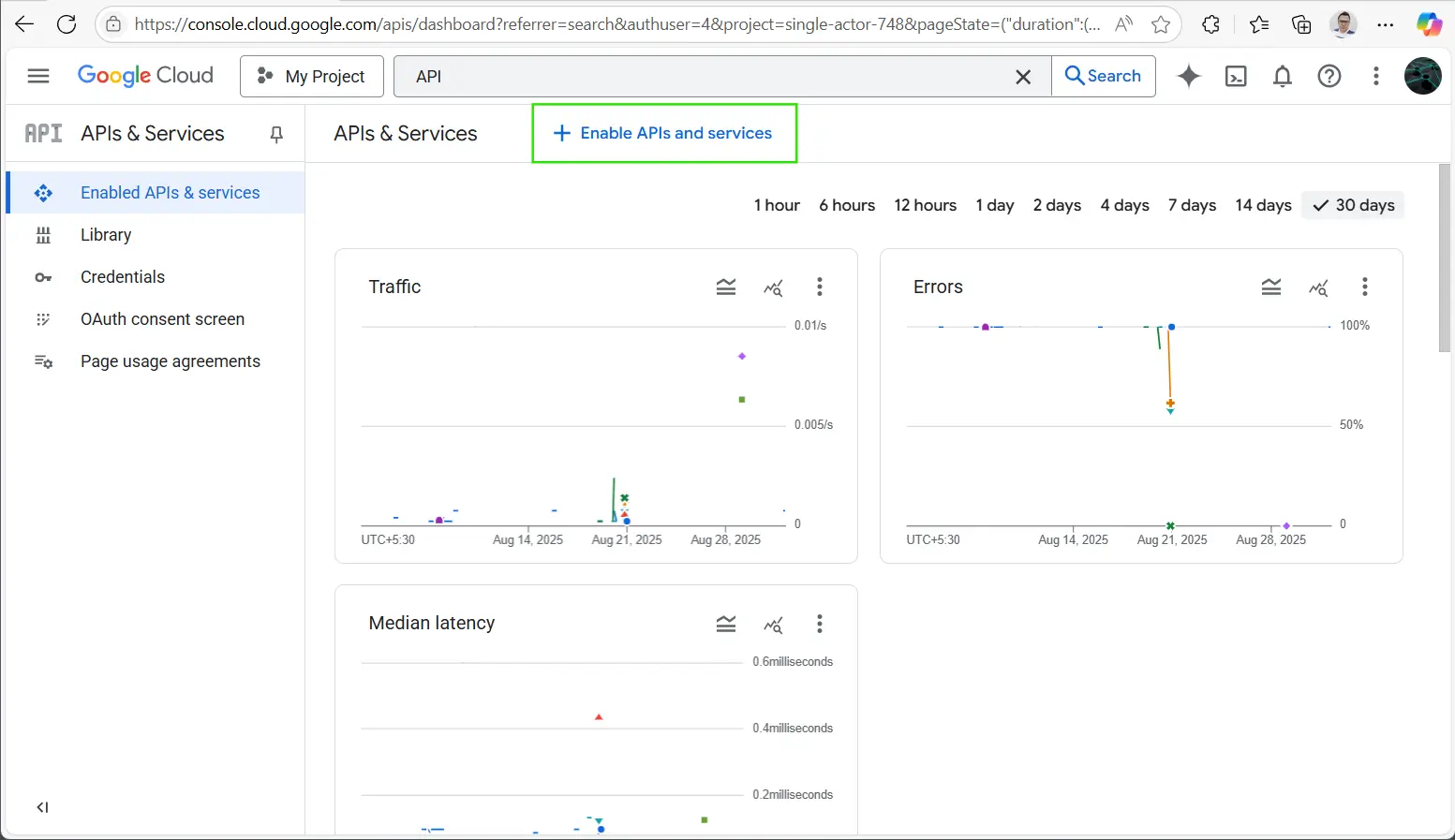
- On the APIs & Services page, click the Enable APIs and Services button.
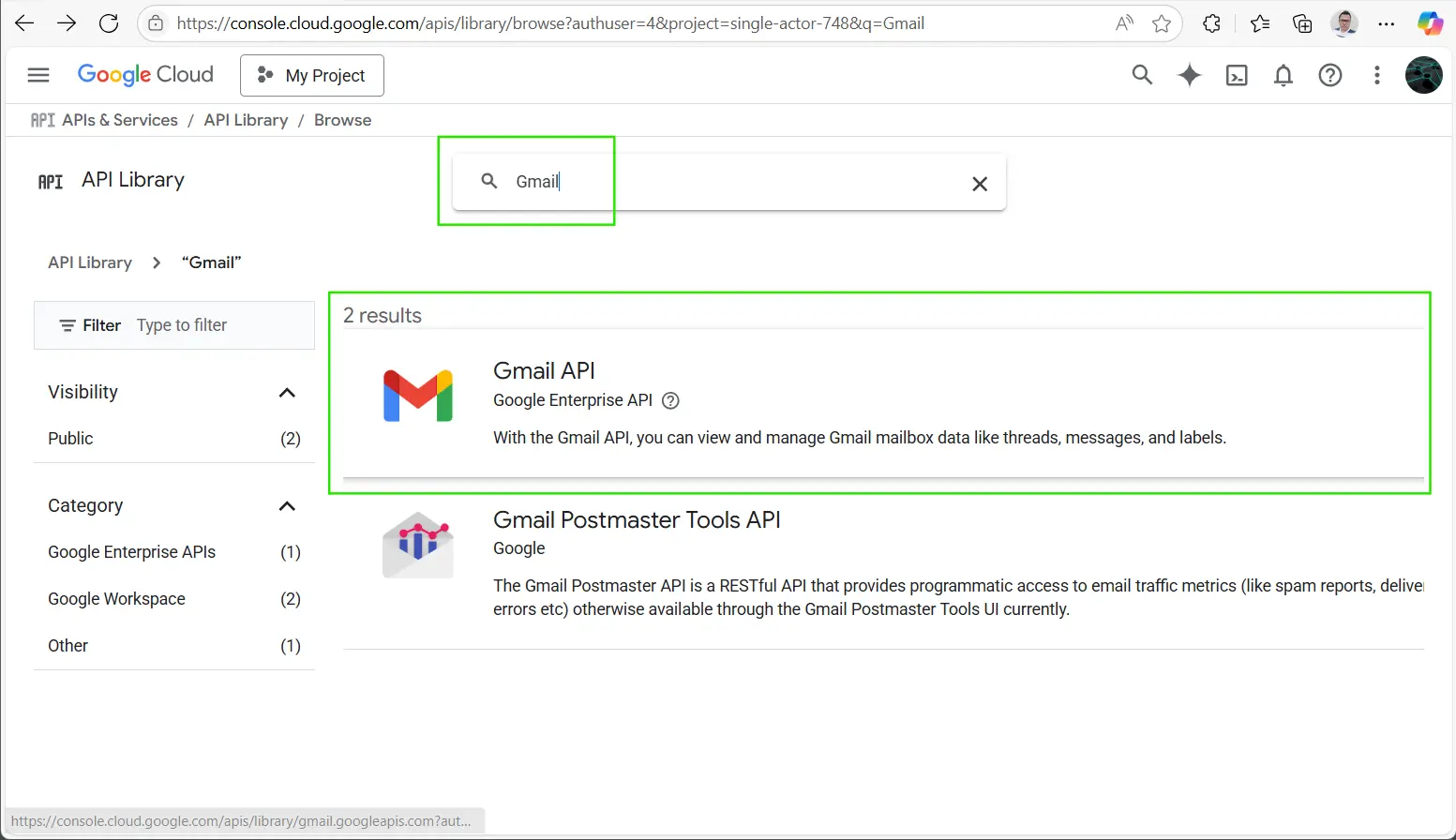
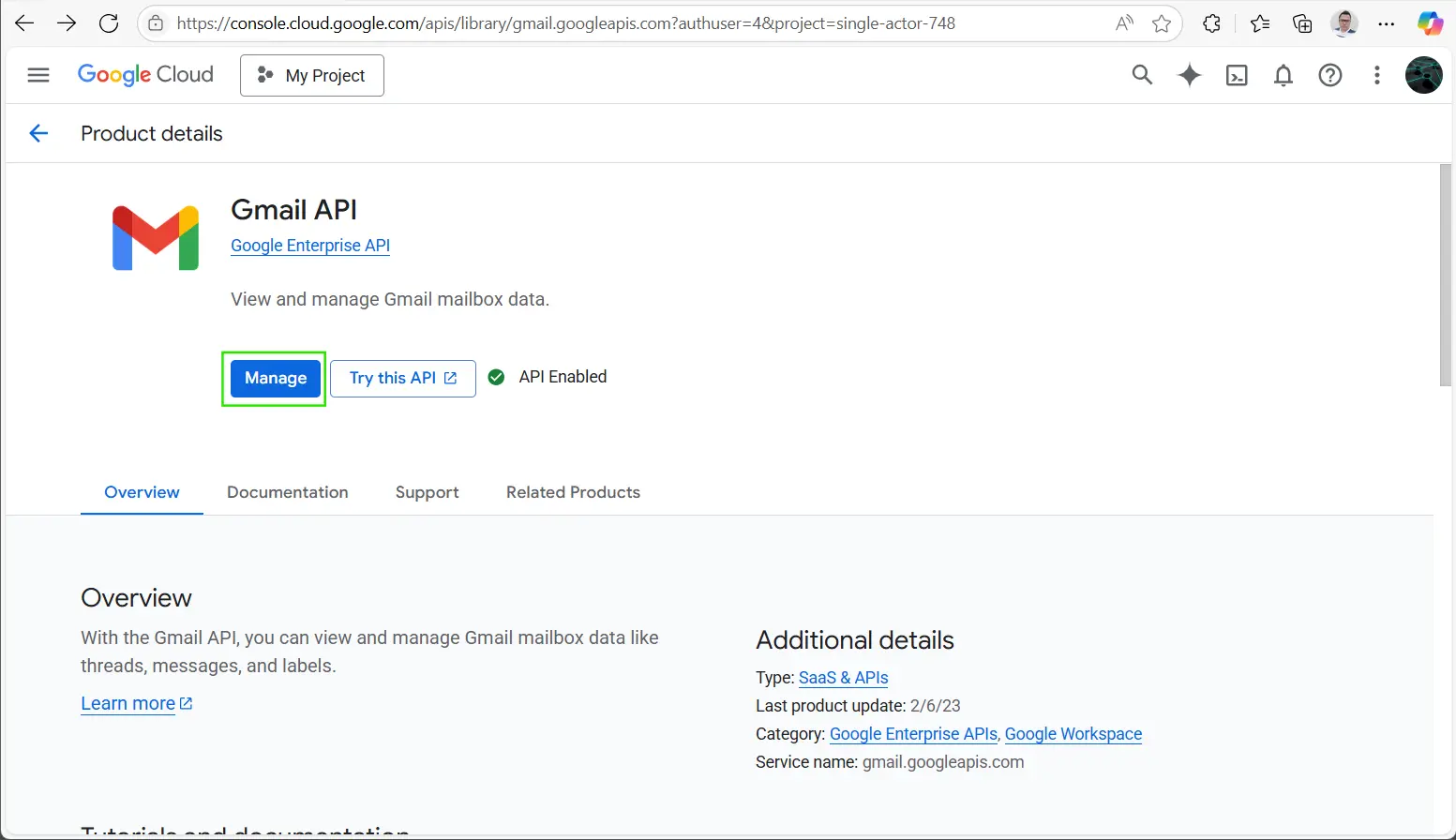
- In the search bar, type Gmail and select the Gmail API result. Then click the Enable or Manage button.
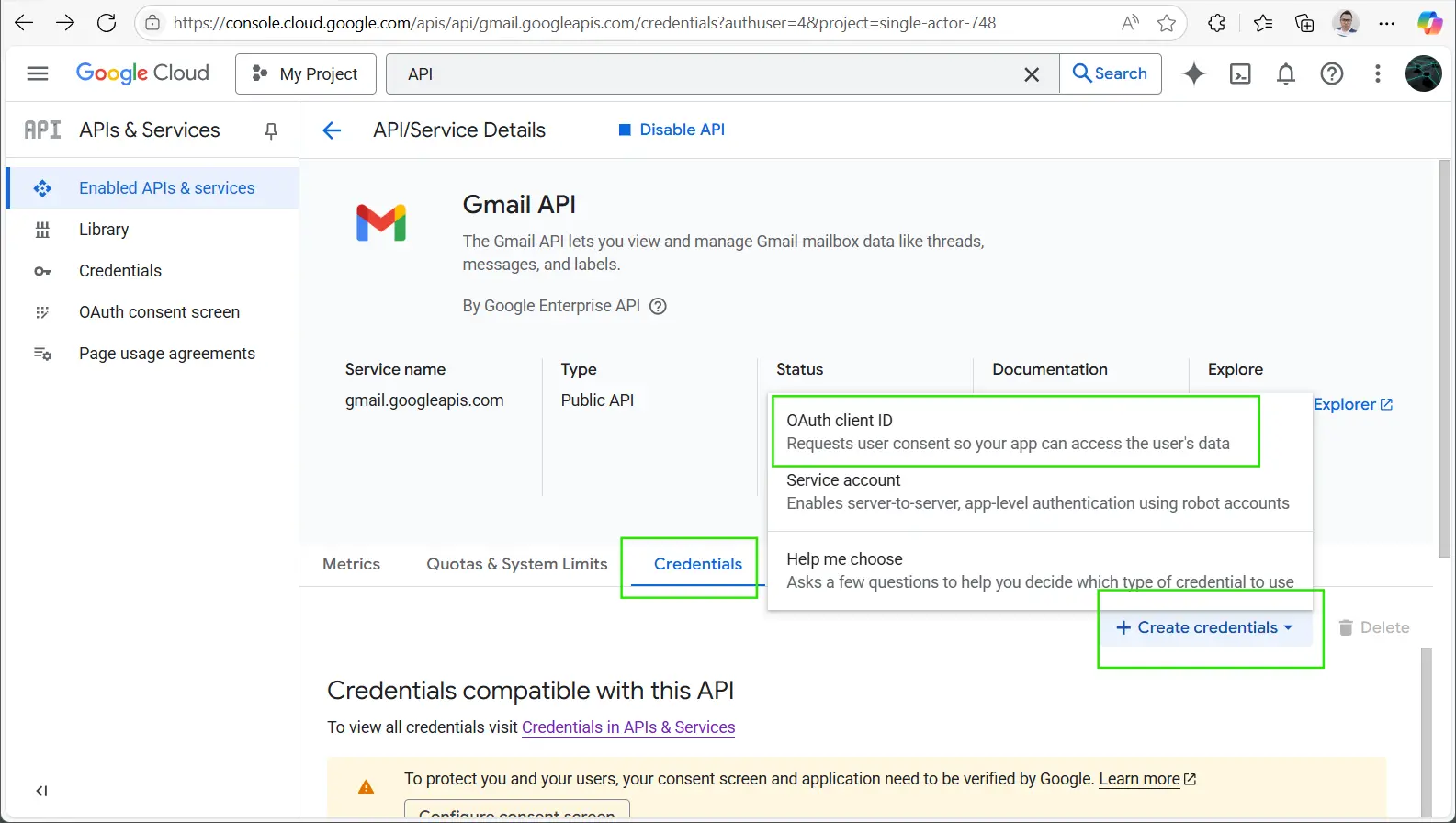
- On the Gmail API page, go to the Credentials tab, click Create credentials, and choose OAuth client ID.
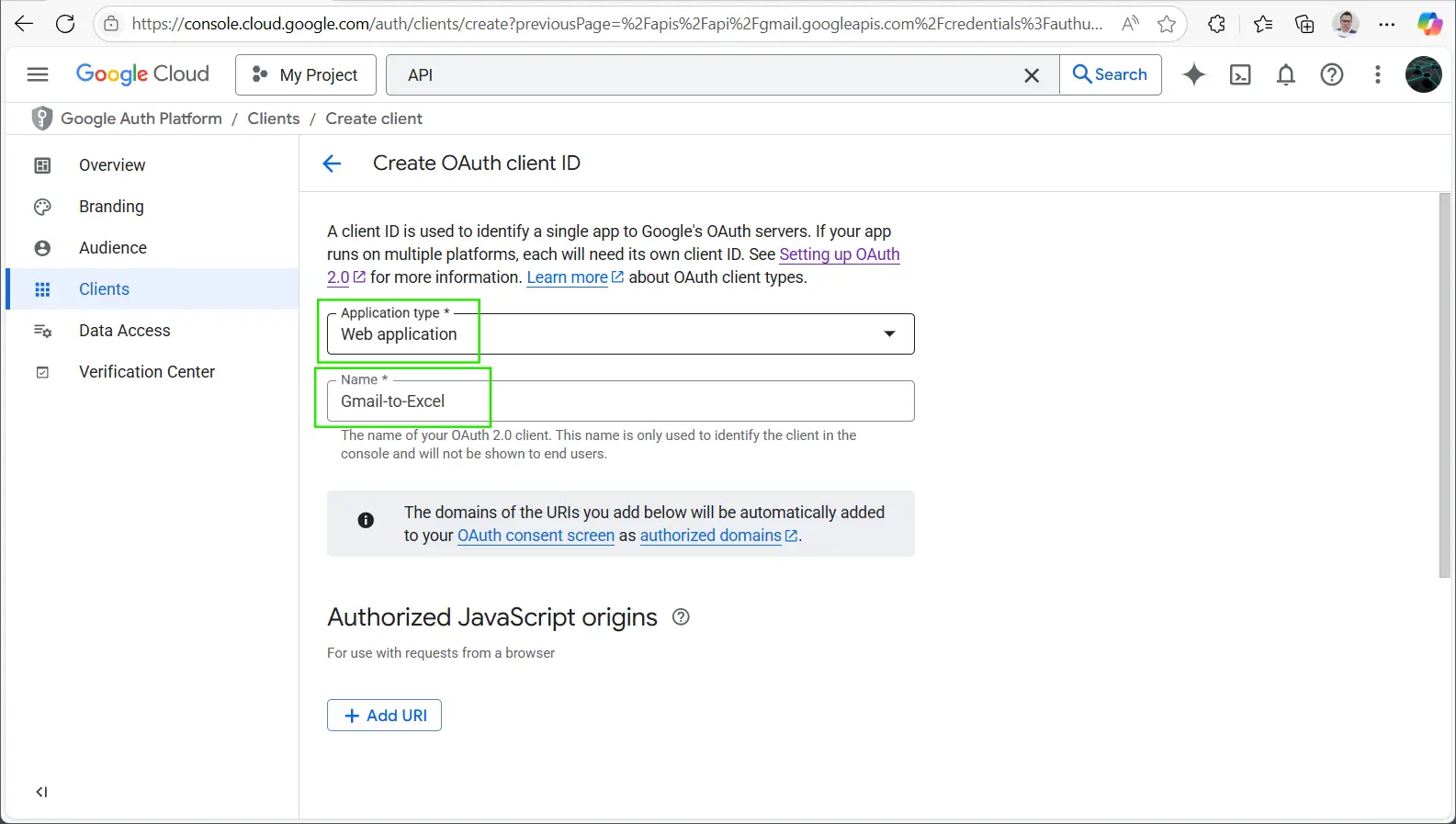
- Select Web application as the Application type. Provide a name such as Gmail-to-Excel.
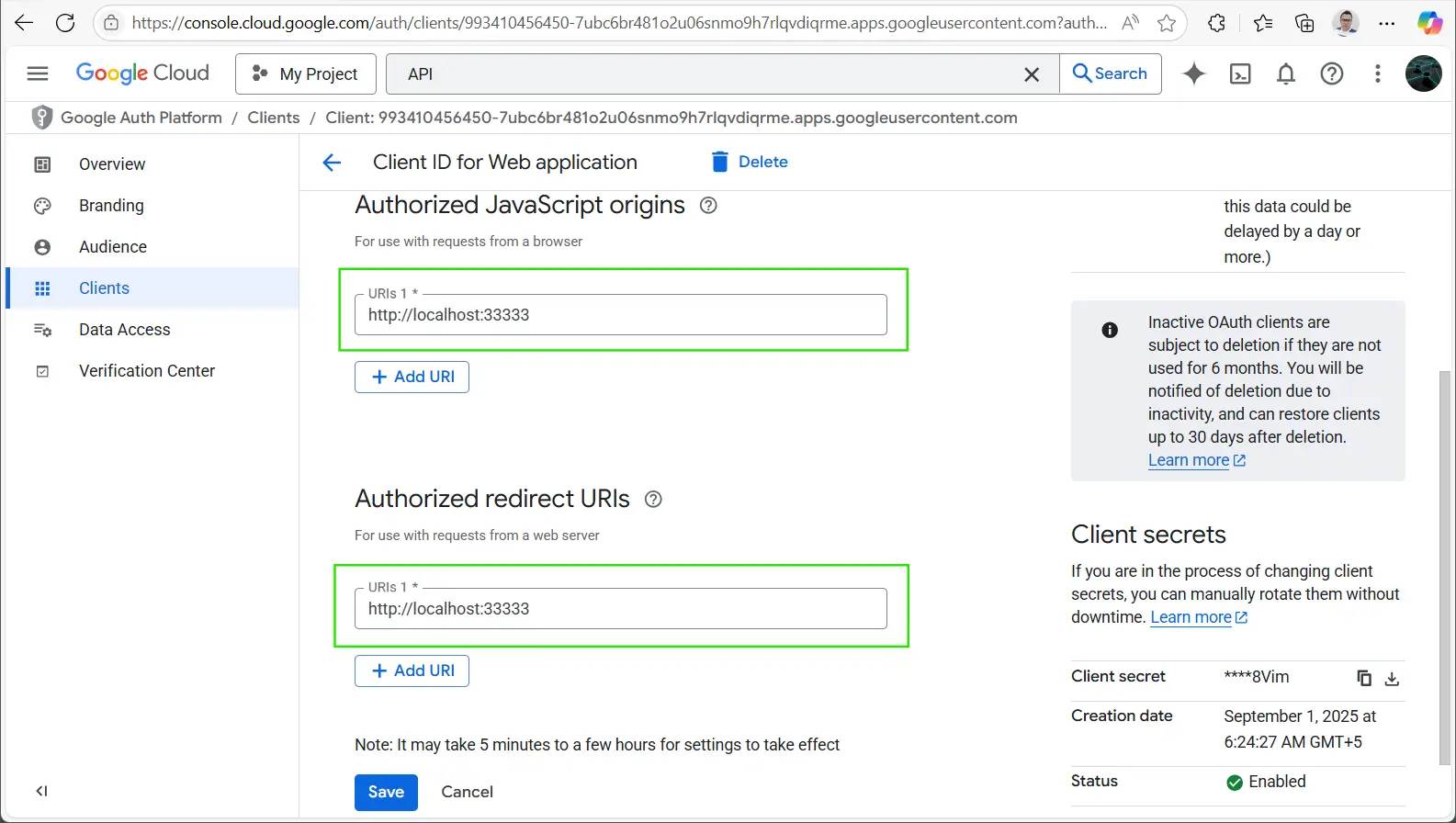
- In the Authorized redirect URIs section, click Add URI and enter: http://localhost:33333 (or another free port on your local machine). Then click Create.
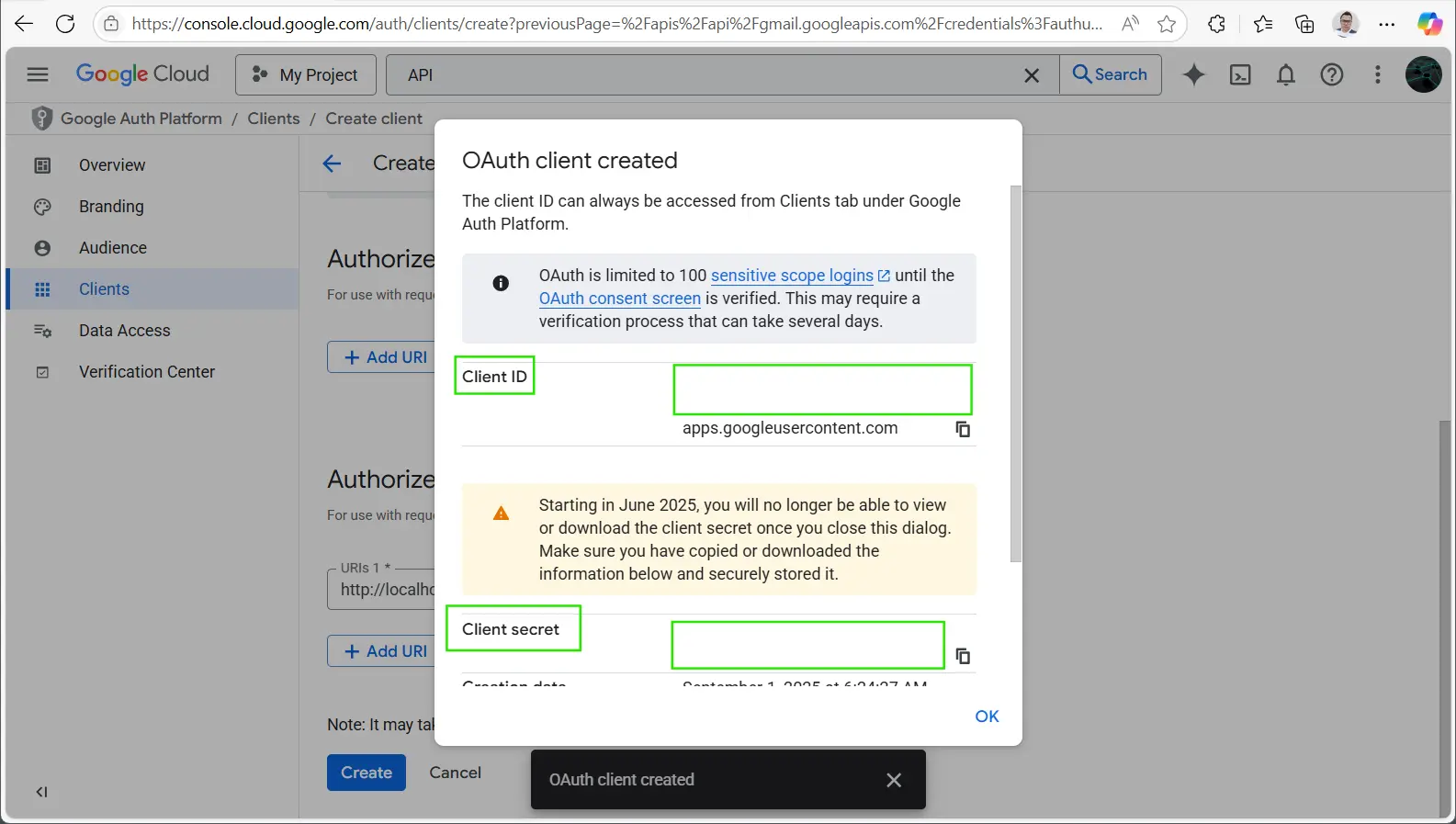
- After the OAuth client is created, copy the Client ID and Client Secret and save them in a secure place. You will use these in the next step.
Make Once the Gmail API is configured, you can proceed to the next step.
Make sure to copy and save your Client ID and Client Secret before closing the dialog. Once the Gmail API credentials are generated, they will not be displayed again. You can now proceed to the next step.
Step 2: Connect and Retrieve Gmail Data
Once your Gmail API is configured, the next step is to connect your Gmail account using the CData Excel Add-In and retrieve data directly into Excel — no code required.
-
Download and install the
CData Excel Add-In for Gmail.
- Follow the on-screen installation instructions. Start a trial or enter an existing license key if you already have one.
-
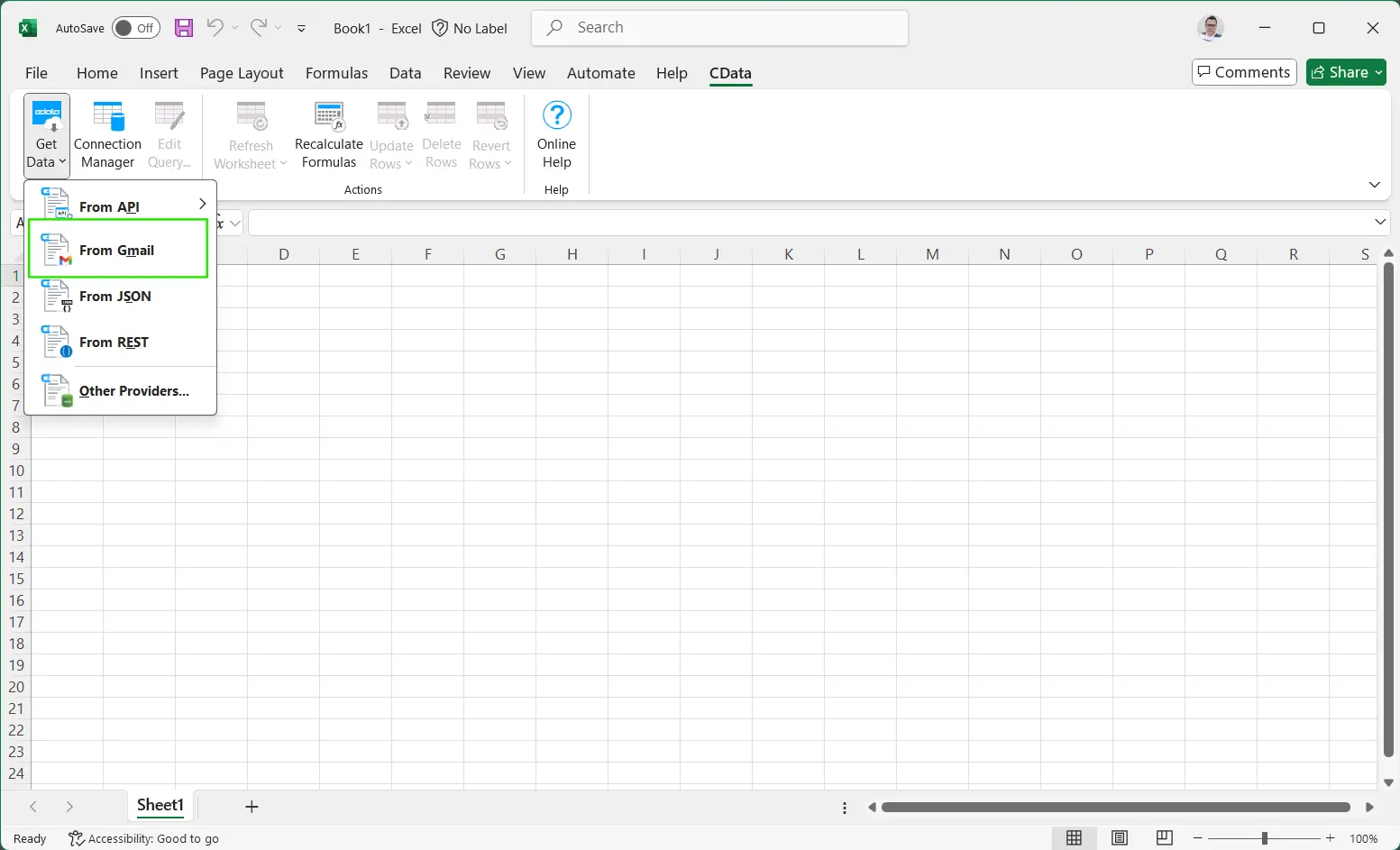
Once installed, open Excel. Navigate to the CData tab on the top ribbon, then select
From Gmail from the dropdown.
-
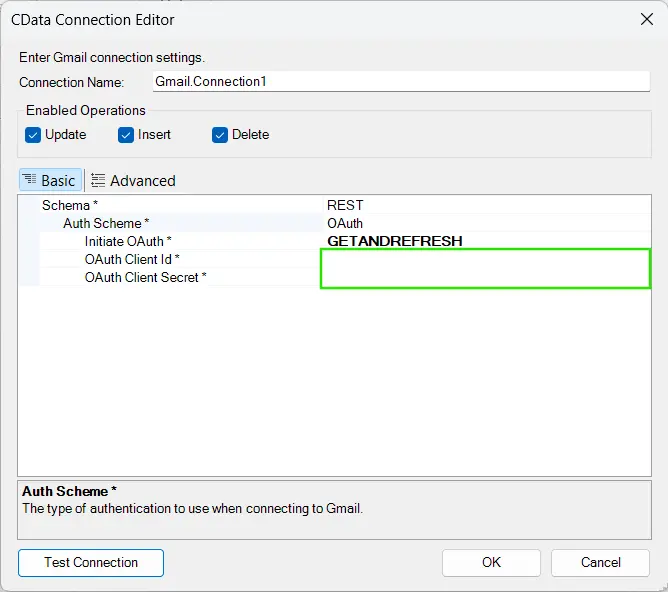
In the CData Connection Editor dialog, enter the following details:
- Schema: REST
- Auth Scheme: OAuth
- Initiate OAuth: GETANDREFRESH
- OAuth Client ID: (Paste the Client ID from Step 1)
- OAuth Client Secret: (Paste the Client Secret from Step 1)
-
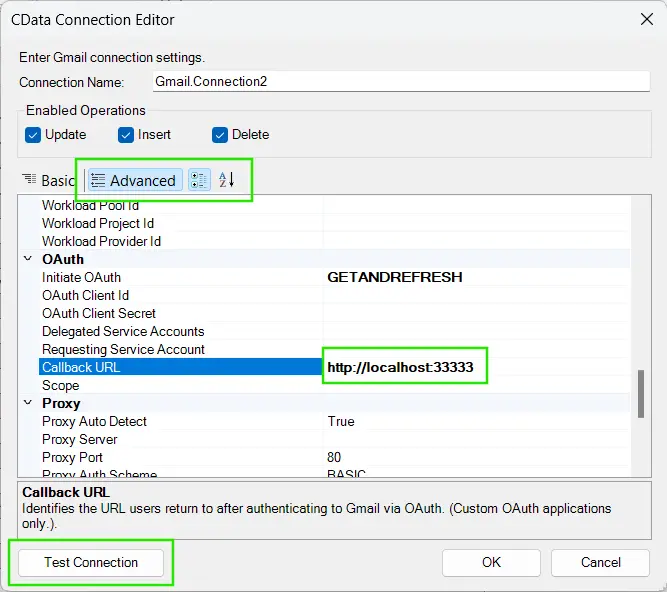
Click the Advanced tab. Under the OAuth section, set
the Callback URL to http://localhost:33333 or the value you used earlier.
Then click Test Connection at the bottom left.
-
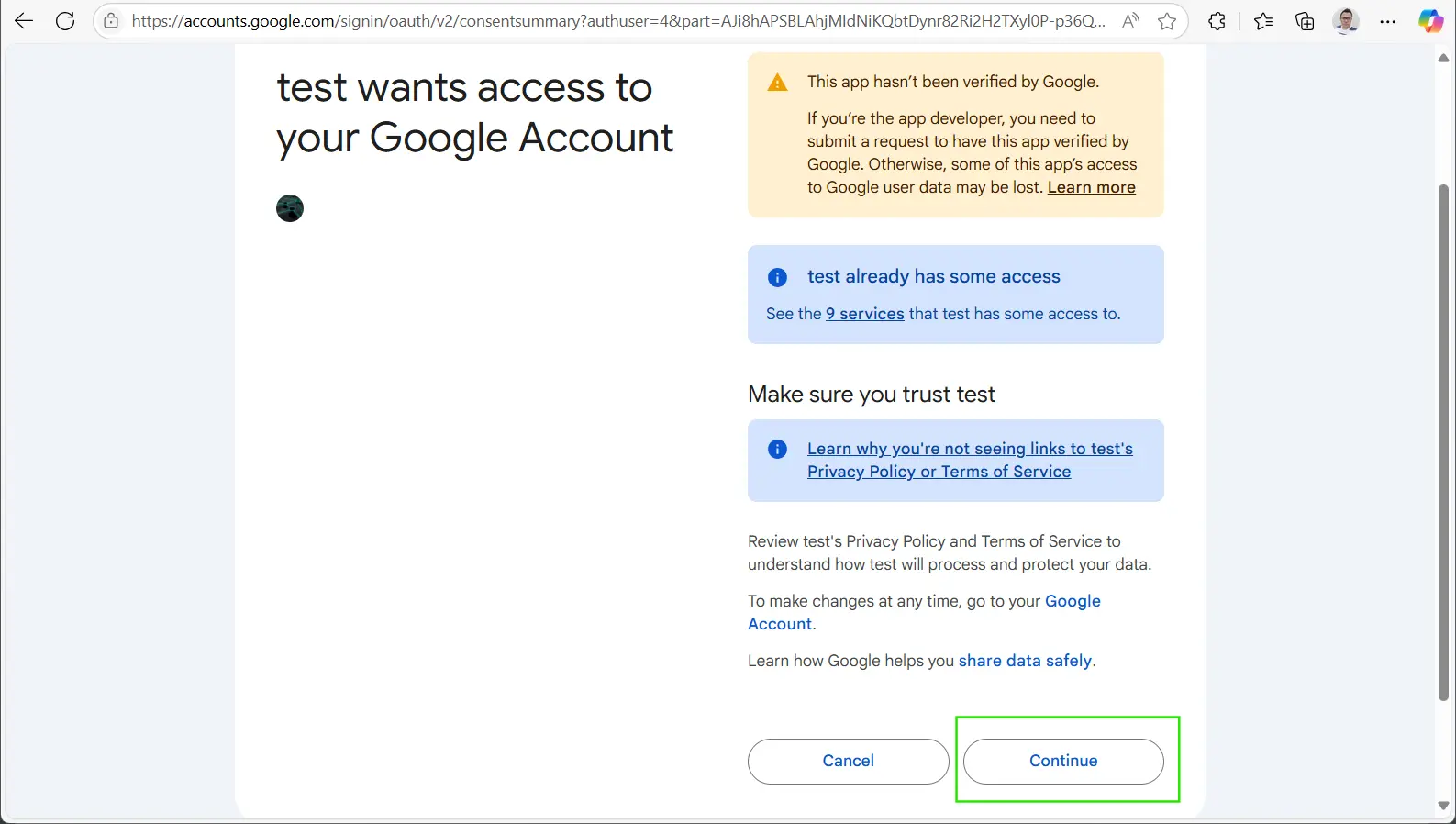
A browser window will open. Grant Gmail access and click Continue to authorize.
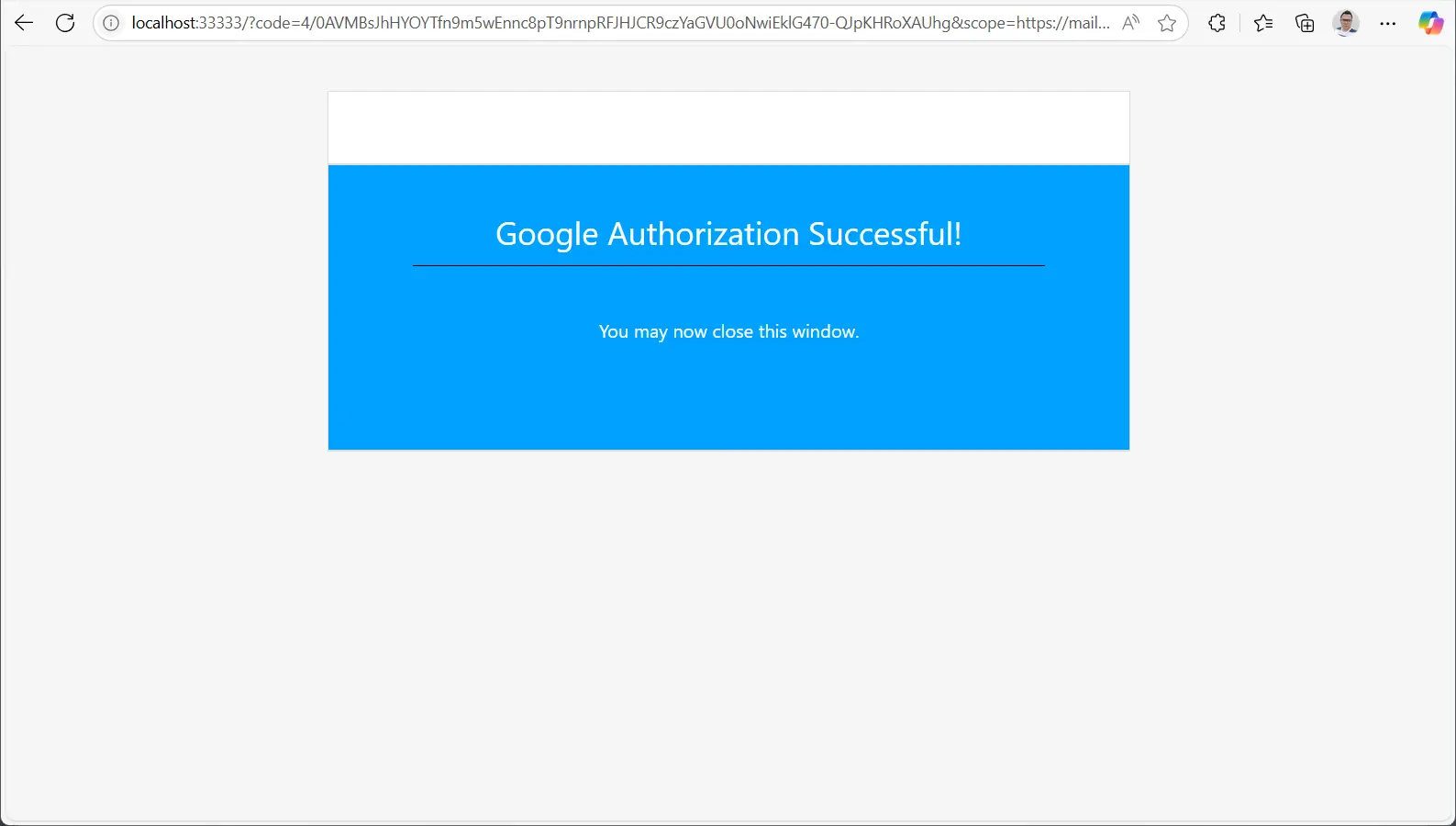
You should see the message "Google Authorization Successful!" after completion.
Step 3: Import and Analyze Gmail Data
Now that your Gmail account is connected, you can begin importing email data into Excel and perform quick analysis.
-
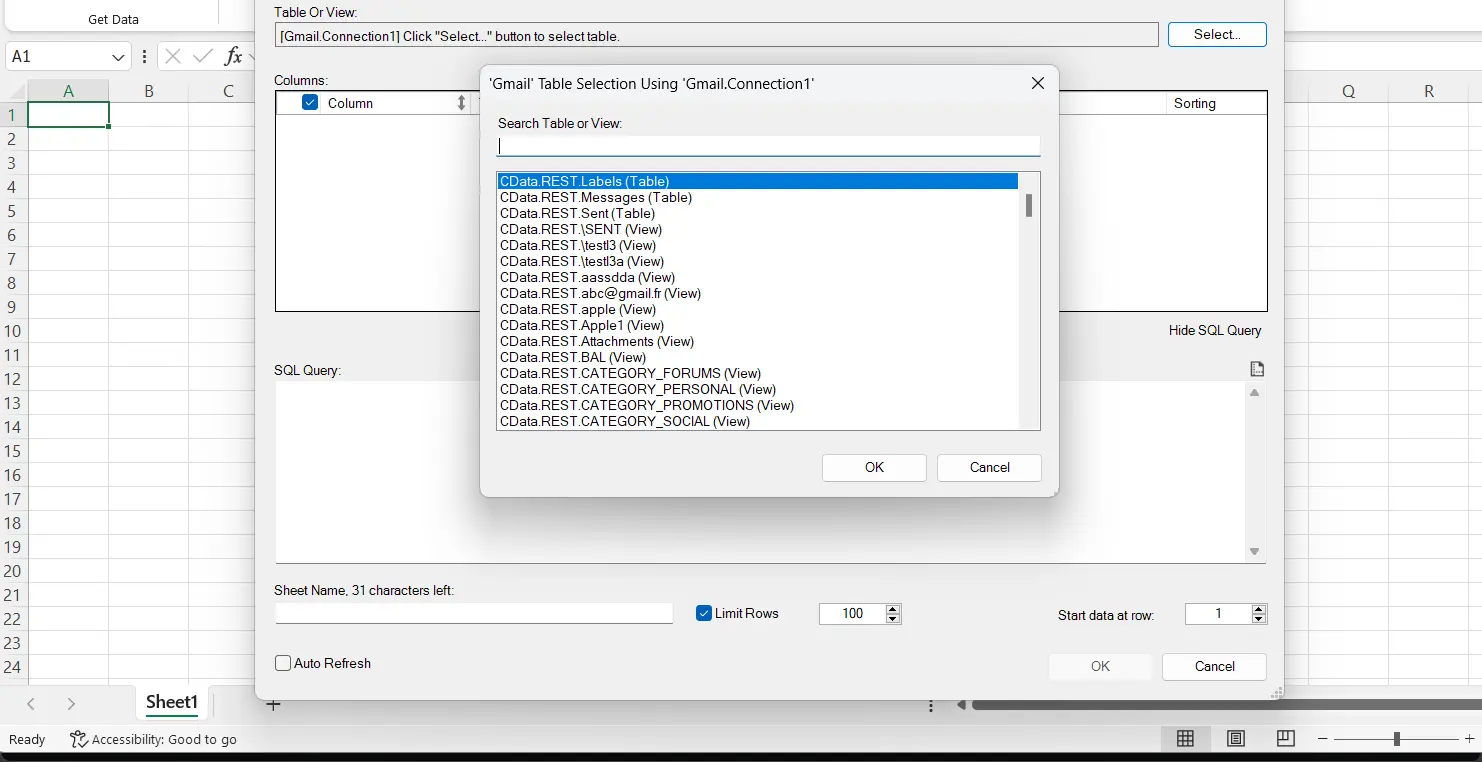
Choose the Gmail table you want to import (e.g., Inbox) from the table list and click OK.
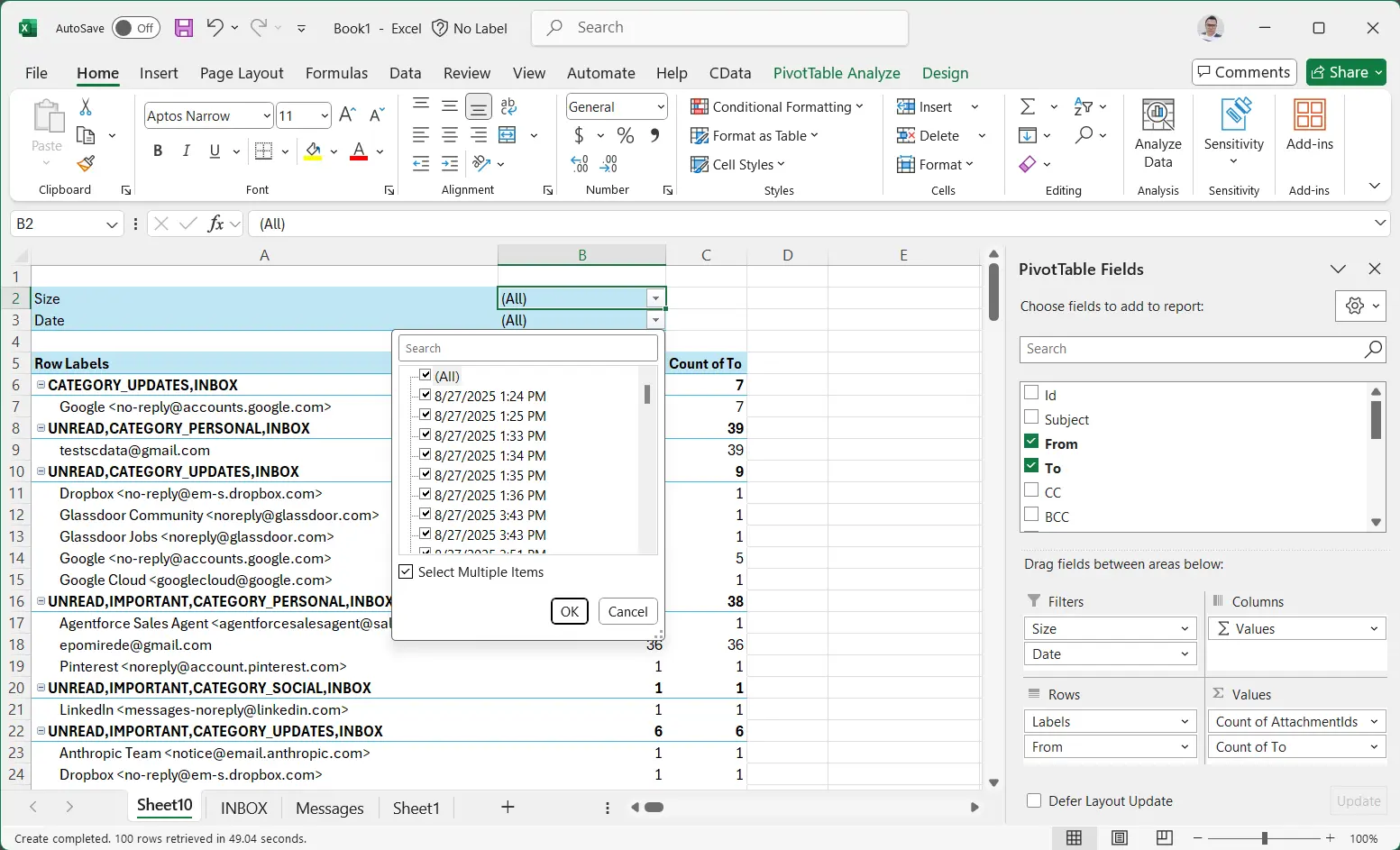
- After importing, use Excel filters, charts, or pivot tables to analyze email data. For example, we imported the INBOX table and created a simple pivot table to analyze email volume by dates.
You can further create complex queries, filter results, and even create charts and dashboards in Excel with your Gmail data.
Try CData Free for 30 Days
With CData Excel Add-Ins, you can instantly connect to live Gmail data and 300+ other data sources — including Salesforce, SharePoint, Dynamics, Google Sheets, and more — all from within Excel.
No coding. No manual exports. Just real-time connectivity, full SQL query support, and powerful data integration.
