






Update Regarding Use of Sender ID and Password with the Sage Intacct API
Overview
Sage Intacct now requires that CData Sync, CData Connect AI, and CData Embedded customers accessing the Sage Intacct API use their own Web Services Sender ID and Password.
Please note that direct customers of CData Drivers and Connectors for Sage Intacct are NOT affected by this change.Requirements
Obtaining a valid Web Services Sender ID and Password requires an active Sage Intacct Web Services Developer License subscription. If you do not yet have a Web Services Developer License, contact your Sage Intacct account manager. More information is available in the Sage Intacct Developer documentation.
How to Configure Your Own Credentials
Step 1: Enable Web Services for Your Company
- Sign in to Sage Intacct as an administrator.
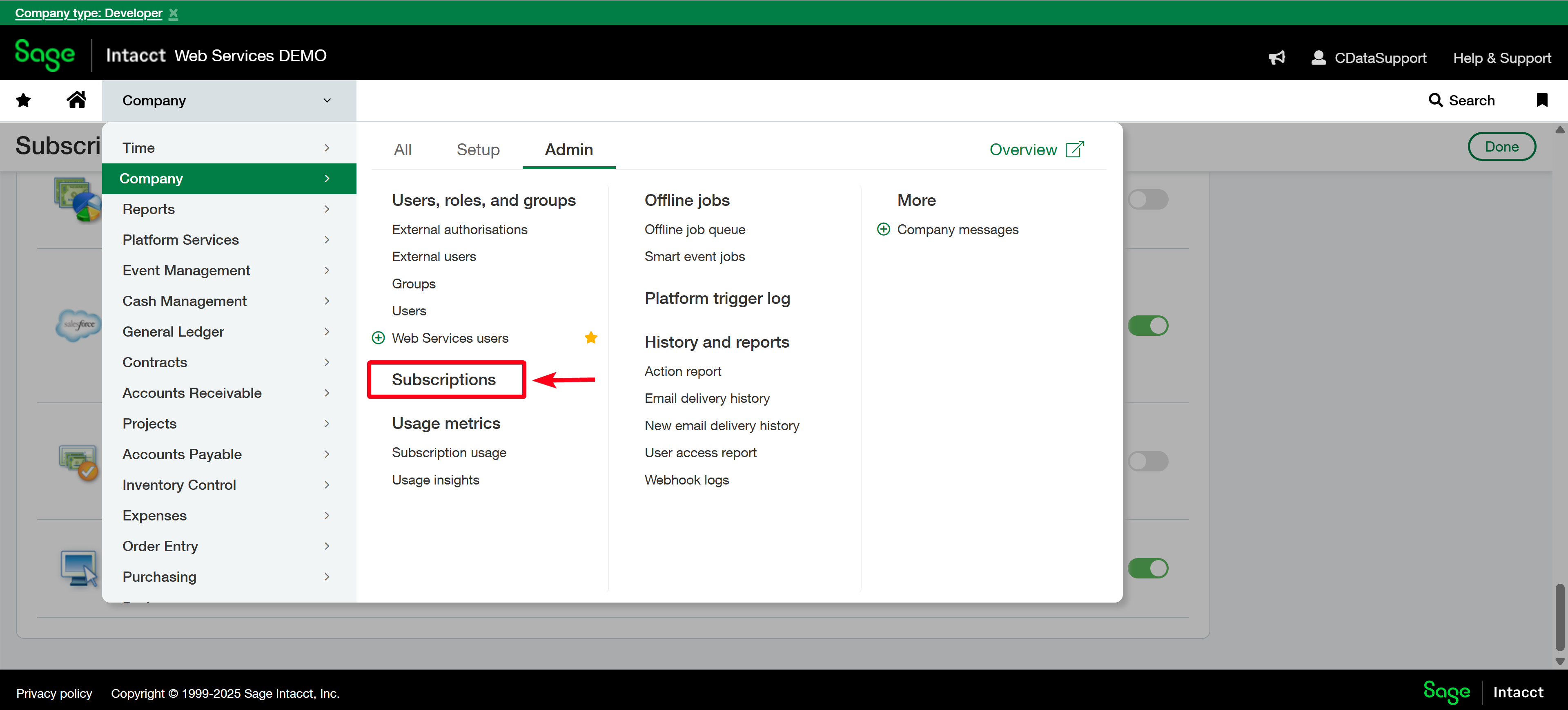
- Navigate to Company > Admin > Subscriptions.
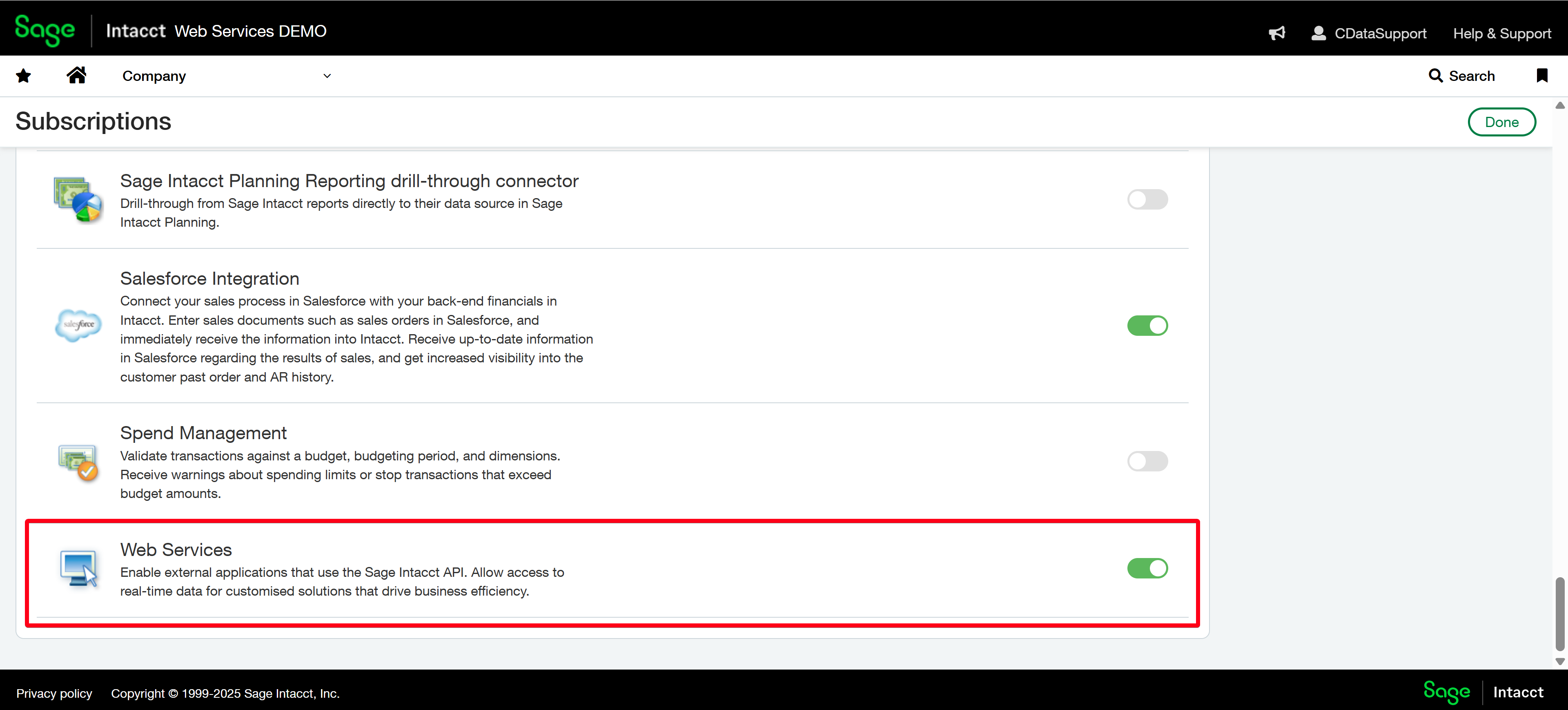
- Enable the Web Services subscription.
Step 2: Authorize Your Sender ID
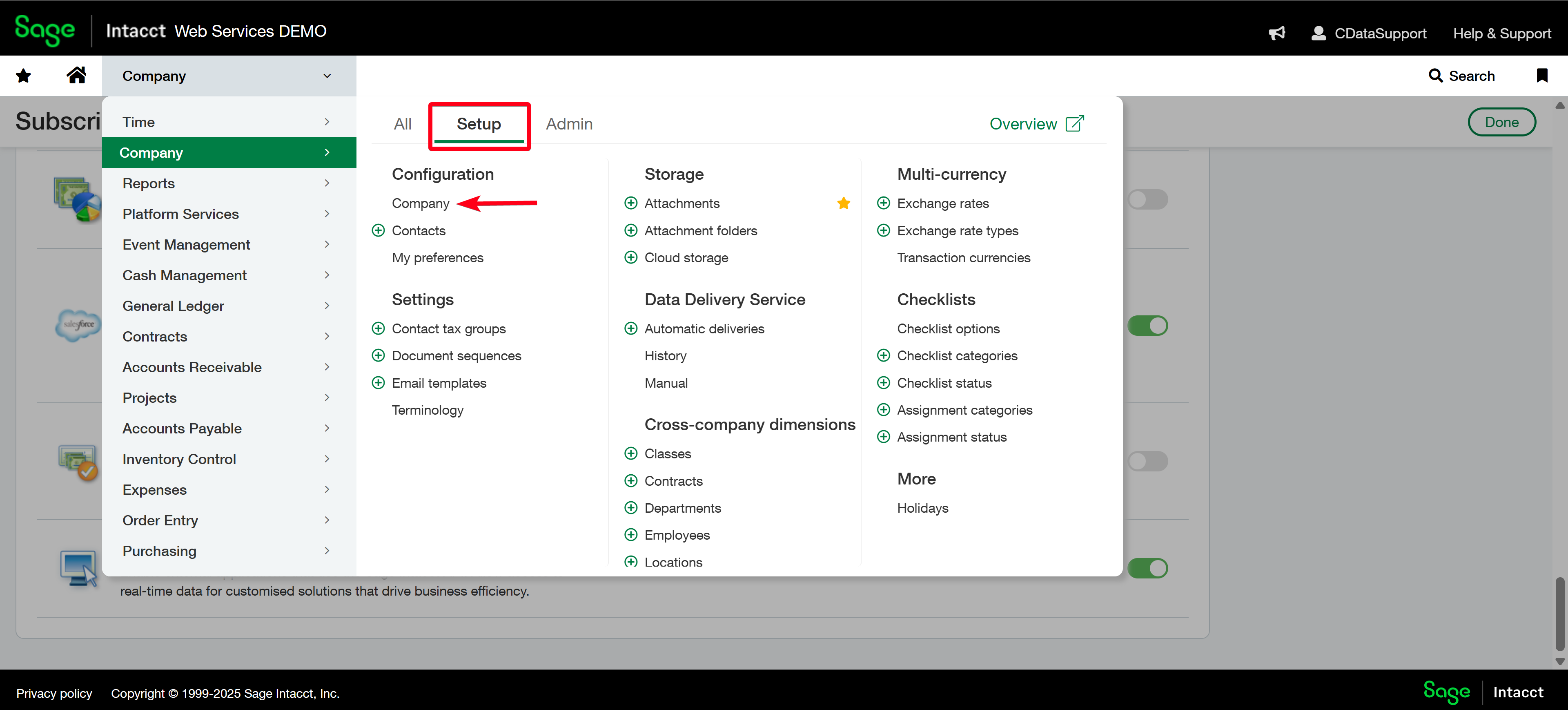
- Go to Company > Setup > Company
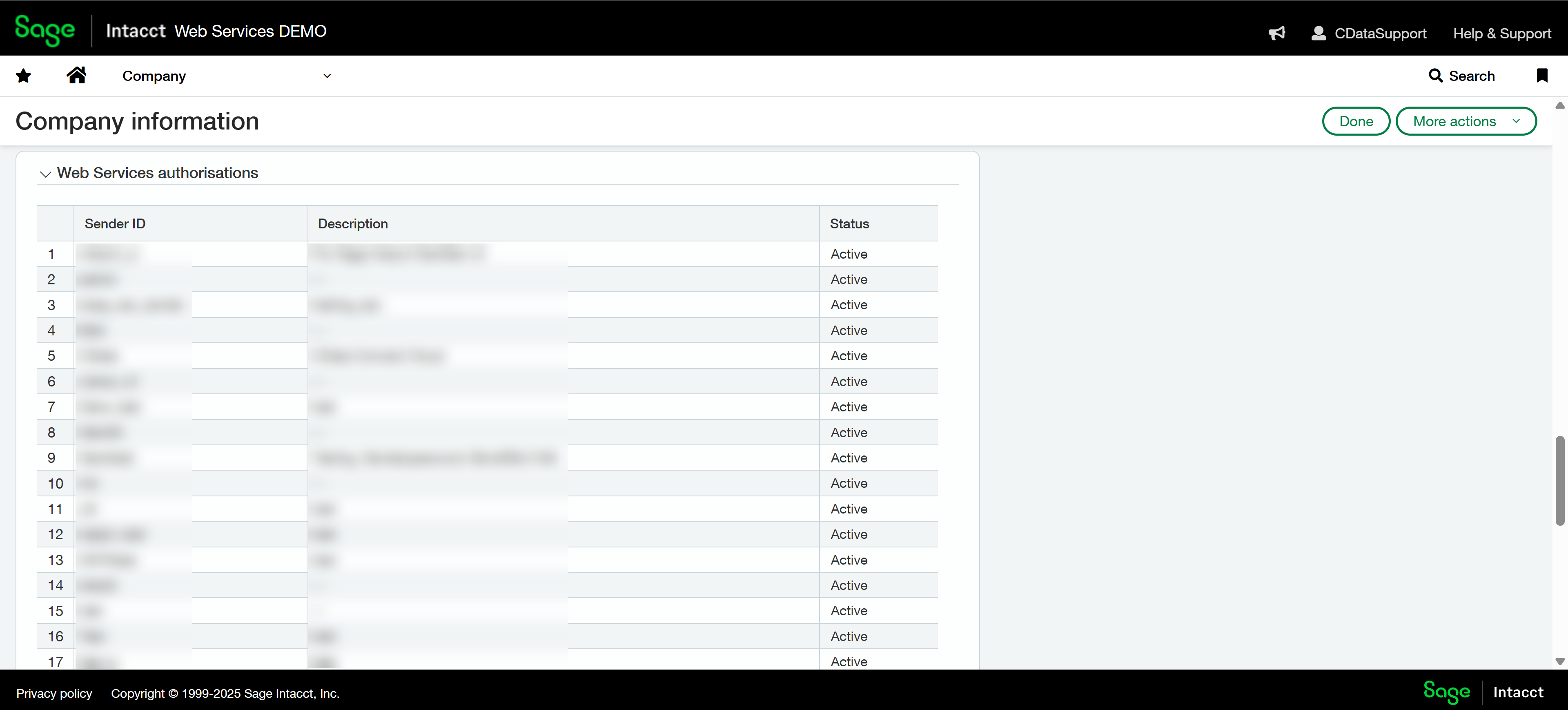
- Navigate to Security > Web Services authorizations.
- Enter your Sender ID and authorize it for the target company.
- A Sender ID may be authorized for multiple companies.
- Authorization activity is tracked in the audit history report.
- Remember: Sage Intacct administrator privileges are required.
Step 3: Create a Web Services User
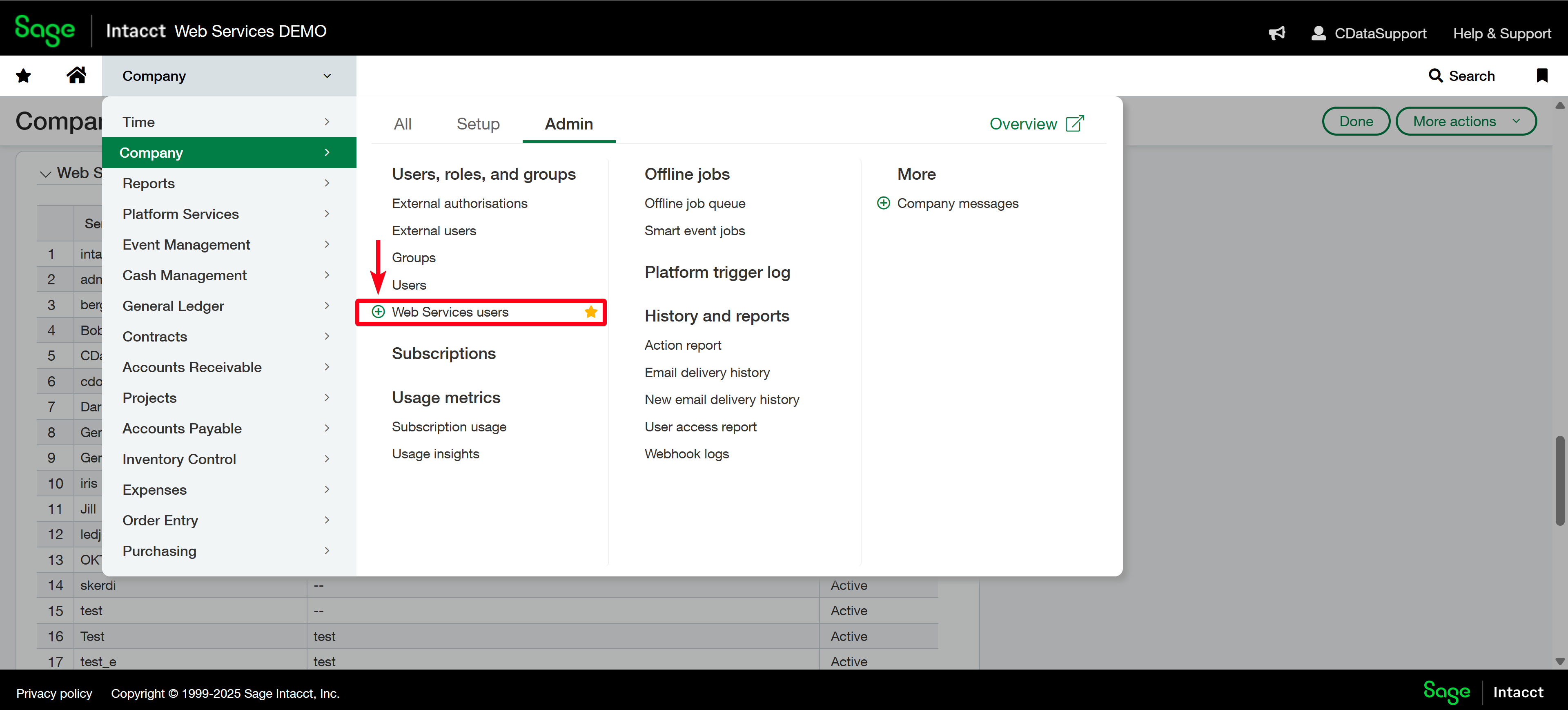
- In Sage Intacct, navigate to Company > Admin > Web Services users.
- Click the + icon to create a new Web Services-only user.
- This account is intended for API access and does not include UI login.
- Sage recommends creating a dedicated Web Services user for integrations.
- Assign appropriate roles and permissions for data access.
Use Your Sender ID and Password for your Sage Intacct Connection
CData Connect AI and CData Sync
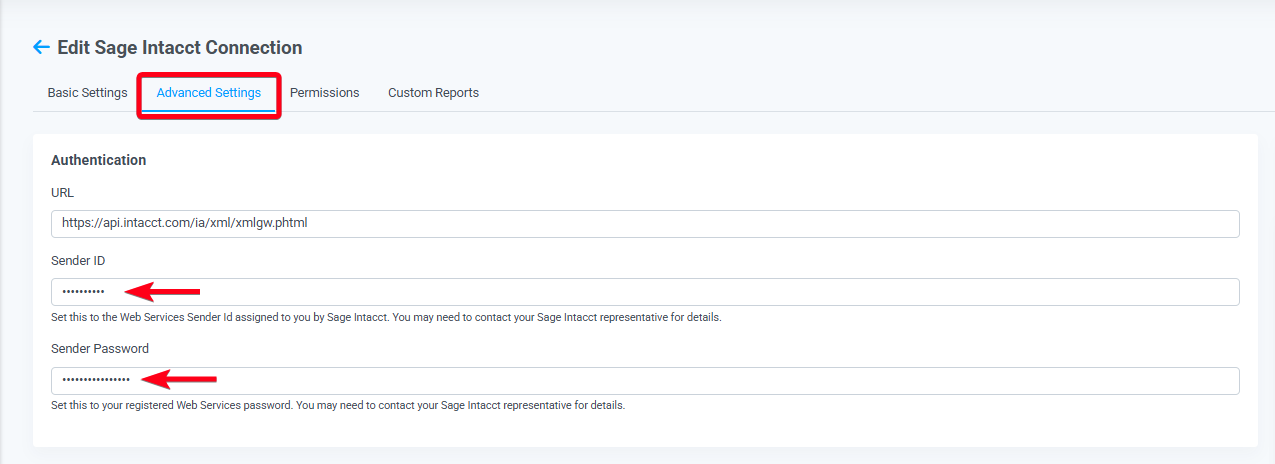
To use your Sender ID and Password with CData Sync or CData Connect AI, include them in the corresponding Sender ID and Sender Password fields under the Advanced Settings tab for your Sage Intacct connection:
To use your Sender ID and Password with a CData Connector, include the SenderID and SenderPassword properties in your connection string:
JDBC Connection String Example:
jdbc:intacct:User=your_username;CompanyId=your_company_id;
Password=your_user_password;SenderID=your_sender_id;
SenderPassword=your_sender_password;
ADO.NET Connection String Example:
"User=your_username;CompanyId=your_company_id;
Password=your_user_password;SenderID=your_sender_id;
SenderPassword=your_sender_password;"
With your Sender ID and Password added, you are ready to Save & Test your connection and begin using your web services credentials to access Sage Intacct data.
Summary
This change ensures secure, auditable API access and aligns with Sage Intacct's requirements for third-party integrations. CData Sync, Connect AI, and embedded customers must now configure their own Sender ID and Password when connecting to Sage Intacct data. We thank you for your cooperation!
If you have any questions, please contact your Account Executive or contact our Support Team.
