






Installation Guide: CData MCP Servers on macOS
Model Context Protocol (MCP) is an emerging, open-source standard for connecting LLMs with external services and data sources. Through MCP Servers, AI clients can perform actions like opening Jira tickets, posting Slack messages, committing GitHub branches and more. With CData MCP Servers, these capabilities expand exponentially.
In this article, we guide the reader through installing the CData MCP Server for Google Sheets on macOS. For further usage instructions (or full instructions for Windows), read our full installation guide (jump to Step 3).
NOTE: This article focuses on the CData MCP Server for Google Sheets, but the principles apply to any of our MCP Servers.
Prerequisites
You need to download or configure the following accounts and applications to follow along with this installation guide:
- Claude Desktop (download)
- A Google account (if you do not have one, create one here)
- A Google Sheet with data (save a copy of our sample CRM sheet to your Google account)
Overview
Here's a quick overview of the steps:
- Download and install the CData MCP Server for Google Sheets
- Configure the connection to Google Sheets
Step 1: Download and install the CData MCP Server
- To begin, navigate to https://www.cdata.com/solutions/mcp and download the CData MCP Server for Google Sheets (direct link).
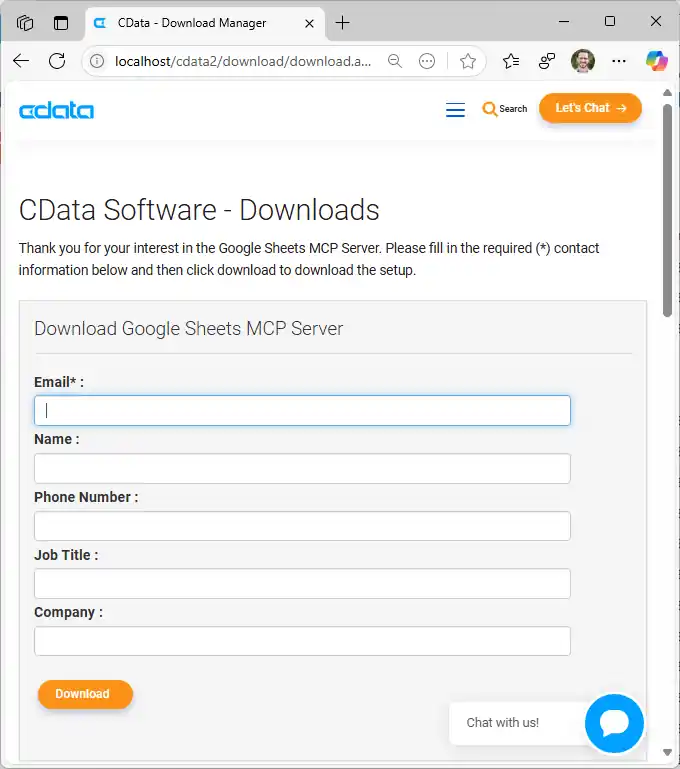
- Find and double-click the installer to begin the installation.
- Drag the CData MCP Server app into the Applications folder.
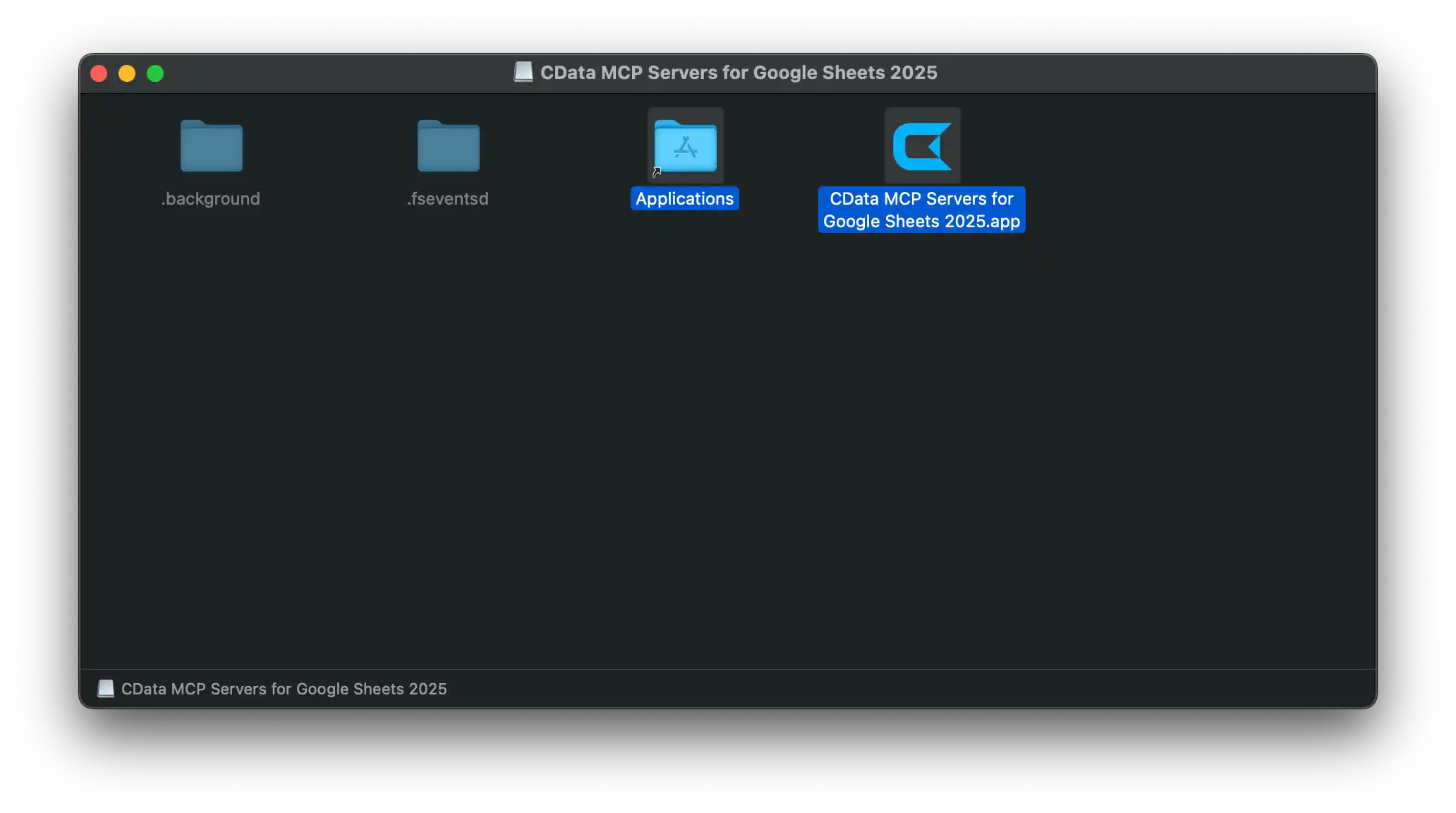
When the installation is complete, you are ready to configure your MCP Server by connecting to Google Sheets.
NOTE: Because you downloaded the application from the internet and not the Apple App Store, you may see a warning that the application was not opened because Apple could not verify its security. You may continue with the installation.
Installing a trusted, unverified App
CData's solutions are trusted across the globe by some of the largest software vendors in the world. That said, if you have any concerns about continuing, please consult with your IT and/or security team.
- In the warning message that pops up, click "Done"
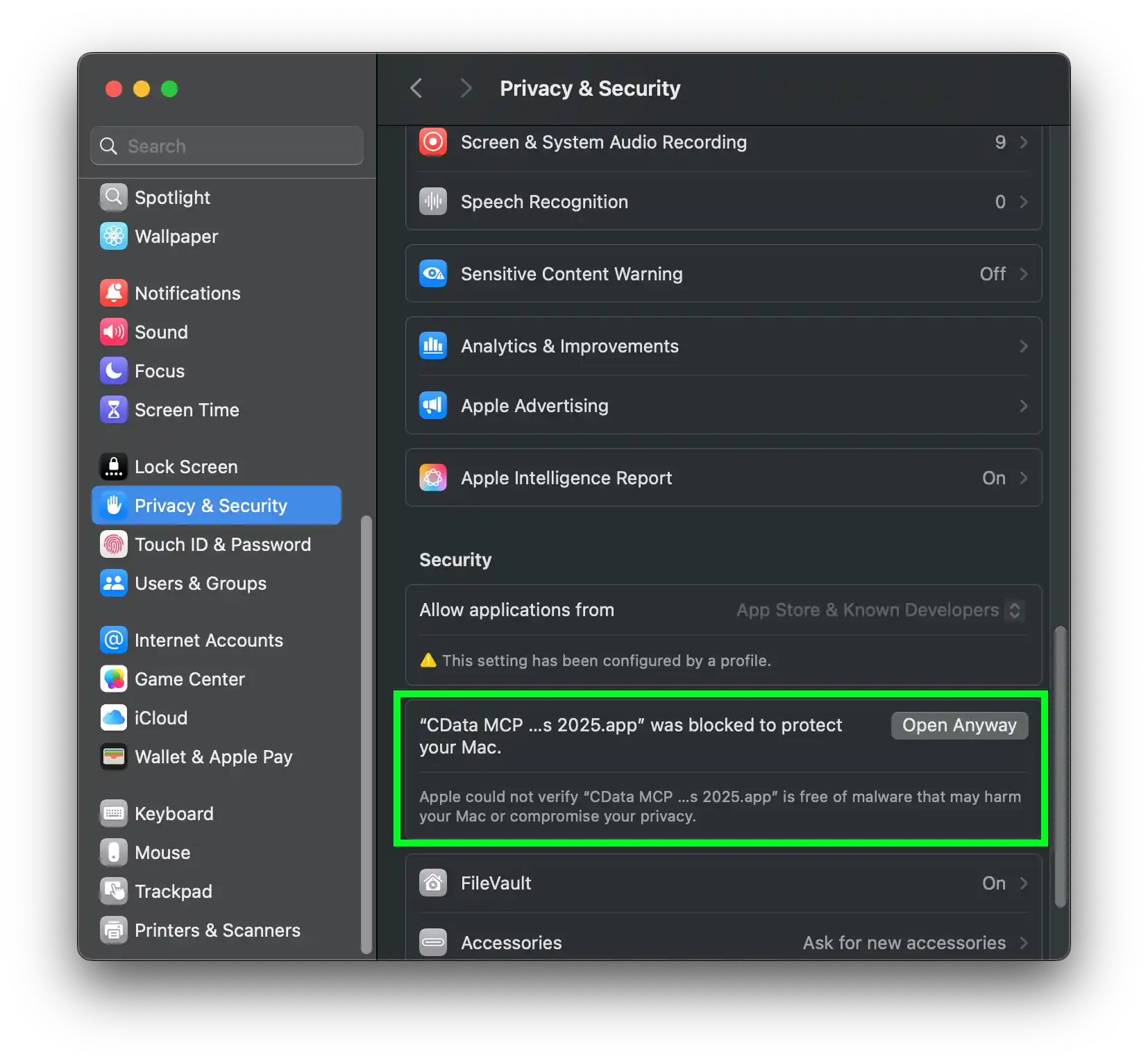
- Open "System Settings" on your machine and navigate to the "Privacy & Security" page.
- Scroll down to the "Security" section and click "Open Anyway"
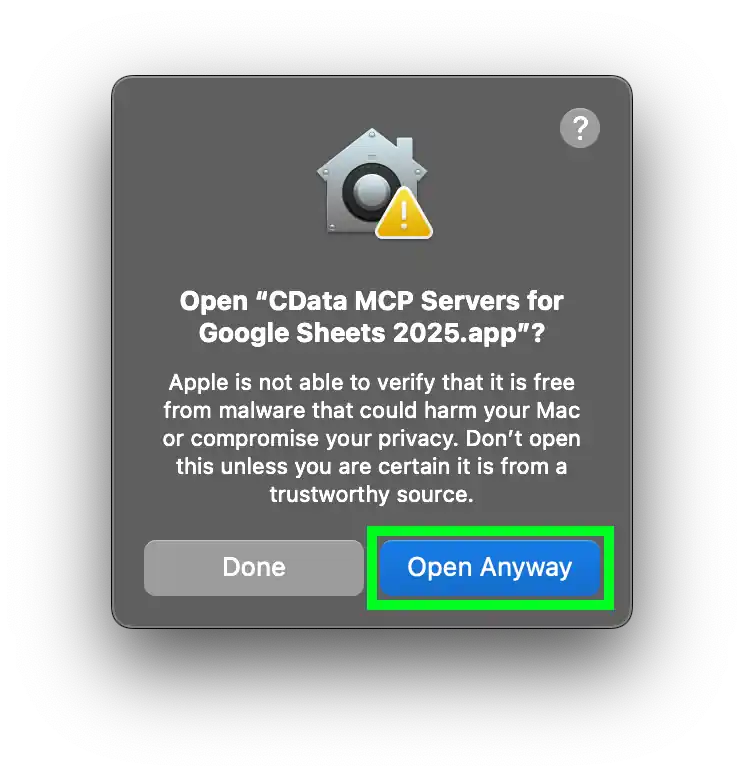
- Authorize the installation (passkey or password).

Step 2: Configure the connection to Google Sheets
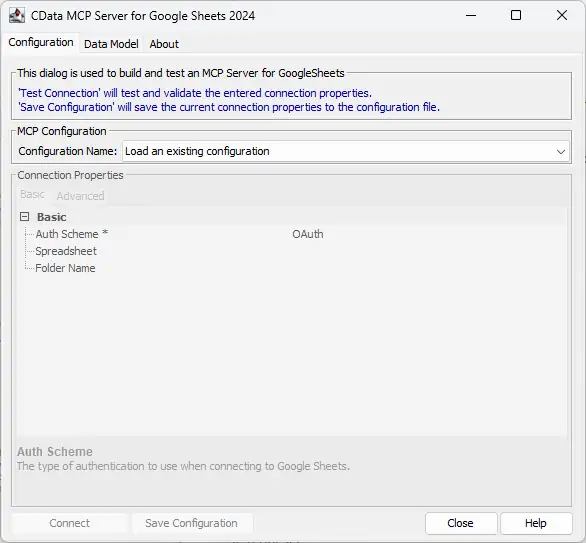
- After installation, the CData MCP Server configuration wizard should open automatically.
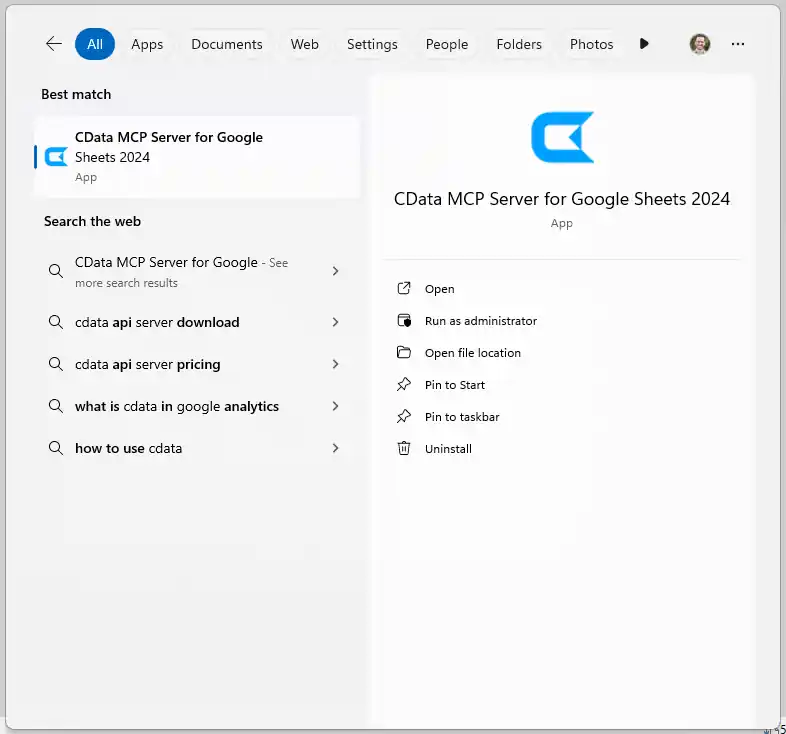
NOTE: If the wizard does not open automatically, search for "CData MCP Server" in the Windows search bar and double-click the application.
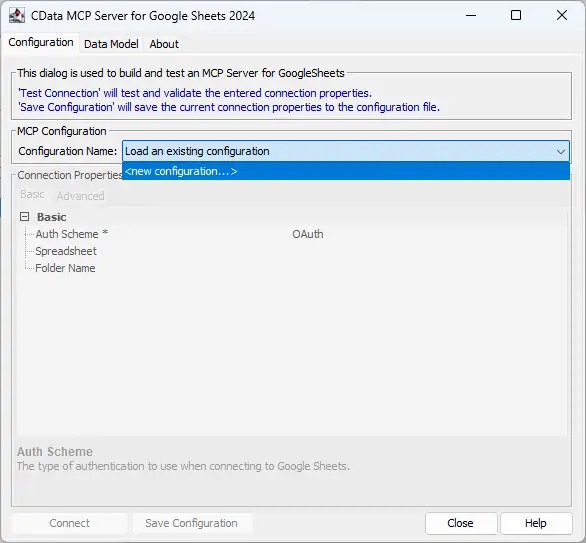
- Click the dropdown menu in MCP Configuration > Configuration Name and select "<new configuration...>"
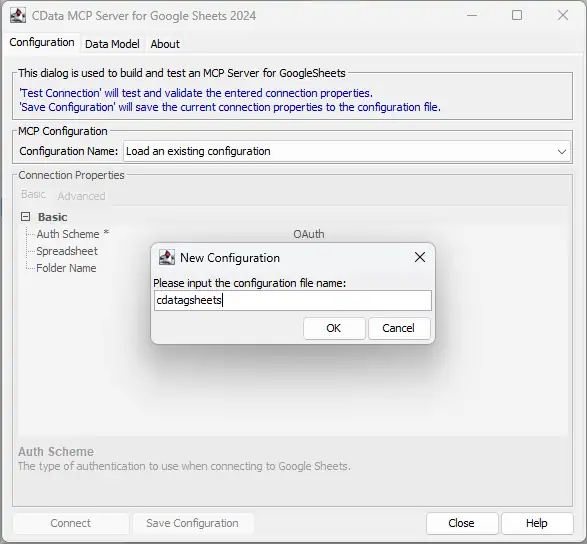
- Name the configuration (e.g. "cdatagsheets") and click "OK."
NOTE: This name is used as the name for the MCP server and as the prefix for all of the MCP Server's tools.
- The CData MCP Server for Google Sheets is pre-configured to authenticate directly with Google, so you should only need to set the Spreadsheet property. If you copied our sample CRM sheet, set the Spreadsheet property to "CRM Data" (or the name you used when you saved the copy). If you did NOT copy our sample CRM sheet, set the Spreadsheet property to the name of another Spreadsheet in your Google account.
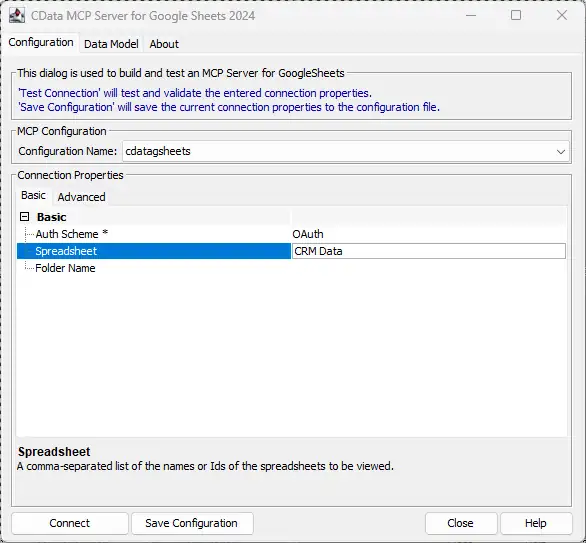
- Click "Connect" to authenticate with Google through OAuth.
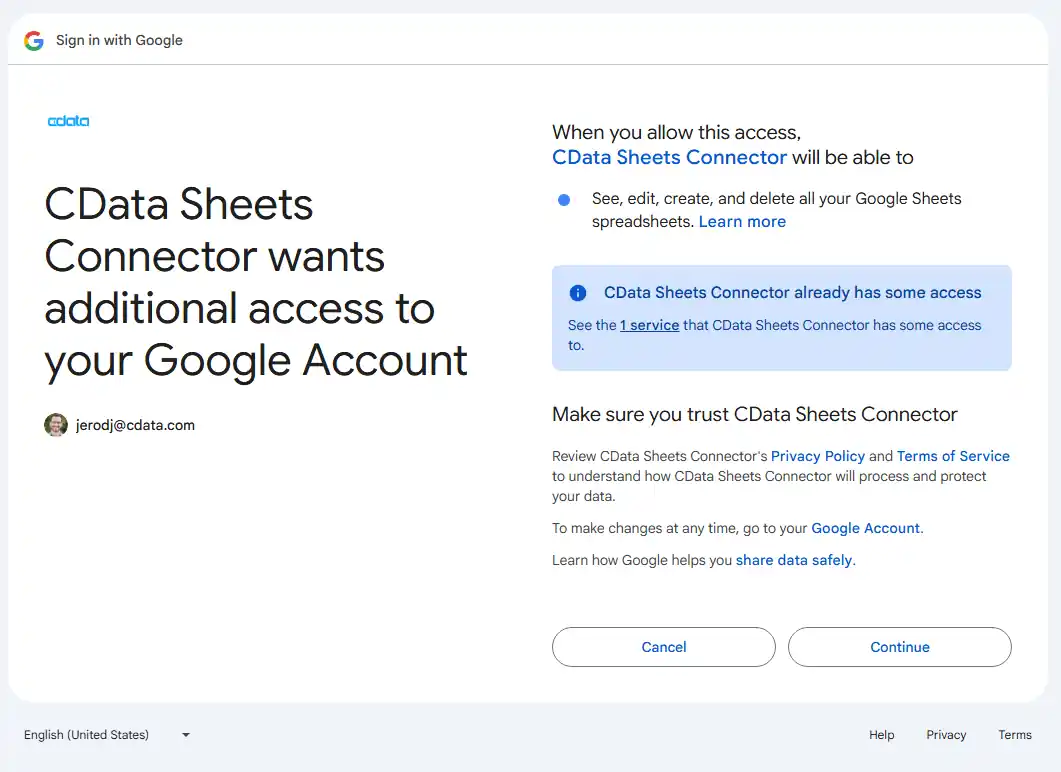
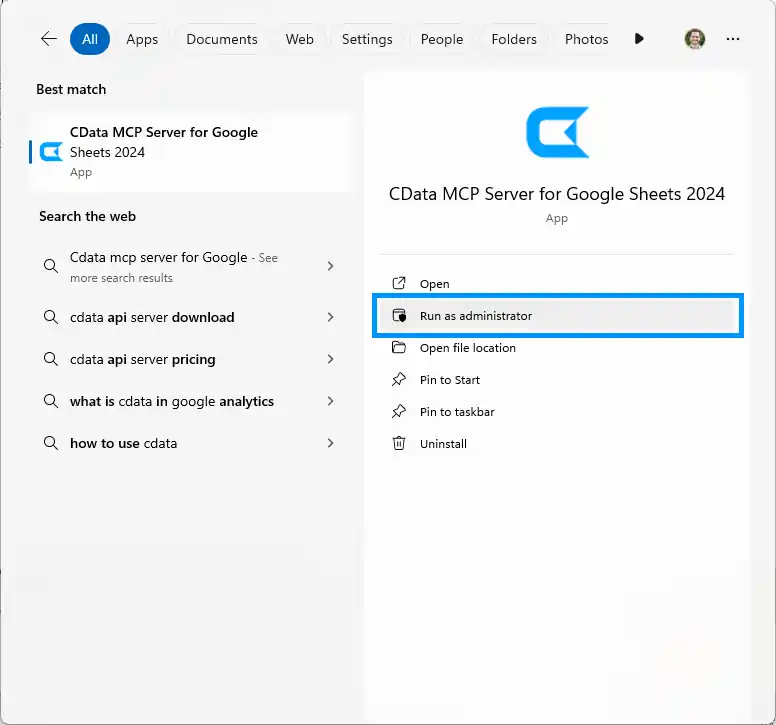
NOTE: The configuration wizard should open your browser and ask you to sign into Google. If your browser does not open, close the configuration wizard and re-open the application using "Run as Administrator" (see below).
- Finally, click "Save Configuration" to save the MCP server.
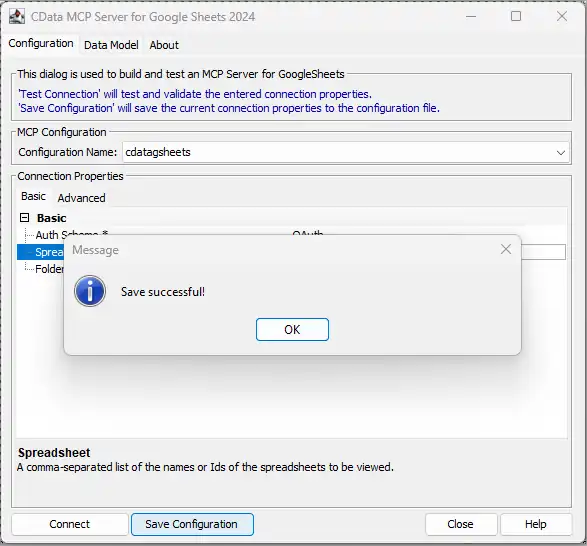
NOTE: This saves the configuration details to a separate file and updates the Claude Desktop configuration file (claude_desktop_config.json) to start the CData MCP Server when the Claude Desktop client starts.
With the CData MCP Server configured, you are ready to start asking questions of your live data from Claude.
For further usage instructions (or full instructions for Windows), read our full installation guide (jump to Step 3).
Connect your AI to your data today!
CData MCP Servers make it easier than ever for LLMs to work with live enterprise data. To explore the technology hands-on, download a free MCP Server or visit the CData Community to share insights, ask questions, and help shape the future of enterprise-ready AI.
