






Connecting to Cloud Storage Platforms Using the CData Access Driver
Microsoft Access is a widely used desktop database solution that enables users to manage structured data through a simple interface. It offers both relational database capabilities and integration with familiar tools such as Excel and Power BI. Despite its ease of use, Access databases are traditionally stored locally, which can limit scalability and collaboration when teams need to work in cloud environments.
The CData Access Drivers & Connectors overcome this limitation by providing effortless connectivity between Access databases and modern data ecosystems. They enable applications, analytics platforms, and data integration tools to query Access files directly without the need for manual exports or complex ETL processes.
With version 24.3, released in February 2025, the CData Access driver introduced read-only support for Access files stored in cloud storage services. This update allows users to access Access data securely and efficiently from cloud platforms such as Google Drive, Box, Amazon S3, and others, removing the need to maintain local copies.
In this article, we use the CData Access JDBC Driver for consistency to connect to Access data files stored across various cloud storage services.
Supported Cloud Storage Services
As of February 2025, the CData Access driver supports connecting to the following cloud storage services:
- Amazon S3
- Azure Blob Storage
- Azure Data Lake Store Gen1/Gen2
- Azure File
- Box
- Dropbox
- FTP/FTPS
- Google Cloud Storage
- Google Drive
- Hadoop Distributed File System
- IBM Object Storage Source
- OneDrive
- Oracle Cloud Storage
- Secure Hadoop Distributed File System
- SFTP
- SharePoint
- Wasabi
The connection to each service is controlled through driver properties, which define both the target storage type and authentication details (such as access keys, tokens, or OAuth credentials).
You can configure the Access driver to connect directly to various cloud storage services, including SFTP (SSH File Transfer Protocol), Amazon S3, Google Drive, OneDrive, SharePoint, and Box, enabling seamless access to Access files stored across these platforms.
Note: While the Access driver supports read and write operations for local Access files, only read access is currently available when working with cloud-based files.
SFTP
SFTP is a secure and reliable way to transfer files between systems over SSH. It is often used by organizations to store and share files on private servers with controlled access. Using the CData Access JDBC Driver, you can directly connect to and query Access files stored on an SFTP server without having to download them locally.
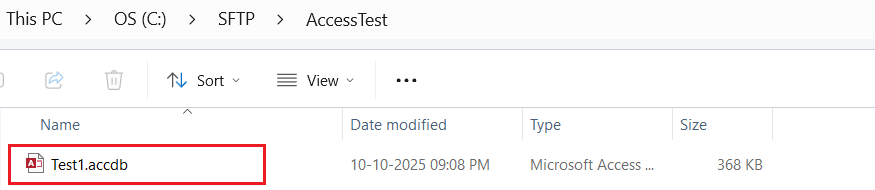
In this example, we’ll connect to a file named TEST1.accdb located in the AccessTest folder on the SFTP server (hosted locally).
Configuration overview
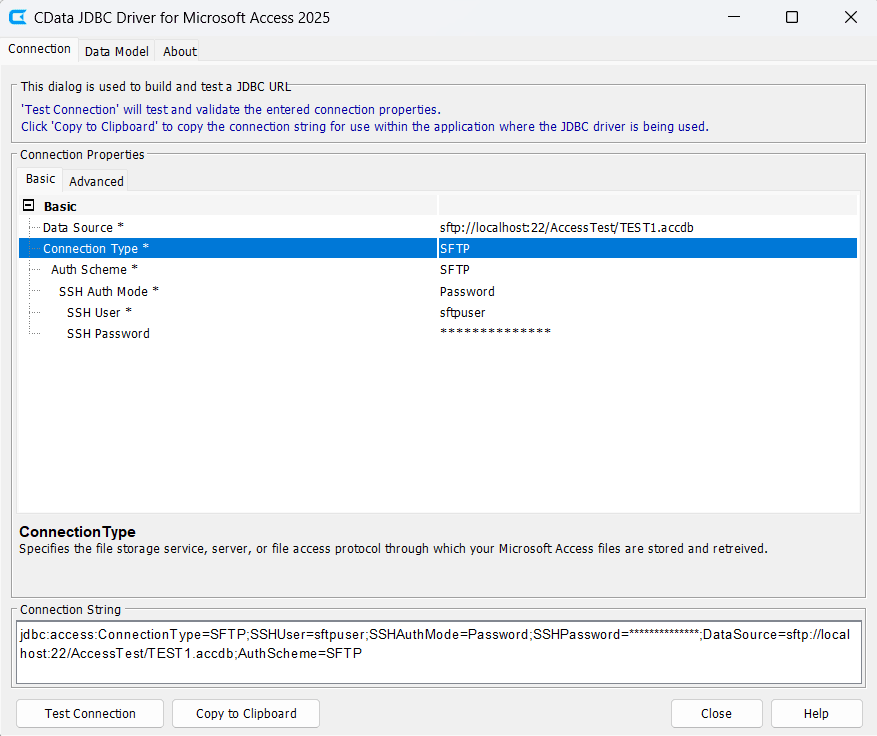
Set up the connection properties as shown below. The DataSource property begins with the sftp: prefix, while the User and Password properties define your SFTP authentication credentials.
| Property | Example |
|---|---|
| ConnectionType | SFTP |
| DataSource | sftp://AccessTest/TEST1.accdb |
| User | Username |
| Password | Password |
Amazon S3
Amazon Simple Storage Service (S3) is one of the most popular cloud storage platforms for enterprises, offering scalable, secure, and cost-effective object storage. Many organizations store backups or structured data like Access databases in S3 buckets. With the CData Access JDBC Driver, you can connect directly to these Access files and query them in place, without moving or converting the data.
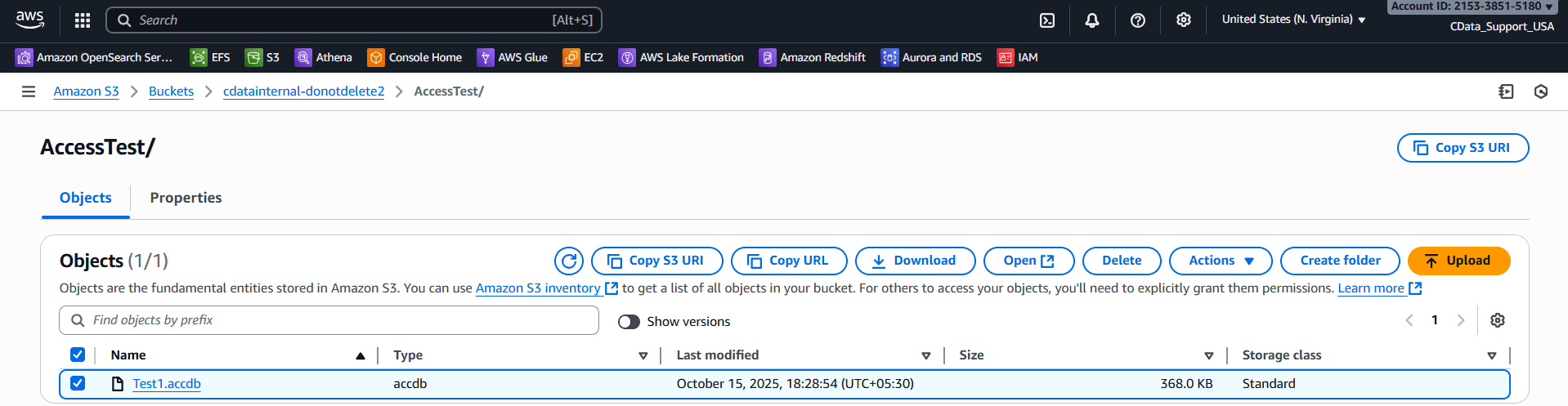
In this example, the Access file TEST1.accdb resides in the AccessTest folder within the cdatainternal bucket.
Configuration overview
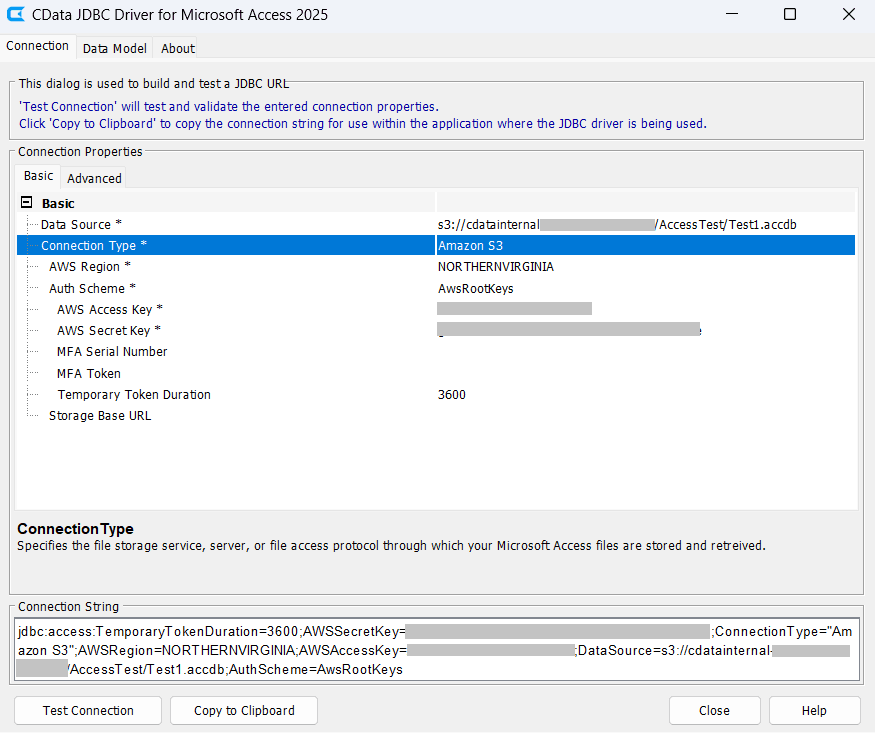
The DataSource property must begin with the s3: prefix, and you will authenticate using your AWS Access Key and Secret Key. Use the following properties to connect:
| Property | Example |
|---|---|
| ConnectionType | Amazon S3 |
| DataSource | s3://cdatainternal/AccessTest/TEST1.accdb |
| AWSRegion | Region (e.g., "NORTHERNVIRGINIA") |
| AWSAccessKey | Your Access Key |
| AWSSecretKey | Your Secret Key |
How to obtain Access Keys
- Log in to your AWS Management Console and open IAM user settings.
- Ensure the user has a policy that includes AmazonS3ReadOnlyAccess (or higher).
- Click Create Access Key to generate new credentials.
- Copy the Access Key ID and Secret Access Key, and configure them in the driver properties.
Google Drive
Google Drive is widely used for personal and enterprise cloud file storage, offering easy sharing and collaboration. Many organizations maintain Access databases in Drive for distributed access and backups. The CData Access Driver enables you to securely connect to and read Access files stored in Google Drive using OAuth authentication, preserving both data privacy and convenience.
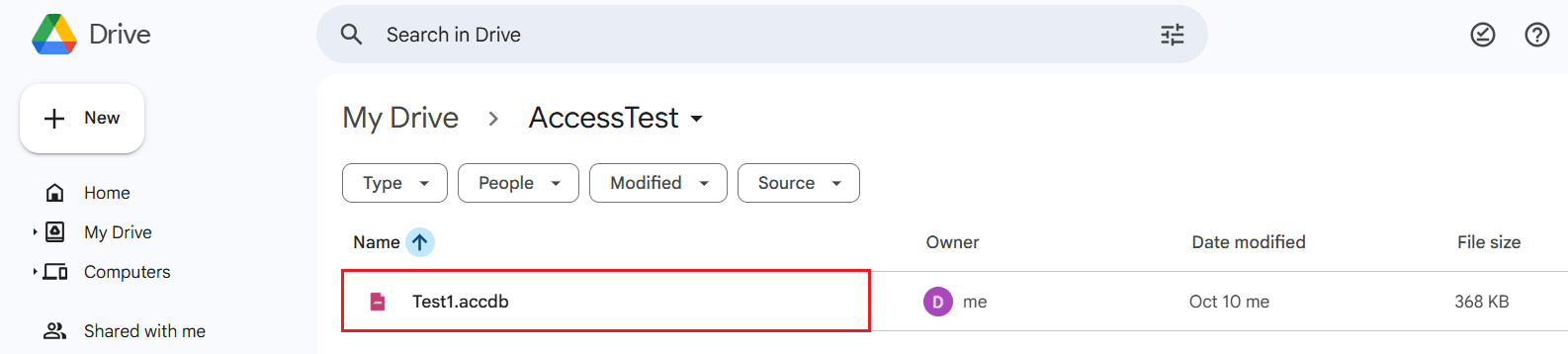
In this example, we access TEST1.accdb located in the AccessTest folder in Google Drive.
Configuration overview
Use the following connection properties. The DataSource property should begin with the gdrive: prefix. If your Access file resides in a shared drive, set IncludeItemsFromAllDrives property to true and include the shared drive name in the file path.
| Property | Example |
|---|---|
| ConnectionType | Google Drive |
| DataSource | gdrive://AccessTest/TEST1.accdb |
| AuthScheme | OAuth |
| InitiateOAuth | GETANDREFRESH |
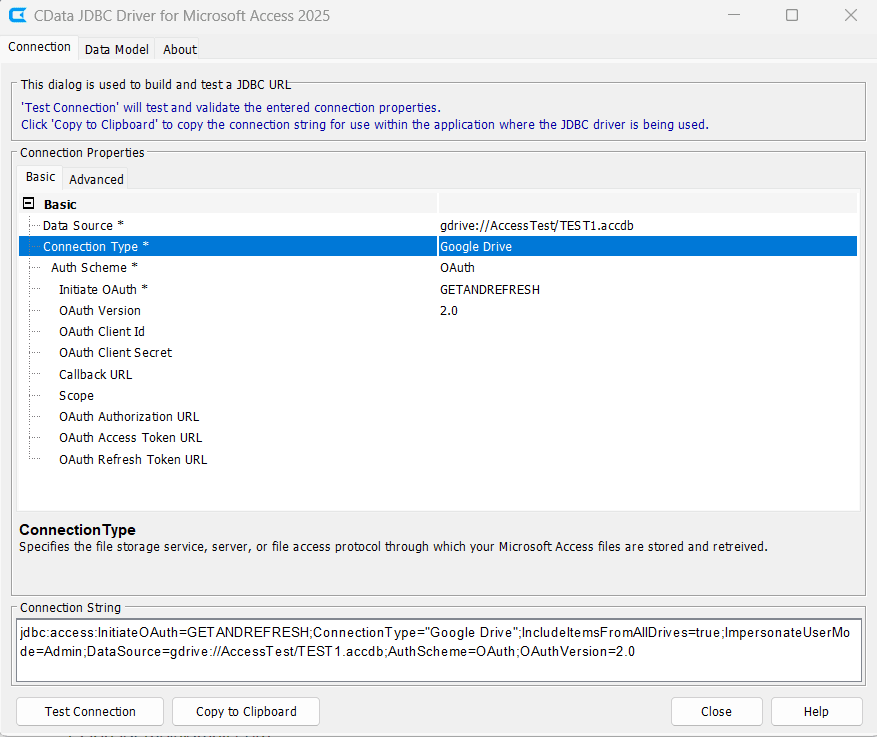
When you connect, the system displays a Google login window. Sign in to your account, grant the requested permissions to the driver, and click Continue to complete authentication.
OneDrive
Microsoft OneDrive is a secure and convenient platform for storing and syncing files across Microsoft 365 environments. It’s commonly used for shared team resources and enterprise document storage. Using the CData Access JDBC Driver, you can directly query Access databases stored in OneDrive through OAuth authentication, without the need for manual file downloads or synchronization.
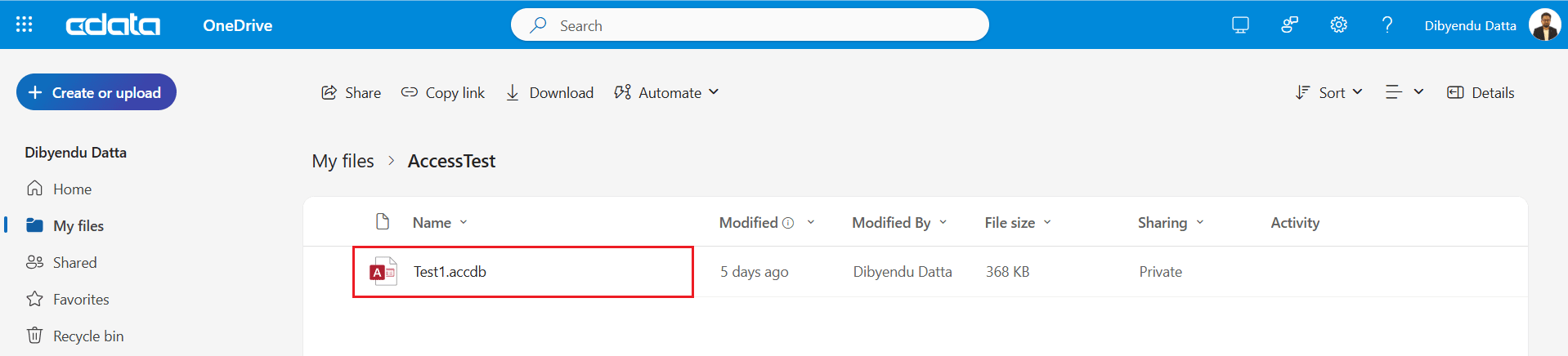
For this example, we access the TEST1.accdb file in the AccessTest folder.
Configuration overview
The DataSource property uses the onedrive: prefix to specify the file location.
| Property | Example |
|---|---|
| ConnectionType | OneDrive |
| DataSource | onedrive://AccessTest/TEST1.accdb |
| AuthScheme | OAuth |
| InitiateOAuth | GETANDREFRESH |
When you connect, the Microsoft login screen appears. Log in with your OneDrive credentials, review the requested permissions, and confirm access to complete authentication.
SharePoint
Microsoft SharePoint provides a robust platform that enterprises use to organize, manage, and share data collaboratively. Organizations often integrate SharePoint with OneDrive and store Access files within document libraries for easy access and version control. The CData Access JDBC Driver connects directly to SharePoint sites using either NTLM (Basic) or OAuth authentication, giving teams the flexibility to choose the method that best fits their environment.
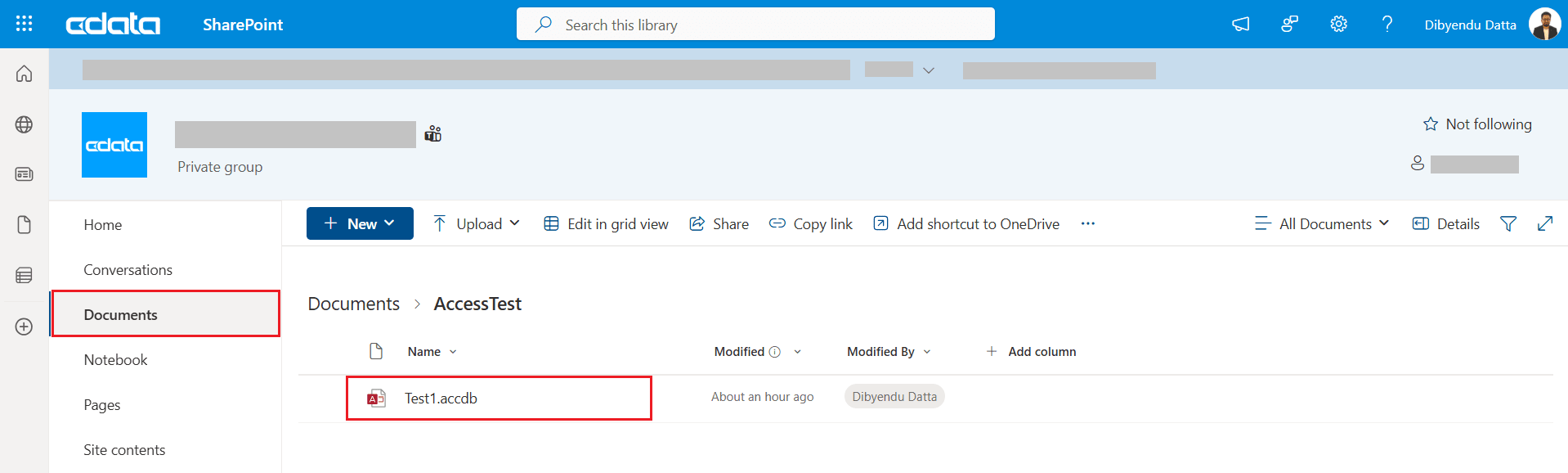
In this example, we access the TEST1.accdb file located in the AccessTest folder of a SharePoint subsite named Documents.
You can connect using two methods: SOAP or REST.
- Use SOAP for NTLM authentication with a username and password.
- Use REST for OAuth authentication, typically for cloud-based SharePoint Online.
Configuration overview
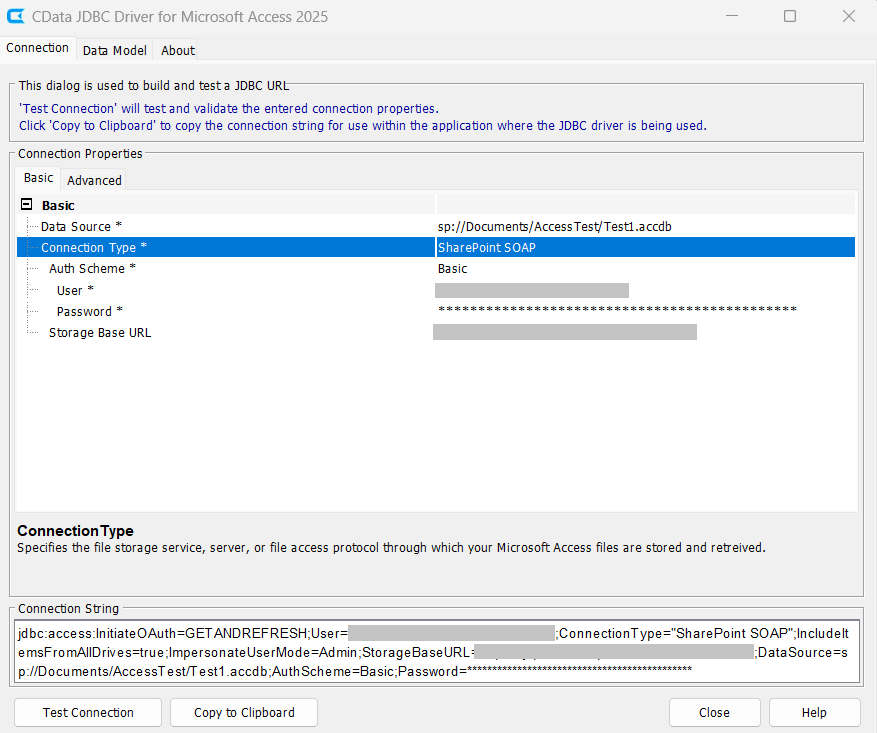
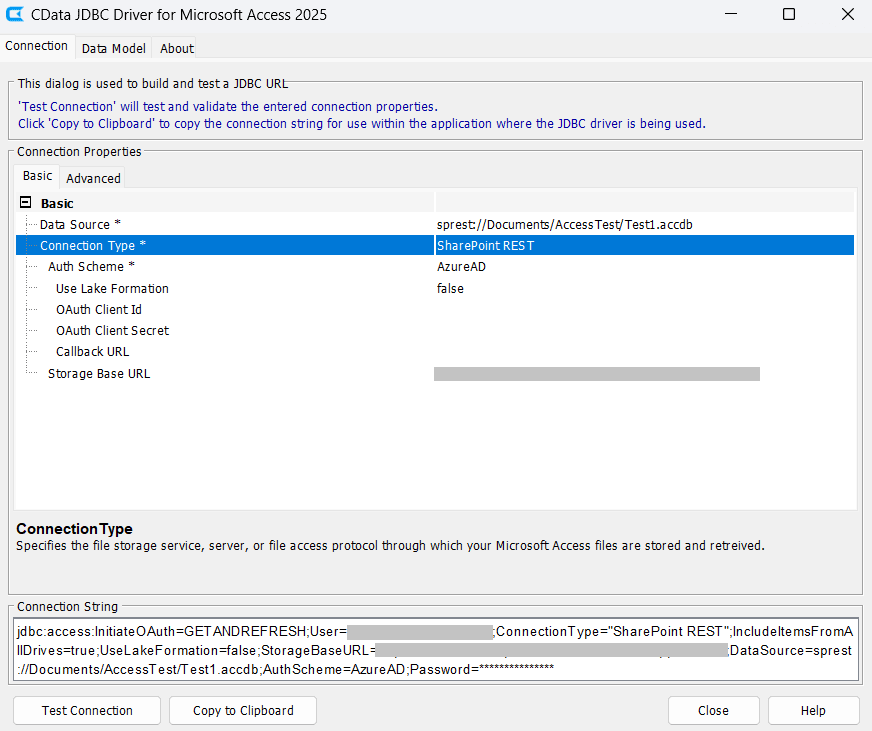
The DataSource property begins with the sp: and sprest: prefix for SOAP and REST respectively. Use the following property settings:
SharePoint SOAP
| Property | Example |
|---|---|
| ConnectionType | SharePoint SOAP |
| DataSource | sp://Documents/AccessTest/TEST1.accdb |
| StorageBaseURL | https://test.sharepoint.com/sites/TestSite |
| AuthScheme | Basic |
| User | Username |
| Password | Password |
SharePoint REST
| Property | Example |
|---|---|
| ConnectionType | SharePoint REST |
| DataSource | sprest://Documents/AccessTest/TEST1.accdb |
| StorageBaseURL | https://test.sharepoint.com/sites/TestSite |
| AuthScheme | OAuth |
| InitiateOAuth | GETANDREFRESH |
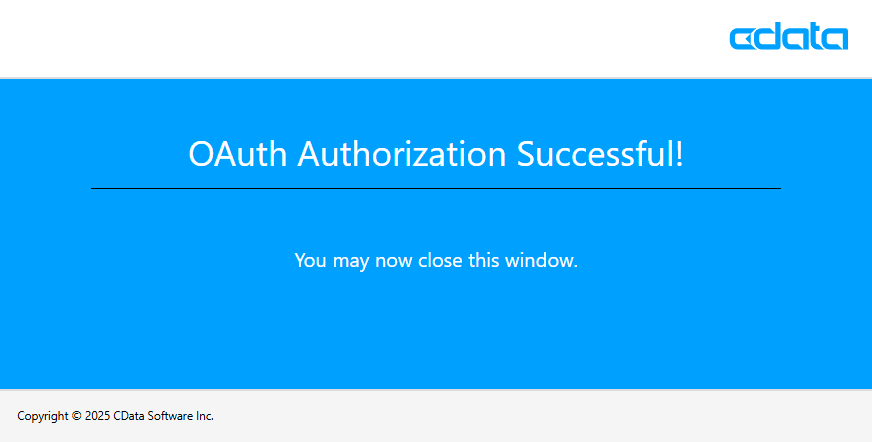
When you connect, the system displays the SharePoint login page. Log in with your credentials and approve access to complete the setup.
Box
Box provides enterprise-grade cloud storage and content management designed for secure file collaboration and compliance. Teams can centrally manage Access files while maintaining secure, auditable access. With the CData Access JDBC Driver, you connect to Box using OAuth authentication and read Access files directly without performing manual downloads or synchronization.
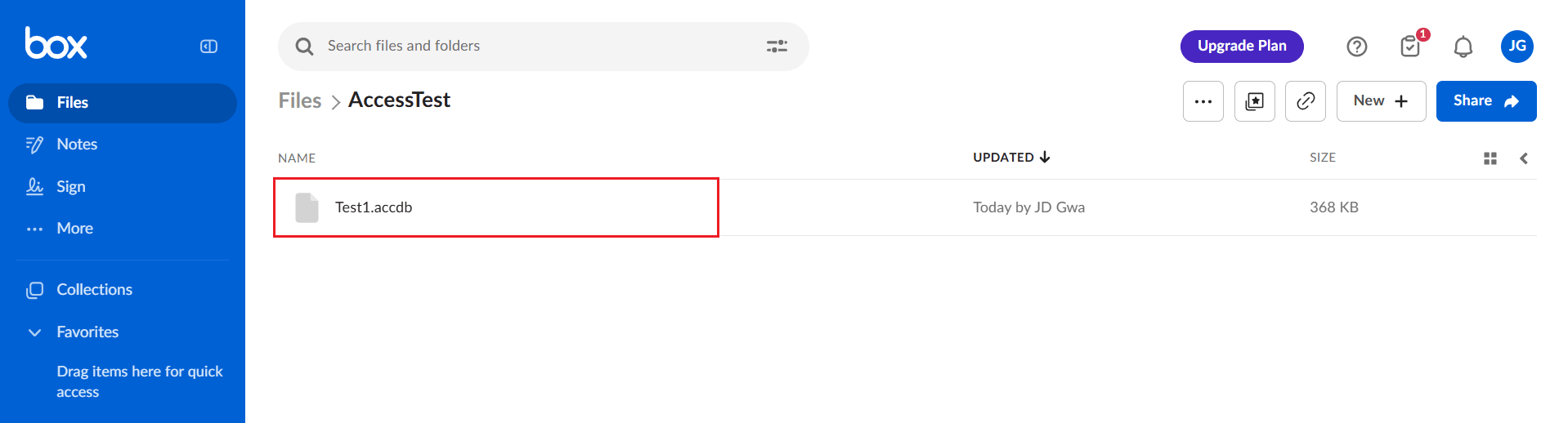
In this example, we connect to the TEST1.accdb file in the AccessTest folder on Box.
Configuration overview
The DataSource property begins with the box: prefix. Use the following property settings:
| Property | Example |
|---|---|
| ConnectionType | Box |
| DataSource | box://AccessTest/TEST1.accdb |
| AuthScheme | OAuth |
| InitiateOAuth | GETANDREFRESH |
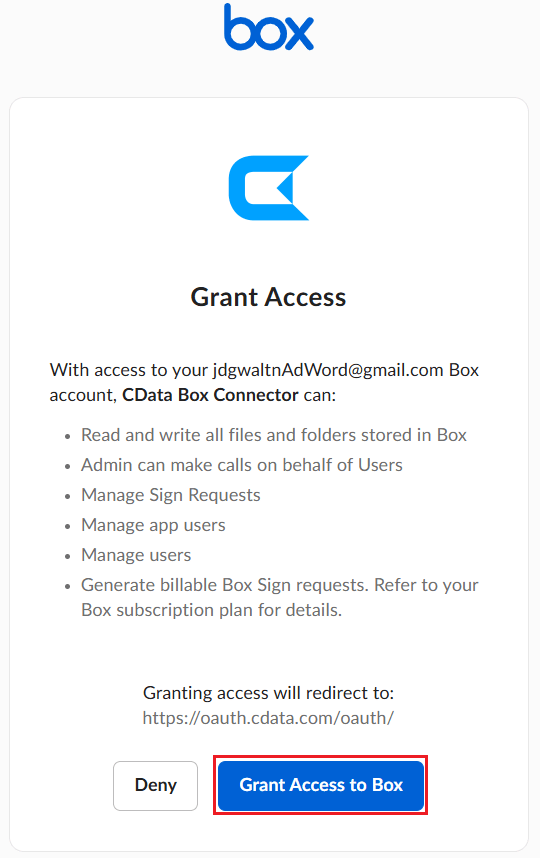
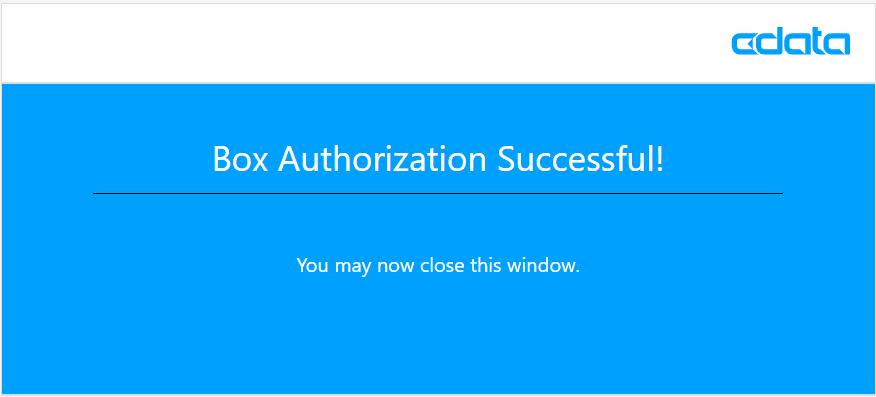
When you connect, the system prompts you to sign in to your Box account. Approve the access permissions requested by the driver, then click Allow Access to Box to complete authentication.
Simplified cloud access with CData Access drivers
The CData Access Drivers & Connectors make it easy to connect Microsoft Access with modern cloud storage services such as Google Drive, Box, OneDrive, Amazon S3, SFTP, and SharePoint.
With built-in support for secure authentication and flexible connection properties, you can query Access files directly from the cloud, no downloads or manual transfers required.
Ready to get started? Download a free 30-day trial of any of our CData drivers and connectors today! As always, our world-class Support Team is available to assist you with any questions you may have.
