





Resolving NetSuite Schema Replication Failures in Microsoft Fabric using CData
NetSuite is Oracle's cloud ERP that helps businesses manage everything from finance and HR to inventory and sales, all in one place. Microsoft Fabric is a modern data platform where you can store, process, and visualize data using tools like Lakehouse and Power BI. Connecting these two platforms sounds straightforward, but in reality it's not. Fabric's native NetSuite connector has serious gaps as it misses custom fields, breaks on SavedSearches, and often replicates incomplete schemas. This leaves data engineers stuck in troubleshooting instead of delivering.
The CData JDBC Driver for NetSuite bridges this gap, delivering complete NetSuite schema replication into Microsoft Fabric Lakehouse without the limitations.
Why the Microsoft Fabric native NetSuite connector fails
Connecting NetSuite to Microsoft Fabric using the native connector sounds straightforward, but it comes with real limitations in practice. Schema mapping doesn't always land correctly, SavedSearch support is limited, custom fields and tables are often not carried over, and pipeline setup can run into unexpected errors before the process even begins.
For data engineers, these gaps create more than just extra work. Reports show mismatched numbers, stakeholders start questioning the data, and delivery timelines get affected. Instead of building, teams end up investigating.
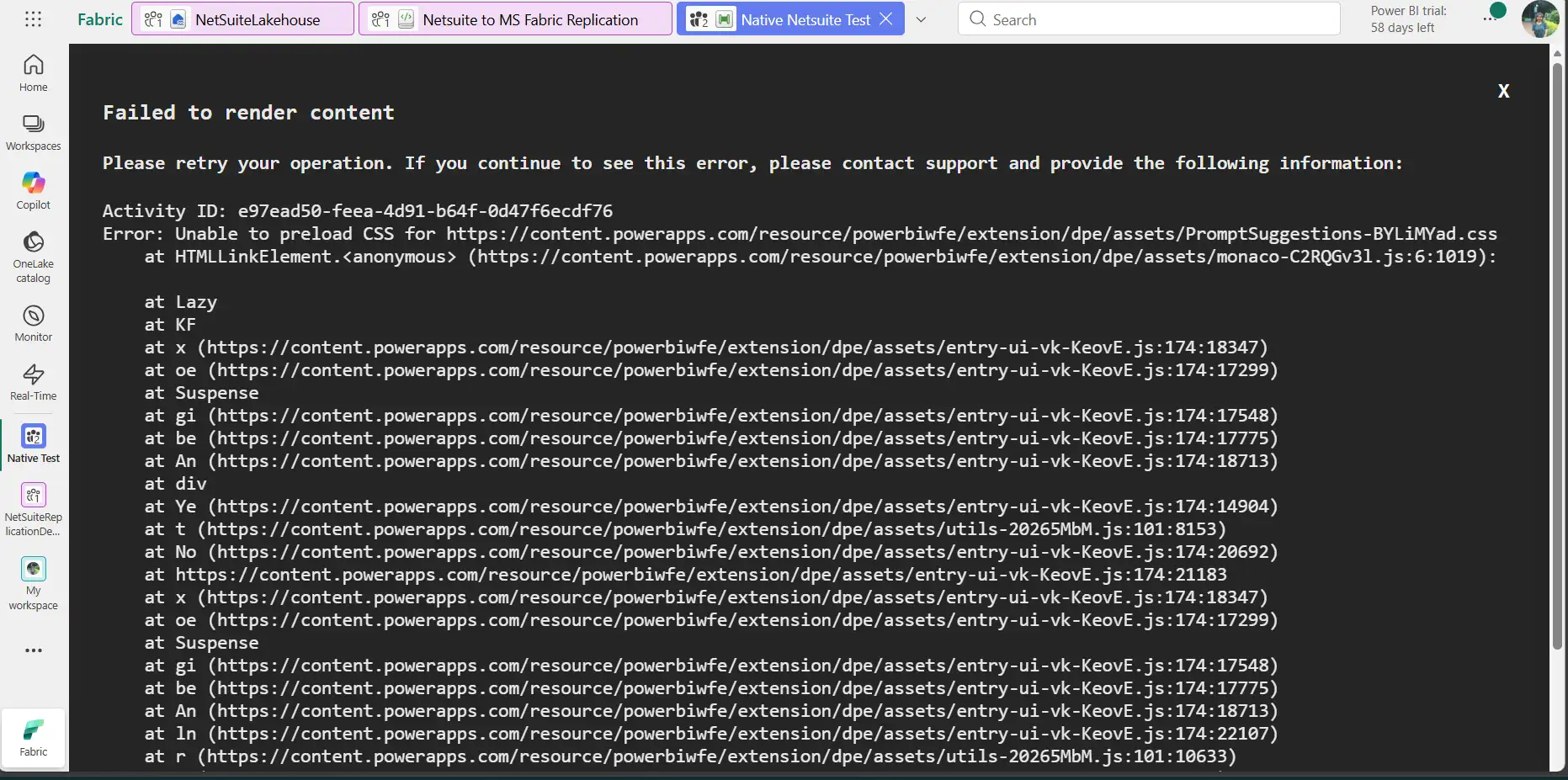
The CData JDBC Driver handles what the native connector cannot. Follow the steps below.
Step 1: Get the CData JDBC Driver for NetSuite
- Install and Download the CData JDBC Driver for NetSuite
- Once installed correctly, check for the two files: cdata.jdbc.netsuite.jar and cdata.jdbc.netsuite.lic
Step 2: Enable token-based authentication in NetSuite
- Log in to your NetSuite account
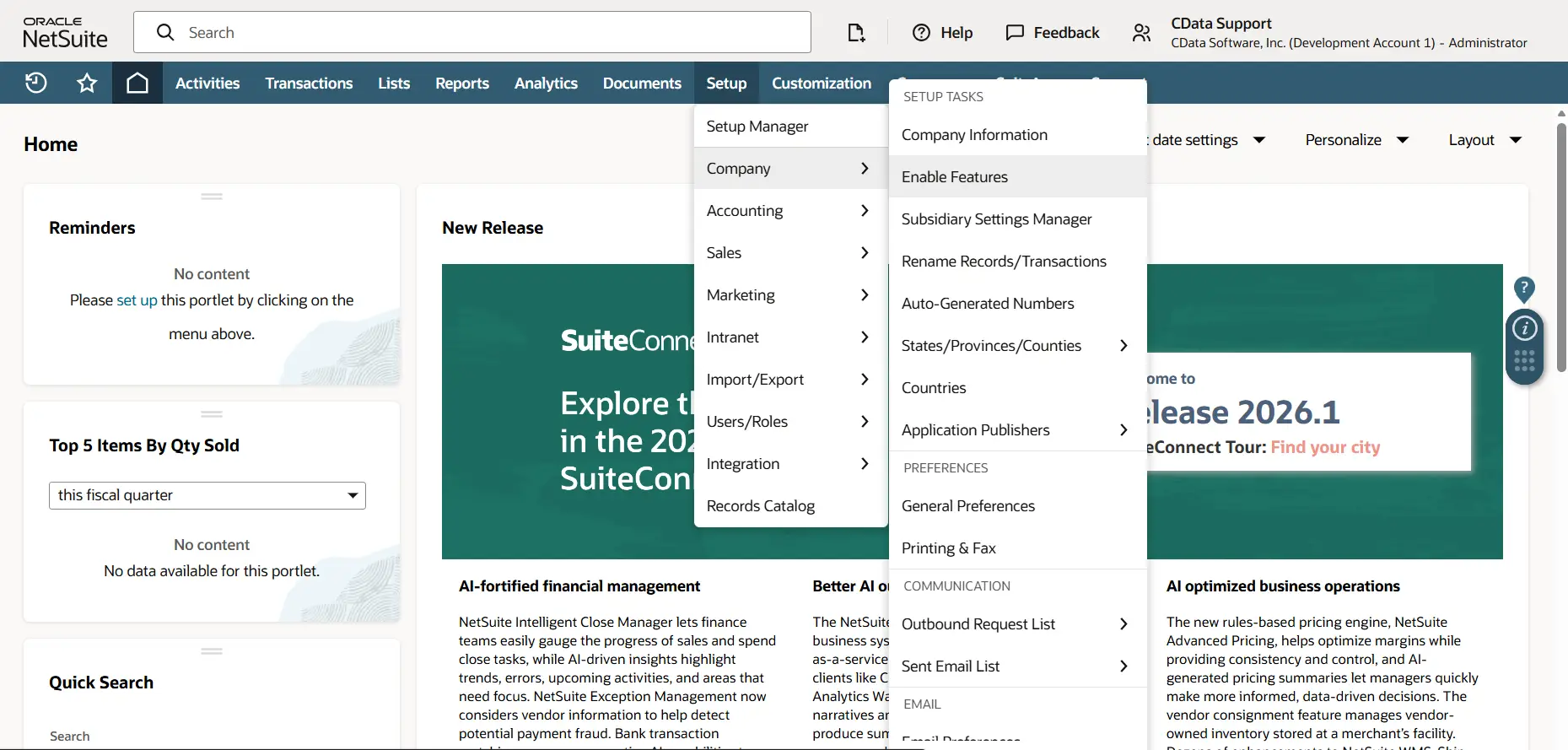
- Go to Setup, select Company and choose Enable Features
- Under SuiteCloud tab, enable: Token-Based Authentication and REST Web Services
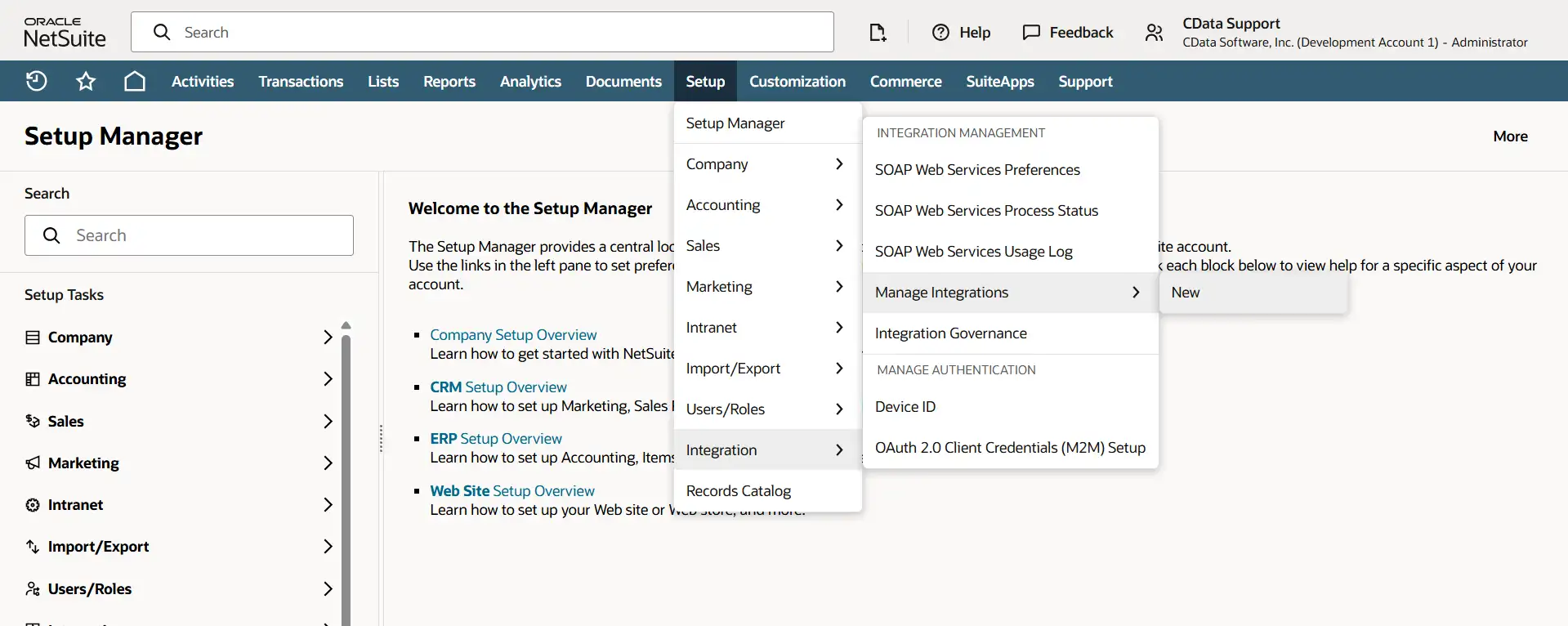
- Navigate to Integrations, choose Manage Integrations and New
- Create a new integration with the following details:
- Give the user freindly name
- Enable Token-Based Authentication
- Click Save
- Copy the Consumer Key and Consumer Secret shown, these are the OAuthClientId and OAuthClientSecret
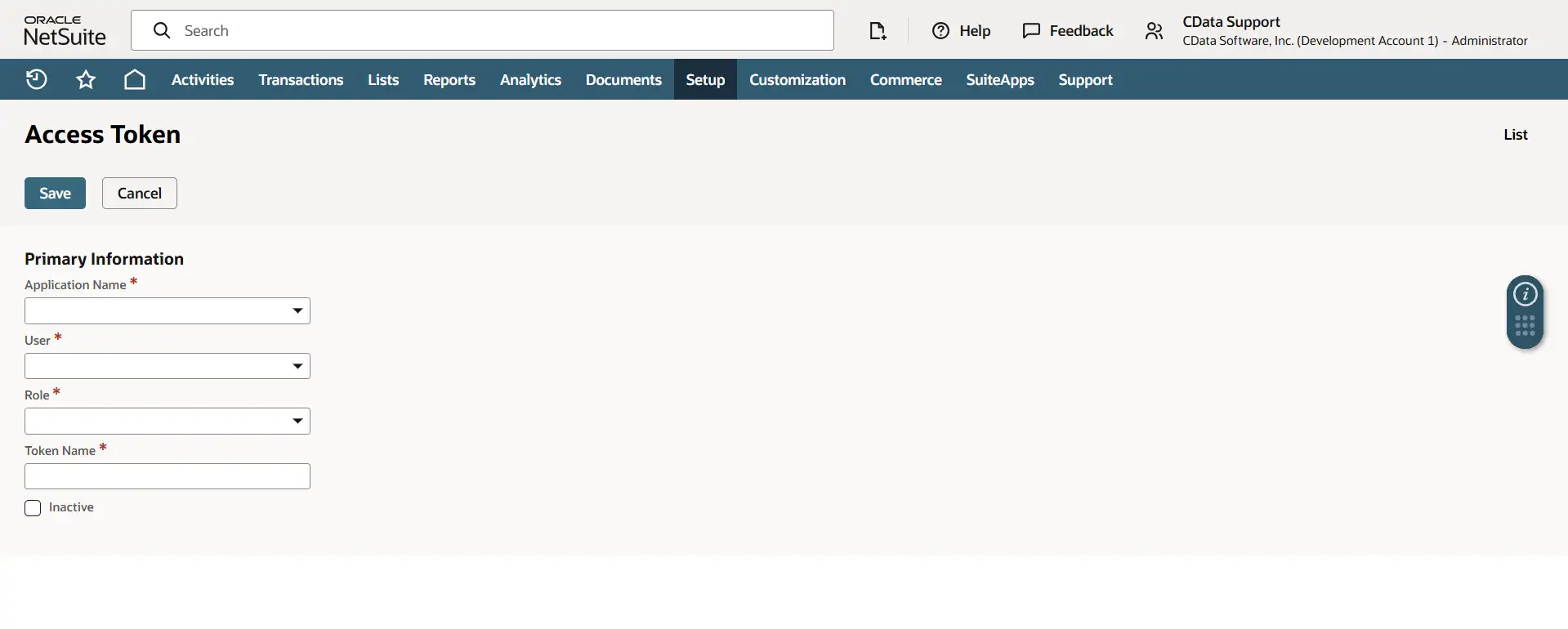
- Select Users/Roles, choose Access Token and New
- Fill in Application Name, User, Role and Token Name
- Click Save, copy the Token ID and Token Secret immediately
Note: These values are shown only once and cannot be retrieved later
Step 3: Set up Microsoft Fabric
- Sign in to the Microsoft Fabric account
- Create a New Workspace and choose Lakehouse
- Name the Lakehouse (e.g. NetSuiteLakehouse) and click Create
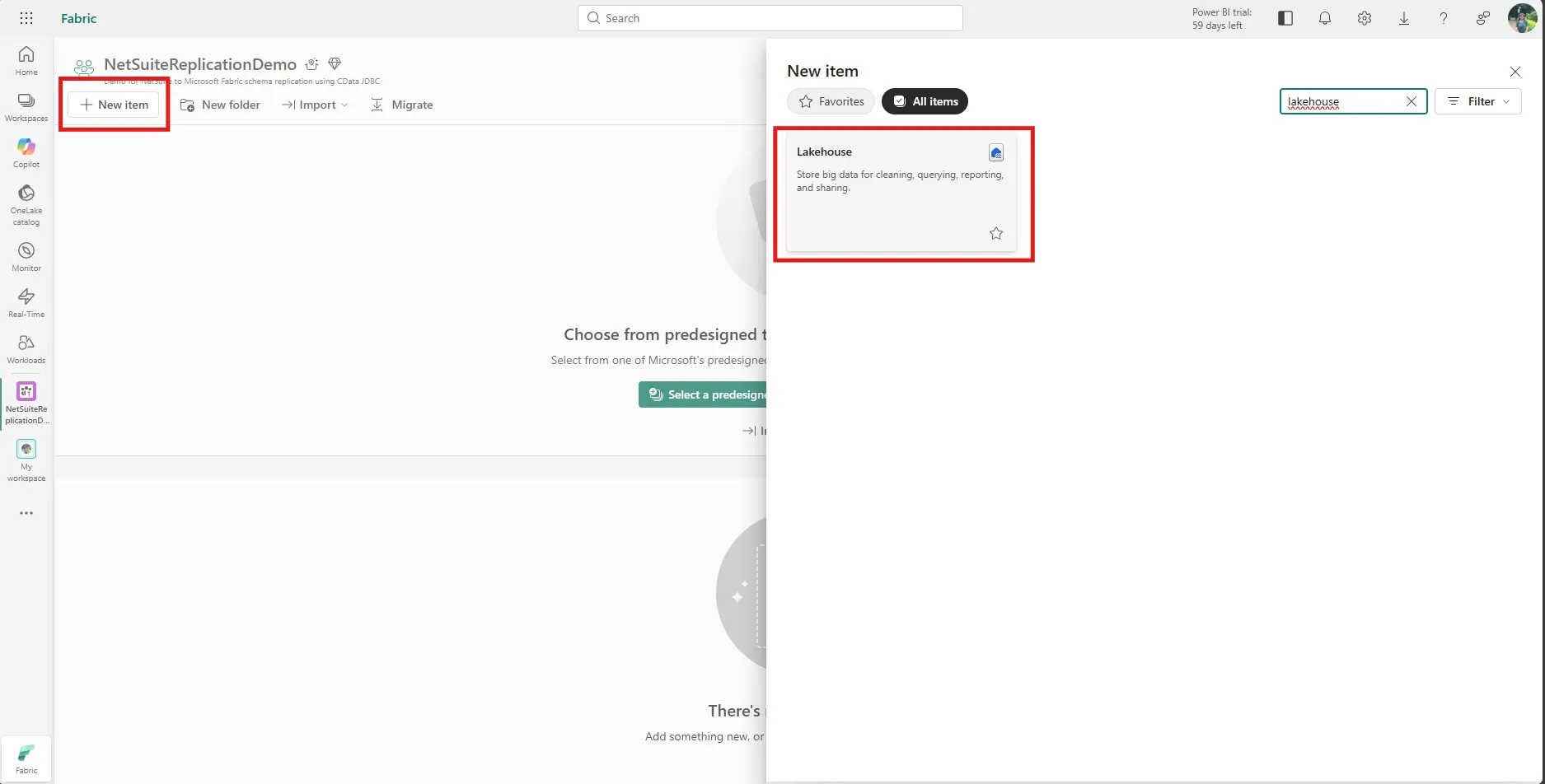
Step 4: Upload CData Driver files to Lakehouse
- Open the Lakehouse created earlier
- Go to Files, choose Upload and Upload files
- Upload both files:
- cdata.jdbc.netsuite.jar
- cdata.jdbc.netsuite.lic
- Verify using:(optional)
import jpype

jar = "/lakehouse/default/Files/cdata.jdbc.netsuite.jar"
lic = "/lakehouse/default/Files/cdata.jdbc.netsuite.lic"

if not jpype.isJVMStarted():
    jpype.startJVM(classpath=[jar, lic])

print("JVM started with driver and license")
Step 5: Set up, connect and replicate NetSuite Data into Fabric
With the CData JDBC driver uploaded and your NetSuite credentials ready, it's time to bring everything together inside Microsoft Fabric. Open your workspace, create a new Notebook.
Install the required libraries by running the following in the cell:
!pip install jaydebeapi
!pip install JPype1
!pip install pandas
Once the libraries are installed, verify that all imports and the Spark session are working correctly before connecting to NetSuite.
# Cell 1 - Verify everything works
import jaydebeapi
import pandas as pd
from pyspark.sql import SparkSession

spark = SparkSession.builder.getOrCreate()
print("All imports successful")
print("Current DB:", spark.catalog.currentDatabase())
Once verified, connect to NetSuite using the CData JDBC driver. Replace the placeholder values with the actual NetSuite credentials. After connecting, the driver discovers the complete NetSuite schema, including all standard tables, custom fields and SavedSearches.
#Cell 2 - Connect to NetSuite and schema discovery
import jaydebeapi

# Connect to NetSuite
jar_path = "/lakehouse/default/Files/cdata.jdbc.netsuite.jar"

url = (
    "jdbc:netsuite:"
    "AccountId=YOUR_ACCOUNT_ID;"
    "RoleId=3;"
    "AuthScheme=Token;"
    "OAuthClientId=YOUR_CLIENT_ID;"
    "OAuthClientSecret=YOUR_CLIENT_SECRET;"
    "OAuthAccessToken=YOUR_ACCESS_TOKEN;"
    "OAuthAccessTokenSecret=YOUR_ACCESS_TOKEN_SECRET;"
    "RTK=YOUR_RTK_KEY;"
)
conn = jaydebeapi.connect(
    "cdata.jdbc.netsuite.NetSuiteDriver",
    url, {}, jar_path
)
print("NetSuite Connected!")

# Schema Discovery
cursor = conn.cursor()
cursor.execute("SELECT * FROM sys_tables")
tables = cursor.fetchall()

print(f"\n Total tables discovered: {len(tables)}")
print("\n--- Sample Tables ---")
for t in tables[:10]:
    print(f"  {t[2]} ({t[3]})")

print("\n--- All Table Names ---")
for t in tables:
    print(f"  {t[2]}")

cursor.close()
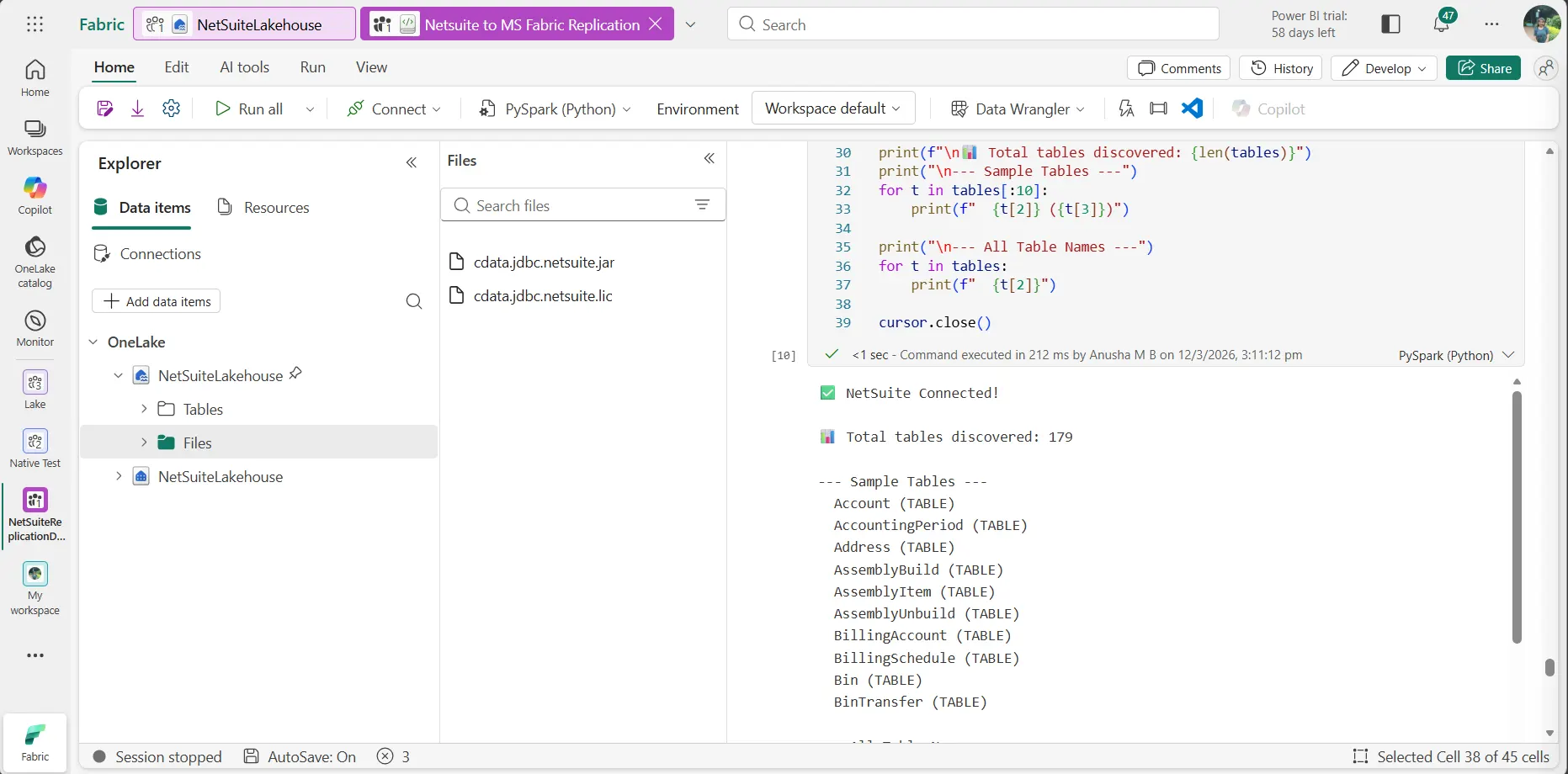
At this point, all the tables from Netsuite listed in the output, covering everything from Employee to custom tables specific to the NetSuite implementation. Now user can create Power BI dashboards or reports using the replicated data in Microsoft Fabric Lakehouse.
Try the CData JDBC Driver for NetSuite Today!
Download a free 30-day trial of the CData JDBC Driver for NetSuite and start replicating the complete NetSuite schema into Microsoft Fabric Lakehouse today. Join the CData Community or reach out to our Support Team if you have any questions.