




Power BI SAP HANA Connector Performance Benchmark: CData vs. Microsoft Native
The Microsoft native SAP HANA connector for Power BI handles small datasets at acceptable speeds but degrades under production-scale volumes — slow cold connections, memory-heavy imports, and DirectQuery behavior that stalls as report complexity grows.
To quantify the performance difference against a purpose-built alternative, we ran a controlled benchmark comparing the Microsoft native SAP HANA connector and the CData SAP HANA Power BI Connector across two connectivity modes — Import and DirectQuery — on a live SAP HANA Cloud instance loaded with 22.5 million real-world review records. Both connectors were tested against the same 1-million-row dataset from a clean cold start.
The results across every measurable dimension favor the CData connector. CData connected to SAP HANA up to 11x faster than the native connector on a cold start, loaded 1 million rows 65.9% faster in Import mode, and completed the full DirectQuery session 37% faster end-to-end. The native connector also produced a rendering failure during DirectQuery testing that the CData connector did not reproduce on the same data.
Test environment and tools:
- Database: SAP HANA Cloud (free tier, Singapore Azure, port 443 over SSL)
- Client: Power BI Desktop — cold start, cache cleared between runs
- Connector A: Microsoft native SAP HANA connector (requires SAP HANA Client installation)
- Connector B: CData SAP HANA Power BI Connector (ODBC DSN, no additional prerequisites)
- Dataset preparation: CData Sync — CSV to SAP HANA Cloud transfer
The benchmark dataset
Both connectors were tested against the same live SAP HANA Cloud instance using data from the Amazon Reviews 2023 Electronics category dataset, converted from JSONL to CSV and loaded into HANA using CData Sync.
| Table | Total Rows | On-Disk Size | Columns | Benchmark Subset |
|---|---|---|---|---|
| DBADMIN.AMAZON_REVIEWS | 22,530,000 | 763.95 MB | 15 | 1,000,000 rows |
NOTE: SAP HANA Cloud stores data in columnar format with built-in compression. The 763.95 MB on-disk size reflects HANA’s column store compression on 22.5 million rows — significantly smaller than a row-based database on equivalent data.
Loading the benchmark dataset
CData Sync transferred the 22.5-million-row dataset from a local CSV source to SAP HANA Cloud in segments, resuming from the last successfully written row after each free-tier restart. Manual HANA Cloud import tools such as DBeaver reach approximately 250,000 rows per minute according to SAP Community documentation but cannot resume after an interruption. CData Sync provides comparable throughput with scheduling, retry logic, and resume support built in.
Setup and prerequisites
The Microsoft native SAP HANA connector requires the SAP HANA Client installed locally before Power BI Desktop can connect — available from tools.hana.ondemand.com with an SAP Universal ID required to download. During testing, a mandatory password change enforced by HANA returned an opaque 414 user is forced to change password error that Power BI could not surface or resolve, requiring a separate login to SAP HANA Database Explorer to clear the flag. DirectQuery mode additionally required enabling Treat SAP HANA as a relational source under File > Options > DirectQuery before the Navigator showed relational tables instead of calculation views.
The CData connector required no additional client libraries and no SAP account. DSN configuration in the ODBC Data Source Administrator (64-bit) connects with four fields — Server, Port, User, and Password — and Test Connection must pass before the DSN appears as a selectable source in Power BI. DirectQuery mode is available directly in the connection dialog with no options toggle required.
Benchmark methodology: 1 million rows
Both connectors were tested from a cold start against the same HANA Cloud SQL endpoint and 15-column schema. The HANA query and result caches were cleared before every test run:
ALTER SYSTEM CLEAR SQL PLAN CACHE;
ALTER SYSTEM CLEAR RESULT CACHE;
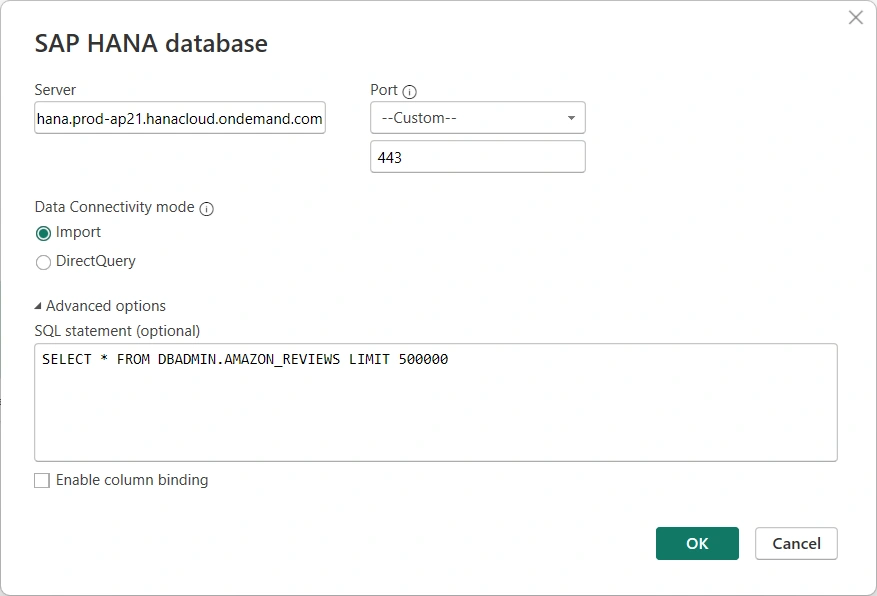
Both Import and DirectQuery tests used the following query with an identical row limit:
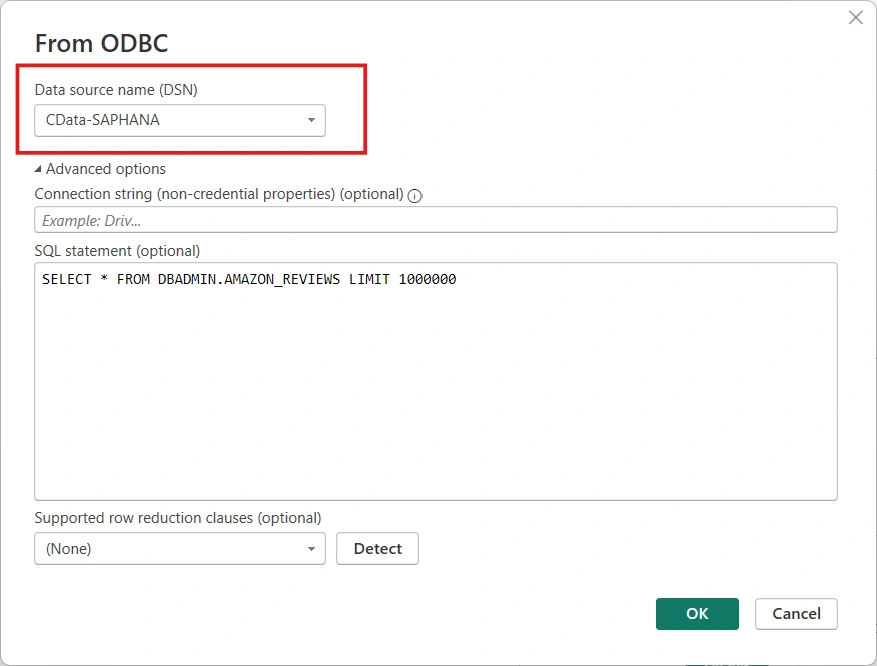
SELECT * FROM DBADMIN.AMAZON_REVIEWS LIMIT 1000000
Timing was recorded with a dedicated benchmark timer capturing two phases per test: connection time (from clicking OK in the connection dialog to Navigator or model readiness) and load time (from clicking Load to completion). All tests were run from a fully closed and reopened Power BI Desktop instance.
Import mode results
Import mode loads data from SAP HANA into Power BI’s in-memory engine. Connection time is driven entirely by the connector and its underlying client libraries; load time reflects how efficiently each connector streams 1 million rows across the SSL connection from HANA Cloud.
Connection time
| Cold-Start Connection Time — Import Mode (seconds) | ||
|---|---|---|
| Metric | CData SAP HANA | Microsoft Native SAP HANA |
| Connection to Navigator ready | 5.4 sec (9.4x faster) | 50.9 sec |
Data load time
| Import Load Time — 1,000,000 Rows (seconds) | ||
|---|---|---|
| Metric | CData SAP HANA | Microsoft Native SAP HANA |
| 1,000,000 rows — 15 columns | 75.6 sec (1:15) (65.9% faster) | 222.1 sec (3:42) |
CData loaded 1 million rows from SAP HANA Cloud into Power BI in 1 minute 15 seconds. The native connector took 3 minutes 42 seconds on the same cold-start run — 146 seconds slower on identical data. For teams running scheduled refreshes across multiple reports, this gap compounds directly into refresh window overruns and stale data events.
DirectQuery results
DirectQuery routes each visual’s query live to SAP HANA at render time without importing data locally. It is the preferred mode for enterprise SAP HANA reporting where data freshness is required and dataset size exceeds Power BI’s local model limits.
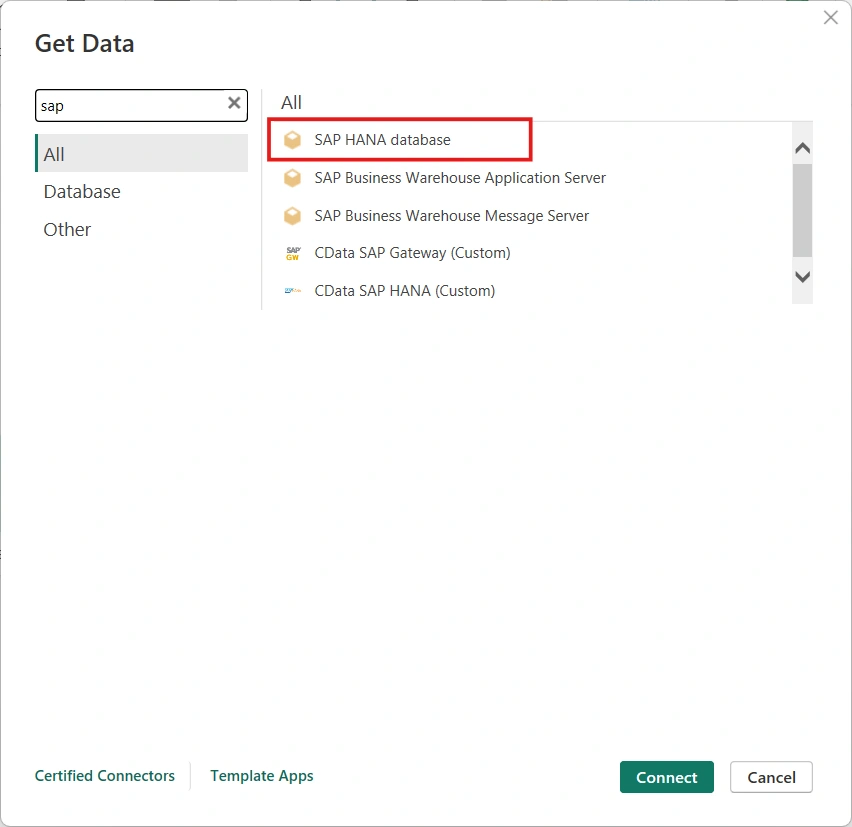
An important distinction applies for the CData connector in DirectQuery mode: the CData SAP HANA (Custom) connector in Power BI’s Get Data dialog supports Import mode only. For DirectQuery, the connection must be established via Get Data > ODBC using the CData DSN — the default DSN name assigned during installation is CData PBI SAPHANA Source, though this can be customized during DSN setup. The ODBC route is the verified method for CData DirectQuery in Power BI per CData’s documentation.
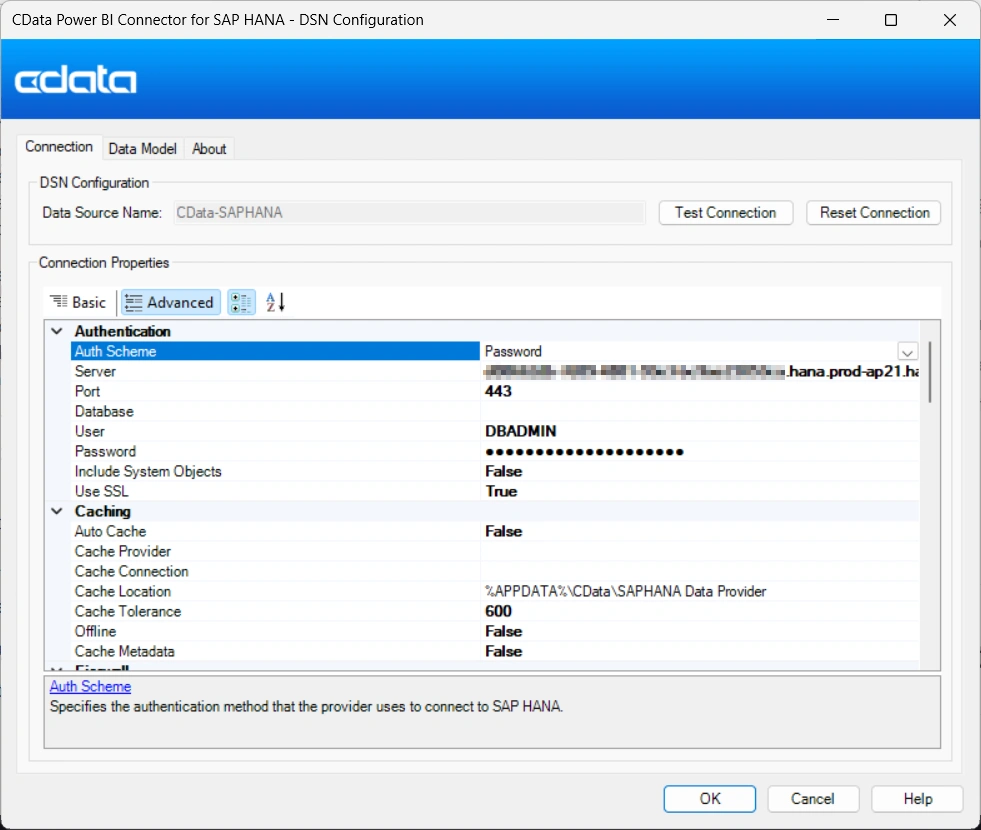
Three DSN settings under the Advanced tab are required for DirectQuery to function correctly at 1 million rows:
- QueryPassthrough = True — passes the SQL statement directly to SAP HANA without rewriting; removes the DirectQueryLimit ceiling and lets HANA handle query execution natively
- MaxRows = 1000000 — caps the result set to the benchmark row count
- Timeout = 300 — 5-minute timeout for the HANA Cloud SSL connection
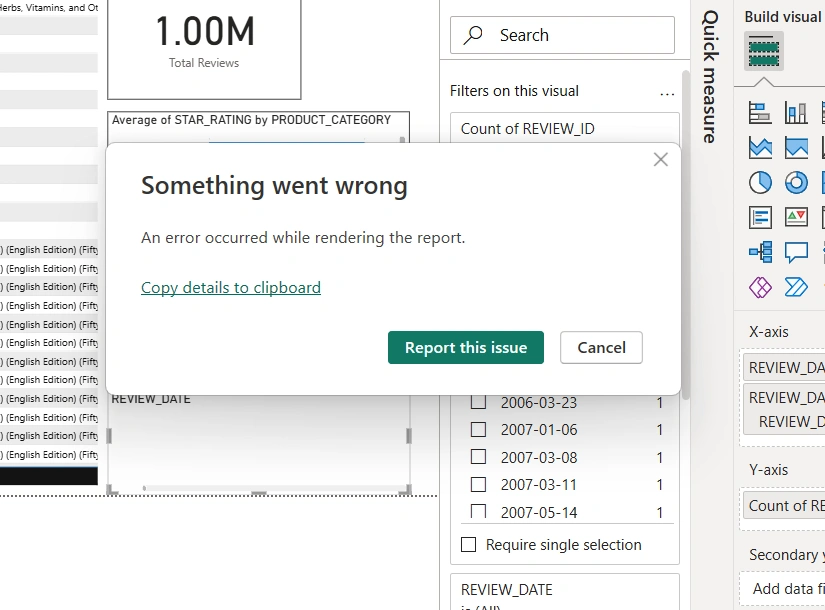
During native connector DirectQuery testing, Power BI produced a rendering failure — "Something went wrong: An error occurred while rendering the report" — requiring a full close and reopen before the session could be retried. The CData connector did not produce this error on the same data and query.
| DirectQuery Performance — 1,000,000 Rows (seconds) | ||
|---|---|---|
| Phase | CData SAP HANA | Microsoft Native SAP HANA |
| Connection time | 5.9 sec (11.3x faster) | 67.2 sec (1:07) |
| Model load time | 80.7 sec (1:21) | 71.2 sec (1:11) |
| Total end-to-end | 86.6 sec (1:27) (37.4% faster) | 138.4 sec (2:18) |
CData’s 6-second connection time versus the native connector’s 67 seconds recurs with each new DirectQuery session or timeout-triggered reconnect. The native connector loaded the DirectQuery model 9.5 seconds faster once connected, but CData’s 61-second connection advantage drives the 37% end-to-end session win.
Client resource usage
Both connectors showed comparable CPU and memory consumption during the data load phase of each test. The performance differences in this benchmark are in timing — connection latency and data transfer throughput — rather than client-side resource draw. Working set memory variance between runs tracked with load duration rather than any architectural difference in resource efficiency between the two connectors.
Conclusion
Across Import and DirectQuery modes on 1 million rows from a live SAP HANA Cloud instance, the CData SAP HANA Power BI Connector outperformed the Microsoft native connector across every timing measurement:
- Cold-start connection: 9.4x faster — 5.4 seconds vs. 50.9 seconds
- Import mode — 1M row load: 65.9% faster — 1:15 vs. 3:42
- DirectQuery connection: 11.3x faster — 5.9 seconds vs. 1:07
- DirectQuery end-to-end: 37.4% faster — 1:27 vs. 2:18
- Stability: native connector produced a DirectQuery rendering failure; CData connector did not
- Setup: CData requires no SAP client install, no SAP account, and no options toggle before DirectQuery works
References
- CData SAP HANA Power BI Connector
- Microsoft Learn — SAP HANA connector for Power Query
- Amazon Reviews 2023 dataset
- SAP Community — Import Data from Files to SAP HANA Cloud
- SAP HANA Client download
Try the CData SAP HANA Power BI Connector
The CData SAP HANA Power BI Connector ships with full DirectQuery support, server-side query pushdown, and a single-vendor support path from Power BI to SAP — on-premises or cloud. Validate these results against your own SAP HANA environment without modifying existing reports or refresh configurations.
Start a free 30-day trial — no credit card required, no feature restrictions, full production load testing included.