






Send Messages to a Specified Microsoft Teams Channel with CData Drivers
CData Microsoft Teams Drivers provide a simple way to interact with Teams by enabling applications to send messages and access data without heavy coding. These drivers work with Teams APIs from Java and .NET applications and can be used in any application that supports JDBC, ODBC, and ADO.NET data sources.
In this article, we’ll demonstrate how to use the Microsoft Teams driver to send a message to a specified Teams channel, showing how easily Teams data can be accessed and integrated by simply embedding the drivers.
Prerequisites
Before you begin, make sure you have the following:
- Microsoft 365 account with Microsoft Teams enabled
- An existing Team and Channel in Microsoft Teams (along with their IDs)
- CData Microsoft Teams Driver installed (ODBC / JDBC / ADO.NET)
- Access to the 30-day free trial if you haven’t installed the driver yet
- A client tool/app that can connect via ODBC/JDBC/ADO.NET (e.g., Excel, Access, Java/.NET app)
- Necessary permissions to post messages in the destination channel
Basic usage
CData Microsoft Teams Drivers provides an interface that replaces access to Teams APIs with SQL. For example, a GET request to the API to get a channel can be executed by using a SELECT statement to the Channels table, as shown below:
select * from Channels;
For other connection methods and supported tables, please refer to the Driver Help.
How to send a message using a driver
To send a message in the driver, use the SendMessage stored procedure. For example, if you want to send a "hello" message to a specified channel, you can perform the following stored procedure:
exec SendMessage
     @Content = 'Hello', -- message to send
     @TeamId = 477a1356-b063-4320-9dab-fe5e735ea9c7, --Team of the destination channel ID
     @ChannelId = 19%3AUAh0DUCZ8toRLSyseURO_E7zjkUf1NJQ1knIdc7cytE1%40thread.tacv2 --Sending channel's ID
Execution Results
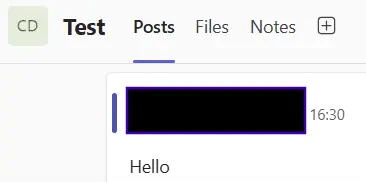
To execute the SendMessage stored procedure, you need the team ID and channel ID to send the message to. Below we will show you how to get the team ID and channel ID from the data you can access in the Teams screen or driver.
How to get a team ID and channel ID
Get from the link on the Teams screen
From the channel's menu, click Copy link to channel.
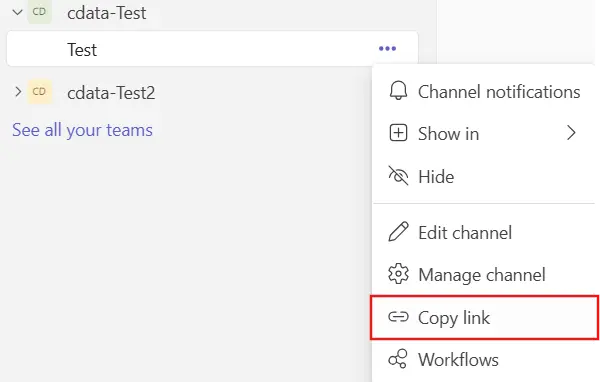
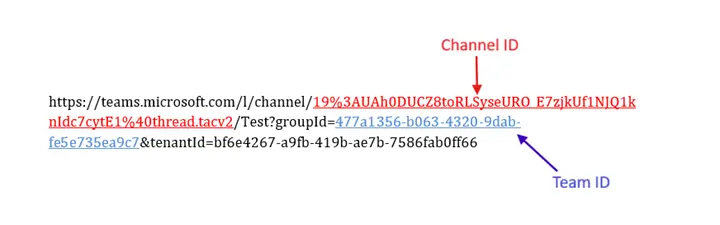
The string of links displayed here contains the team ID and channel ID.
Among the link strings, the string following channel/ is the channel ID, and the string following groupId= is the team ID.
Note: The channel ID contains the symbol : and @, so it is URL-encoded during the link.
Get from data
When using the driver, you can get the list of teams from the Teams table and the list of channels from the Channels table. For example, you can run the following SQL to get a list of team names, team IDs, channel names, and channel IDs.
select teams.displayName as teamName, channels.displayName as channelName, teams.id as teamId, channels.id as channelId from channels join teams on channels.teamId = teams.id;
Execution Results

SendMessage Execution Example
Here is an example of executing the SendMessage stored procedure.
Send a text message
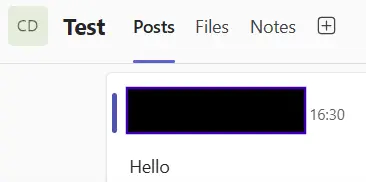
The SQL to send a simple text message is as follows: specify the message you want to send, as well as the team ID and channel ID to which you want to send it.
exec SendMessage
     @Content = <message>,
     @TeamId = <team ID>,
     @ChannelId = <channel ID>;
Example
exec SendMessage
     @Content = 'Hello',
     @TeamId = ‘477a1356-b063-4320-9dab-fe5e735ea9c7',
     @ChannelId = ‘19:[email protected]’;
Execution Results
Send an HTML message
To send a message in HTML format @ContentType add a parameter and set html.
exec SendMessage
     @Content = <message>,
     @ContentType = 'html',
     @TeamId = <team ID>,
     @ChannelId = <channel ID>;
Example
exec SendMessage
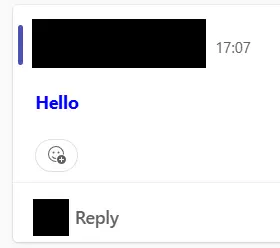
     @Content = '<h2><span style="color:blue;">Hello</span></h2>',
     @ContentType = 'html',
     @TeamId = ‘477a1356-b063-4320-9dab-fe5e735ea9c7’,
     @ChannelId = ‘19:[email protected]';
Execution Results
Send a high-importance message
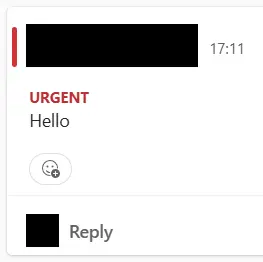
To specify the severity of the message @Importance add a parameter and set it to high or urgent, depending on the severity.
exec SendMessage
     @Content = <message>,
     @Importance = <importance>,
     @TeamId = <team ID>,
     @ChannelId = <channel ID>;
Example
exec SendMessage
     @Content = 'Hello',
     @Importance = 'urgent',
     @TeamId = ‘477a1356-b063-4320-9dab-fe5e735ea9c7’,
     @ChannelId = ‘19:[email protected]';
Execution Results
Mention a user
Mention to a user specifies two values: the text Mention Text that indicates the mention in the message, and the Destination User ID of the mention. How to obtain a user ID is described at the end of this chapter.
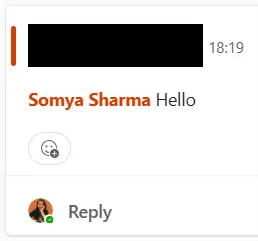
When mentioning a user @Mention add parameters and specify the mention text and destination user ID in the value separated by a comma. Set the ContentType to html.
EXECUTE SendMessage
  Content = <message>,
  ContentType = 'html',
  TeamId = <team ID>,
  ChannelId = <channel ID>,
  Mention = <mention text,destination user ID>;
Example
EXECUTE SendMessage
  Content = ' Hello',
  ContentType = 'html',
  TeamId = '477a1356-b063-4320-9dab-fe5e735ea9c7',
  ChannelId = '19:[email protected]',
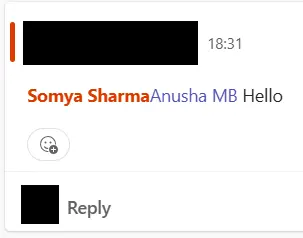
  Mention = 'Somya Sharma,819d298e-ffef-4616-a8ee-8ecb082fa5a2';
Execution Results
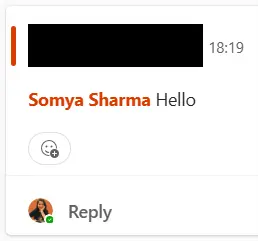
When mentioning multiple users, separate the set of mention text and destination user IDs with semicolons.
Execute SendMessage
 Content = <message>,
 ContentType = ‘html’
 TeamId = <team ID>,
 ChannelId = <channel ID>;
 Mention = <mention text1,destination user1 ID>;<mention text2,destination user2 ID>;...
Example
Execute SendMessage
 Content = 'Hello',
 ContentType = ‘html’
 TeamId = '477a1356-b063-4320-9dab-fe5e735ea9c7',
 ChannelId = '19:[email protected]’,
 Mention = 'Somya Sharma,819d298e-ffef-4616-a8ee-8ecb082fa5b4;Anusha MB,bbeca2a4-21f4-4b7e-9e58-b77eb64c13e8';
Execution Results
How to get a user ID
Here's how to get the user ID you need for mentions.
Get it from the Microsoft 365 admin center
Go to the Microsoft 365 admin center with your Microsoft 365 admin account and open Active users from the menu Users. Click Export User to download a list of user information, including user IDs.
Check from the data
If you want to get the user ID from the driver, access the Users table. You can get a list of usernames, email addresses, and IDs in the following SQL.
select displayName, mail, id from Users;
Simplified Microsoft Teams Connectivity with CData
In this article, we showed how to send a message to a specified channel using the SendMessage stored procedure in the CData Microsoft Teams Drivers. In addition to posting messages, the drivers also allow you to capture, create, and modify groups, teams, and channels; all through standard ODBC, JDBC, or ADO.NET connectivity.
CData makes it simple to integrate Microsoft Teams into your applications and workflows with real-time connectivity to the Teams API. Download a free 30-day trial of the CData Microsoft Teams Drivers today, and as always, our Support Team is here to help with any questions along the way.
