






Replicate On-Premises Data to Microsoft Fabric with Compliance Controls using CData Sync
Microsoft Fabric is a unified cloud analytics platform that brings together data engineering, warehousing, real-time analytics, and Power BI in a single environment. However, Fabric is cloud-only and there is no on-premises deployment. For organizations in healthcare, financial services, and government, this creates a challenge: compliance regulations like HIPAA, SOX, and data sovereignty laws often require sensitive data to remain on-premises, making a full migration to Fabric impractical.
CData Sync bridges this gap by running entirely within your controlled environment and giving you full control over which data gets replicated to Fabric's OneLake. Sensitive records stay on-premises. Only the tables you approve move to the cloud. This hybrid approach lets compliance-driven organizations adopt Fabric's analytics capabilities without violating their regulatory obligations.
In this article, we'll go over how to configure CData Sync to connect to an on-premises data source, set up Microsoft Fabric OneLake as a destination, and selectively replicate non-sensitive data while keeping protected records under local control. While this walkthrough demonstrates the setup with SQL Server, CData Sync connects to multiple on-premises databases, including Oracle, PostgreSQL, MySQL, IBM DB2, and SAP.
Prerequisites
- An on-premises database. This article uses SQL Server, but any CData Sync-supported source works
- CData Sync installed on-premises
- A Microsoft Fabric account with an active trial or paid capacity
- A Fabric workspace and Lakehouse created in the Fabric portal
Configure the source connection in CData Sync
Open the CData Sync dashboard in your browser (default: http://localhost:8181) to begin configuring connections.
- Go to the Connections tab, then click on Add Connection and choose the Sources tab
- Select your source connector (e.g., SQL Server). If the connector isn't installed, click the download icon to install it first
- Now, enter the required connection properties to make the connection to your source
- Click Create & Test to validate the connection
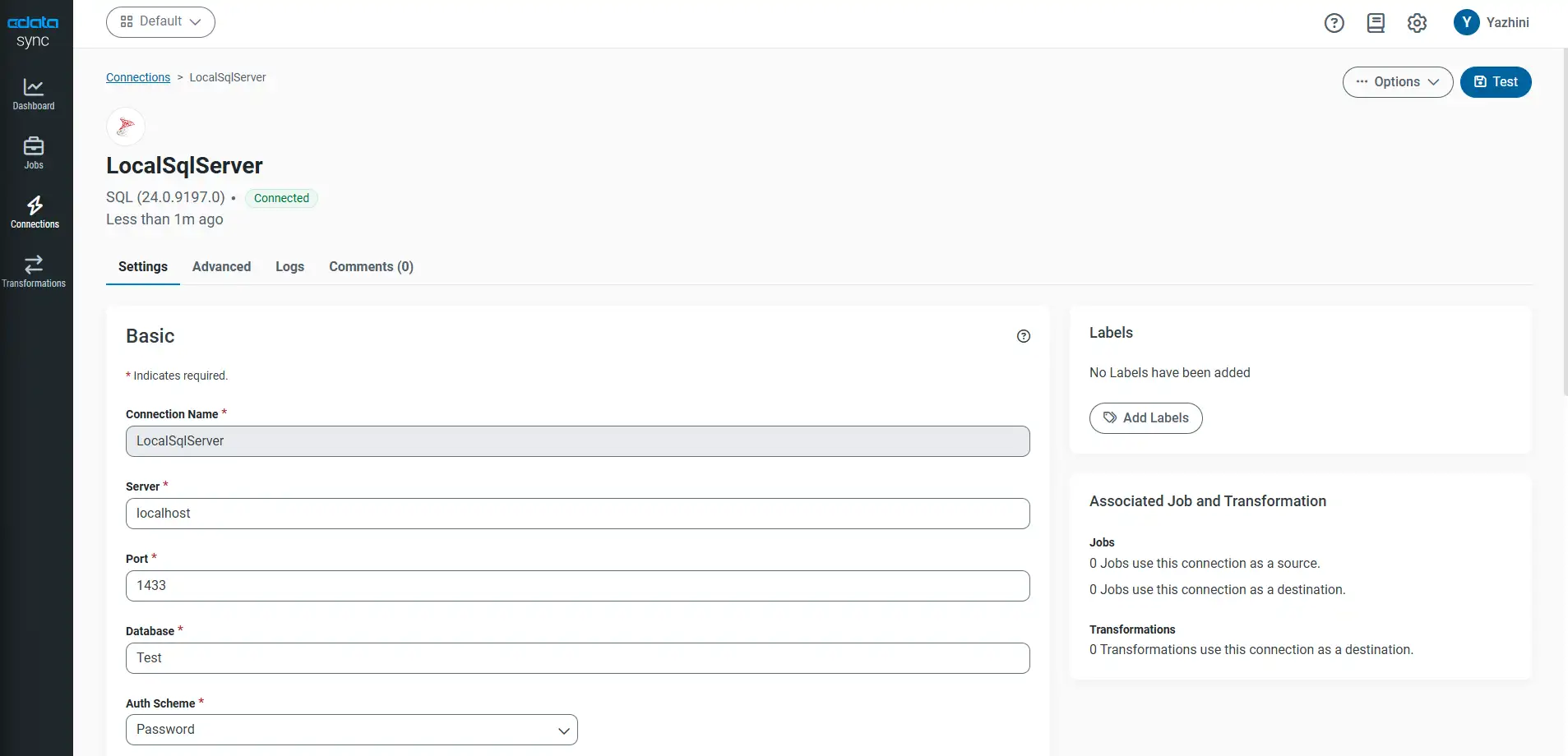
Configure the OneLake destination in CData Sync
Next, set up the connection to your Fabric Lakehouse via the OneLake connector.
- Go to the Connections tab, then click on Add Connection and choose the Destinations tab and search for Microsoft OneLake. If the connector isn't installed, click the download icon to install it first
-
Enter the following connection properties:
- Connection Name: Enter an appropriate connection name
- URI:
onelake://Your_Workspace_Name/Your_Lakehouse.Lakehouse/Files/Your_File_Name
-
Set Auth Scheme to AzureAD and click Connect to Microsoft OneLake. Sign in with the same Microsoft account you used for Fabric
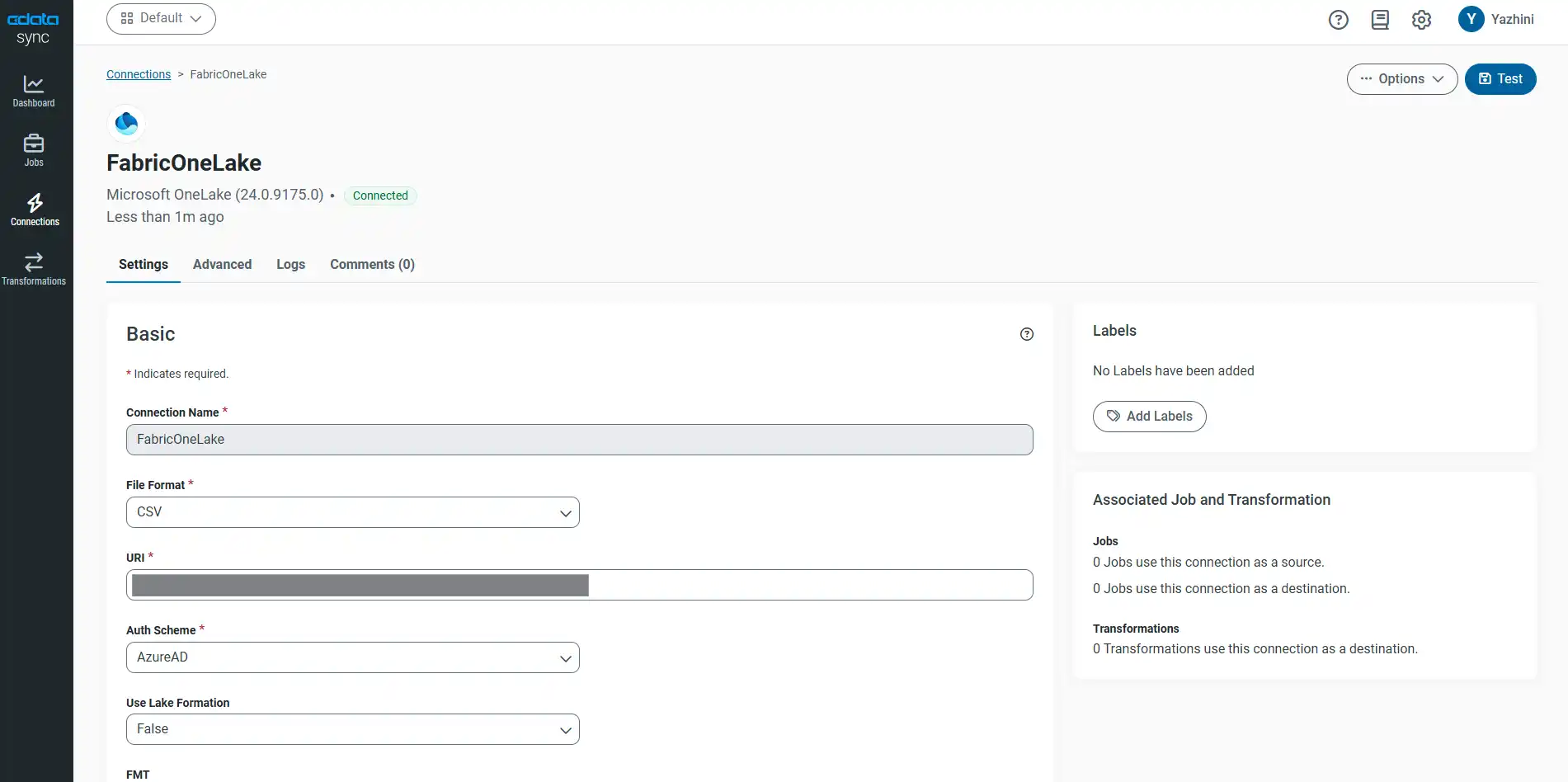
- Click Create & Test to confirm the connection
Create a replication job with selective tables
This is where the compliance architecture comes together. Instead of replicating your entire database, you can explicitly choose which tables to push to cloud.
- Navigate to the Jobs tab and select Add Job
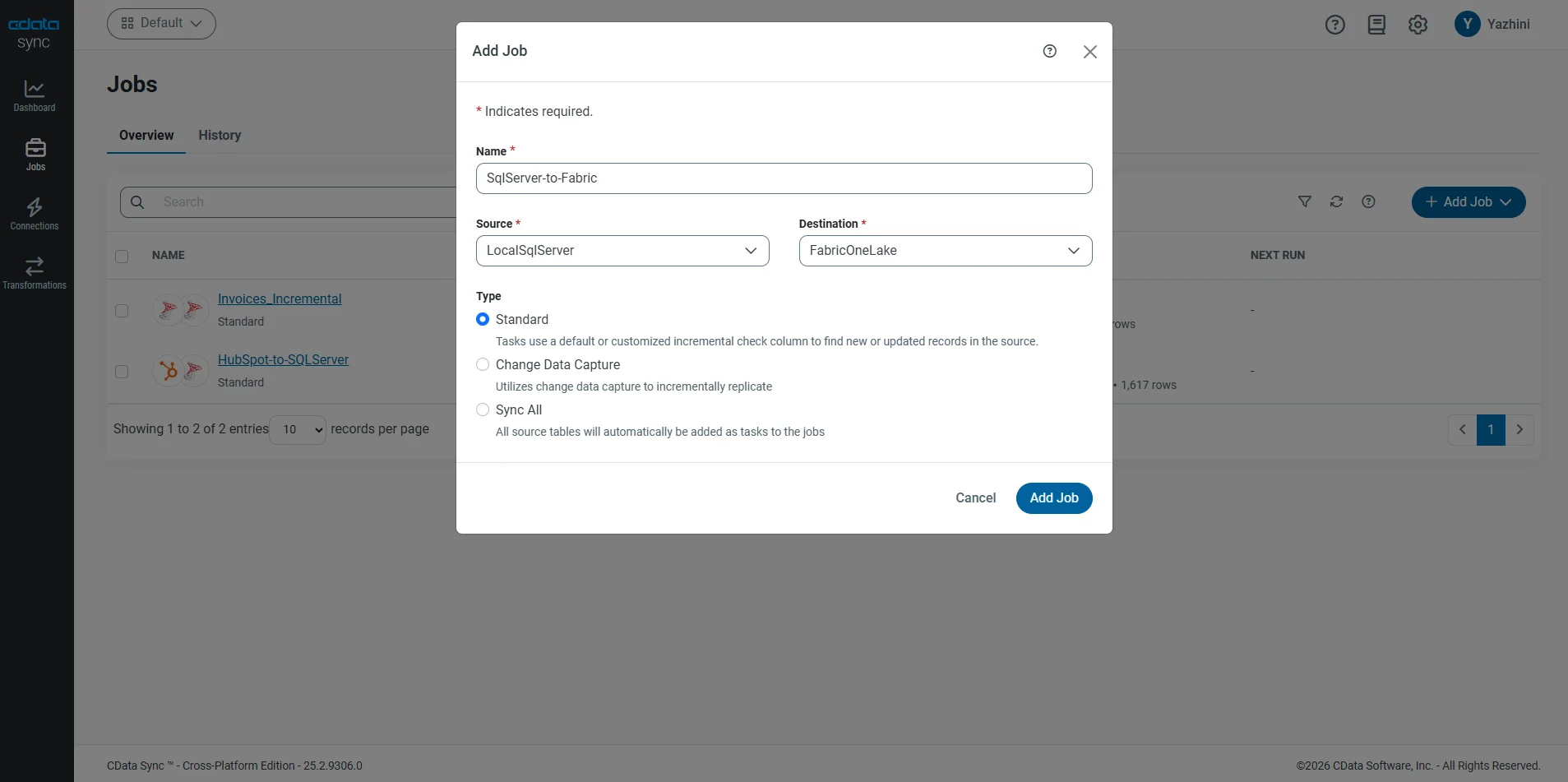
- Configure the job by entering an appropriate name (for example, OnPrem-to-Fabric). Then from the Select Source dropdown choose your configured source connection. Do the same for the destination
- Click Add Job, then navigate to the Task tab and click on Add Tasks
-
You'll see all available tables from your source database. Choose the non-sensitive tables you want to replicate. In this case, there are two tables - Companies (business data) and Contacts (PII like names, emails, and phone numbers). Companies table is checked and Contacts table is unchecked, keeping personal data on-premise
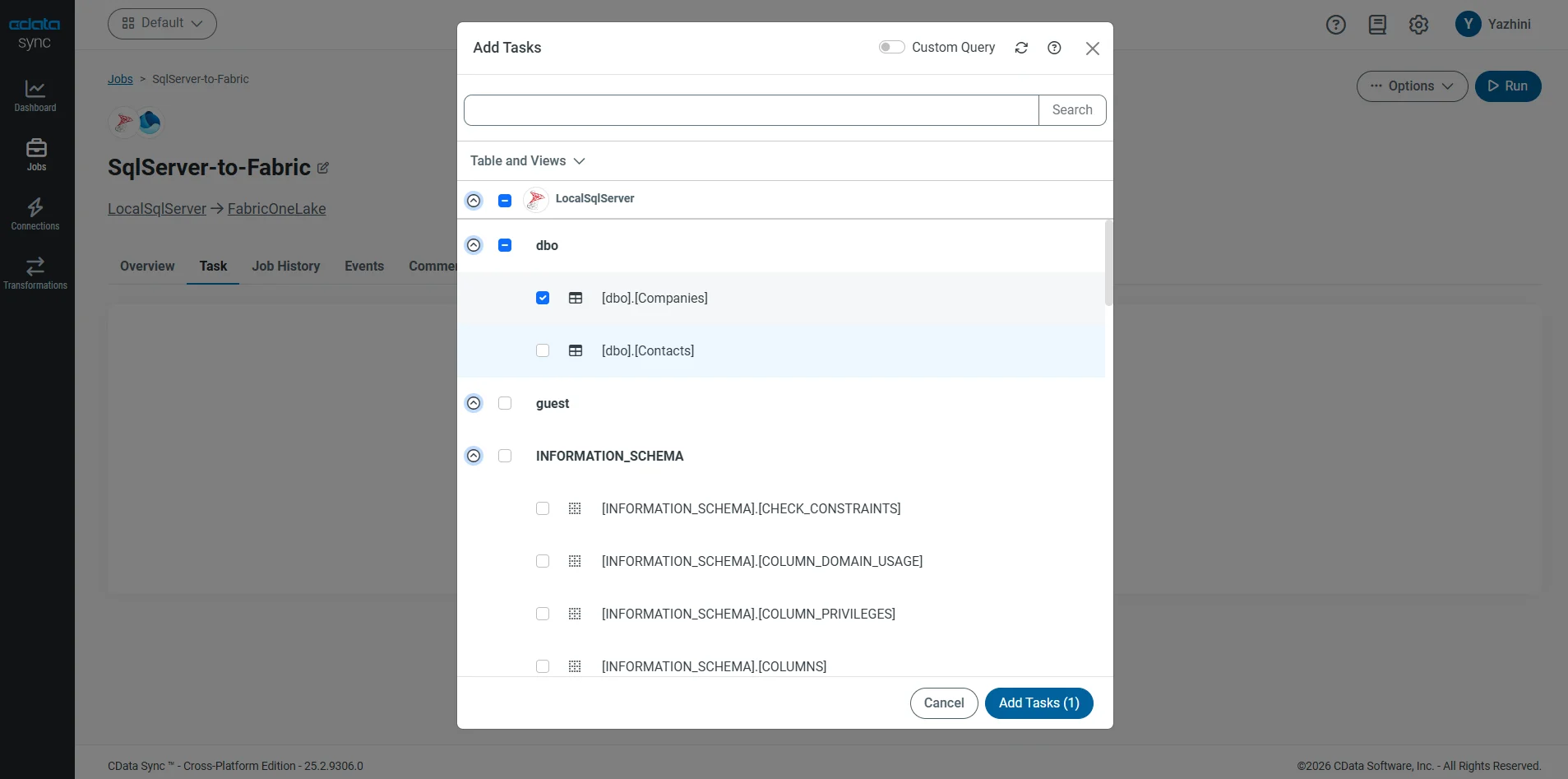
- Click Add Tasks to confirm
This is the step that matters most for compliance. A table with personal contact information or protected health records never leaves your on-premises environment. Only the data you've classified as safe for cloud analytics gets replicated.
Run the replication and verify in Fabric
-
In the job overview, click Run
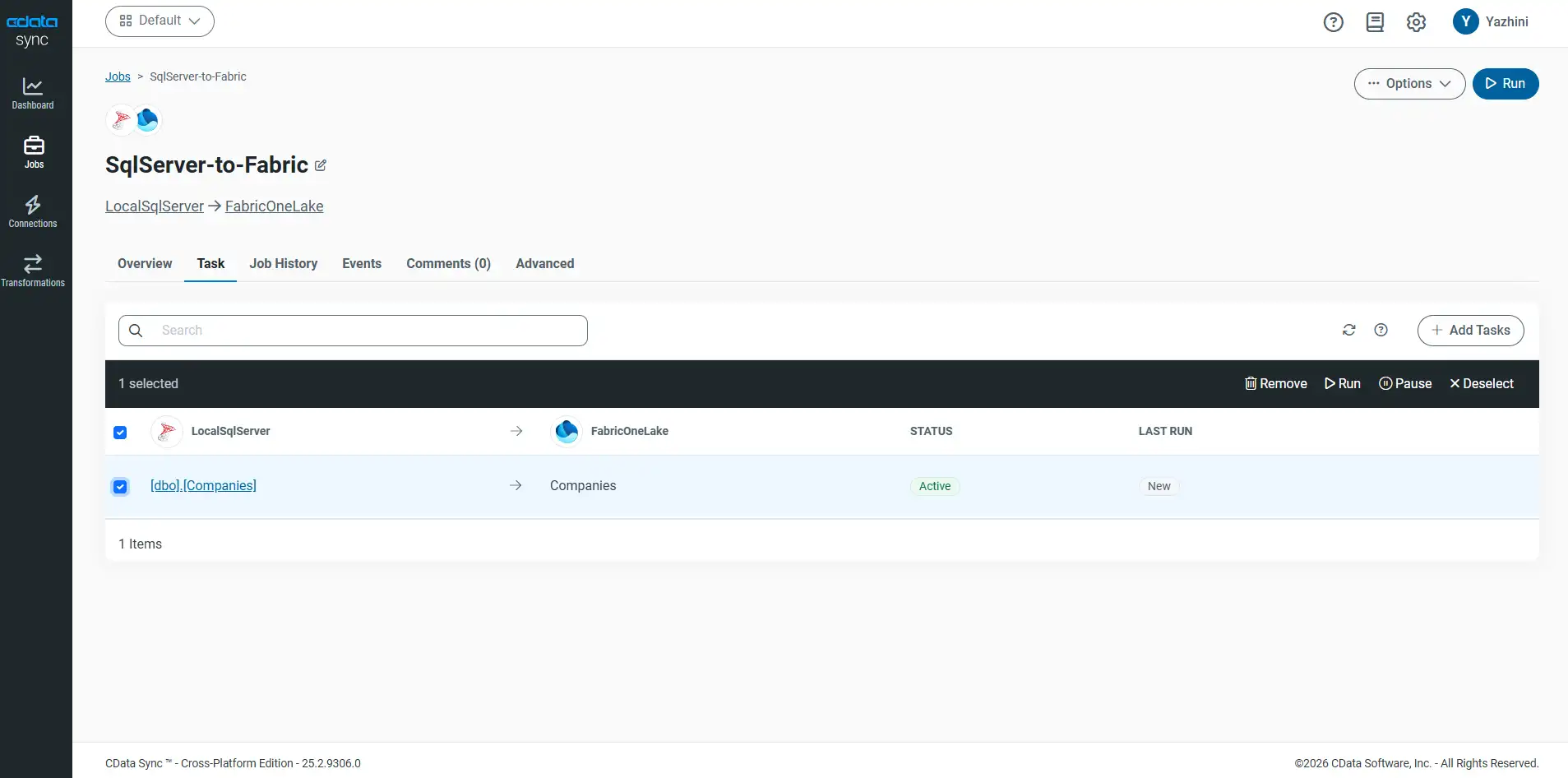
- Sync displays the number of rows replicated and the time taken upon completion
-
Switch to your Fabric Lakehouse. Expand Files in the Explorer panel to view your replicated data
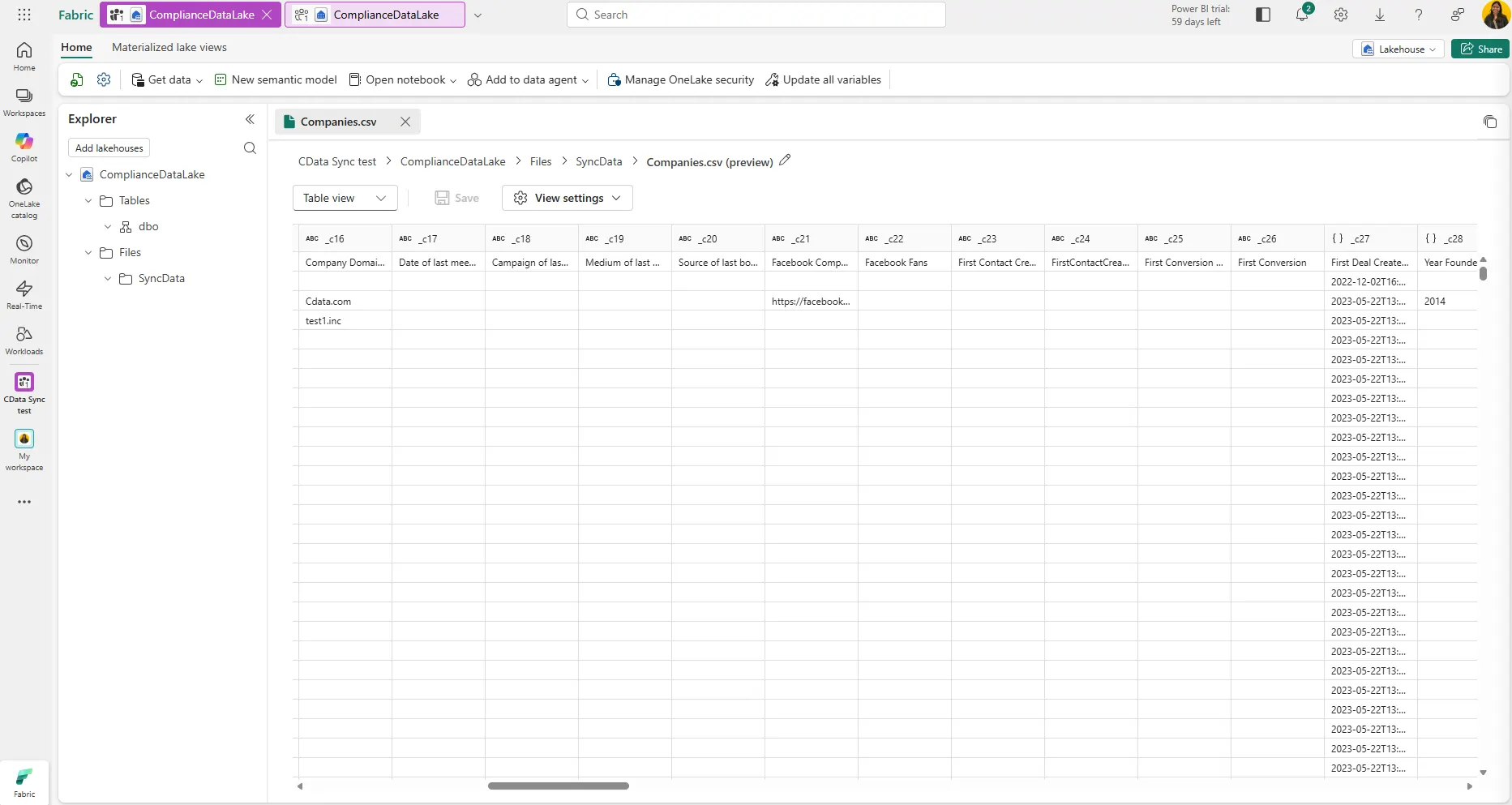
- Use the SQL analytics endpoint or a Fabric Notebook to query the data and build Power BI reports on top of it
Your on-premises business data is now in Microsoft Fabric, available for dashboards, analytics, and machine learning. Your sensitive records, on the other hand, remain entirely within your controlled environment.
Bring compliance-ready data into Microsoft Fabric with CData Sync
CData Sync bridges on-premises data control and cloud analytics by giving you full control over what moves, when it moves, and how it's transformed. With on-premises deployment and selective replication across 350+ sources, Sync lets regulated organizations adopt Fabric without compromising compliance.
Ready to try it in your own controlled environment? Download a free 30-day trial of CData Sync and start replicating to Fabric today. As always, our world-class Support Team is ready to answer any questions.