




Use Dash to Build to Web Apps on Abyssale Data

The rich ecosystem of Python modules lets you get to work quickly and integrate your systems more effectively. With the CData API Driver for Python, the pandas module, and the Dash framework, you can build Abyssale-connected web applications for Abyssale data. This article shows how to connect to Abyssale with the CData Connector and use pandas and Dash to build a simple web app for visualizing Abyssale data.
With built-in, optimized data processing, the CData Python Connector offers unmatched performance for interacting with live Abyssale data in Python. When you issue complex SQL queries from Abyssale, the driver pushes supported SQL operations, like filters and aggregations, directly to Abyssale and utilizes the embedded SQL engine to process unsupported operations client-side (often SQL functions and JOIN operations).
Connecting to Abyssale Data
Connecting to Abyssale data looks just like connecting to any relational data source. Create a connection string using the required connection properties. For this article, you will pass the connection string as a parameter to the create_engine function.
Start by setting the Profile connection property to the location of the Abyssale Profile on disk (e.g. C:\profiles\Abyssale.apip). Next, set the ProfileSettings connection property to the connection string for Abyssale (see below).
Abyssale API Profile Settings
Abyssale uses API Key authentication. Your Abyssale API Key is sent as the x-api-key request header. You can generate or view your API Key in the Abyssale dashboard under Settings > API.
After setting the following connection properties, you are ready to connect:
- AuthScheme: Set this to APIKey.
- APIKey: Set this to your Abyssale API Key.
After installing the CData Abyssale Connector, follow the procedure below to install the other required modules and start accessing Abyssale through Python objects.
Install Required Modules
Use the pip utility to install the required modules and frameworks:
pip install pandas
pip install dash
pip install dash-daq
Visualize Abyssale Data in Python
Once the required modules and frameworks are installed, we are ready to build our web app. Code snippets follow, but the full source code is available at the end of the article.
First, be sure to import the modules (including the CData Connector) with the following:
import os
import dash
import dash_core_components as dcc
import dash_html_components as html
import pandas as pd
import cdata.api as mod
import plotly.graph_objs as go
You can now connect with a connection string. Use the connect function for the CData Abyssale Connector to create a connection for working with Abyssale data.
cnxn = mod.connect("Profile=C:\profiles\Abyssale.apip;AuthScheme=APIKey;ProfileSettings='APIKey=your_api_key';")
Execute SQL to Abyssale
Use the read_sql function from pandas to execute any SQL statement and store the result set in a DataFrame.
df = pd.read_sql("SELECT Id, Name FROM Designs WHERE Type = 'static'", cnxn)
Configure the Web App
With the query results stored in a DataFrame, we can begin configuring the web app, assigning a name, stylesheet, and title.
app_name = 'dash-apiedataplot'

external_stylesheets = ['https://codepen.io/chriddyp/pen/bWLwgP.css']

app = dash.Dash(__name__, external_stylesheets=external_stylesheets)
app.title = 'CData + Dash'
Configure the Layout
The next step is to create a bar graph based on our Abyssale data and configure the app layout.
trace = go.Bar(x=df.Id, y=df.Name, name='Id')

app.layout = html.Div(children=[html.H1("CData Extension + Dash", style={'textAlign': 'center'}),
	dcc.Graph(
		id='example-graph',
		figure={
			'data': [trace],
			'layout':
			go.Layout(title='Abyssale Designs Data', barmode='stack')
		})
], className="container")
Set the App to Run
With the connection, app, and layout configured, we are ready to run the app. The last lines of Python code follow.
if __name__ == '__main__':
    app.run_server(debug=True)
Now, use Python to run the web app and a browser to view the Abyssale data.
python api-dash.py
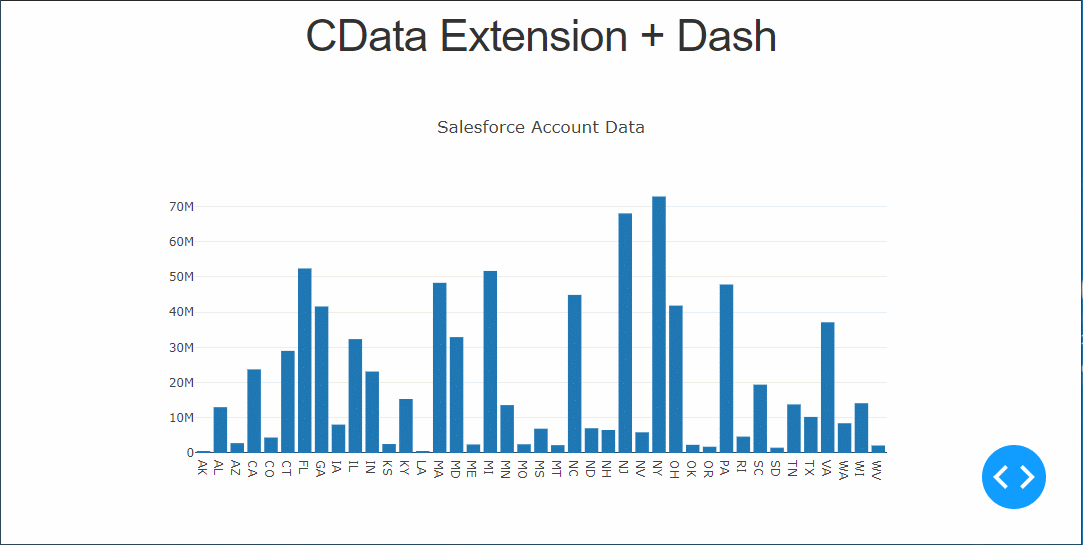
Free Trial & More Information
Download a free, 30-day trial of the CData API Driver for Python to start building Python apps with connectivity to Abyssale data. Reach out to our Support Team if you have any questions.
Full Source Code
import os
import dash
import dash_core_components as dcc
import dash_html_components as html
import pandas as pd
import cdata.api as mod
import plotly.graph_objs as go

cnxn = mod.connect("Profile=C:\profiles\Abyssale.apip;AuthScheme=APIKey;ProfileSettings='APIKey=your_api_key';")

df = pd.read_sql("SELECT Id, Name FROM Designs WHERE Type = 'static'", cnxn)
app_name = 'dash-apidataplot'

external_stylesheets = ['https://codepen.io/chriddyp/pen/bWLwgP.css']

app = dash.Dash(__name__, external_stylesheets=external_stylesheets)
app.title = 'CData + Dash'
trace = go.Bar(x=df.Id, y=df.Name, name='Id')

app.layout = html.Div(children=[html.H1("CData Extension + Dash", style={'textAlign': 'center'}),
	dcc.Graph(
		id='example-graph',
		figure={
			'data': [trace],
			'layout':
			go.Layout(title='Abyssale Designs Data', barmode='stack')
		})
], className="container")

if __name__ == '__main__':
    app.run_server(debug=True)