Create an SAP BusinessObjects Universe on the CData JDBC Driver for AgileCRM

This article shows how to use the CData JDBC Driver for AgileCRM to connect to AgileCRM from SAP BusinessObjects Business Intelligence applications. You will use the Information Design Tool to analyze AgileCRM data and create a universe on the CData JDBC Driver for AgileCRM. You will then connect to the universe from Web Intelligence.
Create the JDBC Connection to AgileCRM
Follow the steps below to create a connection to the AgileCRM JDBC data source in the Information Design Tool.
- Copy the CData JAR and .lic file into the following subfolder in the installation directory for BusinessObjects: dataAccess\connectionServer\jdbc\drivers\jdbc. The CData JAR is located in the lib subfolder of the installation directory.
- Right-click your project and click New -> New Relational Connection.
- In the wizard that results, click Generic -> Generic JDBC datasource -> JDBC Drivers.
- On the next page of the wizard enter the connection details.
On the next page, set the Authentication Mode option to "Use specified username and password". Enter the username, password, and JDBC URL. The JDBC URL begins with jdbc:api: and is followed by a semicolon-separated list of connection properties.
Start by setting the Profile connection property to the location of the AgileCRM Profile on disk (e.g. C:\profiles\Agilecrm.apip). Next, set the ProfileSettings connection property to the connection string for AgileCRM (see below).
AgileCRM API Profile Settings
Log in to AgileCRM and go to Admin Settings > Developers & API > REST API to find your API key. Your domain is the subdomain from your AgileCRM account URL.
Built-in Connection String Designer
For assistance in constructing the JDBC URL, use the connection string designer built into the AgileCRM JDBC Driver. Either double-click the JAR file or execute the jar file from the command-line.
java -jar cdata.jdbc.api.jar
Fill in the connection properties and copy the connection string to the clipboard.

When you configure the JDBC URL, you may also want to set the Max Rows connection property. This will limit the number of rows returned, which is especially helpful for improving performance when designing reports and visualizations.
A typical JDBC URL is below:
jdbc:api:Profile=C:\profiles\Agilecrm.apip;ProfileSettings='APIKey=your_api_key;Domain=your_domain;User=your_email';
- Enter the driver class: cdata.jdbc.api.APIDriver
- Finish the wizard with the default values for connection pooling and custom parameters.
Analyze AgileCRM Data in the Information Design Tool
You can use the JDBC connection to analyze AgileCRM data in the Information Design Tool.
- In the Local Projects view, double-click the connection (the .cnx file) to open the AgileCRM data source.
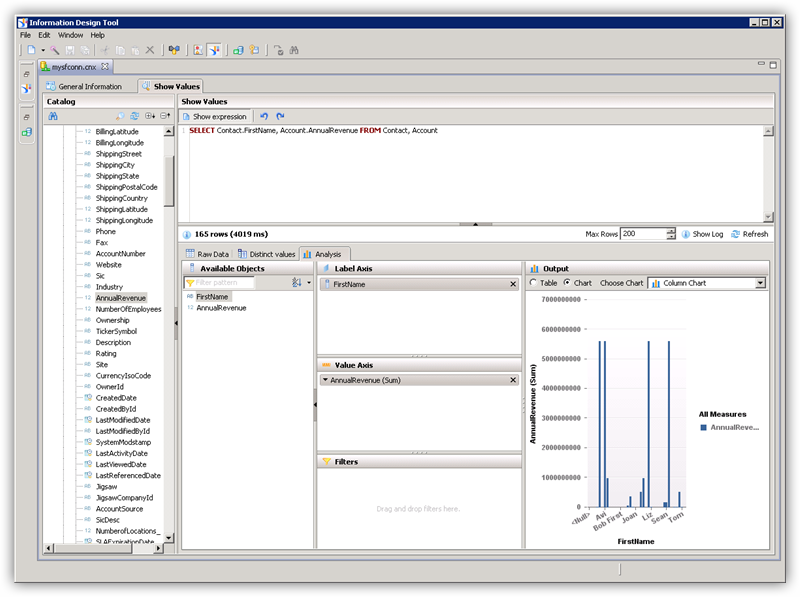
- On the Show Values tab, you can load table data and enter SQL queries. To view table data, expand the node for the table, right-click the table, and click Show Values. Values will be displayed in the Raw Data tab.
- On the Analysis tab, you can then analyze data by dragging and dropping columns onto the axes of a chart.
Publish the Local Connection
To publish the universe to the CMS, you additionally need to publish the connection.
- In the Local Projects view, right-click the connection and click Publish Connection to a Repository.
- Enter the host and port of the repository and connection credentials.
- Select the folder where the connection will be published.
- In the success dialog that results, click Yes to create a connection shortcut.
Create a Universe on the JDBC Driver for AgileCRM
You can follow the steps below to create a universe on the JDBC driver. The universe in this example will be published to a repository, so it uses the published connection created in the previous step.
- In the Information Design Tool, click File->New Universe.
- Select your project.
- Select the option to create the universe on a relational data source.
- Select the shortcut to the published connection.
- Enter a name for the Data Foundation.
- Import tables and columns that you want to access as objects.
- Enter a name for the Business Layer.
Publish the Universe
You can follow the steps below to publish the universe to the CMS.
- In the Local Projects view, right-click the business layer and click Publish -> To a Repository.
- In the Publish Universe dialog, enter any integrity checks before importing.
- Select or create a folder on the repository where the universe will be published.
Query AgileCRM Data in Web Intelligence
You can use the published universe to connect to AgileCRM in Web Intelligence.
- Copy the cdata.jdbc.api.lic file to the following subfolder in the BusinessObjects installation directory: \dataAccess\connectionServer\jdbc\drivers\jdbc. The license file is located in the lib subfolder of the installation directory.
- Open Web Intelligence from the BusinessObjects launchpad and create a new document.
- Select the Universe option for the data source.
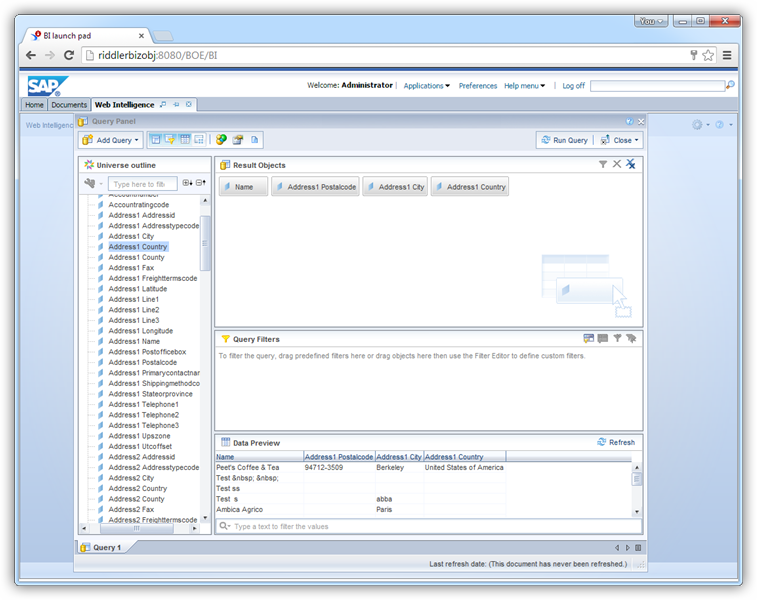
- Select the AgileCRM universe. This opens a Query Panel. Drag objects to the Result Objects pane to use them in the query.