




LINQ to Alchemy Data

This article illustrates using LINQ to access tables within the Alchemy via the CData ADO.NET Data Provider for Alchemy. To achieve this, we will use LINQ to Entity Framework, which facilitates the generation of connections and can be seamlessly employed with any CData ADO.NET Data Providers to access data through LINQ.
See the help documentation for a guide to setting up an EF 6 project to use the provider.
- In a new project in Visual Studio, right-click on the project and choose to add a new item. Add an ADO.NET Entity Data Model.
- Choose EF Designer from Database and click Next.
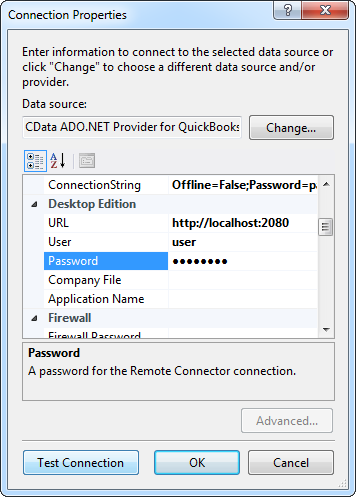
- Add a new Data Connection, and change your data source type to "CData Alchemy Data Source".
Enter your data source connection information.
Start by setting the Profile connection property to the location of the Alchemy Profile on disk (e.g. C:\profiles\Alchemy.apip). Next, set the ProfileSettings connection property to the connection string for Alchemy (see below).
Alchemy API Profile Settings
Alchemy uses API key authentication. The API key is supplied in the request URL path. To obtain an API key:
- Sign in to your Alchemy account at https://dashboard.alchemy.com.
- Open an existing app or create a new one.
- Copy the app's API key from the API Key dialog.
After obtaining your API key, set the following connection properties:
- AuthScheme: Set this to APIKey.
- Network: Optional. The blockchain network slug for NFT API requests (for example, eth-mainnet, base-mainnet, polygon-mainnet). Defaults to eth-mainnet.
Set the following in the ProfileSettings connection property:
- APIKey: Set this to your Alchemy app API key.
Below is a typical connection string:
Profile=C:\profiles\Alchemy.apip;AuthScheme=APIKey;Network=eth-mainnet;ProfileSettings='APIKey=your_api_key';- If saving your entity connection to App.Config, set an entity name. In this example we are setting APIEntities as our entity connection in App.Config.
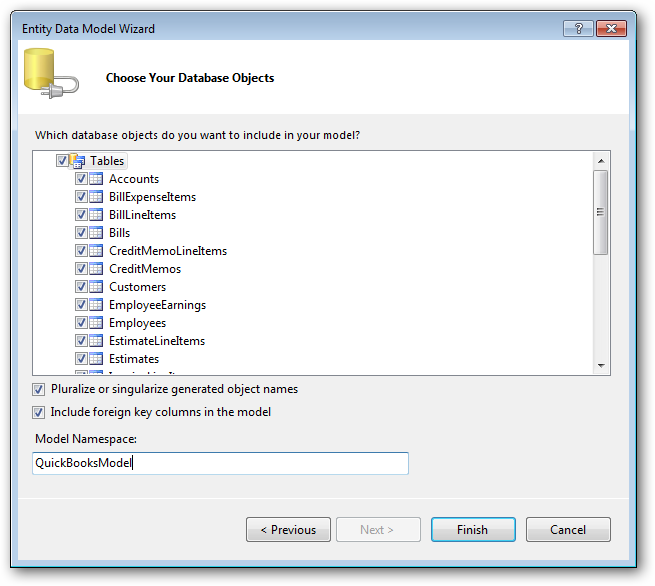
- Enter a model name and select any tables or views you would like to include in the model.
Using the entity you created, you can now perform select commands. For example:
APIEntities context = new APIEntities();

var contractsforownerQuery = from contractsforowner in context.ContractsForOwner
  select contractsforowner;

foreach (var result in contractsforownerQuery) {
  Console.WriteLine("{0} {1} ", result.Id, result.Address);
}
See "LINQ and Entity Framework" chapter in the help documentation for example queries of the supported LINQ.