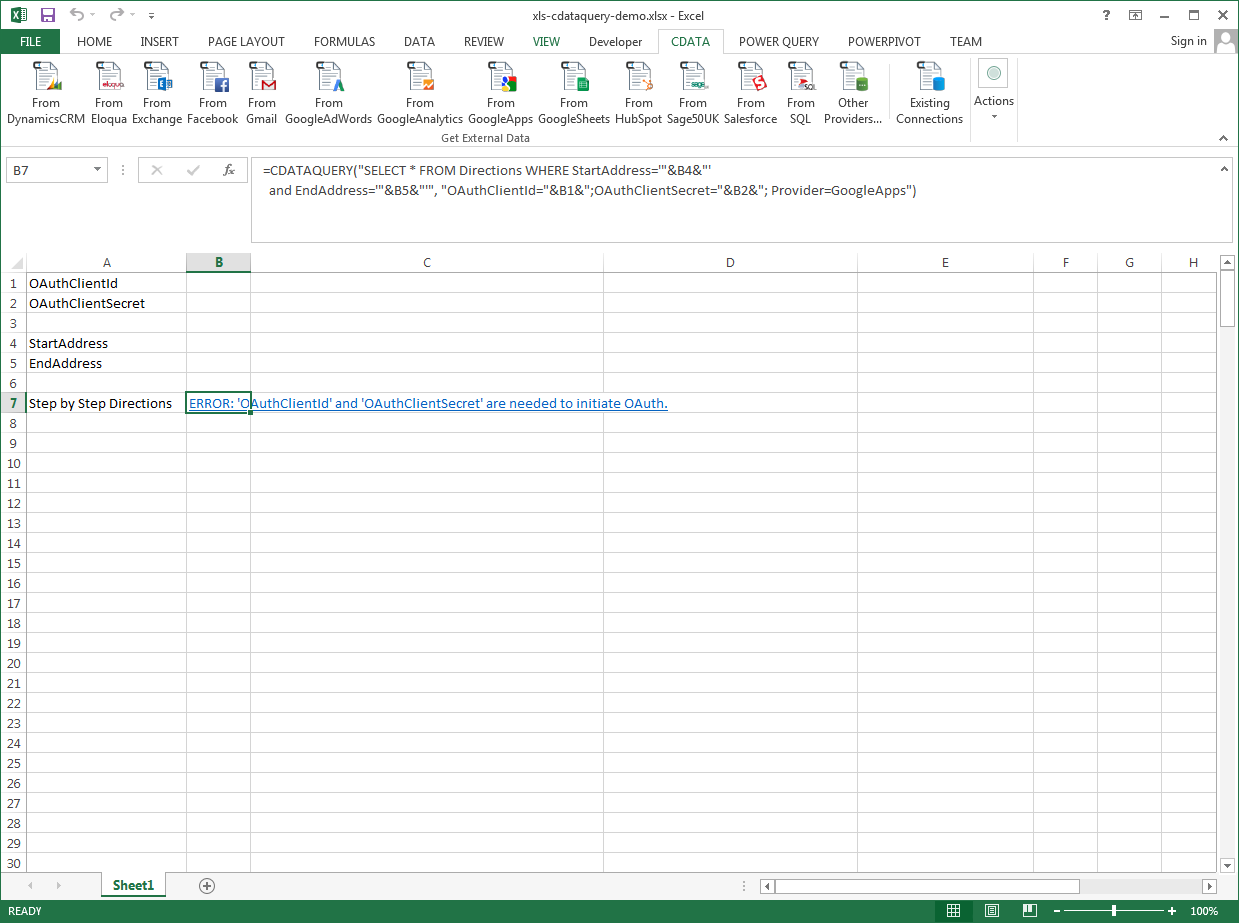
Excel Spreadsheet Automation on Alchemy Data with the QUERY Formula

The CData Excel Add-In for Alchemy provides formulas that can query Alchemy data. The following three steps show how you can automate the following task: Search Alchemy data for a user-specified value and then organize the results into an Excel spreadsheet.
The syntax of the CDATAQUERY formula is the following:
=CDATAQUERY(Query, [Connection], [Parameters], [ResultLocation]);
This formula requires three inputs:
- Query: The declaration of the Alchemy data records you want to retrieve, written in standard SQL.
Connection: Either the connection name, such as APIConnection1, or a connection string. The connection string consists of the required properties for connecting to Alchemy data, separated by semicolons.
Start by setting the Profile connection property to the location of the Alchemy Profile on disk (e.g. C:\profiles\Alchemy.apip). Next, set the ProfileSettings connection property to the connection string for Alchemy (see below).
Alchemy API Profile Settings
Alchemy uses API key authentication. The API key is supplied in the request URL path. To obtain an API key:
- Sign in to your Alchemy account at https://dashboard.alchemy.com.
- Open an existing app or create a new one.
- Copy the app's API key from the API Key dialog.
After obtaining your API key, set the following connection properties:
- AuthScheme: Set this to APIKey.
- Network: Optional. The blockchain network slug for NFT API requests (for example, eth-mainnet, base-mainnet, polygon-mainnet). Defaults to eth-mainnet.
Set the following in the ProfileSettings connection property:
- APIKey: Set this to your Alchemy app API key.
- ResultLocation: The cell that the output of results should start from.
Pass Spreadsheet Cells as Inputs to the Query
The procedure below results in a spreadsheet that organizes all the formula inputs in the first column.
- Define cells for the formula inputs. In addition to the connection inputs, add another input to define a criterion for a filter to be used to search Alchemy data, such as Owner.
- In another cell, write the formula, referencing the cell values from the user input cells defined above. Single quotes are used to enclose values such as addresses that may contain spaces.
- Change the filter to change the data.
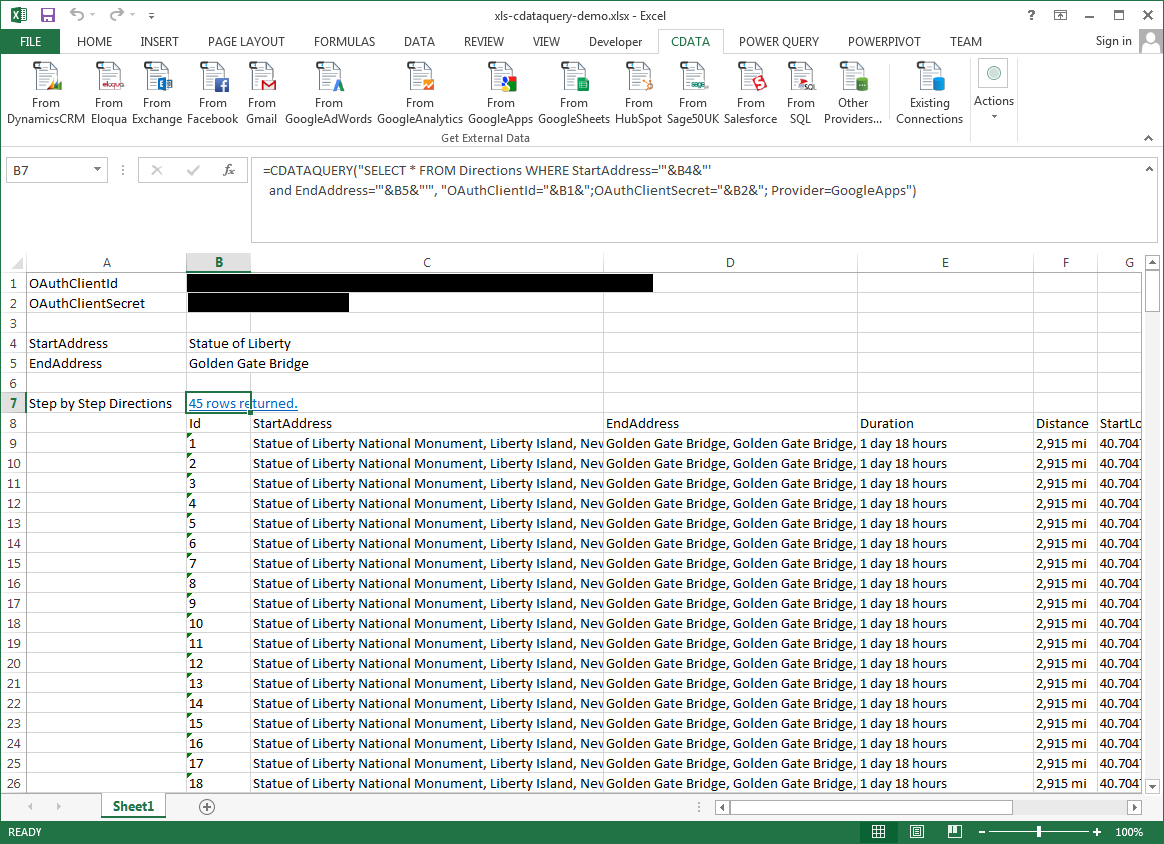
=CDATAQUERY("SELECT * FROM ContractsForOwner WHERE Owner = '"&B6&"'","Profile="&B1&";AuthScheme="&B2&";Network="&B3&";ProfileSettings="&B4&";Provider=API",B7)