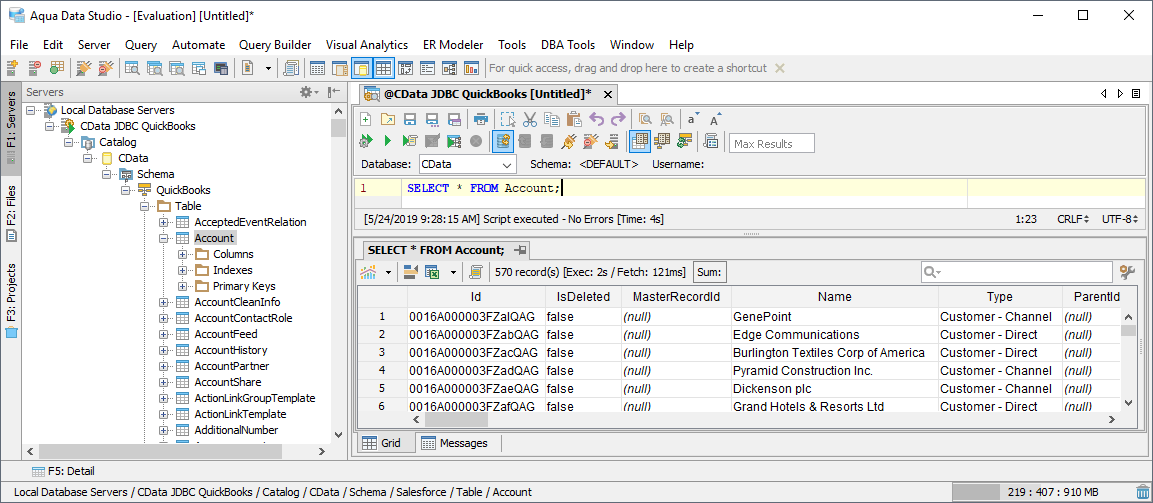
Connect to Alchemy Data in Aqua Data Studio

The CData JDBC Driver for Alchemy integrates Alchemy data with wizards and analytics in IDEs like Aqua Data Studio. This article shows how to connect to Alchemy data through the connection manager and execute queries.
Create a JDBC Data Source
You can use the connection manager to define connection properties and save them in a new JDBC data source. The Alchemy data source can then be accessed from Aqua Data Studio tools.
- In Aqua Data Studio, select Register Server from the Servers menu.
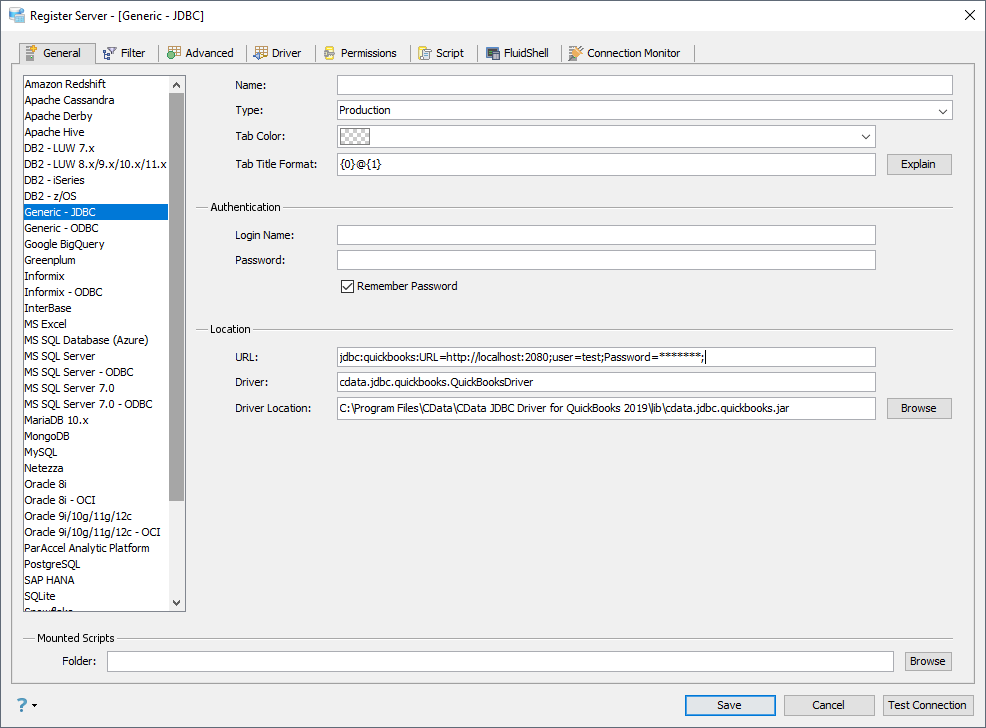
- In the Register Server form, select the 'Generic - JDBC' connection.
- Enter the following JDBC connection properties:
- Name: Enter a name for the data source; for example, Alchemy.
- Driver Location: Click the Browse button and select the cdata.jdbc.api.jar file, located in the lib subfolder of the installation directory.
- Driver: Enter the Driver's class name, cdata.jdbc.api.APIDriver.
URL: Enter the JDBC URL, which starts with jdbc:api: and is followed by a semicolon-separated list of connection properties.
Start by setting the Profile connection property to the location of the Alchemy Profile on disk (e.g. C:\profiles\Alchemy.apip). Next, set the ProfileSettings connection property to the connection string for Alchemy (see below).
Alchemy API Profile Settings
Alchemy uses API key authentication. The API key is supplied in the request URL path. To obtain an API key:
- Sign in to your Alchemy account at https://dashboard.alchemy.com.
- Open an existing app or create a new one.
- Copy the app's API key from the API Key dialog.
After obtaining your API key, set the following connection properties:
- AuthScheme: Set this to APIKey.
- Network: Optional. The blockchain network slug for NFT API requests (for example, eth-mainnet, base-mainnet, polygon-mainnet). Defaults to eth-mainnet.
Set the following in the ProfileSettings connection property:
- APIKey: Set this to your Alchemy app API key.
Built-in Connection String Designer
For assistance in constructing the JDBC URL, use the connection string designer built into the Alchemy JDBC Driver. Either double-click the JAR file or execute the jar file from the command-line.
java -jar cdata.jdbc.api.jarFill in the connection properties and copy the connection string to the clipboard.
 A typical JDBC URL is below:
jdbc:api:Profile=C:\profiles\Alchemy.apip;AuthScheme=APIKey;Network=eth-mainnet;ProfileSettings='APIKey=your_api_key';
Query Alchemy Data
You can now query the tables exposed.