




Integrate Alchemy with External Services using SnapLogic

SnapLogic is an integration platform-as-a-service (iPaaS) that allows users to create data integration flows with no code. When paired with the CData JDBC Drivers, users get access to live data from more than 250+ SaaS, Big Data and NoSQL sources, including Alchemy, in their SnapLogic workflows.
With built-in optimized data processing, the CData JDBC Driver offers unmatched performance for interacting with live Alchemy data. When platforms issue complex SQL queries to Alchemy, the driver pushes supported SQL operations, like filters and aggregations, directly to Alchemy and utilizes the embedded SQL engine to process unsupported operations client-side (often SQL functions and JOIN operations). Its built-in dynamic metadata querying lets you work with Alchemy data using native data types.
Connect to Alchemy in SnapLogic
To connect to Alchemy data in SnapLogic, download and install the CData Alchemy JDBC Driver. Follow the installation dialog. When the installation is complete, the JAR file can be found in the installation directory (C:/Program Files/CData/CData API Driver for JDBC/lib by default).
Upload the Alchemy JDBC Driver
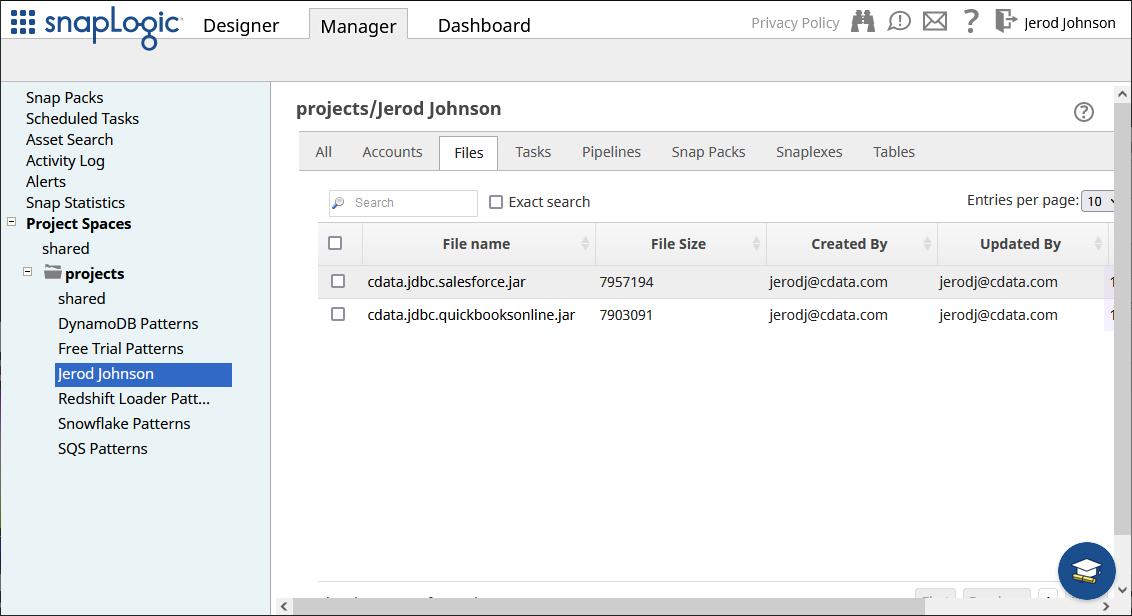
After installation, upload the JDBC JAR file to a location in SnapLogic (for example, projects/Jerod Johnson) from the Manager tab.
Configure the Connection
Once the JDBC Driver is uploaded, we can create the connection to Alchemy.
- Navigate to the Designer tab
- Expand "JDBC" from Snaps and drag a "Generic JDBC - Select" snap onto the designer
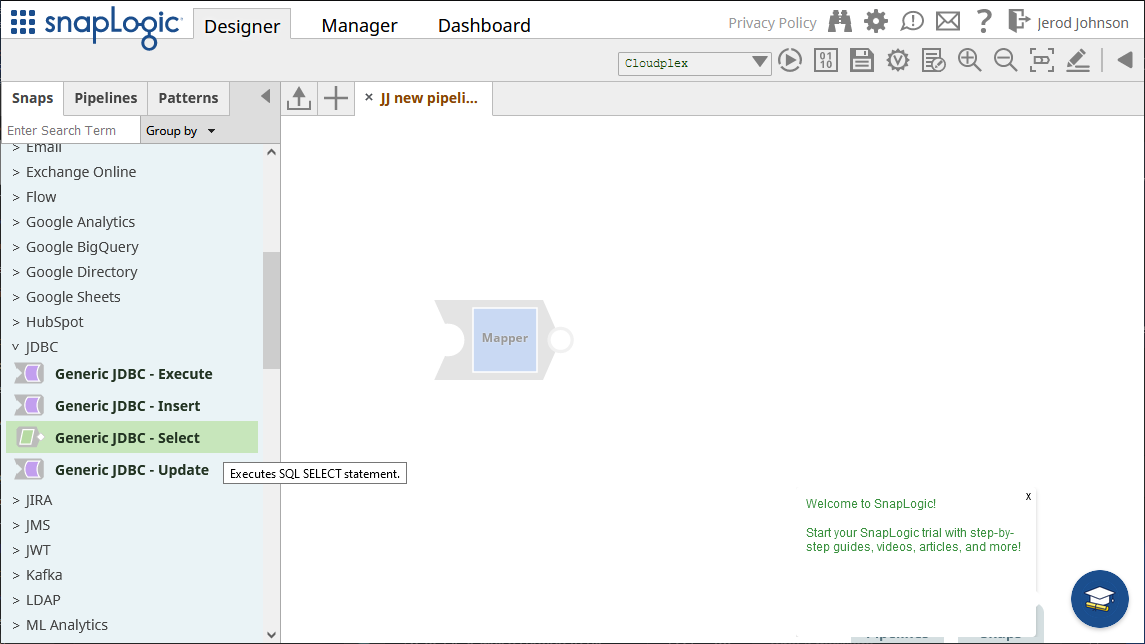
- Click Add Account (or select an existing one) and click "Continue"
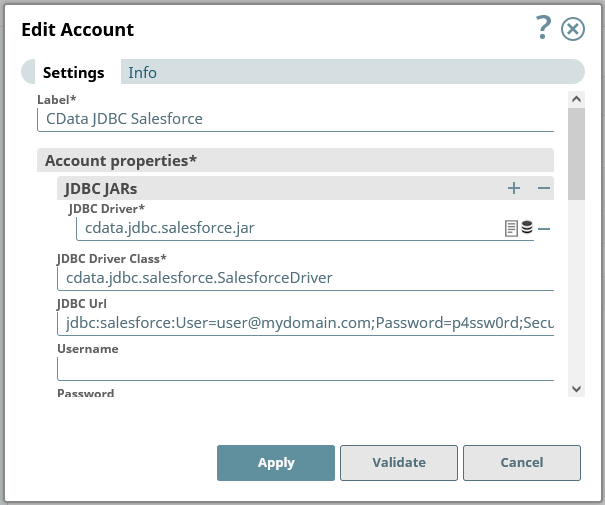
- In the next form, configure the JDBC connection properties:
- Under JDBC JARs, add the JAR file we previously uploaded
- Set JDBC Driver Class to cdata.jdbc.api.APIDriver
Set JDBC URL to a JDBC connection string for the Alchemy JDBC Driver, for example:
jdbc:api:Profile=C:\profiles\Alchemy.apip;AuthScheme=APIKey;Network=eth-mainnet;ProfileSettings='APIKey=your_api_key';RTK=XXXXXX;
NOTE: RTK is a trial or full key. Contact our Support team for more information.
Built-In Connection String Designer
For assistance in constructing the JDBC URL, use the connection string designer built into the Alchemy JDBC Driver. Either double-click the JAR file or execute the jar file from the command-line.
java -jar cdata.jdbc.api.jar
Fill in the connection properties and copy the connection string to the clipboard.
Start by setting the Profile connection property to the location of the Alchemy Profile on disk (e.g. C:\profiles\Alchemy.apip). Next, set the ProfileSettings connection property to the connection string for Alchemy (see below).
Alchemy API Profile Settings
Alchemy uses API key authentication. The API key is supplied in the request URL path. To obtain an API key:
- Sign in to your Alchemy account at https://dashboard.alchemy.com.
- Open an existing app or create a new one.
- Copy the app's API key from the API Key dialog.
After obtaining your API key, set the following connection properties:
- AuthScheme: Set this to APIKey.
- Network: Optional. The blockchain network slug for NFT API requests (for example, eth-mainnet, base-mainnet, polygon-mainnet). Defaults to eth-mainnet.
Set the following in the ProfileSettings connection property:
- APIKey: Set this to your Alchemy app API key.

- After entering the connection properties, click "Validate" and "Apply"
Read Alchemy Data
In the form that opens after validating and applying the connection, configure your query.
- Set Schema name to "API"
- Set Table name to a table for Alchemy using the schema name, for example: "API"."ContractsForOwner" (use the drop-down to see the full list of available tables)
- Add Output fields for each item you wish to work with from the table
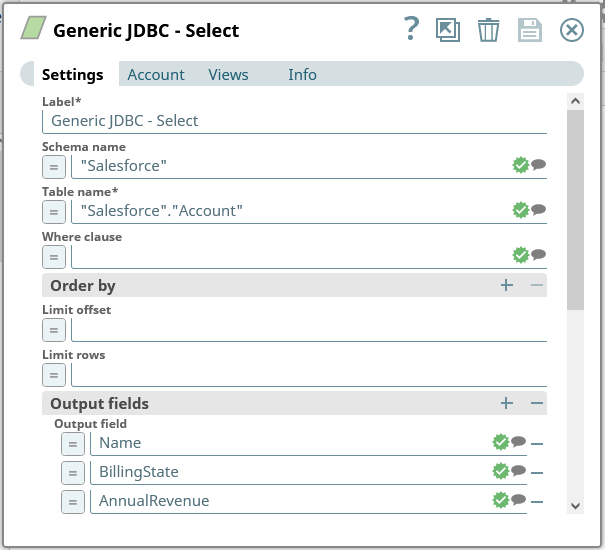
Save the Generic JDBC - Select snap.
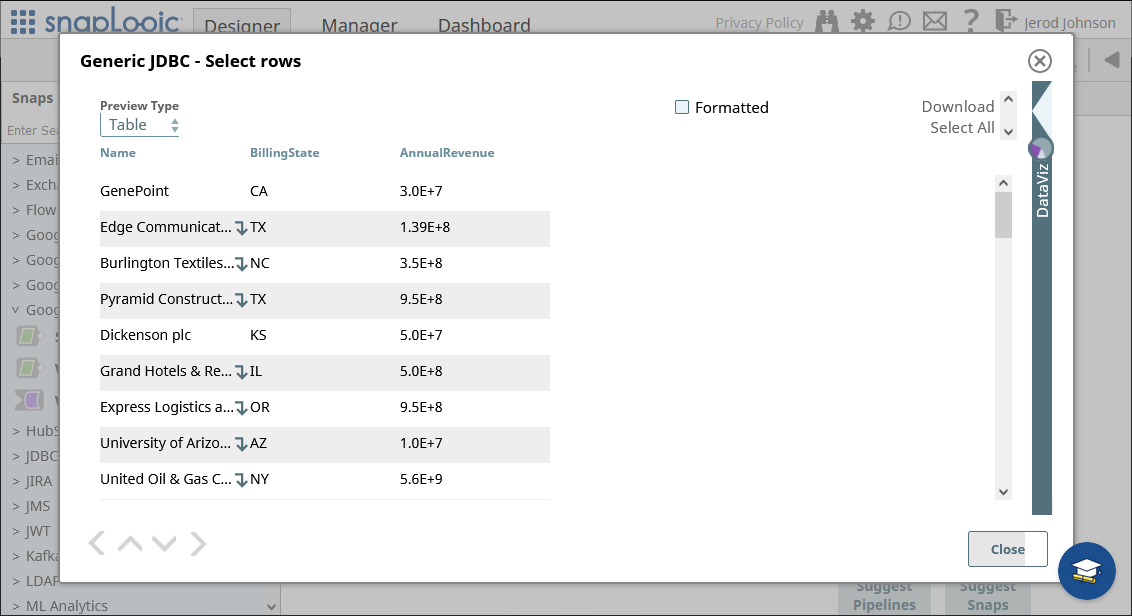
With connection and query configured, click the end of the snap to preview the data (highlighted below).
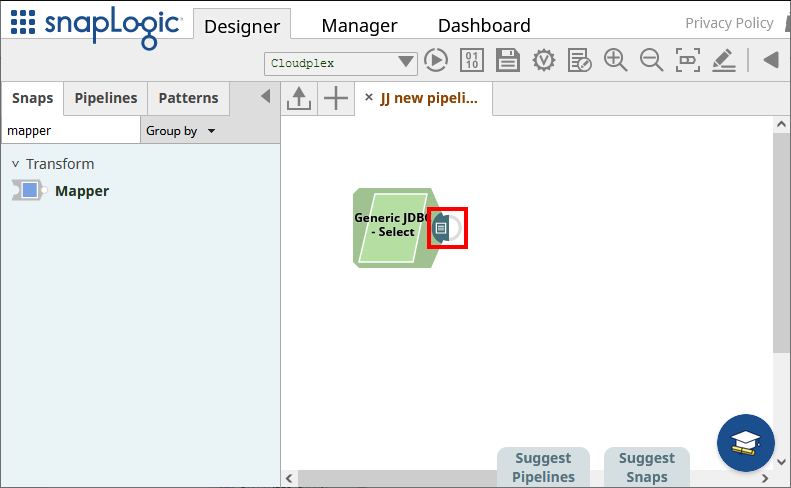
Once you confirm the results are what you expect, you can add additional snaps to funnel your Alchemy data to another endpoint.
Piping Alchemy Data to External Services
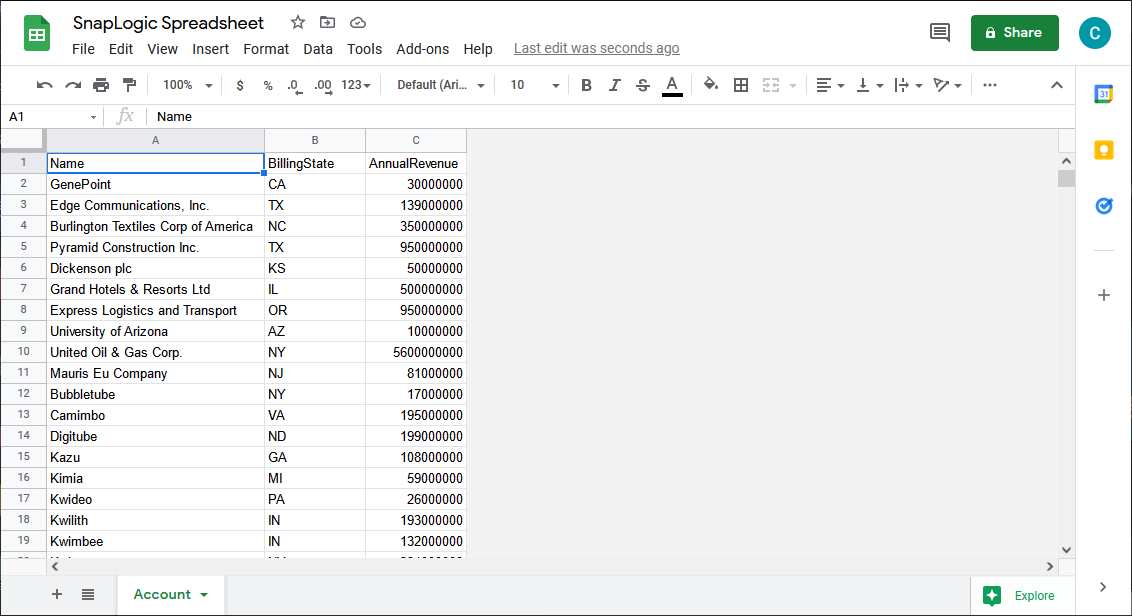
For this article, we will load data in a Google Spreadsheet. You can use any of the supported snaps, or even use a Generic JDBC snap with another CData JDBC Driver, to move data into an external service.
- Start by dropping a "Worksheet Writer" snap onto the end of the "Generic JDBC - Select" snap.
- Add an account to connect to Google Sheets
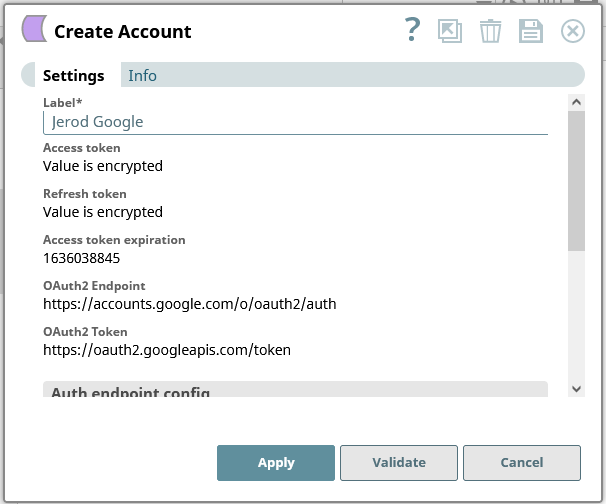
- Configure the Worksheet Writer snap to write your Alchemy data to a Google Spreadsheet
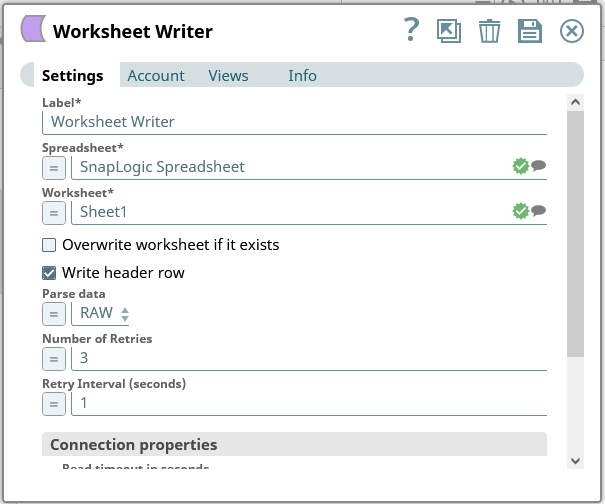
You can now execute the fully configured pipeline to extract data from Alchemy and push it into a Google Spreadsheet.
More Information & Free Trial
Using the CData API Driver for JDBC you can create a pipeline in SnapLogic for integrating Alchemy data with external services. For more information about connecting to Alchemy, check at our CData API Driver for JDBC page. Download a free, 30 day trial of the CData API Driver for JDBC and get started today.