




Visualize Alchemy Data from Tableau

With CData Drivers for Alchemy, you can use data access standards to unlock connectivity to business intelligence tools like Tableau. The CData API Driver for JDBC allows you to connect from Tableau on Windows and macOS. This article covers how to discover schemas and query Alchemy data data in real-time.
Connect to Alchemy in Tableau
Before starting Tableau, make sure you've placed the .jar file in the correct folder:
- Windows: C:\Program Files\Tableau\Drivers
- MacOS: ~/Library/Tableau/Drivers
Once your .jar file is in place, establishing a connection is straightforward.
- Start Tableau.
- Under To a Server, select More.
- Select Other Databases (JDBC)
- Enter the JDBC connection string in the URL field.
- Sign in to your Alchemy account at https://dashboard.alchemy.com.
- Open an existing app or create a new one.
- Copy the app's API key from the API Key dialog.
- AuthScheme: Set this to APIKey.
- Network: Optional. The blockchain network slug for NFT API requests (for example, eth-mainnet, base-mainnet, polygon-mainnet). Defaults to eth-mainnet.
- APIKey: Set this to your Alchemy app API key.
- Select Sign in.
Start by setting the Profile connection property to the location of the Alchemy Profile on disk (e.g. C:\profiles\Alchemy.apip). Next, set the ProfileSettings connection property to the connection string for Alchemy (see below).
Alchemy API Profile Settings
Alchemy uses API key authentication. The API key is supplied in the request URL path. To obtain an API key:
After obtaining your API key, set the following connection properties:
Set the following in the ProfileSettings connection property:
Built-in Connection String Designer
For assistance in constructing the JDBC URL, use the connection string designer built into the Alchemy JDBC Driver. Either double-click the .jar file or execute the .jar file from the command-line.
From Windows:
java -jar 'C:\Program Files\CData\CData API Driver for JDBC\lib\cdata.jdbc.api.jar'
From MacOS:
java -jar cdata.jdbc.api.jar
Fill in the connection properties and copy the connection string to the clipboard.

When you configure the JDBC URL, you may also want to set the Max Rows connection property. This will limit the number of rows returned, which is especially helpful for improving performance when designing reports and visualizations.
The following is a sample URL created in the designer:
jdbc:api:Profile=C:\profiles\Alchemy.apip;AuthScheme=APIKey;Network=eth-mainnet;ProfileSettings='APIKey=your_api_key';
Discover Schemas and Query Data
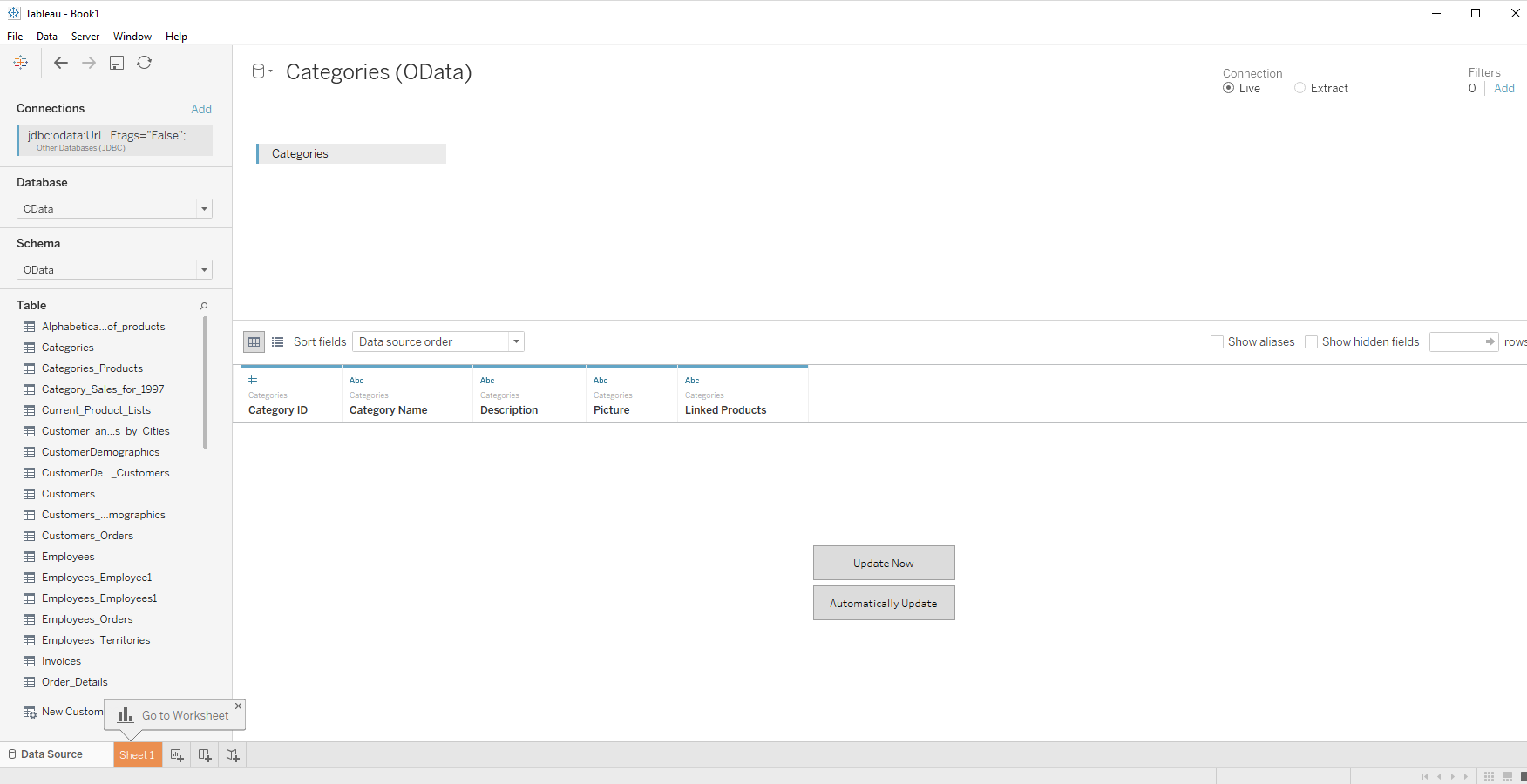
- Select CData from the Database pull-down menu.
- Select CData from the Schema pull-down menu.
- Drag the table onto the join area. You can include multiple tables.
- Select Update Now or Automatically Update. Update Now lets you preview the first 10,000 rows of the data source (or enter the number of rows you want to see in the Rows text box). Automatically Update automatically reflects the changes in the preview area.
- In the Connection menu, select the Live option, so that you skip loading a copy of the data into Tableau and instead work on real-time data.
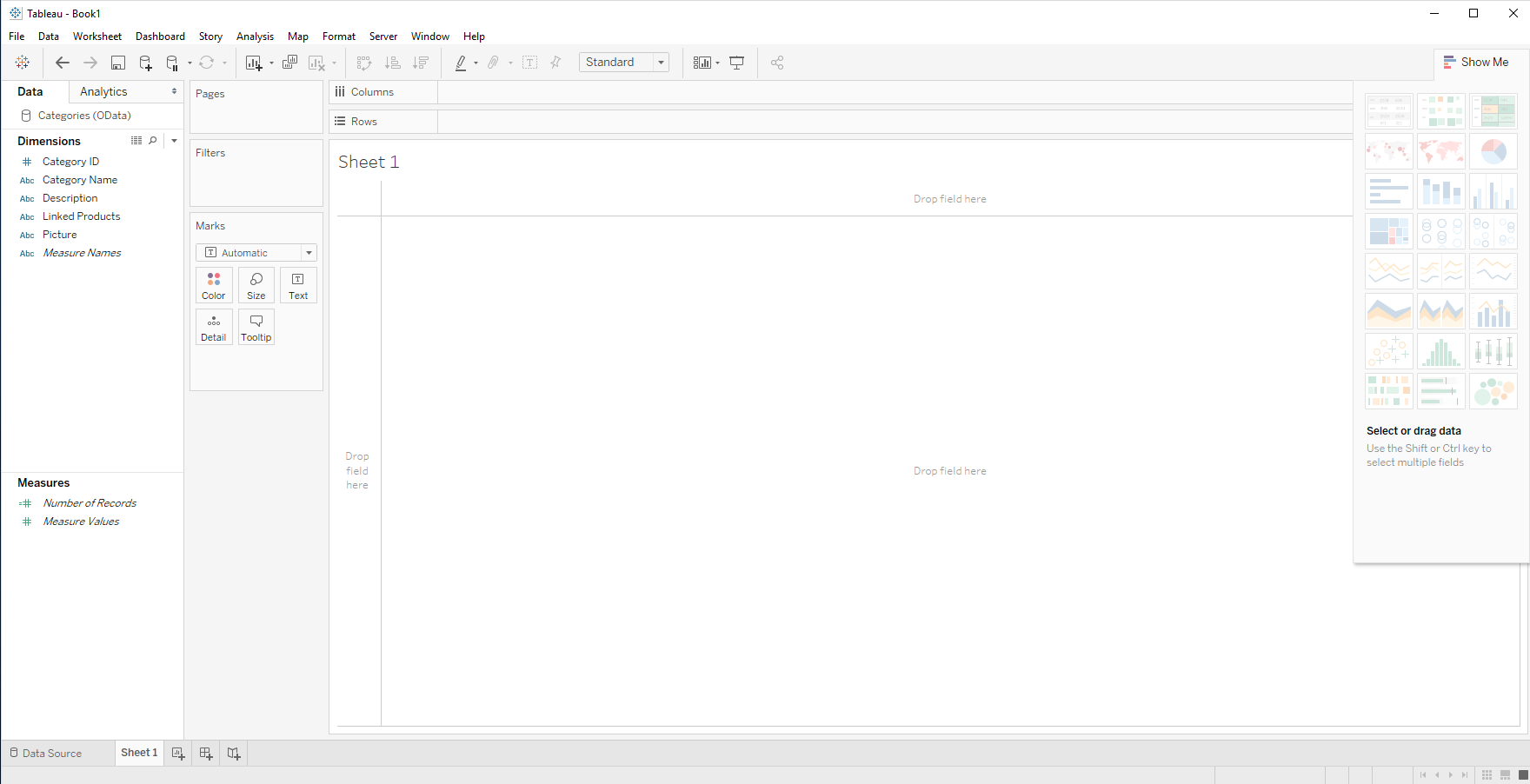
- Click the tab for your worksheet. Columns are listed as Dimensions and Measures, depending on the data type. The CData Driver discovers data types automatically, allowing you to leverage the powerful data processing and visualization features of Tableau.
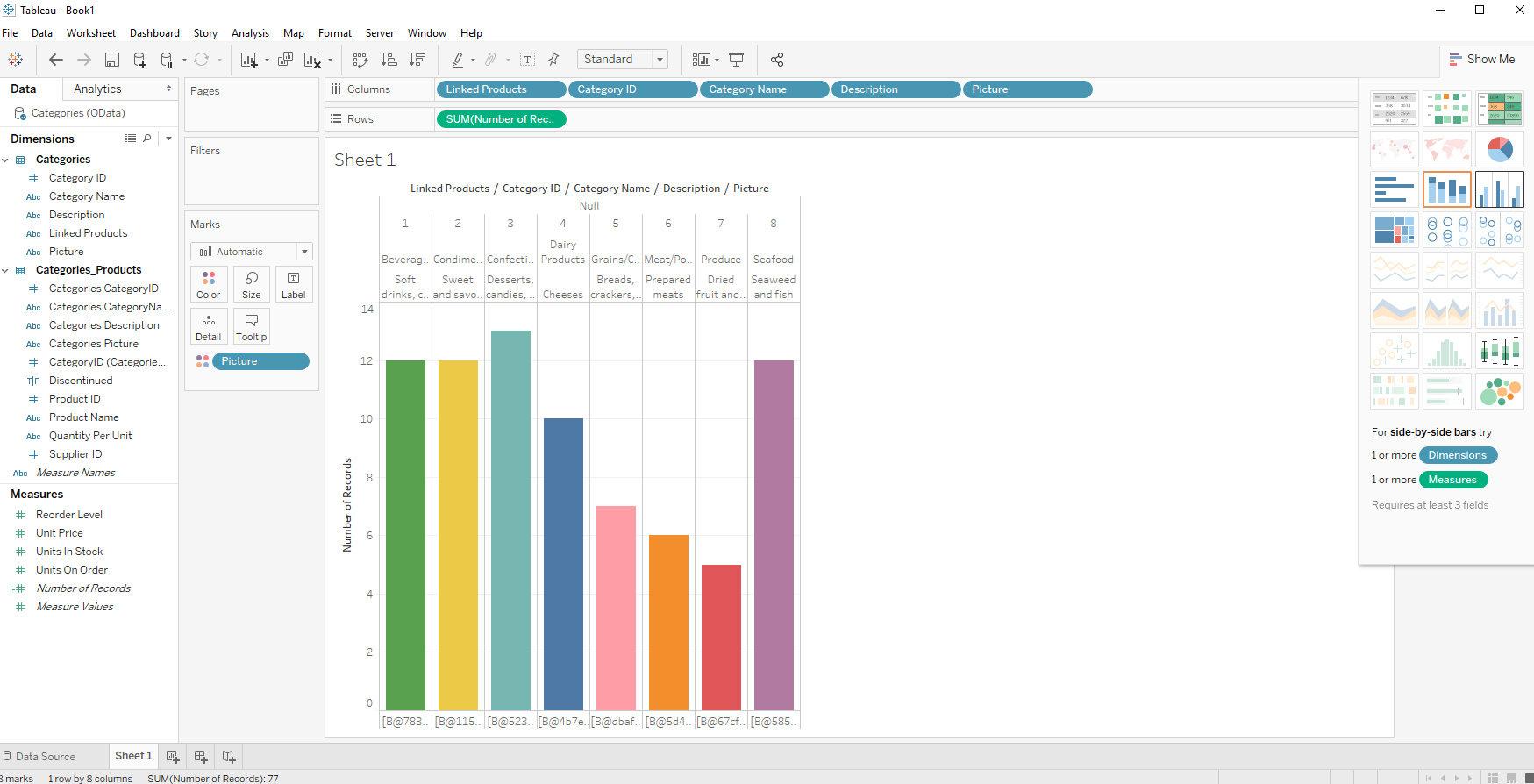
- Click and drag a field from the Dimensions or Measures area to Rows or Columns. Tableau creates column or row headers.
- Select one of the chart types from the Show Me tab. Tableau displays the chart type that you selected.
Using the CData API Driver for JDBC with Tableau, you can easily create robust visualizations and reports on Alchemy data. Download a free, 30-day trial and get started today.