




Build a Simple VCL Application for Alchemy Data

Embarcadero RAD Studio provides a development environment for Delphi and C++Builder applications. With the CData ODBC Driver for Alchemy, you gain access to live Alchemy data within RAD Studio, abstracting the data into tables, views, and stored procedures that can be used to retrieve Alchemy data. This article will walk through connecting to Alchemy and creating a simple VCL application with the Form Designer.
Create a Connection to Alchemy Data
If you have not already, first specify connection properties in an ODBC DSN (data source name). This is the last step of the driver installation. You can use the Microsoft ODBC Data Source Administrator to create and configure ODBC DSNs.
Start by setting the Profile connection property to the location of the Alchemy Profile on disk (e.g. C:\profiles\Alchemy.apip). Next, set the ProfileSettings connection property to the connection string for Alchemy (see below).
Alchemy API Profile Settings
Alchemy uses API key authentication. The API key is supplied in the request URL path. To obtain an API key:
- Sign in to your Alchemy account at https://dashboard.alchemy.com.
- Open an existing app or create a new one.
- Copy the app's API key from the API Key dialog.
After obtaining your API key, set the following connection properties:
- AuthScheme: Set this to APIKey.
- Network: Optional. The blockchain network slug for NFT API requests (for example, eth-mainnet, base-mainnet, polygon-mainnet). Defaults to eth-mainnet.
Set the following in the ProfileSettings connection property:
- APIKey: Set this to your Alchemy app API key.
You can then follow the steps below to use the Data Explorer to create a FireDAC connection to Alchemy data.
- In a new VCL Forms application, expand the FireDAC node in the Data Explorer.
- Right-click the ODBC Data Source node in the Data Explorer.
- Click Add New Connection.
- Enter a name for the connection.
- In the FireDAC Connection Editor that appears, set the DataSource property to the name of the ODBC DSN for Alchemy.
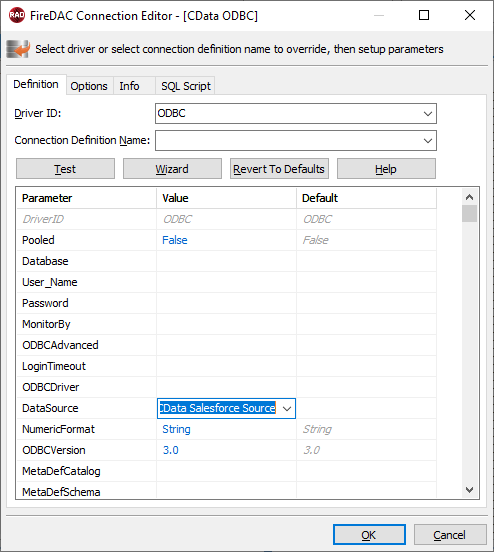
Create VCL Applications with Connectivity to Alchemy Data
Follow the procedure below to start executing queries to Alchemy data from a simple VCL application that displays the results of a query in a grid.
-
Drop a TFDConnection component onto the form and set the following properties:
- ConnectionDefName: Select the FireDAC connection to Alchemy data.
- Connected: Select True from the menu and, in the dialog that appears, enter your credentials.
-
Drop a TFDQuery component onto the form and set the properties below:
- Connection: Set this property to the TFDConnection component, if this component is not already specified.
SQL: Click the button in the SQL property and enter a query. For example:
SELECT Address, Name FROM ContractsForOwner WHERE Owner = '0xd8dA6BF26964aF9D7eEd9e03E53415D37aA96045'- Active: Set this property to true.
Drop a TDataSource component onto the form and set the following property:
- DataSet: In the menu for this property, select the name of the TFDQuery component.
-
Drop a TDBGrid control onto the form and set the following property:
- DataSource: Select the name of the TDataSource.
- Drop a TFDGUIxWaitCursor onto the form — this is required to avoid a run-time error.
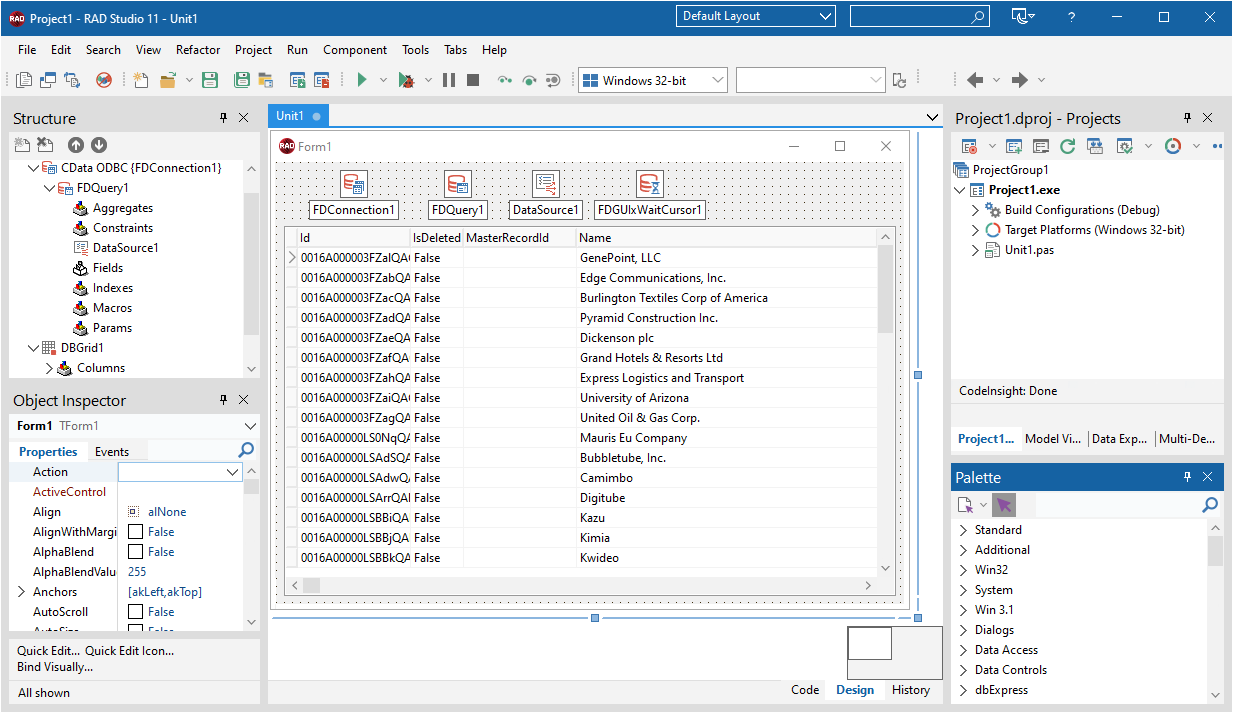
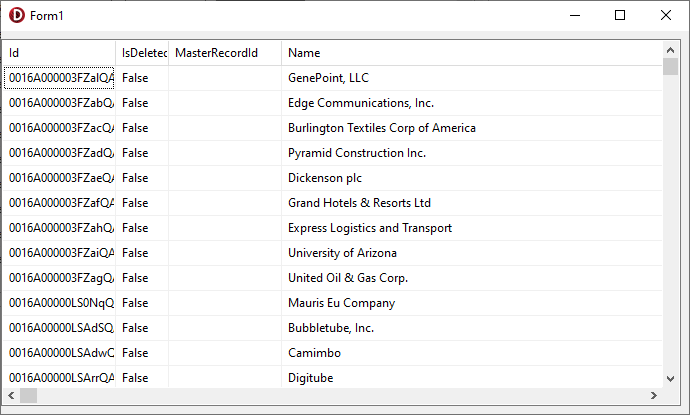
You now have an executable application that displays the results of the SQL Query set in the TFDQuery object.
Related Articles
Below you can find other articles for using the CData ODBC Driver with RAD Studio, Delphi, and C++ Builder.