






Create Dynamic Anaplan Grids Using the Infragistics XamDataGrid

Using Infragistics WPF UI controls, you can build contemporary applications reminiscent of Microsoft Office for both desktop and touch-based devices. When coupled with the CData ADO.NET Provider for Anaplan, you gain the capability to construct interactive grids, charts, and various other visual elements while directly accessing real-time data from Anaplan data. This article will guide you through the process of creating a dynamic grid within Visual Studio using the Infragistics XamDataGrid control.
You will need to install the Infragistics WPF UI components to continue. Download a free trial here: https://www.infragistics.com/products/wpf.
Create a WPF Project
Open VisualStudio and create a new WPF project.
Add a TextBox for passing a SQL query to the CData ADO.NET Provider and a Button for executing the query.
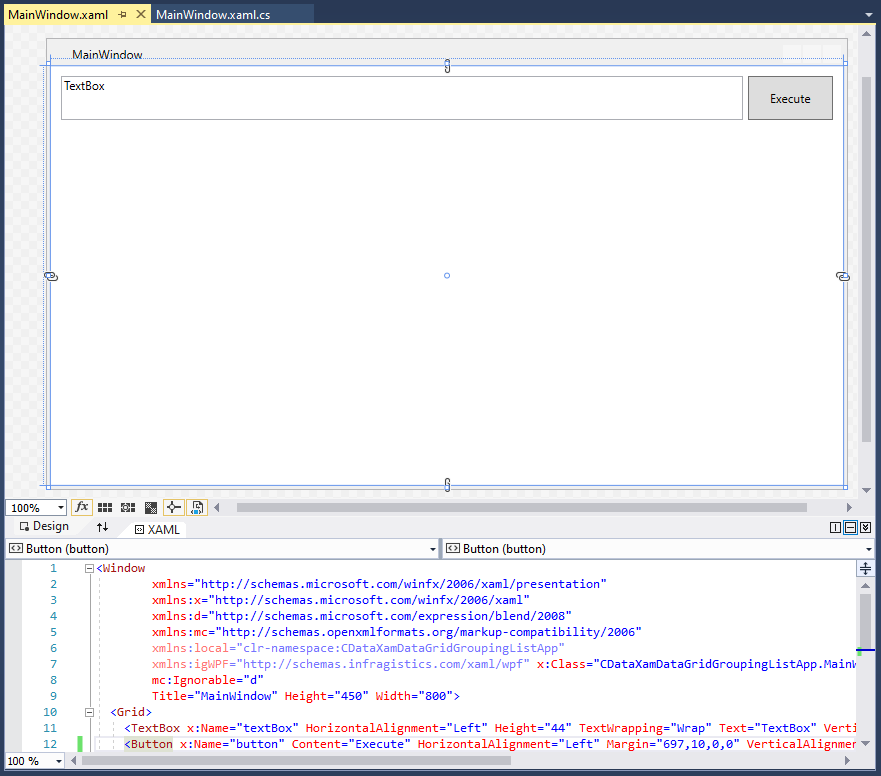
The XAML at this stage is as follows:
< Window
        xmlns="http://schemas.microsoft.com/winfx/2006/xaml/presentation"
        xmlns:x="http://schemas.microsoft.com/winfx/2006/xaml"
        xmlns:d="http://schemas.microsoft.com/expression/blend/2008"
        xmlns:mc="http://schemas.openxmlformats.org/markup-compatibility/2006"
        xmlns:local="clr-namespace:CDataXamDataGridGroupingListApp"
        xmlns:igWPF="http://schemas.infragistics.com/xaml/wpf" x:Class="CDataXamDataGridGroupingListApp.MainWindow"
        mc:Ignorable="d"
        Title="MainWindow" Height="450" Width="800">
  < Grid>
    < TextBox x:Name="textBox" HorizontalAlignment="Left" Height="44" TextWrapping="Wrap" Text="TextBox" VerticalAlignment="Top" Width="682" Margin="10,10,0,0"/>
    < Button x:Name="button" Content="Execute" HorizontalAlignment="Left" Margin="697,10,0,0" VerticalAlignment="Top" Width="85" Height="44"/>
  < /Grid>
< /Window>
Add and Configure a XamDataGrid
After adding the initial controls, add a XamDataGrid to the App. The component will appear in the Visual Studio toolbox.
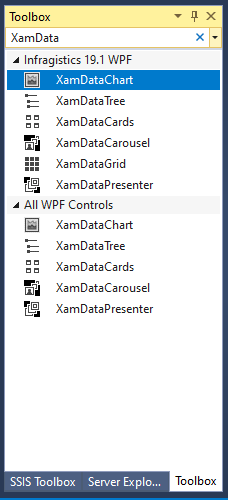
Arrange the component on the designer so that it is below the TextBox & Button and linked to the boundaries of the app.
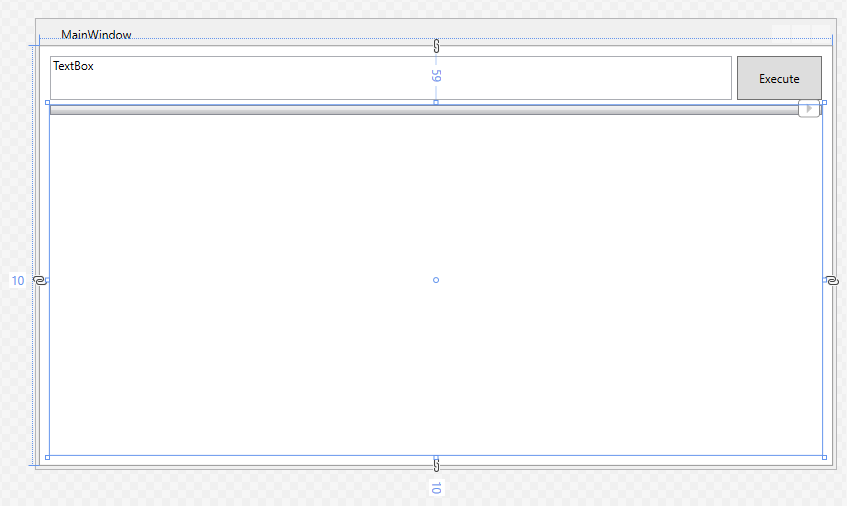
Once the XamDataGrid is placed, edit the XAML to set the XamDataGrid DataSource attribute to "{Binding}" and set the FieldSettings AllowRecordFiltering and AllowSummaries attributes to "true." Next, add an empty method as the Click event handler for the Button component. The XAML at this stage is as follows:
< Window
        xmlns="http://schemas.microsoft.com/winfx/2006/xaml/presentation"
        xmlns:x="http://schemas.microsoft.com/winfx/2006/xaml"
        xmlns:d="http://schemas.microsoft.com/expression/blend/2008"
        xmlns:mc="http://schemas.openxmlformats.org/markup-compatibility/2006"
        xmlns:local="clr-namespace:CDataXamDataGridGroupingListApp"
        xmlns:igWPF="http://schemas.infragistics.com/xaml/wpf" x:Class="CDataXamDataGridGroupingListApp.MainWindow"
        mc:Ignorable="d"
        Title="MainWindow" Height="450" Width="800">
  < Grid>
    < TextBox x:Name="textBox" HorizontalAlignment="Left" Height="44" TextWrapping="Wrap" Text="TextBox" VerticalAlignment="Top" Width="682" Margin="10,10,0,0"/>
    < Button x:Name="button" Content="Execute" HorizontalAlignment="Left" Margin="697,10,0,0" VerticalAlignment="Top" Width="85" Click="Button_Click" Height="44"/>

    < igWPF:XamDataGrid Margin="10,59,10,10" DataSource="{Binding}">
      < igWPF:XamDataGrid.FieldSettings>
        < igWPF:FieldSettings AllowSummaries="True" AllowRecordFiltering="True"/>
      < /igWPF:XamDataGrid.FieldSettings>
    < /igWPF:XamDataGrid>

  < /Grid>
< /Window>
Connect to and Query Anaplan
The last step in building our WPG App with a dynamic DataGrid is connecting to and querying live Anaplan data. First add a reference to the CData ADO.NET Provider to the project (typically found in C:\Program Files\CData[product_name]\lib).
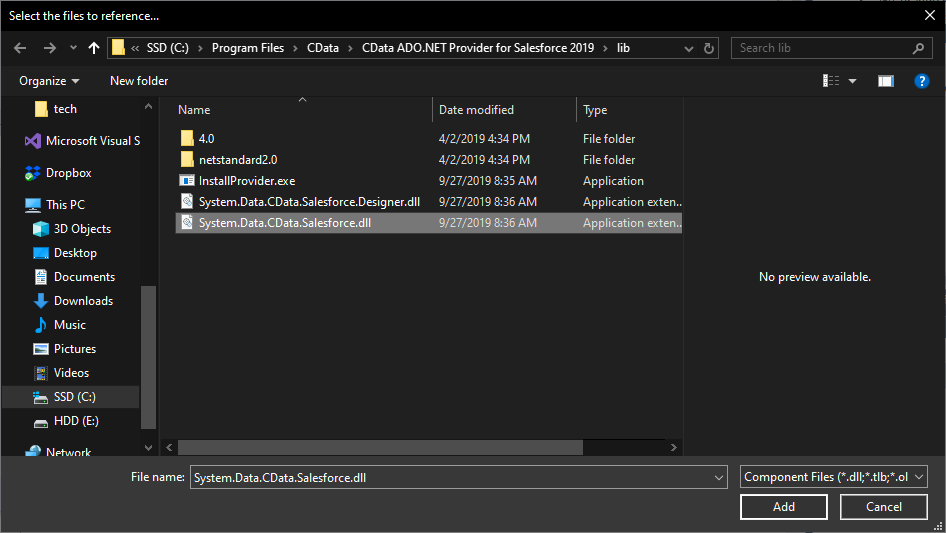
Next, add the Provider to the namespace, along with the standard Data library:
using System.Data.CData.Anaplan;
using System.Data;
Finally, add the code to connect to Anaplan and query using the text from the TextBox to the Click event handler.
Authenticating to Anaplan
The driver supports authenticating with Basic, Certificate, or OAuth. In every case, set Region to the region where your Anaplan account data is hosted (e.g., US1, which is the default).
Using Basic Authentication
Set AuthScheme to Basic, then supply your Anaplan User and Password. If your workspace uses single sign-on (SSO), you must be assigned as an Exception User to use Basic authentication.
Using Certificate Authentication
Set AuthScheme to Certificate, then supply the Certificate, CertificateType, and PrivateKey properties (and the matching CertificatePassword / PrivateKeyPassword if either is encrypted). The certificate must be a CA-issued X.509 certificate registered with your Anaplan tenant administrator.
Using OAuth Authentication
Register a custom OAuth application in Anaplan, then set the following properties:
- OAuthClientId: The client Id assigned when you registered your custom OAuth application.
- OAuthClientSecret: The client secret assigned when you registered your custom OAuth application.
- CallbackURL: The redirect URI defined when you registered your application.
- InitiateOAuth: Set to GETANDREFRESH to have the driver manage the OAuth token exchange and refresh automatically.
See the Getting Started chapter of the help documentation for a guide to creating a custom OAuth app and using OAuth.
private void Button_Click(object sender, RoutedEventArgs e)
{
  //connecting to Anaplan
  string connString = "OAuthClientId=your_client_id;OAuthClientSecret=your_client_secret;CallbackURL=your_callback_url;Region=US1;InitiateOAuth=GETANDREFRESH;";
  using (var conn = new AnaplanConnection(connString))
  {
    //using the query from the TextBox
    var dataAdapter = new AnaplanDataAdapter(textBox.Text, conn);
    var table = new DataTable();
    dataAdapter.Fill(table);

    //passing the DataRowCollection to the DataContext
    //  for use in the XamDataGrid
    this.DataContext = table.Rows;
  }
}
Run the Application
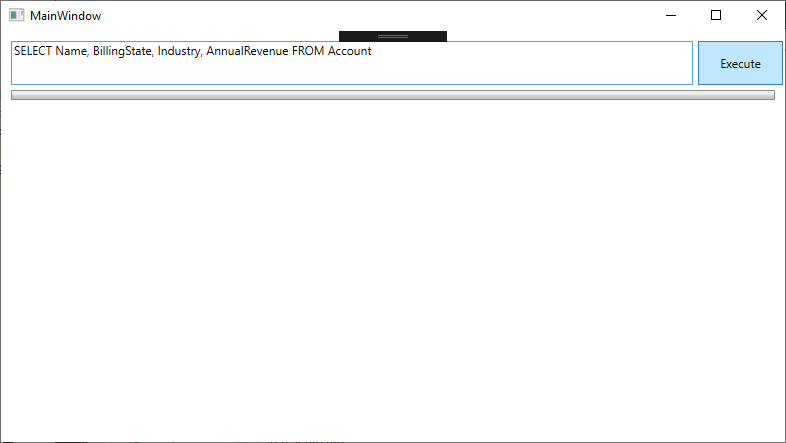
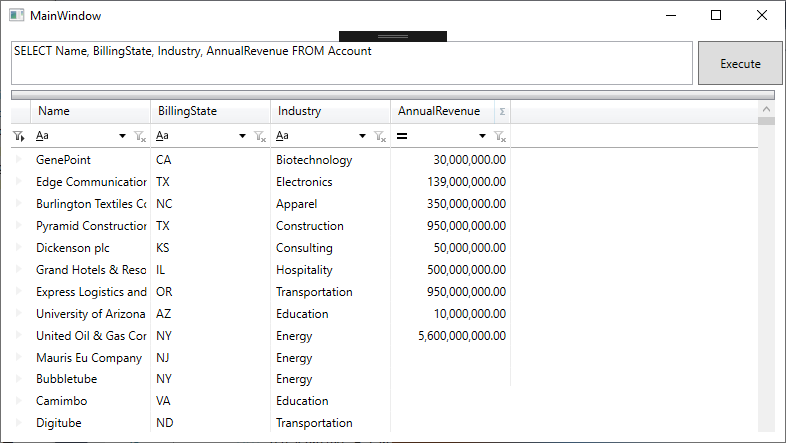
With the app fully configured, we are ready to display Anaplan data in our XamDataGrid. When you click "Execute," the app connects to Anaplan and submits the SQL query through the CData ADO.NET Provider.
Live Anaplan data is displayed in the grid.
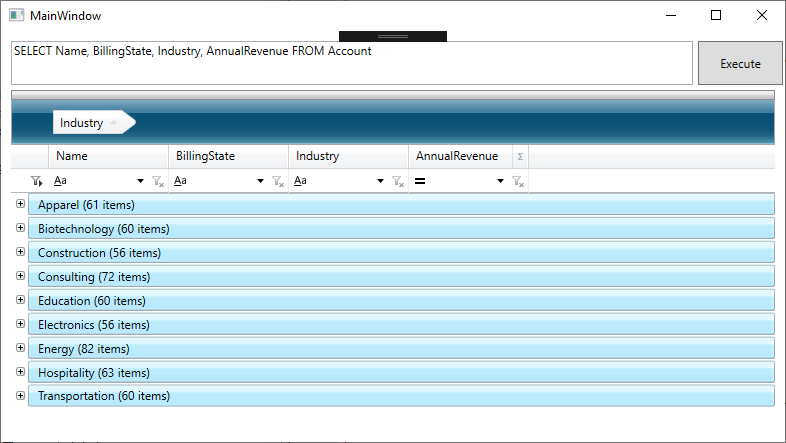
Group the data by dragging and dropping a column name into the header.
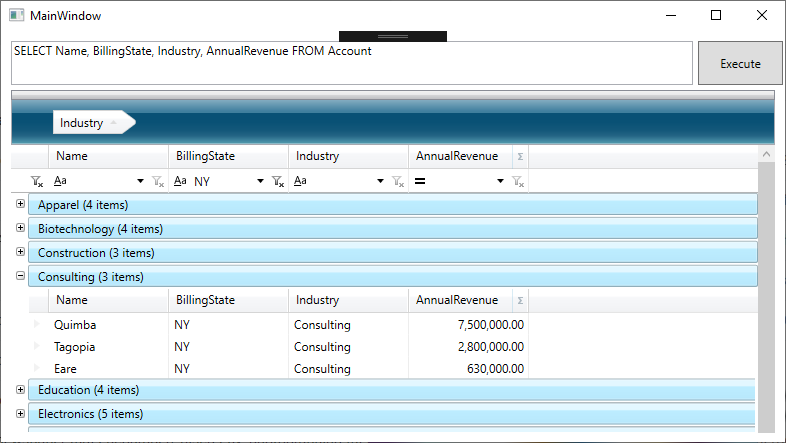
As you add groupings and filters, the underlying SQL query is submitted directly to Anaplan, making it possible to drill down into live Anaplan data to find only the specific information you need.
Free Trial & More Information
At this point, you have created a dynamic WPF App with access to live Anaplan data. For more information, visit the CData ADO.NET Provider page. Download a free, 30-day trial and start working live Anaplan data in apps built using the Infragistics UI controls today.
Ready to get started?
Download a free trial of the Anaplan Data Provider to get started:
Download NowLearn more:
 Anaplan ADO.NET Provider
Rapidly create and deploy powerful .NET applications that integrate with Anaplan.