






Create Anaplan Dataflows on PowerBI.com

The CData Power BI Connector for Anaplan seamlessly integrates with the tools and wizards in Power BI, including the real-time data workflows on PowerBI.com. Follow the steps below to pull data directly into DataFlows on PowerBI.com and use the Power BI Gateway to configure automatic refresh.
Create a DSN
Installing the Power BI Connector creates a DSN (data source name) called CData Power BI Anaplan. This the name of the DSN that Power BI uses to request a connection to the data source. Configure the DSN by filling in the required connection properties.
You can use the Microsoft ODBC Data Source Administrator to create a new DSN or configure (and rename) an existing DSN: From the Start menu, enter "ODBC Data Sources." Ensure that you run the version of the ODBC Administrator that corresponds to the bitness of your Power BI Desktop installation (32-bit or 64-bit).
Authenticating to Anaplan
The driver supports authenticating with Basic, Certificate, or OAuth. In every case, set Region to the region where your Anaplan account data is hosted (e.g., US1, which is the default).
Using Basic Authentication
Set AuthScheme to Basic, then supply your Anaplan User and Password. If your workspace uses single sign-on (SSO), you must be assigned as an Exception User to use Basic authentication.
Using Certificate Authentication
Set AuthScheme to Certificate, then supply the Certificate, CertificateType, and PrivateKey properties (and the matching CertificatePassword / PrivateKeyPassword if either is encrypted). The certificate must be a CA-issued X.509 certificate registered with your Anaplan tenant administrator.
Using OAuth Authentication
Register a custom OAuth application in Anaplan, then set the following properties:
- OAuthClientId: The client Id assigned when you registered your custom OAuth application.
- OAuthClientSecret: The client secret assigned when you registered your custom OAuth application.
- CallbackURL: The redirect URI defined when you registered your application.
- InitiateOAuth: Set to GETANDREFRESH to have the driver manage the OAuth token exchange and refresh automatically.
See the Getting Started chapter of the help documentation for a guide to creating a custom OAuth app and using OAuth.
Pulling Anaplan Data Directly Into Your Dataflow
With the data source configured, follow the steps below to load data from Anaplan tables into your DataFlow.
Set Up the Power BI Gateway
Follow the steps below to configure the gateway on your machine:
- Run the CData Power BI Connector installer. If you have not already done so, download the Power BI Gateway.
- Select the on-premises data gateway (recommended) option.
- Sign into the gateway.
- Name the gateway and specify a recovery key.
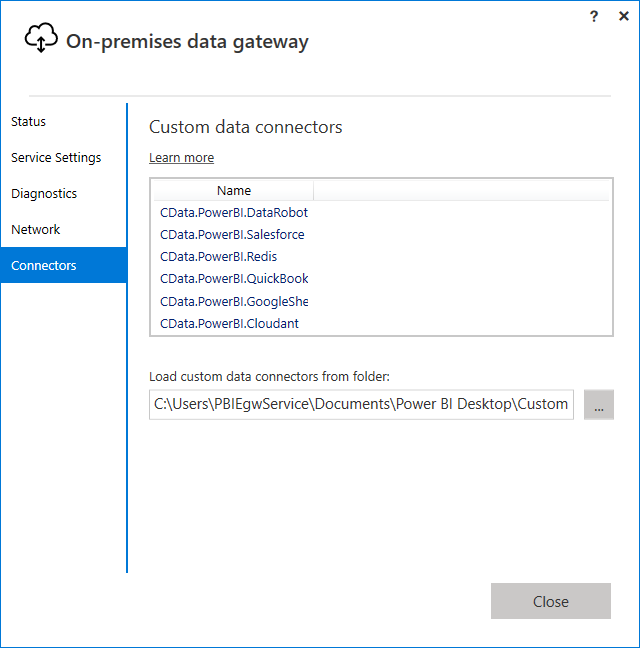
In the Connectors step, choose a folder where the gateway will look for the CData Power BI Connector. This article uses C:\Users\PBIEgwService\Documents\Power BI Desktop\Custom Connectors\. Copy the .pqx files for the CData Connector (found in C:\Users\USERNAME\Documents\Power BI Desktop\Custom Connectors\) to the folder you configured.
NOTE: The account configured for the service (NT SERVICE\PBIEgwService) needs to be able to access the folder chosen for the gateway. If needed, you can change the service account in the Service Settings section of the gateway installer.
- Confirm that the entry CData.PowerBI.Anaplan is displayed in the list in the Connectors section.
Set up Power BI Online for a Dataflow
- In Power BI Online, create a new workspace, which is also known as an app, if you do not already have one. Note that this is only available with Power BI Pro or higher.
- Set up your On-Premises Gateway. The steps for this are in the Configuring the Gateway section of this article.
-
Go back to Power BI Online. In settings, go to 'Manage Gateways', and add a new data source to your Gateway
- Enter the Data Source Name, the name that the data source will be referred to within Power BI Online
- Select the Data Source Type, (e.g. CData Power BI Connector for Anaplan) and set the Data Source Name (e.g. CData Power BI Anaplan)
- Set Authentication Method to "Anonymous"
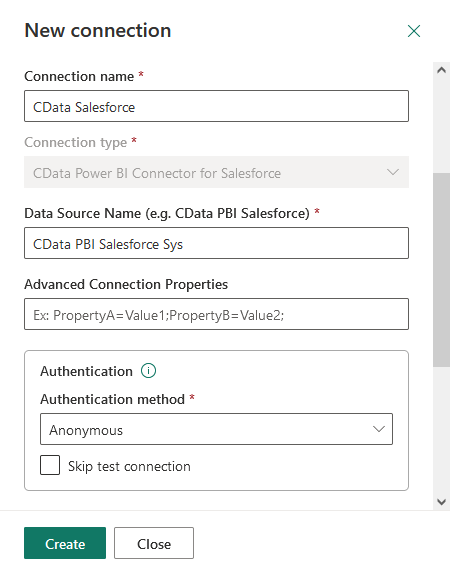
- Set Privacy Level as needed
-
Click Add to finish the configuration (do not skip the test connection as it is important to know if a successful connection was made).
If you would like to manage the users that have access to this data source, you can go to the Users tab.
Set up your Dataflow and pull the Anaplan data
- In the new workspace, go to Create > Dataflow > Add New Entities.
-
Choose the ODBC data source and enter the correct connection properties.
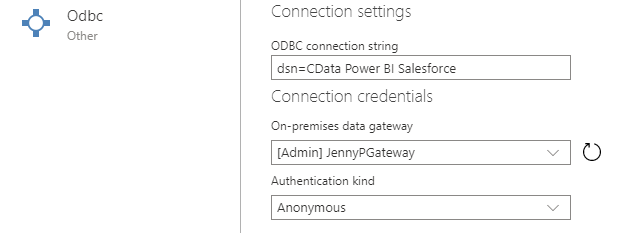 Enter your DSN name in the ODBC connection string section, dsn=CData Power BI Anaplan. Choose your gateway and set the authentication type to Anonymous.
-
Choose the table(s) you want to work with and click Transform data.
If you want to make any changes to the query, you can right click on the query and click on Advanced Editor.
Configure Data Refresh on PowerBI.com
Refresh your dataflow to have the most up to date data.
- To refresh manually, open the dataflow options menu from your workspace -> Dataflows and click Refresh Now.
- To schedule refreshes, open the dataflow options menu from your workspace -> Dataflows and click Schedule Refresh. Enable the option to keep your data up to date. Specify the refresh frequency in the menus.

At this point, you will have a Dataflow built on top of live Anaplan data. Learn more about the CData Power BI Connectors for Anaplan and download a free trial from the CData Power BI Connector for Anaplan page. Let our Support Team know if you have any questions.
Ready to get started?
Download a free trial of the Anaplan Power BI Connector to get started:
Download NowLearn more:
 Anaplan Power BI Connector
The fastest and easiest way to connect Power BI to Anaplan data. Includes comprehensive high-performance data access, real-time integration, extensive metadata discovery, and robust SQL-92 support.