




Build Apache Airflow-Connected ETL Processes in Google Data Fusion

Google Data Fusion allows users to perform self-service data integration to consolidate disparate data. Uploading the CData API Driver for JDBC enables users to access live Apache Airflow data from within their Google Data Fusion pipelines. While the CData JDBC Driver enables piping Apache Airflow data to any data source natively supported in Google Data Fusion, this article explains how to pipe data from Apache Airflow to Google BigQuery,
Upload the CData API Driver for JDBC to Google Data Fusion
Upload the CData API Driver for JDBC to your Google Data Fusion instance to work with live Apache Airflow data. Due to the naming restrictions for JDBC drivers in Google Data Fusion, create a copy or rename the JAR file to match the following format driver-version.jar. For example: cdataapi-2020.jar
- Open your Google Data Fusion instance
- Click the to add an entity and upload a driver
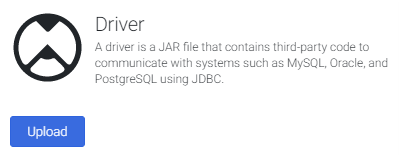
- On the "Upload driver" tab, drag or browse to the renamed JAR file.
- On the "Driver configuration" tab:
- Name: Create a name for the driver (cdata.jdbc.api) and make note of the name
- Class name: Set the JDBC class name: (cdata.jdbc.api.APIDriver)
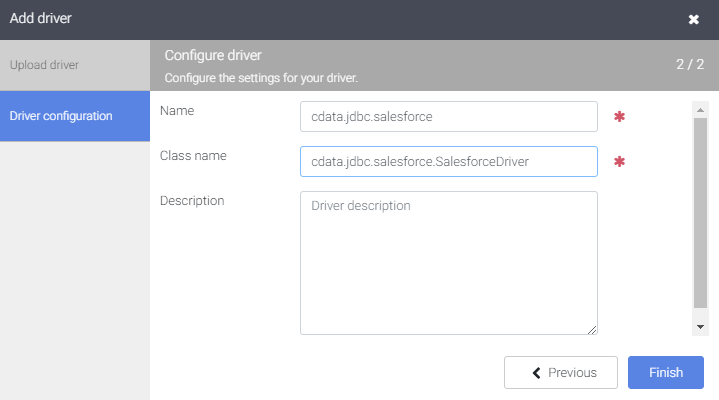
- Click "Finish"
Connect to Apache Airflow Data in Google Data Fusion
With the JDBC Driver uploaded, you are ready to work with live Apache Airflow data in Google Data Fusion Pipelines.
- Navigate to the Pipeline Studio to create a new Pipeline
- From the "Source" options, click "Database" to add a source for the JDBC Driver
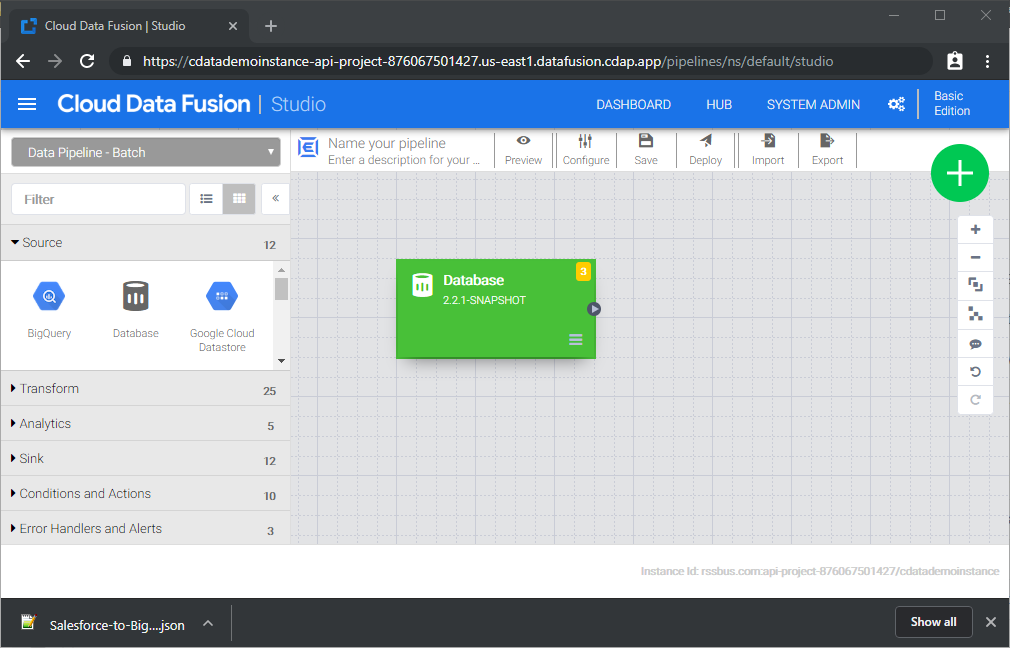
- Click "Properties" on the Database source to edit the properties
NOTE: To use the JDBC Driver in Google Data Fusion, you will need a license (full or trial) and a Runtime Key (RTK). For more information on obtaining this license (or a trial), contact our sales team.
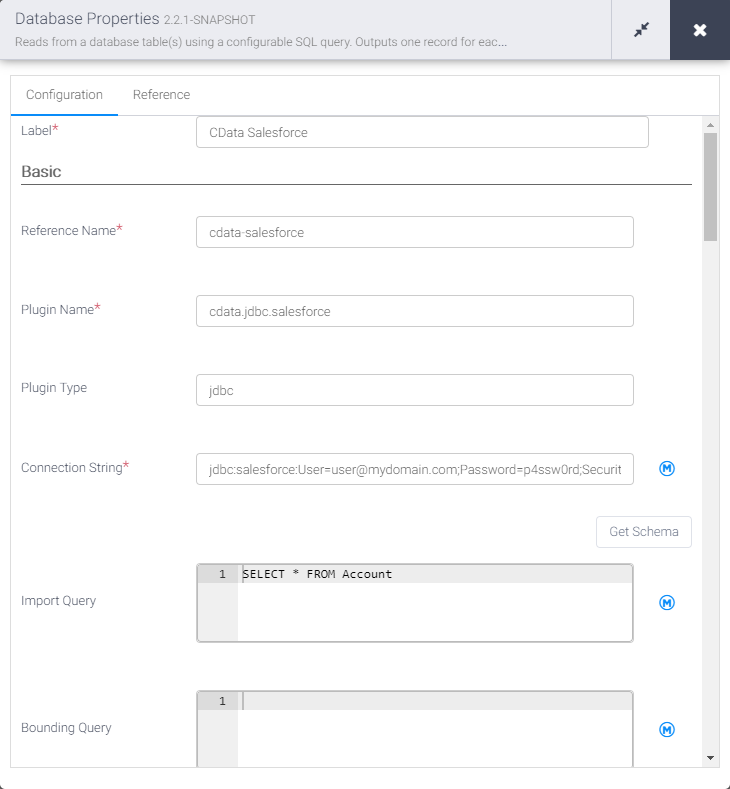
- Set the Label
- Set Reference Name to a value for any future references (i.e.: cdata-api)
- Set Plugin Type to "jdbc"
- Set Connection String to the JDBC URL for Apache Airflow. For example:
jdbc:api:RTK=5246...;Profile=C:\profiles\ApacheAirflow.apip;AuthScheme=APIKey;ProfileSettings='APIKey=your_jwt_token;Server=http://localhost:8080';Start by setting the Profile connection property to the location of the ApacheAirflow Profile on disk (e.g. C:\profiles\ApacheAirflow.apip). Next, set the ProfileSettings connection property to the connection string for ApacheAirflow (see below).
ApacheAirflow API Profile Settings
Apache Airflow 3 uses JWT Bearer tokens for API authentication. You can generate a token from the Airflow web UI under Settings or via the Airflow CLI using airflow users create and the /api/v2/auth/token endpoint. Note that this profile targets Apache Airflow 3.x using the /api/v2 REST API. The legacy /api/v1 endpoint used by Airflow 2.x is not supported.
After setting the following connection properties, you are ready to connect:
- AuthScheme: Set this to APIKey.
- APIKey: Set this to your Apache Airflow JWT Bearer token.
- Server: Set this to the base URL of your Airflow instance (e.g. http://localhost:8080).
Built-in Connection String Designer
For assistance in constructing the JDBC URL, use the connection string designer built into the Apache Airflow JDBC Driver. Either double-click the JAR file or execute the jar file from the command-line.
java -jar cdata.jdbc.api.jarFill in the connection properties and copy the connection string to the clipboard.

- Set Import Query to a SQL query that will extract the data you want from Apache Airflow, i.e.:
SELECT * FROM DagRuns
- From the "Sink" tab, click to add a destination sink (we use Google BigQuery in this example)
- Click "Properties" on the BigQuery sink to edit the properties
- Set the Label
- Set Reference Name to a value like api-bigquery
- Set Project ID to a specific Google BigQuery Project ID (or leave as the default, "auto-detect")
- Set Dataset to a specific Google BigQuery dataset
- Set Table to the name of the table you wish to insert Apache Airflow data into
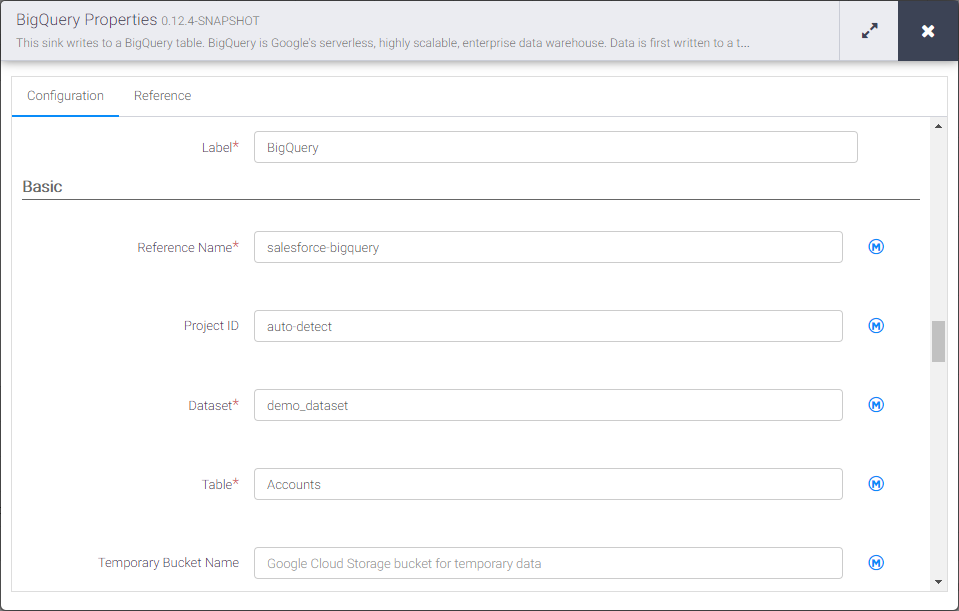
With the Source and Sink configured, you are ready to pipe Apache Airflow data into Google BigQuery. Save and deploy the pipeline. When you run the pipeline, Google Data Fusion will request live data from Apache Airflow and import it into Google BigQuery.
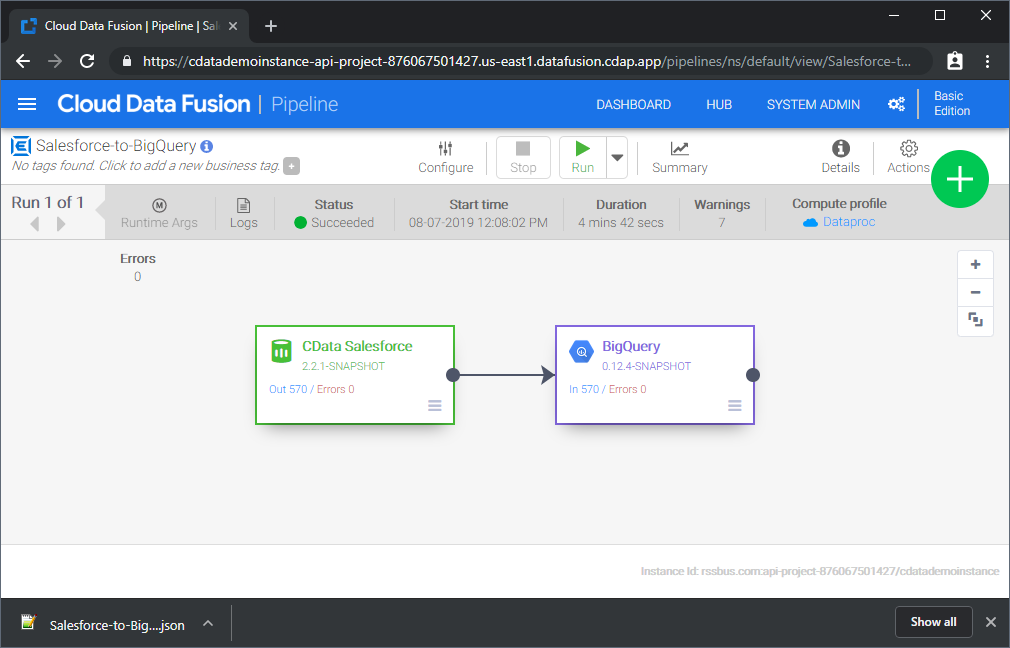
While this is a simple pipeline, you can create more complex Apache Airflow pipelines with transforms, analytics, conditions, and more. Download a free, 30-day trial of the CData API Driver for JDBC and start working with your live Apache Airflow data in Google Data Fusion today.