Integrate Apache Airflow Data in the Pentaho Report Designer

The CData JDBC driver for Apache Airflow data enables access to live data from dashboards and reports. This article shows how to connect to Apache Airflow data as a JDBC data source and publish reports based on Apache Airflow data in Pentaho.
Connect and Create a Report
- Copy the JAR file of the driver, located in the lib subfolder of the installation directory, to the \Report-Designer\lib\jdbc\ folder in the Pentaho directory.
- Run the report-designer.bat file in the \Report-Designer\ folder to open the Report-Designer UI.
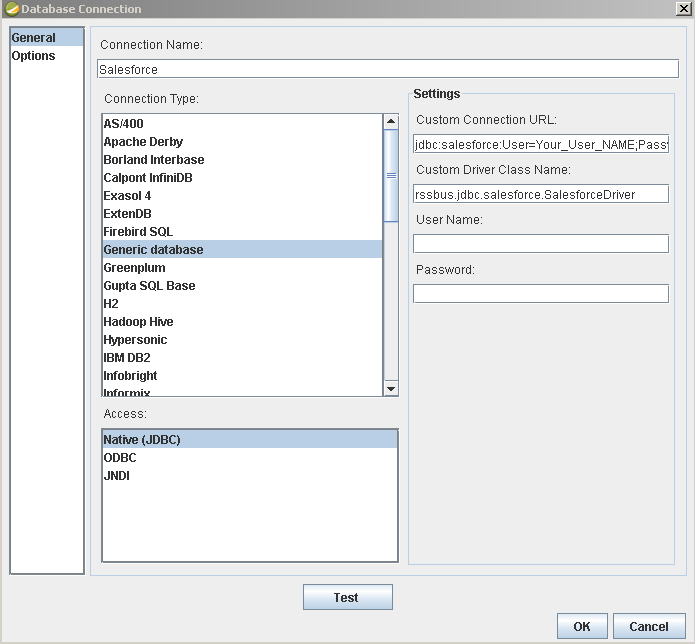
Create a new data source with the driver by clicking Data -> Add Data Source -> Advanced -> JDBC (Custom) and then creating a new Apache Airflow connection. In the resulting dialog, configure the connection properties as shown below.
Custom Connection URL property: Enter the JDBC URL. This starts with jdbc:api: and is followed by a semicolon-separated list of connection properties.
Start by setting the Profile connection property to the location of the ApacheAirflow Profile on disk (e.g. C:\profiles\ApacheAirflow.apip). Next, set the ProfileSettings connection property to the connection string for ApacheAirflow (see below).
ApacheAirflow API Profile Settings
Apache Airflow 3 uses JWT Bearer tokens for API authentication. You can generate a token from the Airflow web UI under Settings or via the Airflow CLI using airflow users create and the /api/v2/auth/token endpoint. Note that this profile targets Apache Airflow 3.x using the /api/v2 REST API. The legacy /api/v1 endpoint used by Airflow 2.x is not supported.
After setting the following connection properties, you are ready to connect:
- AuthScheme: Set this to APIKey.
- APIKey: Set this to your Apache Airflow JWT Bearer token.
- Server: Set this to the base URL of your Airflow instance (e.g. http://localhost:8080).
Built-in Connection String Designer
For assistance in constructing the JDBC URL, use the connection string designer built into the Apache Airflow JDBC Driver. Either double-click the JAR file or execute the jar file from the command-line.
java -jar cdata.jdbc.api.jarFill in the connection properties and copy the connection string to the clipboard.

When you configure the JDBC URL, you may also want to set the Max Rows connection property. This will limit the number of rows returned, which is especially helpful for improving performance when designing reports and visualizations.
Below is a typical JDBC URL:
jdbc:api:Profile=C:\profiles\ApacheAirflow.apip;AuthScheme=APIKey;ProfileSettings='APIKey=your_jwt_token;Server=http://localhost:8080';- Custom Driver Class Name: Enter cdata.jdbc.api.APIDriver.
- User Name: The username to authenticate with.
- Password: The password to authenticate with.
Add Apache Airflow Data to a Report
You are now ready to create a report with Apache Airflow data.
-
Add the Apache Airflow source to your report: Click Data -> Add Data Source -> JDBC and select the data source.
Configure the query. This article uses the one below:
SELECT DagRunId, State FROM DagRuns WHERE DagId = 'example_dag'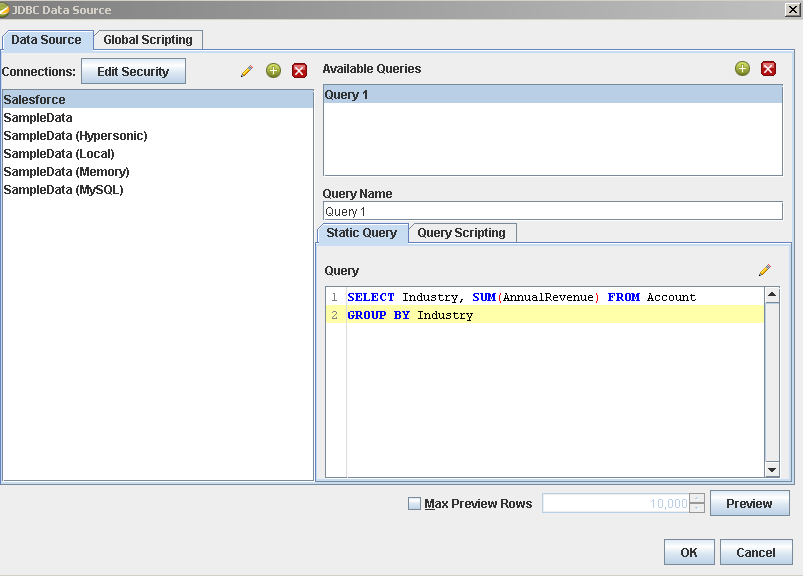
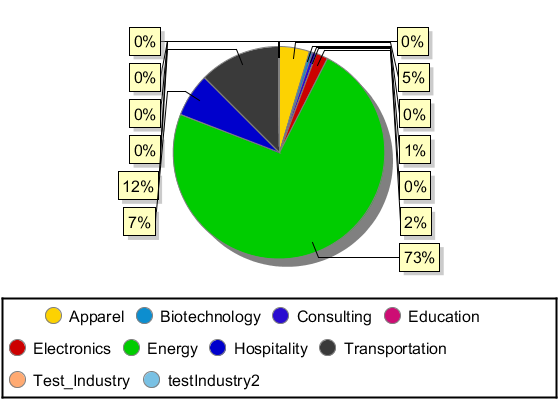
- Drag a chart onto your report and double-click it to edit the chart. Run the report to display the chart. You can use the results of this query to create a simple chart for the DagRuns table.
- Finally, run the report to see the chart.