Connect to ApprovalMax Data as a Linked Server via SQL Gateway

You can use the SQL Gateway to configure a TDS (SQL Server) remoting service and set up a linked server for ApprovalMax data. After you have started the service, you can use the UI in SQL Server Management Studio or call stored procedures to create the linked server. You can then work with ApprovalMax data just as you would a linked SQL Server instance.
Connect to ApprovalMax as an ODBC Data Source
If you have not already, first specify connection properties in an ODBC DSN (data source name). This is the last step of the driver installation. You can use the Microsoft ODBC Data Source Administrator to create and configure ODBC DSNs.
Start by setting the Profile connection property to the location of the ApprovalMax Profile on disk (e.g. C:\profiles\ApprovalMax.apip). Next, set the ProfileSettings connection property to the connection string for ApprovalMax (see below).
ApprovalMax API Profile Settings
To authenticate to ApprovalMax and connect to your own data or to allow other users to connect to their data, the ApprovalMax Public API requires the OAuth 2.0 authorization code flow.
First, you will need to register an OAuth application with ApprovalMax. Sign in to the ApprovalMax Developer Portal (https://developer.approvalmax.com/applications) and create a new application. Your OAuth application will be assigned a Client ID and a Client Secret, and you must register at least one Redirect URI (Callback URL).
A Premium ApprovalMax subscription (or active trial) is required to use the Public API.
After setting the following connection properties, you are ready to connect:
- AuthScheme: Set this to OAuth.
- InitiateOAuth: Set this to GETANDREFRESH. You can use InitiateOAuth to manage the process to obtain the OAuthAccessToken.
- OAuthClientId: Set this to the Client ID that is shown in your application settings on the ApprovalMax Developer Portal.
- OAuthClientSecret: Set this to the Client Secret that is shown in your application settings on the ApprovalMax Developer Portal.
- CallbackURL: Set this to the Redirect URI that is registered in your application settings.
- Scope: (Optional) Override the default OAuth scopes. The default value openid offline_access https://www.approvalmax.com/scopes/public_api/read grants read-only access to all tables in this profile and enables refresh tokens. Use the principle of least privilege when narrowing this scope.
The OAuth Authorization URL is https://identity.approvalmax.com/connect/authorize and the Token URL is https://identity.approvalmax.com/connect/token. Both authorization_code and refresh_token grant types are supported.
Configure the TDS Remoting Service
See the SQL Gateway Overview for a guide to configure a TDS remoting service in the SQL Gateway UI. The TDS remoting service is a daemon process that listens for TDS requests from clients.
Create a Linked Server for ApprovalMax Data
After you have configured and started the daemon, create the linked server and connect. You can use the UI in SQL Server Management Studio or call stored procedures.
Create a Linked Server from the UI
Follow the steps below to create a linked server from the Object Explorer.
- Open SQL Server Management Studio and connect to an instance of SQL Server.
- In the Object Explorer, expand the node for the SQL Server database. In the Server Objects node, right-click Linked Servers and click New Linked Server. The New Linked Server dialog is displayed.
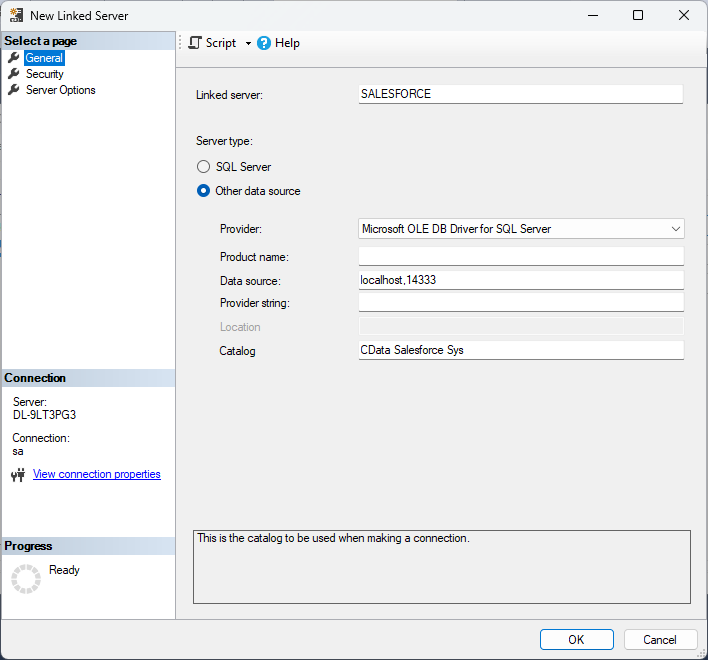
- In the General section, click the Other Data Source option and enter the following information after naming the linked server:
- Provider: Select "Microsoft ODBC Driver for SQL Server" or "Microsoft OLE DB Driver for SQL Server"
Data Source: Enter the host and port the TDS remoting service is running on, separated by a comma.
Note that a value of "localhost" in this input refers to the machine where SQL Server is running so be careful when creating a linked server in Management Studio when not running on the same machine as SQL Server.
-
Catalog:
- Option 1: If you enabled the "Support multiple catalogs and schemas" option while creating and configuring the TDS Remoting Service in previous steps, enter CData as the catalog.
- Option 2: For single schema support, enter the name of the data source's system DSN as CData API Sys.
-
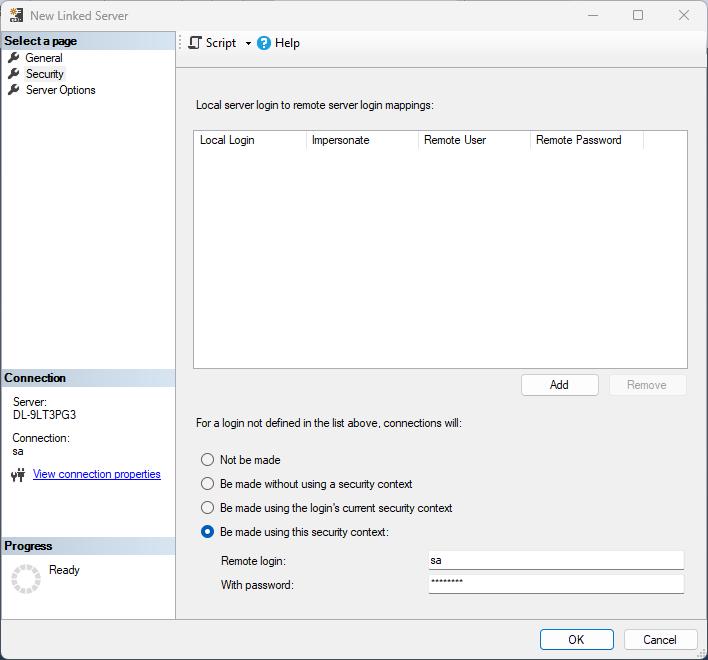
In the Security section, select the option to have the connection "made using this security context" and enter the username and password of a user you created in the Users tab of the SQL Gateway.
Create a Linked Server Programmatically
In addition to using the SQL Server Management Studio UI to create a linked server, you can use stored procedures. The following inputs are required:
- server: The linked server name.
- provider: Enter "MSOLEDBSQL", for the Microsoft OLE DB Driver for SQL Server.
datasrc: The host and port the service is running on, separated by a comma.
Note that a value of "localhost" in the datasrc input refers to the machine where SQL Server is running, so be careful when creating a linked server in Management Studio when not running on the same machine as SQL Server.
- catalog: Enter the system DSN configured for the service.
- srvproduct: Enter the product name of the data source; this can be an arbitrary value, such as "CData SQL Gateway" or an empty string.
-
Call sp_addlinkedserver to create the linked server:
EXEC sp_addlinkedserver @server='API', @provider='MSOLEDBSQL', @datasrc='< MachineIPAddress >,1434', @catalog='CData API Sys', @srvproduct=''; GO -
Call the sp_addlinkedsrvlogin stored procedure to allow SQL Server users to connect with the credentials of an authorized user of the service. Note that the credentials you use to connect to the service must specify a user you configured on the Users tab of the SQL Gateway.
EXEC sp_addlinkedsrvlogin @rmtsrvname='API',
  @rmtuser='admin',
  @rmtpassword='test',
  @useself='FALSE',
  @locallogin=NULL;
GO
Connect from SQL Server Management Studio
SQL Server Management Studio uses the SQL Server Client OLE DB provider, which requires the ODBC driver to be used inprocess. You must enable the "Allow inprocess" option for the SQL Server Native Client Provider in Management Studio to query the linked server from SQL Server Management Studio. To do this, open the properties for the provider you are using under Server Objects -> Linked Servers -> Providers. Check the "Allow inprocess" option and save the changes.
Execute Queries
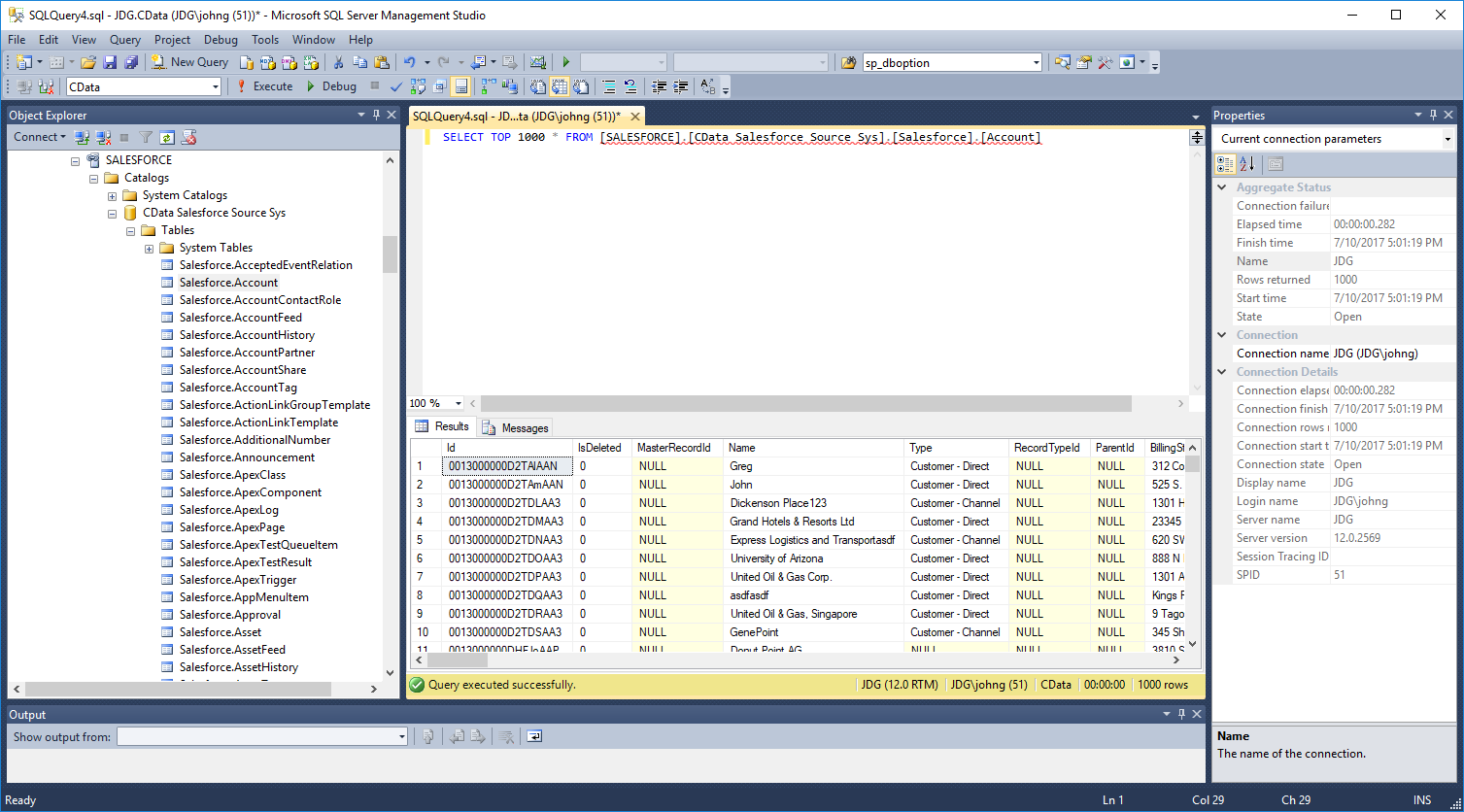
You can now execute queries to the ApprovalMax linked server from any tool that can connect to SQL Server. Set the table name accordingly:
SELECT * FROM [linked server name].[CData API Sys].[API].[UserProfiles]