Use the CData ODBC Driver for ApprovalMax in SAS for Real-Time Reporting and Analytics

SAS is a software suite developed for advanced analytics, multivariate analysis, business intelligence, data management, and predictive analytics. When you pair SAS with the CData ODBC Driver for ApprovalMax, you gain database-like access to live ApprovalMax data from SAS, expanding your reporting and analytics capabilities. This article explains how to create a library for ApprovalMax in SAS and create a simple report based on real-time ApprovalMax data.
The CData ODBC Driver offers unmatched performance for interacting with live ApprovalMax data in SAS due to optimized data processing built into the driver. When you issue complex SQL queries from SAS to ApprovalMax, the driver pushes supported SQL operations, like filters and aggregations, directly to ApprovalMax and utilizes the embedded SQL engine to process unsupported operations (often SQL functions and JOIN operations) client-side. With built-in dynamic metadata querying, you can easily visualize and analyze ApprovalMax data in SAS.
Connect to ApprovalMax as an ODBC Data Source
Information for connecting to ApprovalMax follows, along with different instructions for configuring a DSN in Windows and Linux environments (the ODBC Driver for ApprovalMax must be installed on the machine hosting the SAS System).
Start by setting the Profile connection property to the location of the ApprovalMax Profile on disk (e.g. C:\profiles\ApprovalMax.apip). Next, set the ProfileSettings connection property to the connection string for ApprovalMax (see below).
ApprovalMax API Profile Settings
To authenticate to ApprovalMax and connect to your own data or to allow other users to connect to their data, the ApprovalMax Public API requires the OAuth 2.0 authorization code flow.
First, you will need to register an OAuth application with ApprovalMax. Sign in to the ApprovalMax Developer Portal (https://developer.approvalmax.com/applications) and create a new application. Your OAuth application will be assigned a Client ID and a Client Secret, and you must register at least one Redirect URI (Callback URL).
A Premium ApprovalMax subscription (or active trial) is required to use the Public API.
After setting the following connection properties, you are ready to connect:
- AuthScheme: Set this to OAuth.
- InitiateOAuth: Set this to GETANDREFRESH. You can use InitiateOAuth to manage the process to obtain the OAuthAccessToken.
- OAuthClientId: Set this to the Client ID that is shown in your application settings on the ApprovalMax Developer Portal.
- OAuthClientSecret: Set this to the Client Secret that is shown in your application settings on the ApprovalMax Developer Portal.
- CallbackURL: Set this to the Redirect URI that is registered in your application settings.
- Scope: (Optional) Override the default OAuth scopes. The default value openid offline_access https://www.approvalmax.com/scopes/public_api/read grants read-only access to all tables in this profile and enables refresh tokens. Use the principle of least privilege when narrowing this scope.
The OAuth Authorization URL is https://identity.approvalmax.com/connect/authorize and the Token URL is https://identity.approvalmax.com/connect/token. Both authorization_code and refresh_token grant types are supported.
When you configure the DSN, you may also want to set the Max Rows connection property. This will limit the number of rows returned, which is especially helpful for improving performance when designing reports and visualizations.
Windows
If you have not already, first specify connection properties in an ODBC DSN (data source name). This is the last step of the driver installation. You can use the Microsoft ODBC Data Source Administrator to create and configure ODBC DSNs.
Linux
If you are installing the CData ODBC Driver for ApprovalMax in a Linux environment, the driver installation predefines a system DSN. You can modify the DSN by editing the system data sources file (/etc/odbc.ini) and defining the required connection properties.
/etc/odbc.ini
[CData API Sys]
Driver = CData ODBC Driver for ApprovalMax
Description = My Description
Profile = C:\profiles\ApprovalMax.apip
AuthScheme = OAuth
InitiateOAuth = GETANDREFRESH
OAuthClientId = your_client_id
OAuthClientSecret = your_client_secret
CallbackURL = your_callback_url
For specific information on using these configuration files, please refer to the help documentation (installed and found online).
Create a ApprovalMax Library in SAS
Connect to ApprovalMax in SAS by adding a library based on the CData ODBC Driver for ApprovalMax.
- Open SAS and expand Libraries in the Explorer pane.
- In the Active Libraries window, right-click and select New.
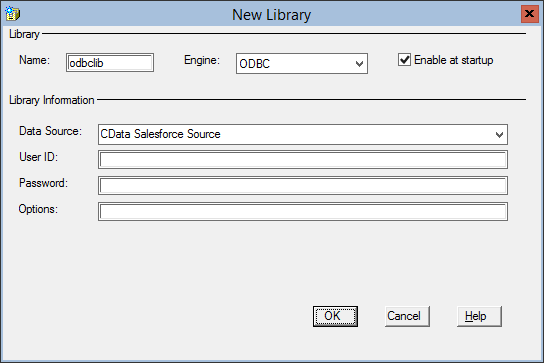
- Name your library (odbclib), select ODBC as the Engine, and click to Enable at startup (if you want the library to persist between sessions).
- Set Data Source to the DSN you previously configured and click OK.
Create a View from a ApprovalMax Query
SAS natively supports querying data either using a low-code, point-and-click Query tool or programmatically with PROC SQL and a custom SQL query. When you create a View in SAS, the defining query is executed each time the view is queried. This means that you always query live ApprovalMax data for reports, charts, and analytics.
Using the Query Tool
- In SAS, click Tools -> Query
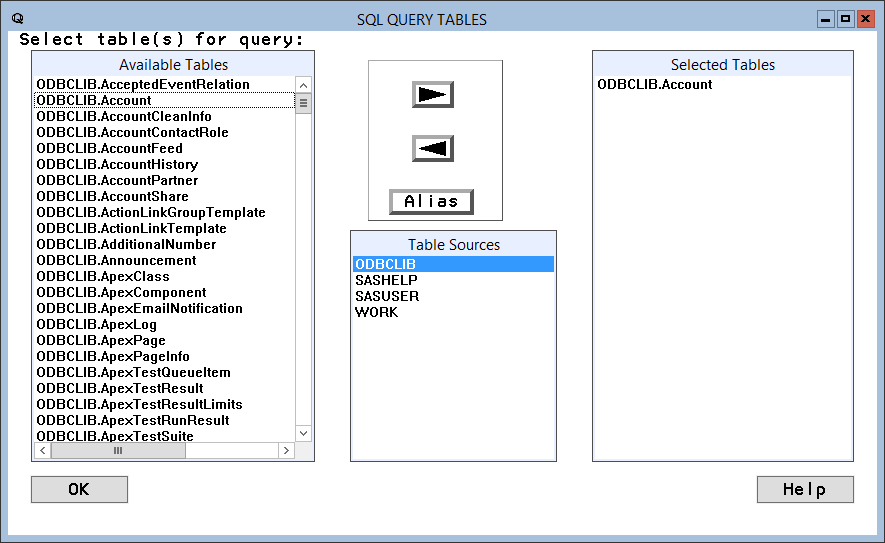
- Select the table sources and the table(s) you wish to pull data from. Then, click OK.
- Select columns and right-click to add filtering, ordering, grouping, etc.
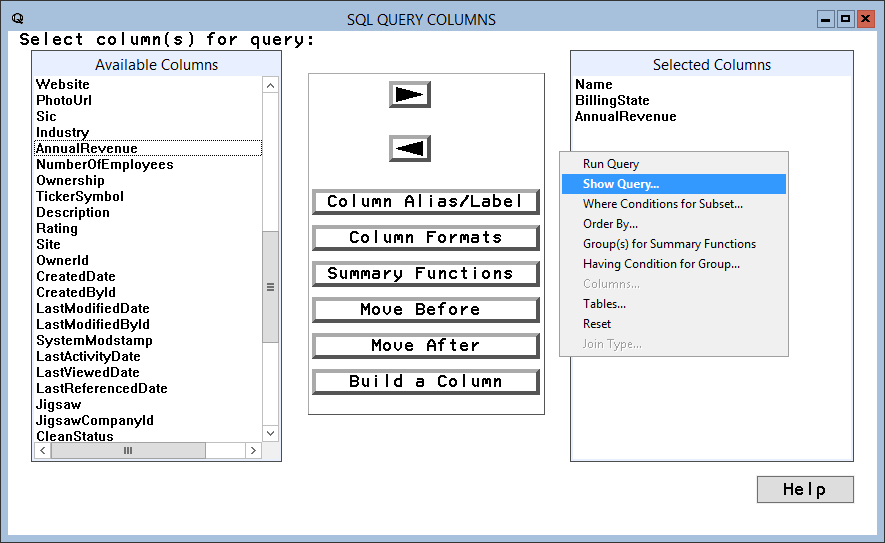
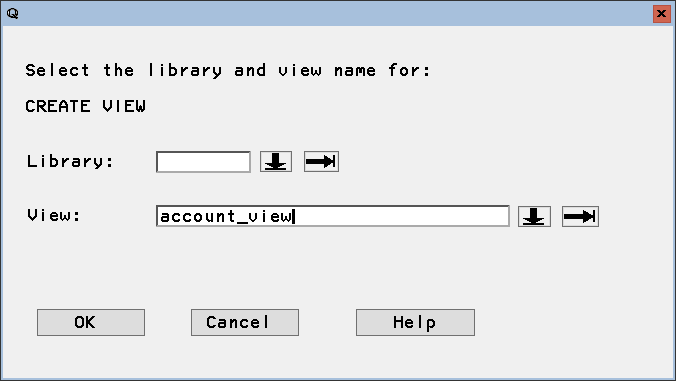
- Create a local view to contain the query results by right-clicking the SQL Query Tool window, selecting Show Query, and clicking Create View. Name the View and click OK.
Using PROC SQL
- In SAS, navigate to the Editor window.
- Use PROC SQL to query the data and create a local view.
NOTE: This procedure creates a view in the Work library. You can optionally specify a library in the create view statement.proc sql; create view userprofiles_view as select userid, email from odbclib.userprofiles where CompanyId = '00000000-0000-0000-0000-000000000000'; quit; - Click Run -> Submit to execute the query and create a local view.
Report On or Visualize ApprovalMax Data in SAS
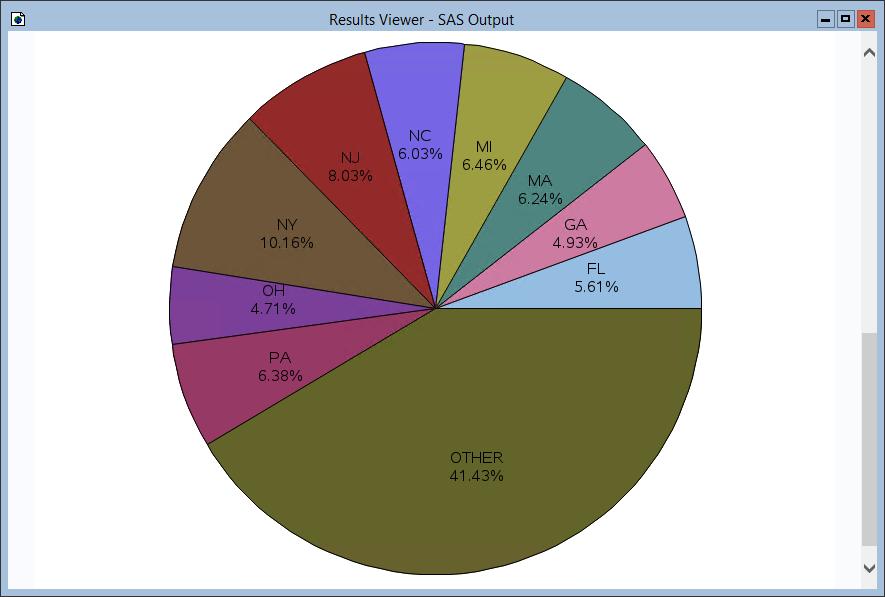
With a local view created, you can report, visualize, or otherwise analyze ApprovalMax data using the powerful SAS features. Print a simple report using PROC PRINT and create a basic graph based on the data using PROC GCHART.
Print an HTML Report
- In SAS, navigate to the Editor window.
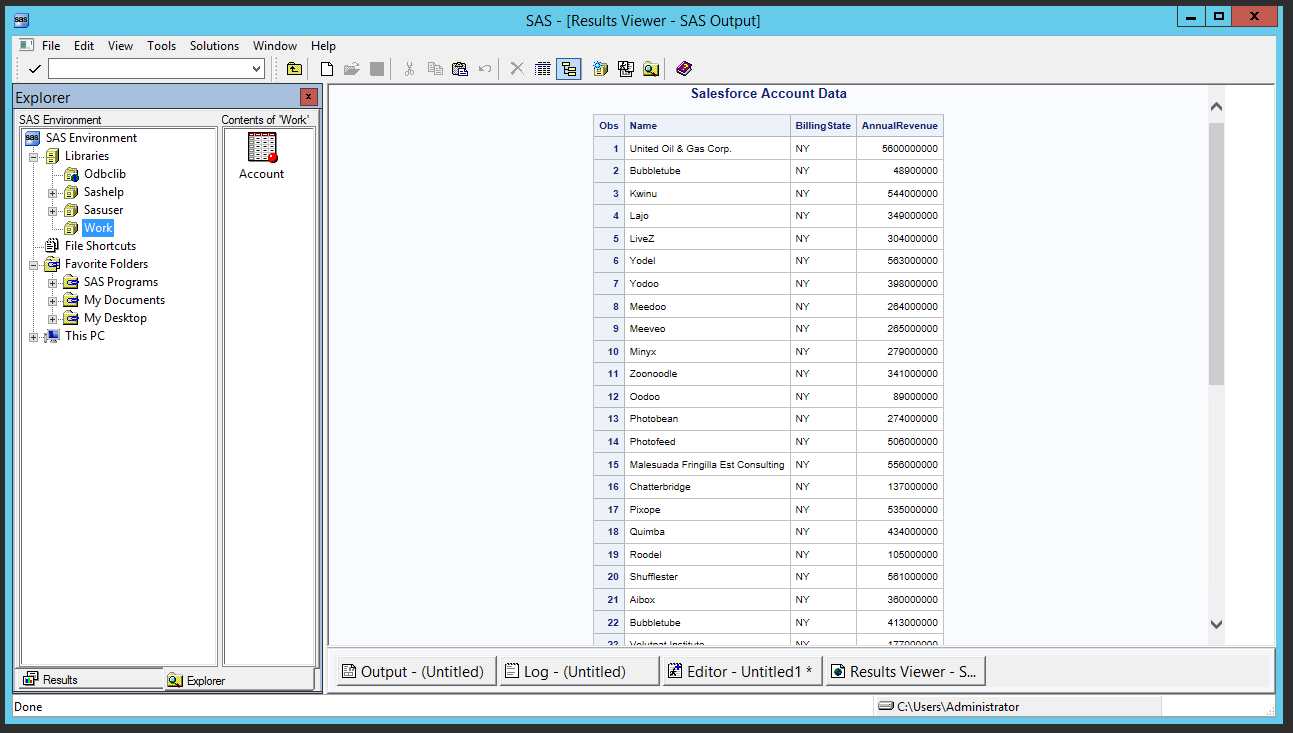
- Use PROC PRINT to print an HTML report for the ApprovalMax UserProfiles data.
proc print data=userprofiles;
  title "ApprovalMax UserProfiles Data";
run;
Print a Chart
- In SAS, navigate to the Editor window.
- Use PROC GCHART to create a chart for the UserProfiles data.
proc gchart data=userprofiles;
  pie userid / sumvar=email
      value=arrow
      percent=arrow
      noheading
      percent=inside plabel=(height=12pt)
      slice=inside value=none
      name='UserProfilesChart';
run;