DataBind Bannerbear Data to the DevExpress Data Grid

The CData API Driver for ADO.NET incorporates conventional ADO.NET data access components compatible with third-party controls. You can adhere to the standard ADO.NET data binding procedures to establish two-way access to real-time data through UI controls. This article will demonstrate the utilization of CData components for data binding with DevExpress UI Controls (Windows Forms and Web controls), specifically binding to a chart that visualizes live data.
Start by setting the Profile connection property to the location of the Bannerbear Profile on disk (e.g. C:\profiles\Bannerbear.apip). Next, set the ProfileSettings connection property to the connection string for Bannerbear (see below).
Bannerbear API Profile Settings
Retrieve your API keys from the Bannerbear dashboard. Specify the key type (Project or Master) via the KeyType property.
Windows Forms Controls
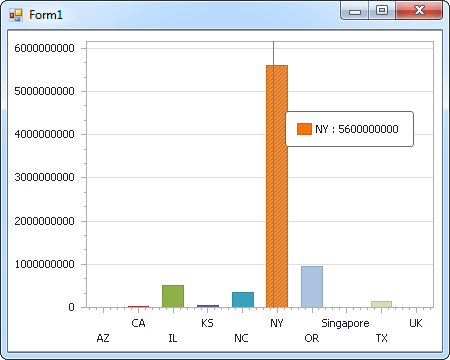
The code below shows how to populate a DevExpress chart with Bannerbear data. The APIDataAdapter binds to the Series property of the chart control. The Diagram property of the control defines the x- and y-axes as the column names.
using (APIConnection connection = new APIConnection(
"Profile=C:\profiles\Bannerbear.apip;ProfileSettings='APIKey=your_api_key';")) {
  APIDataAdapter dataAdapter = new APIDataAdapter(
  "SELECT Uid, CreatedAt FROM Account WHERE PaidPlanName = 'premium'", connection);

  DataTable table = new DataTable();
  dataAdapter.Fill(table);
  DevExpress.XtraCharts.Series series = new DevExpress.XtraCharts.Series();
  chartControl1.Series.Add(series);
  series.DataSource = table;
  series.ValueDataMembers.AddRange(new string[] { "CreatedAt" });
  series.ArgumentScaleType = DevExpress.XtraCharts.ScaleType.Qualitative;
  series.ArgumentDataMember = "Uid";
  series.ValueScaleType = DevExpress.XtraCharts.ScaleType.Numerical;
  chartControl1.Legend.Visibility = DevExpress.Utils.DefaultBoolean.False;
  ((DevExpress.XtraCharts.SideBySideBarSeriesView)series.View).ColorEach = true;
}
Web Controls
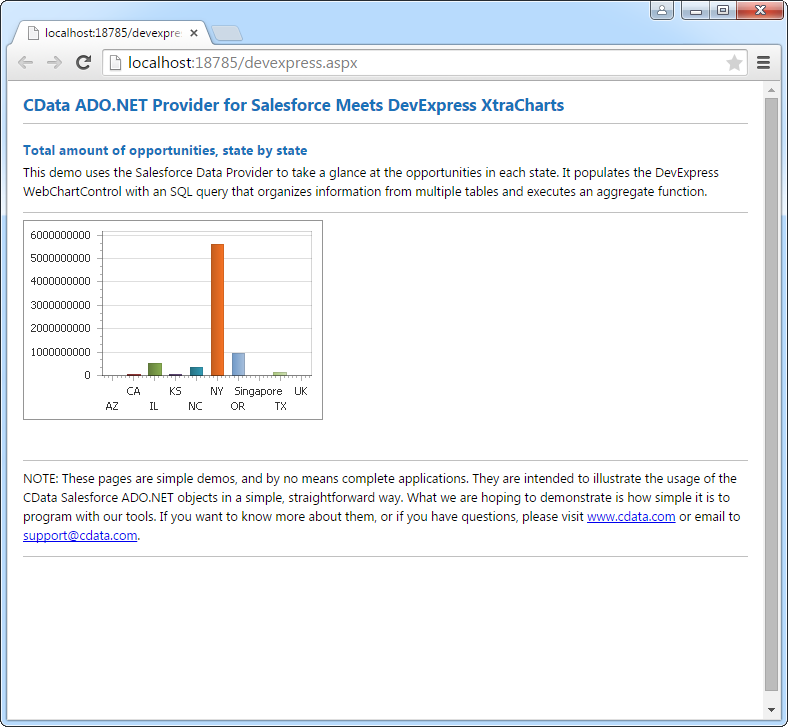
The code below shows how to populate a DevExpress Web control with Bannerbear data. The APIDataAdapter binds to the Series property of the chart; the Diagram property defines the x- and y-axes as the column names.
using DevExpress.XtraCharts;

using (APIConnection connection = new APIConnection(
"Profile=C:\profiles\Bannerbear.apip;ProfileSettings='APIKey=your_api_key';"))
{
  APIDataAdapter APIDataAdapter1 = new APIDataAdapter("SELECT Uid, CreatedAt FROM Account WHERE PaidPlanName = 'premium'", connection);
  DataTable table = new DataTable();
  APIDataAdapter1.Fill(table);
  DevExpress.XtraCharts.Series series = new Series("Series1", ViewType.Bar);
  WebChartControl1.Series.Add(series);
  series.DataSource = table;
  series.ValueDataMembers.AddRange(new string[] { "CreatedAt" });
  series.ArgumentScaleType = ScaleType.Qualitative;
  series.ArgumentDataMember = "Uid";
  series.ValueScaleType = ScaleType.Numerical;
  ((DevExpress.XtraCharts.SideBySideBarSeriesView)series.View).ColorEach = true;
}