






Build Bright Data-Powered Applications in GitHub Copilot with CData MCP Server

GitHub Copilot is an AI-powered coding assistant that integrates directly into Visual Studio Code and other IDEs. With support for MCP, GitHub Copilot can connect to local tools and enterprise data sources, enabling natural language interaction with live systems during development.
Model Context Protocol (MCP) is an open standard for connecting LLM clients to external services through structured tool interfaces. MCP servers expose capabilities such as schema discovery and live querying, allowing AI agents to retrieve and reason over real-time data safely and consistently.
In this article, we guide you through installing the CData API Driver for MCP Server, configuring the connection to Bright Data, connecting the MCP Server add-on to GitHub Copilot, and querying live Bright Data data from within Visual Studio Code.
Prerequisites
- Visual Studio Code is installed on your machine
- GitHub Copilot Chat extension is enabled in Visual Studio Code
- CData API Driver for MCP Server has been installed
Step 1: Download and install the CData API Driver for MCP Server
- To begin, download the CData API Driver for MCP Server
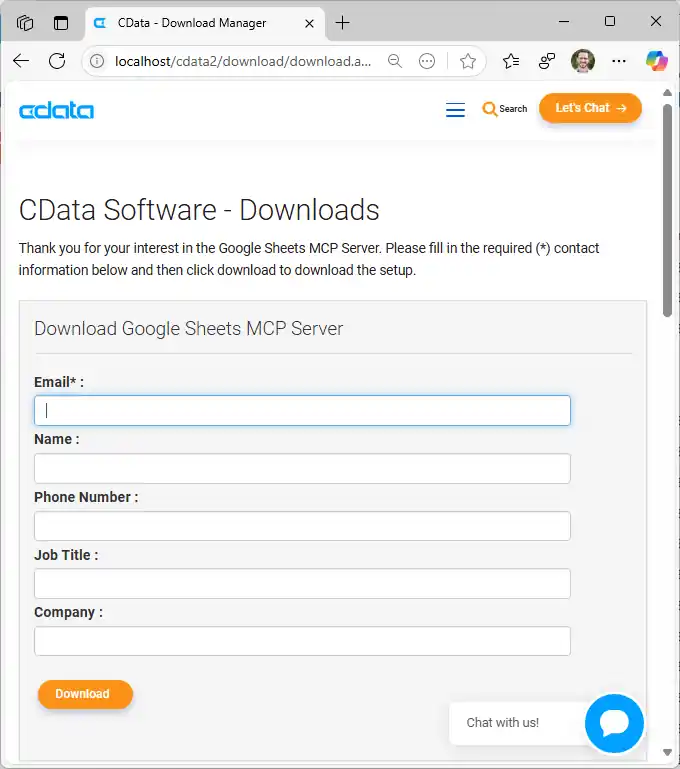
- Find and double-click the installer to begin the installation
- Run the installer and follow the prompts to complete the installation
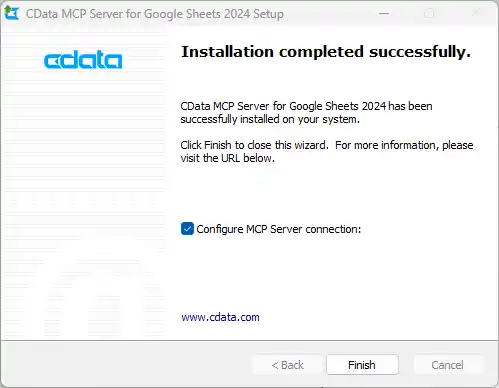
When the installation is complete, you are ready to configure your MCP Server add-on by connecting to Bright Data.
Step 2: Configure the connection to Bright Data
- After installation, open the CData API Driver for MCP Server configuration wizard
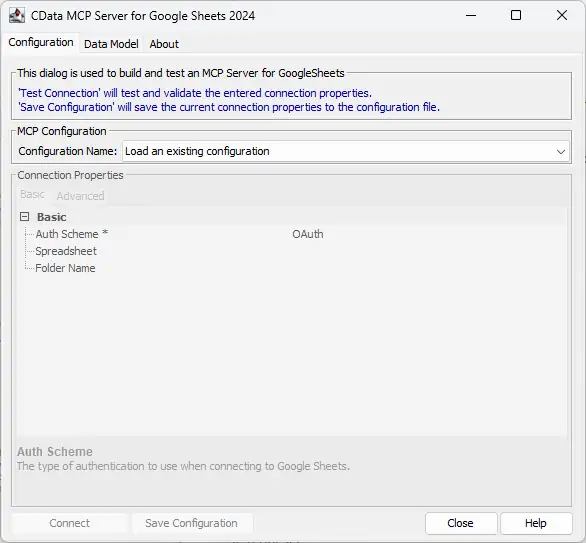
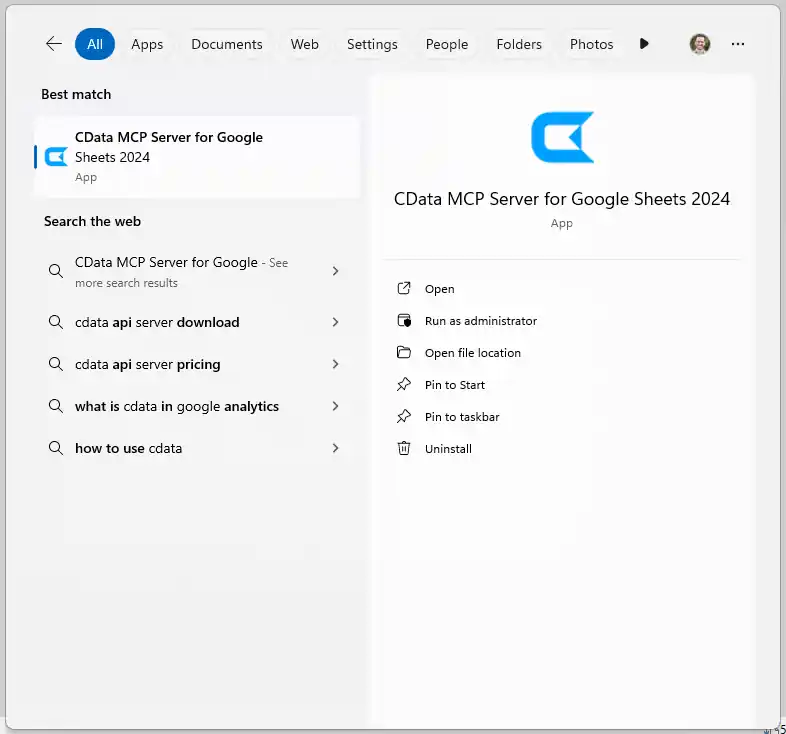
NOTE: If the wizard does not open automatically, search for "CData API Driver for MCP Server" in the Windows search bar and open the application.
- In MCP Configuration > Configuration Name, either select an existing configuration or choose
to create a new one 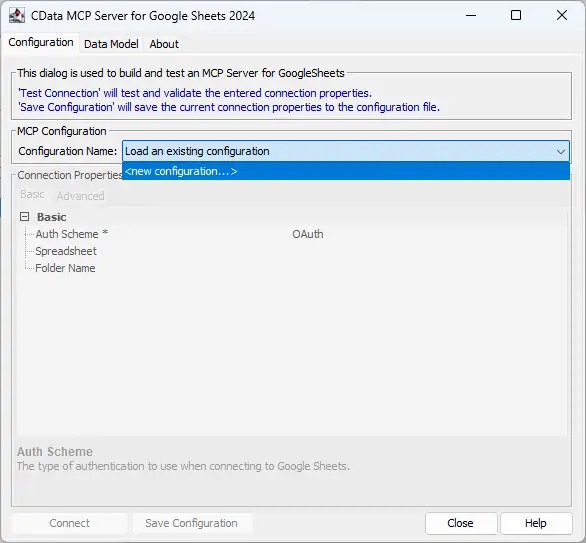
- Name the configuration (e.g. "cdata_api") and click OK
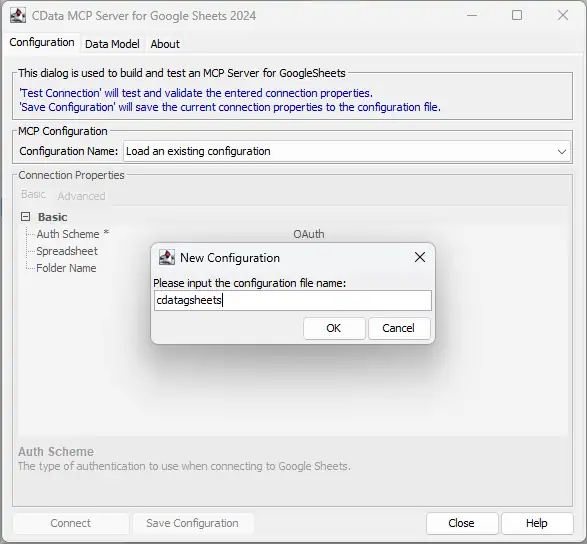
-
Enter the appropriate connection properties in the configuration wizard
Using API Key Authentication
To use the Bright Data API, you need an API key from the Bright Data Control Panel. Navigate to Account Settings > API to generate or retrieve your API key.
After setting the following connection properties, you are ready to connect:
- AuthScheme: Set this to APIKey.
- APIKey: Set this to your Bright Data API key from the Control Panel.
Example connection string:
Profile=C:\profiles\BrightData.apip;AuthScheme=APIKey;ProfileSettings="APIKey=your_api_key"
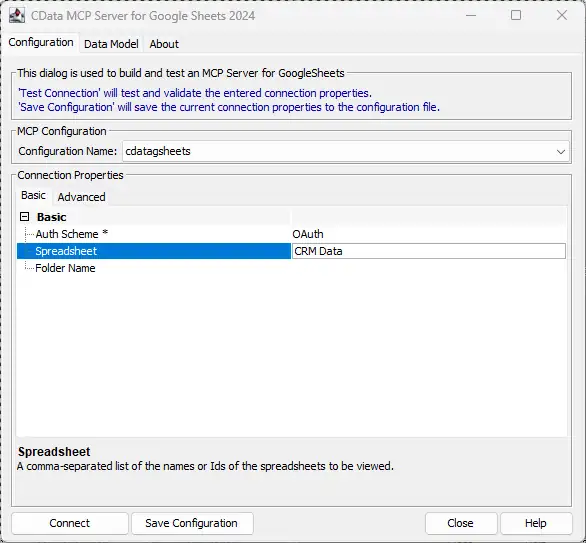
- Click Connect to authenticate with Bright Data
- Click Save & Test to finalize the connection
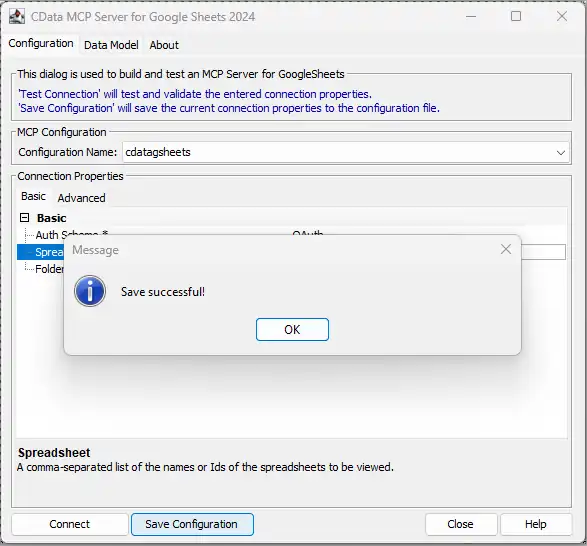
This process creates a .mcp configuration file that GitHub Copilot will reference when launching the MCP Server add-on. Now with your MCP Server add-on configured, you are ready to connect it to GitHub Copilot.
Step 3: Connect the MCP Server add-on to GitHub Copilot
- Download and install Visual Studio Code and enable the GitHub Copilot Chat extension
- Open or create the mcp.json file:
- For global configuration: %%APPDATA%%/Roaming/Code/User/mcp.json
- For project-specific configuration:
/.vscode/mcp.json
- Add the JSON code shown below and save the file
- After saving and testing your connection in the configuration wizard, click Next
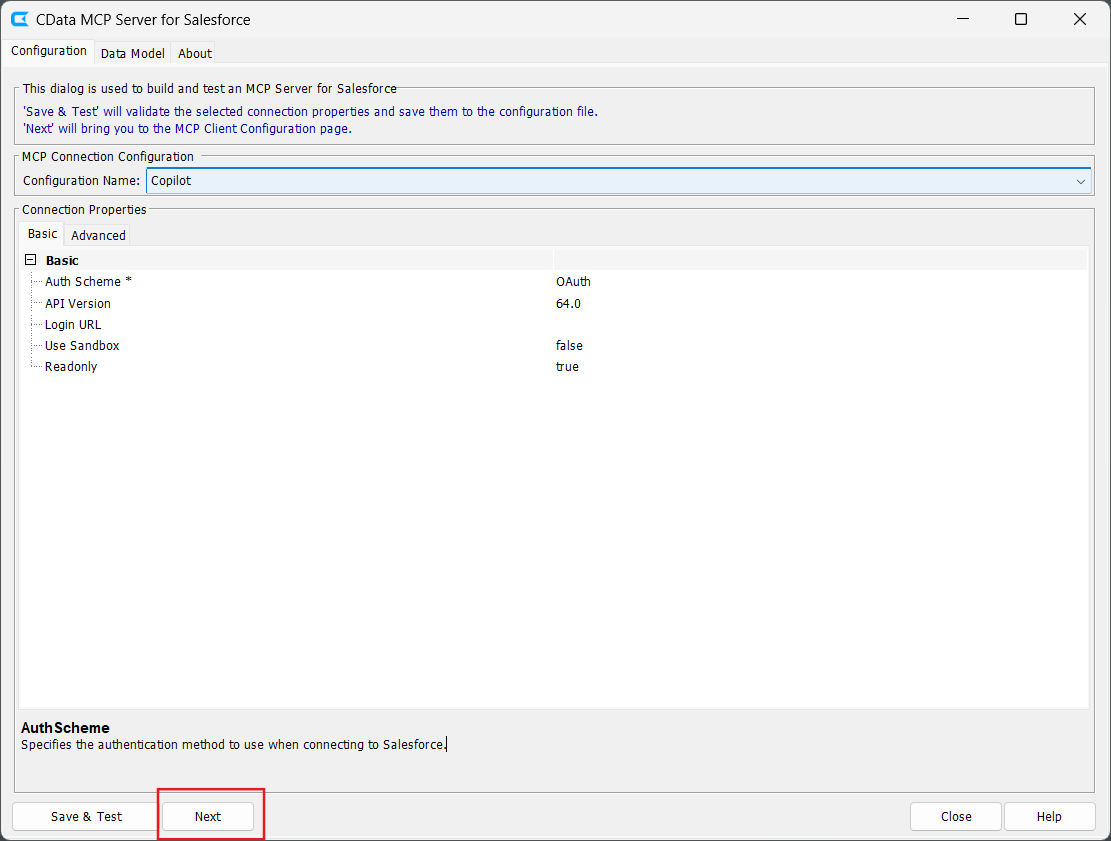
- Select Github Copilot from the AI MCP Tool dropdown
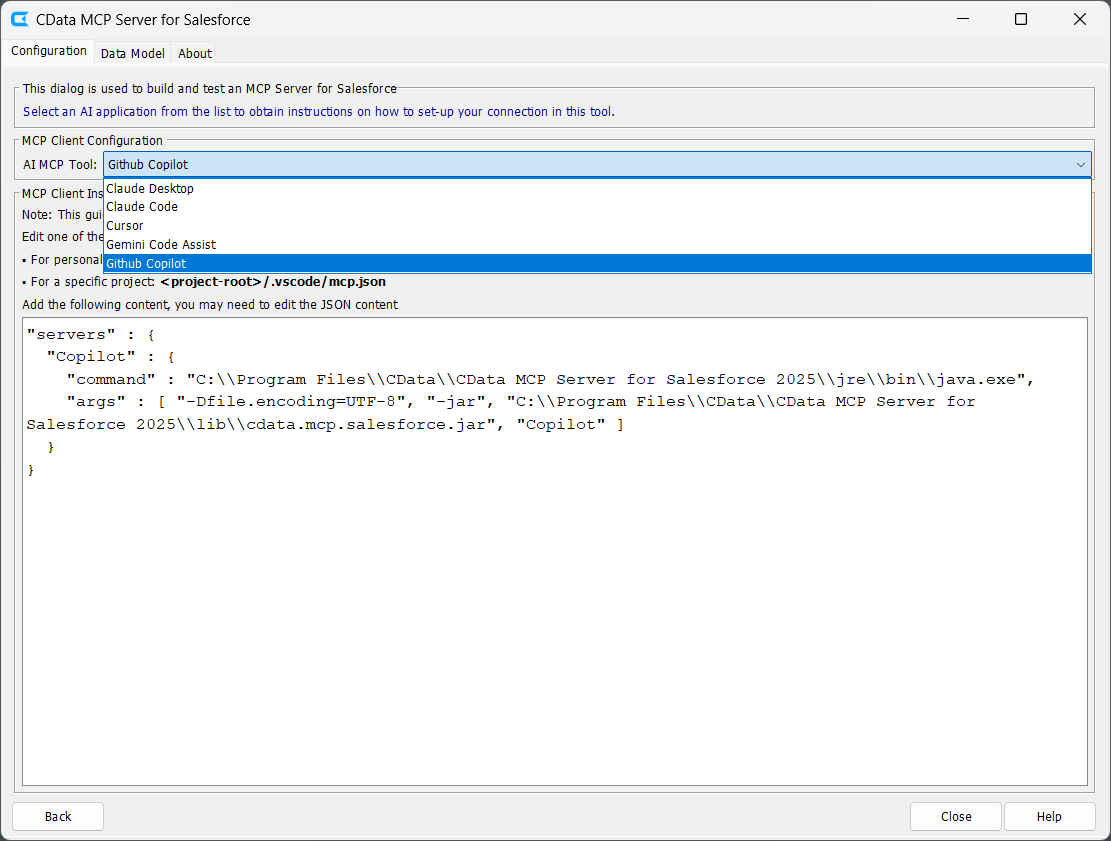
- Follow the MCP Client Instructions to create the required configuration file
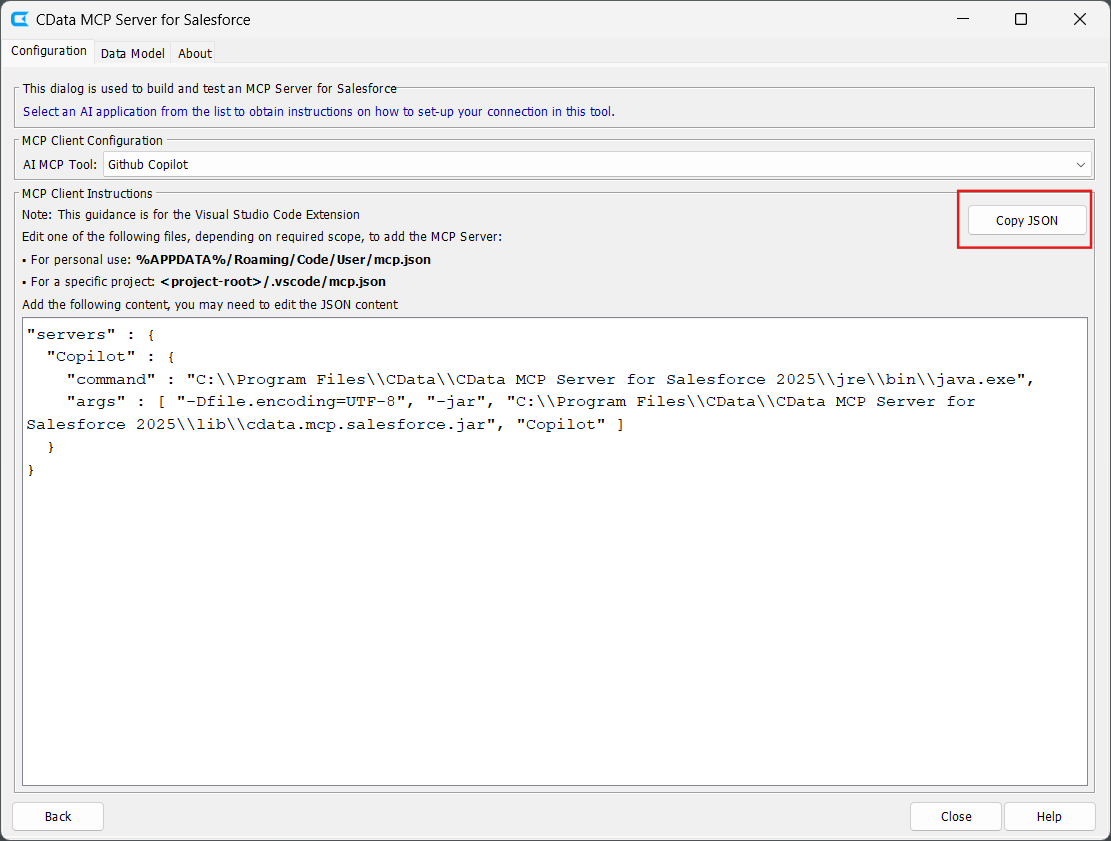
- Copy the displayed JSON code and paste it into your configuration file
Option 1: Manually add the MCP configuration
{
  "servers": {
    "cdata_api": {
      "command": "C:\Program Files\CData\CData API Driver for MCP Server\jre\bin\java.exe",
      "args": [
        "-Dfile.encoding=UTF-8",
        "-jar",
        "C:\Program Files\CData\CData API Driver for MCP Server\lib\cdata.mcp.api.jar",
        "cdata_api"
      ]
    }
  }
}
NOTE: The command value should point to your Java 17+ java.exe executable, and the JAR path should point to the installed CData MCP Server add-on .jar file. The final argument must match the MCP configuration name you saved in the CData configuration wizard (e.g. "cdata_api").
Option 2: Copy the MCP configuration from the CData API Driver for MCP Server UI
Step 4: Query live Bright Data data in GitHub Copilot
- Launch Visual Studio Code and open the GitHub Copilot Chat interface. Select the tool icon to enable the configured MCP Server add-on
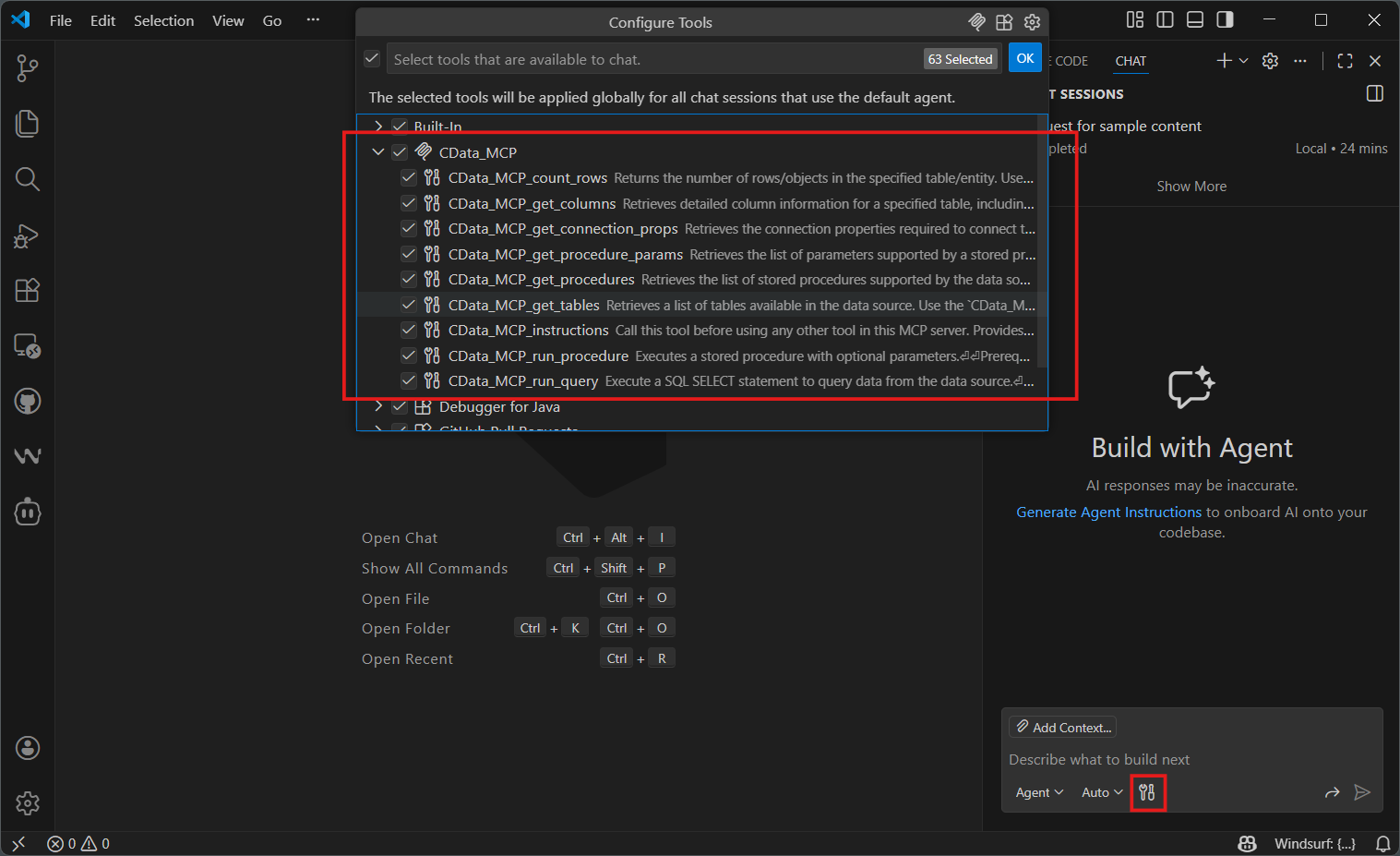
- Ask questions about your Bright Data data using natural language. For example:
"List all tables available in my Bright Data data data connection."
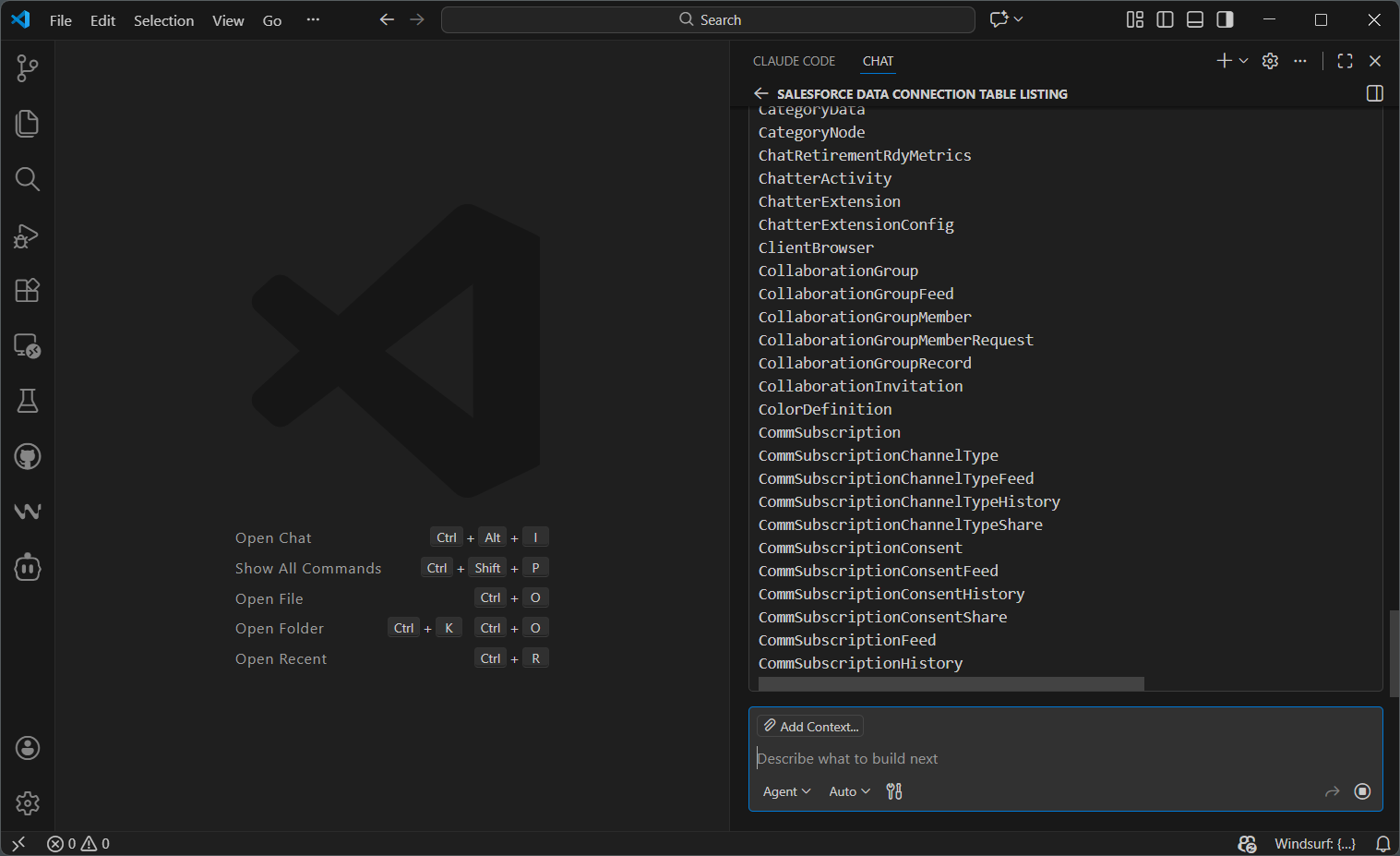
- Start building with natural language prompts:
For my project, data from the AccountStatus is very important. Pull data from the most important columns like and .
GitHub Copilot is now fully integrated with CData API Driver for MCP Server and can use the MCP tools to explore schemas and execute live queries against Bright Data.
Build with MCP Server. Deploy with CData Drivers.
Download MCP Server for free and give your AI tools schema-aware access to live Bright Data data during development. When you're ready to move to production, CData Bright Data Drivers deliver the same SQL-based access with enterprise-grade performance, security, and reliability.
Visit the CData Community to share insights, ask questions, and explore what's possible with MCP-powered AI workflows.