






Visualize Live Bright Data Data in Tableau

Tableau is a visual analytics platform transforming the way businesses use data to solve problems. When paired with the CData API Driver for Tableau, you can easily get access to live Bright Data data within Tableau. This article shows how to connect to Bright Data in Tableau and build a simple chart.
The CData Tableau Connectors enable high-speed access to live Bright Data data in Tableau. Once you install the connector, you simply authenticate with Bright Data and you can immediately start building responsive, dynamic visualizations and dashboards. By surfacing Bright Data data using native Tableau data types and handling complex filters, aggregations, & other operations automatically, CData Tableau Connectors grant seamless access to Bright Data data.
NOTE: The CData Tableau Connectors require Tableau 2020.3 or higher. If you are using an older version of Tableau, you will need to use the CData JDBC Driver.
Connect to Bright Data in Tableau
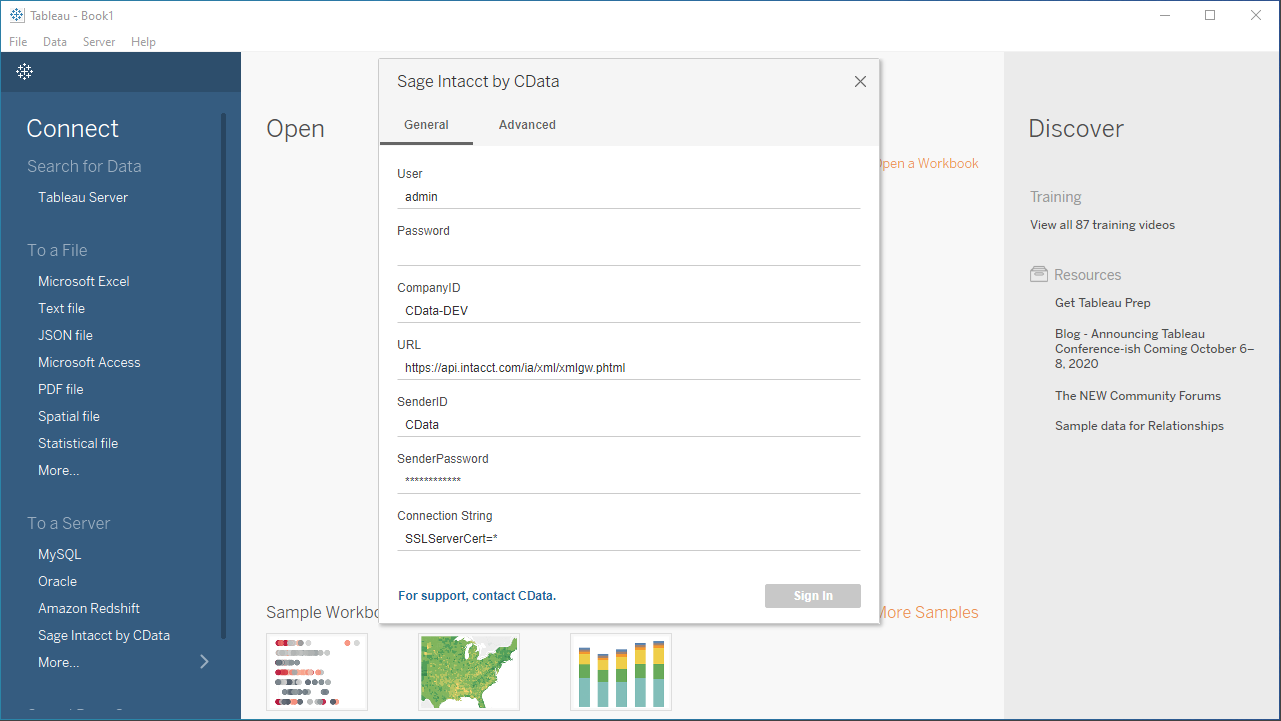
Open Tableau and click More under Connect -> To a Server. Select "Bright Data by CData," then configure the connection and click "Sign In."
Using API Key Authentication
To use the Bright Data API, you need an API key from the Bright Data Control Panel. Navigate to Account Settings > API to generate or retrieve your API key.
After setting the following connection properties, you are ready to connect:
- AuthScheme: Set this to APIKey.
- APIKey: Set this to your Bright Data API key from the Control Panel.
Example connection string:
Profile=C:\profiles\BrightData.apip;AuthScheme=APIKey;ProfileSettings="APIKey=your_api_key"
Discover Schemas and Query Data
- Select CData from the Database pull-down menu.
- Select API from the Schema pull-down menu.
- Drag the tables and views you wish to visualize onto the join area. You can include multiple tables.
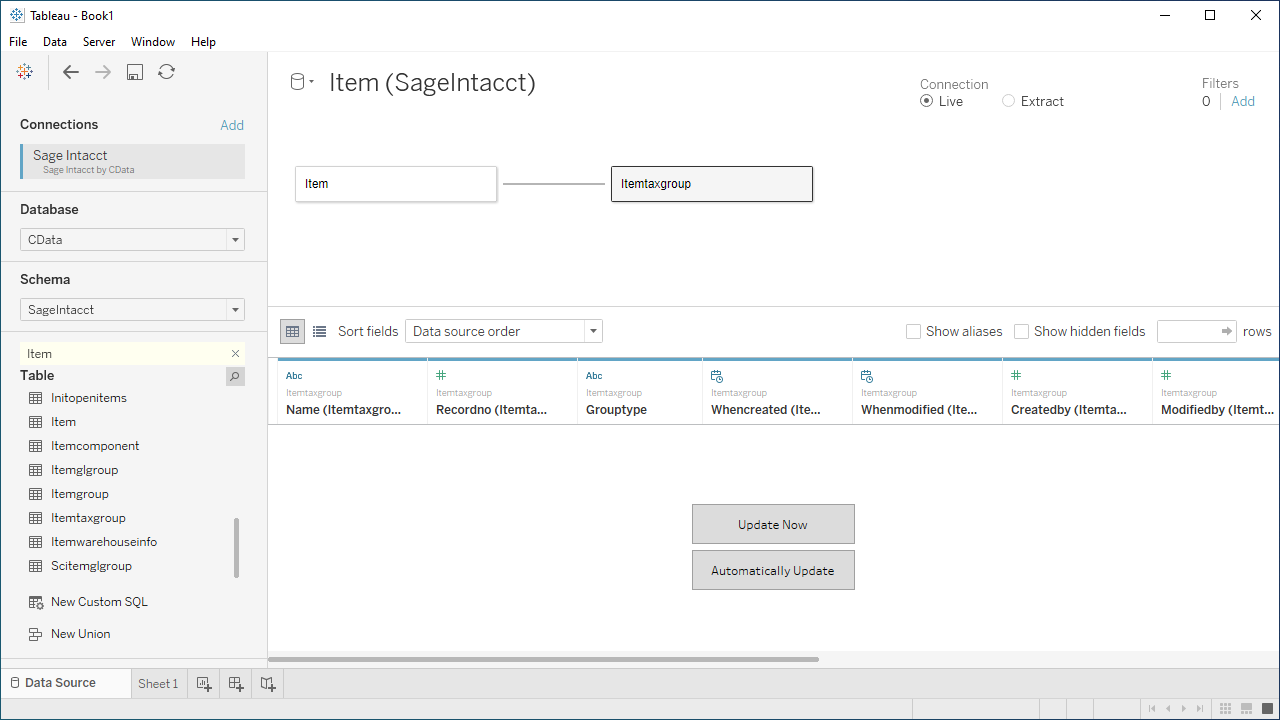
- Select Update Now or Automatically Update. Update Now lets you preview the first 10,000 rows of the data source (or enter the number of rows you want to see in the Rows text box). Automatically Update automatically reflects the changes in the preview area.
- Click the tab for your worksheet. Columns are listed as Dimensions and Measures, depending on the data type. The CData Tableau Connector discovers data types automatically, allowing you to leverage the powerful data processing and visualization features of Tableau.
- Drag a field from the Dimensions or Measures area to Rows or Columns. Tableau creates column or row headers.
- Select one of the chart types from the Show Me tab. Tableau displays the chart type that you selected.
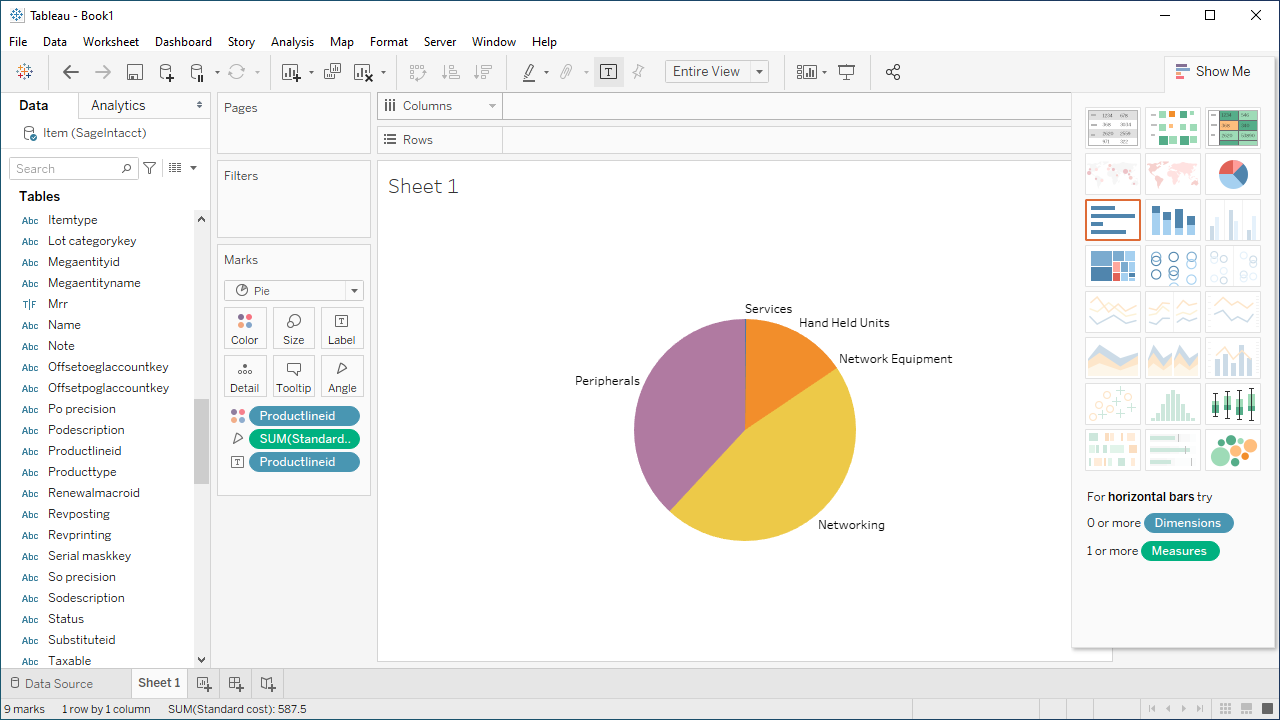
Using the CData API Driver for Tableau with Tableau, you can easily create robust visualizations and reports on Bright Data data. Download a free, 30-day trial and get started today.