




Connect to Browse AI Data as an External Source in Dremio

The CData API Driver for JDBC implements JDBC Standards and allows various applications, including Dremio, to work with live Browse AI data. Dremio is a data lakehouse platform designed to empower self-service, interactive analytics on the data lake. With the CData JDBC driver, you can include live Browse AI data as a part of your enterprise data lake. This article describes how to connect to Browse AI data from Dremio as an External Source.
The CData JDBC Driver enables high-speed access to live Browse AI data in Dremio. Once you install the driver, authenticate with Browse AI and gain immediate access to Browse AI data within your data lake. By surfacing Browse AI data using native data types and handling complex filters, aggregations, & other operations automatically, the CData JDBC Driver grants seamless access to Browse AI data.
Prerequisites
This article assumes you are utilizing Docker to run Dremio. You can create a Docker container with the Dremio service using a command similar to the follow:
docker run -d --name dremio -p 9047:9047 -p 31010:31010 dremio/dremio-oss
Where dremio is the name of the container, 9047 is the container's port for the Dremio web interface and 31010 is the port that maps to the Dremio query service. dremio/dremio-oss specifies the image to use.
Build the ARP Connector
To use the CData JDBC Driver in Dremio, you need to build an Advanced Relation Pushdown (ARP) Connector. You can view the source code for the Connector on GitHub or download the ZIP file (GitHub.com) directly. Once you copy or extract the files, run the following command from the root directory of the connector (the directory containing the pom.xml file) to build the connector.
mvn clean install
NOTE: The CData ARP Connectors are build to be compiled with Java 11. Be sure to install Java 11 and use the correct version. You can update your Java version using a command similar to the following:
sudo update-alternatives --config java
Once the JAR file for the connector is built (in the target directory), you are ready to copy the ARP connector and JDBC Driver to your Dremio instance.
Installing the Connector and JDBC Driver
Install the ARP Connector to %DREMIO_HOME%/jars/ and the JDBC Driver for Browse AI to %DREMIO_HOME%/jars/3rdparty. You can use commands similar to the following:
ARP Connector
docker cp PATH\TO\dremio-api-plugin-{DREMIO_VERSION}.jar dremio_image_name:/opt/dremio/jars/
JDBC Driver for Browse AI
docker cp PATH\TO\cdata.jdbc.api.jar dremio_image_name:/opt/dremio/jars/3rdparty/
Connecting to Browse AI
Browse AI will now appear as an External Source option in Dremio. The ARP Connector built uses a JDBC URL to connect to Browse AI data. The JDBC Driver has a built-in connection string designer that you can use (see below).
Built-in Connection String Designer
For assistance in constructing the JDBC URL, use the connection string designer built into the Browse AI JDBC Driver. Double-click the JAR file or execute the jar file from the command line.
java -jar cdata.jdbc.api.jar
Fill in the connection properties and copy the connection string to the clipboard.
Start by setting the Profile connection property to the location of the BrowseAI Profile on disk (e.g. C:\profiles\BrowseAI.apip). Next, set the ProfileSettings connection property to the connection string for BrowseAI (see below).
BrowseAI API Profile Settings
BrowseAI is a web scraping and automation platform that allows you to train robots to extract and monitor data from websites. Authentication is performed using an API key that is sent as a Bearer token in the Authorization header.
The BrowseAI API key has the format {userId}:{apiKey}, where both parts are UUIDs separated by a colon. This full string is provided as a single value in the BrowseAI dashboard.
To obtain your API key:
- Log in to your BrowseAI account at https://app.browse.ai
- Navigate to Settings in the dashboard
- Locate the API section
- Copy the full API key string displayed (format: userId:apiKey)
After obtaining your API key, set the following connection properties:
- AuthScheme: Set this to APIKey.
Set the following in the ProfileSettings connection property:
- APIKey: Set this to your BrowseAI API key (format: userId:apiKey).

NOTE: To use the JDBC Driver in Dremio, you will need a license (full or trial) and a Runtime Key (RTK). For more information on obtaining this license (or a trial), contact our sales team.
Add the Runtime Key (RTK) to the JDBC URL. You will end up with a JDBC URL similar to the following:
jdbc:api:RTK=5246...;Profile=C:\profiles\BrowseAI.apip;AuthScheme=APIKey;ProfileSettings='APIKey=your_user_id:your_api_key';
Access Browse AI as an External Source
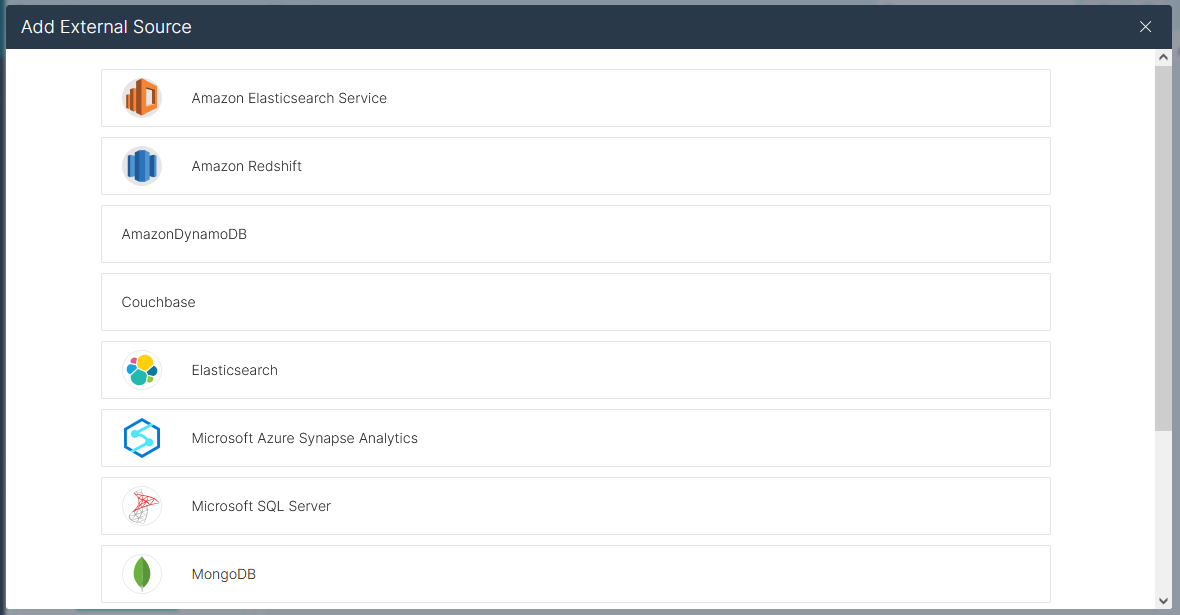
To add Browse AI as an External Source, click to add a new source and select API. Copy the JDBC URL and paste it into the New API Source wizard.
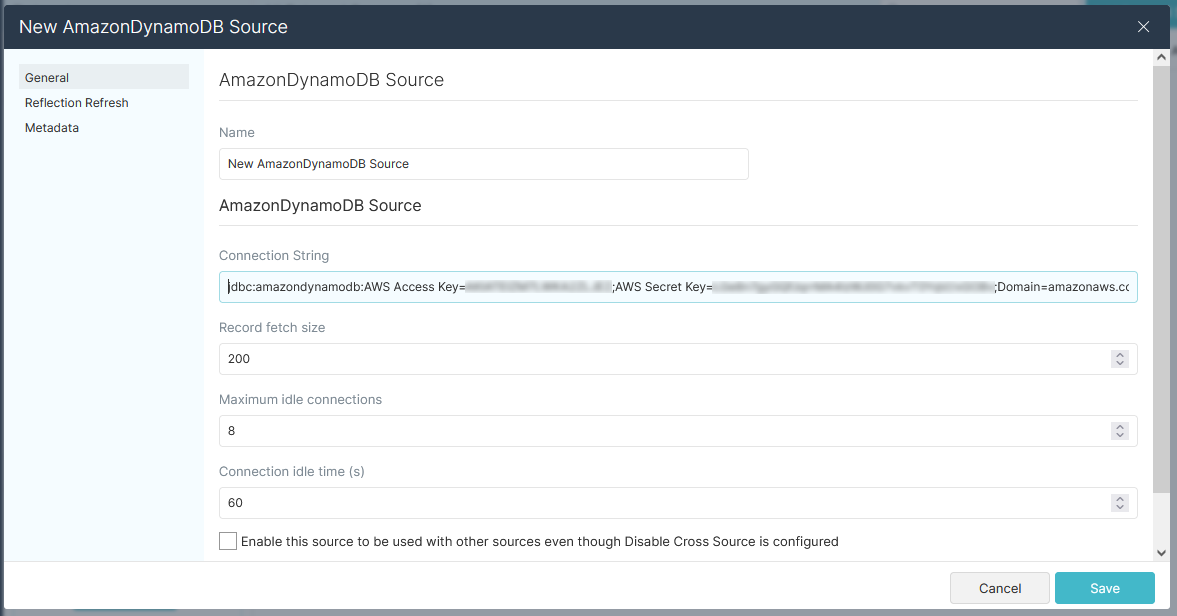
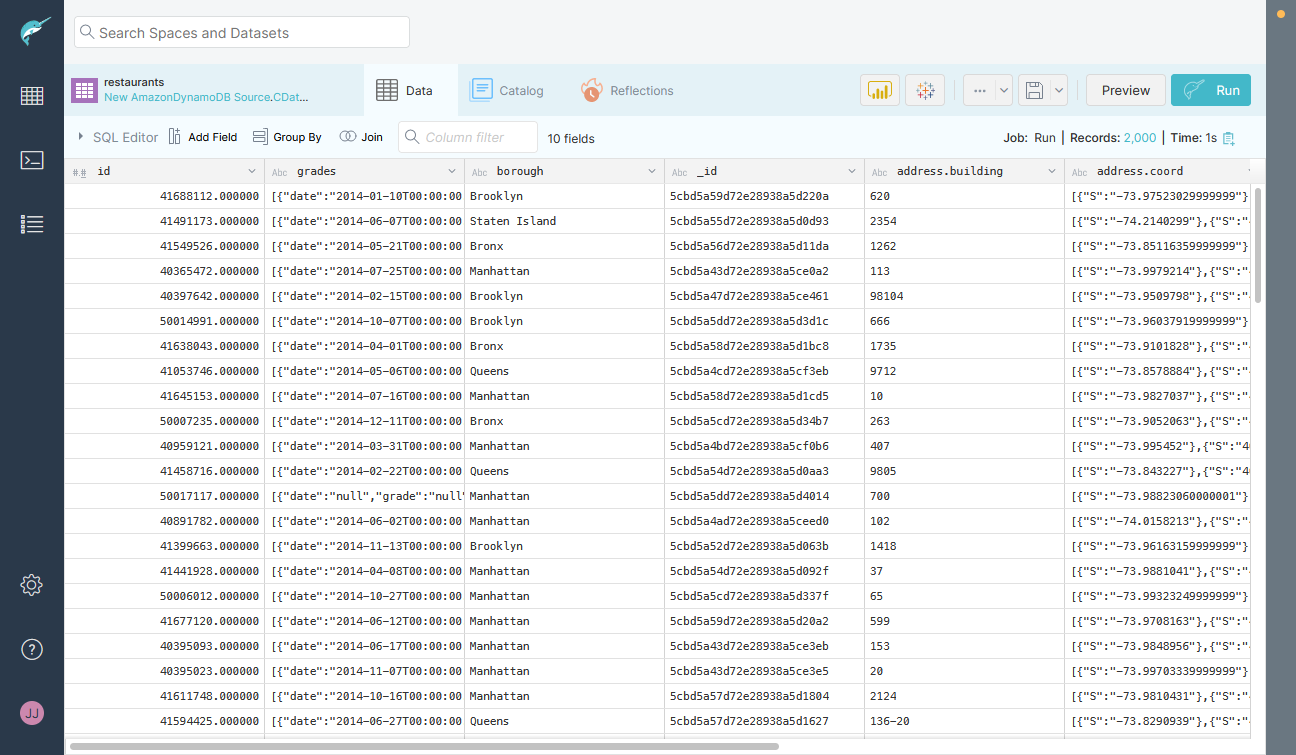
Save the connection and you are ready to query live Browse AI data in Dremio, easily incorporating Browse AI data into your data lake.
More Information & Free Trial
Using the CData API Driver for JDBC in Dremio, you can incorporate live Browse AI data into your data lake. Check out our CData API Driver for JDBC page for more information about connecting to Browse AI. Download a free, 30 day trial of the CData API Driver for JDBC and get started today.