




Integrate Browse AI Data in Pentaho Data Integration

The CData API Driver for JDBC enables access to live data from data pipelines. Pentaho Data Integration is an Extraction, Transformation, and Loading (ETL) engine that data, cleanses the data, and stores data using a uniform format that is accessible.This article shows how to connect to Browse AI data as a JDBC data source and build jobs and transformations based on Browse AI data in Pentaho Data Integration.
Configure to Browse AI Connectivity
Start by setting the Profile connection property to the location of the BrowseAI Profile on disk (e.g. C:\profiles\BrowseAI.apip). Next, set the ProfileSettings connection property to the connection string for BrowseAI (see below).
BrowseAI API Profile Settings
BrowseAI is a web scraping and automation platform that allows you to train robots to extract and monitor data from websites. Authentication is performed using an API key that is sent as a Bearer token in the Authorization header.
The BrowseAI API key has the format {userId}:{apiKey}, where both parts are UUIDs separated by a colon. This full string is provided as a single value in the BrowseAI dashboard.
To obtain your API key:
- Log in to your BrowseAI account at https://app.browse.ai
- Navigate to Settings in the dashboard
- Locate the API section
- Copy the full API key string displayed (format: userId:apiKey)
After obtaining your API key, set the following connection properties:
- AuthScheme: Set this to APIKey.
Set the following in the ProfileSettings connection property:
- APIKey: Set this to your BrowseAI API key (format: userId:apiKey).
Built-in Connection String Designer
For assistance in constructing the JDBC URL, use the connection string designer built into the Browse AI JDBC Driver. Either double-click the JAR file or execute the jar file from the command-line.
java -jar cdata.jdbc.api.jar
Fill in the connection properties and copy the connection string to the clipboard.

When you configure the JDBC URL, you may also want to set the Max Rows connection property. This will limit the number of rows returned, which is especially helpful for improving performance when designing reports and visualizations.
Below is a typical JDBC URL:
jdbc:api:Profile=C:\profiles\BrowseAI.apip;AuthScheme=APIKey;ProfileSettings='APIKey=your_user_id:your_api_key';Save your connection string for use in Pentaho Data Integration.
Connect to Browse AI from Pentaho DI
Open Pentaho Data Integration and select "Database Connection" to configure a connection to the CData API Driver for JDBC
- Click "General"
- Set Connection name (e.g. Browse AI Connection)
- Set Connection type to "Generic database"
- Set Access to "Native (JDBC)"
- Set Custom connection URL to your Browse AI connection string (e.g.
jdbc:api:Profile=C:\profiles\BrowseAI.apip;AuthScheme=APIKey;ProfileSettings='APIKey=your_user_id:your_api_key'; - Set Custom driver class name to "cdata.jdbc.api.APIDriver"
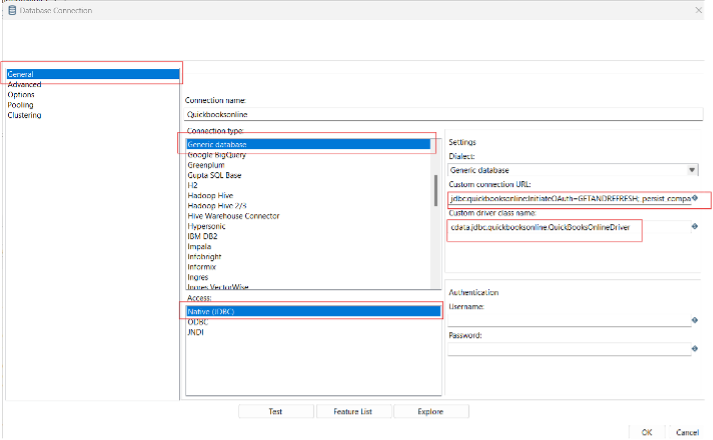
- Test the connection and click "OK" to save.
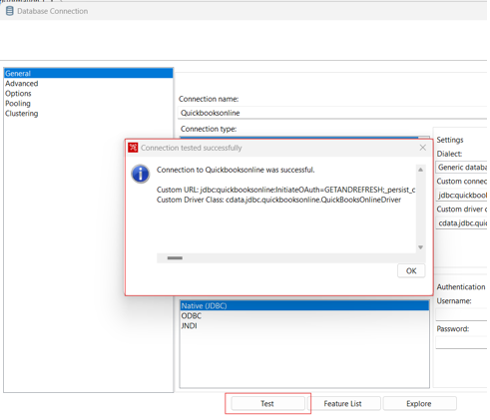
Create a Data Pipeline for Browse AI
Once the connection to Browse AI is configured using the CData JDBC Driver, you are ready to create a new transformation or job.
- Click "File" >> "New" >> "Transformation/job"
- Drag a "Table input" object into the workflow panel and select your Browse AI connection.
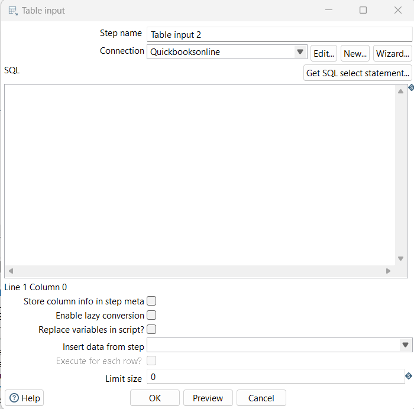
- Click "Get SQL select statement" and use the Database Explorer to view the available tables and views.
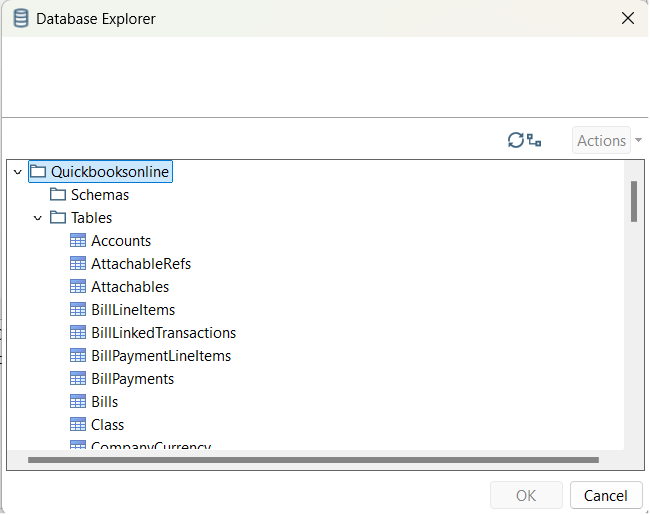
- Select a table and optionally preview the data for verification.
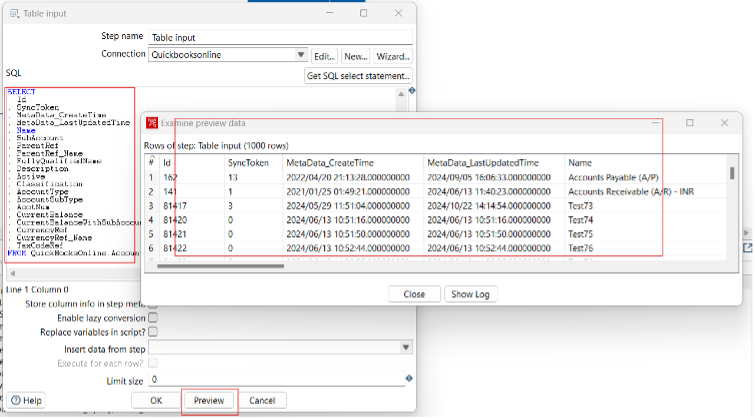
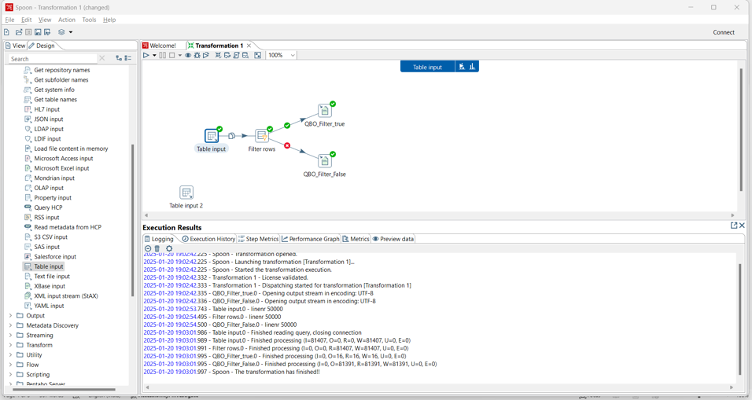
At this point, you can continue your transformation or jb by selecting a suitable destination and adding any transformations to modify, filter, or otherwise alter the data during replication.
Free Trial & More Information
Download a free, 30-day trial of the CData API Driver for JDBC and start working with your live Browse AI data in Pentaho Data Integration today.