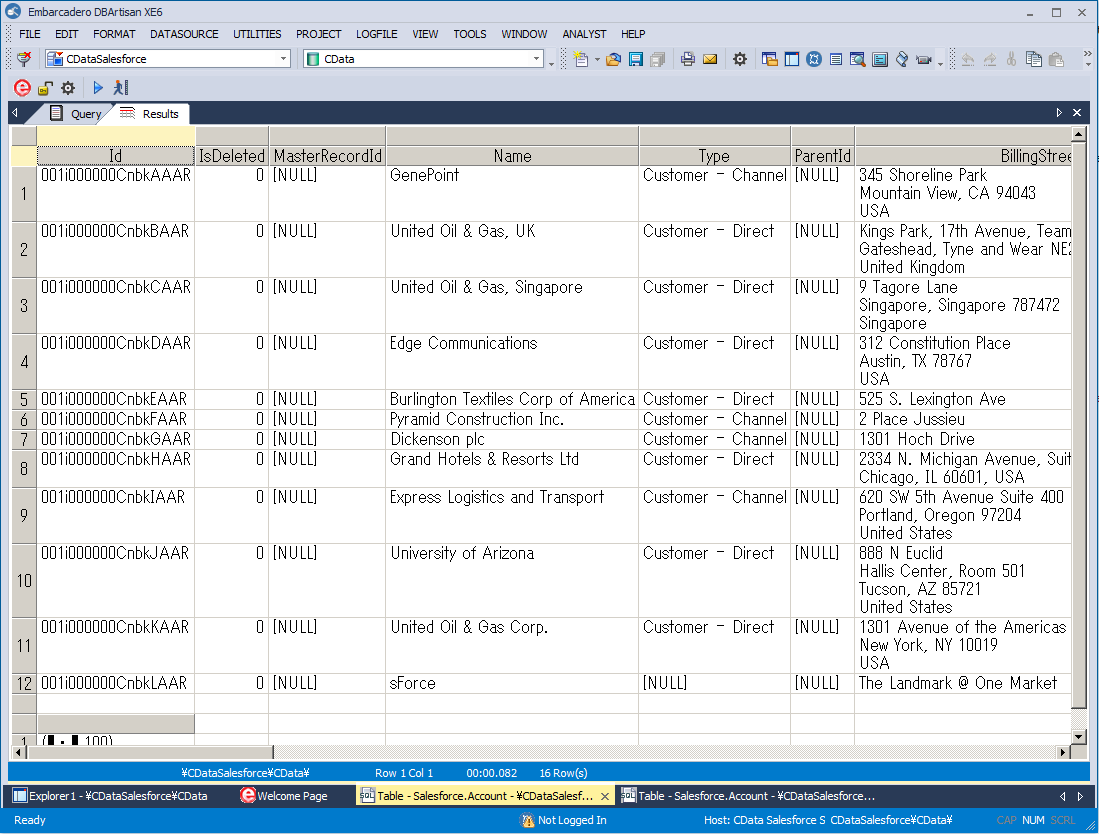
Connect to Browse AI Data in DBArtisan

The CData ODBC Driver for Browse AI seamlessly integrates Browse AI data into database management tools like DBArtisan by enabling you to access Browse AI data as a database. This article shows how to create an data source for Browse AI in DBArtisan and execute queries. You can then edit data visually and execute standard SQL.
Integrate Browse AI Data into DBArtisan Projects
If you have not already, first specify connection properties in an ODBC DSN (data source name). This is the last step of the driver installation. You can use the Microsoft ODBC Data Source Administrator to create and configure ODBC DSNs.
Start by setting the Profile connection property to the location of the BrowseAI Profile on disk (e.g. C:\profiles\BrowseAI.apip). Next, set the ProfileSettings connection property to the connection string for BrowseAI (see below).
BrowseAI API Profile Settings
BrowseAI is a web scraping and automation platform that allows you to train robots to extract and monitor data from websites. Authentication is performed using an API key that is sent as a Bearer token in the Authorization header.
The BrowseAI API key has the format {userId}:{apiKey}, where both parts are UUIDs separated by a colon. This full string is provided as a single value in the BrowseAI dashboard.
To obtain your API key:
- Log in to your BrowseAI account at https://app.browse.ai
- Navigate to Settings in the dashboard
- Locate the API section
- Copy the full API key string displayed (format: userId:apiKey)
After obtaining your API key, set the following connection properties:
- AuthScheme: Set this to APIKey.
Set the following in the ProfileSettings connection property:
- APIKey: Set this to your BrowseAI API key (format: userId:apiKey).
You can then follow the steps below to register Browse AI data as a database instance in your project:
- In DBArtisan, click Data Source -> Register Datasource.
- Select Generic ODBC.
- Enter a name for the data source and select the DSN.
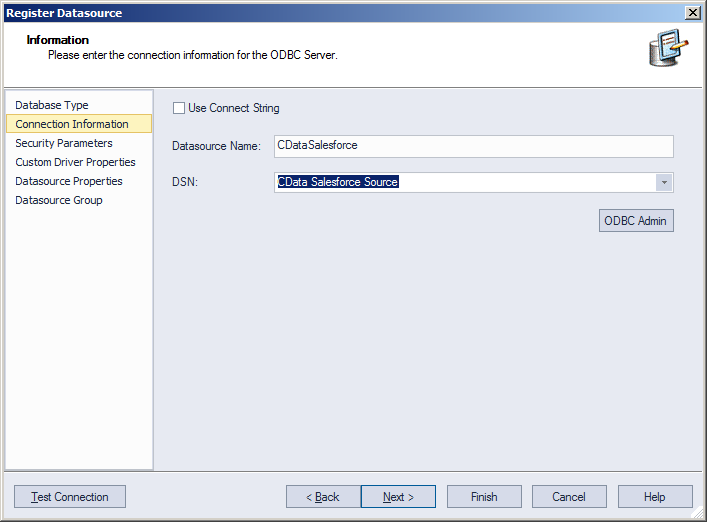
- Finish the wizard to connect to Browse AI data. Browse AI entities are displayed in the Datasource Explorer.
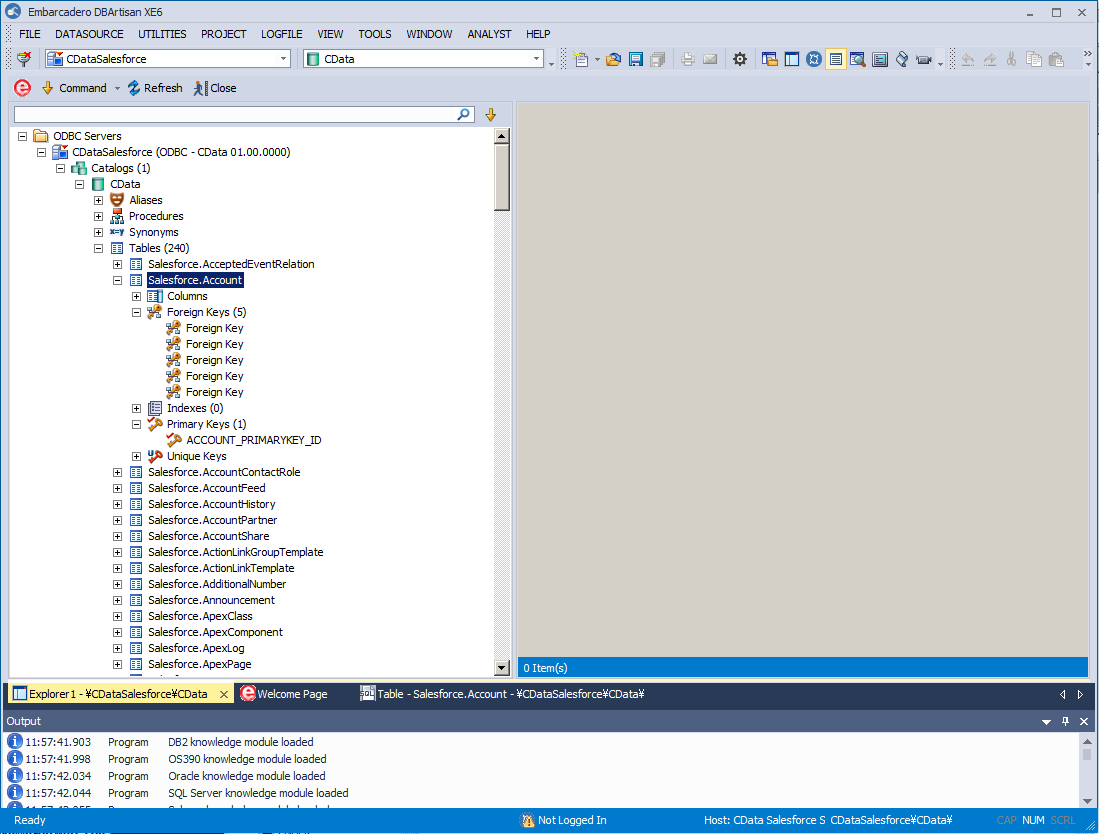
You can now work with Browse AI data as you work with any other database. See the driver help documentation for more information on the queries supported by the Browse AI API.