





Create Power BI Reports on Real-Time Browse AI Data

With built-in support for ODBC on Microsoft Windows, the CData ODBC Drivers provide self-service integration with self-service analytics tools such as Microsoft Power BI. The CData ODBC Driver for Browse AI links your Power BI reports to operational Browse AI data. You can monitor Browse AI data through dashboards and ensure that your analysis reflects Browse AI data in real time by scheduling refreshes or refreshing on demand. This article details how to use the ODBC driver to create real-time visualizations of Browse AI data in Microsoft Power BI Desktop and then upload to Power BI.
The CData ODBC Drivers offer unmatched performance for interacting with live Browse AI data in Power BI due to optimized data processing built into the driver. When you issue complex SQL queries from Power BI to Browse AI, the driver pushes supported SQL operations, like filters and aggregations, directly to Browse AI and utilizes the embedded SQL Engine to process unsupported operations (often SQL functions and JOIN operations) client-side. With built-in dynamic metadata querying, you can visualize and analyze Browse AI data using native Power BI data types.
Connect to Browse AI as an ODBC Data Source
If you have not already, first specify connection properties in an ODBC DSN (data source name). This is the last step of the driver installation. You can use the Microsoft ODBC Data Source Administrator to create and configure ODBC DSNs.
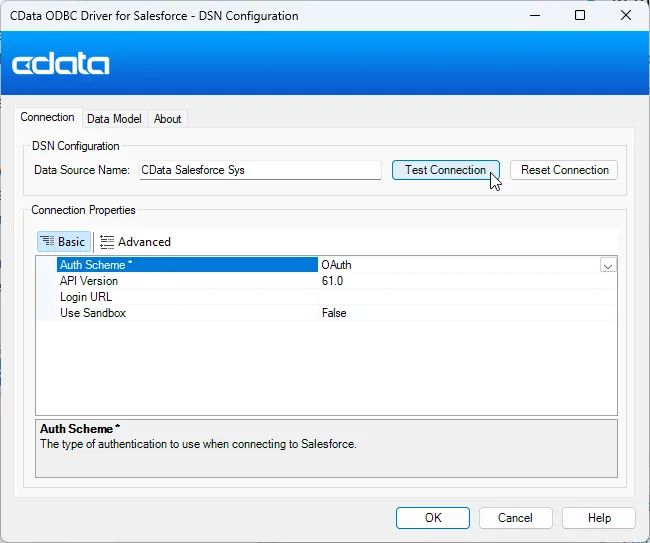
Start by setting the Profile connection property to the location of the BrowseAI Profile on disk (e.g. C:\profiles\BrowseAI.apip). Next, set the ProfileSettings connection property to the connection string for BrowseAI (see below).
BrowseAI API Profile Settings
BrowseAI is a web scraping and automation platform that allows you to train robots to extract and monitor data from websites. Authentication is performed using an API key that is sent as a Bearer token in the Authorization header.
The BrowseAI API key has the format {userId}:{apiKey}, where both parts are UUIDs separated by a colon. This full string is provided as a single value in the BrowseAI dashboard.
To obtain your API key:
- Log in to your BrowseAI account at https://app.browse.ai
- Navigate to Settings in the dashboard
- Locate the API section
- Copy the full API key string displayed (format: userId:apiKey)
After obtaining your API key, set the following connection properties:
- AuthScheme: Set this to APIKey.
Set the following in the ProfileSettings connection property:
- APIKey: Set this to your BrowseAI API key (format: userId:apiKey).
Create Data Visualizations
After creating an ODBC DSN, follow the steps below to connect to the Browse AI ODBC DSN from Power BI Desktop:
-
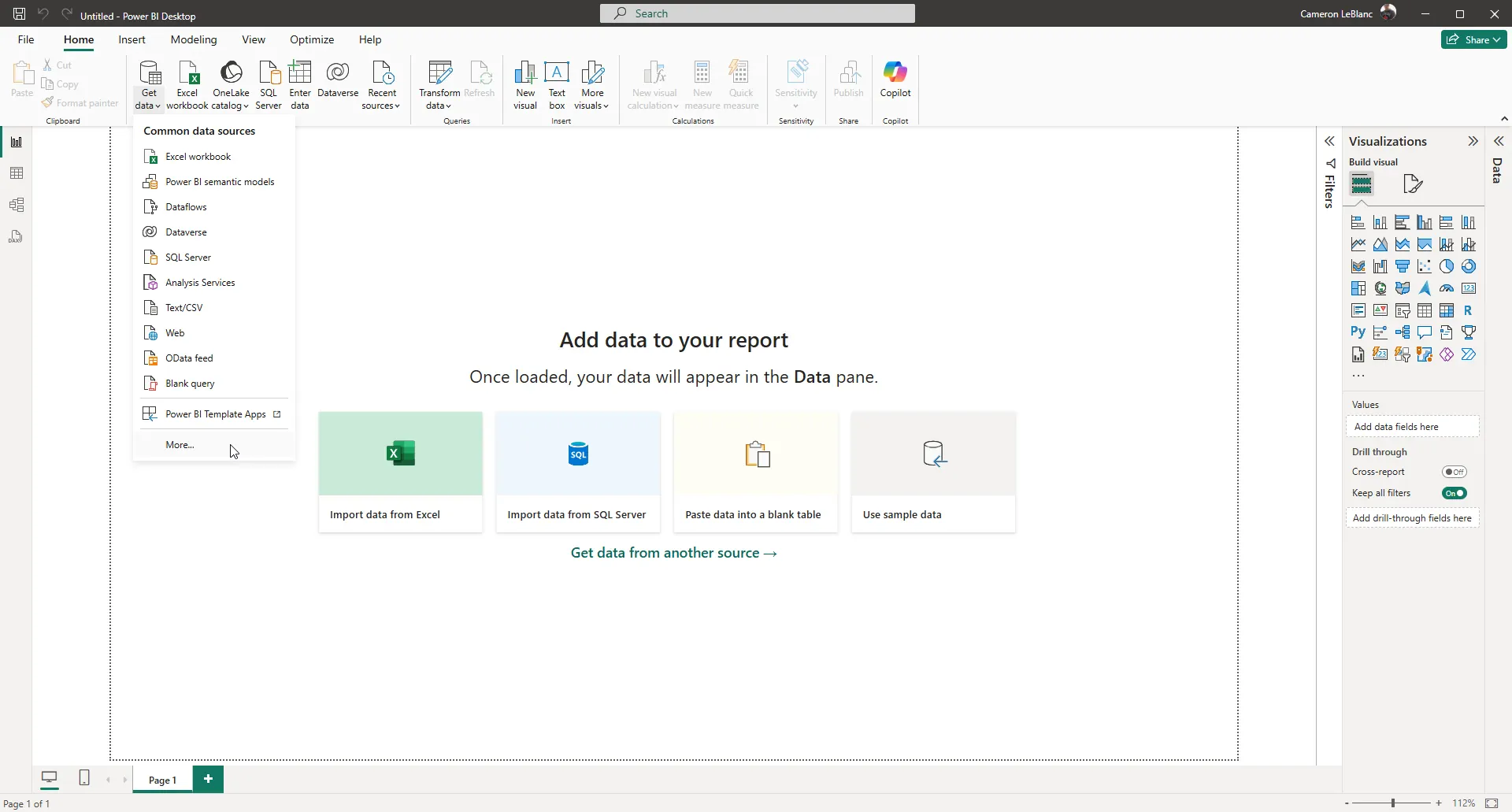
Open Power BI Desktop and click Get Data -> More... to open the Get Data window.
-
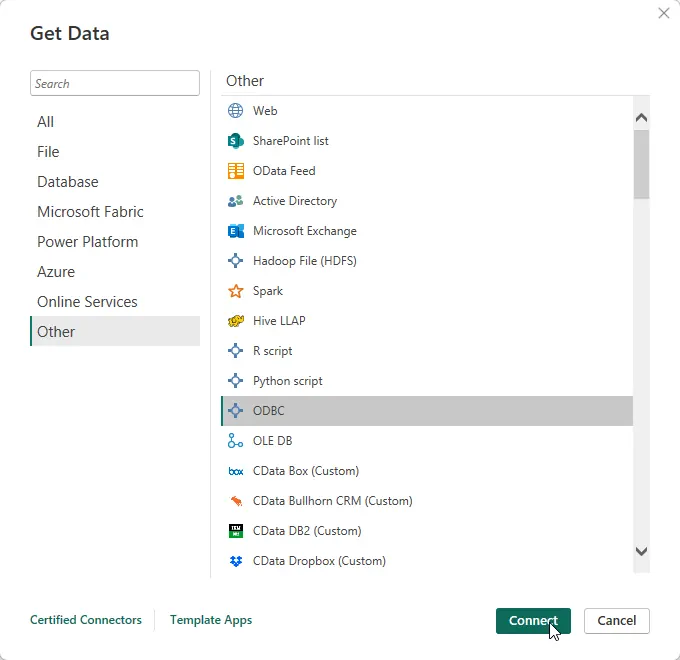
In the Get Data window select Other -> ODBC to open the next window.
-
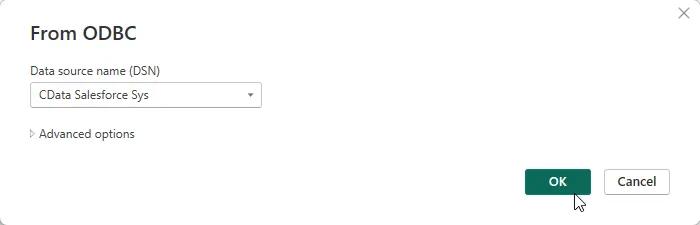
Select the DSN in the menu. If you know the SQL query you want to use to import data, you can expand the Advanced options node and enter the query in the SQL Statement box. Otherwise, click OK to continue.
-
Choose Default or Custom as the authentication option and click Connect.
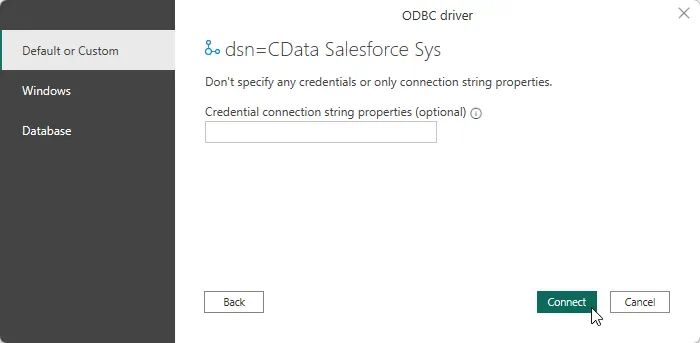
-
Select tables in the Navigator dialog.
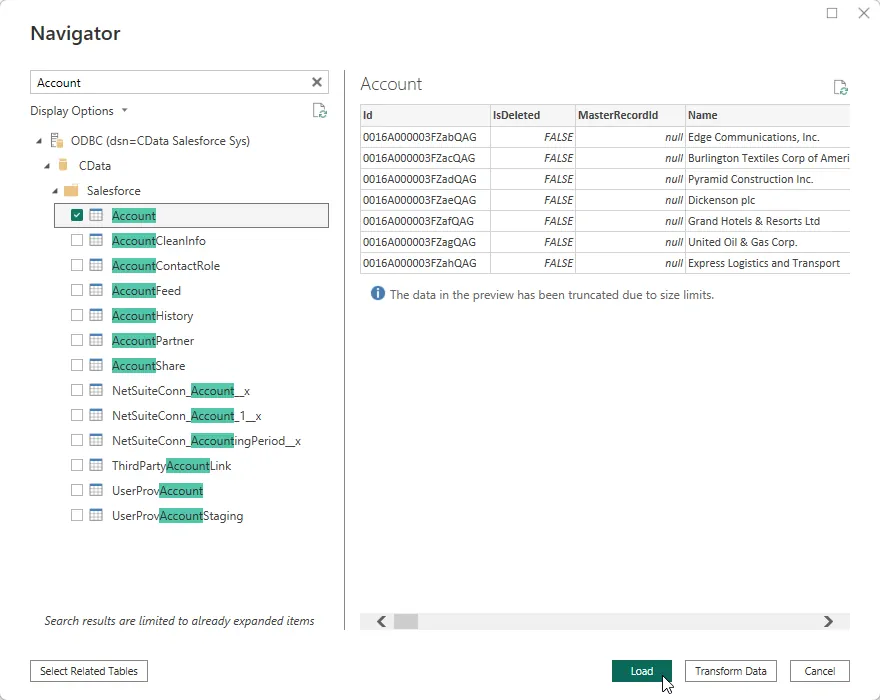
-
Click Transform Data to edit the query. The table you imported is displayed in the Power Query Editor. In the Power Query Editor, you can enrich your local copy of Browse AI data with other data sources, pivot Browse AI columns, and more. Power BI detects each column's data type from the Browse AI metadata retrieved by the driver.
Power BI records your modifications to the query in the Applied Steps section, adjusting the underlying data retrieval query that is executed to the remote Browse AI data. When you click Close and Apply, Power BI executes the data retrieval query.
Otherwise, click Load to pull the data into Power BI.
Create Data Visualizations
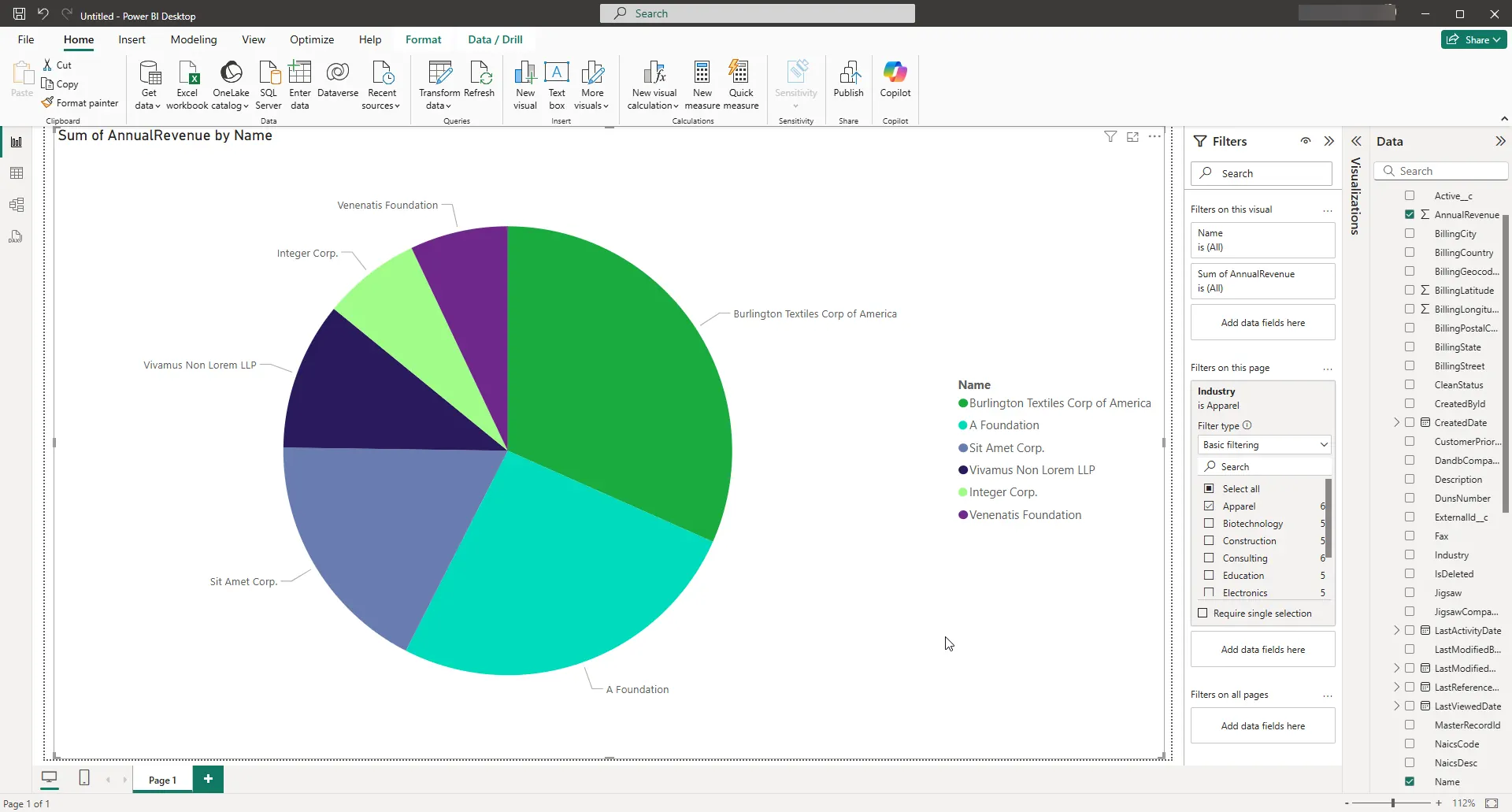
After pulling the data into Power BI, you can create data visualizations in the Report view by dragging fields from the Fields pane onto the canvas. Follow the steps below to create a pie chart (Salesforce shown):
- Select the pie chart icon in the Visualizations pane.
- Select a dimension in the Fields pane: for example, Name.
- Select a measure in the Fields pane: for example, Annual Revenue.
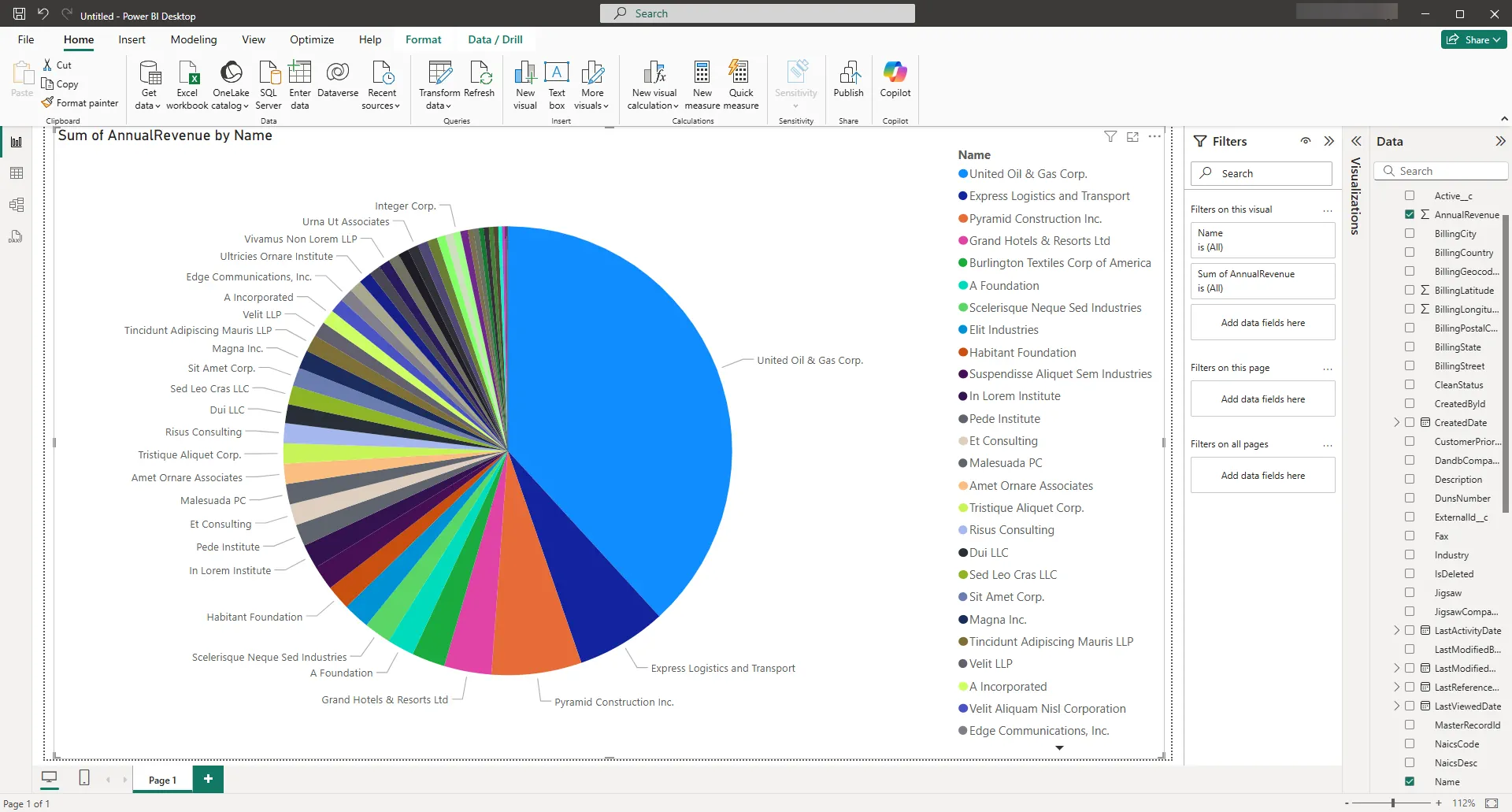
You can change sort options by clicking the ellipsis (...) button for the chart. Options to select the sort column and change the sort order are displayed.
You can use both highlighting and filtering to focus on data. Filtering removes unfocused data from visualizations; highlighting dims unfocused data. You can highlight fields by clicking them:
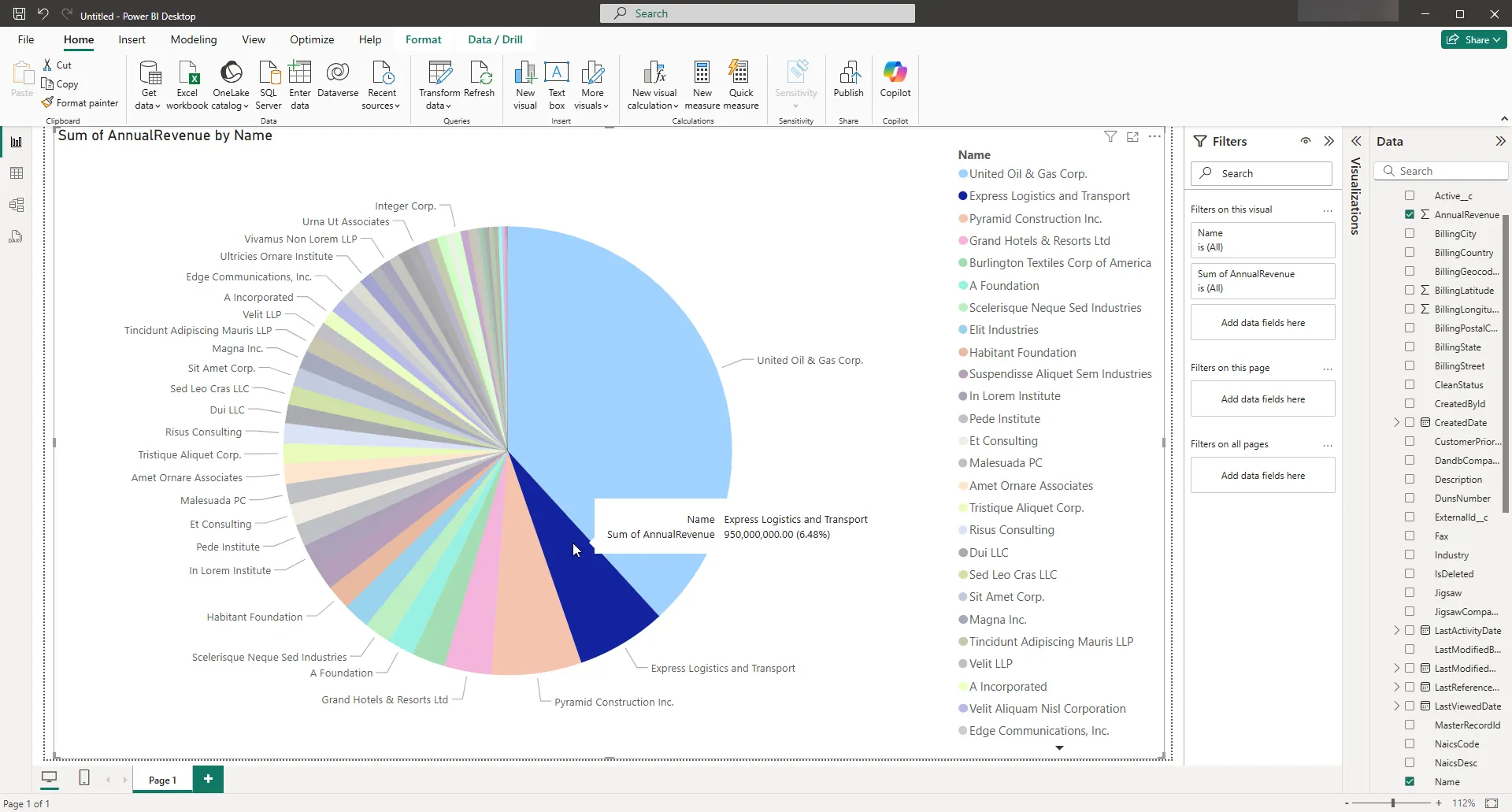
You can apply filters at the page level, at the report level, or to a single visualization by dragging fields onto the Filters pane. To filter on the field's value, select one of the values that are displayed in the Filters pane.
Click Refresh to synchronize your report with any changes to the data.
Free Trial & More Information
If you are interested in connecting to your Browse AI data from Microsoft Power BI, or any applications that support ODBC connectivity, download a free, 30-day trial of the CData ODBC Driver for Browse AI. As always, our world-class support team is ready to answer any questions you may have.