




Query BugHerd Data in DataGrip

DataGrip is a database IDE that allows SQL developers to query, create, and manage databases. When paired with the CData API Driver for JDBC, DataGrip can work with live BugHerd data. This article shows how to establish a connection to BugHerd data in DataGrip.
Create a New Driver Definition for BugHerd
The steps below describe how to create a new Data Source in DataGrip for BugHerd.
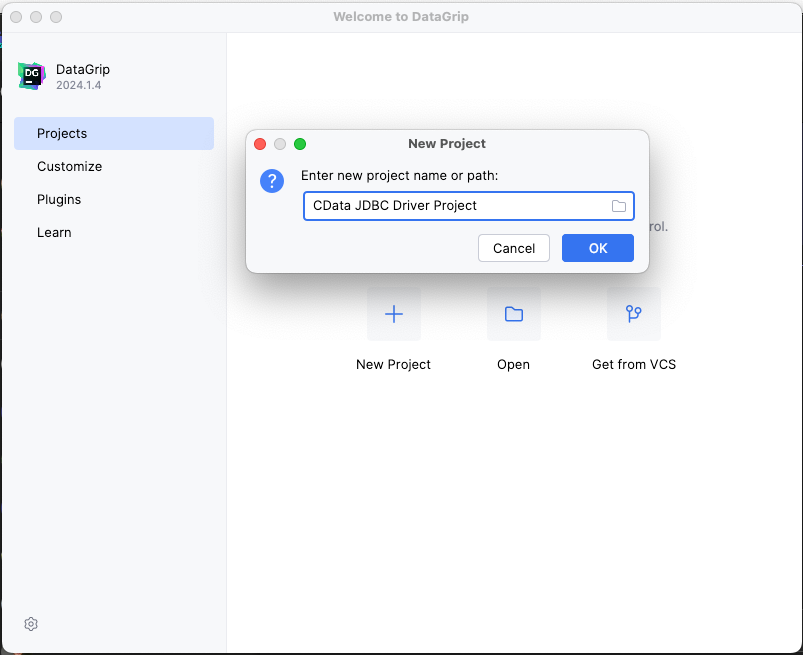
- In DataGrip, click File -> New > Project and name the project
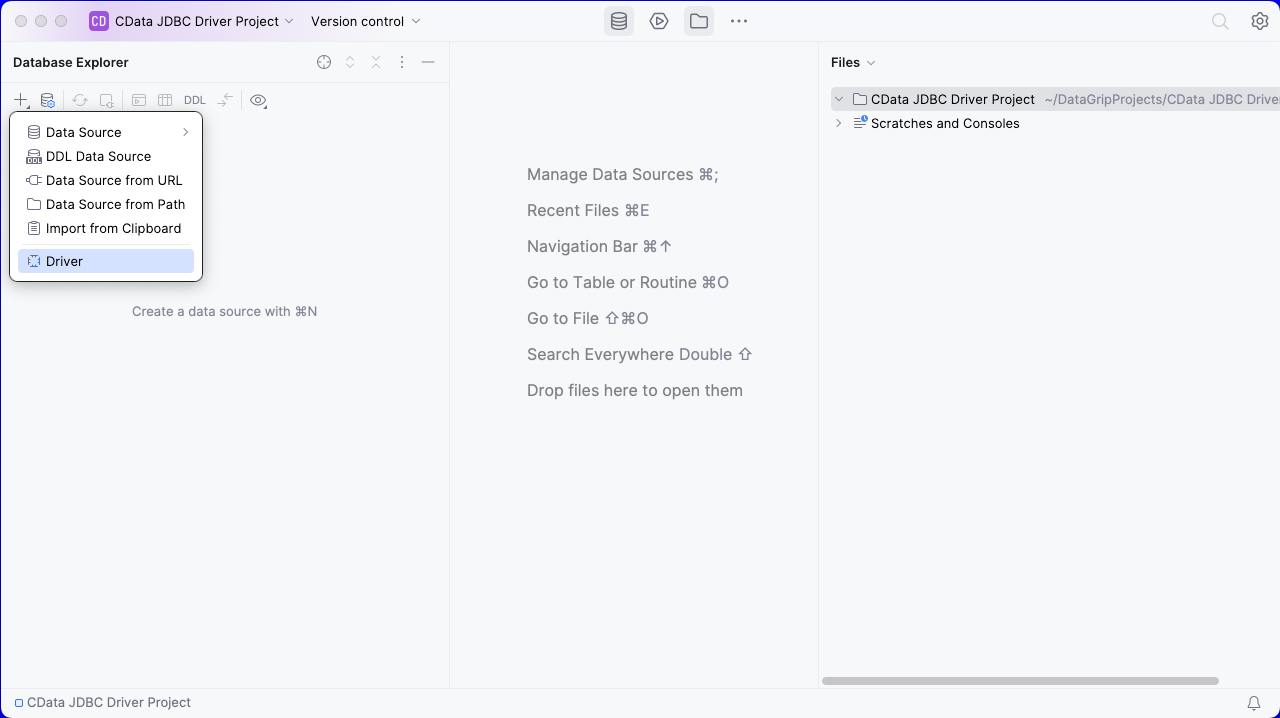
- In the Database Explorer, click the plus icon () and select Driver.
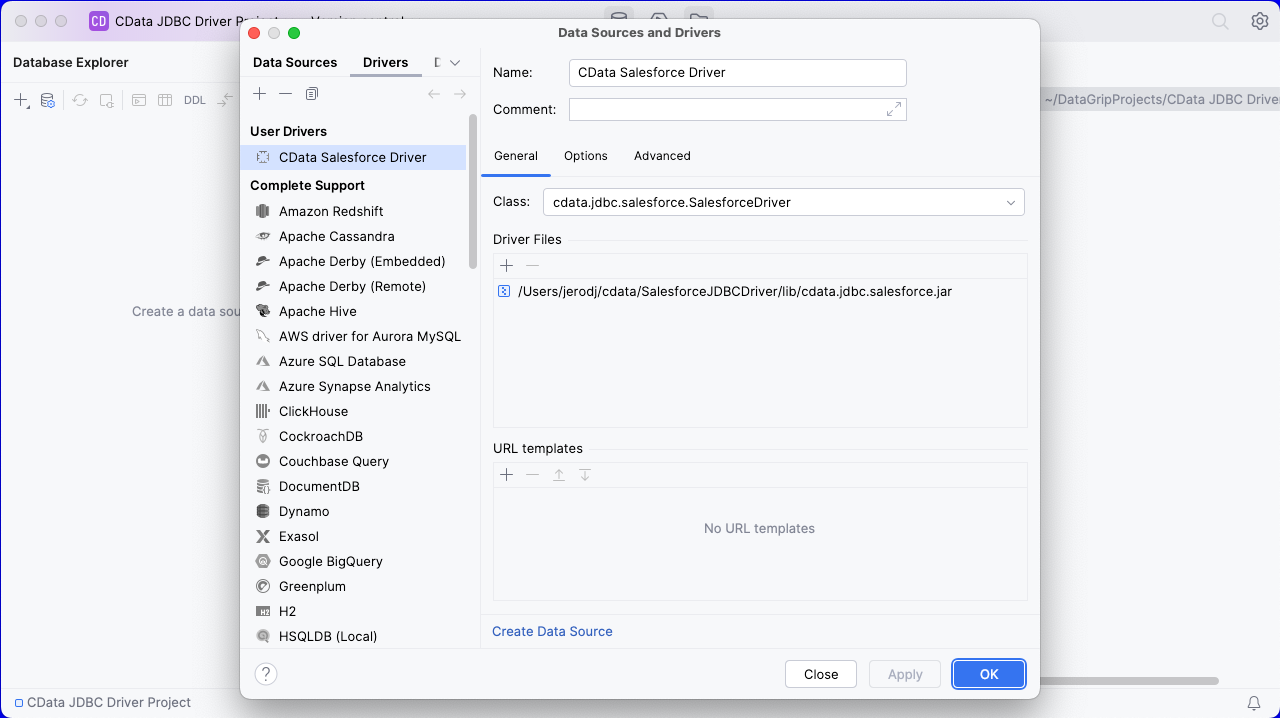
- In the Driver tab:
- Set Name to a user-friendly name (e.g. "CData BugHerd Driver")
- Set Driver Files to the appropriate JAR file. To add the file, click the plus (), select "Add Files," navigate to the "lib" folder in the driver's installation directory and select the JAR file (e.g. cdata.jdbc.api.jar).
- Set Class to cdata.jdbc.api.API.jar
Additionally, in the advanced tab you can change driver properties and some other settings like VM Options, VM environment, VM home path, DBMS, etc - For most cases, change the DBMS type to "Unknown" in Expert options to avoid native SQL Server queries (Transact-SQL), which might result in an invalid function error
- Click "Apply" then "OK" to save the Connection
Configure a Connection to BugHerd
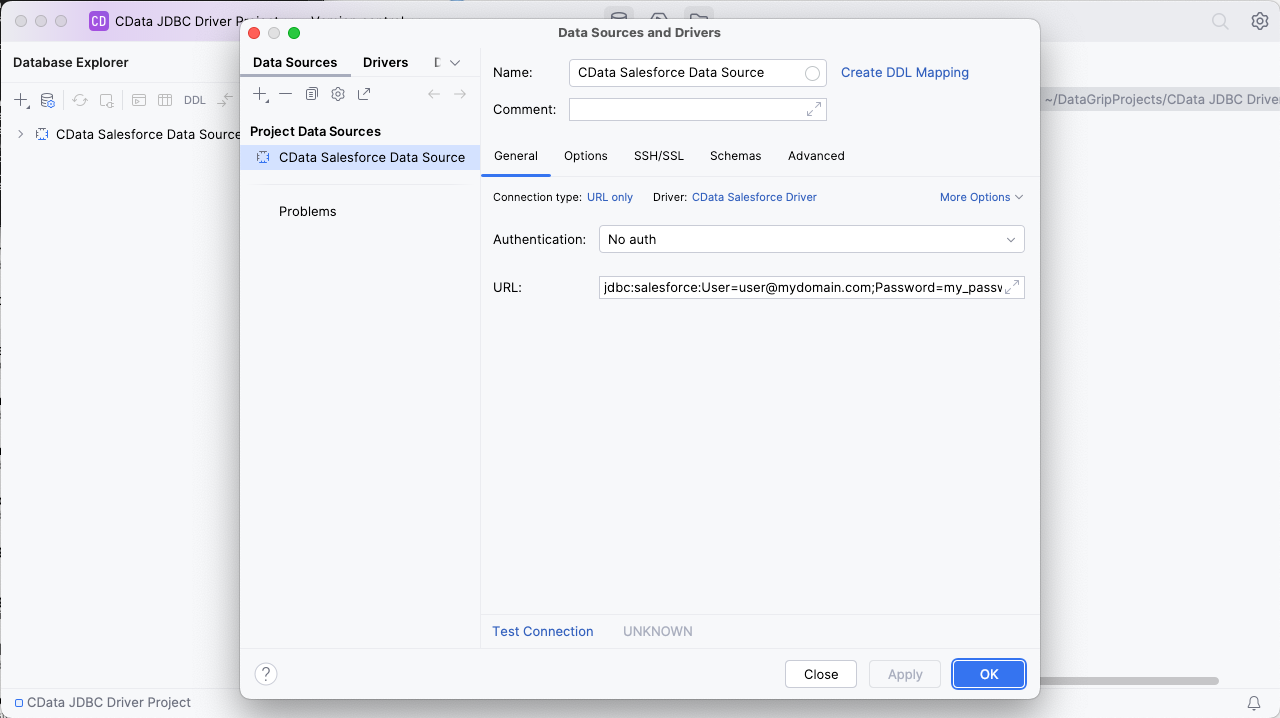
- Once the connection is saved, click the plus (), then "Data Source" then "CData BugHerd Driver" to create a new BugHerd Data Source.
- In the new window, configure the connection to BugHerd with a JDBC URL.
Built-in Connection String Designer
For assistance in constructing the JDBC URL, use the connection string designer built into the BugHerd JDBC Driver. Either double-click the JAR file or execute the jar file from the command-line.
java -jar cdata.jdbc.api.jarFill in the connection properties and copy the connection string to the clipboard.
Start by setting the Profile connection property to the location of the BugHerd Profile on disk (e.g. C:\profiles\BugHerd.apip). Next, set the ProfileSettings connection property to the connection string for BugHerd (see below).
BugHerd API Profile Settings
BugHerd uses HTTP Basic authentication with an API key as the username. To obtain an API key:
- Sign in to your BugHerd account at https://www.bugherd.com
- Navigate to Settings > General Settings
- Locate the API Key section and copy the generated key
After obtaining your API key, set the following connection properties:
- AuthScheme: Set this to APIKey.
Set the following in the ProfileSettings connection property:
- APIKey: Set this to your BugHerd API key. The driver uses the key as the Basic auth username and sets the password internally to the literal value 'x' as required by BugHerd.

- Set URL to the connection string, e.g.,
jdbc:api:Profile=C:\profiles\BugHerd.apip;AuthScheme=APIKey;ProfileSettings='APIKey=your_api_key'; - Click "Apply" and "OK" to save the connection string
At this point, you will see the data source in the Data Explorer.
Execute SQL Queries Against BugHerd
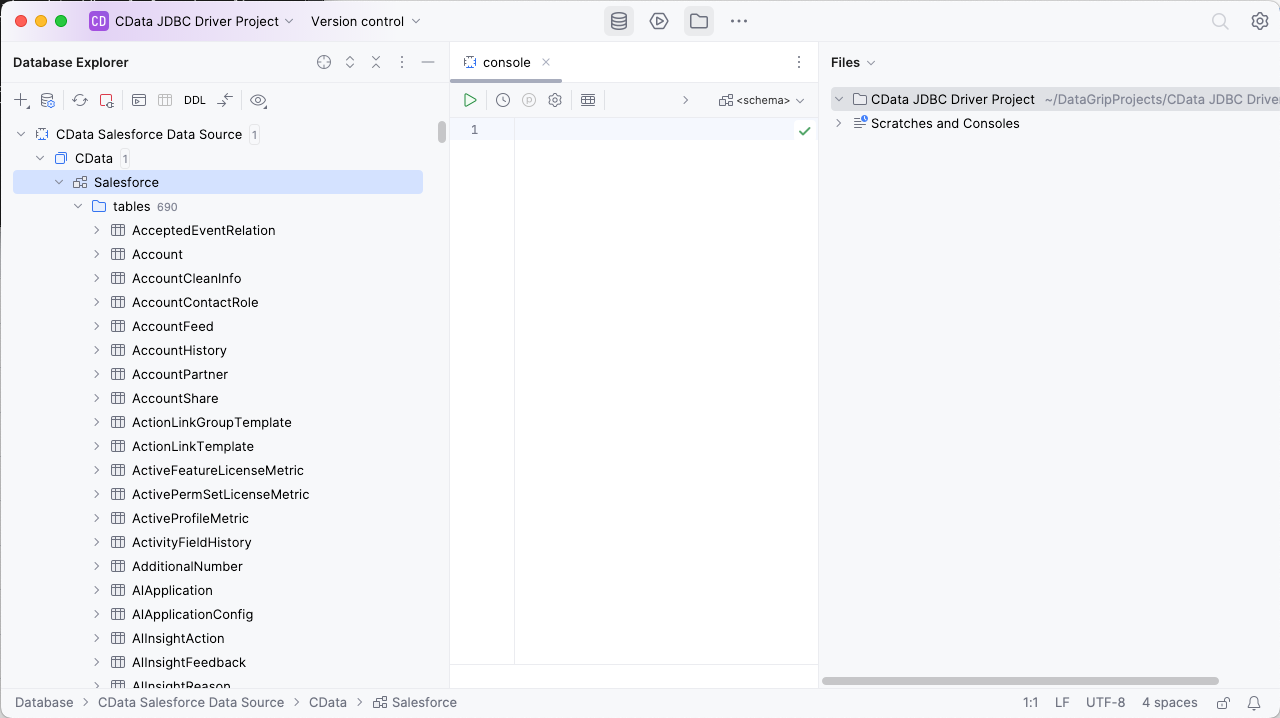
To browse through the BugHerd entities (available as tables) accessible through the JDBC Driver, expand the Data Source.
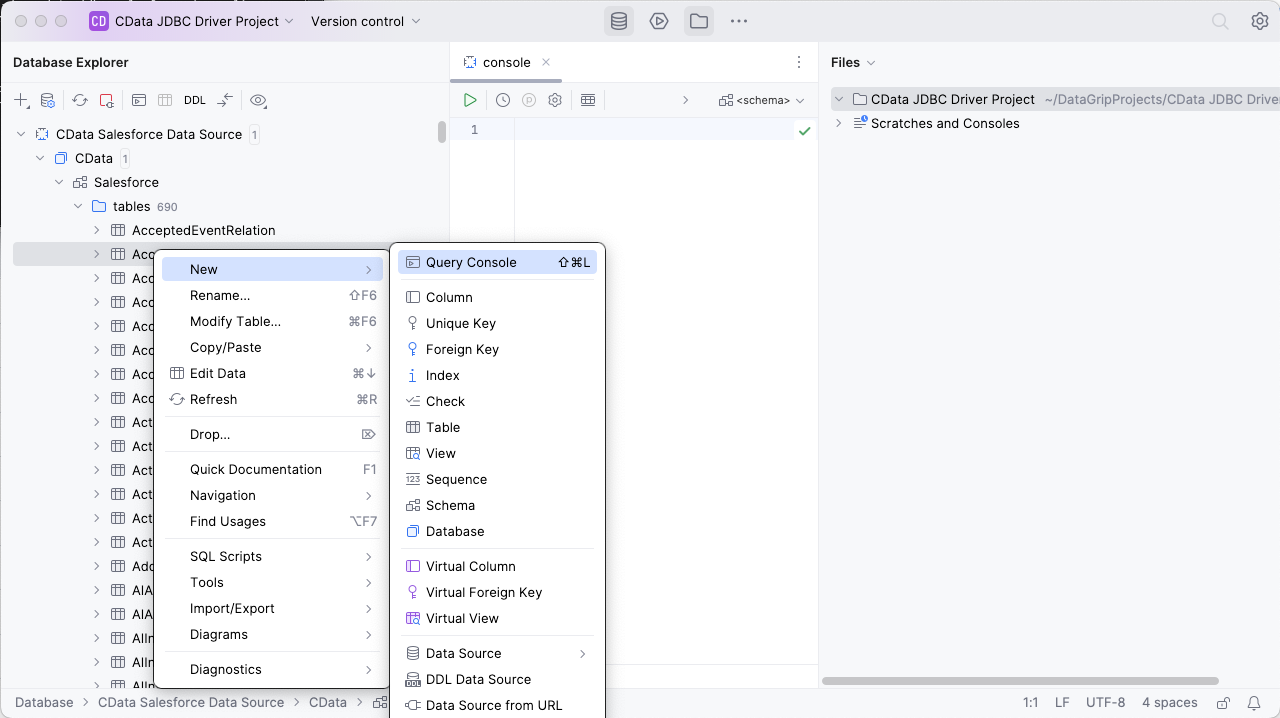
To execute queries, right click on any table and select "New" -> "Query Console."
In the Console, write the SQL query you wish to execute. For example:
SELECT Id, Title FROM Tasks WHERE ProjectId = '519666'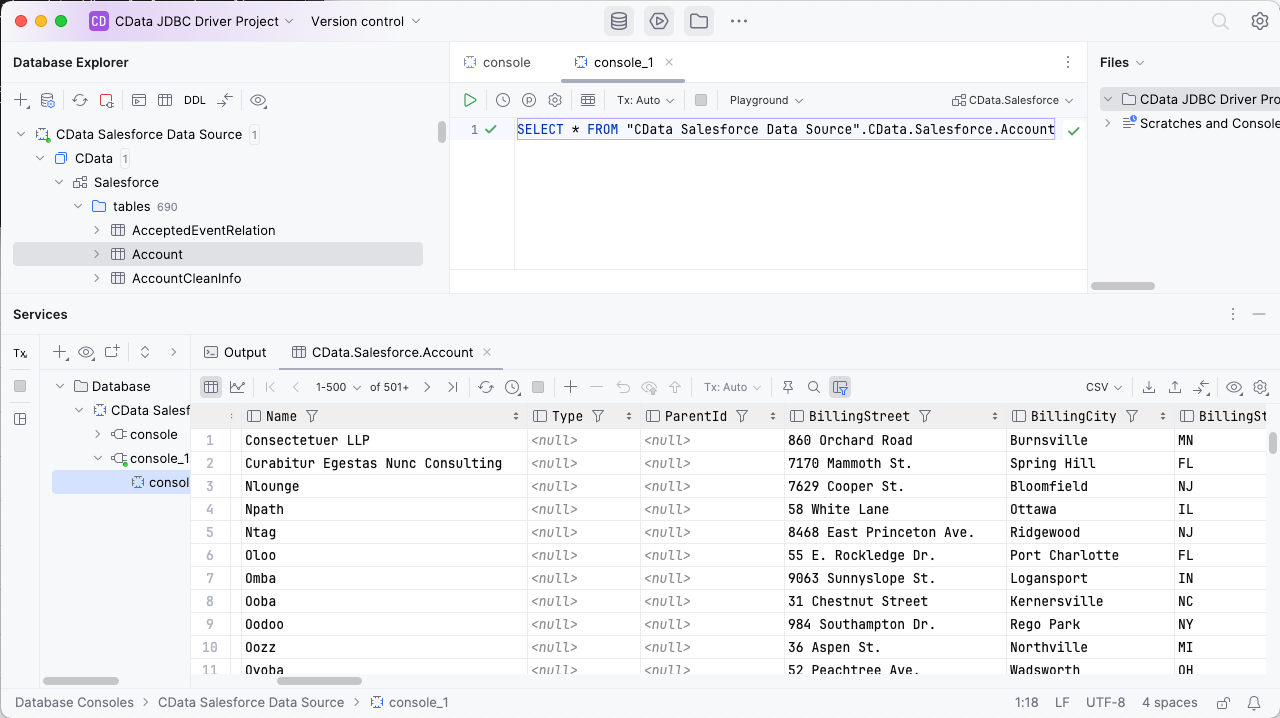
Download a free, 30-day trial of the CData API Driver for JDBC and start working with your live BugHerd data in DataGrip. Reach out to our Support Team if you have any questions.