How to connect to BugHerd Data with Squirrel SQL client

The CData JDBC Driver for BugHerd enables you to execute queries to BugHerd data in tools like Squirrel SQL Client. In this article, you will create a JDBC data source for BugHerd data and execute queries.
Add the JDBC Driver for BugHerd
Follow the steps below to add the driver JAR.
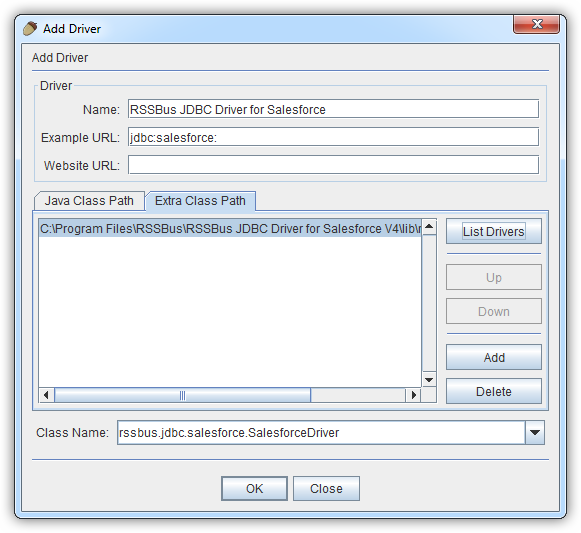
- In Squirrel SQL, click Windows -> View Drivers.
- Click the plus icon to open the Add Driver wizard.
- In the Name box, enter a user-friendly name for the driver; for example, CData JDBC Driver for BugHerd.
- In the Example URL box, enter jdbc:api:
- In the Extra Class Path tab, click Add.
- In the file explorer dialog that opens, select the JAR file for the driver, located in the lib subfolder of the installation directory.
- Click List Drivers to populate the Class Name menu with the class name for the driver, cdata.jdbc.api.APIDriver.
Define Connection Properties
Follow the steps below to save connection properties in the driver alias.
- Click Windows -> View Aliases.
- In the pane that lists the aliases, click the plus icon.
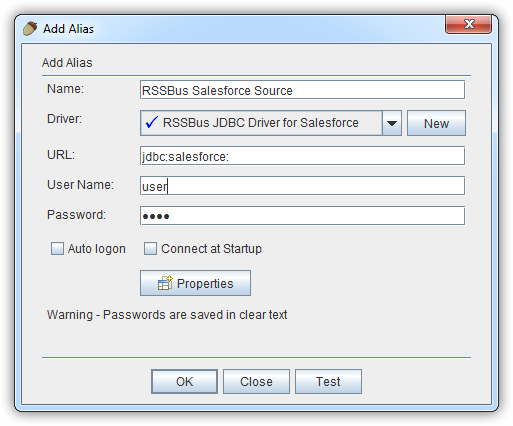
In the Add Alias wizard that opens, the following fields are required for the JDBC driver:
- Name: Enter a name for the alias; for example, CData BugHerd Source.
- Driver: Select the CData JDBC Driver for BugHerd.
- URL: Enter jdbc:api:
- If you want to define any additional properties, click Properties.
- In the Driver properties tab of the dialog that appears, select the Use driver properties checkbox.
- In the Specify column, select the checkboxes for the required connection properties.
Start by setting the Profile connection property to the location of the BugHerd Profile on disk (e.g. C:\profiles\BugHerd.apip). Next, set the ProfileSettings connection property to the connection string for BugHerd (see below).
BugHerd API Profile Settings
BugHerd uses HTTP Basic authentication with an API key as the username. To obtain an API key:
- Sign in to your BugHerd account at https://www.bugherd.com
- Navigate to Settings > General Settings
- Locate the API Key section and copy the generated key
After obtaining your API key, set the following connection properties:
- AuthScheme: Set this to APIKey.
Set the following in the ProfileSettings connection property:
- APIKey: Set this to your BugHerd API key. The driver uses the key as the Basic auth username and sets the password internally to the literal value 'x' as required by BugHerd.
Below is a typical connection string:
jdbc:api:Profile=C:\profiles\BugHerd.apip;AuthScheme=APIKey;ProfileSettings='APIKey=your_api_key';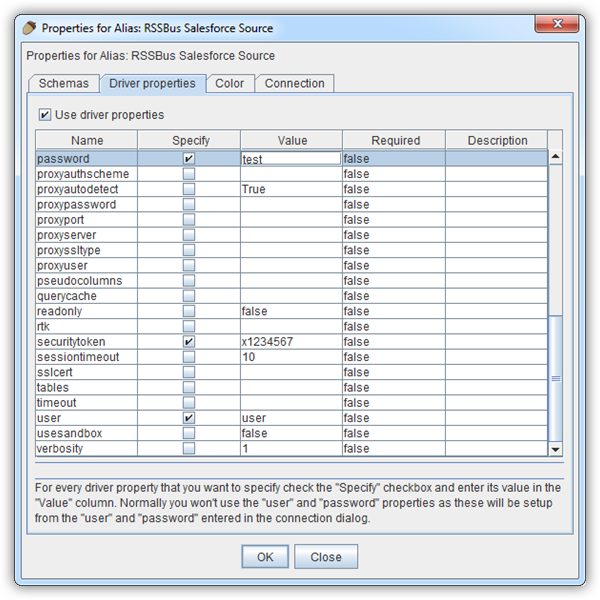
- In the dialog that appears after you click OK, click connect to test the connection.
Discover Schemas and Query BugHerd Data
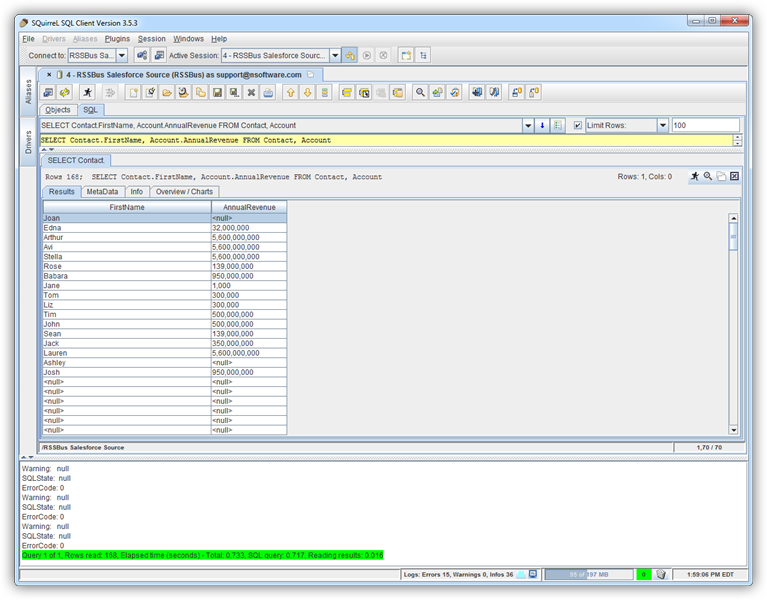
After the metadata has loaded, a new tab for the BugHerd data source is displayed. On the Objects subtab, you can discover schema information, such as the available tables and views.
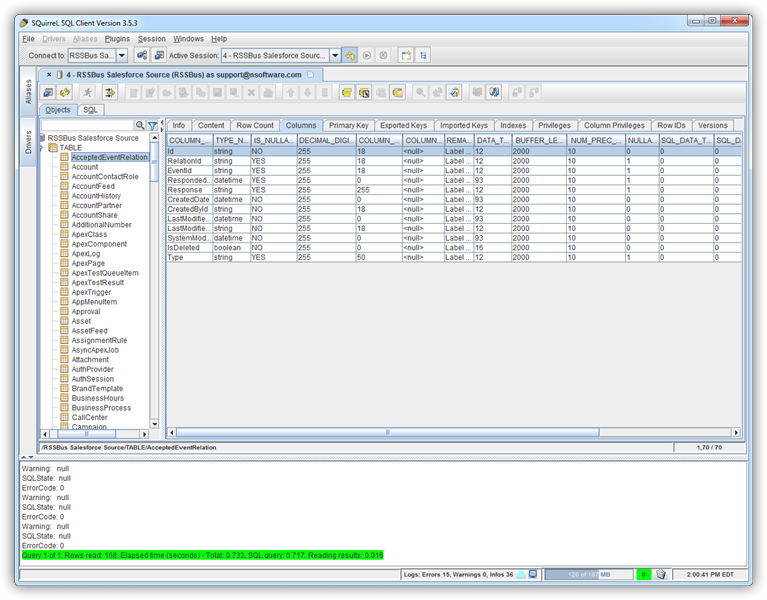
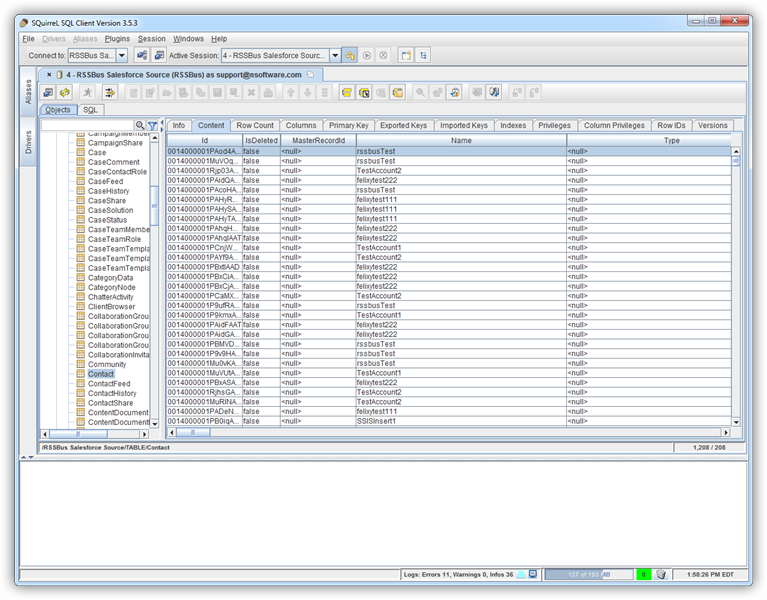
To view table data, select the table on the Objects tab. The table data is then loaded in a grid on the Content tab.
To execute an SQL query, enter the query on the SQL tab and then click Run SQL (the runner icon). For example:
SELECT Id, Title FROM Tasks WHERE ProjectId = '519666'