Connect to Buildkite Data in RapidMiner

This article shows how you can easily integrate the CData JDBC driver for Buildkite into your processes in RapidMiner. This article uses the CData JDBC Driver for Buildkite to transfer Buildkite data to a process in RapidMiner.
Connect to Buildkite in RapidMiner as a JDBC Data Source
You can follow the procedure below to establish a JDBC connection to Buildkite:
- Add a new database driver for Buildkite: Click Connections -> Manage Database Drivers.
- In the resulting wizard, click the Add button and enter a name for the connection.
- Enter the prefix for the JDBC URL:
jdbc:api: - Enter the path to the cdata.jdbc.api.jar file, located in the lib subfolder of the installation directory.
- Enter the driver class:
cdata.jdbc.api.APIDriver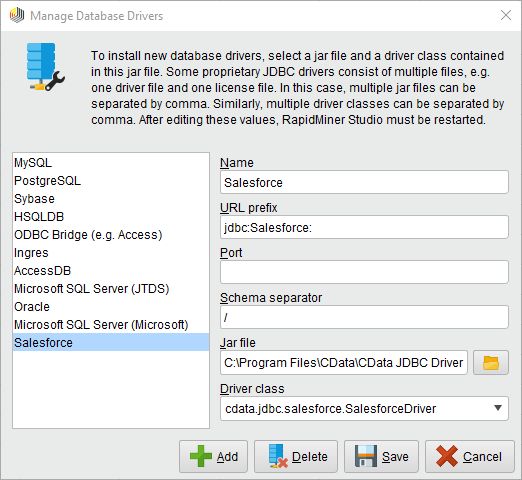
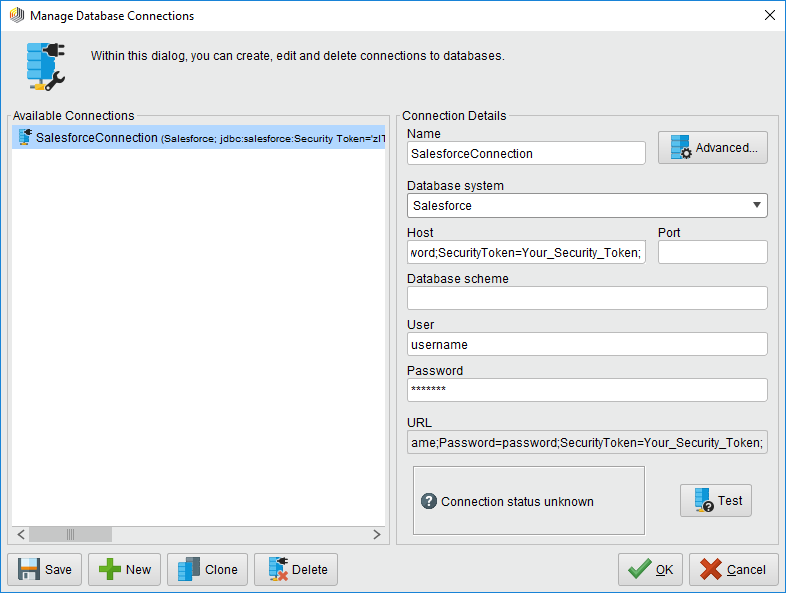
- Create a new Buildkite connection: Click Connections -> Manage Database Connections.
- Enter a name for your connection.
- For Database System, select the Buildkite driver you configured previously.
- Enter your connection string in the Host box.
Start by setting the Profile connection property to the location of the Buildkite Profile on disk (e.g. C:\profiles\Buildkite.apip). Next, set the ProfileSettings connection property to the connection string for Buildkite (see below).
Buildkite API Profile Settings
Buildkite uses HTTP API key authentication. Your Buildkite API access token is used to authenticate requests as a Bearer token. You can generate or view your tokens at https://buildkite.com/user/api-access-tokens.
After setting the following connection properties, you are ready to connect:
- AuthScheme: Set this to APIKey.
- APIKey: Set this to your Buildkite API access token.
- Organization: Set this to your Buildkite organization slug (e.g. acme-inc).
Built-in Connection String Designer
For assistance in constructing the JDBC URL, use the connection string designer built into the Buildkite JDBC Driver. Either double-click the JAR file or execute the jar file from the command-line.
java -jar cdata.jdbc.api.jarFill in the connection properties and copy the connection string to the clipboard.

A typical connection string is below:
Profile=C:\profiles\Buildkite.apip;AuthScheme=APIKey;ProfileSettings='APIKey=your_api_key;Organization=your_organization_slug'; - Enter your username and password if necessary.
You can now use your Buildkite connection with the various RapidMiner operators in your process. To retrieve Buildkite data, drag the Retrieve operator from the Operators view.
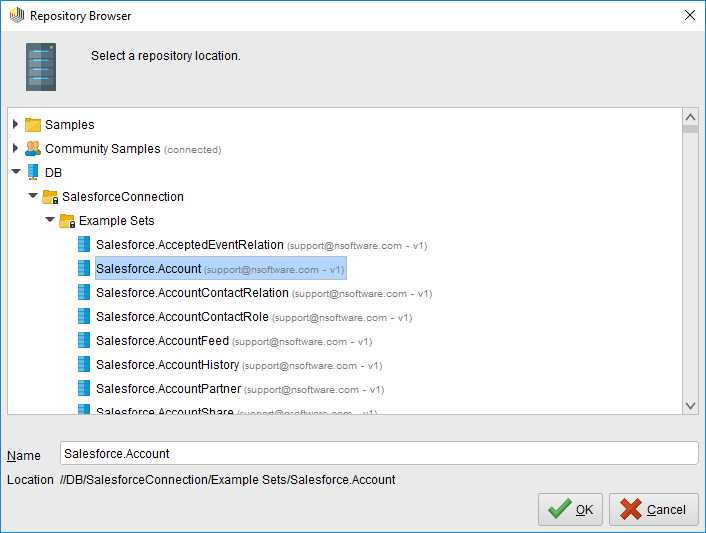 With the Retrieve operator selected, you can then define which table to retrieve in the Parameters view by clicking the folder icon next to the "repository entry." In the resulting Repository Browser, you can expand your connection node to select the desired example set.
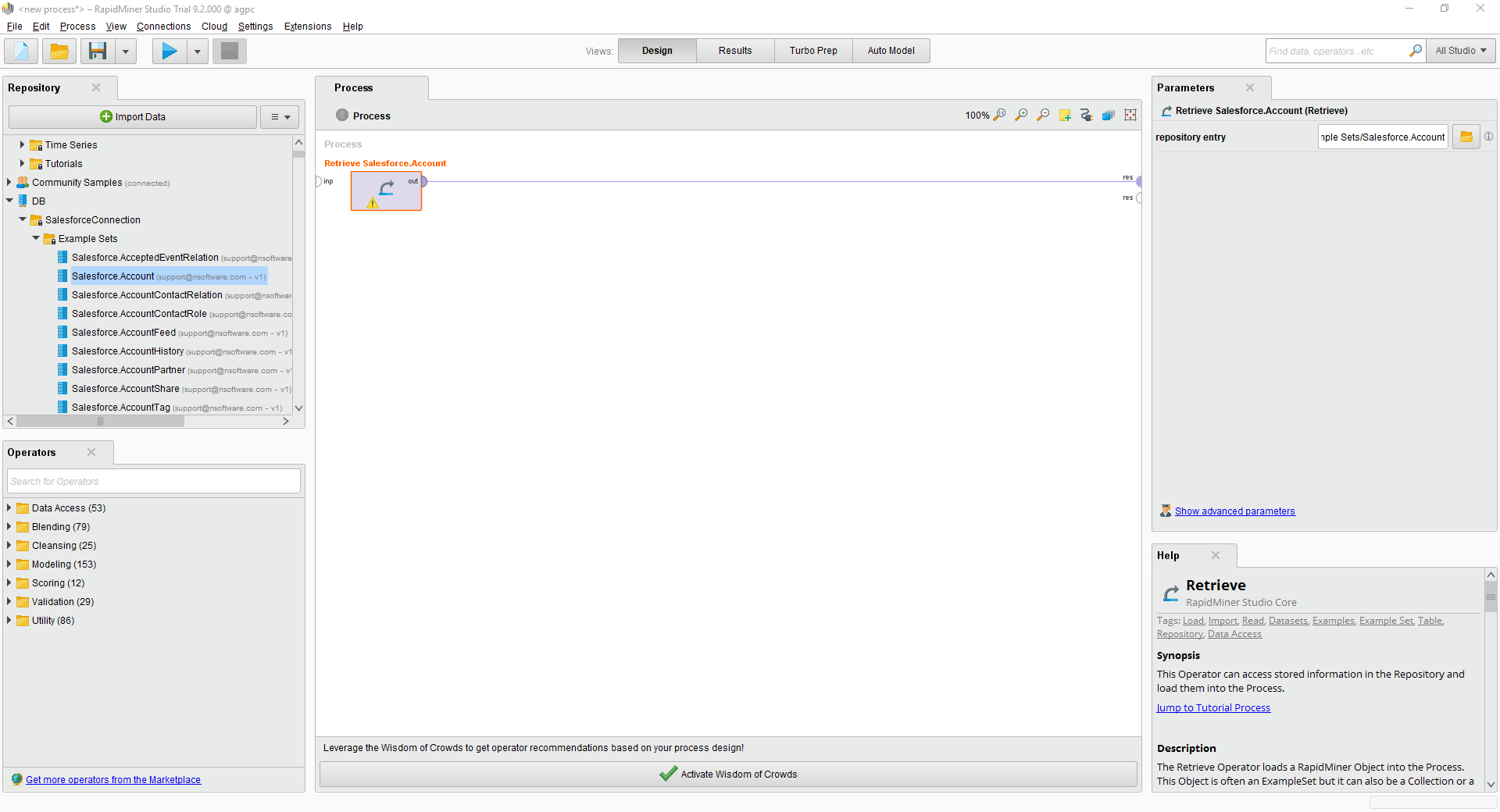
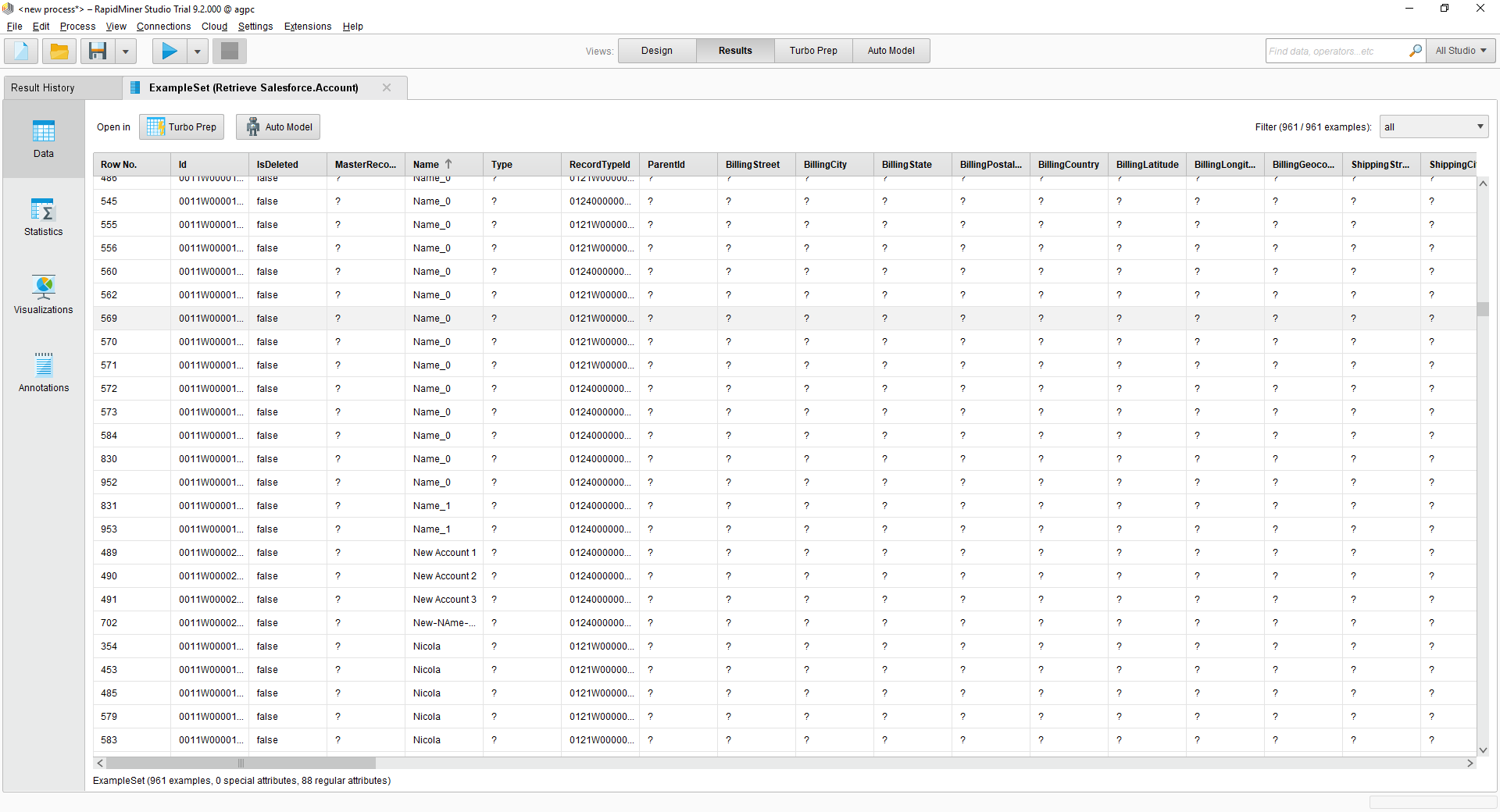
Finally, wire the output to the Retrieve process to a result, and run the process to see the Buildkite data.