




Visualize Canny Data in Sisense

Sisense lets you join, analyze, and picture data to make more intelligent business decisions and craft effective strategies. The CData API Driver for JDBC makes it easy to integrate with Canny data in Sisense. This article shows how to create an ElastiCube that connects to Canny data and use the ElastiCube to visualize Canny data in Sisense.
Configure the Connection to Canny
Before creating the ElastiCube, note the installation location for the JAR file for the JDBC Driver (typically C:\Program Files\CData\CData API Driver for JDBC 20XX\lib) or copy the jar file (cdata.jdbc.api.API.jar) to a new folder in the Sisense JDBC driver directory (typically C:\ProgramData\Sisense\DataConnectors\jdbcdrivers).
- In the Data page of the Sisense application, create a new ElastiCube (or open an existing one).
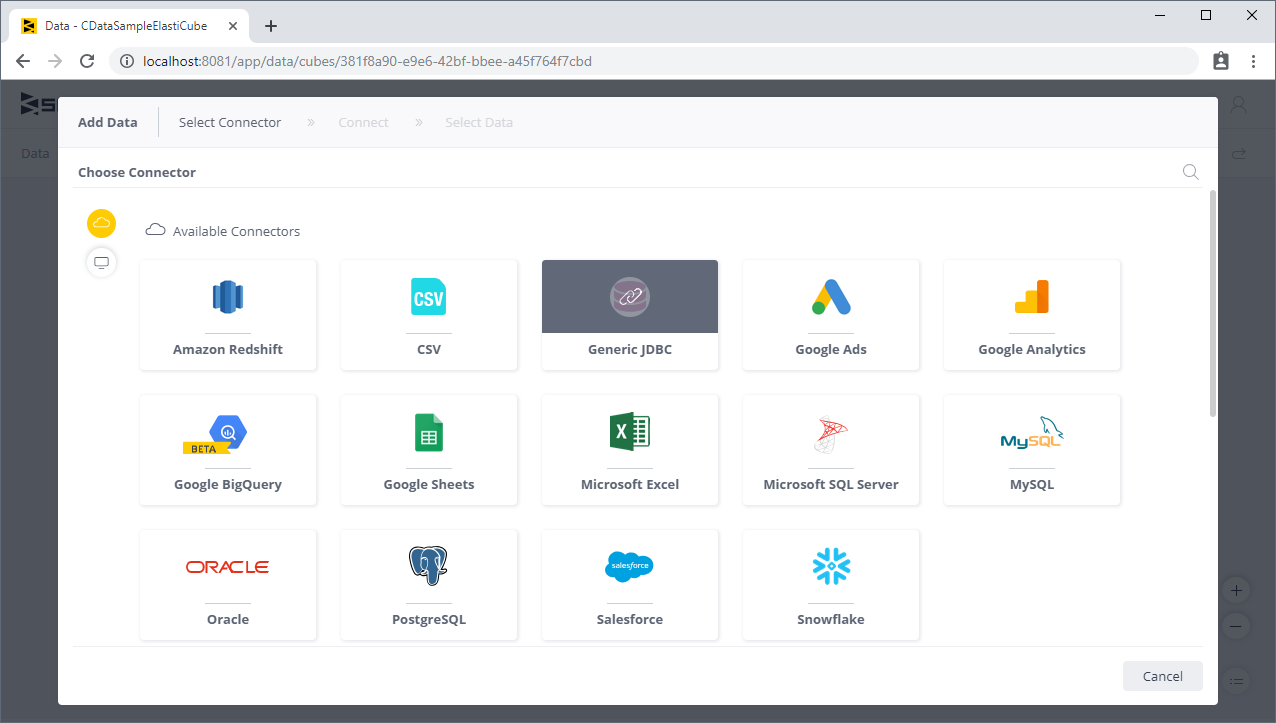
- In the Model Editor, click "+ Data" to open the Add Data dialog box.
- Click Generic JDBC to open the JDBC settings.
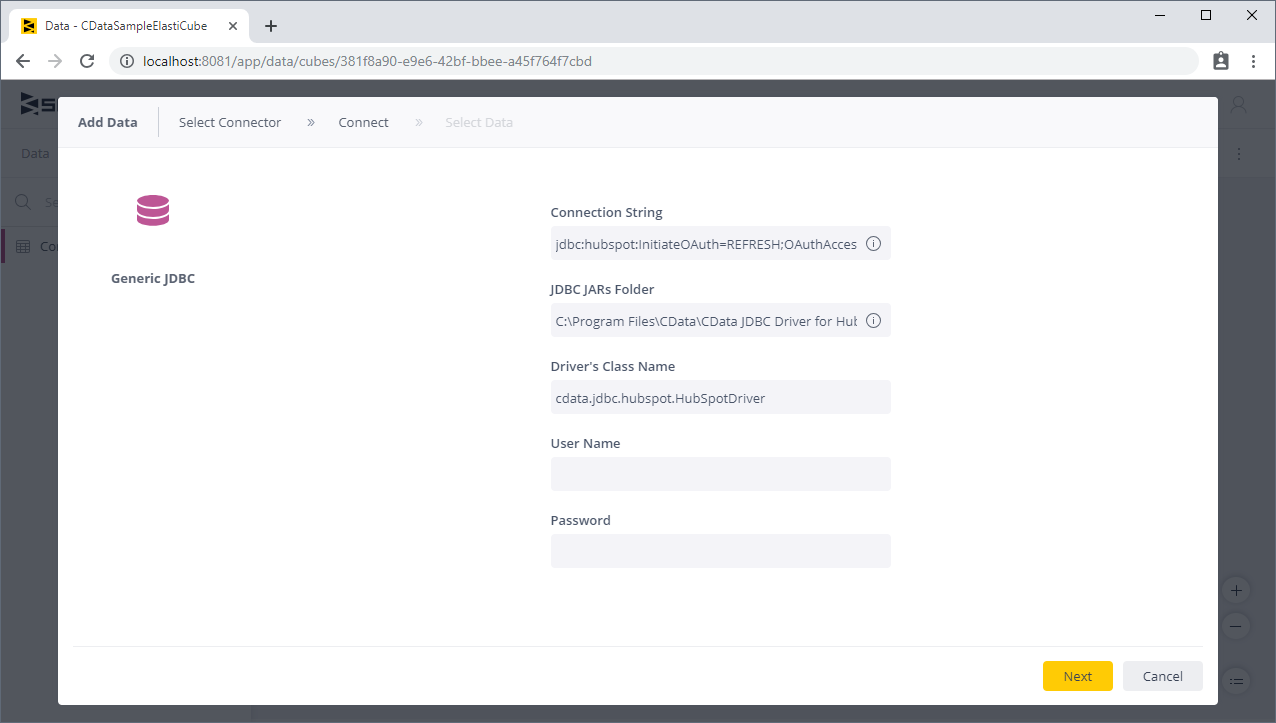
- Set the connection string property to the JDBC URL for Canny, adding required properties.
Start by setting the Profile connection property to the location of the Canny Profile on disk (e.g. C:\profiles\Canny.apip). Next, set the ProfileSettings connection property to the connection string for Canny (see below).
Canny API Profile Settings
Canny uses a secret API key to control access to the API. The API key is sent as a JSON body parameter named 'apiKey' in every HTTP POST request to the Canny API endpoints.
To authenticate with the Canny API, you need your company-level secret API key. You can find this key in your Canny account under Settings > API.
After setting the following connection properties, you are ready to connect:
- AuthScheme: Set this to APIKey.
- APIKey: Set this to your Canny company-level secret API key from the Settings > API page in your Canny dashboard.
Built-in Connection String Designer
For assistance in constructing the JDBC URL, use the connection string designer built into the Canny JDBC Driver. Either double-click the JAR file or execute the jar file from the command-line.
java -jar cdata.jdbc.api.jarFill in the connection properties and copy the connection string to the clipboard.

When you configure the JDBC URL, you may also want to set the Max Rows connection property. This will limit the number of rows returned, which is especially helpful for improving performance when designing reports and visualizations.
A typical example follows:
jdbc:api:Profile=C:\profiles\Canny.apip;ProfileSettings='APIKey=your-canny-api-key'; - Set the JDBC JARs folder property to the location of the CData JDBC Driver JAR file (see above).
- Set the driver's class name to the class name for the JDBC Driver: cdata.jdbc.api.APIDriver
- Leave the username and password properties blank.
- Click Next.
Add Canny Data to an ElastiCube
Once you are connected to Canny, you can add views to your ElastiCubes.
- From the Tables list, select the tables and/or views you wish to work with.
- (Optional) Click "+" to customize the data you want to import with SQL.
- Click Done.
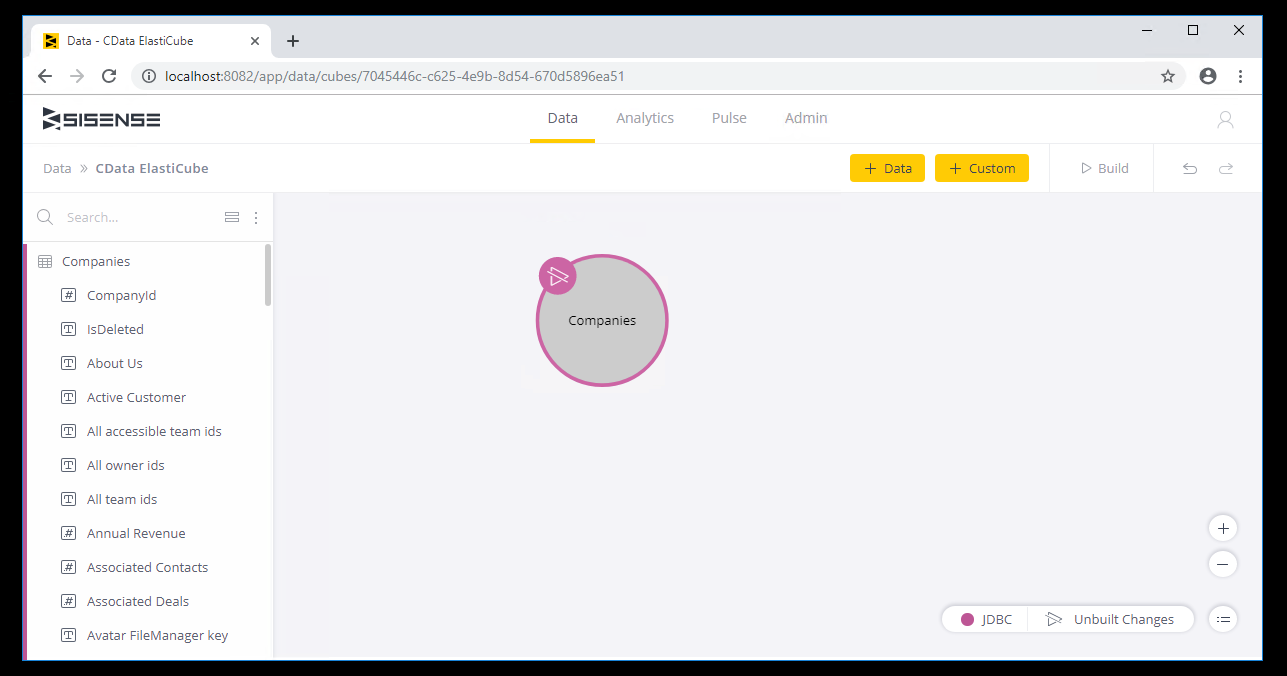
- Click Build to build the ElastiCube for analytics.
Visualize Canny Data
With Canny tables added to your ElastiCube, you can perform analytics on your Canny data.
- Navigate to the Analytics page of the Sisense application
- Select a Dashboard (or create a new one)
- Select your Data Source and click Create
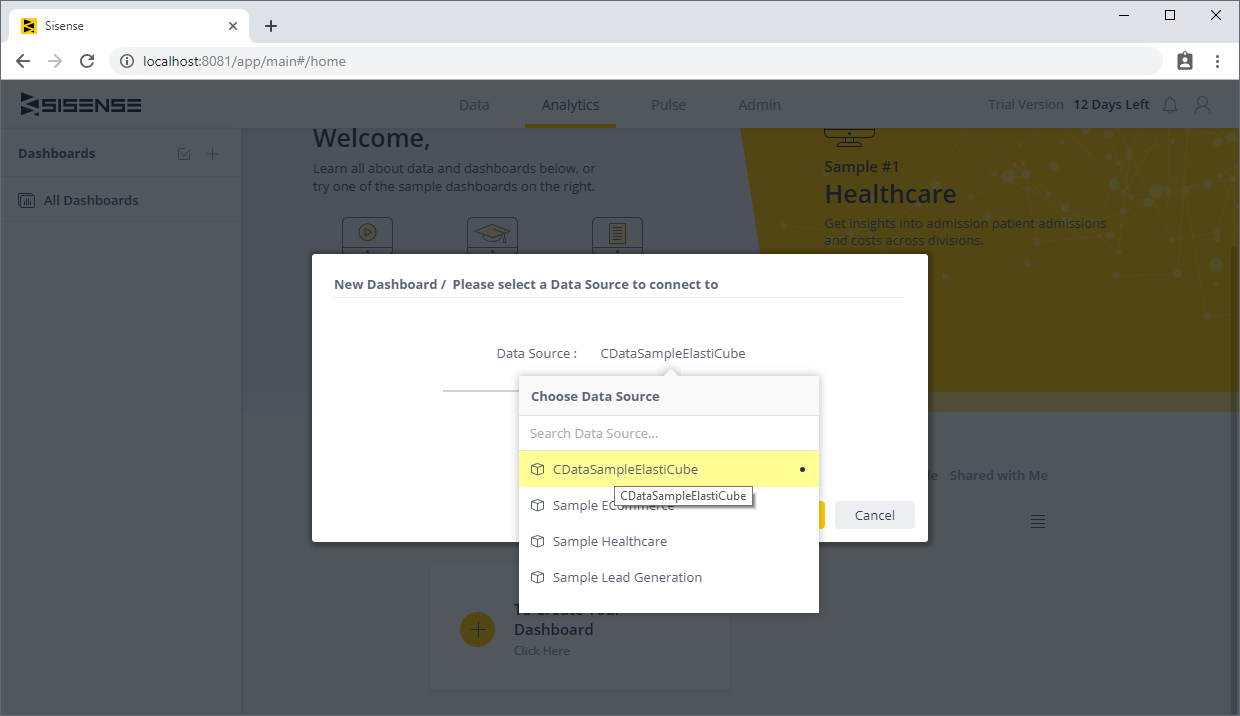
- Click "+ Select Data" and choose fields to add to your visualization.
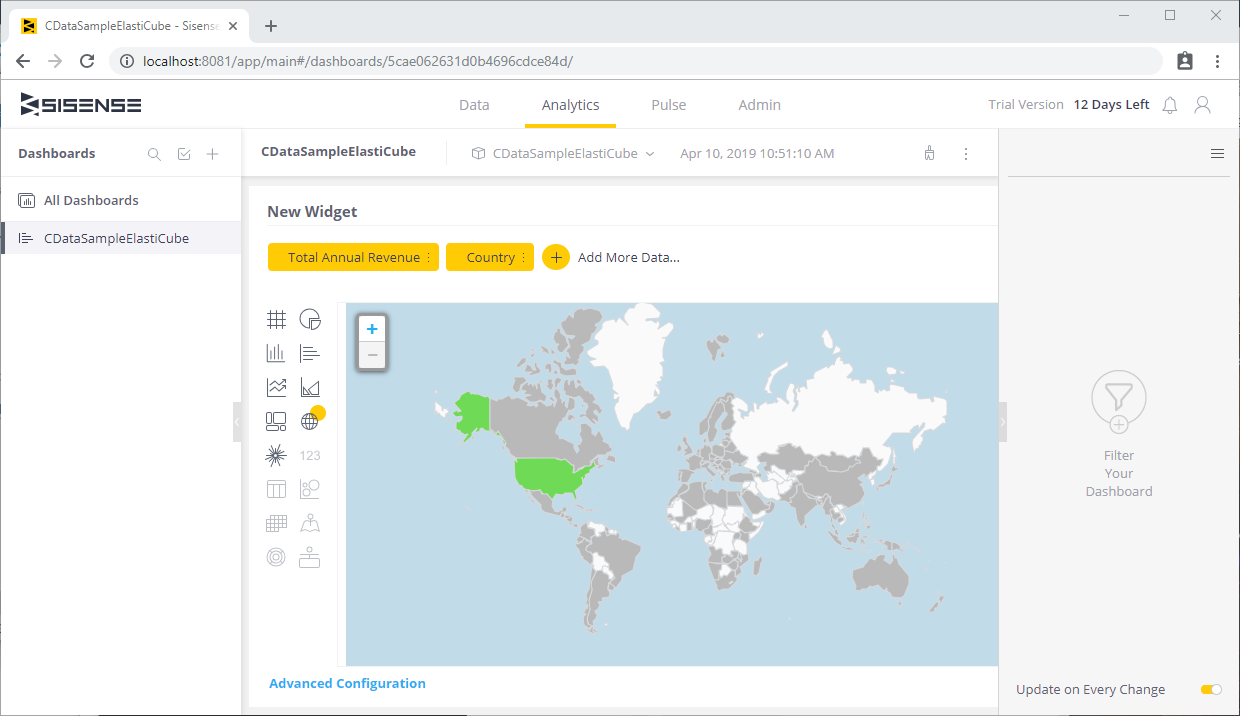
With the CData API Driver for JDBC, you can access Canny data right in Sisense for powerful visualization and analytics. Download a free, 30-day trial and start working with Canny data in Sisense today!