Build Data Flows from Canny to SQL Server using SSIS

Using SQL Server as a backup for critical business data provides an essential safety net against loss. Backing up data to SQL Server enables business users to more easily connect that data with features like reporting, analytics, and more.
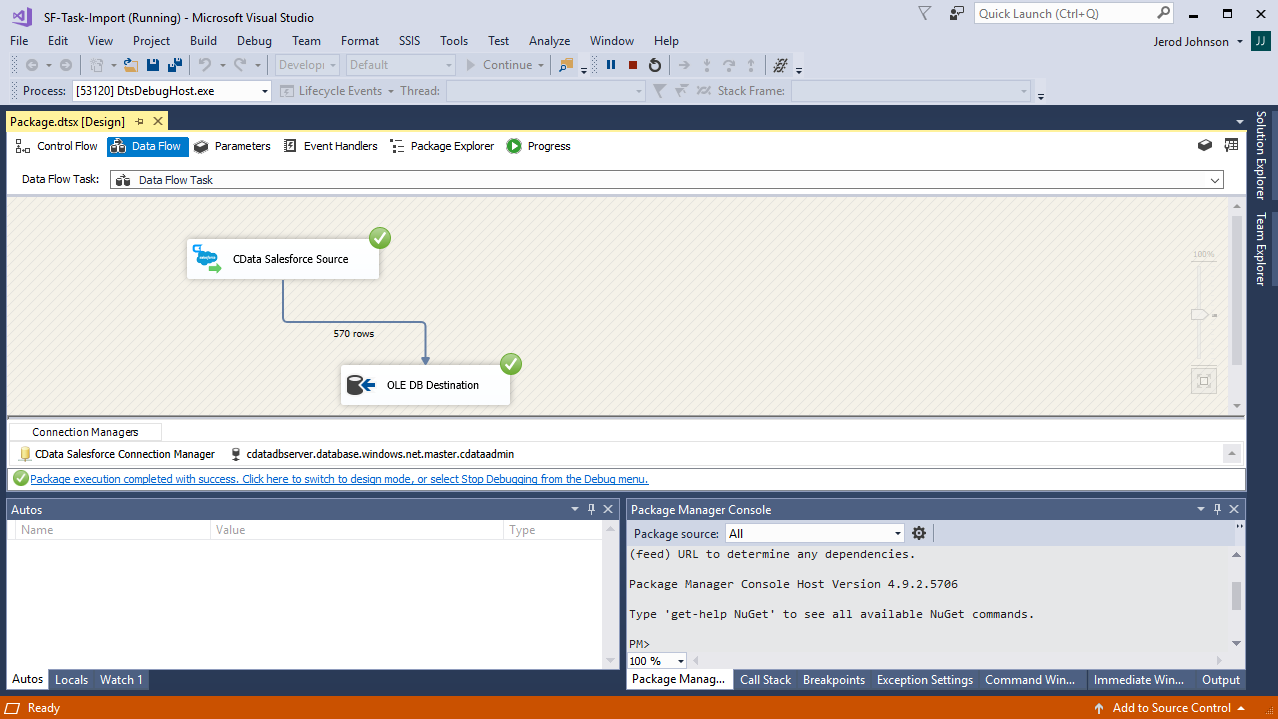
This example demonstrates how to use the CData SSIS Tasks for Canny inside of a SQL Server SSIS workflow to transfer Canny data into a Microsoft SQL Server database.
Add the Components
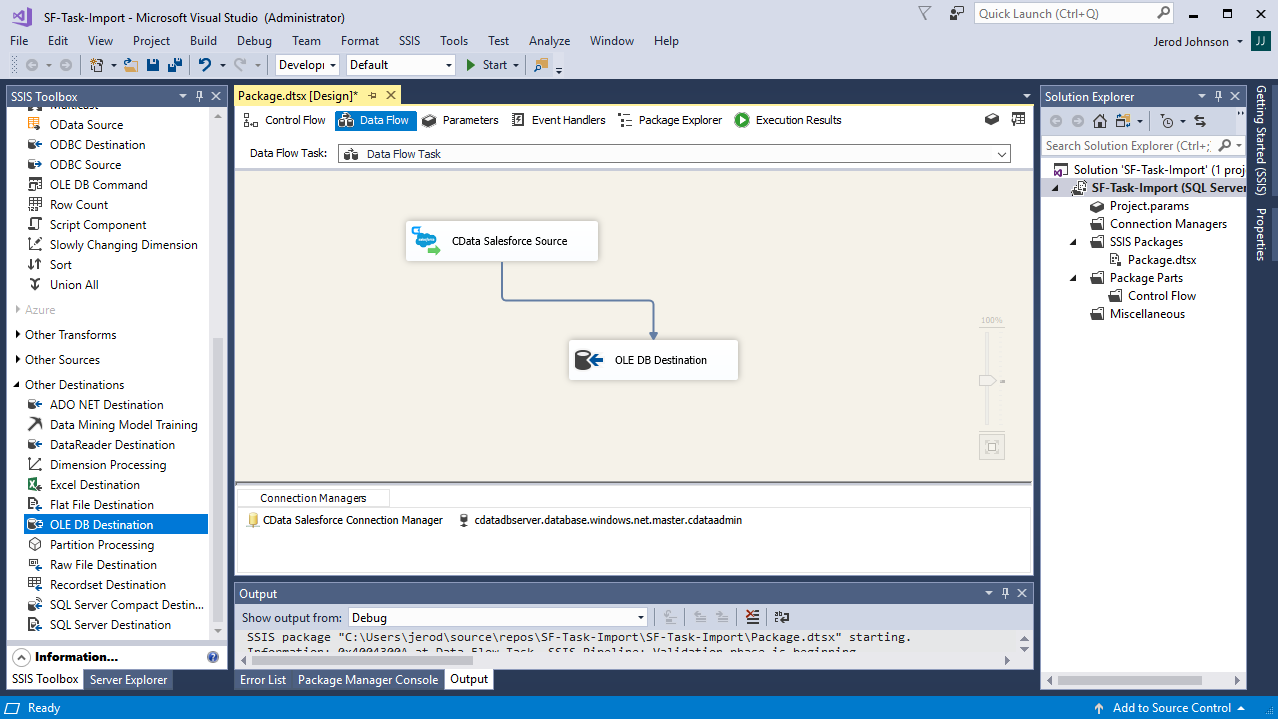
To get started, add a new Canny source and SQL Server ADO.NET destination to a new data flow task.
Create a New Connection Manager
Follow the steps below to save Canny connection properties in a connection manager.
- In the Connection Manager window, right-click and then click New Connection. The Add SSIS Connection Manager dialog is displayed.
- In the Connection Manager type menu, select API. The CData Canny Connection Manager is displayed.
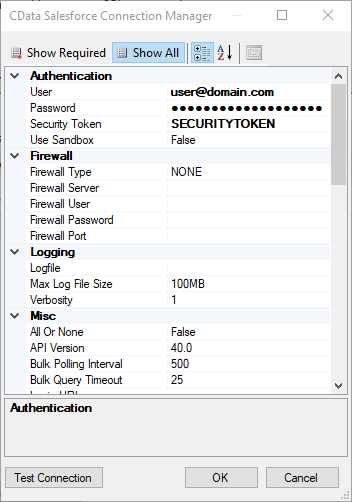
- Configure connection properties.
Start by setting the Profile connection property to the location of the Canny Profile on disk (e.g. C:\profiles\Canny.apip). Next, set the ProfileSettings connection property to the connection string for Canny (see below).
Canny API Profile Settings
Canny uses a secret API key to control access to the API. The API key is sent as a JSON body parameter named 'apiKey' in every HTTP POST request to the Canny API endpoints.
To authenticate with the Canny API, you need your company-level secret API key. You can find this key in your Canny account under Settings > API.
After setting the following connection properties, you are ready to connect:
- AuthScheme: Set this to APIKey.
- APIKey: Set this to your Canny company-level secret API key from the Settings > API page in your Canny dashboard.
Configure the Canny Source
Follow the steps below to specify the query to be used to extract Canny data.
- Double-click the Canny source to open the source component editor.
- In the Connection Manager menu, select the connection manager previously created.
- Specify the query to use for the data extraction. For example:
SELECT Id, Name FROM Boards WHERE IsPrivate = 'false'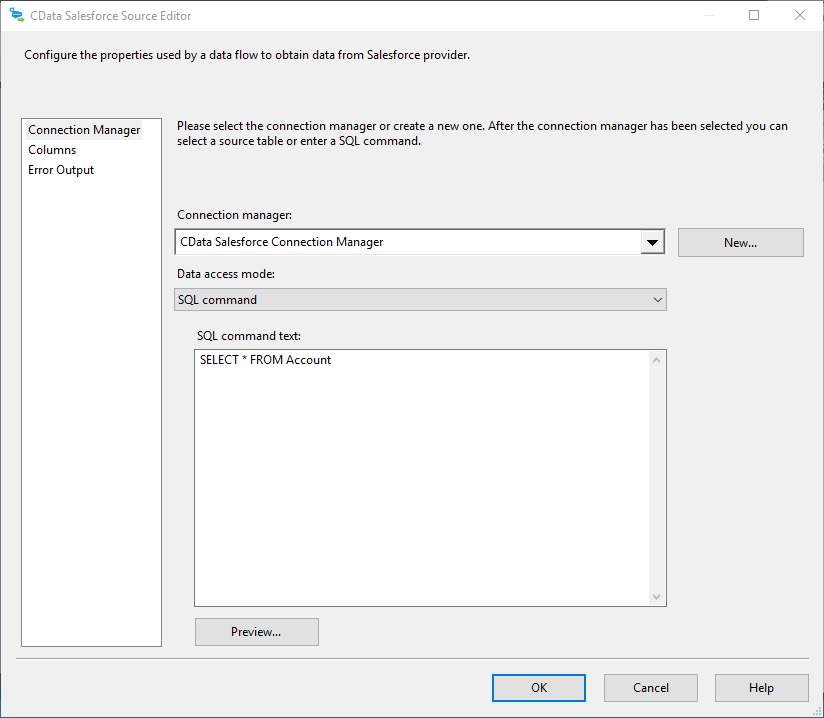
- Close the Canny Source control and connect it to the ADO.NET Destination.
Configure the SQL Server Destination
Follow the steps below to specify the SQL server table to load the Canny data into.
- Open the ADO.NET Destination and add a New Connection. Enter your server and database information here.
- In the Data access mode menu, select "table or view".
- In the Table Or View menu, select the table or view to populate.
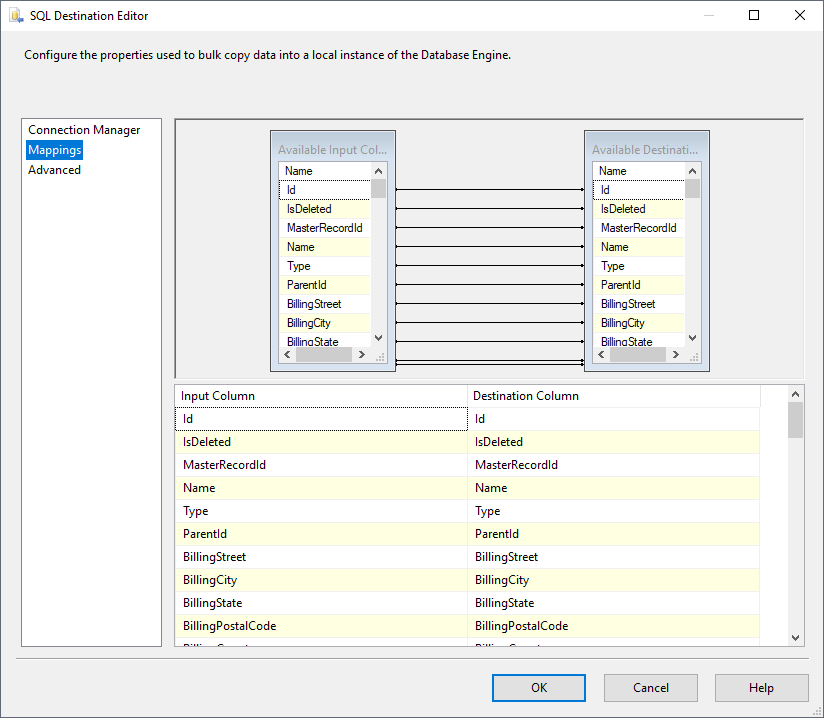
- Configure any properties you wish to on the Mappings screen.
Run the Project
You can now run the project. After the SSIS Task has finished executing, your database will be populated with Canny data.