






Connect to Certinia Data in Airbyte ELT Pipelines

Airbyte empowers users to load your data into any data warehouse, data lake, or database. When combined with CData Connect AI, Airbyte users can create Extract, Load, Transform (ELT) pipelines directly from live Certinia data. This article illustrates the process of connecting to Certinia through Connect AI and constructing ELT pipelines for Certinia data within Airbyte.
CData Connect AI offers a dedicated SQL Server interface for Certinia, facilitating data querying without the need for data replication to a native database. With built-in optimized data processing capabilities, CData Connect AI efficiently directs all supported SQL operations, including filters and JOINs, straight to Certinia. This harnesses server-side processing to swiftly retrieve the desired Certinia data.
Configure Certinia Connectivity for Airbyte
Connectivity to Certinia from Airbyte is made possible through CData Connect AI. To work with Certinia data from Airbyte, we start by creating and configuring a Certinia connection.
- Log into Connect AI, click Sources, and then click Add Connection
- Select "Certinia" from the Add Connection panel
-
Enter the necessary authentication properties to connect to Certinia.
There are several authentication methods available for connecting to Certinia: login credentials, SSO, and OAuth.
Authenticating with a Login and Token
Set the User and Password to your login credentials. Additionally, set the SecurityToken. By default, the SecurityToken is required, but you can make it optional by allowing a range of trusted IP addresses.
To disable the security token:
- Log in to Certinia and enter "Network Access" in the Quick Find box in the setup section.
- Add your IP address to the list of trusted IP addresses.
To obtain the security token:
- Open the personal information page on certinia.com.
- Click the link to reset your security token. The token will be emailed to you.
- Specify the security token in the SecurityToken connection property or append it to the Password.
Authenticating with OAuth
If you do not have access to the user name and password or do not want to require them, use the OAuth user consent flow. See the OAuth section in the Help for an authentication guide.
Connecting to Certinia Sandbox Accounts
Set UseSandbox to true (false by default) to use a Certinia sandbox account. Ensure that you specify a sandbox user name in User.

- Click Save & Test
-
Navigate to the Permissions tab in the Add Certinia Connection page and update the User-based permissions.



Add a Personal Access Token
When connecting to Connect AI through the REST API, the OData API, or the Virtual SQL Server, a Personal Access Token (PAT) is used to authenticate the connection to Connect AI. It is best practice to create a separate PAT for each service to maintain granularity of access.
- Click on the Gear icon () at the top right of the Connect AI app to open the settings page.
- On the Settings page, go to the Access Tokens section and click Create PAT.
-
Give the PAT a name and click Create.

- The personal access token is only visible at creation, so be sure to copy it and store it securely for future use.
With the connection configured and a PAT generated, you are ready to connect to Certinia data from Airbyte.
Connect to Certinia from Airbyte
To establish a connection from Airbyte to CData Connect AI, follow these steps.
- Log in to your Airbyte account
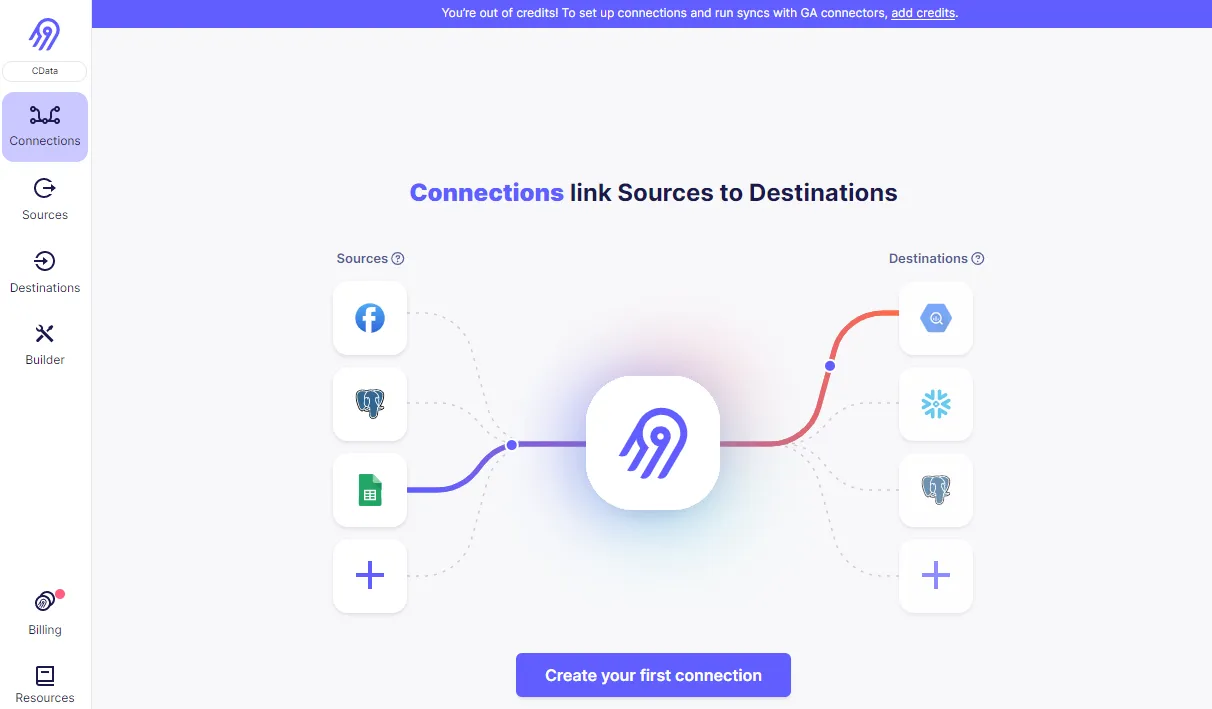
- On the left panel, click Sources, then Add New Source
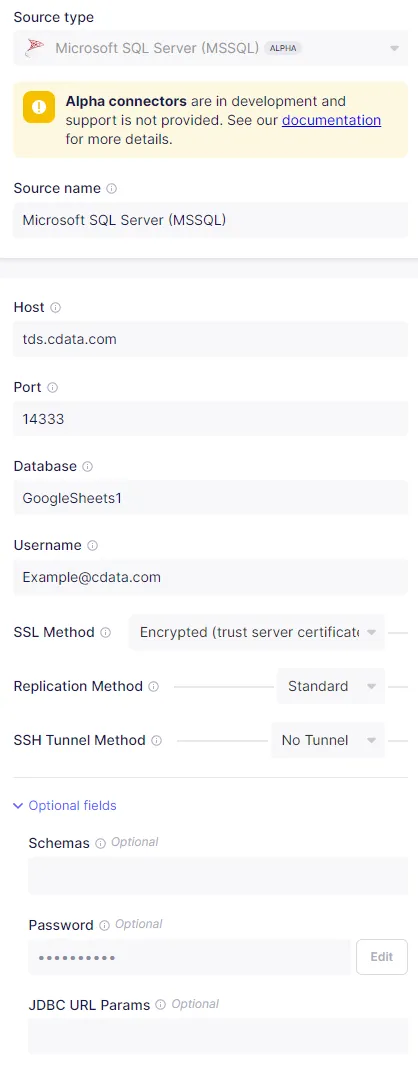
- Set Source Type to MSSQL Server to connect the TDS endpoint
- Set Source Name
- Set Host URL to tds.cdata.com
- Set Port to 14333
- Set Database to the name of the connection you previously configured, e.g. Certinia1.
- Set Username to your Connect AI username
- Set SSL Method to Encrypted (trust server certificate), leave the Replication Method as standard, and set SSH Tunnel Method to No Tunnel
- (Optional) Set Schema to anything you want to apply to the source
- Set Password to your Connect AI PAT
- (Optional) Enter any needed JBDC URL Params
- Click Test and Save to create the data source.
Create ELT Pipelines for Certinia Data
To connect Certinia data with a new destination, click Sources and then Set Up Connection to connect to your destination. Select the source created above and your desired destination, then allow Airbyte to process. When it is done, your connection is ready for use.
Get CData Connect AI
To get live data access to 300+ SaaS, Big Data, and NoSQL sources directly from Airbyte, try CData Connect AI today!
