





Connect to Live Claude Compliance Data in PostGresSQL Interface through CData Connect AI

There are a vast number of PostgreSQL clients available on the Internet. PostgreSQL is a popular interface for data access. When you pair PostgreSQL with CData Connect AI, you gain database-like access to live Claude Compliance data from PostgreSQL. In this article, we walk through the process of connecting to Claude Compliance data in Connect AI and establishing a connection between Connect AI and PostgreSQL using a TDS foreign data wrapper (FDW).
CData Connect AI provides a pure SQL Server interface for Claude Compliance, allowing you to query data from Claude Compliance without replicating the data to a natively supported database. Using optimized data processing out of the box, CData Connect AI pushes all supported SQL operations (filters, JOINs, etc.) directly to Claude Compliance, leveraging server-side processing to return the requested Claude Compliance data quickly.
Connect to Claude Compliance in Connect AI
CData Connect AI uses a straightforward, point-and-click interface to connect to data sources.
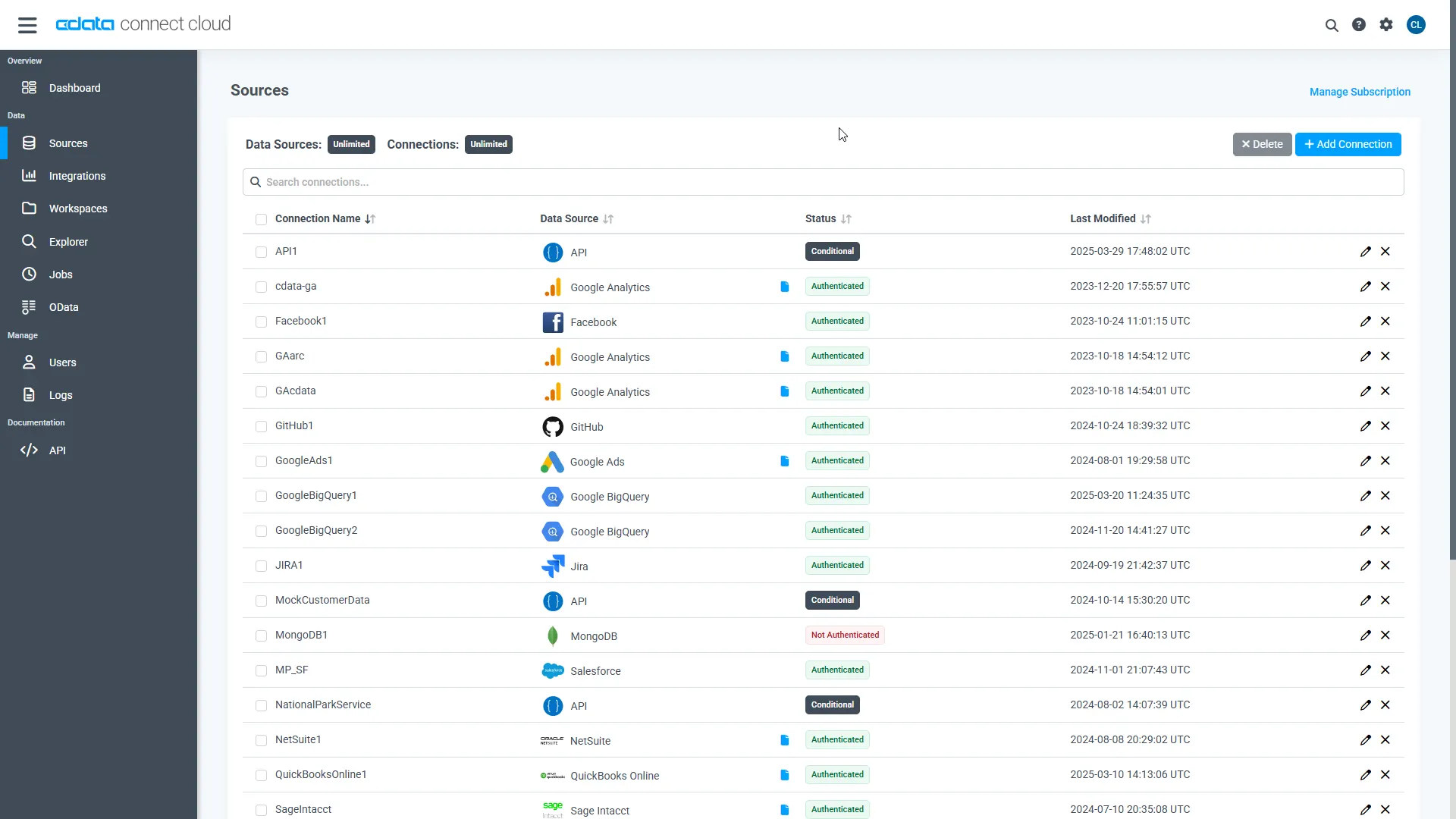
- Log into Connect AI, click Sources, and then click Add Connection
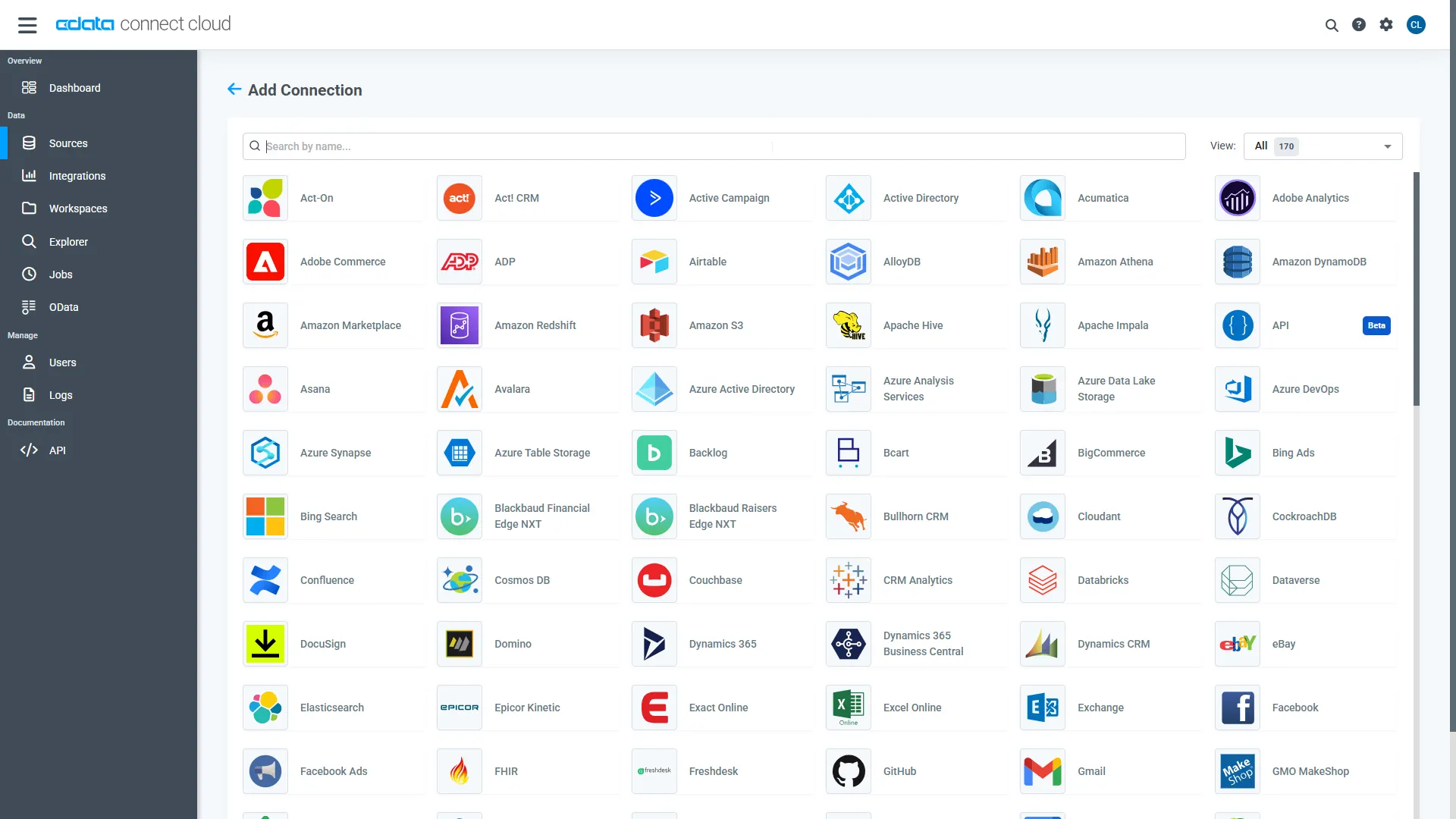
- Select "Claude Compliance" from the Add Connection panel
-
Enter the necessary authentication properties to connect to Claude Compliance.
The driver connects to Claude Compliance using a Compliance Access Key, the only supported authentication method. Set the following connection property:
- APIKey: The Compliance Access Key you created.
Creating a Compliance Access Key
- Enable the Compliance API for your organization.
- Sign in to claude.ai as a primary owner or organization owner and open Organization settings > API > Keys.
- Select Create Key and assign only the scopes your integration needs:
- read:compliance_activities for Activities and the typed activity views.
- read:compliance_org_data for organizations, roles, groups, and settings.
- read:compliance_user_data for users, chats, files, projects, and downloads.
- delete:compliance_user_data for the explicit Delete stored procedures.
- Create the key and copy it when it appears. The key starts with sk-ant-api01- and is shown only once.
Optionally, set OrganizationUUID to limit organization-scoped views (such as OrganizationUsers and ComplianceRoles) to a single linked organization. If it is left empty, those views default to the first available organization and do not include data from all linked organizations.
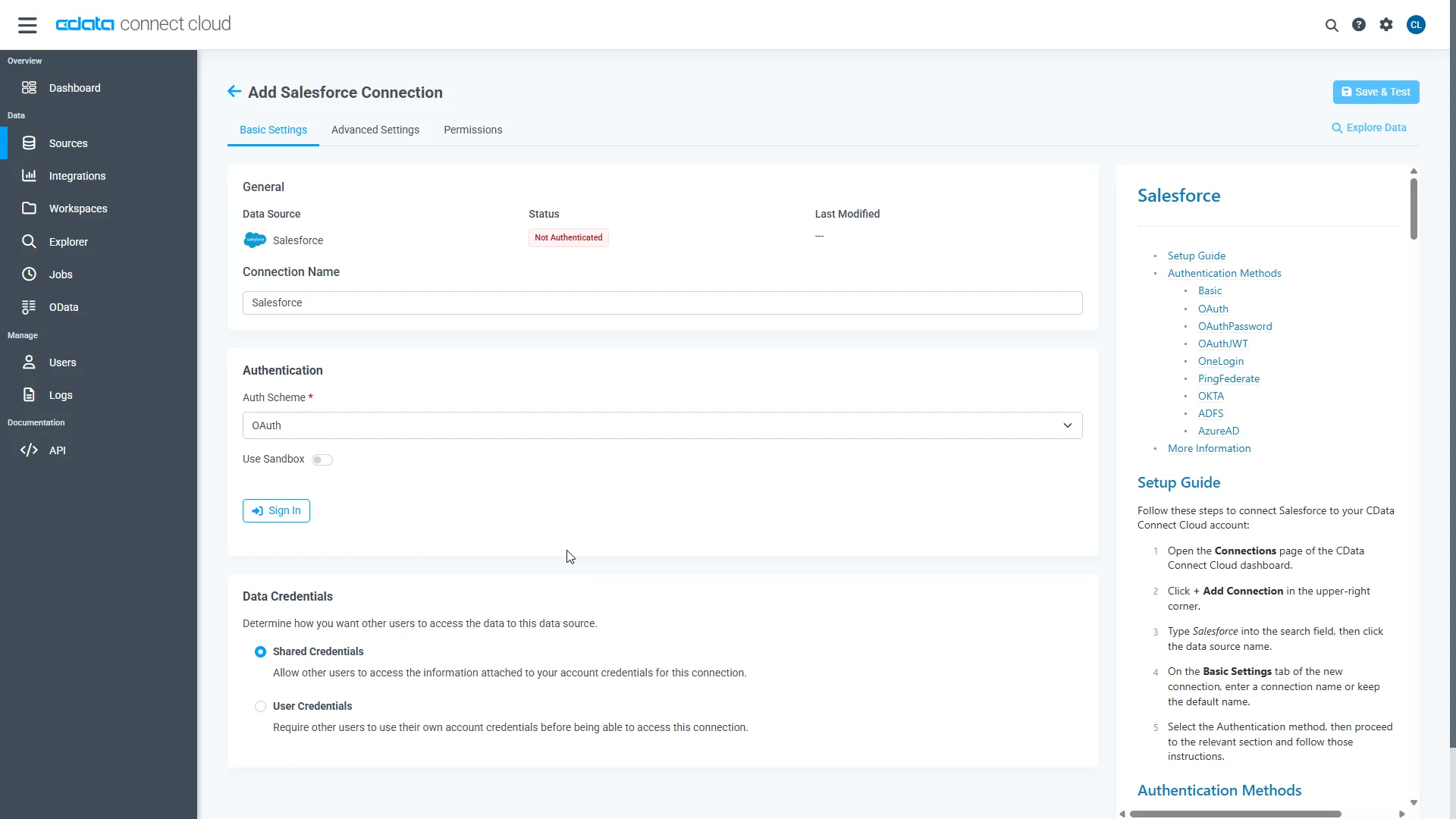
- Click Save & Test
-
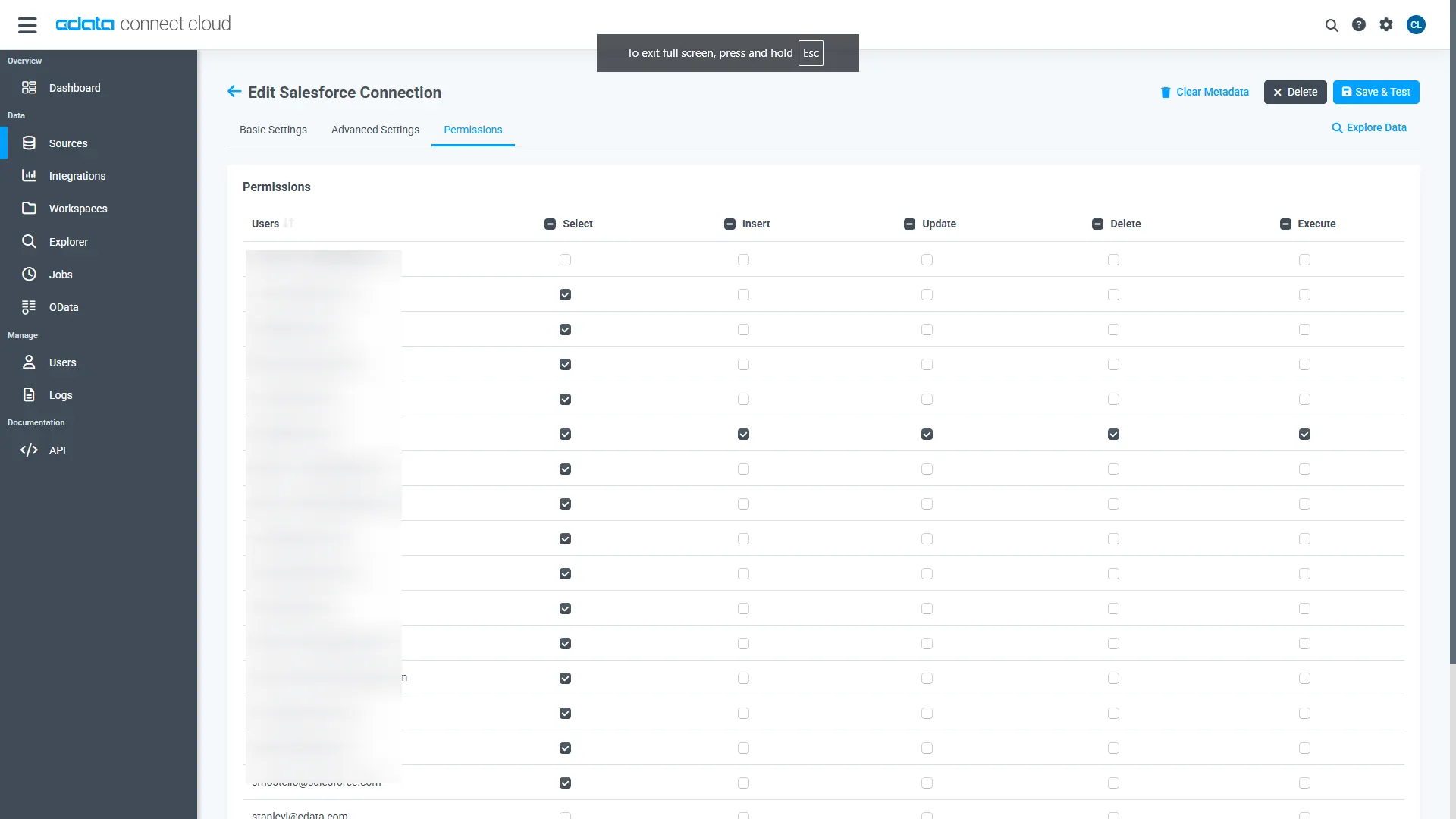
Navigate to the Permissions tab in the Add Claude Compliance Connection page and update the User-based permissions.
Add a Personal Access Token
When connecting to Connect AI through the REST API, the OData API, or the Virtual SQL Server, a Personal Access Token (PAT) is used to authenticate the connection to Connect AI. It is best practice to create a separate PAT for each service to maintain granularity of access.
- Click on the Gear icon () at the top right of the Connect AI app to open the settings page.
- On the Settings page, go to the Personal Access Tokens section and click Create PAT.
-
Give the PAT a name and click Create.
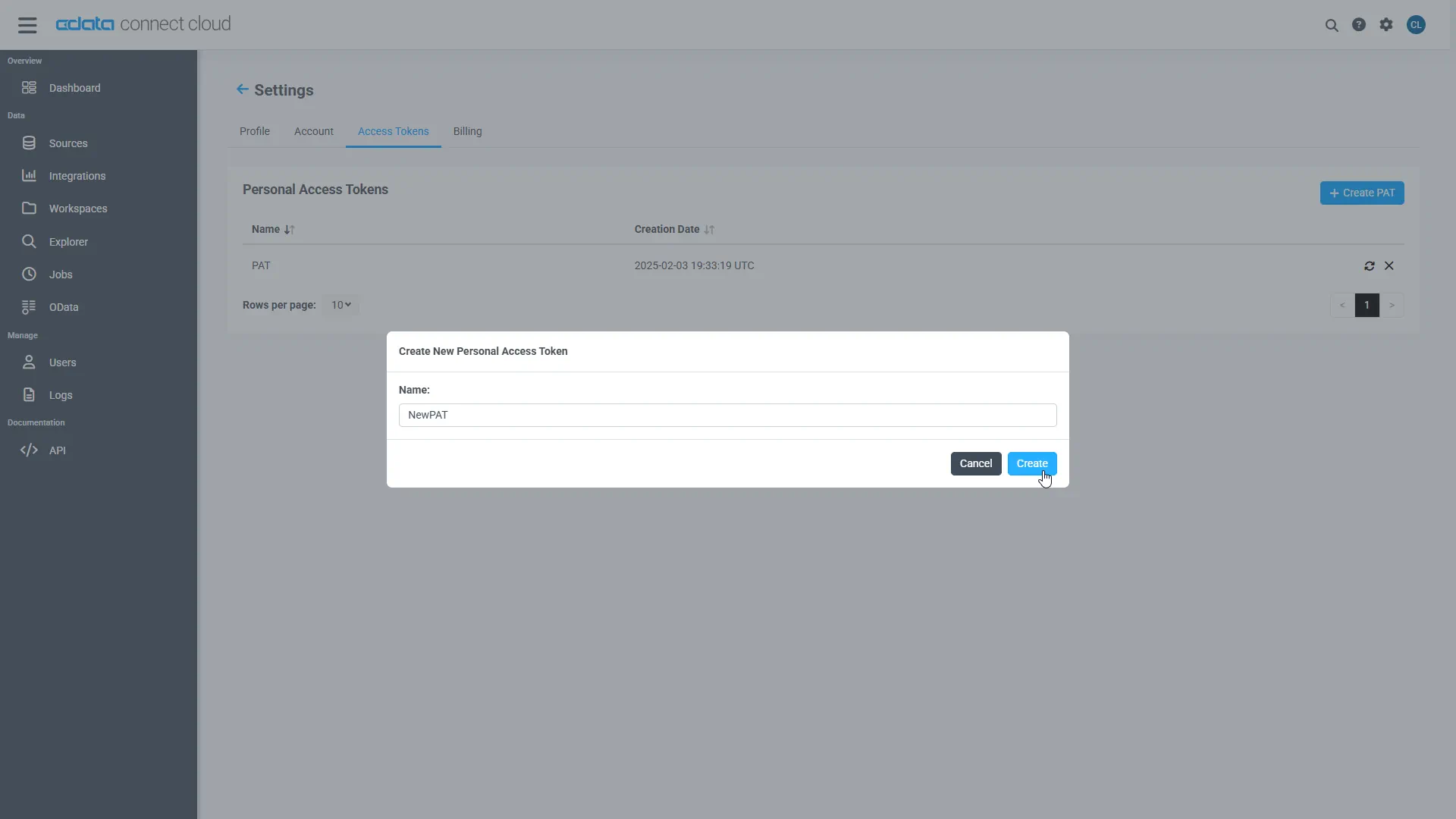
- The personal access token is only visible at creation, so be sure to copy it and store it securely for future use.
With the connection configured and a PAT generated, you are ready to connect to Claude Compliance data from PostgreSQL.
Build the TDS Foreign Data Wrapper
The Foreign Data Wrapper can be installed as an extension to PostgreSQL, without recompiling PostgreSQL. The tds_fdw extension is used as an example (https://github.com/tds-fdw/tds_fdw).
- You can clone and build the git repository via something like the following view source:
Note: If you have several PostgreSQL versions and you do not want to build for the default one, first locate where the binary for pg_config is, take note of the full path, and then append PG_CONFIG=sudo apt-get install git git clone https://github.com/tds-fdw/tds_fdw.git cd tds_fdw make USE_PGXS=1 sudo make USE_PGXS=1 installafter USE_PGXS=1 at the make commands. - After you finish the installation, then start the server:
sudo service postgresql start - Then go inside the Postgres database
Note: Instead of localhost you can put the IP where your PostgreSQL is hosted.psql -h localhost -U postgres -d postgres
Connect to Claude Compliance data as a PostgreSQL Database and query the data!
After you have installed the extension, follow the steps below to start executing queries to Claude Compliance data:
- Log into your database.
- Load the extension for the database:
CREATE EXTENSION tds_fdw; - Create a server object for Claude Compliance data:
CREATE SERVER "ClaudeCompliance1" FOREIGN DATA WRAPPER tds_fdw OPTIONS (servername'tds.cdata.com', port '14333', database 'ClaudeCompliance1'); - Configure user mapping with your email and Personal Access Token from your Connect AI account:
CREATE USER MAPPING for postgres SERVER "ClaudeCompliance1" OPTIONS (username '[email protected]', password 'your_personal_access_token' ); - Create the local schema:
CREATE SCHEMA "ClaudeCompliance1"; - Create a foreign table in your local database:
#Using a table_name definition: CREATE FOREIGN TABLE "ClaudeCompliance1".Projects ( id varchar, Name varchar) SERVER "ClaudeCompliance1" OPTIONS(table_name 'ClaudeCompliance.Projects', row_estimate_method 'showplan_all'); #Or using a schema_name and table_name definition: CREATE FOREIGN TABLE "ClaudeCompliance1".Projects ( id varchar, Name varchar) SERVER "ClaudeCompliance1" OPTIONS (schema_name 'ClaudeCompliance', table_name 'Projects', row_estimate_method 'showplan_all'); #Or using a query definition: CREATE FOREIGN TABLE "ClaudeCompliance1".Projects ( id varchar, Name varchar) SERVER "ClaudeCompliance1" OPTIONS (query 'SELECT * FROM ClaudeCompliance.Projects', row_estimate_method 'showplan_all'); #Or setting a remote column name: CREATE FOREIGN TABLE "ClaudeCompliance1".Projects ( id varchar, col2 varchar OPTIONS (column_name 'Name')) SERVER "ClaudeCompliance1" OPTIONS (schema_name 'ClaudeCompliance', table_name 'Projects', row_estimate_method 'showplan_all'); - You can now execute read/write commands to Claude Compliance:
SELECT id, Name
FROM "ClaudeCompliance1".Projects;
More Information & Free Trial
Now, you have created a simple query from live Claude Compliance data. For more information on connecting to Claude Compliance (and more than 200 other data sources), visit the Connect AI page. Sign up for a free trial and start working with live Claude Compliance data in PostgreSQL.