




Create Informatica Mappings From/To a JDBC Data Source for Claude Compliance

Informatica provides a powerful, elegant means of transporting and transforming your data. By utilizing the CData JDBC Driver for Claude Compliance, you are gaining access to a driver based on industry-proven standards that integrates seamlessly with Informatica's powerful data transportation and manipulation features. This tutorial shows how to transfer and browse Claude Compliance data in Informatica PowerCenter.
Deploy the Driver
To deploy the driver to the Informatica PowerCenter server, copy the CData JAR and .lic file, located in the lib subfolder in the installation directory, to the following folder: Informatica-installation-directory\services\shared\jars\thirdparty.
To work with Claude Compliance data in the Developer tool, you will need to copy the CData JAR and .lic file, located in the lib subfolder in the installation directory, into the following folders:
- Informatica-installation-directory\client\externaljdbcjars
- Informatica-installation-directory\externaljdbcjars
Create the JDBC Connection
Follow the steps below to connect from Informatica Developer:
- In the Connection Explorer pane, right-click your domain and click Create a Connection.
- In the New Database Connection wizard that is displayed, enter a name and Id for the connection and in the Type menu select JDBC.
- In the JDBC Driver Class Name property, enter:
cdata.jdbc.claudecompliance.ClaudeComplianceDriver - In the Connection String property, enter the JDBC URL, using the connection properties for Claude Compliance.
The driver connects to Claude Compliance using a Compliance Access Key, the only supported authentication method. Set the following connection property:
- APIKey: The Compliance Access Key you created.
Creating a Compliance Access Key
- Enable the Compliance API for your organization.
- Sign in to claude.ai as a primary owner or organization owner and open Organization settings > API > Keys.
- Select Create Key and assign only the scopes your integration needs:
- read:compliance_activities for Activities and the typed activity views.
- read:compliance_org_data for organizations, roles, groups, and settings.
- read:compliance_user_data for users, chats, files, projects, and downloads.
- delete:compliance_user_data for the explicit Delete stored procedures.
- Create the key and copy it when it appears. The key starts with sk-ant-api01- and is shown only once.
Optionally, set OrganizationUUID to limit organization-scoped views (such as OrganizationUsers and ComplianceRoles) to a single linked organization. If it is left empty, those views default to the first available organization and do not include data from all linked organizations.
Built-in Connection String Designer
For assistance in constructing the JDBC URL, use the connection string designer built into the Claude Compliance JDBC Driver. Either double-click the JAR file or execute the jar file from the command-line.
java -jar cdata.jdbc.claudecompliance.jarFill in the connection properties and copy the connection string to the clipboard.

A typical connection string is below:
jdbc:claudecompliance:APIKey=your_compliance_access_key;
Browse Claude Compliance Tables
After you have added the driver JAR to the classpath and created a JDBC connection, you can now access Claude Compliance entities in Informatica. Follow the steps below to connect to Claude Compliance and browse Claude Compliance tables:
- Connect to your repository.
- In the Connection Explorer, right-click the connection and click Connect.
- Clear the Show Default Schema Only option.
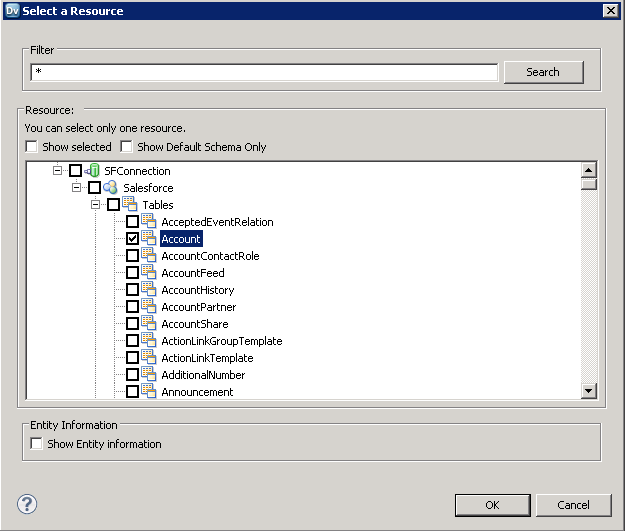
You can now browse Claude Compliance tables in the Data Viewer: Right-click the node for the table and then click Open. On the Data Viewer view, click Run.
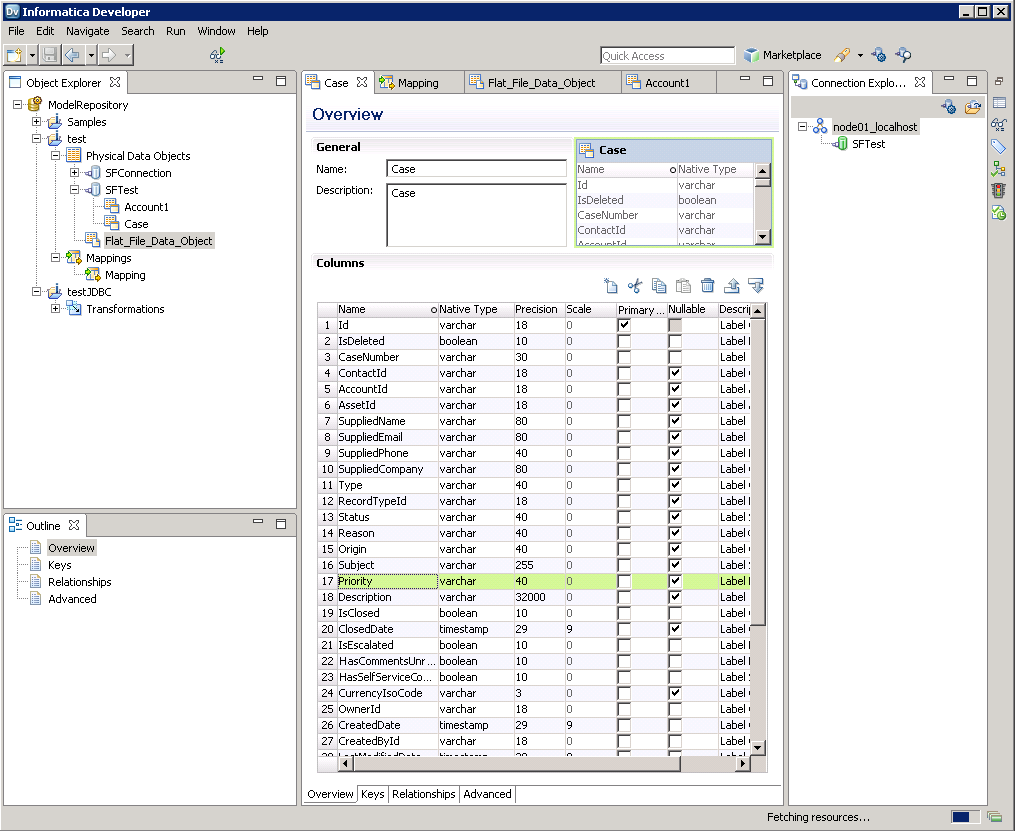
Create Claude Compliance Data Objects
Follow the steps below to add Claude Compliance tables to your project:
- Select tables in Claude Compliance, then right-click a table in Claude Compliance, and click Add to Project.
- In the resulting dialog, select the option to create a data object for each resource.
- In the Select Location dialog, select your project.
Create a Mapping
Follow the steps below to add the Claude Compliance source to a mapping:
- In the Object Explorer, right-click your project and then click New -> Mapping.
- Expand the node for the Claude Compliance connection and then drag the data object for the table onto the editor.
- In the dialog that appears, select the Read option.
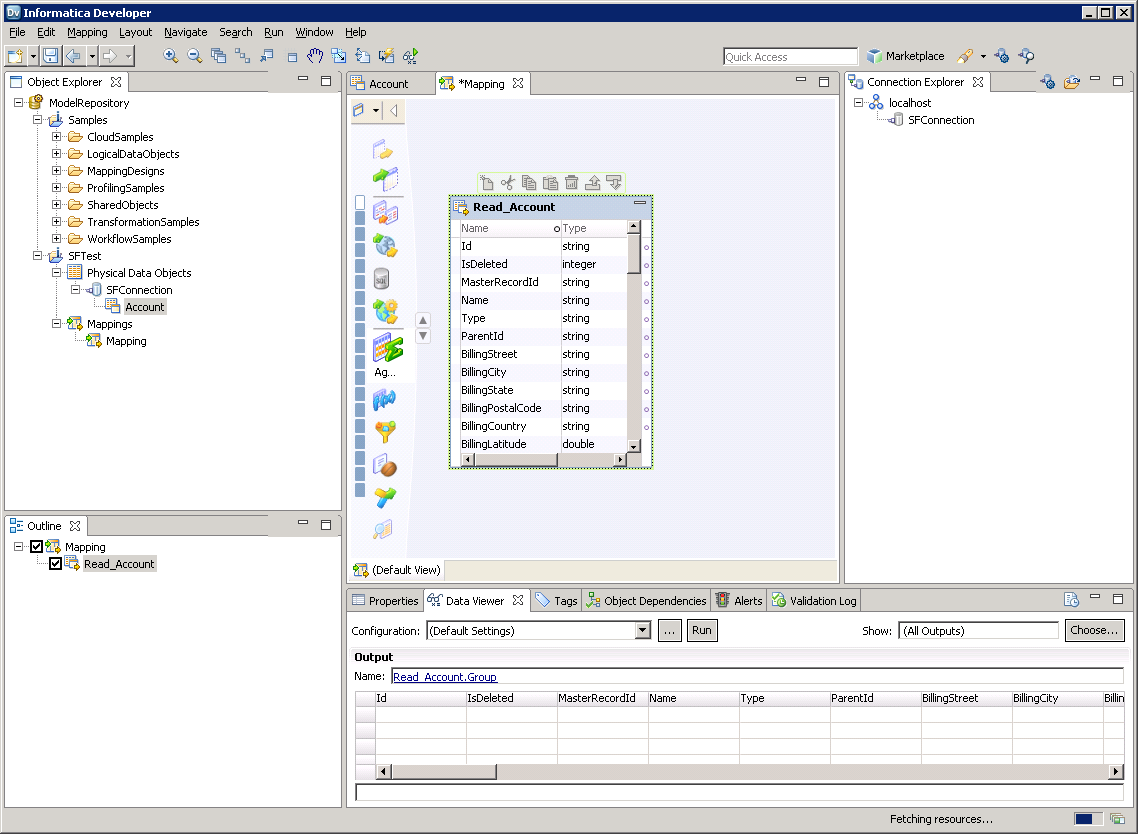
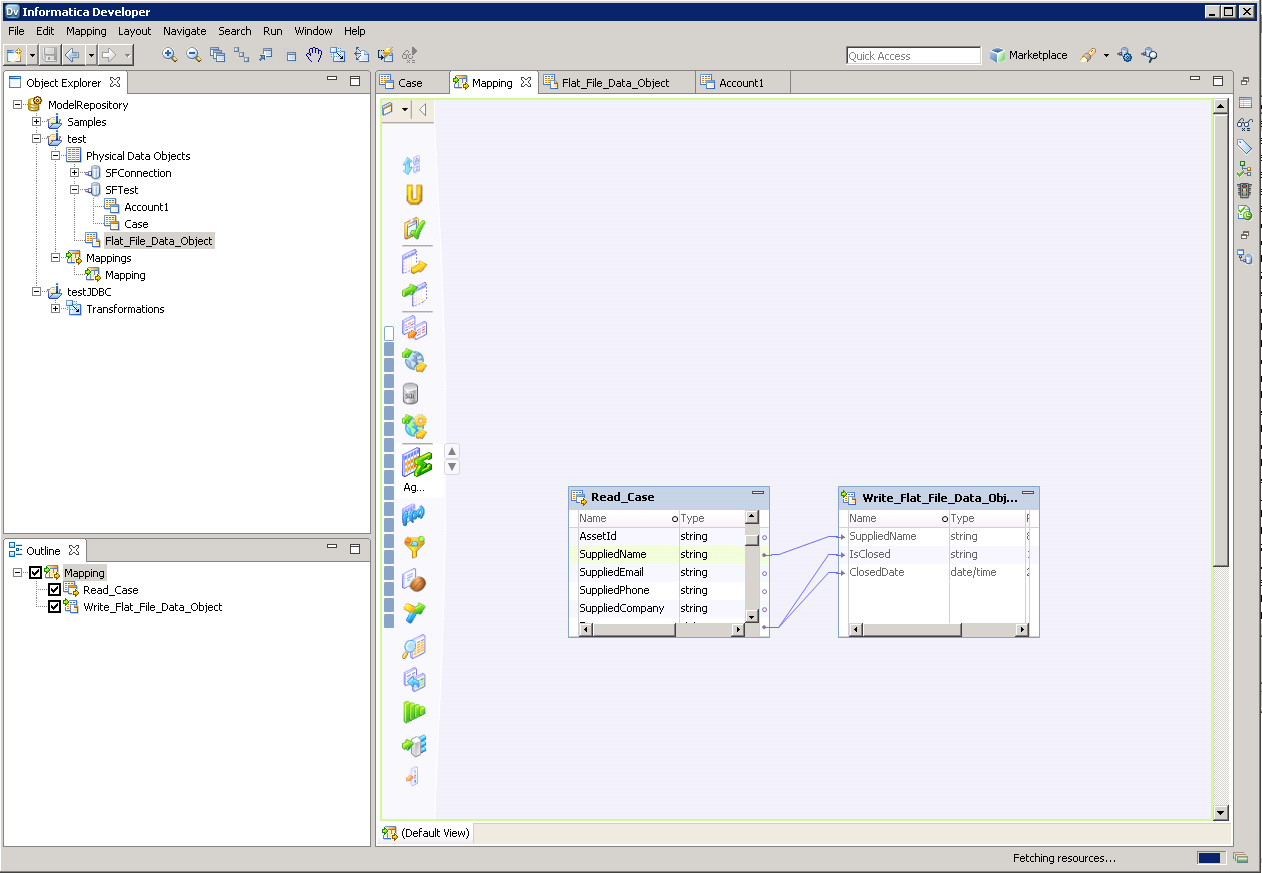
Follow the steps below to map Claude Compliance columns to a flat file:
- In the Object Explorer, right-click your project and then click New -> Data Object.
- Select Flat File Data Object -> Create as Empty -> Fixed Width.
- In the properties for the Claude Compliance object, select the rows you want, right-click, and then click copy. Paste the rows into the flat file properties.
- Drag the flat file data object onto the mapping. In the dialog that appears, select the Write option.
- Click and drag to connect columns.
To transfer Claude Compliance data, right-click in the workspace and then click Run Mapping.
Ready to get started?
Download a free trial of the Claude Compliance Driver to get started:
Download NowLearn more:
 Claude Compliance JDBC Driver
Rapidly create and deploy powerful Java applications that integrate with Claude Compliance data including Activities, Chats, ChatMessages, CodeArtifacts, ComplianceRoles, Organizations, OrganizationUsers, Projects, and more!