




Integrate Live Claude Compliance Data into Blue Prism for Intelligent Robotic Process Automation (RPA)

Blue Prism is a robotic process automation (RPA) tool that helps businesses automate repetitive tasks, allowing employees to focus on more complex, value-added activities. Blue Prism's platform enables users to automate workflows using configurable "processes" and "objects." Its reusable Visual Business Objects (VBOs) offer templates and presets that simplify connections to applications, files, and services.
Some VBOs can connect to databases via ODBC, and when combined with the CData ODBC driver, they allow seamless integration with various data sources supported by CData. This article demonstrates how easily you can integrate Claude Compliance with Blue Prism using the VBO for ODBC and the CData ODBC Driver for Claude Compliance to create automated business workflows as needed.
Create an ODBC Data Source for Claude Compliance
If you have not already, first specify connection properties in an ODBC DSN (data source name). This is the last step of the driver installation. You can use the Microsoft ODBC Data Source Administrator to create and configure ODBC DSNs.
The driver connects to Claude Compliance using a Compliance Access Key, the only supported authentication method. Set the following connection property:
- APIKey: The Compliance Access Key you created.
Creating a Compliance Access Key
- Enable the Compliance API for your organization.
- Sign in to claude.ai as a primary owner or organization owner and open Organization settings > API > Keys.
- Select Create Key and assign only the scopes your integration needs:
- read:compliance_activities for Activities and the typed activity views.
- read:compliance_org_data for organizations, roles, groups, and settings.
- read:compliance_user_data for users, chats, files, projects, and downloads.
- delete:compliance_user_data for the explicit Delete stored procedures.
- Create the key and copy it when it appears. The key starts with sk-ant-api01- and is shown only once.
Optionally, set OrganizationUUID to limit organization-scoped views (such as OrganizationUsers and ComplianceRoles) to a single linked organization. If it is left empty, those views default to the first available organization and do not include data from all linked organizations.
When you configure the DSN, you may also want to set the Max Rows connection property. This will limit the number of rows returned, which is especially helpful for improving performance when designing reports and visualizations.
Connect with Claude Compliance data and create an automation flow in Blue Prism
In this section, we'll go through the steps to connect live Claude Compliance data and create an automation flow in Blue Prism to load the Claude Compliance data into an Excel sheet.
Add VBOs for ODBC
To get started, download, and add the VBO for ODBC to Blue Prism by following these steps:
- Download the Connector for ODBC Utility Blue Prism file from the provided URL.
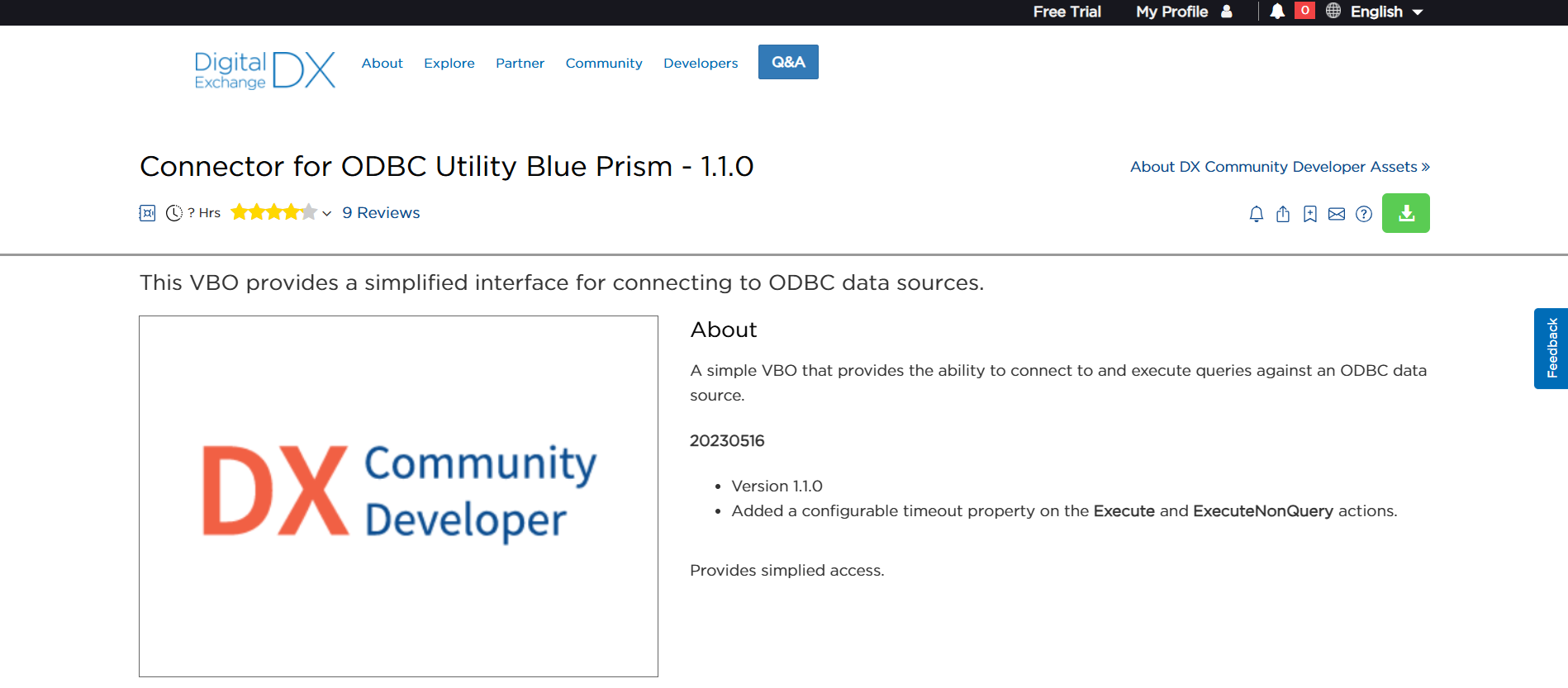
- A file named "Data - ODBC vx.x.x" with a ".bprelease" extension will be downloaded. Rename the file as "Data - ODBC". Make the necessary modifications and save the file with a ".bpobject" extension.
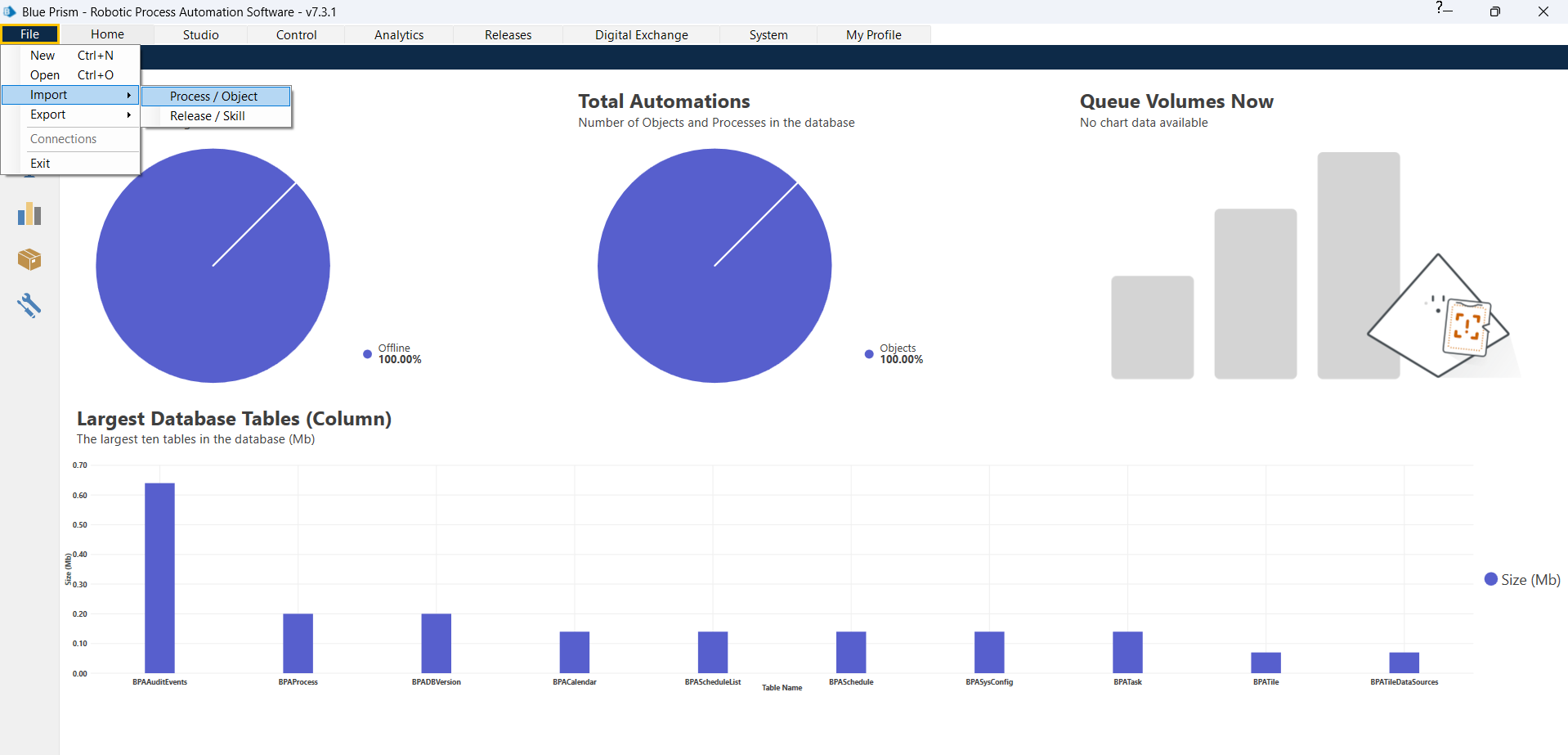
- Open Blue Prism and navigate to File > Import > Process/Object. Click Browse, select the modified file as an object, and then click Next.
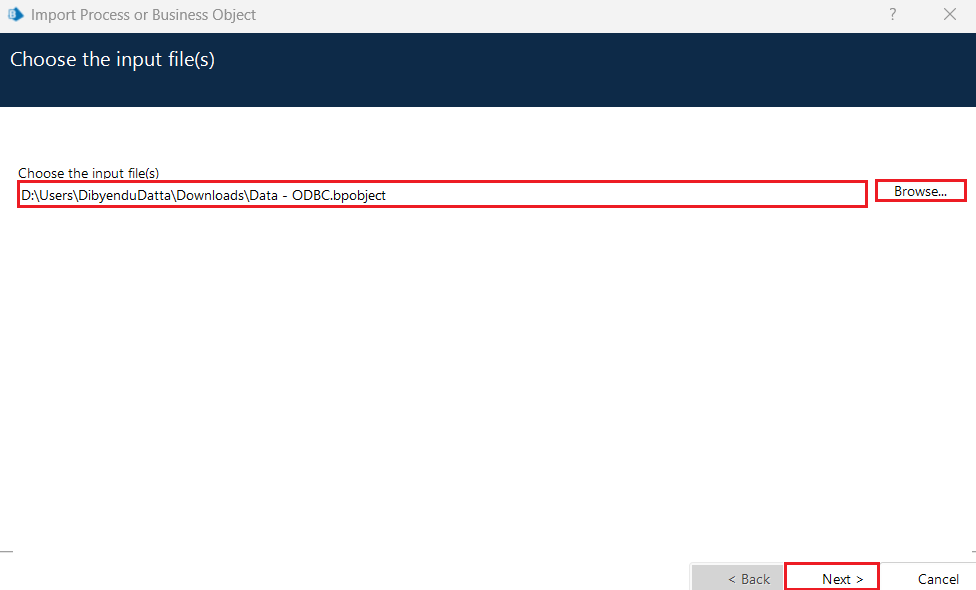
- Click on Next in the Process Logging Overview screen. The import is now successful. Click on Next again to complete the process.
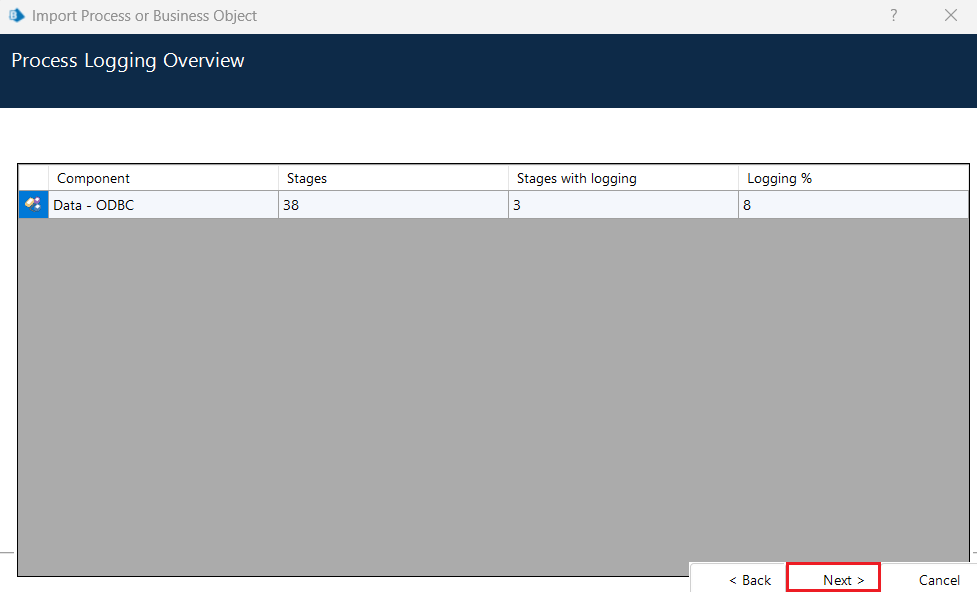
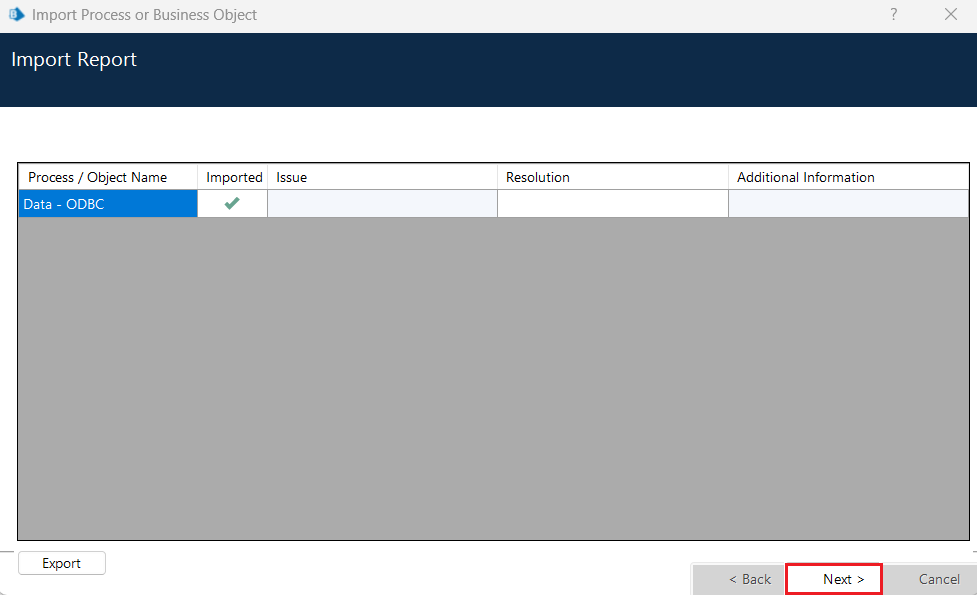
- Once the import is complete, "Data - ODBC" will be added to the object list as shown below.
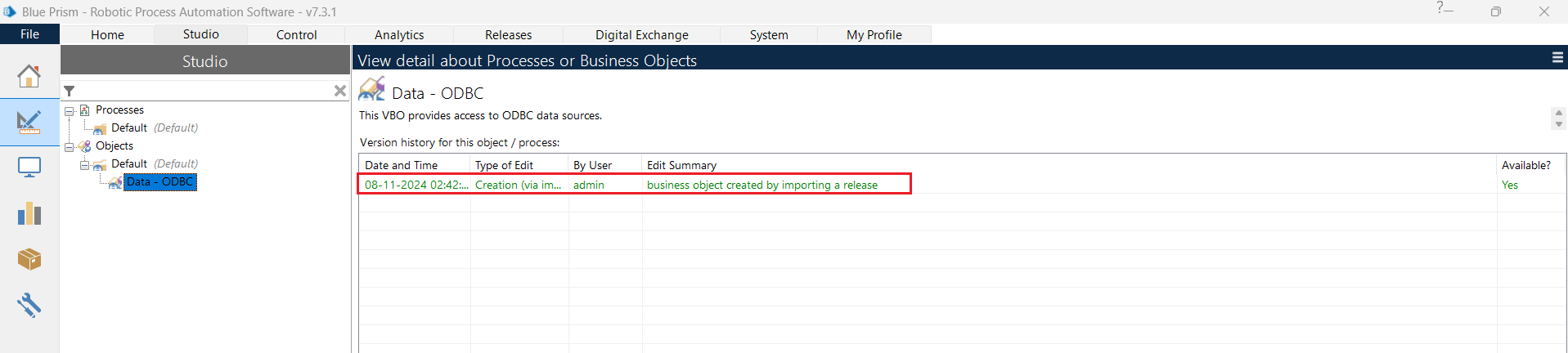
Now, you can easily connect to the CData ODBC Driver for Claude Compliance from Blue Prism and create the necessary automation workflows.
Create a new automation process
After configuring the CData ODBC driver and adding the VBO for ODBC to Blue Prism, we can create a new automation process or flow using the following steps:
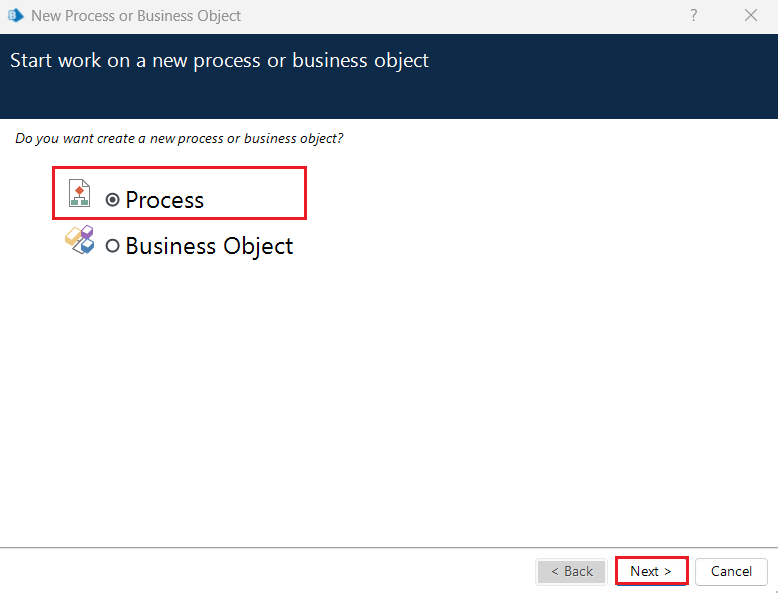
- Go to File > New. Select Process from the New Process or Business Object window and click Next.
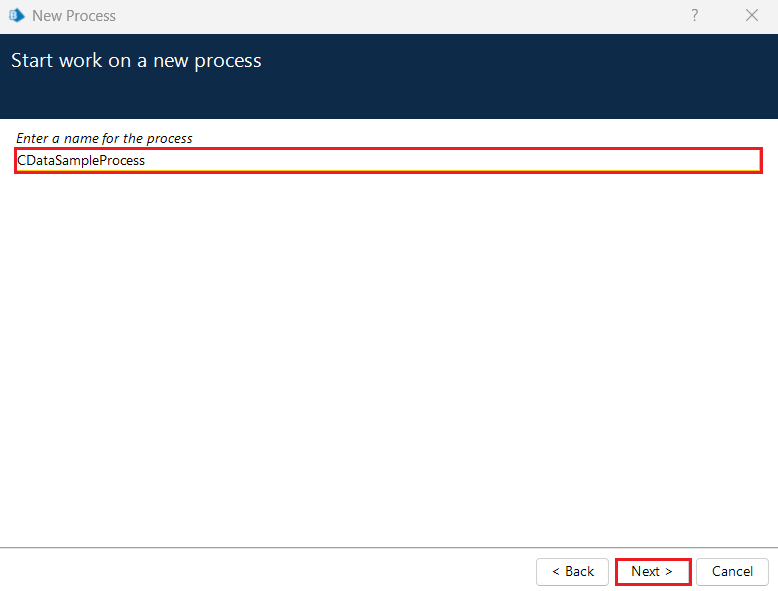
- Enter a new process name in the New Process window.
- Specify a process description if you want and click Finish.
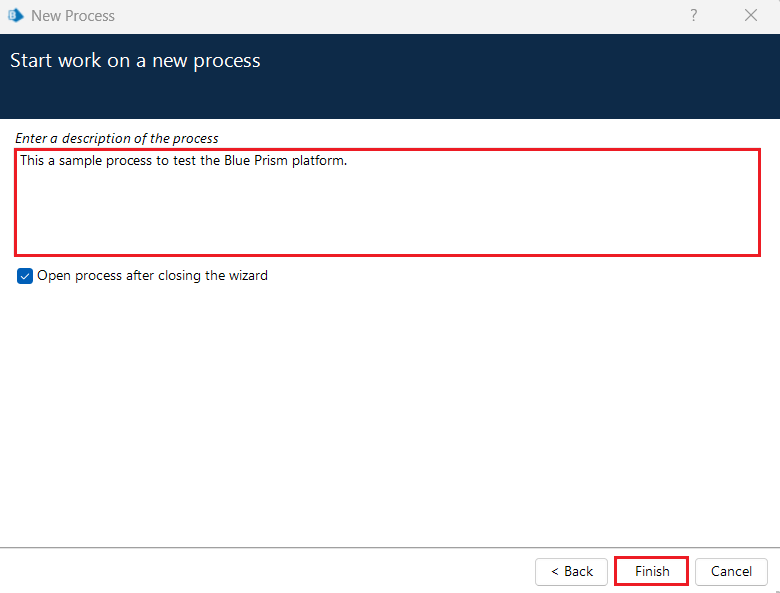
- This will launch a process initialized as follows:
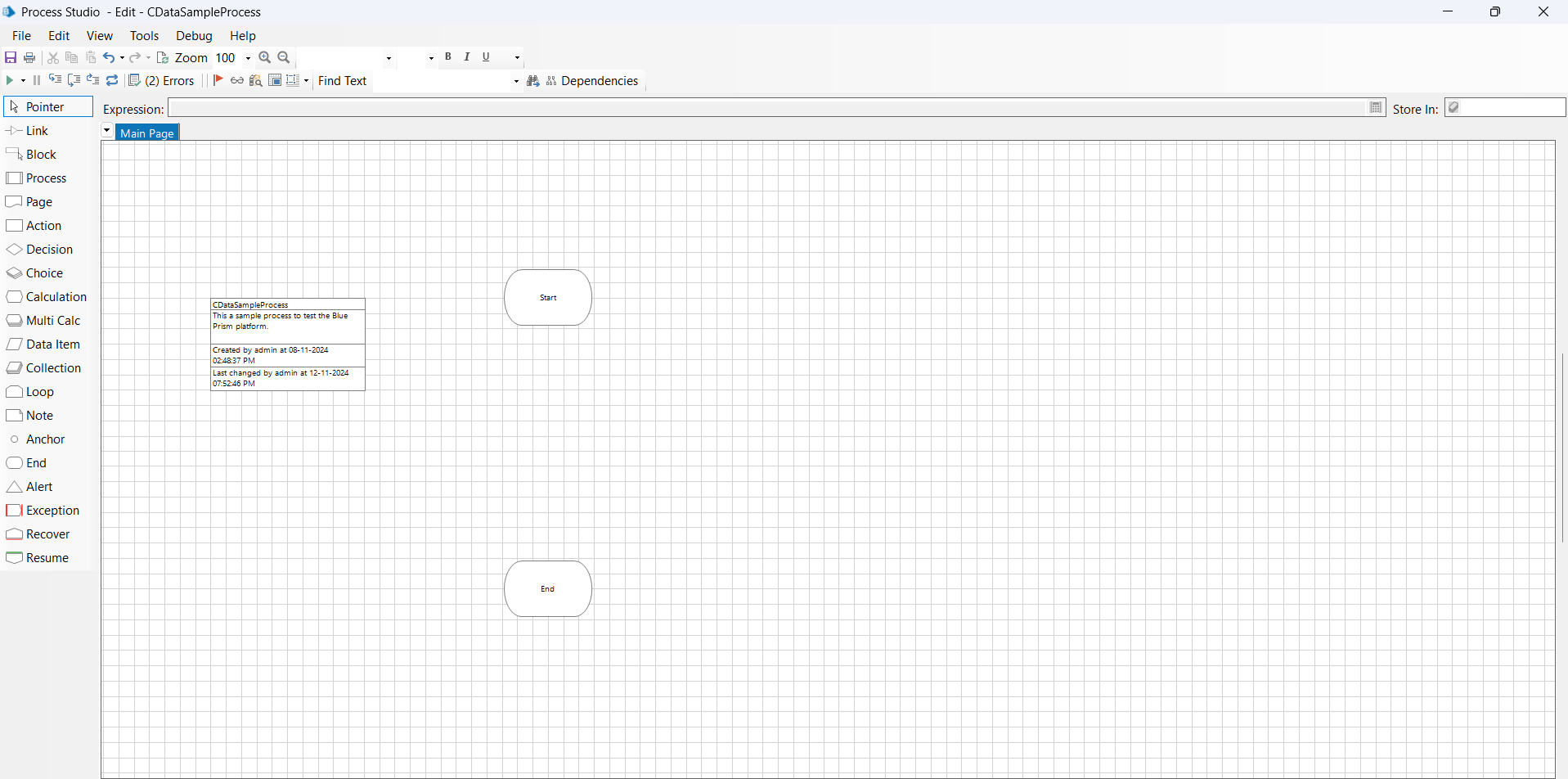
Add ODBC to the process
Processing the ODBC connection involves three main stages. While the middle stage handles the actual data operations, preparatory and concluding steps are also necessary to create a complete flow in Blue Prism.
- Open process: Establishes a new connection.
- Execute process (ExecuteNonQuery): Executes SQL commands or INSERT statements.
- Close process: Terminates the connection.
Add a process to open ODBC
First, add an open process for ODBC to use the connection already made on CData ODBC Driver for Claude Compliance.
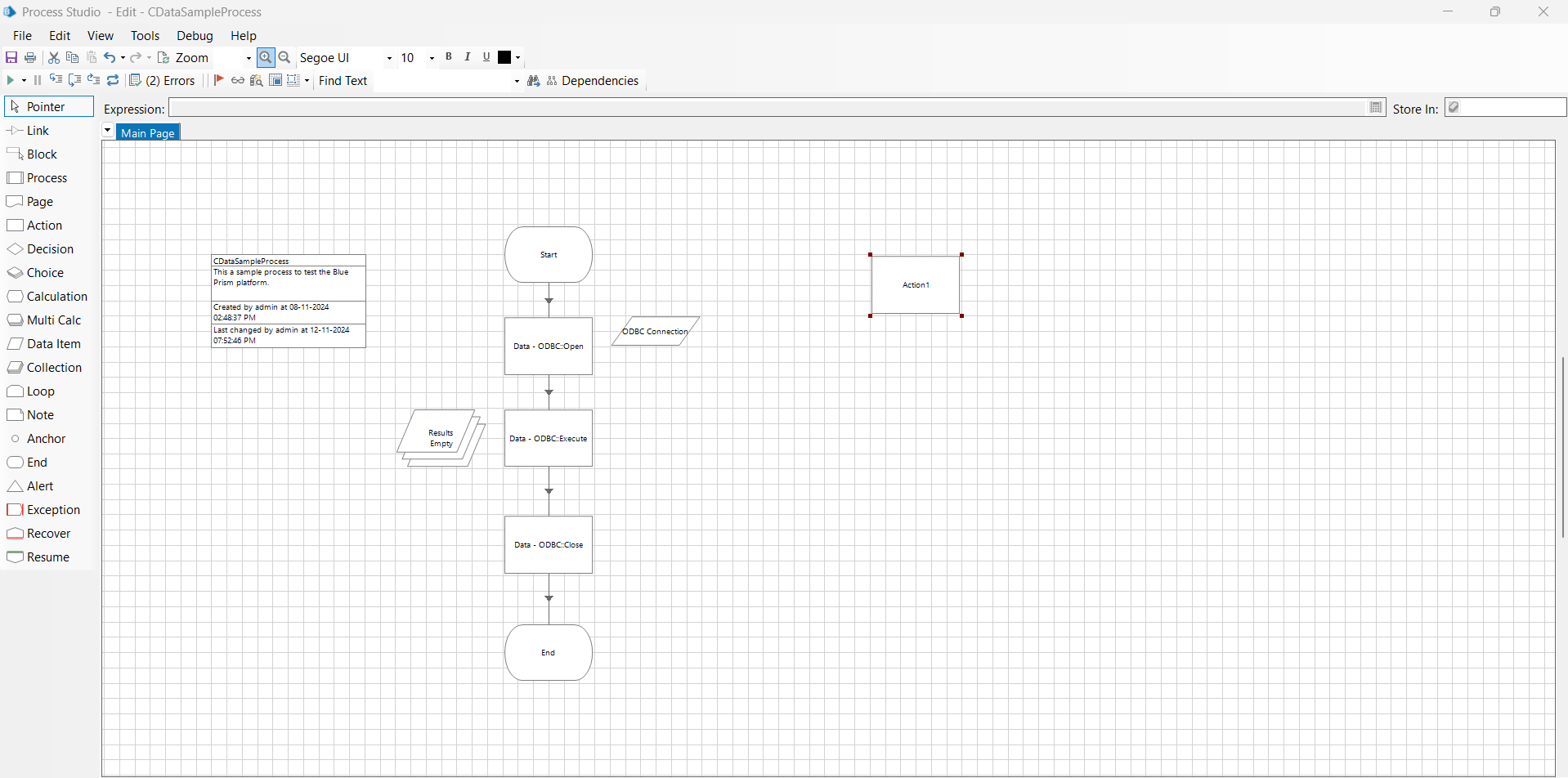
- Place Action decision block on the Blue Prism canvas from the left panel and double-click on it to open the settings screen.
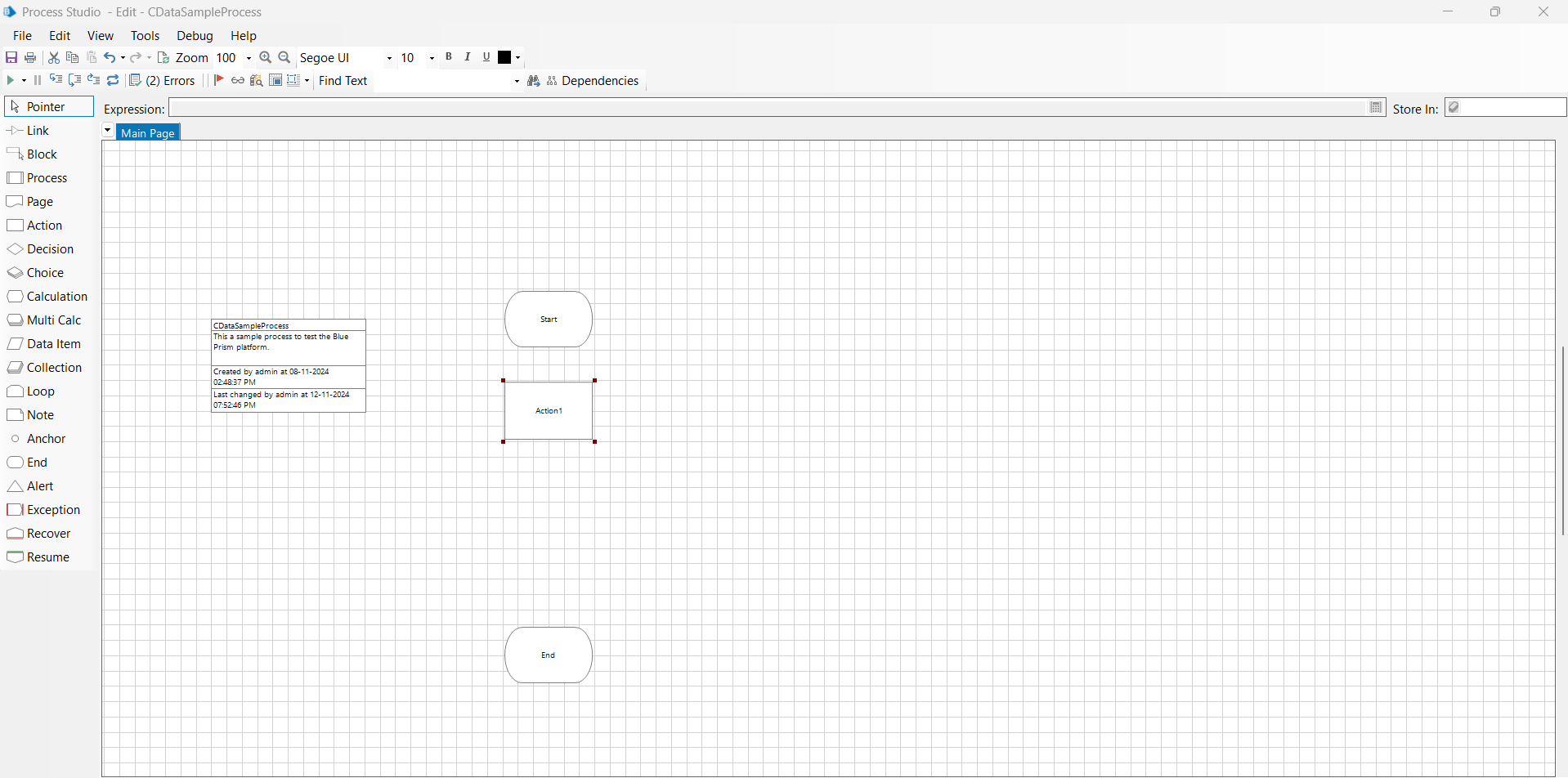
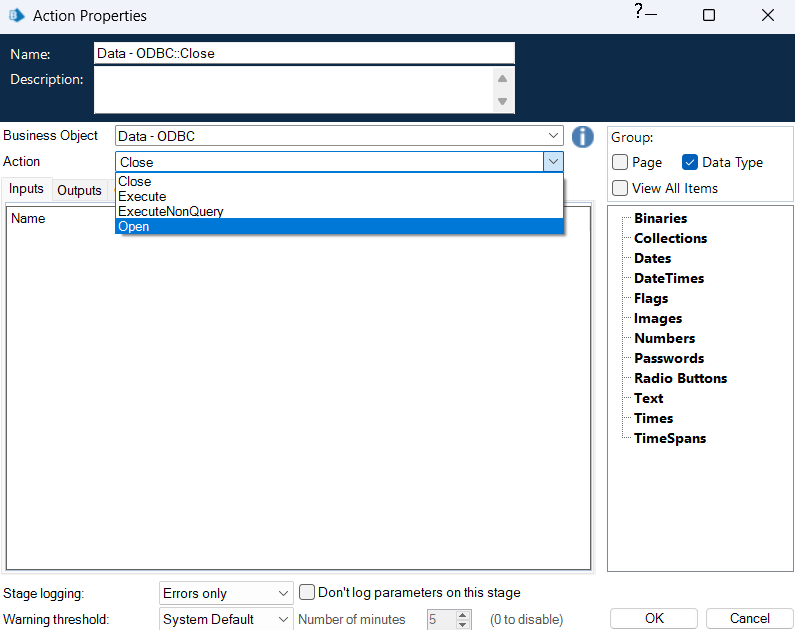
- From the list of business objects, select the "Data - ODBC" object you just imported, then choose "Open" from the list of actions.
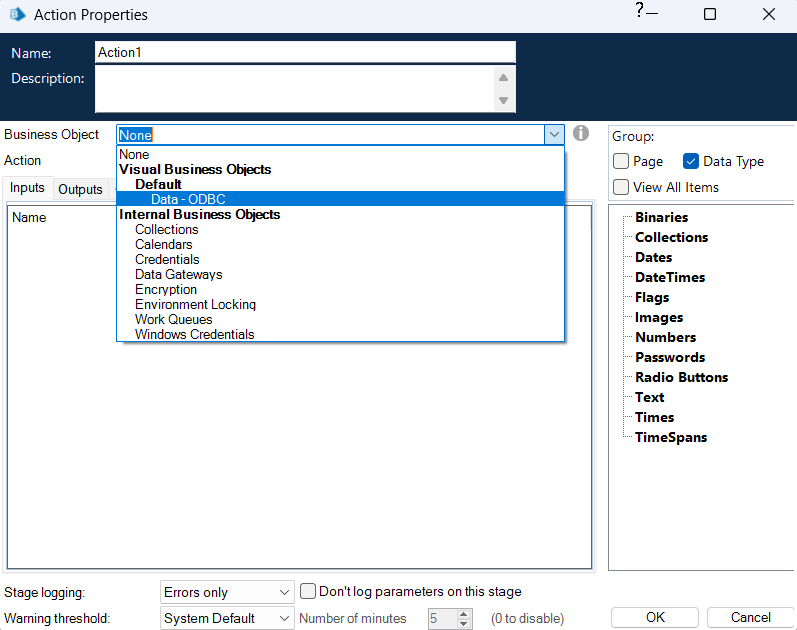
 The Open action requires a Connection String as an input parameter in the Inputs tab. Enter the DSN name of the CData ODBC driver you configured, using the format: "DSN=CData ClaudeCompliance Source".
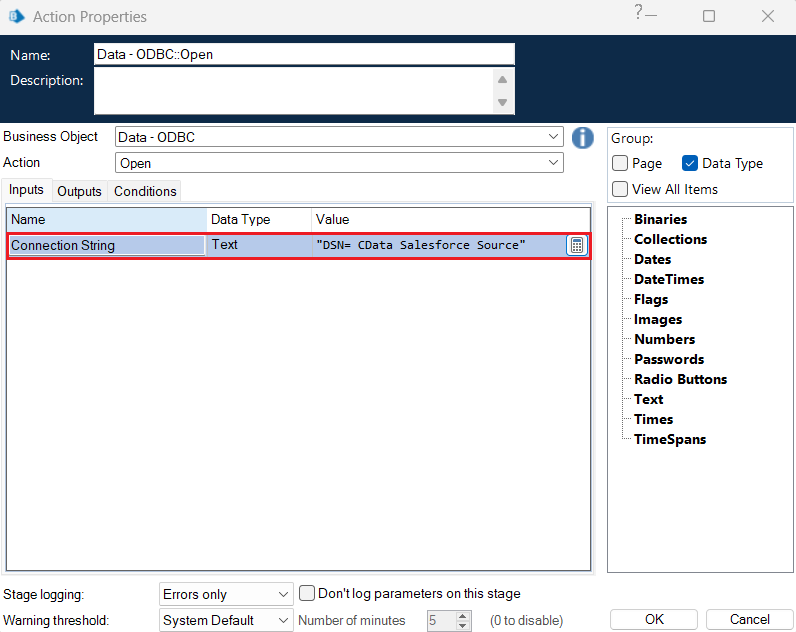
Note: Click the Expression Editor button on the right, then click Validate to check if the added expression is correct. Use the same method to check all the expressions used in this article.
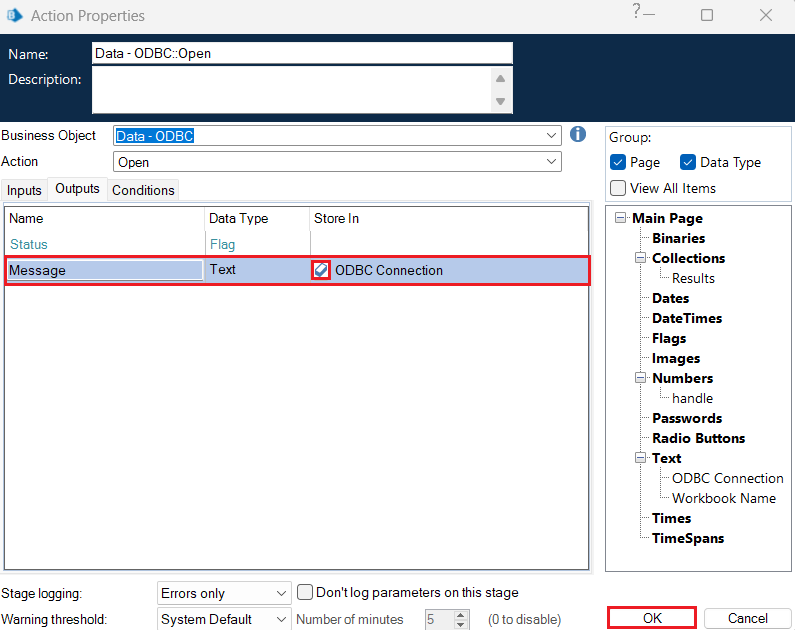
- Click on the Outputs tab and edit the output message as "ODBC Connection". Click OK to save the process.
Add a process to retrieve data via ODBC
Next, let's add a process to retrieve data from Claude Compliance.
- Place another Action block on the canvas below the previous one.
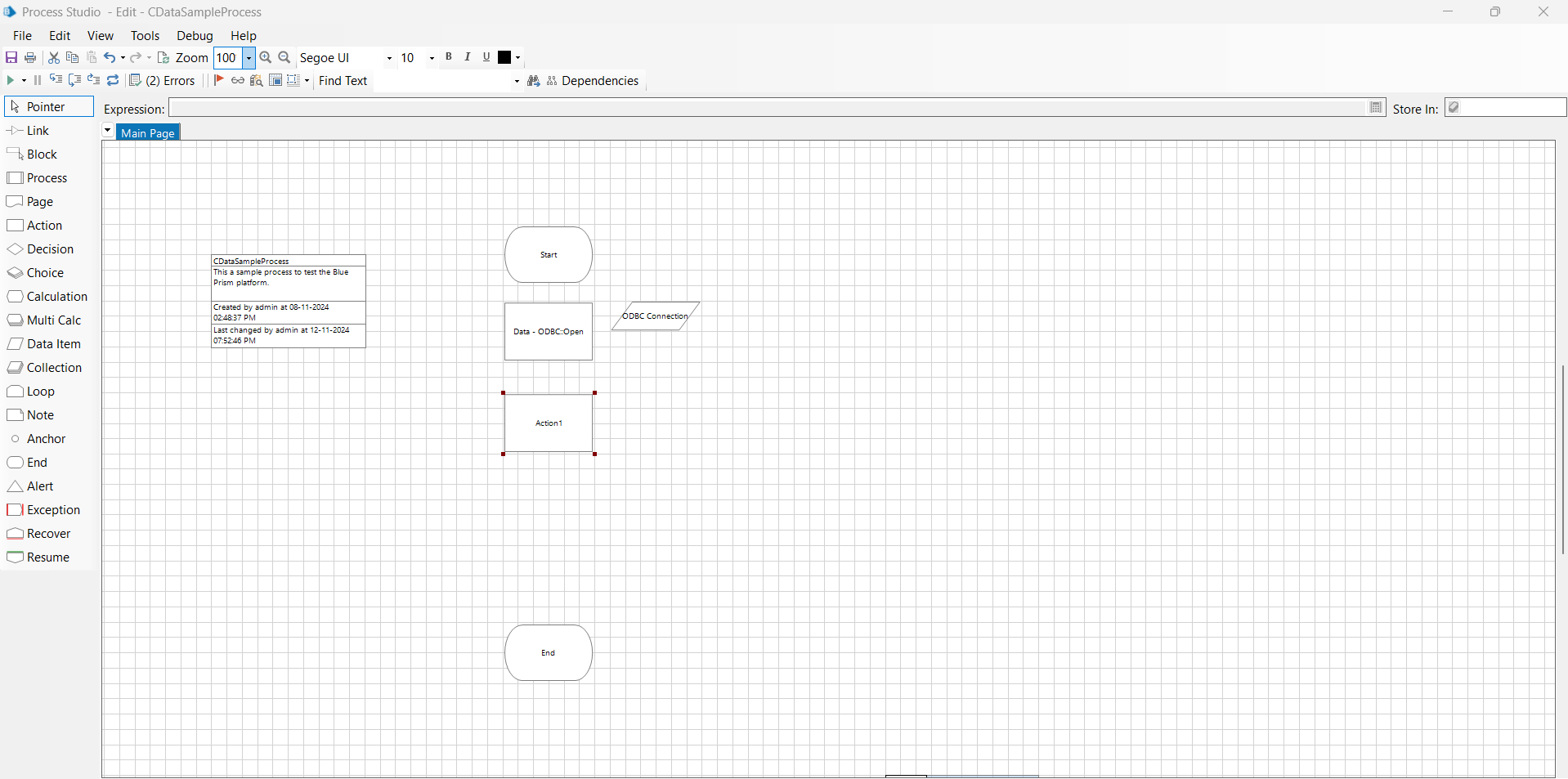
- Select "Data - ODBC" from the list of business objects, then choose "Execute" from the list of actions. By selecting "Execute", you can specify SQL commands to retrieve data.
- In the Inputs tab, enter a SQL query within double quotes in the Query String section to retrieve data from Claude Compliance. For example:
SELECT * FROM [ClaudeCompliance].[Projects]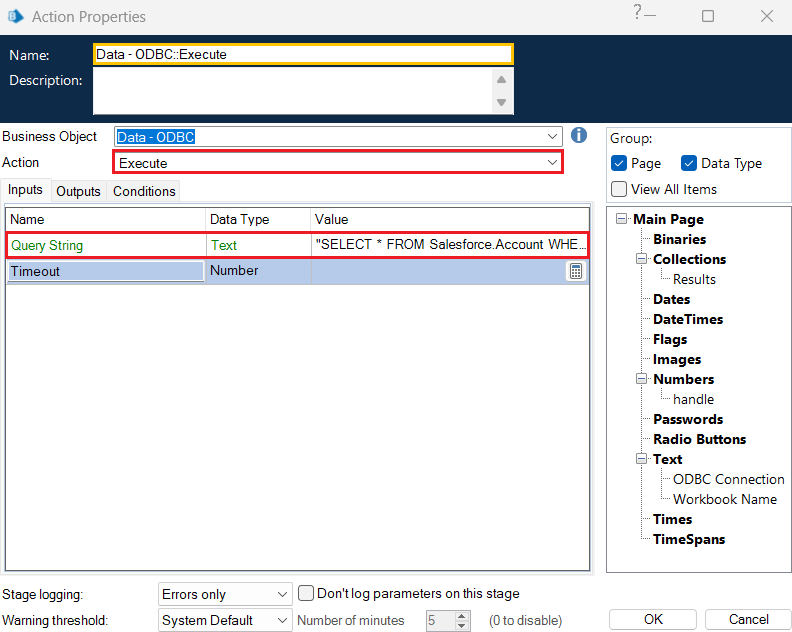
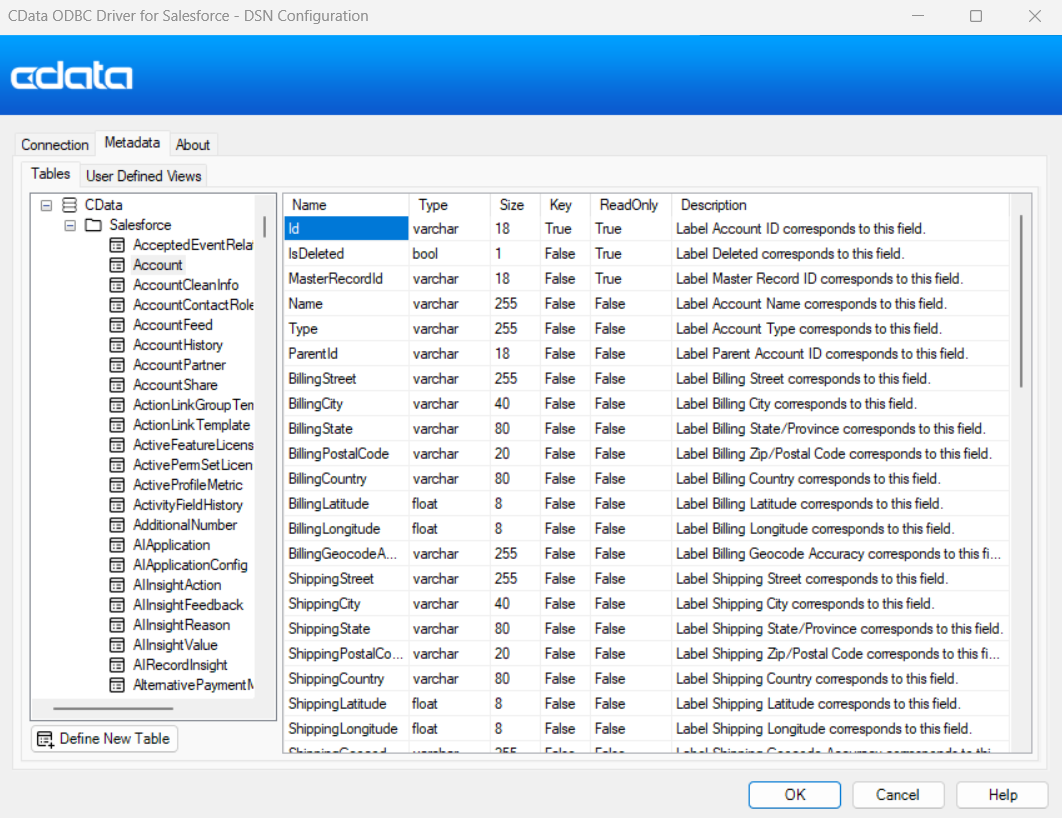
NOTE: The information about the tables and columns used in the SELECT statement can be found in the "Tables" tab of the ODBC DSN.
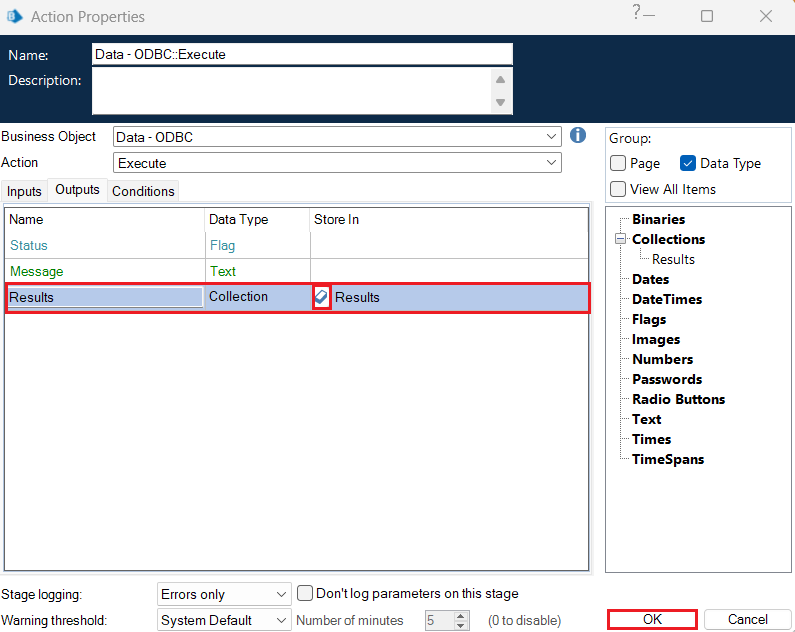
- Additionally, the processing results are stored in variables to effectively manage the outcomes in Blue Prism. To create an output variable, click the Results variable icon in the Output tab and then click OK.
Add a process to close ODBC
Finally, add a close routine to terminate the ODBC processing and release the connection.
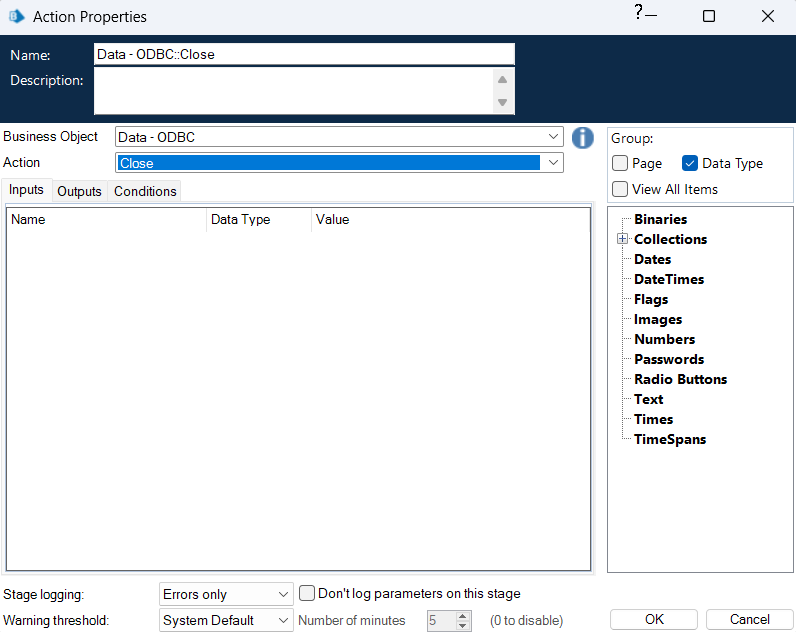
- Place an Action block on the canvas again.
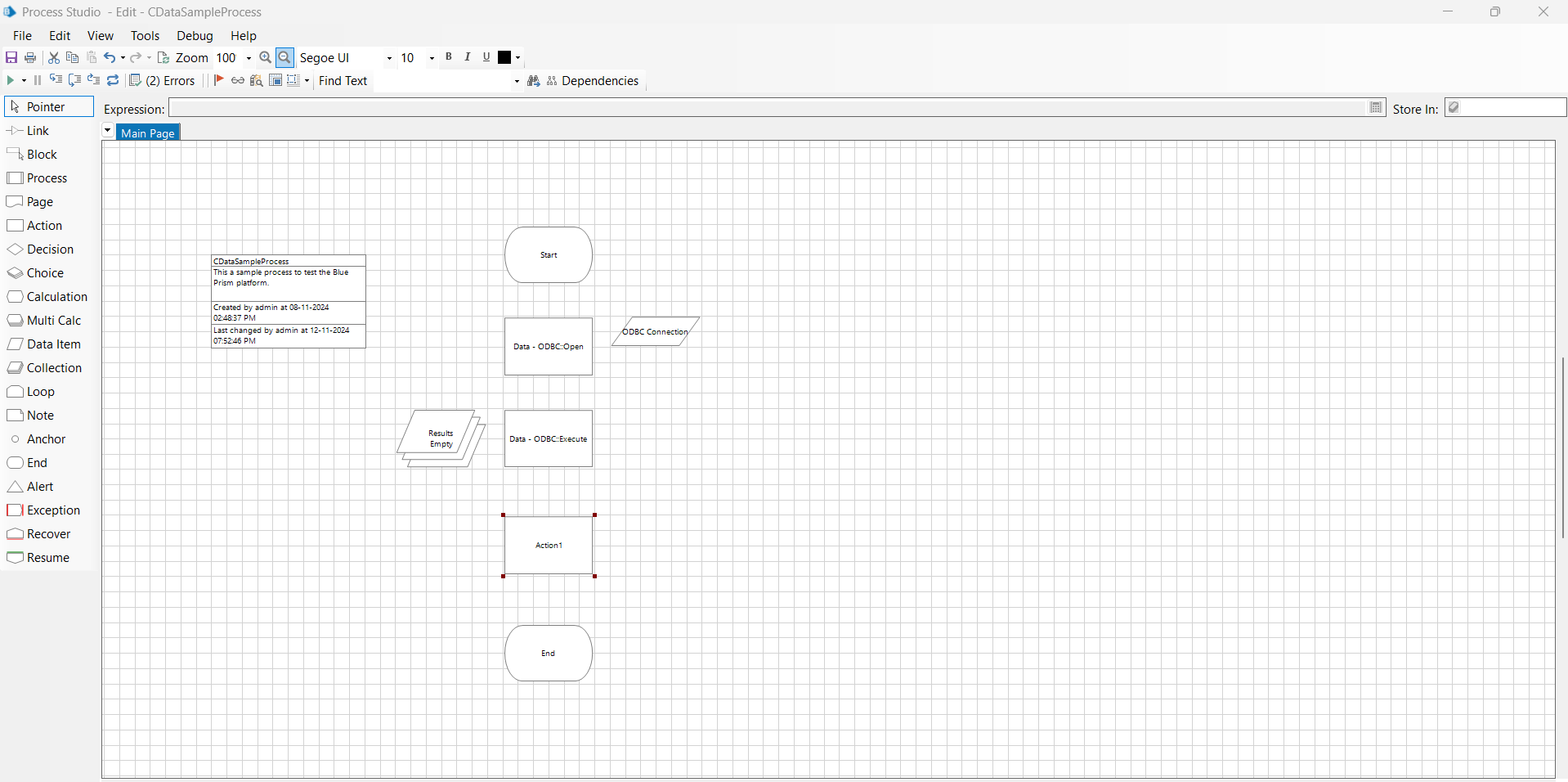
- Select "Data - ODBC" from the list of business objects and "Close" from the list of actions. There are no specific parameters to configure for Close.
- Finally, connect the "links" from the left panel to create a process like this:
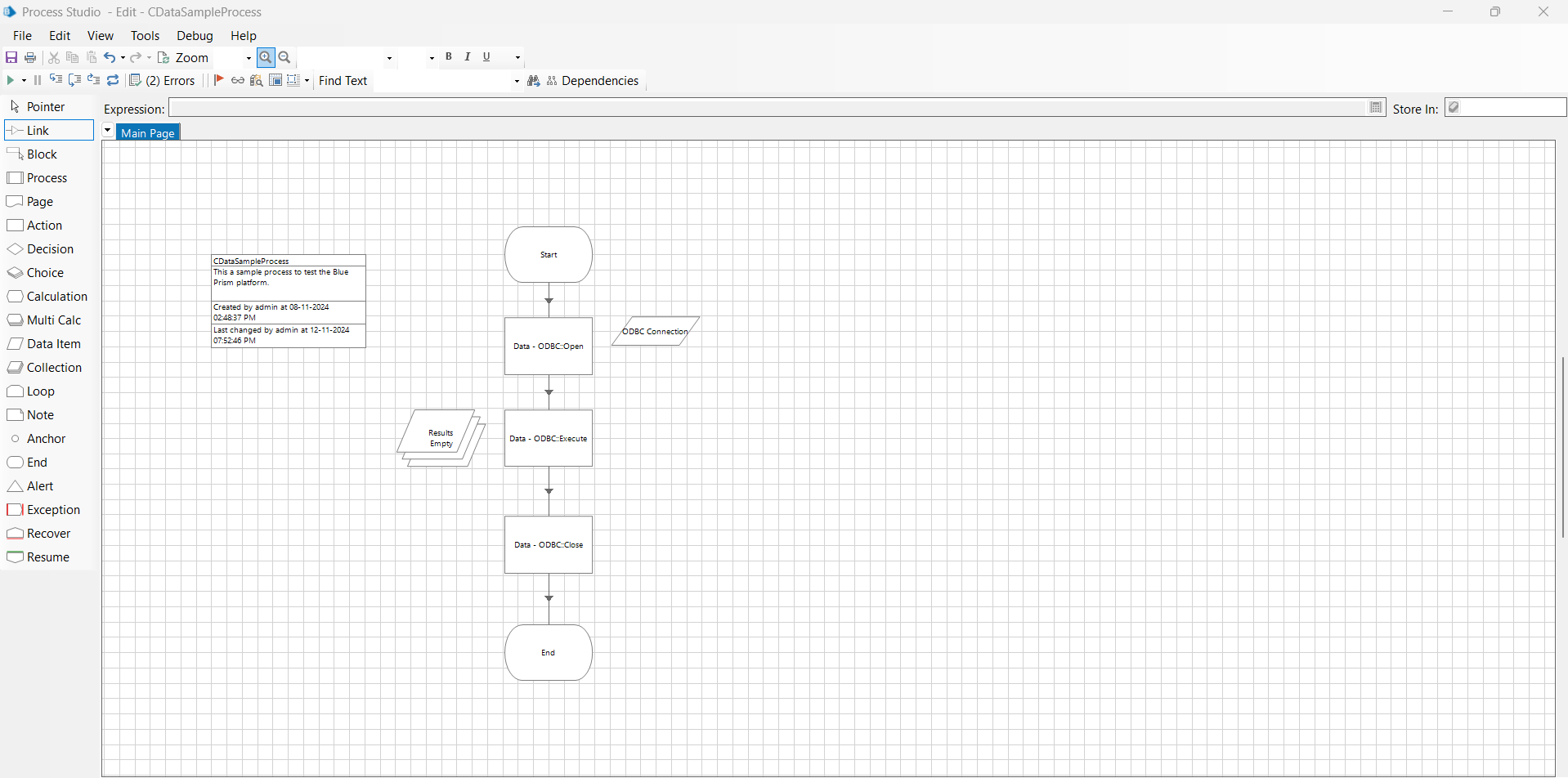
Add a process to save live Claude Compliance data to Excel
The processes demonstrated above do not retrieve the data independently, so let's proceed to write it into an Excel file. We will use the Excel VBO to create the next flow.
- Download and add an Excel VBO object in Blue Prism by following a process similar to the one described in the article's Add VBOs for ODBC section.
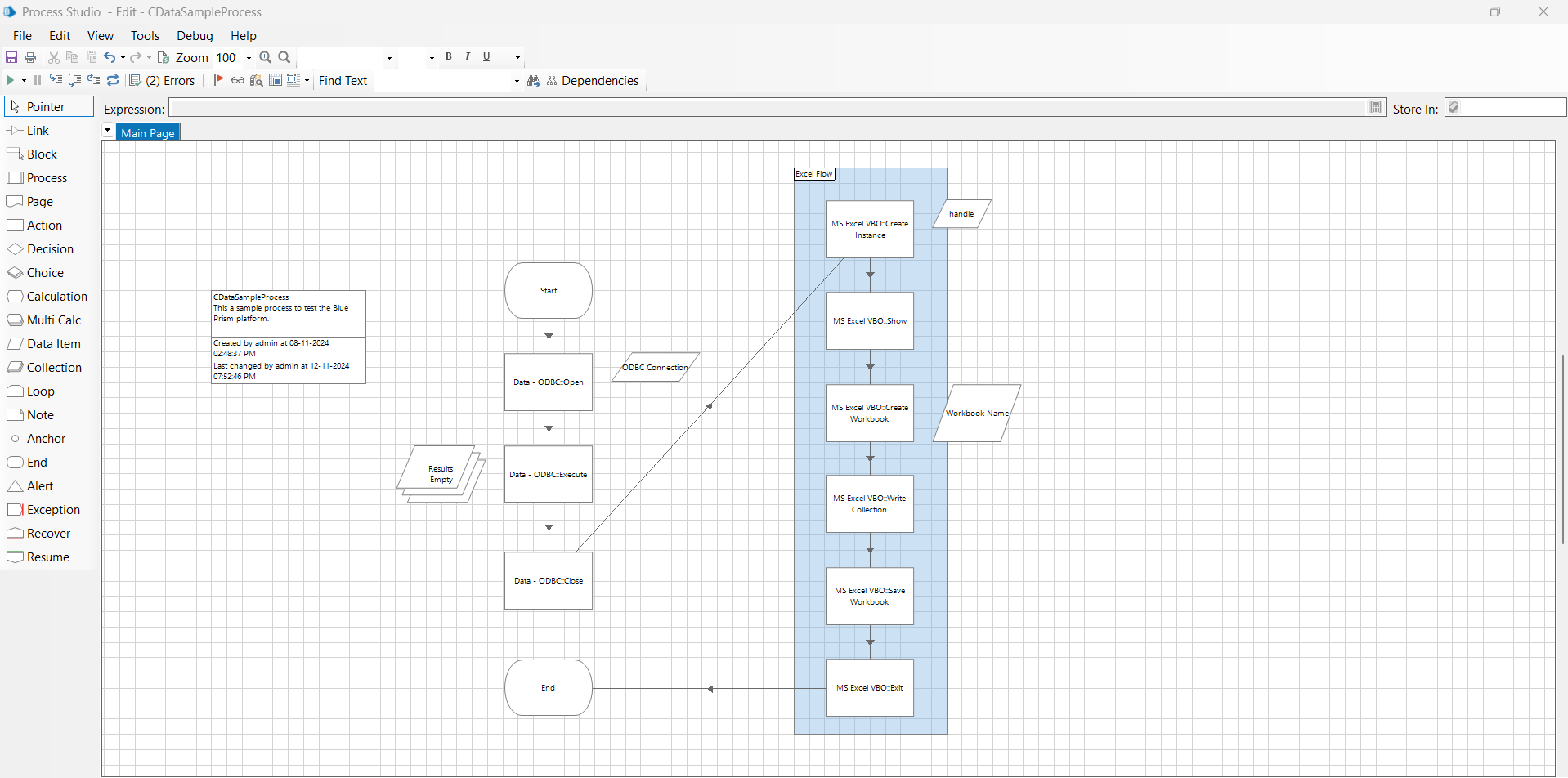
- In this process, place six Action blocks one after the other to complete all the follow-up steps for creating the MS Excel process flow.
- In the first Action block, select "MS Excel VBO" from the list of business objects and "Create Instance" from the list of actions. This step is used to create a new instance of Microsoft Excel.
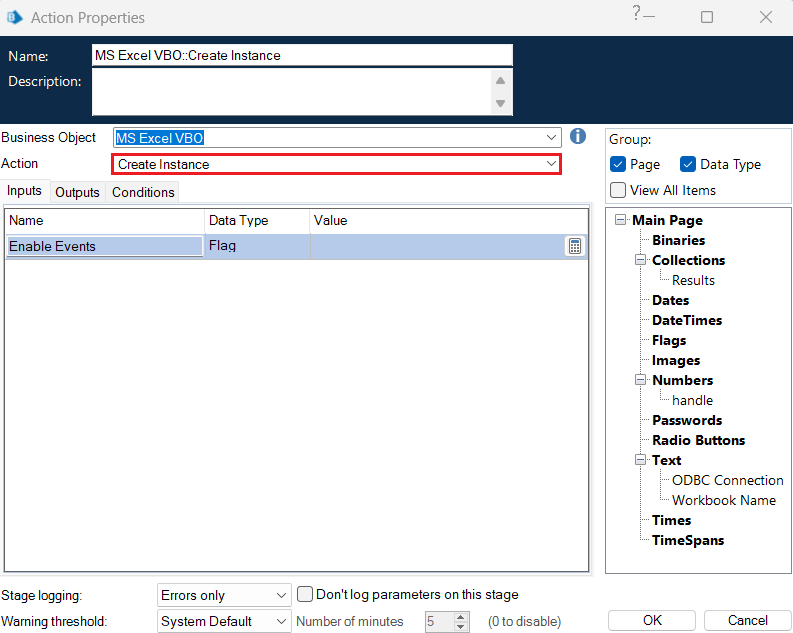
In the Outputs tab, add a handle name.

- In the next block, select "MS Excel VBO" from the list of business objects and "Show" from the list of actions. This action makes the Excel application visible on the screen.
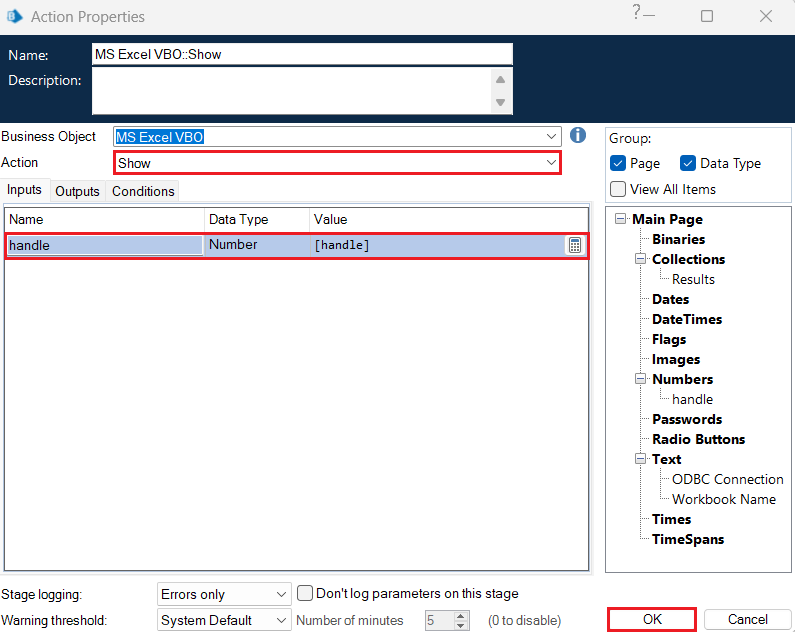
In the Inputs tab, add "[handle]" as the handle value.
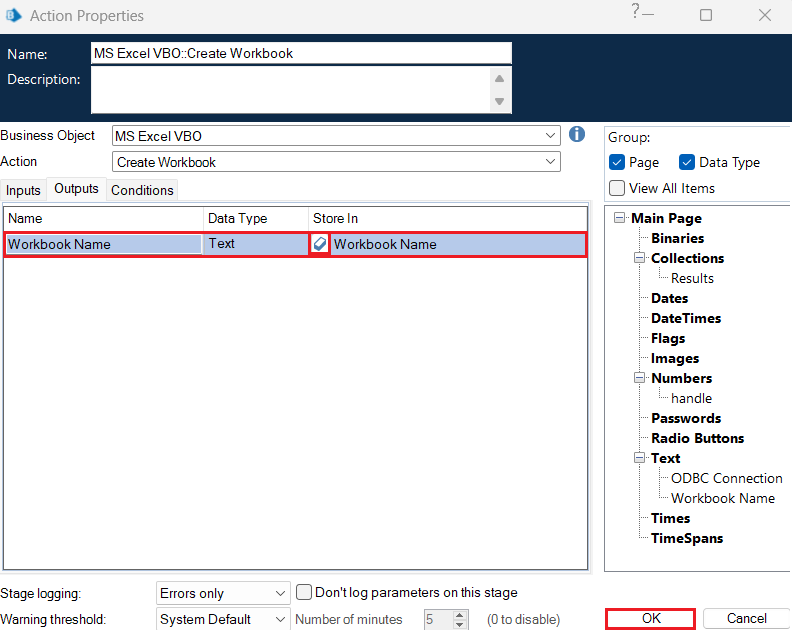
- Again, select "MS Excel VBO" from the list of business objects and "Create Workbook" from the list of actions for the consecutive block. This creates a new workbook to store the incoming Claude Compliance data.
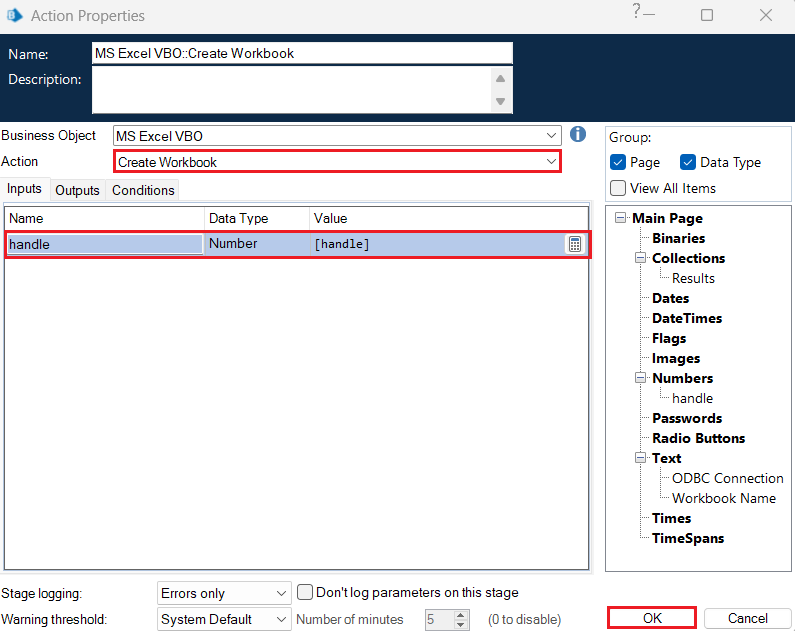
In the Inputs tab, enter handle value as "[handle]" and in the Outputs tab, set a new Workbook Name.
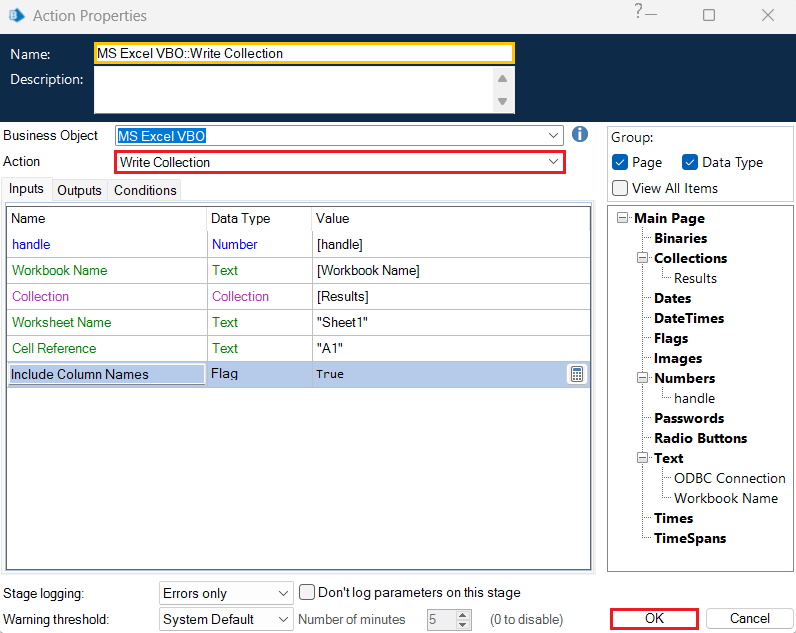
- For the next action, select "MS Excel VBO" from the list of business objects and "Write Collection" from the list of actions. It writes the "Results" obtained via ODBC to the input parameter "Collection". Enter the following parameters in the Input tab:
- handle: [handle]
- Workbook Name: [Workbook Name]
- Collection: [Results]
- Worksheet Name: "Sheet1"
- Cell Reference: "A1"
- Include Column Names: True
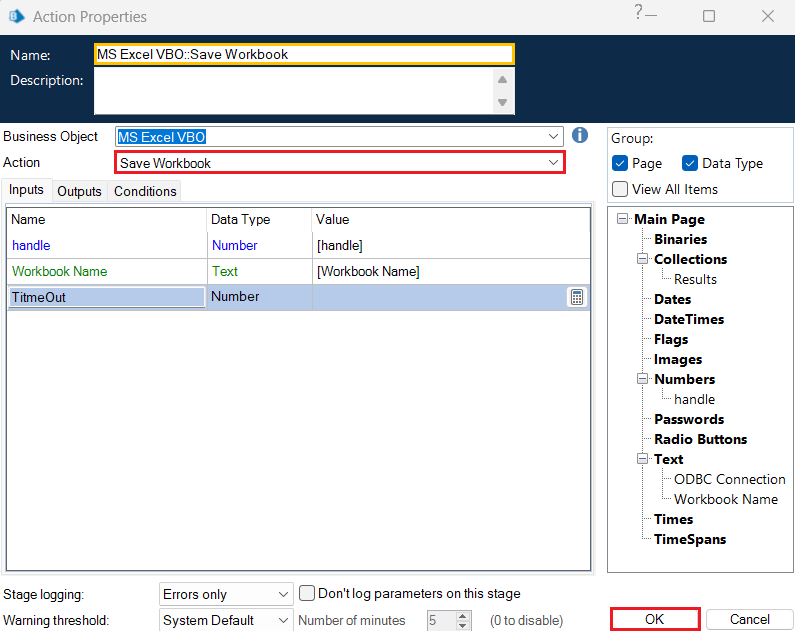
- Next, select "MS Excel VBO" from the list of business objects and "Save Workbook" from the list of actions to save the workbook. In the Inputs tab, assign the following values:
- handle: [handle]
- Workbook Name: [Workbook Name]
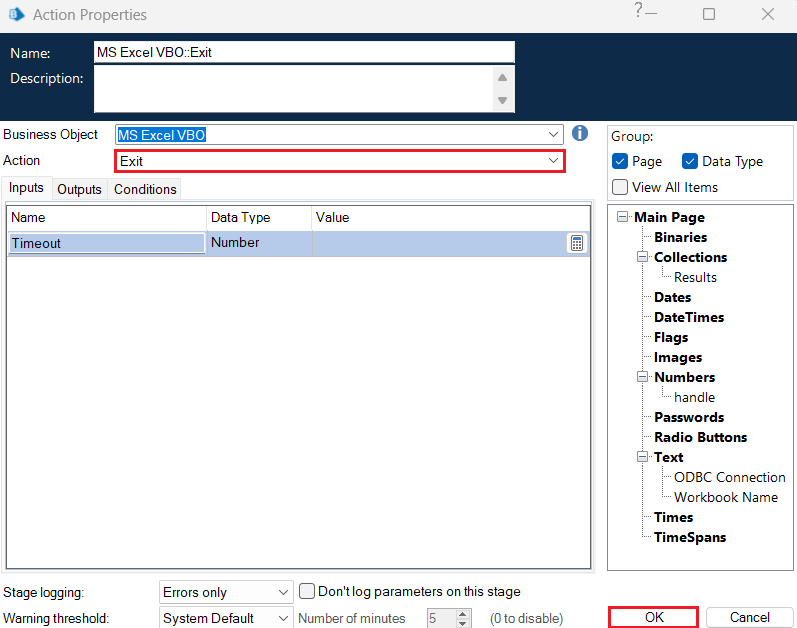
- In the final action, select "MS Excel VBO" from the list of business objects and "Exit" from the list of actions. This action will finally close the workbook.
- Connect the action blocks with the "links" to get the final Excel process flow.
Run the process to check the operations
Once the process is complete, click the Run button to see it in action.
- Click the Run button at the top left of the screen (as shown).

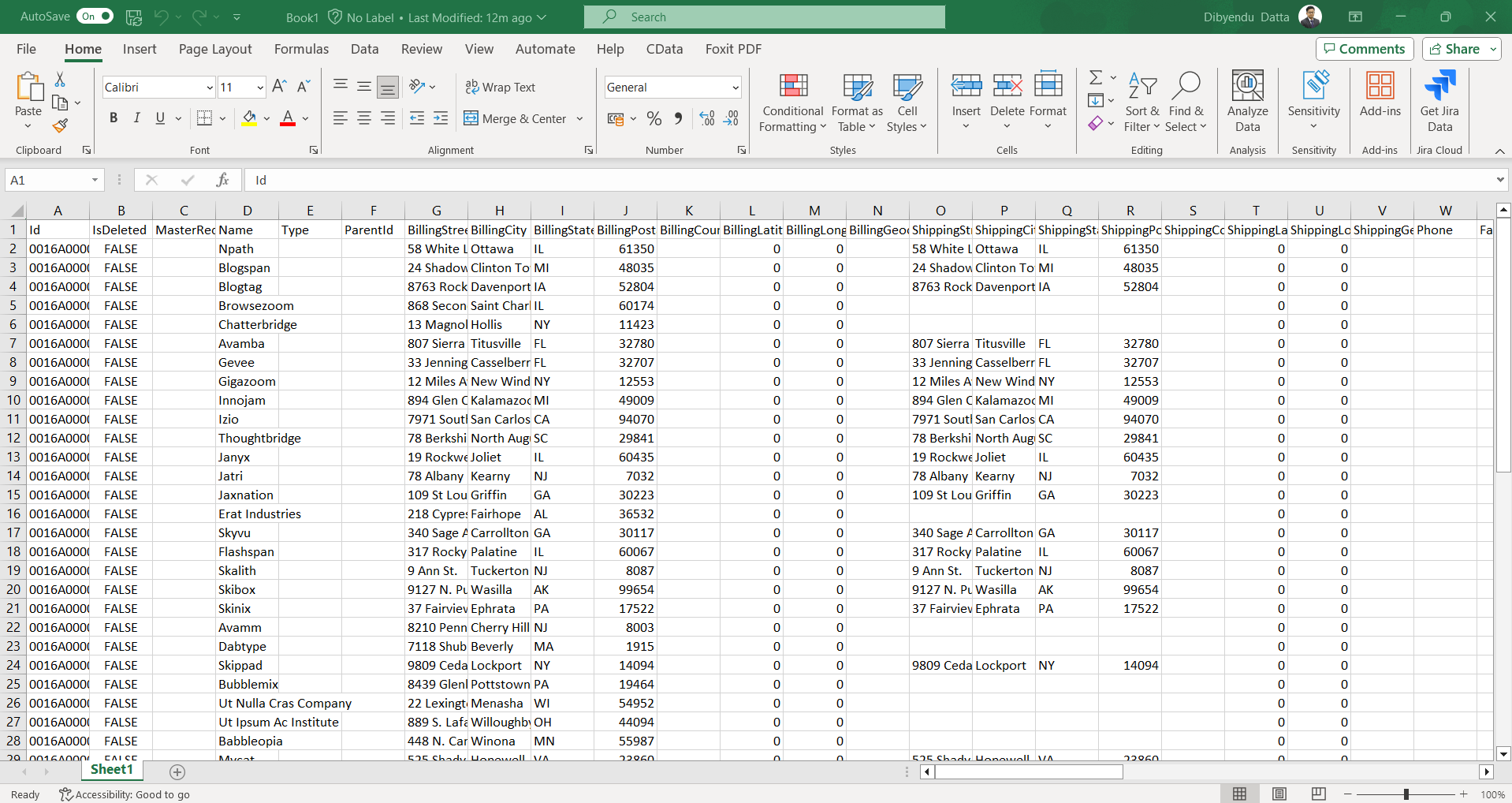
- If the Claude Compliance data is finally written to an Excel file like the one below, consider the entire process to be working successfully.
Get Started Today
Download a free, 30-day trial of the CData ODBC Driver for Claude Compliance and integrate Claude Compliance data into Blue Prism to create automated business workflows.
Reach out to our Support Team if you have any questions.
Ready to get started?
Download a free trial of the Claude Compliance ODBC Driver to get started:
Download NowLearn more:
 Claude Compliance ODBC Driver
The Claude Compliance ODBC Driver is a powerful tool that allows you to connect with live data from Claude Compliance, directly from any applications that support ODBC connectivity.
Access Claude Compliance data like you would a database - read Claude Compliance Activities, Chats, ChatMessages, CodeArtifacts, ComplianceRoles, Organizations, OrganizationUsers, Projects, etc. through a standard ODBC Driver interface.