




Create Datasets from Claude Compliance in Domo Workbench and Build Visualizations of Claude Compliance Data in Domo

Domo helps you manage, analyze, and share data across your entire organization, enabling decision makers to identify and act on strategic opportunities. Domo Workbench provides a secure, client-side solution for uploading your on-premise data to Domo. The CData ODBC Driver for Claude Compliance links Domo Workbench to operational Claude Compliance data. You can build datasets from Claude Compliance data using standard SQL queries in Workbench and then create real-time visualizations of Claude Compliance data in the Domo service.
The CData ODBC Drivers offer unmatched performance for interacting with live Claude Compliance data in Domo due to optimized data processing built into the driver. When you issue complex SQL queries from Domo to Claude Compliance, the driver pushes supported SQL operations, like filters and aggregations, directly to Claude Compliance and utilizes the embedded SQL Engine to process unsupported operations (often SQL functions and JOIN operations) client-side. With built-in dynamic metadata querying, you can visualize and analyze Claude Compliance data using native Domo data types.
Connect to Claude Compliance as an ODBC Data Source
If you have not already, first specify connection properties in an ODBC DSN (data source name). This is the last step of the driver installation. You can use the Microsoft ODBC Data Source Administrator to create and configure ODBC DSNs.
The driver connects to Claude Compliance using a Compliance Access Key, the only supported authentication method. Set the following connection property:
- APIKey: The Compliance Access Key you created.
Creating a Compliance Access Key
- Enable the Compliance API for your organization.
- Sign in to claude.ai as a primary owner or organization owner and open Organization settings > API > Keys.
- Select Create Key and assign only the scopes your integration needs:
- read:compliance_activities for Activities and the typed activity views.
- read:compliance_org_data for organizations, roles, groups, and settings.
- read:compliance_user_data for users, chats, files, projects, and downloads.
- delete:compliance_user_data for the explicit Delete stored procedures.
- Create the key and copy it when it appears. The key starts with sk-ant-api01- and is shown only once.
Optionally, set OrganizationUUID to limit organization-scoped views (such as OrganizationUsers and ComplianceRoles) to a single linked organization. If it is left empty, those views default to the first available organization and do not include data from all linked organizations.
When you configure the DSN, you may also want to set the Max Rows connection property. This will limit the number of rows returned, which is especially helpful for improving performance when designing reports and visualizations.
After creating a DSN, you will need to create a dataset for Claude Compliance in Domo Workbench using the Claude Compliance DSN and build a visualization in the Domo service based on the dataset.
Build a Dataset for Claude Compliance Data
You can follow the steps below to build a dataset based on a table in Claude Compliance in Domo Workbench using the CData ODBC Driver for Claude Compliance.
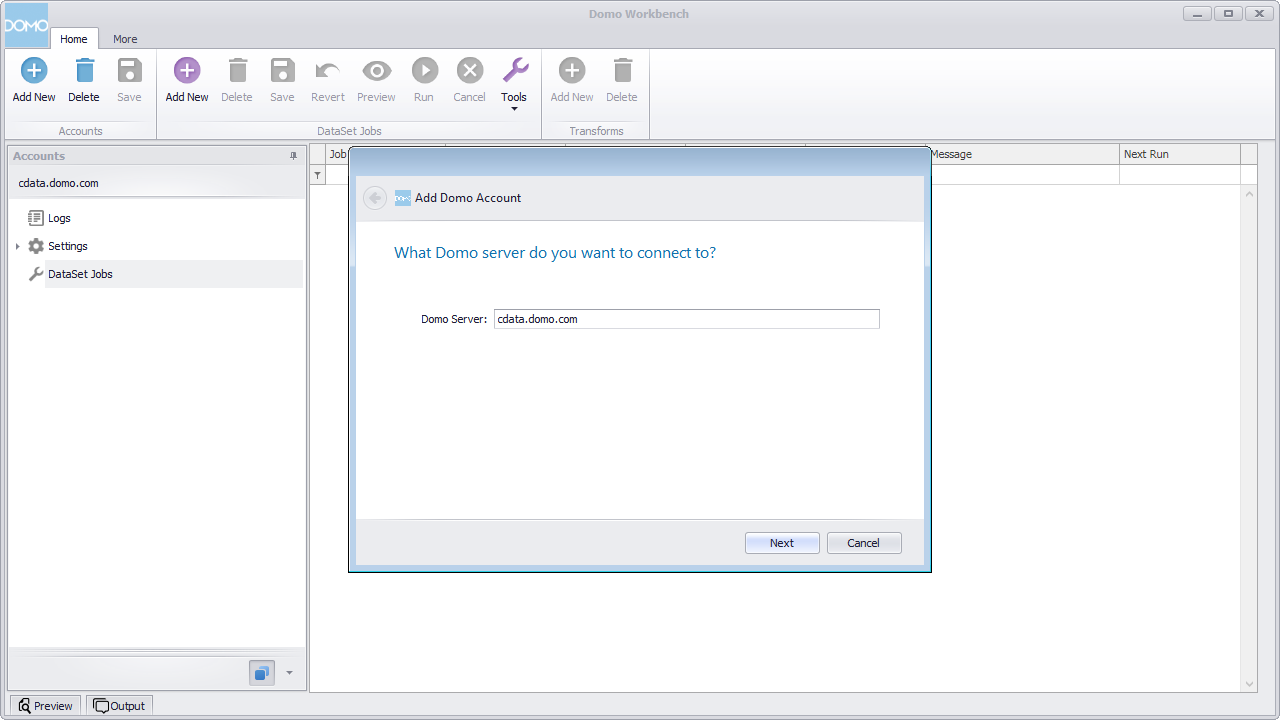
- Open Domo Workbench and, if you have not already, add your Domo service server to Workbench. In the Accounts submenu, click Add New, type in the server address (i.e., domain.domo.com) and click through the wizard to authenticate.
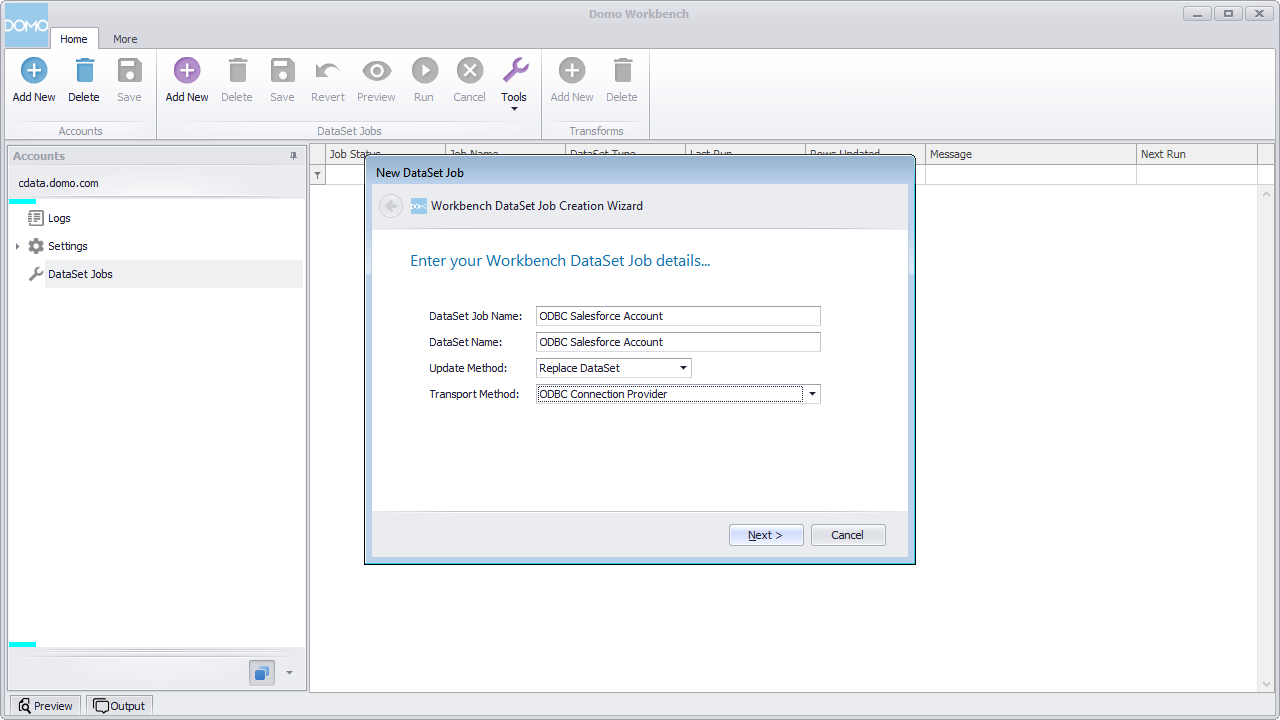
- In the DataSet Jobs submenu, click Add New.
- Name the dataset job (i.e., ODBC Claude Compliance Projects), select ODBC Connection Provider as the transport method, and click through the wizard.
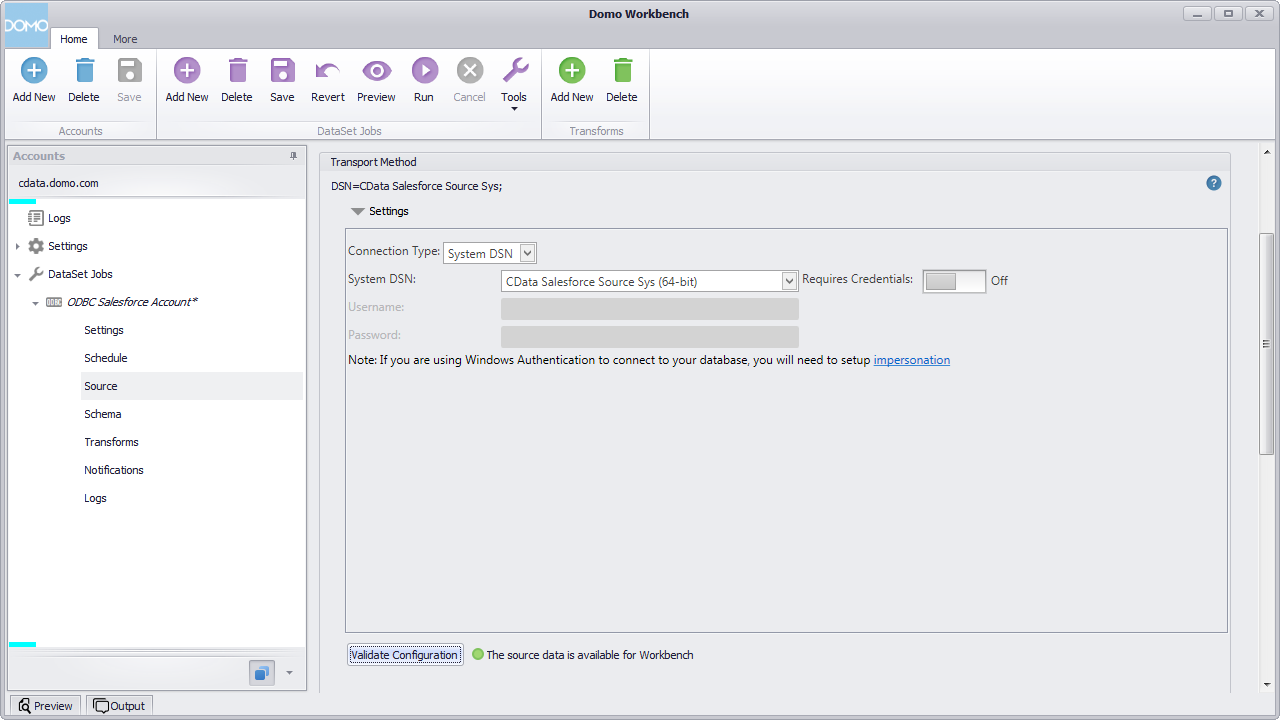
- In the newly created DataSet Job, navigate to Source and click to configure the settings.
- Select System DSN for the Connection Type.
- Select the previously configured DSN (CData ClaudeCompliance Sys) for the System DSN.
- Click to validate the configuration.
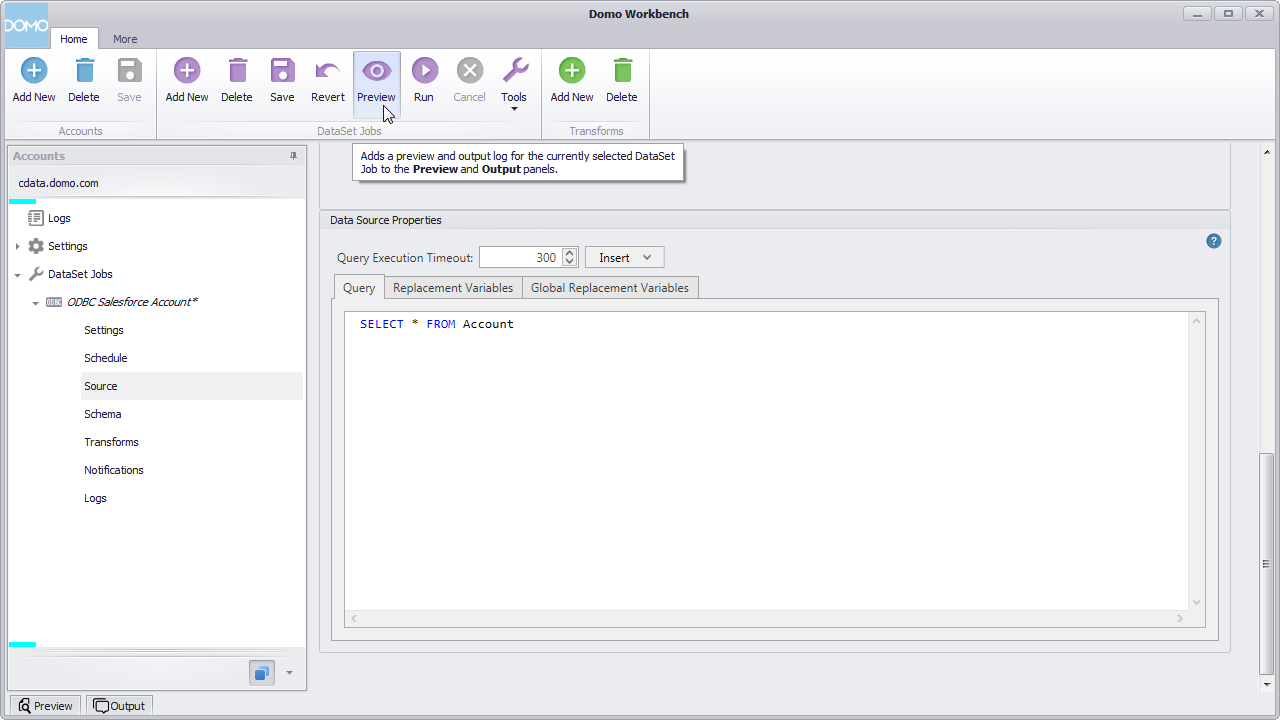
- Below the settings, set the Query to a SQL query:
NOTE: By connecting to Claude Compliance data using an ODBC driver, you simply need to know SQL in order to get your data, circumventing the need to know Claude Compliance-specific APIs or protocols.SELECT * FROM Projects - Click preview.
- Check over the generated schema, add any transformations, then save and run the dataset job.
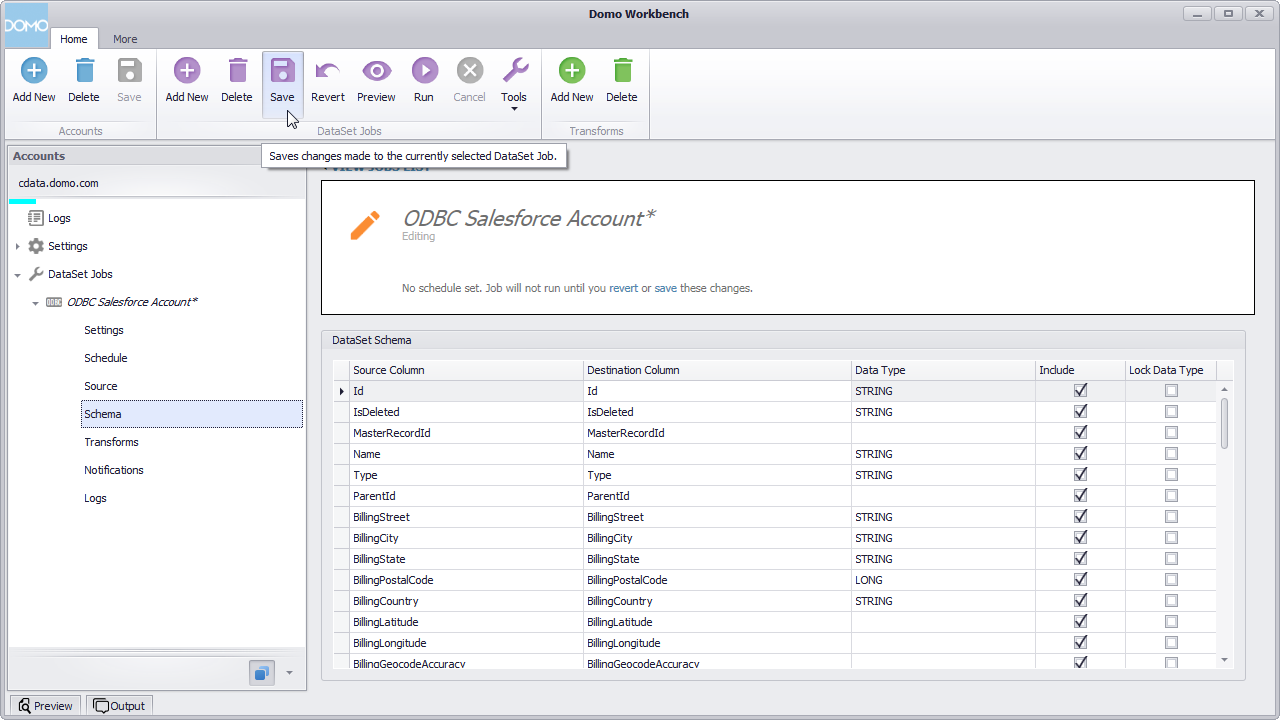
With the dataset job run, the dataset will be accessible from the Domo service, allowing you to build visualizations, reports, and more based on Claude Compliance data.
Create Data Visualizations
With the DataSet Job saved and run in Domo Workbench, we are ready to build visualizations of the Claude Compliance data in the Domo service.
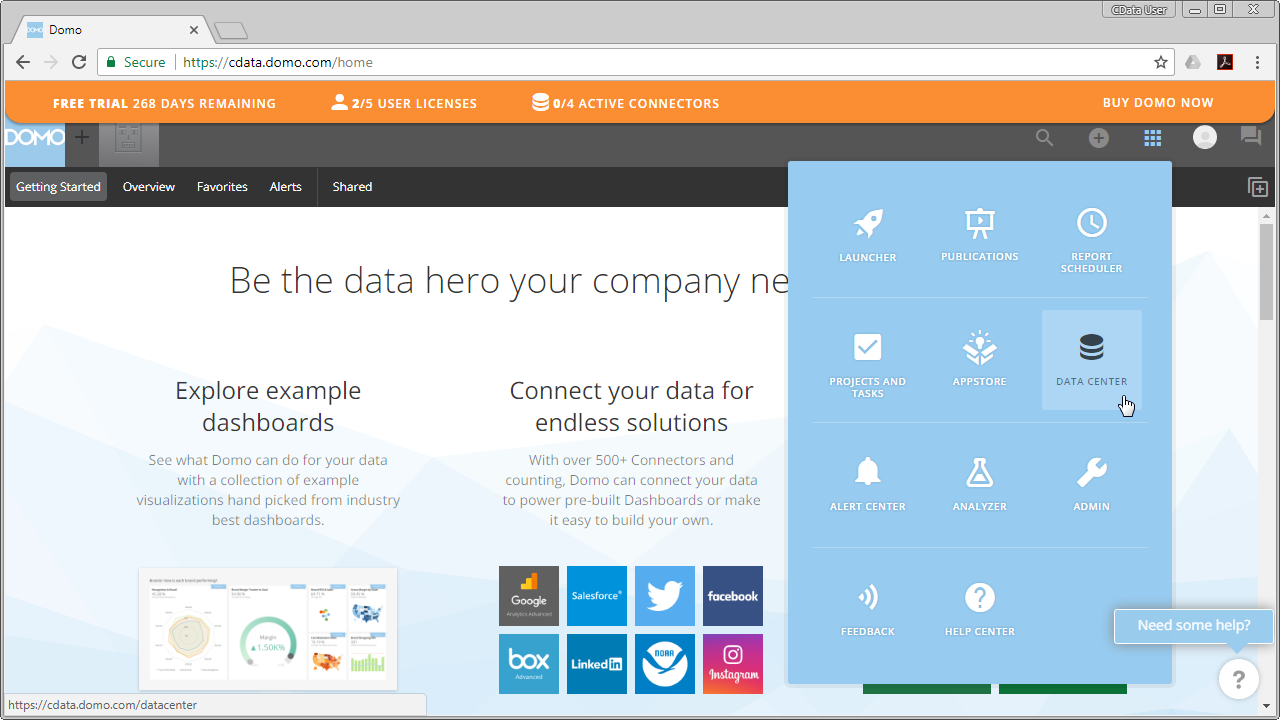
- Navigate to the Data Center.
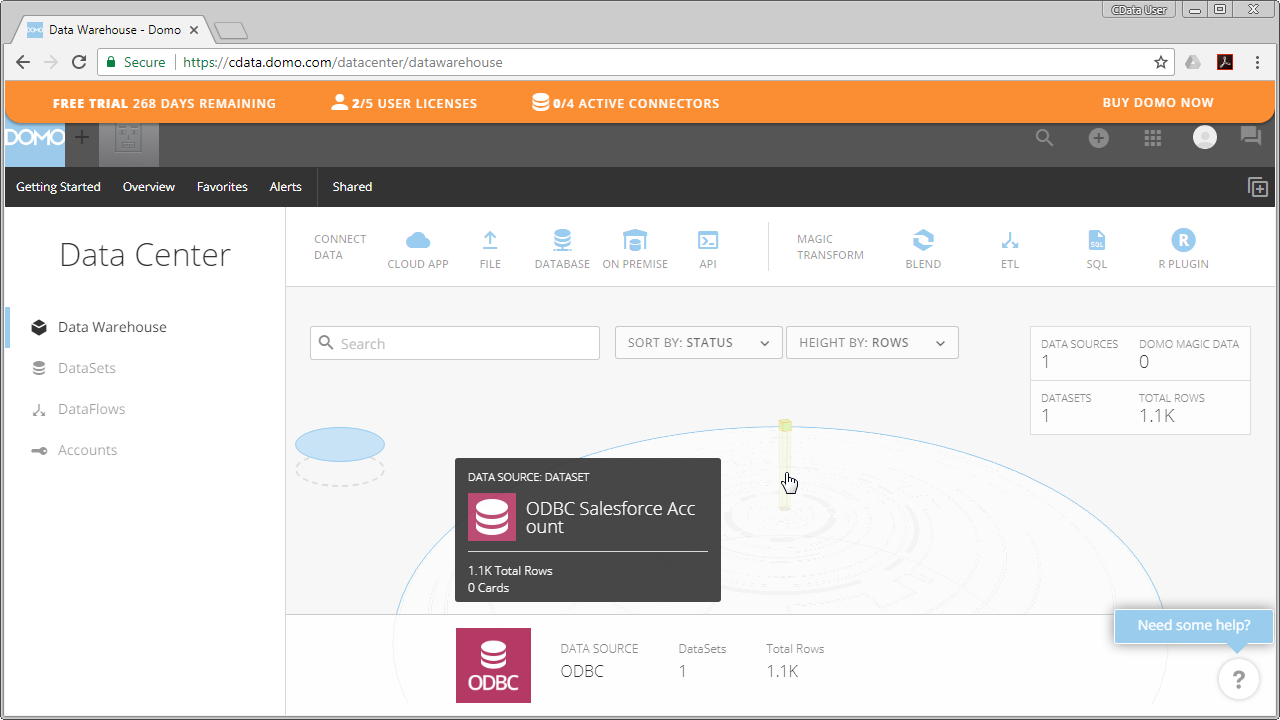
- In the data warehouse, select the ODBC data source and drill down to our new dataset.
- With the dataset selected, choose to create a visualization.
- In the new card:
- Drag a Dimension to the X Value.
- Drag a Measure to the Y Value.
- Choose a Visualization.
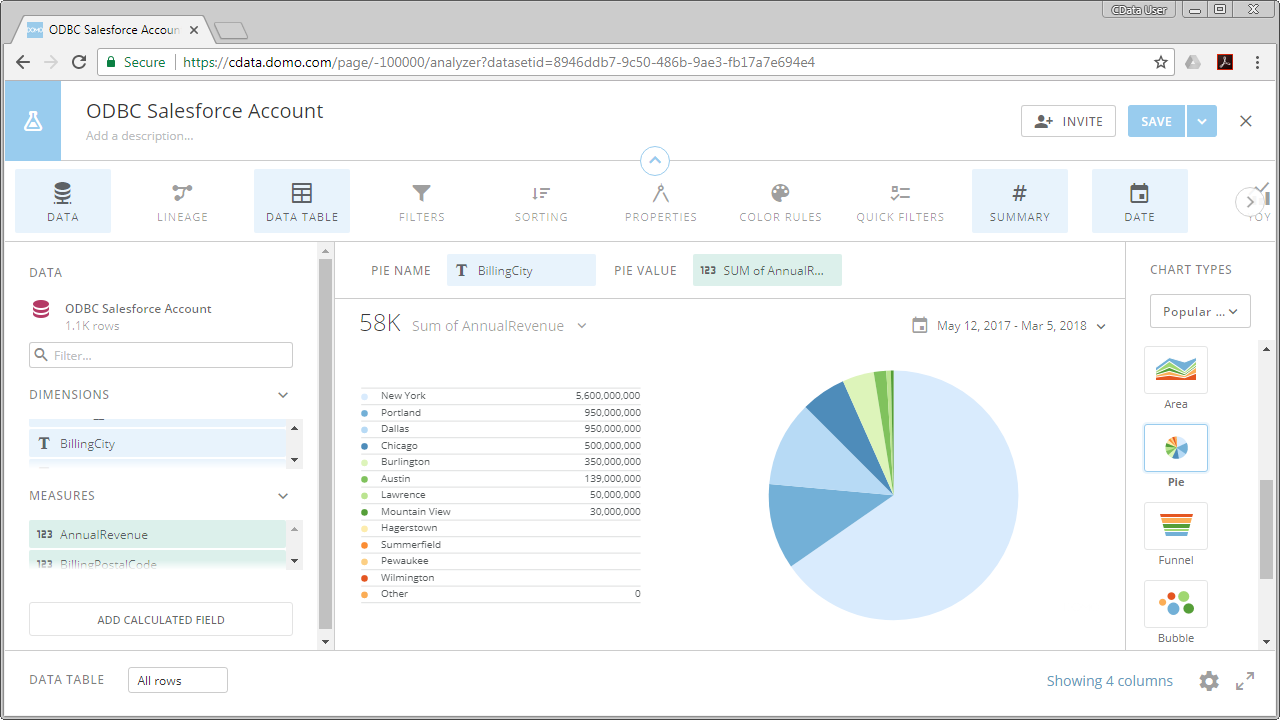
With the CData ODBC Driver for Claude Compliance, you can build custom datasets based on Claude Compliance data using only SQL in Domo Workbench and then build and share visualizations and reports through the Domo service.
Ready to get started?
Download a free trial of the Claude Compliance ODBC Driver to get started:
Download NowLearn more:
 Claude Compliance ODBC Driver
The Claude Compliance ODBC Driver is a powerful tool that allows you to connect with live data from Claude Compliance, directly from any applications that support ODBC connectivity.
Access Claude Compliance data like you would a database - read Claude Compliance Activities, Chats, ChatMessages, CodeArtifacts, ComplianceRoles, Organizations, OrganizationUsers, Projects, etc. through a standard ODBC Driver interface.