




Connect Claude Compliance Data to Claris FileMaker via ESS using an ODBC Driver and the CData SQL Gateway

Claris FileMaker is a low-code platform that enables users to quickly create custom apps to manage and automate data workflows. Using the CData ODBC Driver for Claude Compliance and the CData SQL Gateway, FileMaker connects to Claude Compliance data through its ESS (External SQL Source) feature, allowing you to work with Claude Compliance records as if they were native FileMaker tables.
In this article, we configure and use the CData ODBC Driver for Claude Compliance and the CData SQL Gateway, along with the MySQL ODBC Driver, to connect to Claude Compliance data using the ESS functionality in FileMaker.
Create an ODBC Data Source for Claude Compliance
If you have not already, first specify connection properties in an ODBC DSN (data source name). This is the last step of the driver installation. You can use the Microsoft ODBC Data Source Administrator to create and configure ODBC DSNs.
The driver connects to Claude Compliance using a Compliance Access Key, the only supported authentication method. Set the following connection property:
- APIKey: The Compliance Access Key you created.
Creating a Compliance Access Key
- Enable the Compliance API for your organization.
- Sign in to claude.ai as a primary owner or organization owner and open Organization settings > API > Keys.
- Select Create Key and assign only the scopes your integration needs:
- read:compliance_activities for Activities and the typed activity views.
- read:compliance_org_data for organizations, roles, groups, and settings.
- read:compliance_user_data for users, chats, files, projects, and downloads.
- delete:compliance_user_data for the explicit Delete stored procedures.
- Create the key and copy it when it appears. The key starts with sk-ant-api01- and is shown only once.
Optionally, set OrganizationUUID to limit organization-scoped views (such as OrganizationUsers and ComplianceRoles) to a single linked organization. If it is left empty, those views default to the first available organization and do not include data from all linked organizations.
When you configure the DSN, you may also want to set the Max Rows connection property. This will limit the number of rows returned, which is especially helpful for improving performance when designing reports and visualizations.
Configuring the CData SQL Gateway
The CData SQL Gateway bridges non-SQL data sources (like SaaS applications, APIs, and NoSQL databases) with SQL-based tools (like FileMaker, MySQL clients, and BI tools).
In simple terms, it exposes any CData driver-supported source - for example, Claude Compliance - as a standard MySQL or SQL Server endpoint.
See the SQL Gateway Overview to set up Claude Compliance data connectivity as a virtual MySQL database. Set up a MySQL remoting service that listens for MySQL requests from clients, and configure the service through the SQL Gateway UI (as shown below). Save the user credentials (Username and Password) for future use.
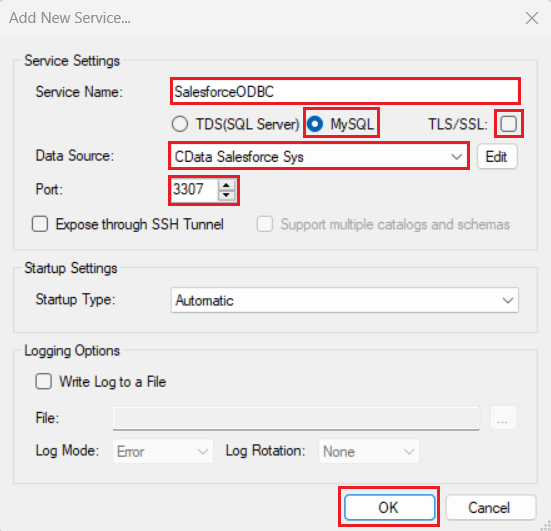
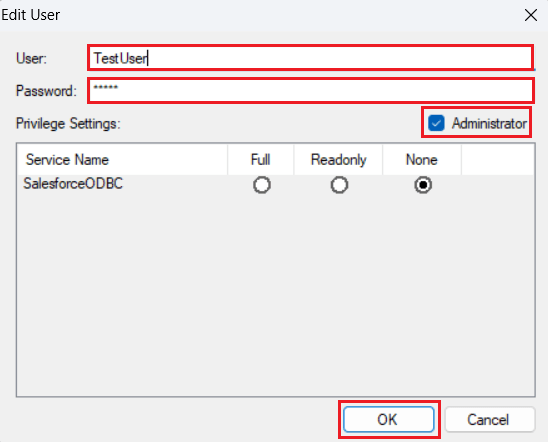
Once you establish the connection, you can use the CData SQL Gateway to access Claude Compliance data through the MySQL protocol.
Installing the MySQL ODBC Driver
Follow the steps below to install and configure the MySQL ODBC Driver:
- Download and install the latest 64-bit Windows version of the MySQL ODBC Unicode Driver from this link.
- Launch ODBC Data Sources (64-bit) from Windows search. Open the System DSN tab, click Add, select MySQL ODBC Unicode Driver from the Create New Data Source window, and click Finish.
- Enter the following connection details in the MySQL Connector/ODBC Data Source Configuration window:
- Data Source Name: Enter a DSN of your choice
- TCP/IP Server: localhost
- Port: Enter the port set in the SQL Gateway (for this procedure, use "3307")
- User: Enter the username set in the CData SQL Gateway
- Password: Enter the password set in the CData SQL Gateway
- Database: CData ClaudeCompliance Sys
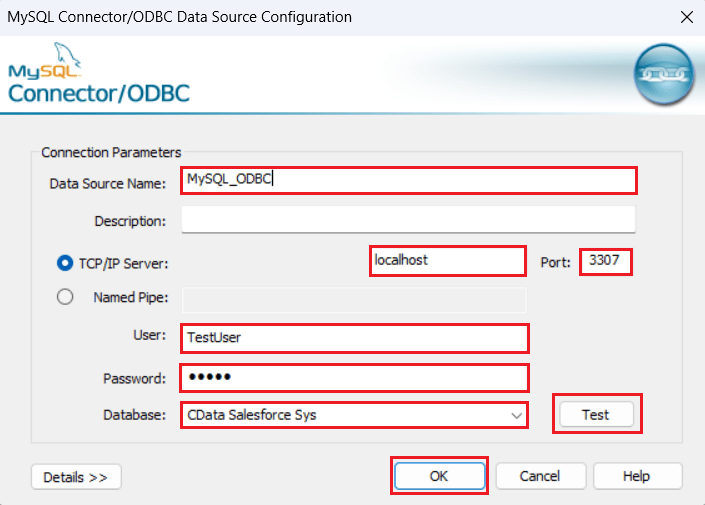
- Click Test to verify that the "Connection Successful" dialog box appears. Then click OK to save the configuration details.
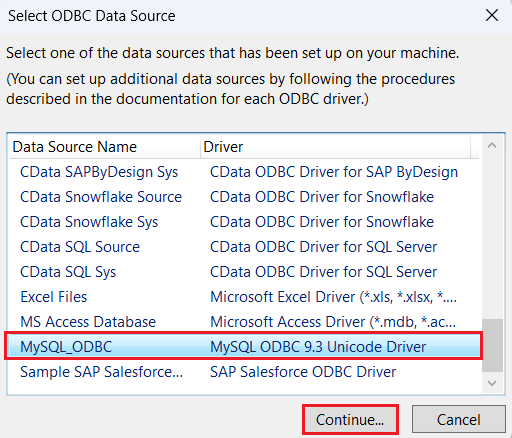
You have now successfully configured the MySQL ODBC Driver.
Use FileMaker ESS function to load Claude Compliance data
In this section, we explore how to use the ESS (External SQL Source) feature to retrieve data in the FileMaker application. Follow the given steps to complete the process:
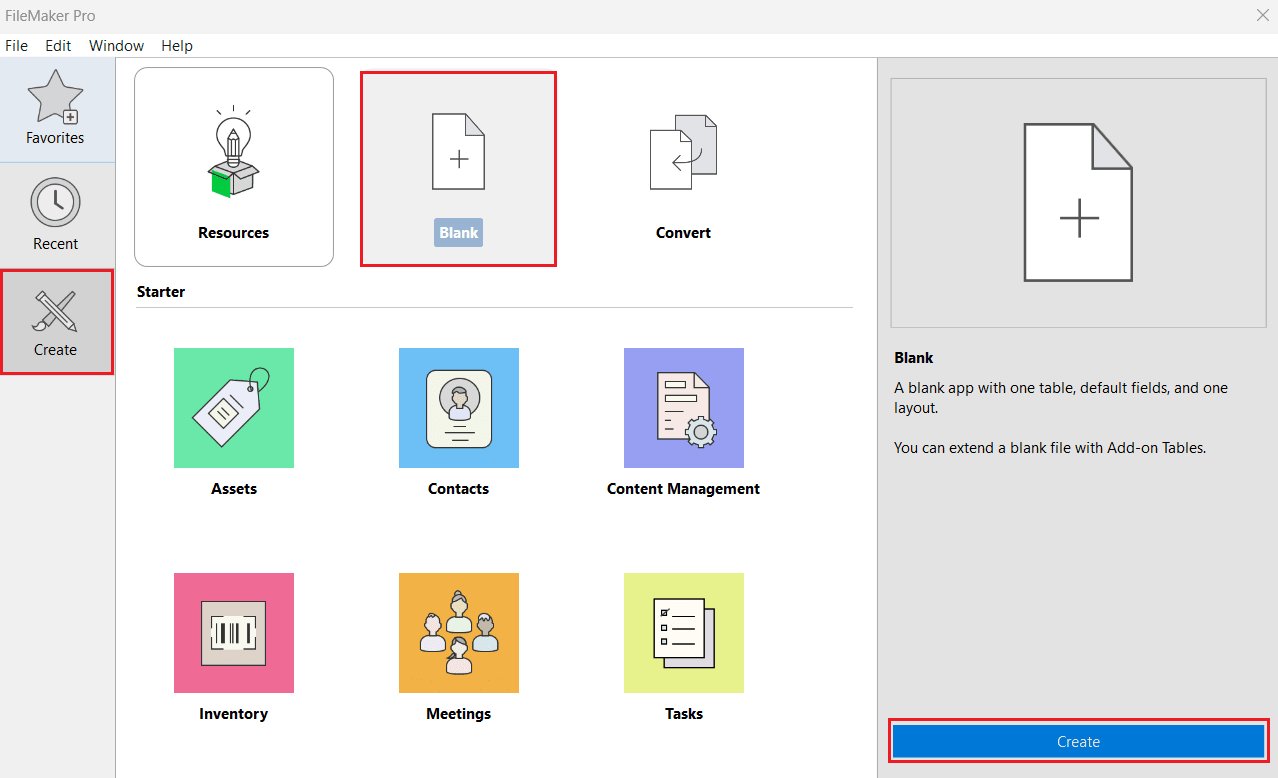
- Open FileMaker Pro. Navigate to Create from the left panel and select Blank > Create.
- Enter a desired filename and click Save.
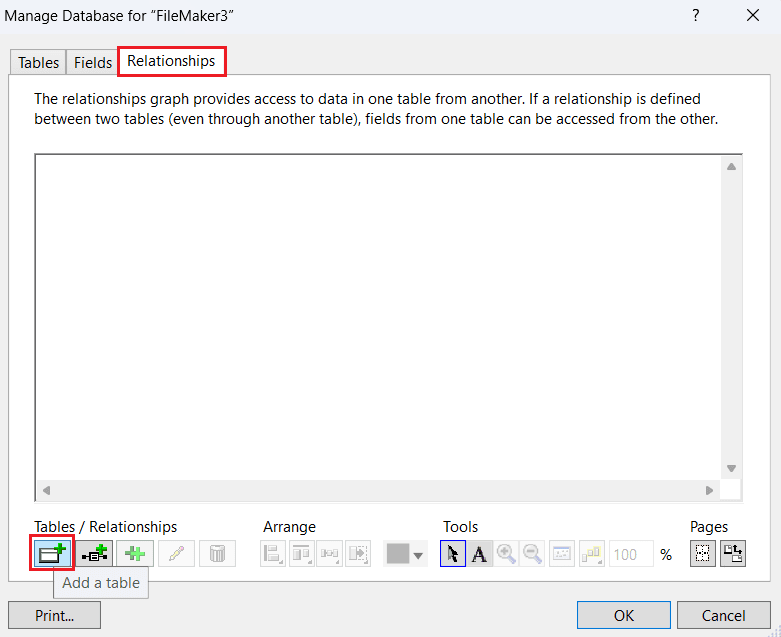
- In Manage Database, remove the Tables and Fields from the respective tabs. Select the Relationships tab and click Add Table.
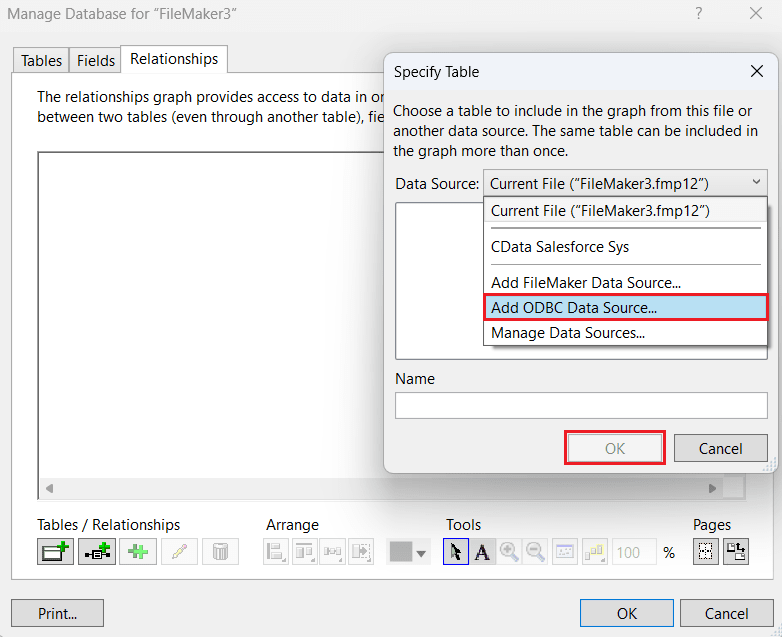
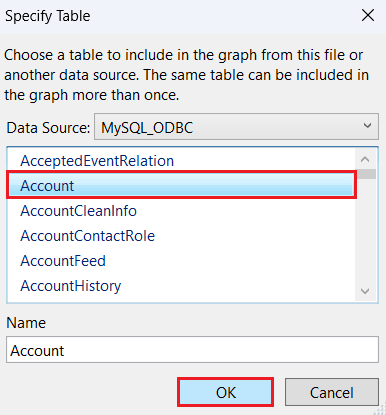
- In Specify Table, expand the Data Source dropdown menu and select Add ODBC Data Source. Click OK.
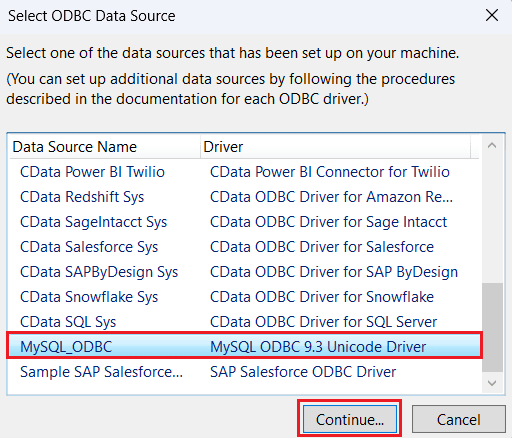
- In Select ODBC Data Source, select the previously configured MySQL ODBC driver and click Continue.
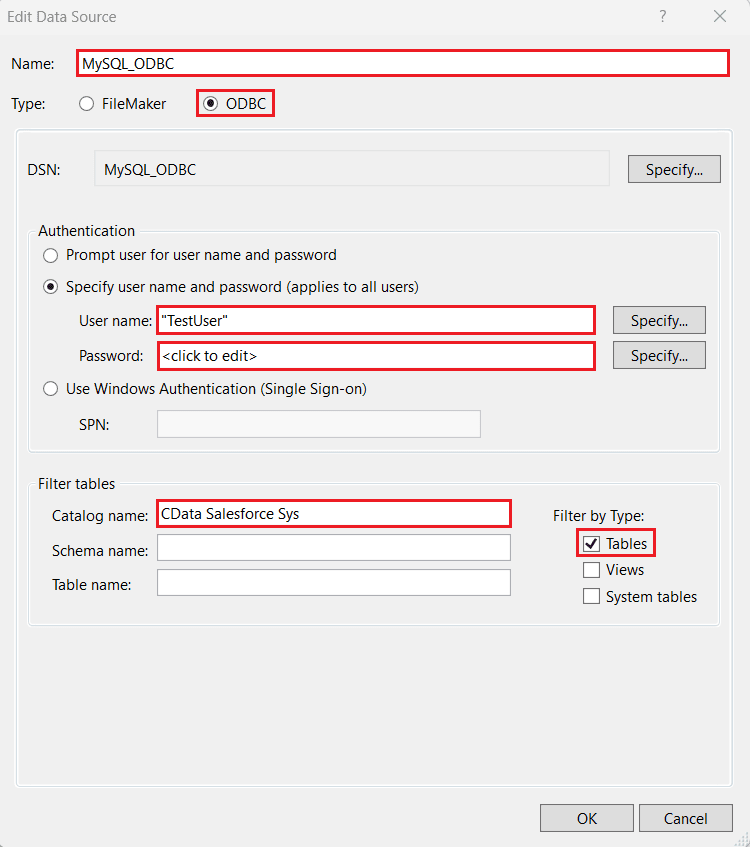
- In the Edit Data Source window, enter the following details:
- Name: This field will be auto-filled. Enter a new name of choice if necessary.
- Type: Select "ODBC".
- Under Authentication, select the Specify username and password radio button and enter the following details:
- User name: Enter the username set in the CData SQL Gateway.
- Password: Enter the password set in the CData SQL Gateway.
- Catalog Name: CData ClaudeCompliance Sys
- Click OK.
- View the tables from Claude Compliance populated under the Data Source section. Select the table of your choice and click OK.
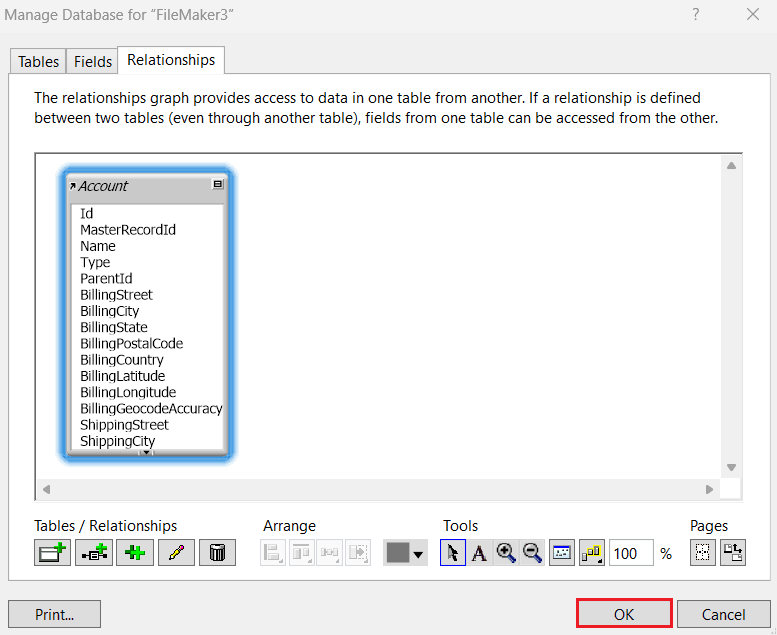
- The Relationships tab now displays the selected table and its metadata. Click OK.
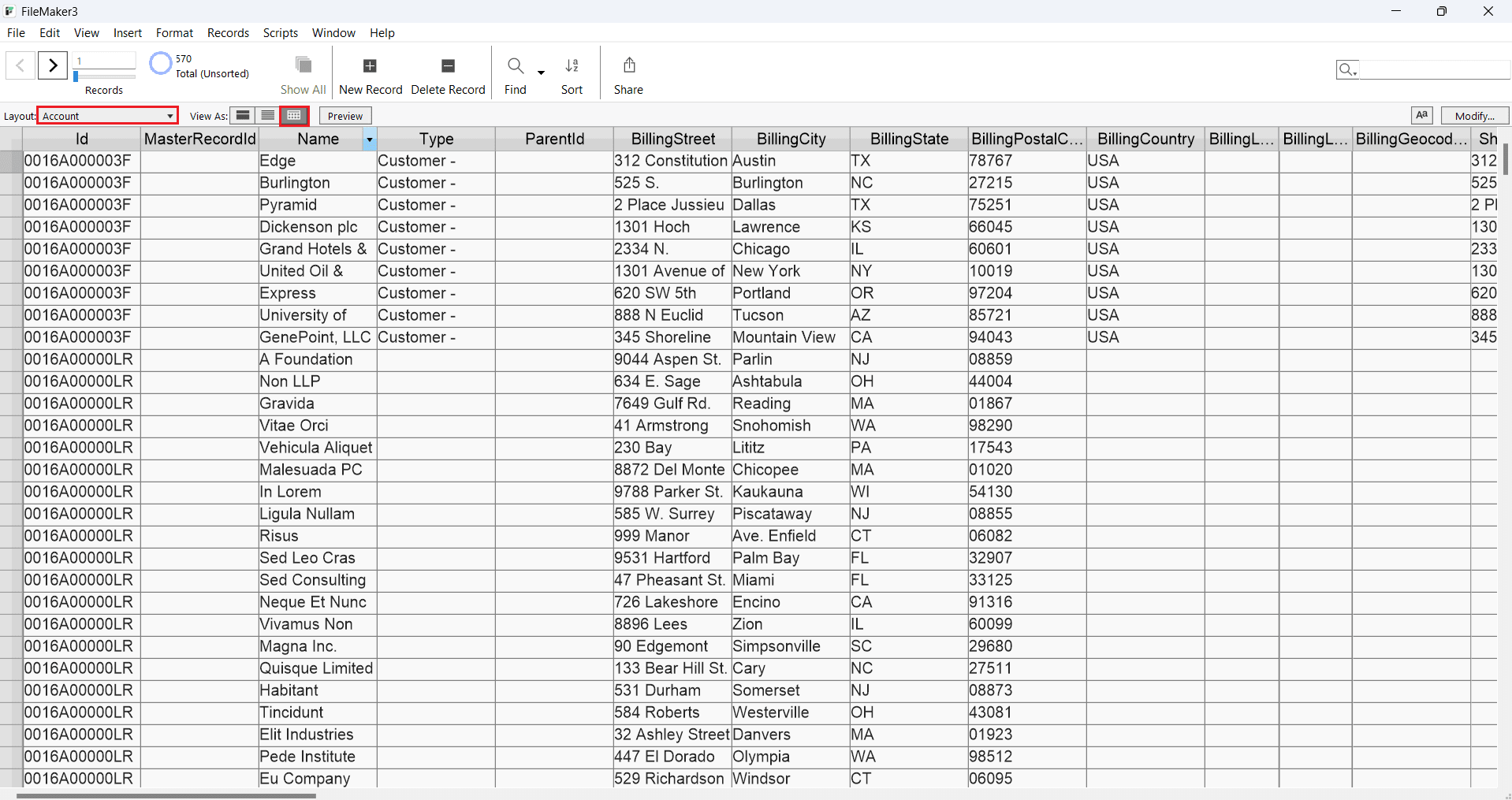
- Select the table from the Layout dropdown. The Claude Compliance table data appears on the screen. (As shown)
Get Started Today
Download a free 30-day trial of CData ODBC Driver for Claude Compliance to integrate Claude Compliance data into Claris FileMaker and use Claude Compliance data in your FileMaker applications.
Contact our Support Team if you have any questions.
Ready to get started?
Download a free trial of the Claude Compliance ODBC Driver to get started:
Download NowLearn more:
 Claude Compliance ODBC Driver
The Claude Compliance ODBC Driver is a powerful tool that allows you to connect with live data from Claude Compliance, directly from any applications that support ODBC connectivity.
Access Claude Compliance data like you would a database - read Claude Compliance Activities, Chats, ChatMessages, CodeArtifacts, ComplianceRoles, Organizations, OrganizationUsers, Projects, etc. through a standard ODBC Driver interface.