




How to connect PolyBase to Claude Compliance

PolyBase for SQL Server allows you to query external data by using the same Transact-SQL syntax used to query a database table. When paired with the CData ODBC Driver for Claude Compliance, you get access to your Claude Compliance data directly alongside your SQL Server data. This article describes creating an external data source and external tables to grant access to live Claude Compliance data using T-SQL queries.
NOTE: PolyBase is only available on SQL Server 19 and above.
The CData ODBC drivers offer unmatched performance for interacting with live Claude Compliance data using PolyBase due to optimized data processing built into the driver. When you issue complex SQL queries from SQL Server to Claude Compliance, the driver pushes down supported SQL operations, like filters and aggregations, directly to Claude Compliance and utilizes the embedded SQL engine to process unsupported operations (often SQL functions and JOIN operations) client-side. And with PolyBase, you can also join SQL Server data with Claude Compliance data, using a single query to pull data from distributed sources.
Connect to Claude Compliance
If you have not already, first specify connection properties in an ODBC DSN (data source name). This is the last step of the driver installation. You can use the Microsoft ODBC Data Source Administrator to create and configure ODBC DSNs. To create an external data source in SQL Server using PolyBase, configure a System DSN (CData Claude Compliance Sys is created automatically).
The driver connects to Claude Compliance using a Compliance Access Key, the only supported authentication method. Set the following connection property:
- APIKey: The Compliance Access Key you created.
Creating a Compliance Access Key
- Enable the Compliance API for your organization.
- Sign in to claude.ai as a primary owner or organization owner and open Organization settings > API > Keys.
- Select Create Key and assign only the scopes your integration needs:
- read:compliance_activities for Activities and the typed activity views.
- read:compliance_org_data for organizations, roles, groups, and settings.
- read:compliance_user_data for users, chats, files, projects, and downloads.
- delete:compliance_user_data for the explicit Delete stored procedures.
- Create the key and copy it when it appears. The key starts with sk-ant-api01- and is shown only once.
Optionally, set OrganizationUUID to limit organization-scoped views (such as OrganizationUsers and ComplianceRoles) to a single linked organization. If it is left empty, those views default to the first available organization and do not include data from all linked organizations.
Click "Test Connection" to ensure that the DSN is connected to Claude Compliance properly. Navigate to the Tables tab to review the table definitions for Claude Compliance.
Create an External Data Source for Claude Compliance Data
After configuring the connection, you need to create a master encryption key and a credential database for the external data source.
Creating a Master Encryption Key
Execute the following SQL command to create a new master key, 'ENCRYPTION,' to encrypt the credentials for the external data source.
CREATE MASTER KEY ENCRYPTION BY PASSWORD = 'password';
Creating a Credential Database
Execute the following SQL command to create credentials for the external data source connected to Claude Compliance data.
NOTE: Since Claude Compliance does not require a User or Password to authenticate, you may use whatever values you wish for IDENTITY and SECRET.
CREATE DATABASE SCOPED CREDENTIAL claudecompliance_creds
WITH IDENTITY = 'username', SECRET = 'password';
Create an External Data Source for Claude Compliance
Execute a CREATE EXTERNAL DATA SOURCE SQL command to create an external data source for Claude Compliance with PolyBase:
- Set the LOCATION parameter , using the DSN and credentials configured earlier.
For Claude Compliance, set SERVERNAME to the URL or address for your server (e.g. 'localhost' or '127.0.0.1' for local servers; the remote URL for remote servers). Leave PORT empty. PUSHDOWN is set to ON by default, meaning the ODBC Driver can leverage server-side processing for complex queries.
CREATE EXTERNAL DATA SOURCE cdata_claudecompliance_source
WITH (
  LOCATION = 'odbc://SERVER_URL',
  CONNECTION_OPTIONS = 'DSN=CData Claude Compliance Sys',
  -- PUSHDOWN = ON | OFF,
  CREDENTIAL = claudecompliance_creds
);
Create External Tables for Claude Compliance
After creating the external data source, use CREATE EXTERNAL TABLE statements to link to Claude Compliance data from your SQL Server instance. The table column definitions must match those exposed by the CData ODBC Driver for Claude Compliance. You can refer to the Tables tab of the DSN Configuration Wizard to see the table definition.
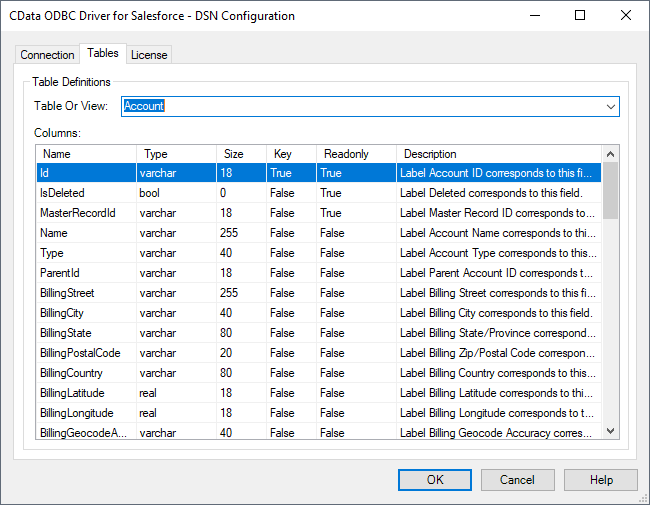
Sample CREATE TABLE Statement
The statement to create an external table based on a Claude Compliance Projects would look similar to the following:
CREATE EXTERNAL TABLE Projects(
  Id [nvarchar](255) NULL,
  Name [nvarchar](255) NULL,
  ...
) WITH (
  LOCATION='Projects',
  DATA_SOURCE=cdata_claudecompliance_source
);
Having created external tables for Claude Compliance in your SQL Server instance, you are now able to query local and remote data simultaneously. Thanks to built-in query processing in the CData ODBC Driver, you know that as much query processing as possible is being pushed to Claude Compliance, freeing up local resources and computing power. Download a free, 30-day trial of the ODBC Driver for Claude Compliance and start working with live Claude Compliance data alongside your SQL Server data today.
Ready to get started?
Download a free trial of the Claude Compliance ODBC Driver to get started:
Download NowLearn more:
 Claude Compliance ODBC Driver
The Claude Compliance ODBC Driver is a powerful tool that allows you to connect with live data from Claude Compliance, directly from any applications that support ODBC connectivity.
Access Claude Compliance data like you would a database - read Claude Compliance Activities, Chats, ChatMessages, CodeArtifacts, ComplianceRoles, Organizations, OrganizationUsers, Projects, etc. through a standard ODBC Driver interface.